Xbox One Controller Keeps Disconnecting But Stays On: 10 Quick Fixes
Having your Xbox One controller disconnect intermittently while still staying powered on can be frustrating and disrupt your gaming experience. Whether you’re in the middle of an intense battle or navigating through a game, these unexpected disconnections can be a nuisance. Fortunately, there are several quick fixes and troubleshooting steps you can take to address this issue and keep your gaming sessions uninterrupted.
In this article, we’ll explore some effective solutions to resolve the problem of an Xbox One controller that keeps disconnecting while remaining powered on.
Xbox Controller Always Disconnects? Possible Causes!
Here are potential causes for an Xbox controller’s frequent disconnections, laid out in bullet points:
- Low Battery: Insufficient charge might cause the controller to disconnect. Check and replace the batteries or recharge if you’re using a rechargeable pack.
- Interference: Wireless interference from other devices, such as routers, phones, or wireless headsets, can disrupt the controller’s connection. Move these devices away or switch to a wired connection for better stability.
- Distance from Console: Being too far from the Xbox One console might weaken the controller’s connection. Hence, remain within the suggested range to achieve the best possible performance.
- Controller Firmware: Outdated controller firmware can lead to connectivity issues. Ensure your controller has the latest firmware updates installed.
- Physical Obstructions: Objects or barriers between the controller and the console can weaken the signal. Clear any obstacles obstructing the signal path.
- Controller Hardware Issue: If none of the above work, there might be a hardware issue with the controller itself. Consider contacting Xbox Support or replacing the controller if it’s under warranty.
Xbox One Controller Keeps Disconnecting But Stays On? Quick Fixes!
Here are some quick and simple solutions that you can try to fix the Xbox controller always disconnects issue:
Solution 1: Move your Xbox controller closer to the console

The Xbox One controller connects wirelessly to the console, and distance can impact its connectivity. Bringing the controller closer reduces the chance of signal interference or weakening.
Follow these steps to resolve the issue:
- Reposition: Sit or stand closer to the console while gaming to maintain a stronger connection.
- Remove Obstacles: Clear any physical obstructions between the controller and the console, ensuring a direct line of sight for better connectivity.
- Check Signal Strength: Some Xbox consoles display signal strength indicators in the settings. Check these indicators to gauge the strength of the controller’s connection as you move closer to the console.
Improved proximity can enhance the stability of the wireless connection between the controller and the Xbox One console, reducing instances of disconnection while the controller remains powered on.
Solution 2: Replace the batteries

Insufficient power can cause intermittent disconnections. Fresh batteries or a fully charged rechargeable battery pack ensure a stable and continuous power supply to the controller.
- Battery Replacement: Replace the existing batteries with new ones or charge your rechargeable batteries fully.
- Check Battery Levels: Ensure the battery level is adequate for uninterrupted gameplay. Low battery notifications often precede disconnections.
- Use High-Quality Batteries: Opt for high-quality, recommended batteries for longer life and better performance.
By ensuring the controller has ample power, you eliminate one of the primary causes of disconnects, allowing for uninterrupted gaming sessions while the controller stays powered on.
Solution 3: Restart the Console
Software glitches or temporary issues within the console’s system can disrupt the connection between the Xbox One controller and the console. A simple restart can resolve these transient problems.
Here are the steps to power cycle your Xbox console:
Step 1: Turn off the Xbox One console completely. Pause for a moment, then power it up again after a few seconds.
Step 2: Once the console restarts, re-sync the controller by pressing the sync button on the console and the sync button on the controller simultaneously until they connect.

Step 3: After restarting, check for any pending system updates for the Xbox console as outdated software might contribute to connectivity issues.
Restarting the console can clear temporary system glitches or conflicts, establishing a fresh connection between the controller and the console. This action often resolves intermittent disconnection problems, allowing the controller to stay connected and operational.
Solution 4: Reconnect the Controller
Sometimes, re-establishing the connection between the controller and the console can resolve intermittent disconnection issues caused by signal disruptions or minor glitches.
Follow these steps to fix the Xbox One controller keeps disconnecting but stays on issue:
Step 1: Press and hold the Xbox button on the controller until it powers off completely.
Step 2: Press and hold the Xbox button on the controller again to turn it on. Then, press the sync button on the console and, within a few seconds, press and hold the small sync button on the top of the controller until the Xbox button flashes.
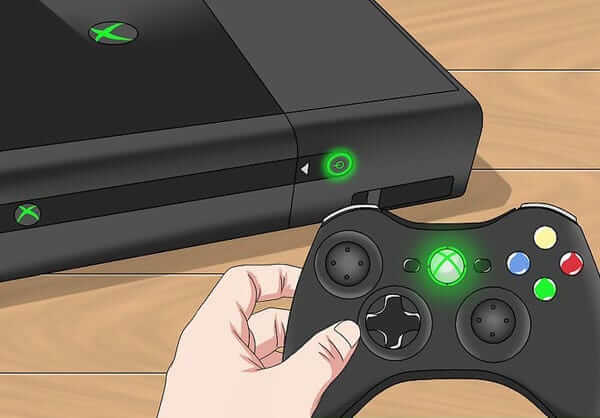
Step 3: Once reconnected, check if the controller remains connected without disconnecting intermittently.
Reconnecting the controller to the console establishes a fresh and stable connection, potentially resolving any temporary disruptions causing the controller to disconnect while staying powered on.
Solution 5: Update the Firmware of the Xbox Controller
Outdated firmware can lead to compatibility issues or connectivity problems. Updating the controller’s firmware ensures it’s equipped with the latest improvements and fixes, potentially resolving disconnection issues.
Follow these steps to fix the issue:
Step 1: Connect your Xbox controller to your Xbox console using a USB cable.
Step 2: From the Xbox Home Screen, click on “Settings” > “Devices & Accessories”.
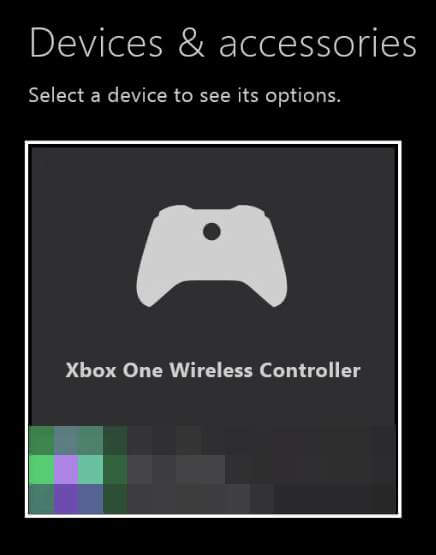
Step 3: Click on the name of your controller and then select “Firmware version” to check for any available updates.
Step 4: If an update is available, select “Update” and allow the update to install. Do not unplug the USB cable from the controller until the update completes.
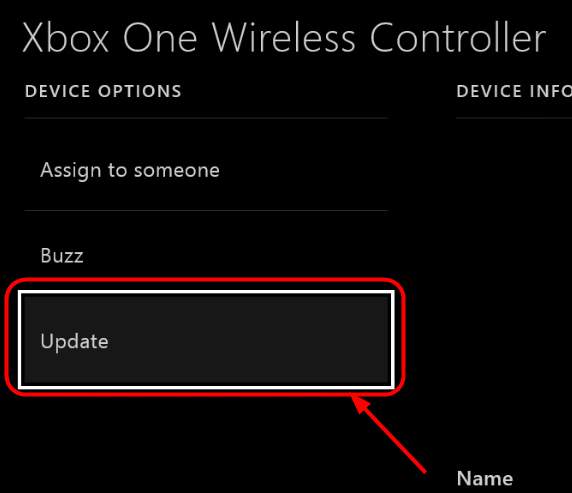
Step 5: When the controller update is complete, unplug and reconnect the USB cable. The Xbox Guide button will flash when the controller is turned on. You are now ready to use your controller with the updated firmware.
Updating the controller’s firmware can address known issues and bugs, enhancing its performance and stability. This can rectify intermittent disconnections while ensuring the controller stays connected during gameplay.
Solution 6: Update the Xbox Series Console
Just like controllers, outdated system software on the Xbox Series console can contribute to connectivity issues with peripherals like controllers. Updating the console’s software ensures compatibility and often resolves various performance-related problems.
Here are the steps to update the Xbox console:
Step 1: Navigate to the “Settings” menu on your Xbox Series console.
Step 2: Select the “Offline System Update” option within the settings menu.

Step 3: If there’s an available update, download and install it following the on-screen instructions. Ensure the console is connected to the internet for the update process.
Updating the Xbox Series console software can address system-related bugs or compatibility issues, potentially resolving the intermittent disconnection problem of the controller while ensuring a stable connection during gameplay.
Solution 7: Use a Wired Connection
Switching to a wired connection eliminates potential wireless interference or range issues, providing a stable and reliable connection between the controller and the Xbox One console.
Step 1: Use a USB cable to connect the controller directly to the Xbox One console.
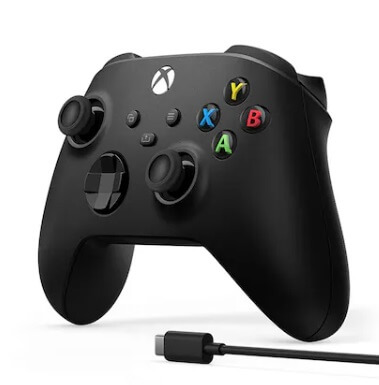
Step 2: Once connected, ensure the console recognizes the controller. It should automatically be configured for wired use.
Step 3: Play a game or navigate the console interface to ensure the wired connection remains stable without any disconnections.
Using a wired connection bypasses wireless interference and signal range limitations, ensuring a consistently stable connection between the controller and the Xbox One console. This effectively resolves the issue of intermittent disconnections while the controller stays powered on.
Solution 8: Adjust Wireless Router Settings
Wireless routers operating on the same frequency as the Xbox One console can cause interference, leading to controller disconnections. Tweaking router settings can minimize interference and improve the controller’s connection stability.
Here are some tips to consider:
- Router Placement: Ensure the router is placed away from the console and controller. Distance helps reduce potential interference.
- Change Wireless Channel: Access the router’s settings through a web browser and change the wireless channel to a less congested one. Channels 1, 6, or 11 are often recommended for 2.4GHz networks.
- Dual-Band Router: If available, consider using the 5GHz band for your wireless network. This band is less prone to interference from other devices.
- Check Impact: After adjusting settings, test the controller to see if the disconnection issue improves.
By optimizing wireless router settings, you can minimize signal interference, potentially improving the stability of the controller’s connection to the Xbox One console, and preventing intermittent disconnections while the controller remains powered on.
Solution 9: Update the Xbox Controller Driver (Windows PC)
If your controller repeatedly disconnects from your PC, it might be due to an incorrect or outdated Xbox One Controller driver. Updating this driver could potentially resolve the issue. If you lack the time, expertise, or patience to update the driver manually, you can use Driver Easy for an automated solution.
Driver Easy identifies your system automatically, ensuring it locates and installs the correct drivers without requiring you to pinpoint your system’s specifications. This means you won’t encounter the hassle of downloading the wrong driver or worry about installation errors. Driver Easy streamlines the entire process for you.
Here are the steps to follow:
Step 1: Download and install Driver Easy on your Windows PC.
Step 2: Launch Driver Easy and select the “Scan Now” option. This action prompts Driver Easy to conduct a thorough scan of your computer, identifying any drivers causing issues.
Step 3: Select the “Update All” option to initiate the automatic download and installation of the accurate versions for all missing or outdated drivers on your system.
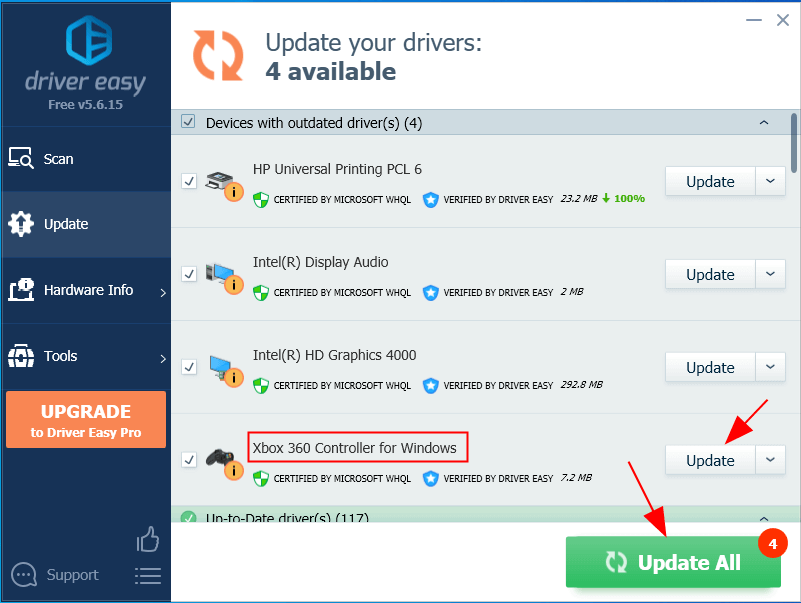
Step 4: Reboot your PC after updating the drivers.
Once the scan is complete, Driver Easy will provide you with a comprehensive list of any problematic drivers found on your system.
Solution 10: Switch to an Alternative Xbox Controller
If the previously attempted troubleshooting steps haven’t been effective, consider the possibility of acquiring a new controller. Before doing so, it’s crucial to ascertain whether the issue lies with the Xbox One console itself.
Attempt connecting the controller to an alternate console. If the connection is successful, the problem might indeed lie with your Xbox One console. Conversely, if you endeavor to link a different controller to your console and encounter connectivity issues, it’s evident that the problem doesn’t stem from the controllers.
However, if your Xbox One controller struggles to establish a connection with any other console while alternative controllers seamlessly connect to yours, the controller itself is likely malfunctioning. In such a case, replacing it would be the advisable course of action.
Conclusion
By exploring these quick fixes, you can tackle the frustrating issue of your Xbox One controller disconnecting while remaining powered on. Whether it’s adjusting settings, updating drivers, or optimizing connections, these solutions aim to ensure a smoother gaming experience without interruptions. Try these steps to keep your controller connected and your gaming sessions uninterrupted.
FAQs:
Q1: Why does my Xbox One controller keep disconnecting but stays on?
Several factors can lead to this issue, including low battery levels, wireless interference, outdated firmware, or physical obstructions affecting the signal between the controller and the console.
Q2: How can I fix my Xbox One controller disconnecting frequently?
Quick fixes involve moving the controller closer to the console, replacing batteries, restarting the console, re-pairing the controller, updating firmware or system software, and using a wired connection to mitigate connectivity issues.
Q3: Is there a way to prevent wireless interference from affecting my controller’s connection?
Yes, adjusting router settings, using a different wireless channel, or keeping electronic devices that emit signals away from the console and controller can minimize interference, improving connectivity.
Q4: Can updating drivers resolve the Xbox One controller disconnecting issue on a PC?
Yes, updating the Xbox controller drivers on a PC can address compatibility issues and potentially resolve disconnection problems, ensuring a stable connection during gameplay.

Author Bio:
Dinesh Lakhwani, the entrepreneurial brain behind “TechCommuters,” achieved big things in the tech world. He started the company to make smart and user-friendly tech solutions. Thanks to his sharp thinking, focus on quality and the motto of never giving up, TechCommuters became a top player in the industry. His commitment to excellence has propelled the company to a leading position in the industry.
Popular Post






Recent Post
Total PC Cleaner: Clean Disk, Antivirus for Windows (An Honest Review)
Simply type “PC cleaner” into the Microsoft Store search box and a long list appears. Well, yes! The icons look alike. The names overlap, and almost every description promises a faster, cleaner, safer computer. Many also use the word antivirus, which adds to the confusion. Total PC Cleaner: Clean Disk, Antivirus is one of the […]
PrivaZer PC Cleaning Tool: An In-Depth Review
Deleting a file in Windows does less than most people think. The system removes the file’s entry from its index and marks the space as free. The actual data often stays on the disk until something else overwrites it. That is why recovery tools can bring back files long after they were deleted. Files are […]
Windows Disk Cleanup Review: Features, Steps, and Real Results
Storage space does not disappear overnight. Tiny pieces of data accumulate little by little while Windows performs routine tasks. Old update files, temporary program data, and other unused items often remain saved on the drive. Eventually, these forgotten files can take up room that could be used for something more important. Disk Cleanup is a […]

JetClean Junk File Cleaner and PC Cleaning Tool: A Complete Review
Heads up before you read further: JetClean (made by BlueSprig) is discontinued. Its last version dates to 2016, and several listings say the official download is gone. Let’s begin our review article! Few Windows utilities stay in circulation for more than a decade without a major update. JetClean is one of them. The tool first […]

Defencebyte Computer Optimizer: An In-Depth Review
Slow startup, delayed app launches, and freezing windows are among the most common complaints from Windows users. In many cases, the cause is not failing hardware. It is the gradual buildup of leftover data. Uninstalled programs leave registry entries behind. Temporary files and logs collect in system folders. Broken file paths and unused extensions stay […]

Windows Storage Sense For PC Cleaning: Everything You Need To Know
The low disk space warning always shows up at the worst time. A big update is waiting to install. A file refuses to save. The storage bar in Settings has turned red, and nobody remembers what filled it. Most people react by hunting for a cleaner to download. Many never notice that Windows already has […]

EaseUS CleanGenius Reviewed: Features, Pricing, and Real Results
Nobody notices the first temporary file. Nobody notices the hundredth either. Then one day the drive is almost full, the browser drags, and Windows takes ages to start. Clutter builds in quiet ways. Installers leave leftovers. Browsers store cache and cookies. Apps write logs that nobody reads. Programs add themselves to startup without asking. None […]

Advanced SystemCare: Tool To Clean Your PC [Complete Review]
The first thing I notice is how the startup screen hangs. The fan kicks in fast and stays loud. If I open a simple folder, the whole system pauses for a moment. It does not look like a clear hard failure, yet the PC feels heavy and slow. This is not usually one big problem. […]

CCleaner PC Cleaning Tool: An In-Depth Review
Learn how to clean your PC with CCleaner. This complete guide covers features, step-by-step instructions, pros, cons, pricing, and FAQs to help you decide.

Avira PC Speed Up Tool: Is It Actually Worth It?
A fresh Windows install feels like a different world. Isn’t it? Everything opens fast. Menus snap into place. Then a year passes, sometimes less, and that same machine starts to feel heavy for no clear reason. Nothing dramatic happened. No single event caused it. It was just months of small leftovers stacking up quietly in […]
