Clearing App Cache Data on Windows 11/10: Complete Guide

Windows 11 and Windows 10 are known for their stability and user-friendly design. They are made to handle daily tasks, professional work, entertainment, and multitasking without trouble. When a system is new, apps open quickly, and everything feels responsive. Over time, though, many users start noticing small problems. Applications may take longer to launch, some programs may freeze, and the system may feel slower than before.
These issues usually do not appear suddenly. They build up gradually as the system is used day after day. One of the most common causes behind this slow decline in performance is the buildup of temporary files created by applications. These files are meant to help apps run faster, but they do not always clean themselves properly. When left unchecked, they can occupy a lot of disk space and interfere with smooth system operation.
Applications on Windows Store cache data to save time and resources. This cache may include images, logs, recent activity records, or temporary settings. While this helps apps start faster, the data can become outdated or corrupted. Old cache files may conflict with newer app versions. This is why regular system maintenance is important. Learning how clearing app cache data works can help keep your system stable and responsive for the long term.
Common Questions About App Cache on Windows
What is the app cache in Windows systems?
App cache is temporary data stored by applications to improve performance. It helps apps remember recent actions and settings so they do not need to reload everything from scratch. This makes apps feel faster during normal use. Over time, however, this cache grows and may stop being useful, especially after app updates.
Does removing the cache delete important files
In most cases, clearing the cache does not delete personal files. Documents, photos, and saved projects remain safe. Some apps may reset temporary preferences, but core data usually stays intact. This is why cache cleanup is considered a safe maintenance step.
When should the cache be cleaned?
There is no fixed schedule for cache cleaning. It is best done when apps feel slow, crash often, or behave oddly. Low disk space is another sign. Many users clean their cache every few months as part of general system care.
Can cache issues cause app errors?
Yes, corrupted or outdated cache files can lead to app crashes, freezing, or failure to open. Many minor app problems are fixed simply by removing old cache data. This makes cache cleaning a useful troubleshooting step.
Precautions to Take Before Cleaning App Cache

Before starting any cleanup process, it is important to prepare your system. Cache cleaning is generally safe, but careless steps can create issues. Understanding what should and should not be removed helps protect system stability and user data.
Windows provides built-in tools that handle cache safely. Still, users should follow basic precautions to avoid deleting important system files or interrupting running processes. A careful approach ensures a smooth cleanup without unwanted side effects.
Important Precautions
- Create a system restore point
A restore point allows you to undo changes if something goes wrong. It is a safety net for your system. - Close all running apps
Open apps may recreate cache files during cleanup. Closing them ensures better results. - Avoid system folders
System folders contain important files. Deleting them can lead to serious errors. - Check free disk space first
This helps you see how much space is recovered after cleanup. - Do not rush the process
Let the cleanup finish completely. Interruptions may cause incomplete deletion. - Avoid unknown third-party tools
Some tools remove files without explaining what they delete. This can be risky. - Back up important data
While cache cleanup is safe, backups are always a good habit. - Read the cleanup options carefully
Some tools list multiple file types. Understanding them prevents mistakes.
How to Clean App Cache Data on Windows 11/10
Windows offers several reliable methods to remove app cache. Some methods are simple and suited for beginners, while others offer more control for advanced users. Choosing the right approach depends on your comfort level and the type of apps you use.
Each method below is safe when used correctly. All of them help free storage space and improve app performance. Together, they provide a complete approach to clearing app cache data on modern Windows systems.
Method 1: Using Windows Settings
Using Windows Settings is the most straightforward way to remove app cache on Windows 11 and Windows 10. This method is especially helpful for users who prefer a clean and guided interface. Everything is laid out clearly, which reduces confusion and mistakes. Since this option is built directly into the operating system, it is safe and well-suited for everyday users who do not want to explore system folders manually.
This approach works best for apps installed through the Microsoft Store, but it can also help with other modern applications. The Settings panel allows users to manage app storage without touching sensitive system files. Because the steps are simple and reversible, this method is ideal for routine maintenance. It helps fix minor app issues while keeping the system stable.
Why use this method
- It is built into Windows
- It is safe and beginner-friendly
- It works well for modern apps
- It requires only a few clicks
Steps for clearing app cache data:
Step 1
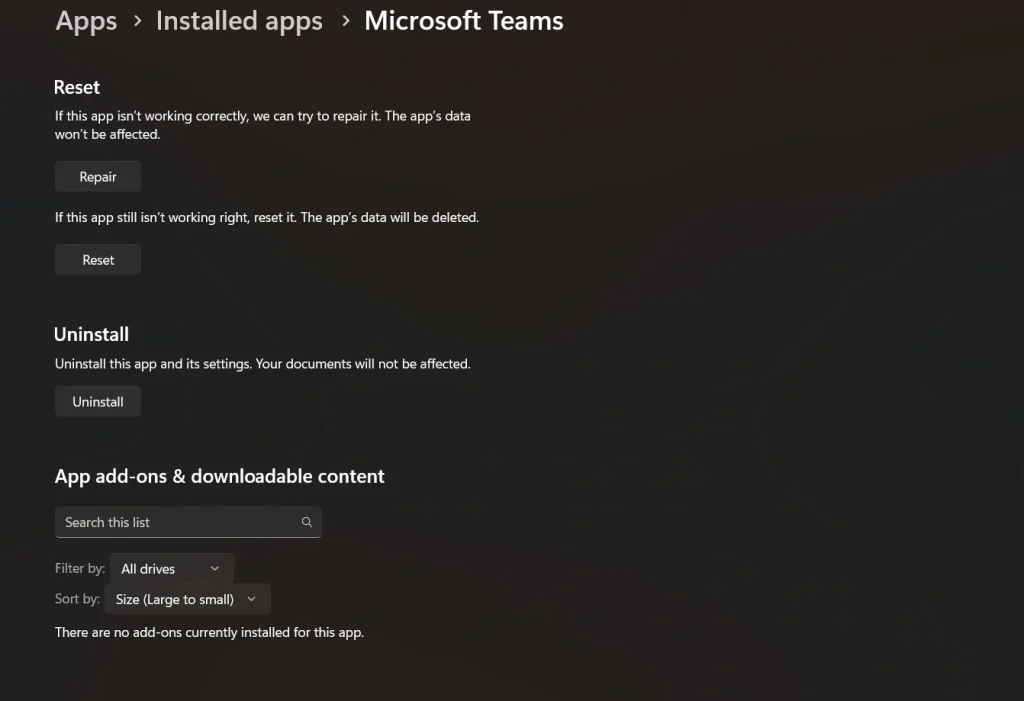
Open the Start menu and select Settings. Go to Apps and then open Installed apps. Find the app you want to clean and click on it. Select Advanced options.
Step 2
Scroll to the Reset section. Click the option to clear cache if available. Wait for the process to complete before reopening the app.
Method 2: Using Disk Cleanup Tool
The Disk Cleanup tool is one of the oldest and most trusted utilities in Windows. It is designed to remove unnecessary files that build up over time, including temporary app data. This method is useful when the system starts running low on storage or feels slower than usual. Disk Cleanup scans the drive and shows exactly what can be removed, making the process transparent.
This tool is effective for cleaning cache left behind by apps that no longer need it. It works across the entire system rather than focusing on a single application. Because it is a built-in Windows feature, users can rely on it without worrying about safety. Disk Cleanup is especially useful for users who want a broader cleanup without manual effort.
Why use this method
- It cleans system-wide temporary data
- It helps free significant disk space
- It is a trusted Windows utility
- It improves overall system performance
Steps for clearing app cache data:
Step 1
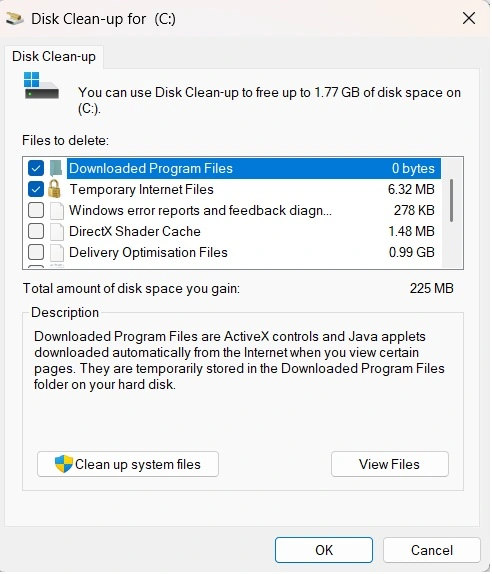
Type Disk Cleanup in the search bar and open the tool. Select your main system drive and click OK.
Step 2
Review the list of file types. Select temporary files and app-related cache items. Click Clean up system files and confirm the action.
Method 3: Manual Cache Cleanup
Manual cache cleanup offers the highest level of control. This method allows users to access temporary folders directly and decide what to remove. It is most useful for desktop applications that do not provide a clear cache-clearing option. Advanced users often prefer this method when troubleshooting specific app problems.
Because this approach involves direct access to folders, it requires extra care. Only temporary locations should be touched, and system folders must be avoided. When done correctly, manual cleanup can solve stubborn app issues that other methods fail to fix. It is best used occasionally and only when users understand which files are safe to delete.
Why use this method
- It provides full control
- It works for stubborn apps
- It does not rely on tools
- It allows deeper cleanup
Steps for clearing app cache data:
Step 1
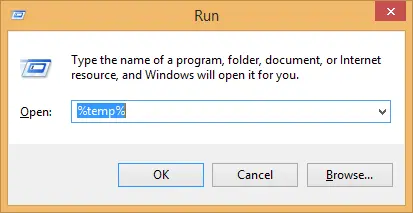
Press the Windows key and R together. Type %temp% and press Enter to open the temporary files folder.
Step 2
Identify folders related to apps you want to clean. Delete only temporary files. Empty the Recycle Bin after completion.
Author’s Tip
Cache cleaning should be part of regular system care, but it does not need to be frequent. Doing it too often provides little benefit. Watching system behavior is more important than following a strict schedule.
Always start with built-in Windows tools before trying manual methods. If you are unsure about a file, leave it untouched. A cautious approach keeps your system healthy and avoids unnecessary risks.
Conclusion
Cache files help apps run faster by saving temporary data. This way, when you open an app again, it doesn’t have to reload everything from the start. But cache files are not meant to stay forever. Over time, they become outdated and can slow things down instead of making them faster. They may also take up a lot of space on your computer.
That’s why clearing the cache is a good habit. Doing it safely keeps your system working smoothly and avoids problems. For people using Windows 10 or Windows 11, clearing app cache can make apps more stable, free up storage, and improve overall speed. In short, knowing how to clear cache helps you keep your computer clean, fast, and reliable.
FAQs
Is cache cleaning safe for all apps?
Yes, cache cleaning is generally safe for most apps on Windows. It removes only temporary files that apps can recreate when needed. Personal files and saved data usually remain untouched. After cleanup, some apps may take a little longer to open the first time. This is normal and only happens once.
Will cleaningthe cache make my computer faster
Cleaning the cache can improve system responsiveness, especially if apps were slow, freezing, or crashing often. It helps free disk space and reduces background clutter. The level of improvement depends on how much cache was stored and your system hardware. Older or heavily used systems often show better results.
Can cache cleanup be automated
Yes, Windows includes features like Storage Sense that can automate parts of cache cleanup. These tools remove temporary files on a schedule without user action. However, settings should be reviewed carefully. This ensures that only safe files are deleted and important data is not affected.
Popular Post
Recent Post
How To Clear Browser Cache On Windows 11/10 [Chrome, FireFox, Edge]
Learn how to clear browser cache on Windows 11 and 10. Follow simple steps to clean browser cache, fix slow browsing, and improve performance easily.

How To Clear Cache Memory On Windows 11/10 [2026]
Learn how to clear cache memory on Windows 11/10 using safe built-in methods to improve speed, free space, and maintain smooth system performance.

Windows Installer Cleanup Utility: Complete Review And Alternatives
Detailed review of Windows Installer Cleanup Utility, reasons for removal, risks, and safer modern alternatives explained clearly.

How To Clean Junk Files On Windows 11/10
Learn how to clean junk files on Windows 11 and 10 using safe, simple steps to boost speed and free storage space effectively.
Clearing App Cache Data on Windows 11/10: Complete Guide
Learn how to safely clear app cache on Windows 11 and 10 to fix slow apps, free disk space, and improve overall system performance.

How To Clean Up System Files On Windows 11/10: Complete Guide
Explore a step-by-step guide explaining how Windows users can safely remove unnecessary system data using built-in tools.

How To Clean a Laptop Fan Without Opening [2026 Guide]
Learn how to clean a laptop fan without opening the device using safe steps, simple tools, and easy methods for better cooling.

How to Clear the Queue in the Printer Automatically in 2026
Learn how to clear the queue in the printer with simple steps. This easy guide explains why print jobs get stuck and how to fix them safely for smooth printing.

How To Clear Delivery Optimization Cache In Windows
Learn how to clear Delivery Optimization Cache in Windows safely and easily. This guide explains steps, precautions, benefits, and FAQs to free space and avoid update issues.

How To Clear Cache in Edge [Windows 11/10]: Latest Guide
Learn how to clear cache in Edge on Windows 11 and Windows 10. Step by step guide with precautions, FAQs, and tips to fix slow pages and errors.
