Clearing App Cache Data on Windows 11/10: Complete Guide
Windows 11 and Windows 10 are known for their stability and user-friendly design. They are made to handle daily tasks, professional work, entertainment, and multitasking without trouble. When a system is new, apps open quickly, and everything feels responsive. Over time, though, many users start noticing small problems. Applications may take longer to launch, some programs may freeze, and the system may feel slower than before.
These issues usually do not appear suddenly. They build up gradually as the system is used day after day. One of the most common causes behind this slow decline in performance is the buildup of temporary files created by applications. These files are meant to help apps run faster, but they do not always clean themselves properly. When left unchecked, they can occupy a lot of disk space and interfere with smooth system operation.
Applications on Windows Store cache data to save time and resources. This cache may include images, logs, recent activity records, or temporary settings. While this helps apps start faster, the data can become outdated or corrupted. Old cache files may conflict with newer app versions. This is why regular system maintenance is important. Learning how clearing app cache data works can help keep your system stable and responsive for the long term.
Common Questions About App Cache on Windows
What is the app cache in Windows systems?
App cache is temporary data stored by applications to improve performance. It helps apps remember recent actions and settings so they do not need to reload everything from scratch. This makes apps feel faster during normal use. Over time, however, this cache grows and may stop being useful, especially after app updates.
Does removing the cache delete important files
In most cases, clearing the cache does not delete personal files. Documents, photos, and saved projects remain safe. Some apps may reset temporary preferences, but core data usually stays intact. This is why cache cleanup is considered a safe maintenance step.
When should the cache be cleaned?
There is no fixed schedule for cache cleaning. It is best done when apps feel slow, crash often, or behave oddly. Low disk space is another sign. Many users clean their cache every few months as part of general system care.
Can cache issues cause app errors?
Yes, corrupted or outdated cache files can lead to app crashes, freezing, or failure to open. Many minor app problems are fixed simply by removing old cache data. This makes cache cleaning a useful troubleshooting step.
Precautions to Take Before Cleaning App Cache

Before starting any cleanup process, it is important to prepare your system. Cache cleaning is generally safe, but careless steps can create issues. Understanding what should and should not be removed helps protect system stability and user data.
Windows provides built-in tools that handle cache safely. Still, users should follow basic precautions to avoid deleting important system files or interrupting running processes. A careful approach ensures a smooth cleanup without unwanted side effects.
Important Precautions
- Create a system restore point
A restore point allows you to undo changes if something goes wrong. It is a safety net for your system. - Close all running apps
Open apps may recreate cache files during cleanup. Closing them ensures better results. - Avoid system folders
System folders contain important files. Deleting them can lead to serious errors. - Check free disk space first
This helps you see how much space is recovered after cleanup. - Do not rush the process
Let the cleanup finish completely. Interruptions may cause incomplete deletion. - Avoid unknown third-party tools
Some tools remove files without explaining what they delete. This can be risky. - Back up important data
While cache cleanup is safe, backups are always a good habit. - Read the cleanup options carefully
Some tools list multiple file types. Understanding them prevents mistakes.
How to Clean App Cache Data on Windows 11/10
Windows offers several reliable methods to remove app cache. Some methods are simple and suited for beginners, while others offer more control for advanced users. Choosing the right approach depends on your comfort level and the type of apps you use.
Each method below is safe when used correctly. All of them help free storage space and improve app performance. Together, they provide a complete approach to clearing app cache data on modern Windows systems.
Method 1: Using Windows Settings
Using Windows Settings is the most straightforward way to remove app cache on Windows 11 and Windows 10. This method is especially helpful for users who prefer a clean and guided interface. Everything is laid out clearly, which reduces confusion and mistakes. Since this option is built directly into the operating system, it is safe and well-suited for everyday users who do not want to explore system folders manually.
This approach works best for apps installed through the Microsoft Store, but it can also help with other modern applications. The Settings panel allows users to manage app storage without touching sensitive system files. Because the steps are simple and reversible, this method is ideal for routine maintenance. It helps fix minor app issues while keeping the system stable.
Why use this method
- It is built into Windows
- It is safe and beginner-friendly
- It works well for modern apps
- It requires only a few clicks
Steps for clearing app cache data:
Step 1
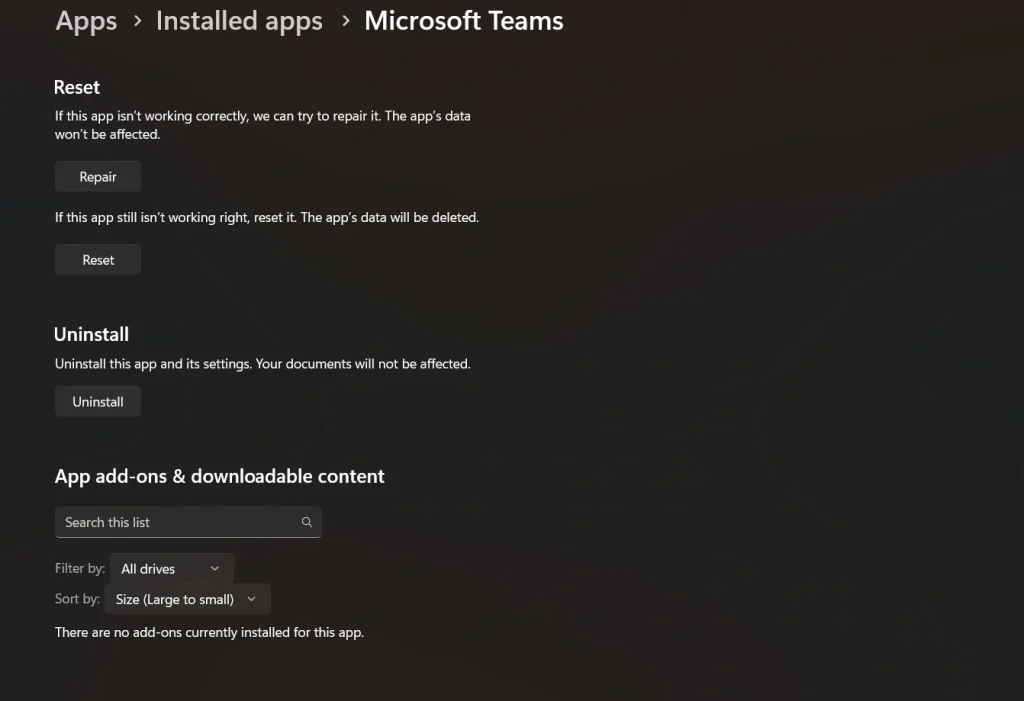
Open the Start menu and select Settings. Go to Apps and then open Installed apps. Find the app you want to clean and click on it. Select Advanced options.
Step 2
Scroll to the Reset section. Click the option to clear cache if available. Wait for the process to complete before reopening the app.
Method 2: Using Disk Cleanup Tool
The Disk Cleanup tool is one of the oldest and most trusted utilities in Windows. It is designed to remove unnecessary files that build up over time, including temporary app data. This method is useful when the system starts running low on storage or feels slower than usual. Disk Cleanup scans the drive and shows exactly what can be removed, making the process transparent.
This tool is effective for cleaning cache left behind by apps that no longer need it. It works across the entire system rather than focusing on a single application. Because it is a built-in Windows feature, users can rely on it without worrying about safety. Disk Cleanup is especially useful for users who want a broader cleanup without manual effort.
Why use this method
- It cleans system-wide temporary data
- It helps free significant disk space
- It is a trusted Windows utility
- It improves overall system performance
Steps for clearing app cache data:
Step 1
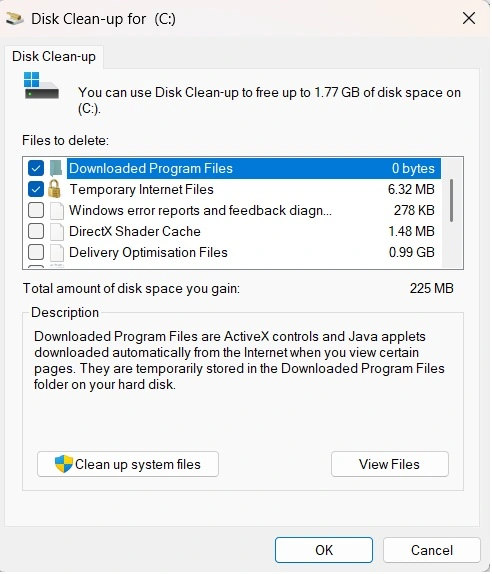
Type Disk Cleanup in the search bar and open the tool. Select your main system drive and click OK.
Step 2
Review the list of file types. Select temporary files and app-related cache items. Click Clean up system files and confirm the action.
Method 3: Manual Cache Cleanup
Manual cache cleanup offers the highest level of control. This method allows users to access temporary folders directly and decide what to remove. It is most useful for desktop applications that do not provide a clear cache-clearing option. Advanced users often prefer this method when troubleshooting specific app problems.
Because this approach involves direct access to folders, it requires extra care. Only temporary locations should be touched, and system folders must be avoided. When done correctly, manual cleanup can solve stubborn app issues that other methods fail to fix. It is best used occasionally and only when users understand which files are safe to delete.
Why use this method
- It provides full control
- It works for stubborn apps
- It does not rely on tools
- It allows deeper cleanup
Steps for clearing app cache data:
Step 1
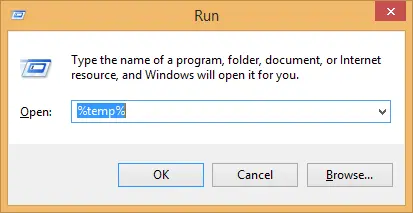
Press the Windows key and R together. Type %temp% and press Enter to open the temporary files folder.
Step 2
Identify folders related to apps you want to clean. Delete only temporary files. Empty the Recycle Bin after completion.
Author’s Tip
Cache cleaning should be part of regular system care, but it does not need to be frequent. Doing it too often provides little benefit. Watching system behavior is more important than following a strict schedule.
Always start with built-in Windows tools before trying manual methods. If you are unsure about a file, leave it untouched. A cautious approach keeps your system healthy and avoids unnecessary risks.
Conclusion
Cache files help apps run faster by saving temporary data. This way, when you open an app again, it doesn’t have to reload everything from the start. But cache files are not meant to stay forever. Over time, they become outdated and can slow things down instead of making them faster. They may also take up a lot of space on your computer.
That’s why clearing the cache is a good habit. Doing it safely keeps your system working smoothly and avoids problems. For people using Windows 10 or Windows 11, clearing app cache can make apps more stable, free up storage, and improve overall speed. In short, knowing how to clear cache helps you keep your computer clean, fast, and reliable.
FAQs
Is cache cleaning safe for all apps?
Yes, cache cleaning is generally safe for most apps on Windows. It removes only temporary files that apps can recreate when needed. Personal files and saved data usually remain untouched. After cleanup, some apps may take a little longer to open the first time. This is normal and only happens once.
Will cleaningthe cache make my computer faster
Cleaning the cache can improve system responsiveness, especially if apps were slow, freezing, or crashing often. It helps free disk space and reduces background clutter. The level of improvement depends on how much cache was stored and your system hardware. Older or heavily used systems often show better results.
Can cache cleanup be automated
Yes, Windows includes features like Storage Sense that can automate parts of cache cleanup. These tools remove temporary files on a schedule without user action. However, settings should be reviewed carefully. This ensures that only safe files are deleted and important data is not affected.

Author Bio:
Dinesh Lakhwani, the entrepreneurial brain behind “TechCommuters,” achieved big things in the tech world. He started the company to make smart and user-friendly tech solutions. Thanks to his sharp thinking, focus on quality and the motto of never giving up, TechCommuters became a top player in the industry. His commitment to excellence has propelled the company to a leading position in the industry.
Popular Post





Recent Post

CCleaner PC Cleaning Tool: An In-Depth Review
Learn how to clean your PC with CCleaner. This complete guide covers features, step-by-step instructions, pros, cons, pricing, and FAQs to help you decide.

Avira PC Speed Up Tool: Is It Actually Worth It?
A fresh Windows install feels like a different world. Isn’t it? Everything opens fast. Menus snap into place. Then a year passes, sometimes less, and that same machine starts to feel heavy for no clear reason. Nothing dramatic happened. No single event caused it. It was just months of small leftovers stacking up quietly in […]

Avast PC Cleanup Tool: A Detailed Review
Computers do not slow down overnight. Well, yes! That’s right! It happens in small steps. A temporary file here. A leftover installer there. A browser cache that quietly grows for months without anyone noticing. Add a few startup programs that load automatically, and soon your once fast machine feels like it is wading through mud. […]

Outbyte PC Repair and Cleanup Tool: A Detailed Review
The laptop took nearly two minutes to open one folder. Chrome froze twice. The fan sounded like a tiny jet engine. Most of us have lived through a day like this. Right? Don’t worry! The machine is not dying. It is just tired and messy. A good cleanup can often bring back some of the […]

WMaster Cleanup PC Cleaner Tool: A Detailed Review
Your PC was fast on day one. Right? Every click felt instant, every app opened in a snap, and the fan barely made a sound. Then came the browser tabs, the half-finished downloads, and the apps you tried once and forgot to remove. Slowly, without any warning, that same machine started to feel tired. Boot-ups […]
BleachBit PC Cleaner Tool: Complete Review After Running Tests
A PC never stays clean on its own. Every app you open, every website you visit, and every file you download leaves something behind. Weeks turn into months, and suddenly your storage feels tight, and your PC feels slower, with no clear reason why. The usual fix is a cleaning tool. But the market is […]

Iolo System Mechanic Review: Full Breakdown and Honest Take
Iolo System Mechanic is designed for users who want their PC to feel fresh and responsive again. With just a few clicks, it digs into the system, clears out unnecessary clutter, and delivers noticeable speed improvements. The interface is straightforward and beginner‑friendly, making it easy to navigate without confusion. But this tool goes beyond simple […]

Clean Master for PC Tested: A Full Breakdown of Its Tools
A computer doesn’t slow down overnight. Right? It happens bit by bit. Extra downloads, leftover cache, startup apps piling up. Soon the fast machine you loved feels sluggish. Boot times drag, programs freeze, and even opening a browser tab feels heavy. This slow decline is common, caused by junk files, cluttered registries, and hidden tasks […]
How To Clean Your PC/Laptop: Guide for Beginners to Experts
A computer never announces that it needs help. Well, yes! It just gets slower, hotter, and noisier, one day at a time, until you finally stop and wonder what changed. Nothing changed overnight. What happened is dust and clutter, working quietly in the background for months. Dust settles inside fans and vents, trapping heat and […]

Wise Care 365 PC Cleaner Tool: A Hands-On Review
Every Windows user knows the feeling. Your computer runs fast on day one. Then months pass. Files pile up. The registry gets messy. Startup takes longer. Apps freeze more often. This slow decline is normal, but it is also annoying. Most people just live with it. Some restart their PC often, hoping it helps. It […]
