Glary Utilities PC Cleaner: Complete Review [Tested and Trusted]
Glary Utilities is one of the most popular PC optimization tools available today. It combines cleaning, repair, and performance‑boosting features into a single suite. The goal is simple: keep your computer running fast and stable without needing multiple separate programs.
In this review, we’ll look at how Glary Utilities performs in real use, what features stand out, and where it falls short. From quick cleanups with One‑Click Maintenance to deeper tools like Registry Repair and Privacy Protection, the suite promises a complete solution for everyday PC care.
Glary Utilities PC Cleaner Explained: Everything You Need To Know
Part 1: Brief Overview: Glary Utilities
Glary Utilities is a system maintenance program built for Windows computers. It brings together many small tools that would otherwise need separate downloads. The idea behind it is simple. Instead of installing one app for disk cleanup, another for registry repair, and a third for startup management, users get all of these in a single dashboard.
The tool has been around for many years and has built a steady user base during that time. It is known mostly for its clean and simple design, which makes it easy for beginners to use right away. At the same time, it offers enough depth for users who like to control each setting on their own.
So, there is a free version that covers the core cleaning tasks, and a paid version called Pro that adds automation, scheduling, and a few extra tools. Many users start with the free version and later decide if the Pro upgrade is worth the cost based on how often they use the software.
Quick features include:
- Disk cleanup and junk file removal
- Registry repair and defrag
- Startup manager
- Duplicate file finder
- File shredder for permanent deletion
- Privacy eraser for browsing traces
- Software updater
- File recovery tool
Quick Overview of Glary Utilities
- Latest Version: 6.45.0.49
- Release Date: July 20, 2026
- File Size: 27.07 MB
- Supported Platforms: Windows 11, 10, 8, 7, Vista, XP, 2000 (32/64‑bit)
- Languages: 44 languages supported
- License Options: Free version, Pro ($39.95/year for 3 PCs), Technician ($169/year)
Part 2: Top Reasons People Choose Glary Utilities PC Cleaner
There are several reasons why users pick this software over other cleaning tools on the market. Some of it comes down to convenience, while other reasons relate to safety and cost. Below is a closer look at what makes it stand out from the crowd.
- All-in-one design: Users get cleaning, repair, and privacy tools bundled into one download instead of juggling multiple separate programs from different developers.
- Easy for beginners: The main screen has a single large button for quick fixes, so new users are not forced to dig through confusing menus or settings.
- Free version available: Anyone can try the core cleaning features without paying anything, which lowers the barrier for people who are unsure about committing to a paid tool.
- Regular updates: The developer keeps releasing new builds to stay compatible with new Windows versions and to patch small bugs reported by users.
- Low system load: The program does not use too much RAM or CPU while sitting in the background, which matters a lot for older or lower-spec machines.
- Safe registry cleaning: It creates a backup of the registry before making any changes, which lowers the risk of something breaking during the repair process.
- File recovery option: It can bring back files that were deleted by accident or lost after a drive was formatted, which many basic cleaners do not offer.
Part 3: Key Features Explained: Glary Utilities Tool
This part breaks down the main features in more detail. Each tool inside the suite plays a different role in keeping a PC clean, fast, and safe from clutter. Some are meant for quick daily use, while others are better suited for occasional deep cleaning.
Here are the six key features worth knowing about before deciding whether the tool fits your needs.
1. One-Click Maintenance
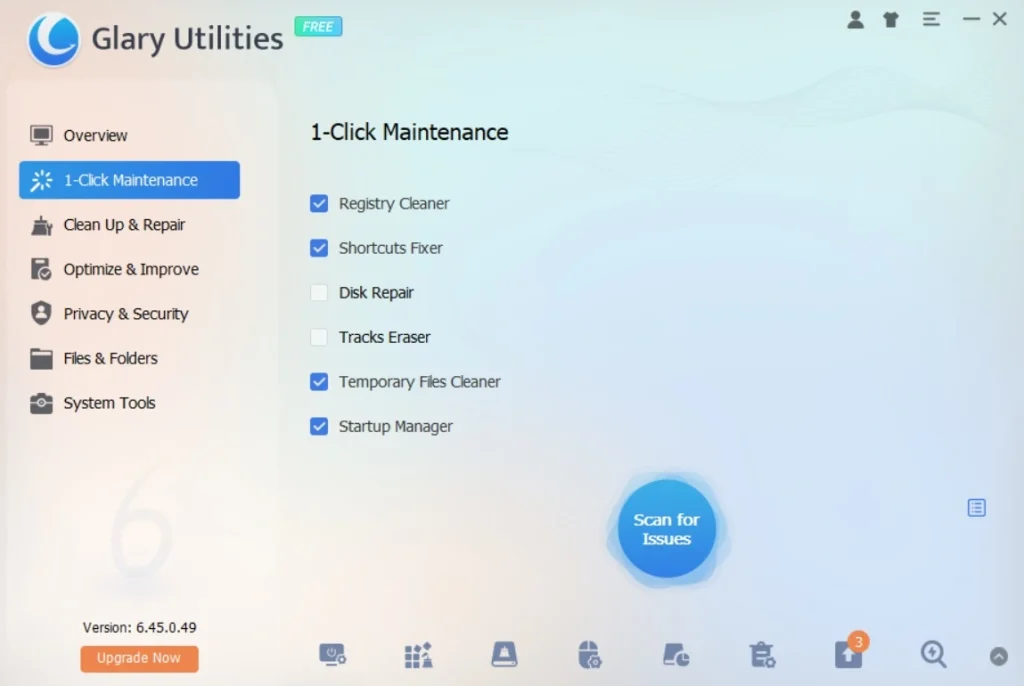
This feature scans the entire system in a single pass and fixes several issues at once. It checks for junk files, registry errors, and privacy traces all together instead of running separate scans for each one. Instead of clicking through five different tools, the user just presses one button and lets the software handle the rest. This design saves a lot of time for people who do not want to spend time digging through settings or reading technical reports. It is often the first thing new users try after installing the program, since it requires almost no learning curve.
2. Disk Cleaner
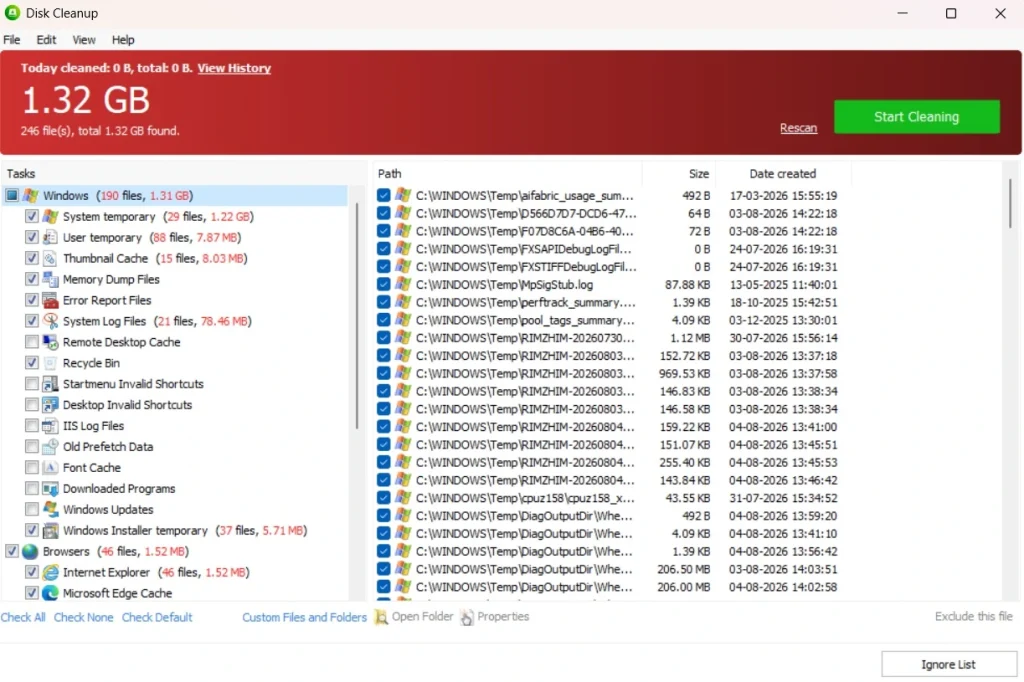
This feature searches for temporary files, browser cache data, and old log files that quietly build up on the hard drive over months of regular use. Removing them frees up storage space without touching personal files such as photos, videos, or documents. It is one of the simplest tools inside the suite, but it is also one of the most used, since disk space issues are one of the more common complaints among everyday computer users.
3. Duplicate File Finder
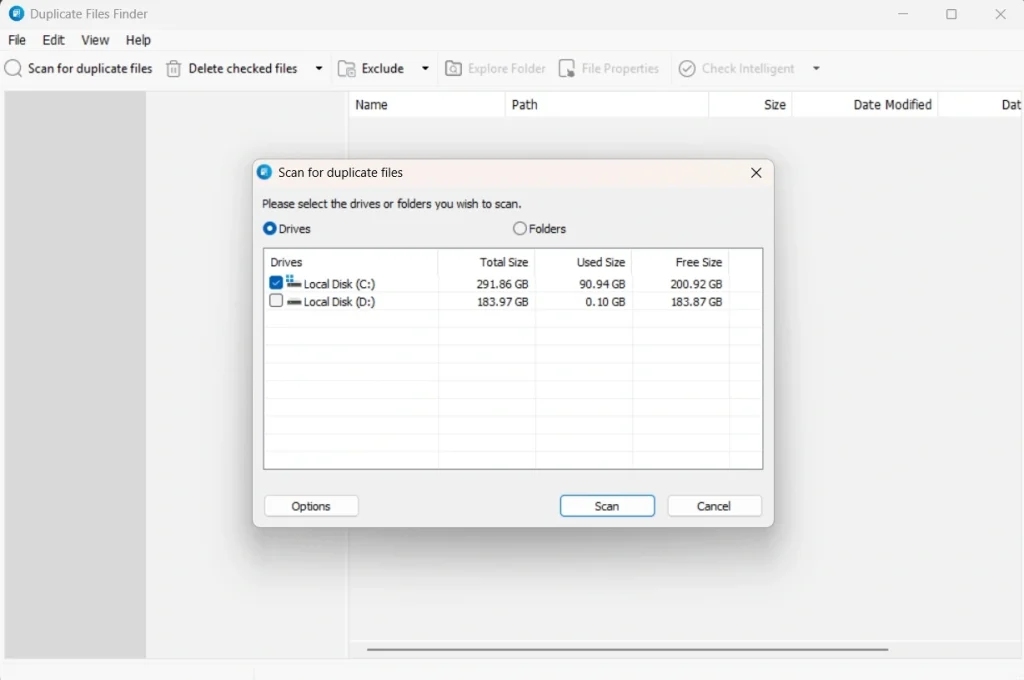
Many people store the same photo, video, or document in more than one folder without realizing it, especially after moving files between drives or backing them up multiple times. This tool scans selected drives and flags exact copies so they can be reviewed and removed safely. It helps free up meaningful space, especially on drives filled with years of collected media files, downloads, and old backups.
4. Startup Manager
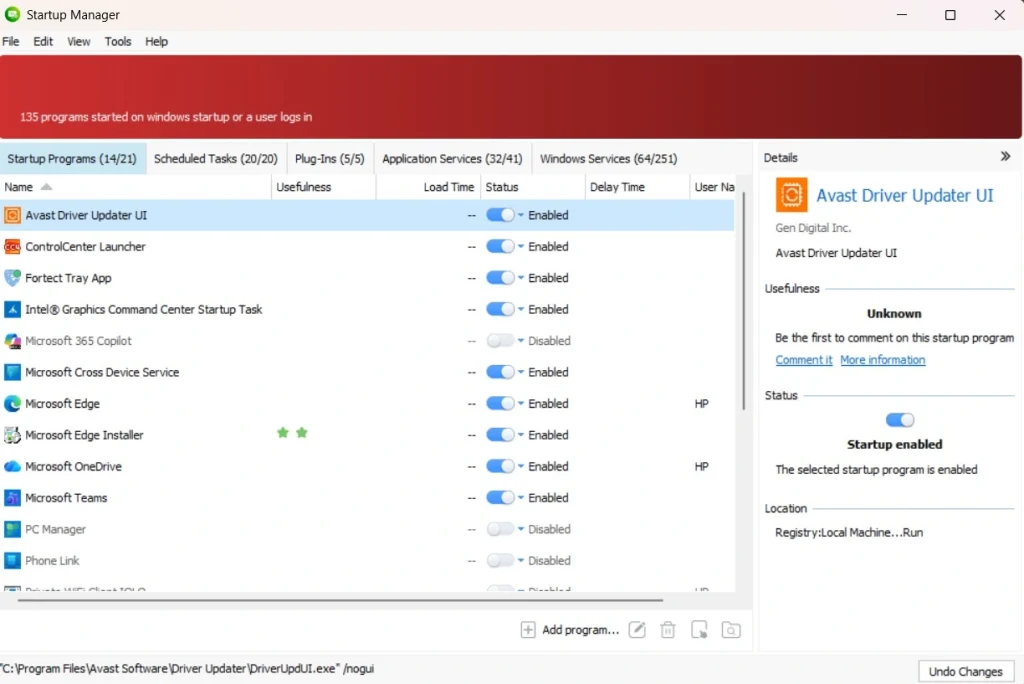
Some programs load automatically the moment Windows starts, even though they are rarely used right away. This slows down boot time and can make the first few minutes after turning on the PC feel sluggish. This feature shows a full list of these startup programs and lets the user disable the ones that are not needed immediately. It is a small feature on paper, but it tends to make a noticeable difference in how fast the desktop becomes usable after a restart.
5. File Shredder
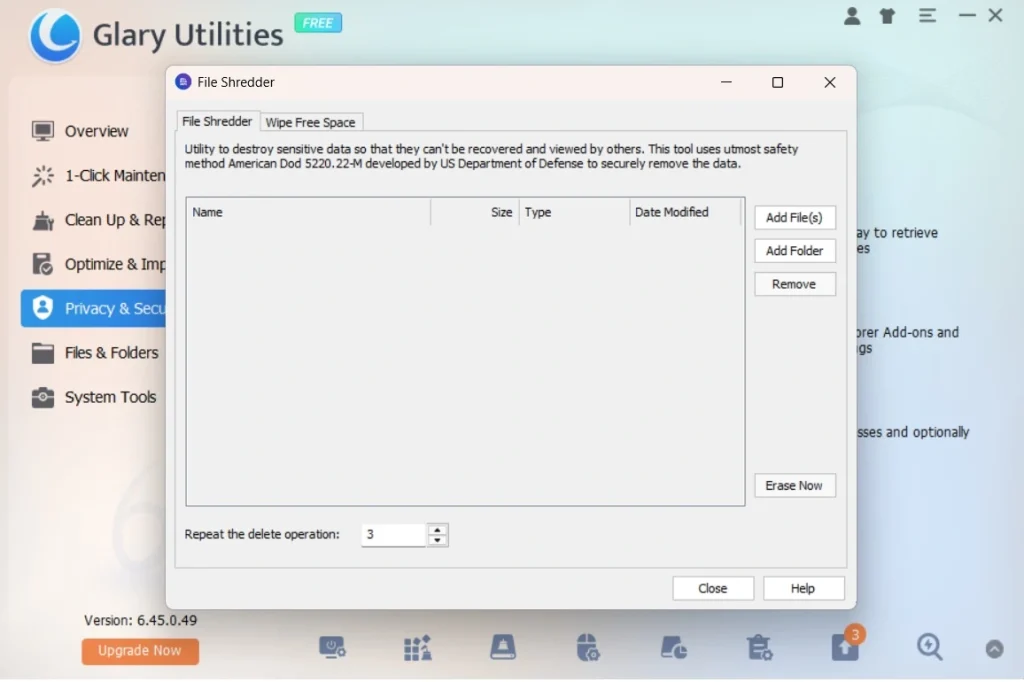
Deleting a file through the normal Windows delete option does not actually erase the file completely from the drive. The data often remains recoverable using basic recovery software. This tool overwrites the file data multiple times so it cannot be restored later using common recovery tools. It is especially useful for people who want to permanently remove sensitive documents before selling, donating, or recycling an old computer.
6. Privacy Eraser
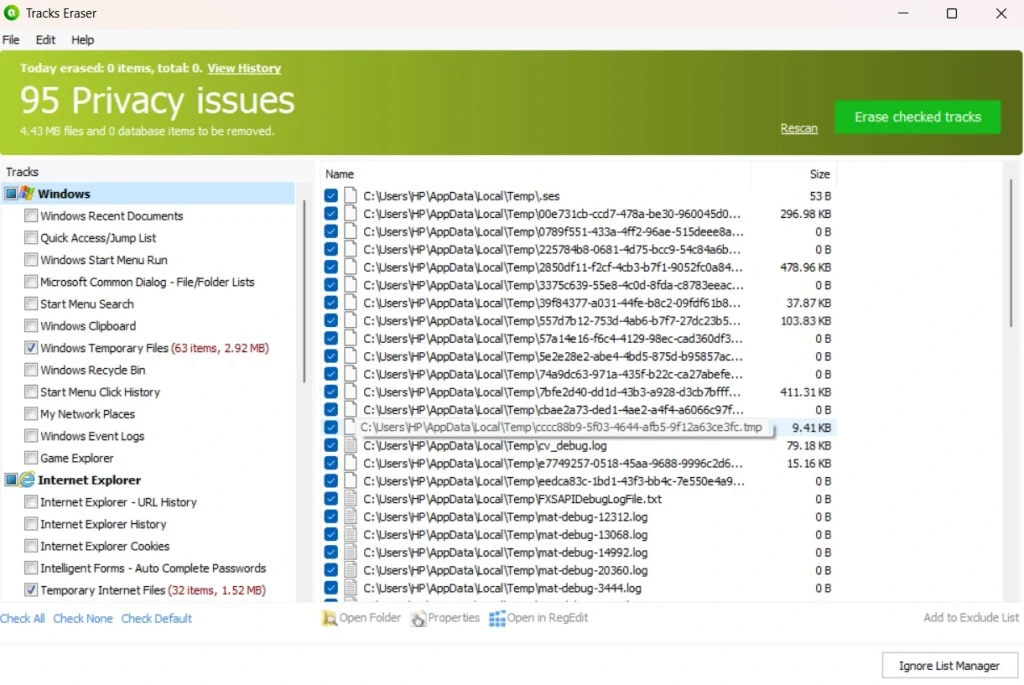
This feature clears browsing history, saved cookies, cached data, and other digital traces left behind by regular daily use of the computer. It supports most major browsers currently in use and helps protect personal information from being seen by others who might share the same device, such as family members or coworkers on a shared machine.
Part 4: How to Use Glary Utilities Tool: Step-by-Step Guide
Getting started with this software does not take very long, even for someone who has never used a system cleaning tool before. The interface has been designed with simplicity in mind, so first-time users can usually find their way around within just a few minutes of opening it for the first time.
Most people are able to complete a full cleanup cycle in under ten minutes from start to finish, including the download and install steps. Below are the three main steps to follow after downloading the program onto a Windows PC.
Step 1: Go to the official website of Glary Utilities. Download the setup file for the version you want, either free or Pro. Run the installer and follow the prompts shown on screen, which usually just involve agreeing to terms and choosing an install location. Open the program once installation finishes. Go to the One-Click Maintenance tab. Click the main scan for issues button located on the home screen.
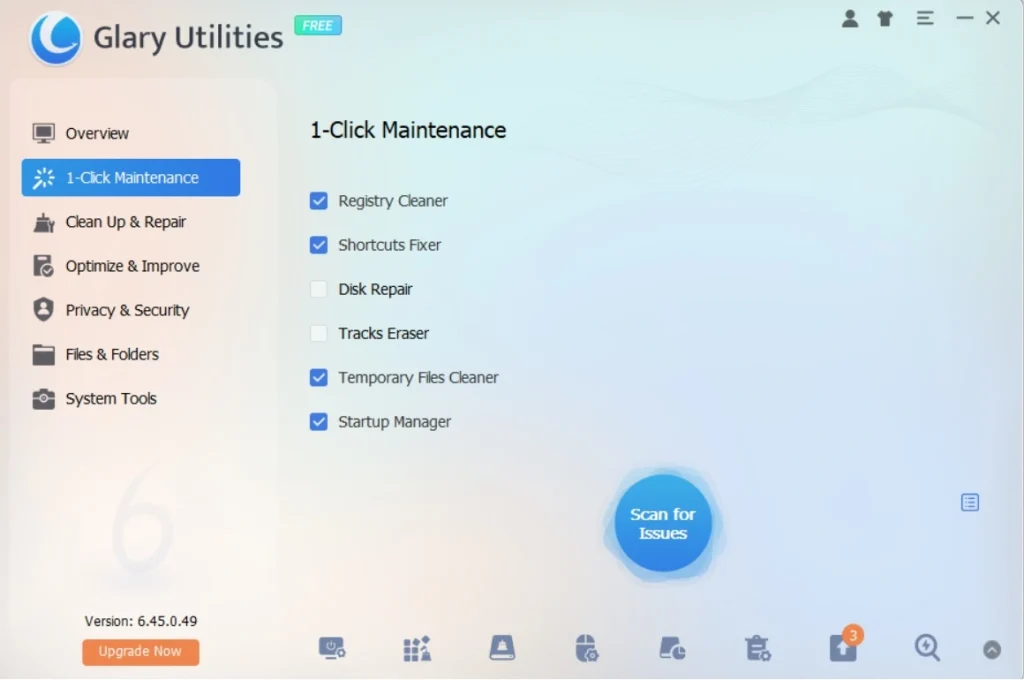
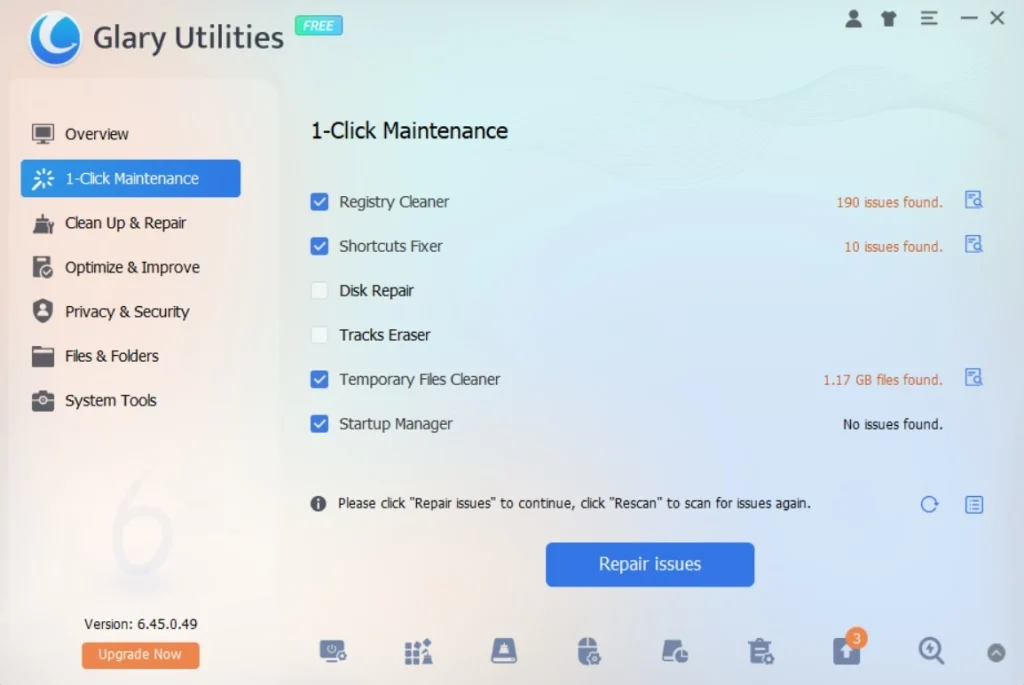
Step 2: The tool will begin checking for junk files, registry issues, startup problems, and other common issues across the system. A short summary report will appear once the scan is complete, showing exactly what was found and how much space or performance could be recovered.
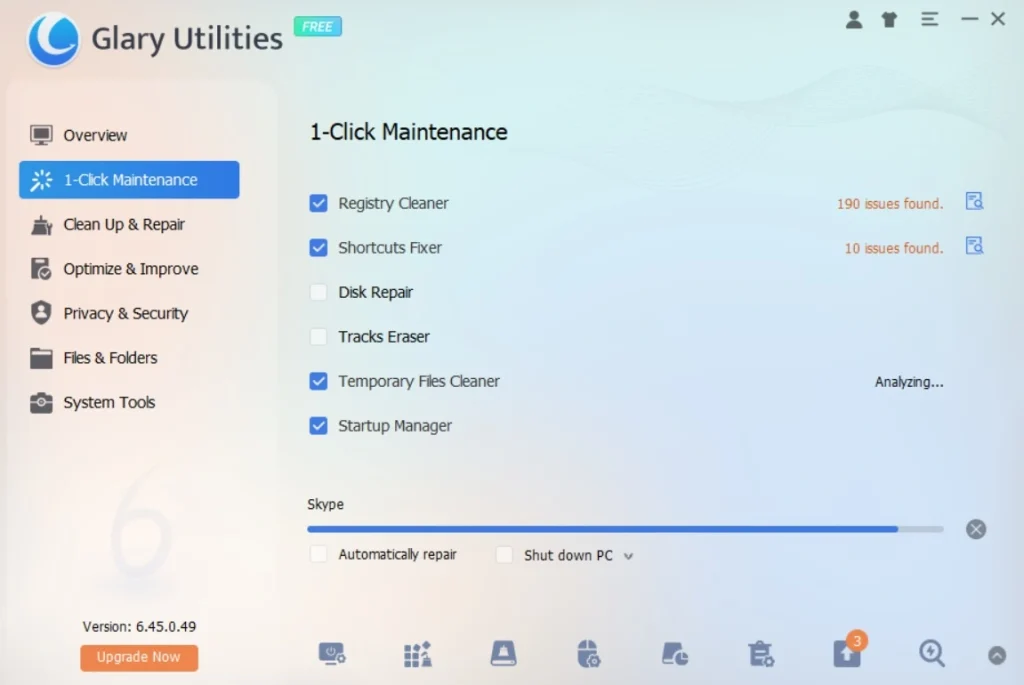
Step 3: Review the scan results carefully before moving forward, since the report usually breaks down each category separately. Click the Repair Issues button to apply the recommended changes, which may include repairing registry entries, removing junk files, and adjusting startup programs.
Part 5: Pros and Cons Explained For Glary Utilities PC Cleaning Suite
Every tool has strengths as well as a few weak spots, and this one is no exception. Knowing both sides ahead of time helps in making a fair and informed choice before downloading anything.
Here is an honest breakdown of what tends to work well and what could still use some improvement.
Pros:
- One-Click Maintenance – Running cleanup, registry repair, and startup optimization in a single click saved me time and effort.
- Wide Toolset – Over 20 utilities bundled together: disk cleanup, registry cleaner, file shredder, duplicate finder, privacy protection, and even file recovery. It felt like a Swiss army knife for PC care.
- Performance Boost – After cleanup, my system booted faster, and apps opened more smoothly. The gains held up for several days, not just immediately after the first run.
- Free Version Value – The free tier isn’t a trial; it’s fully usable long‑term. I could run core maintenance without paying, which is better than many competitors.
- Lightweight Interface – Despite packing many features, the dashboard was simple enough that I didn’t feel overwhelmed.
- Privacy Tools – I liked the file shredder and browser history cleaner, which gave me peace of mind about sensitive data.
Cons:
- Automation Locked Behind Pro – Scheduling and automatic cleanups require the paid version. I had to remember to run scans manually.
- Pop‑Up Upgrade Reminders – The free version kept nudging me to upgrade. Not intrusive enough to block use, but still irritating.
- Outdated UI Design – Functional but looks dated compared to modern competitors like CCleaner or Advanced SystemCare.
- Limited Customer Support – Response times felt slower than expected, especially compared to bigger names in PC optimization.
Part 6: Pricing Plans: Glary Utilities Tool
The base version of this software is free and works well for basic day-to-day cleanup needs. The paid tier, known as Pro, adds automation, scheduling, and a few extra tools for users who want a more hands-off experience.
NOTE: Pricing has shifted a bit over time due to seasonal discounts and promotional offers, so it is worth checking the official website before making a purchase decision.
Glary Utilities Pricing Plans
- Free Version
- Cost: $0
- Includes: One‑Click Maintenance, disk cleanup, registry cleaner, startup manager, privacy protection, file shredder.
- Limitation: No automation or scheduling; occasional upgrade reminders.
- Pro Version
- $39.95 per year for up to 3 PCs
- Adds: Automatic background care, scheduled cleanups, deeper optimization, priority support.
- Best for: Users who want hands‑off maintenance and multiple devices covered.
- Technician License
- $169 per year
- Designed for IT service providers or technicians managing multiple client PCs.
- Includes advanced optimization tools and commercial usage rights.
Key Notes
- Lifetime options are available for some Glarysoft products (like File Recovery), but Glary Utilities Pro itself is primarily sold as an annual subscription.
- All purchases come with a 90‑day money‑back guarantee and 24/7 technical support.
The free version is not time‑limited, so you can keep using it indefinitely without paying.
Free VS Paid Version: Glary Utilities PC Cleaner
| Feature | Free Plan | Pro Plan |
| Disk cleanup | Yes | Yes |
| Registry repair | Yes | Yes |
| Startup manager | Yes | Yes |
| Automatic scheduling | No | Yes |
| Priority software updates | Limited | Full access |
| One click maintenance depth | Basic | Advanced |
| Duplicate file finder | Basic | Full |
| File shredder | Limited | Full |
| Customer support | Community only | Email and chat priority |
| Number of PCs covered | 1 | Up to 3 |
| Price | Free | Around 39.95 dollars per year |
Part 7: Honest Feedback of Using Glary Utilities On My PC
I tried Glary Utilities on my PC. Honestly, it felt like a mixed bag. The One‑Click Maintenance was convenient. I ran a cleanup and immediately noticed faster boot times and smoother app launches. The suite of tools is impressive; I used the duplicate file finder and privacy cleaner, both of which worked well without much hassle. It gave me the sense of having a full toolbox for everyday PC care, and I liked that the free version wasn’t crippled.
On the flip side, the UI design felt dated, and the constant upgrade prompts got annoying after a while. I also had to be careful with the registry cleaner. It flagged entries I wasn’t sure about, so I avoided deleting too aggressively.
The lack of automated scheduling in the free version meant I had to remember to run scans myself. Overall, it’s a handy utility for manual cleanups, but if you want automation and smoother support, the Pro version is almost necessary.
Part 8: Trust and Reviews: How Glary Utilities Is Rated Worldwide
Before installing any system tool on a personal or work computer, it helps to check what other users around the world think about it first. Ratings and reviews give a good sense of how reliable a program is across different regions, hardware setups, and use cases.
Here is a closer look at how this program is generally viewed by its global user base.
Global Ratings Snapshot
| Platform | Average Rating | Key Highlights |
| Capterra | 4.6/5 (16 reviews) | Users appreciate the wide toolset and reliable performance. Ease of use scored 4.6, customer service 4.2. |
| G2 | 4.1/5 (14 reviews) | Praised for effective cleaning, registry repair, and disk cleanup. Trusted by over 200M users worldwide. |
| Glarysoft Ltd. overall | 4.2/5 (16 reviews) | Registry cleaning and duplicate file finder highlighted as efficient. Users liked the lightweight footprint. |
Positive Feedback Themes
- Ease of Use – Simple dashboard and one‑click maintenance make it beginner‑friendly.
- Comprehensive Toolset – Over 20 utilities including disk cleanup, registry repair, privacy protection, and file recovery.
- Performance Gains – Noticeable speed improvements in boot time and app responsiveness.
- Value for Money – Free version is usable long‑term; Pro adds automation at a reasonable price.
Common Criticisms
- Outdated Interface – Functional but lacks modern polish compared to rivals.
- Automation Locked to Pro – Free users must run scans manually.
- Upgrade Prompts – Frequent reminders to switch to Pro can be distracting.
- Windows‑Only – No support for macOS or mobile platforms.
Verdict
Worldwide, Glary Utilities is seen as a trusted, reliable PC optimization suite with millions of users. It’s especially valued for its all‑in‑one convenience and strong free tier, but if you want automation and smoother support, the Pro version is the better choice.
Conclusion
Glary Utilities offers a solid mix of features for anyone who wants a cleaner and faster PC without needing to learn complicated settings or technical jargon. The free version covers enough ground for casual users who just want the basics handled, while the Pro version adds automation for people who prefer a more hands-off approach to system maintenance.
For anyone searching for a beginner-friendly PC cleaner that still offers some depth for more advanced users, this tool is worth trying out. It makes sense to start with the free version first, run a few cleanup cycles, and then decide if the Pro features are worth the yearly cost based on how often the software actually gets used.
FAQs
Is the free version of this tool enough for regular use?
Yes, for most home users, the free version covers the basics quite well. It handles disk cleanup, registry repair, and startup management without requiring any payment upfront. Users who want automatic scheduling or deeper, more thorough scans may still want to consider upgrading to the Pro version at some point.
Does this software work on Mac computers?
No, this tool is built only for Windows systems and does not currently support macOS. Mac users will need to look for a different program designed specifically for their operating system, since this one has no Mac version available at this time.
Is it safe to clean the registry with this program?
Yes, it creates a backup of the registry before applying any changes during a scan. This means users can undo the fixes if something does not work as expected afterward, which lowers the overall risk compared to editing the registry manually without any safety net in place.

Author Bio:
Dinesh Lakhwani, the entrepreneurial brain behind “TechCommuters,” achieved big things in the tech world. He started the company to make smart and user-friendly tech solutions. Thanks to his sharp thinking, focus on quality and the motto of never giving up, TechCommuters became a top player in the industry. His commitment to excellence has propelled the company to a leading position in the industry.
Popular Post



Recent Post

Avast PC Cleanup Tool: A Detailed Review
Computers do not slow down overnight. Well, yes! That’s right! It happens in small steps. A temporary file here. A leftover installer there. A browser cache that quietly grows for months without anyone noticing. Add a few startup programs that load automatically, and soon your once fast machine feels like it is wading through mud. […]

Outbyte PC Repair and Cleanup Tool: A Detailed Review
The laptop took nearly two minutes to open one folder. Chrome froze twice. The fan sounded like a tiny jet engine. Most of us have lived through a day like this. Right? Don’t worry! The machine is not dying. It is just tired and messy. A good cleanup can often bring back some of the […]

WMaster Cleanup PC Cleaner Tool: A Detailed Review
Your PC was fast on day one. Right? Every click felt instant, every app opened in a snap, and the fan barely made a sound. Then came the browser tabs, the half-finished downloads, and the apps you tried once and forgot to remove. Slowly, without any warning, that same machine started to feel tired. Boot-ups […]
BleachBit PC Cleaner Tool: Complete Review After Running Tests
A PC never stays clean on its own. Every app you open, every website you visit, and every file you download leaves something behind. Weeks turn into months, and suddenly your storage feels tight, and your PC feels slower, with no clear reason why. The usual fix is a cleaning tool. But the market is […]

Iolo System Mechanic Review: Full Breakdown and Honest Take
Iolo System Mechanic is designed for users who want their PC to feel fresh and responsive again. With just a few clicks, it digs into the system, clears out unnecessary clutter, and delivers noticeable speed improvements. The interface is straightforward and beginner‑friendly, making it easy to navigate without confusion. But this tool goes beyond simple […]

Clean Master for PC Tested: A Full Breakdown of Its Tools
A computer doesn’t slow down overnight. Right? It happens bit by bit. Extra downloads, leftover cache, startup apps piling up. Soon the fast machine you loved feels sluggish. Boot times drag, programs freeze, and even opening a browser tab feels heavy. This slow decline is common, caused by junk files, cluttered registries, and hidden tasks […]
How To Clean Your PC/Laptop: Guide for Beginners to Experts
A computer never announces that it needs help. Well, yes! It just gets slower, hotter, and noisier, one day at a time, until you finally stop and wonder what changed. Nothing changed overnight. What happened is dust and clutter, working quietly in the background for months. Dust settles inside fans and vents, trapping heat and […]

Wise Care 365 PC Cleaner Tool: A Hands-On Review
Every Windows user knows the feeling. Your computer runs fast on day one. Then months pass. Files pile up. The registry gets messy. Startup takes longer. Apps freeze more often. This slow decline is normal, but it is also annoying. Most people just live with it. Some restart their PC often, hoping it helps. It […]

Glary Utilities PC Cleaner: Complete Review [Tested and Trusted]
Glary Utilities is one of the most popular PC optimization tools available today. It combines cleaning, repair, and performance‑boosting features into a single suite. The goal is simple: keep your computer running fast and stable without needing multiple separate programs. In this review, we’ll look at how Glary Utilities performs in real use, what features […]

Microsoft PC Manager: Complete In-Depth Review
A slow computer can ruin your whole day. Files pile up. Startup apps multiply. Before you know it, your once fast machine feels sluggish and tired. Most people search for a fix, but many tools out there are bloated, pushy, or full of ads. Microsoft PC Manager was built to solve this exact problem. It […]
