CCleaner: Your Complete Guide To Clean PC With CCleaner
Is your PC running slower than usual? Does it take forever to boot up or open applications? Over time, your computer collects a lot of junk. Temporary files, browser cache, leftover registry entries, and unnecessary startup programs pile up silently. They slow your system down without you even noticing.
CCleaner is one of the most trusted tools to fix exactly this problem. It has been around since 2004 and has been downloaded over 2.5 billion times worldwide. Millions of users rely on it to keep their PCs clean, fast, and healthy. Whether you are a casual user or a tech-savvy professional, CCleaner has something useful for you.
This guide covers everything you need to know about CCleaner. You will learn about its key features, how to use it, its pros and cons, pricing plans, and its overall reputation. By the end, you will know if CCleaner is the right tool for your PC.
CCleaner Features That Make It Stand Out
CCleaner is more than just a junk file cleaner. It comes packed with tools that cover almost every aspect of PC maintenance.
Here are some of its main features:
PC Cleaner
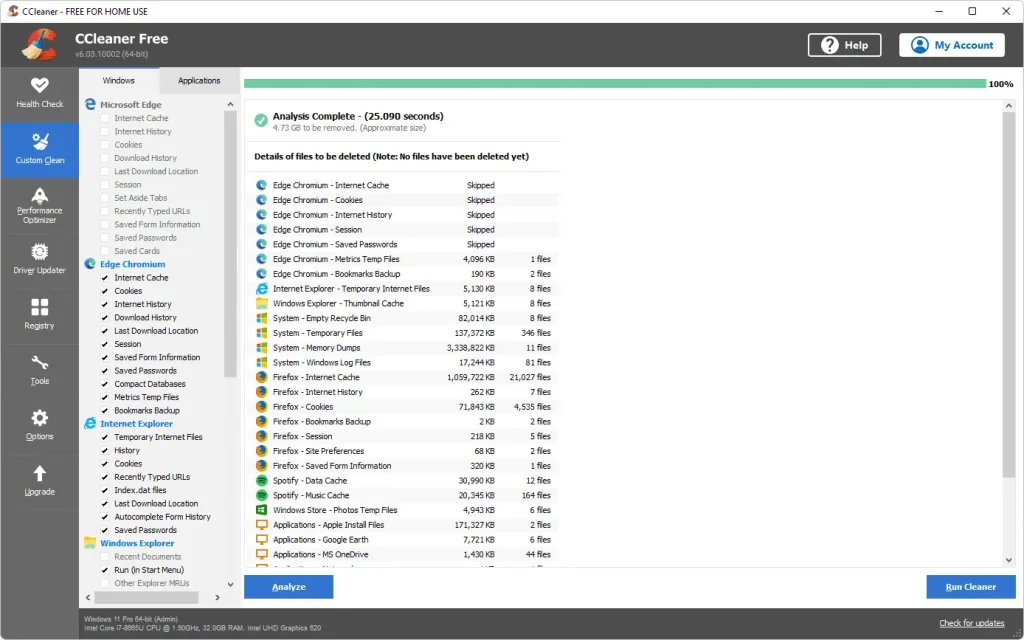
This is the heart of CCleaner. It scans your system for temporary files, browser cache, cookies, download history, and other unnecessary data. It supports all major browsers, including Chrome, Firefox, Edge, and Opera. Cleaning these files regularly frees up disk space and helps your browser and system run faster.
Registry Cleaner
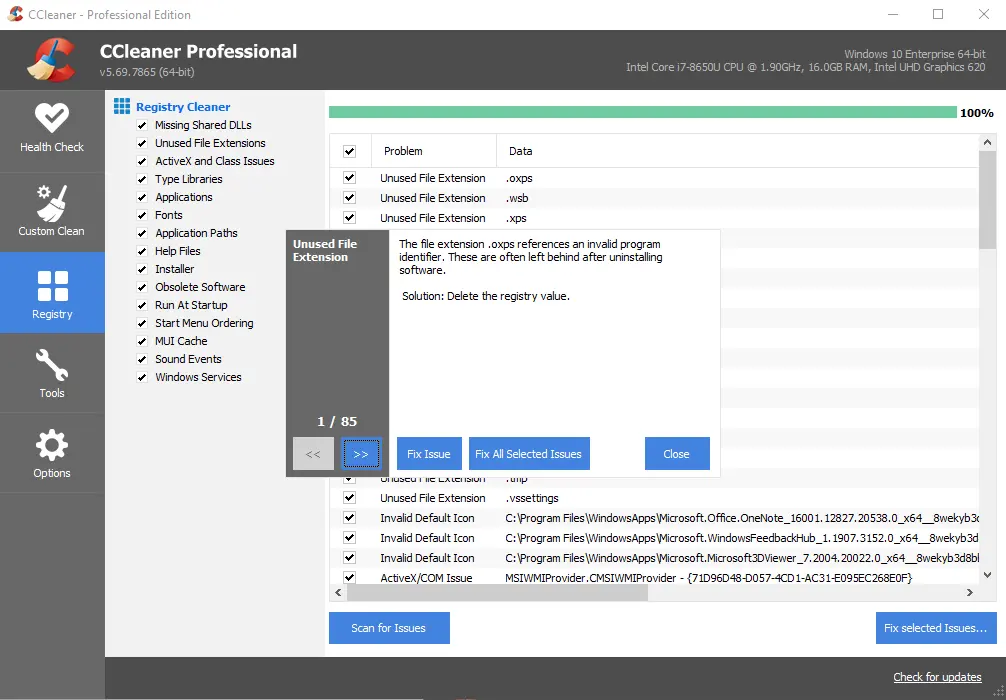
Your Windows registry stores settings for every program on your PC. Over time, broken or outdated entries build up and slow things down. CCleaner scans your registry and removes these invalid entries safely. A cleaner registry means fewer errors and smoother performance.
Software Updater
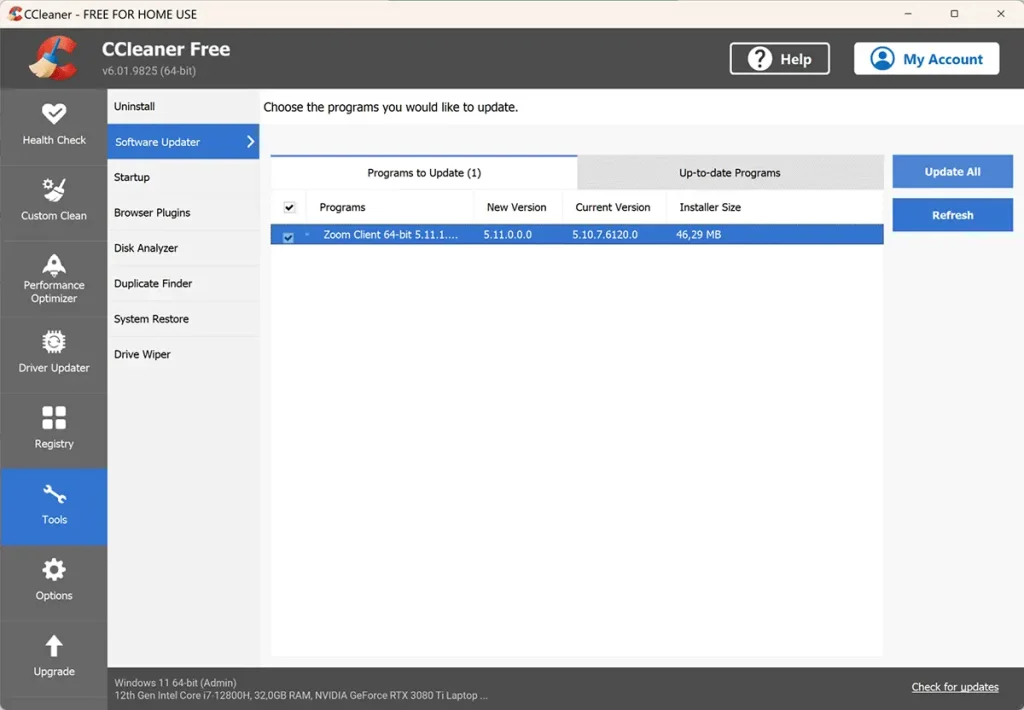
Outdated software is a major security risk. CCleaner’s Software Updater feature checks all installed applications and tells you which ones need updating. It makes it easy to keep your apps current without visiting each website individually. This helps close security gaps before hackers can exploit them.
Startup Manager
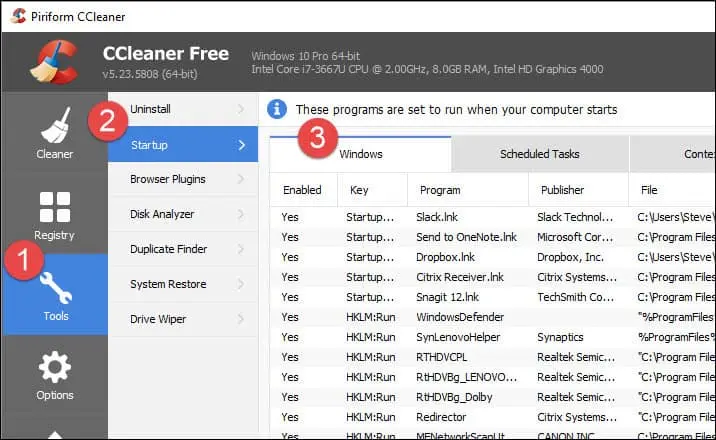
Too many programs launching at startup is one of the biggest reasons for slow boot times. CCleaner lets you view and control which programs run when Windows starts. You can disable or delete startup entries with a single click. This can cut your boot time down significantly.
Duplicate File Finder
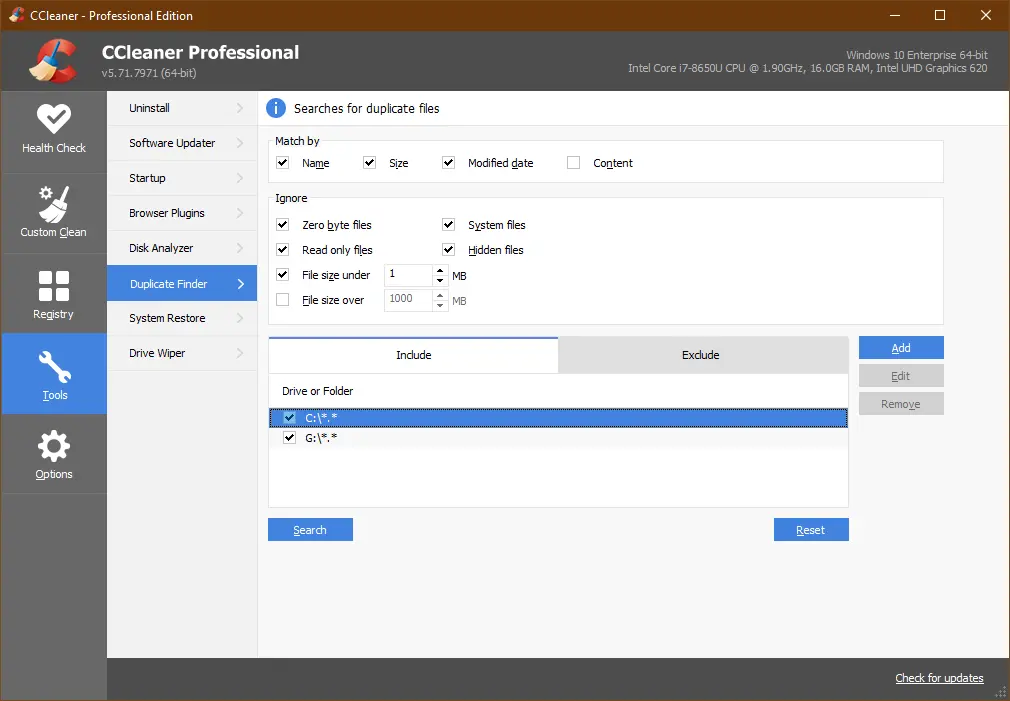
Over time, your storage fills up with duplicate photos, documents, and files. CCleaner’s Duplicate File Finder scans your drives and identifies identical files. You can review and delete the copies to recover valuable disk space. It is especially useful if you work with large media files.
Disk Analyzer
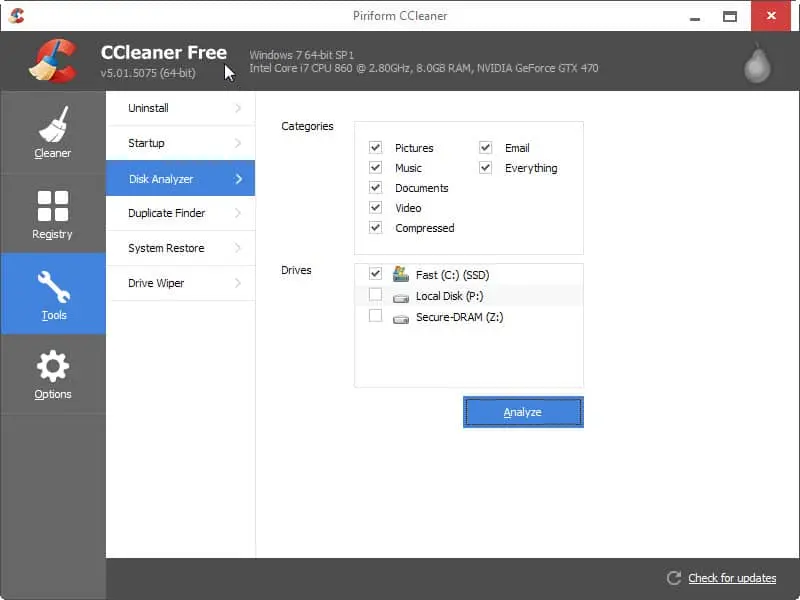
Photos and folders can quietly consume a large amount of storage without you realizing it. The Disk Analyzer shows exactly how your drive space is being used by organizing data by file type and folder. Its visual layout helps you quickly spot large files and storage-heavy locations, making cleanup much simpler and more efficient.
Privacy Cleaner
As you browse the internet, your computer stores information such as history, cookies, passwords, and autofill details. CCleaner’s Privacy Cleaner helps remove this data with a single scan. It clears browsing history, saved logins, cookies, and other stored web information, reducing the amount of personal data left behind on your PC. This makes it an easy and effective way to improve your online privacy.
Health Check
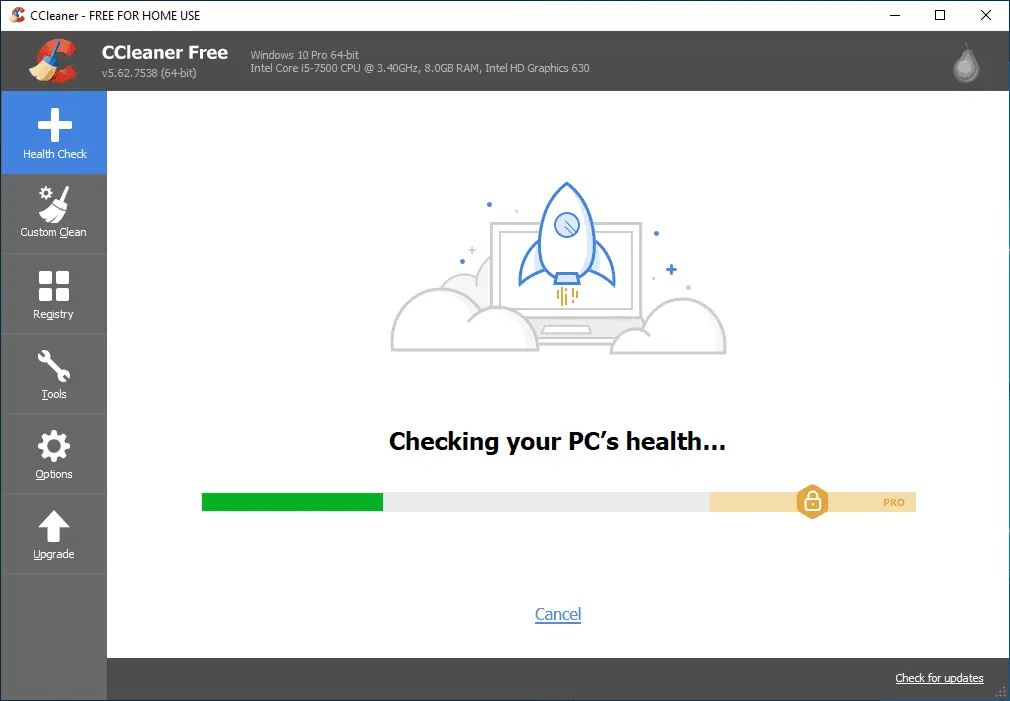
This is CCleaner’s beginner-friendly feature. It runs a quick scan of your PC and gives you a simple overview of what needs attention. It covers speed, privacy, and space issues in one easy report. Even if you are not tech-savvy, this feature makes PC maintenance straightforward.
Driver Updater
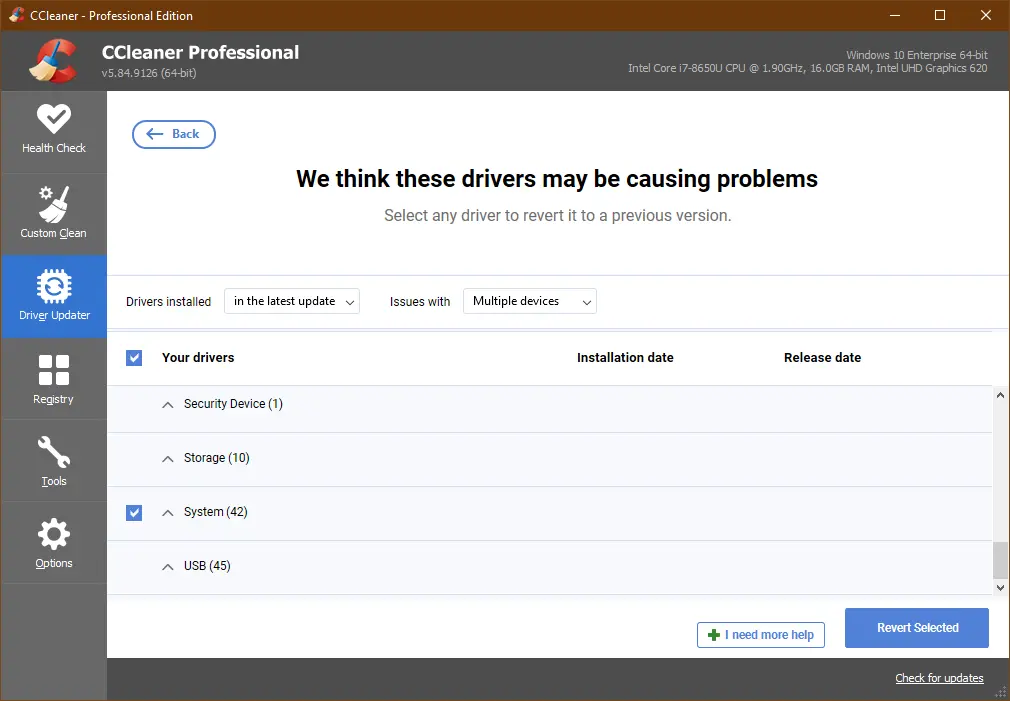
Old or missing drivers can lead to system instability, device issues, and slower performance. CCleaner’s Driver Updater checks your PC for outdated drivers and helps install the latest versions. It supports a wide range of hardware, including graphics cards, sound devices, printers, and network components. Keeping drivers current helps improve reliability, compatibility, and overall system performance.
How to Clean Your PC With CCleaner: Step-by-Step Guide
CCleaner is designed to be easy for beginners and experienced users alike. Its simple layout makes it easy to find the tools you need without any technical expertise. You can start cleaning your PC with just a few clicks. Follow the steps below to remove unnecessary files and improve system performance in only a few minutes.
Before you begin, make sure you download CCleaner from its official website at ccleaner.com. Always use the official source to avoid downloading counterfeit or modified versions. Install it like any standard Windows application and launch it once the installation is done.
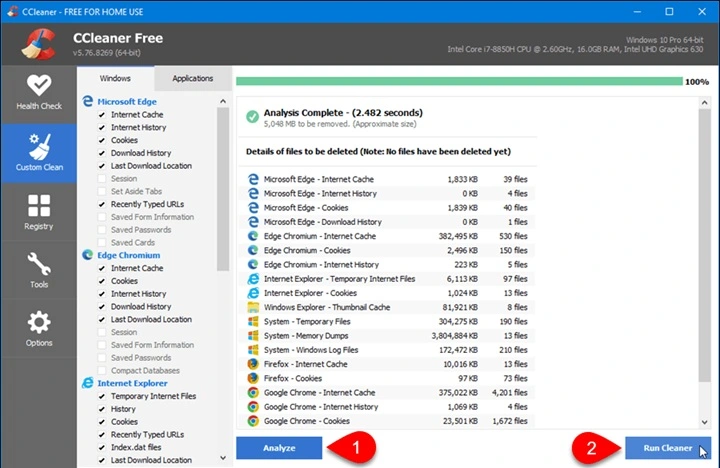
Step 1: Open CCleaner. Go to “Custom Clean“. You will see options for Windows system files and browser files. Check the boxes for what you want to clean. Click “Analyze” first to see what will be removed, then click “Run Cleaner” to delete the files.
Step 2: Click on “Registry” in the left menu. Hit “Scan for Issues” and wait for CCleaner to finish.
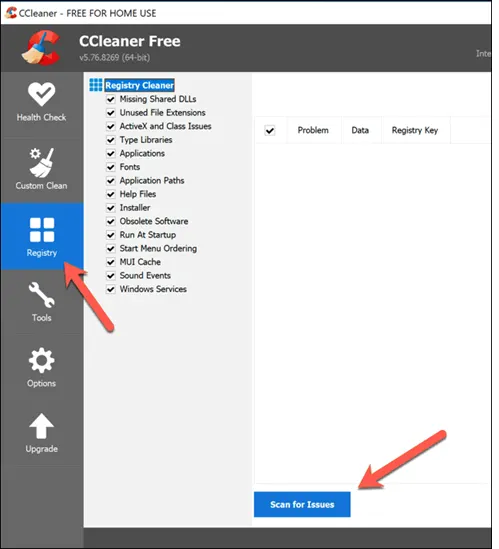
Step 3: Once the scan is complete, click “Review Issues” to see what was found. Click “Fix Selected Issues” and confirm to clean up your registry safely.
The Bright Side: What CCleaner Does Really Well
CCleaner has earned its reputation for good reason. It offers a solid set of advantages that make it a popular choice for PC users around the world.
No tool is perfect, but CCleaner comes close when it comes to basic PC maintenance. It handles the most common performance issues efficiently. Whether you are looking for speed, privacy, or storage recovery, it covers the essentials well.
Let us look at its strongest points.
- Free Version Available: CCleaner offers a genuinely useful free version. It includes the core cleaning tools without any hidden paywalls. For most casual users, the free version is more than enough to keep a PC clean and running well.
- Simple Interface: The dashboard is clean and well-organized. Even first-time users can navigate it without confusion. Every tool is clearly labeled and easy to find, which makes the whole experience stress-free.
- Fast Scanning Speed: CCleaner is known for its quick scans. It does not take long to analyze your system and produce results. This is especially useful if you are in a hurry and need a fast cleanup.
- Wide Browser Support: CCleaner supports all popular browsers. It can clean cache, cookies, and history from Chrome, Firefox, Edge, Opera, and more. This makes it a one-stop solution for browser maintenance.
- Startup Optimization: The startup manager is one of its most useful features. It helps you take control of what runs when your PC boots. Disabling unnecessary programs can make a noticeable difference in boot speed.
- Regular Updates: Piriform, the company behind CCleaner, releases regular updates. These updates improve compatibility, fix bugs, and add new features. Keeping the software updated ensures it works well with the latest version of Windows.
- Lightweight Software: CCleaner does not consume a lot of system resources. It runs smoothly even on older PCs with limited RAM. You will not notice any slowdown while it is running in the background.
- Trusted by Millions: CCleaner has been downloaded over 2.5 billion times globally. It has a massive user base and a long track record. This level of trust is hard to ignore when choosing a PC maintenance tool.
The Other Side: Limitations You Should Know About
No software is without its flaws. CCleaner has a few drawbacks that are worth knowing before you commit to it. Being aware of these can help you make a smarter decision.
Some of these issues are minor, while others may be deal-breakers depending on your needs. The free version, in particular, has notable limitations compared to the paid plans. Here is an honest look at where CCleaner falls short.
- Aggressive Upselling: CCleaner often prompts users to upgrade to a paid plan. These pop-ups can get annoying over time. If you are using the free version, expect to be reminded about premium features frequently.
- Past Security Incident: In 2017, CCleaner suffered a major security breach. Hackers injected malware into its official download for a short period. Although Piriform fixed the issue quickly, it did raise concerns about the software’s security practices.
- Registry Cleaning Risk: While CCleaner’s registry cleaner is generally safe, it is not foolproof. Deleting the wrong registry entries can sometimes cause software errors. It is always wise to back up your registry before running a registry clean.
- Limited Free Features: Many of the most useful features are locked behind the paid plans. This includes real-time monitoring, scheduled cleaning, and premium customer support. The free version does not offer the full experience.
- No Mac Optimization Tools: CCleaner has a Mac version, but it is far less feature-rich than the Windows version. Mac users do not get access to the full suite of tools. If you are primarily on Mac, you may want to look for a more Mac-focused alternative.
- Auto-Update Feature Issues: Some users have reported that CCleaner’s auto-update feature occasionally causes problems. In some cases, updates have changed settings without user consent. It is worth checking your settings after every update.
- Bundled Software During Install: During installation, CCleaner sometimes offers to install additional software. If you are not careful, you might end up installing programs you did not want. Always choose the custom install option to avoid this.
- No Malware Removal: CCleaner is not an antivirus or anti-malware tool. It cleans junk files and optimizes performance, but it does not detect or remove viruses. You will still need a dedicated security tool alongside it.
CCleaner Pricing Plans
CCleaner offers both free and paid options to suit different users. The free version is great for basic cleaning tasks. However, if you want the full feature set, the paid plans offer good value. Here is a breakdown of the current pricing.
- CCleaner Free: $0 — Includes basic PC cleaning, browser cleaning, and startup manager. No real-time monitoring or scheduled cleaning.
- CCleaner Professional: Around $29.95 per year for 1 PC — Adds real-time monitoring, scheduled cleaning, automatic updates, and priority customer support.
- CCleaner Professional Plus: Around $39.95 per year for 1 PC — Includes everything in Professional plus Driver Updater and Performance Optimizer.
- CCleaner Business: Custom pricing — Designed for businesses and IT teams managing multiple PCs. Includes centralized management and volume licensing.
- CCleaner Technician: Custom pricing — Built for IT professionals and technicians who need to maintain multiple client machines.
Note: Prices may vary based on region and current promotions. Always check the official CCleaner website for the latest pricing.
CCleaner’s Reputation in the Industry: Quick Glance
CCleaner has been a well-known name in the PC optimization space for over two decades. It has earned recognition from major tech publications and review sites.
Here is a quick look at how it is perceived.
- Rated 4 out of 5 by PCMag for its ease of use and cleaning effectiveness.
- Recommended by TechRadar as a solid choice for basic PC maintenance.
- Downloaded over 2.5 billion times worldwide, making it one of the most installed PC tools ever.
- Featured in lists of best PC cleaners by major tech publications, including Tom’s Hardware and CNET.
- The 2017 security breach did hurt its reputation temporarily, but Piriform’s quick response helped rebuild user trust.
- Consistently receives positive user reviews for its simple interface and reliable cleaning performance.
- Piriform, its developer, was acquired by Avast in 2017, which brought additional resources for development and security.
Frequently Asked Questions:
Is CCleaner safe to use in 2025?
Yes, CCleaner is generally safe to use. The 2017 security incident was a serious concern, but Piriform resolved it quickly and improved its security practices since then. Millions of users continue to use it without any issues. As long as you download it from the official website and keep it updated, the risk is minimal. That said, always be cautious with the registry cleaner feature and back up your data before running deep scans.
Does CCleaner really speed up your PC?
CCleaner can noticeably improve your PC’s performance in certain areas. Removing junk files frees up disk space, which helps your PC run more efficiently. Disabling startup programs can reduce boot time significantly. However, it is not a magic fix for all performance issues. If your PC is slow due to hardware limitations or malware, CCleaner alone will not solve the problem. It works best as part of a regular maintenance routine.
Is the free version of CCleaner good enough?
For most everyday users, the free version of CCleaner is sufficient. It covers the core cleaning tools, including junk file removal, browser cleaning, and startup management. These features alone can make a real difference in your PC’s performance and privacy. However, if you want scheduled cleaning, real-time monitoring, or automatic updates, you will need to upgrade to a paid plan. The free version is a great starting point, especially if you are trying CCleaner for the first time.

Author Bio:
Dinesh Lakhwani, the entrepreneurial brain behind “TechCommuters,” achieved big things in the tech world. He started the company to make smart and user-friendly tech solutions. Thanks to his sharp thinking, focus on quality and the motto of never giving up, TechCommuters became a top player in the industry. His commitment to excellence has propelled the company to a leading position in the industry.
Popular Post

Recent Post
WMaster Cleanup PC Cleaner Tool: A Detailed Review
Your PC was fast on day one. Right? Every click felt instant, every app opened in a snap, and the fan barely made a sound. Then came the browser tabs, the half-finished downloads, and the apps you tried once and forgot to remove. Slowly, without any warning, that same machine started to feel tired. Boot-ups […]
BleachBit PC Cleaner Tool: Complete Review After Running Tests
A PC never stays clean on its own. Every app you open, every website you visit, and every file you download leaves something behind. Weeks turn into months, and suddenly your storage feels tight, and your PC feels slower, with no clear reason why. The usual fix is a cleaning tool. But the market is […]

Iolo System Mechanic Review: Full Breakdown and Honest Take
Iolo System Mechanic is designed for users who want their PC to feel fresh and responsive again. With just a few clicks, it digs into the system, clears out unnecessary clutter, and delivers noticeable speed improvements. The interface is straightforward and beginner‑friendly, making it easy to navigate without confusion. But this tool goes beyond simple […]
Clean Master for PC Tested: A Full Breakdown of Its Tools
A computer doesn’t slow down overnight. Right? It happens bit by bit. Extra downloads, leftover cache, startup apps piling up. Soon the fast machine you loved feels sluggish. Boot times drag, programs freeze, and even opening a browser tab feels heavy. This slow decline is common, caused by junk files, cluttered registries, and hidden tasks […]
How To Clean Your PC/Laptop: Guide for Beginners to Experts
A computer never announces that it needs help. Well, yes! It just gets slower, hotter, and noisier, one day at a time, until you finally stop and wonder what changed. Nothing changed overnight. What happened is dust and clutter, working quietly in the background for months. Dust settles inside fans and vents, trapping heat and […]

Wise Care 365 PC Cleaner Tool: A Hands-On Review
Every Windows user knows the feeling. Your computer runs fast on day one. Then months pass. Files pile up. The registry gets messy. Startup takes longer. Apps freeze more often. This slow decline is normal, but it is also annoying. Most people just live with it. Some restart their PC often, hoping it helps. It […]

Glary Utilities PC Cleaner: Complete Review [Tested and Trusted]
Glary Utilities is one of the most popular PC optimization tools available today. It combines cleaning, repair, and performance‑boosting features into a single suite. The goal is simple: keep your computer running fast and stable without needing multiple separate programs. In this review, we’ll look at how Glary Utilities performs in real use, what features […]

Microsoft PC Manager: Complete In-Depth Review
A slow computer can ruin your whole day. Files pile up. Startup apps multiply. Before you know it, your once fast machine feels sluggish and tired. Most people search for a fix, but many tools out there are bloated, pushy, or full of ads. Microsoft PC Manager was built to solve this exact problem. It […]

AVG TuneUp Guide: Features, Pros, Cons, and Pricing
PC performance often drops with time. Junk files build up. Startup programs increase. Storage fills up. As a result, your computer may take longer to boot, feel sluggish, or run out of space. The good news is that these problems are usually easy to fix. AVG TuneUp is a PC optimization tool for Windows. It […]

Ashampoo WinOptimizer: Features and Process [Complete Guide]
Ashampoo WinOptimizer is built for users who want a faster, cleaner, and safer PC. In this review, I’ll walk through its features and how the optimization process works. The software promises one‑click fixes, smart automation, and tools that go beyond basic cleanup. The PC cleaning and optimization tool covers performance tuning, privacy protection, and system […]
