Iolo System Mechanic Review: Full Breakdown and Honest Take
Iolo System Mechanic is designed for users who want their PC to feel fresh and responsive again. With just a few clicks, it digs into the system, clears out unnecessary clutter, and delivers noticeable speed improvements. The interface is straightforward and beginner‑friendly, making it easy to navigate without confusion.
But this tool goes beyond simple cleaning. It actively optimizes. It detects hidden problems, repairs them quickly, and helps maintain smooth performance over time. Startup speeds and overall responsiveness show immediate improvement once it’s in action.
Iolo System Mechanic Explained: Full Breakdown and Honest Take
In this review, we’ll look at how System Mechanic performs in everyday use. From its key features to pricing and reliability, you’ll see whether it truly earns its place among the most trusted PC cleaning and optimization tools available today.
Part 1: Brief Overview: Iolo System Mechanic
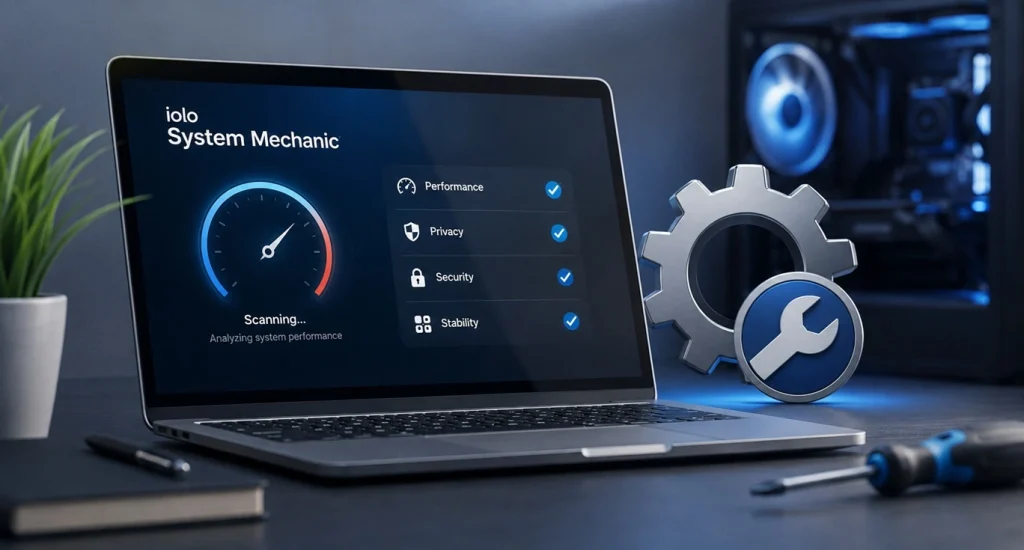
Iolo System Mechanic is a PC cleaning and repair tool built by Iolo Technologies. For more than twenty years, the company has developed this software to keep PCs running smoothly. Its main purpose is to speed up sluggish systems, repair damaged files, and clear out the clutter that builds up over time. Designed primarily for Windows, the tool is recognized for its thorough cleaning method. Instead of stopping at temporary file removal, it goes deeper. It scans the registry, startup items, and background processes to uncover what’s slowing your computer down.
The software runs quiet checks in the background using something called ActiveCare technology. This means you do not always have to open the app and run a scan yourself. It works while you use your PC for other tasks. Below are some quick features that stand out right away.
- Deep registry cleaning and repair
- Startup program manager
- Automatic background maintenance
- Internet and download speed booster
- Duplicate file finder
- Privacy cleaner for browsing history
- Drive defragmenter and optimizer
Iolo System Mechanic: Quick Tool Info:
| Specification | Details |
| Developer | Iolo Technologies LLC |
| Latest Version | 26.5.0.227 |
| Release Date | July 3, 2026 |
| File Size | ~59.5 MB (Pro edition) |
| Installer Name | SystemMechanic_PRO.exe |
| License Type | Trial and Paid |
| TrustScore | 3.9/5 (based on ~3,900 reviews) |
| Download Source | Official Iolo website |
| System Requirements | Windows 11/10/8.1/8/7 (64-bit only) |
| RAM Requirement | Minimum 512 MB (2 GB recommended) |
| Disk Space | 100 MB free (270 MB for Ultimate Defense) |
| Internet | Required for activation and updates |
| User Account | Windows Administrator privileges needed |
Highlights
- Smart ActiveCare automates maintenance and performance boosts.
- Real-Time Boost optimizes CPU cores and memory for gaming or heavy tasks.
- Privacy Guardian and Malware Killer add strong protection layers.
- DriveScrubber (Ultimate Defense edition) securely wipes drives using USB.
Part 2: Why Are People Keep Choosing This Tool?
There are many PC cleaners out there, so why do people stick with this one for years? Here is a breakdown of the biggest reasons users pick this software over other choices on the market.
- It fixes real problems, not just surface junk: Many cleaners only delete temp files. This tool goes deeper into the registry and system files to find actual errors that slow your PC down.
- It runs on autopilot: The ActiveCare feature checks your system automatically. You do not need to remember to run a scan every week.
- It offers a full performance boost: Beyond cleaning, it also speeds up your internet connection and improves overall CPU response time.
- It includes privacy tools: Along with speed fixes, it clears your browsing history and other private data that can pile up over time.
- It has a simple interface: You do not need to be a tech expert to use it.
- It offers a whole home license option: Some plans let you cover many devices under one purchase, which saves money for families.
- It comes with live support: Paid versions include access to real technical support if something goes wrong during setup or use.
Part 3: Key Features Explained: Iolo System Mechanic PC Cleaner Tool
Now let us look closer at the actual tools inside this software. Each feature plays a different role in fixing and speeding up your PC. Understanding what each one does will help you decide if this software matches what your computer actually needs.
ActiveCare Background Maintenance
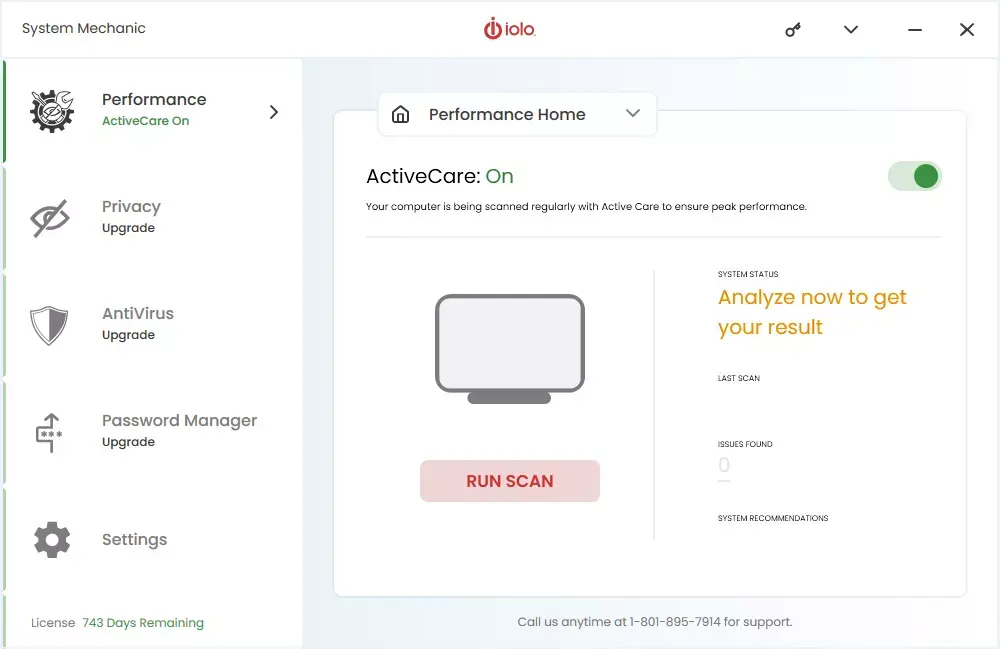
This feature quietly checks your system in the background while you work. It looks for junk files, broken shortcuts, and other small issues. Since it runs on its own schedule, you do not have to remember to open the app and run anything manually. Over time, this steady maintenance keeps your PC from building up the kind of clutter that slows things down.
Registry Cleaner and Repair
The Windows registry stores settings for almost everything on your PC. Over months and years, this registry fills up with leftover entries from programs you removed long ago. This tool scans that registry and removes the broken pieces. A cleaner registry often means fewer crashes and faster load times.
Startup Optimizer
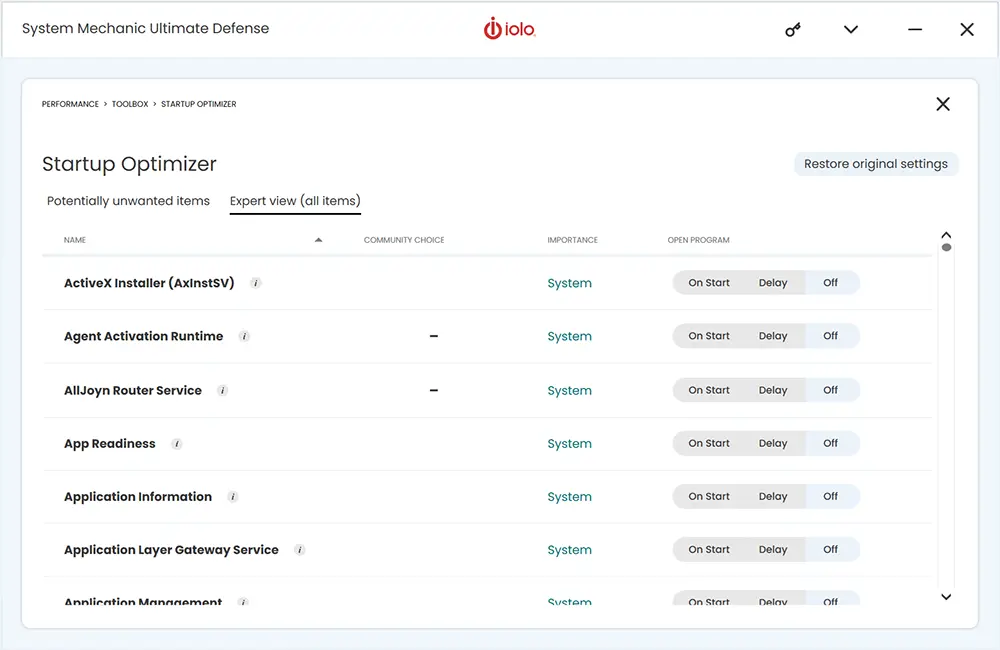
Many programs quietly add themselves to your startup list, even when you never asked them to. This slows down the time it takes for your PC to boot. The startup optimizer shows you every program set to launch at startup and lets you turn off the ones you do not need right away.
NetBooster Internet Speed Tool
Slow internet is not always about your connection. Sometimes it is about how your PC handles network traffic. This feature adjusts hidden settings related to your network to help pages load faster and downloads finish quicker.
Duplicate File Finder
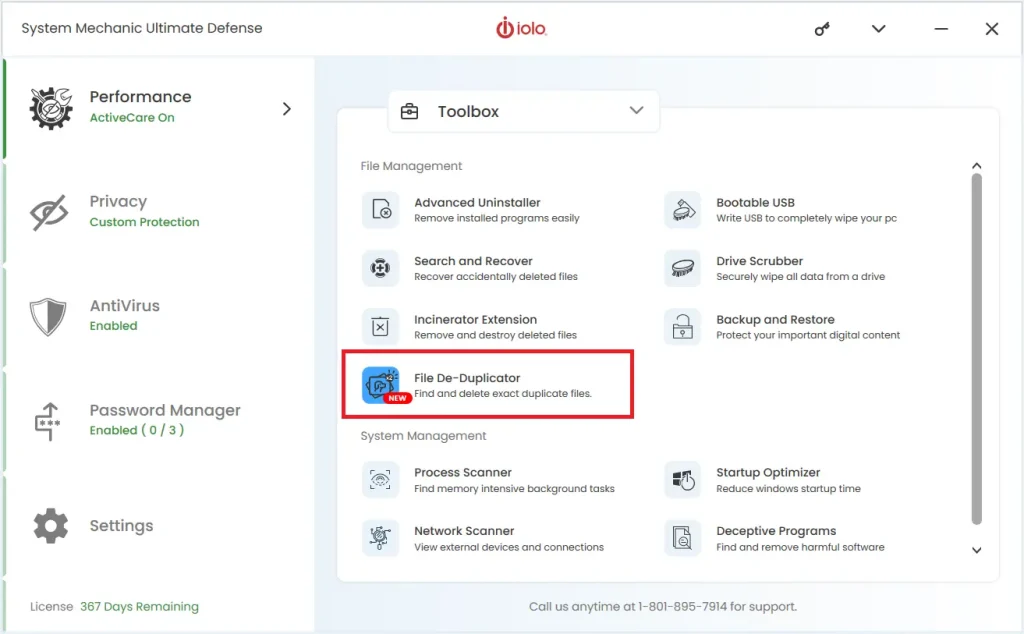
Photos, documents, and downloads often get copied more than once without you noticing. This tool scans your drive and finds these duplicate files. Removing them frees up storage space that you can use for other things.
Privacy Cleaner
Your browser stores cookies, history, and cache files that can slow things down and expose personal data. This feature wipes that information clean, giving you both a performance boost and a bit more peace of mind about your privacy.
Part 4: How to Use Iolo System Mechanic Tool: Step-by-Step Guide
Getting started with this software is not complicated, even for someone who has never used a PC cleaner before. The setup process takes just a few minutes, and most of the heavy lifting happens automatically once it is installed. Below is a simple walkthrough to help you get going without any confusion.
Before you begin, make sure your PC meets the basic system requirements and that you have downloaded the installer from the official website. This avoids any issues with fake or outdated versions that sometimes appear on third-party download sites.
Step 1: Go to the official Iolo website and choose the version that matches your needs. Once downloaded, open the installer file and follow the on-screen prompts. The installation itself usually takes just a couple of minutes on most modern PCs. After installation, open the app and click the option to start a full scan.
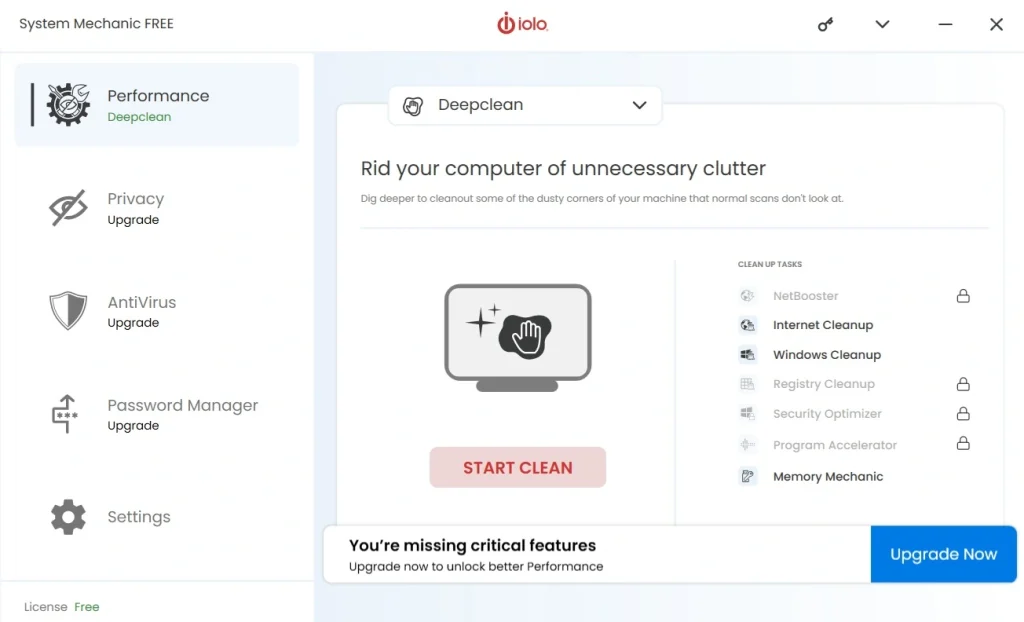
Step 2: This first scan usually takes longer than future ones since it is checking your entire system for the first time. Let it run without closing the window until it finishes.
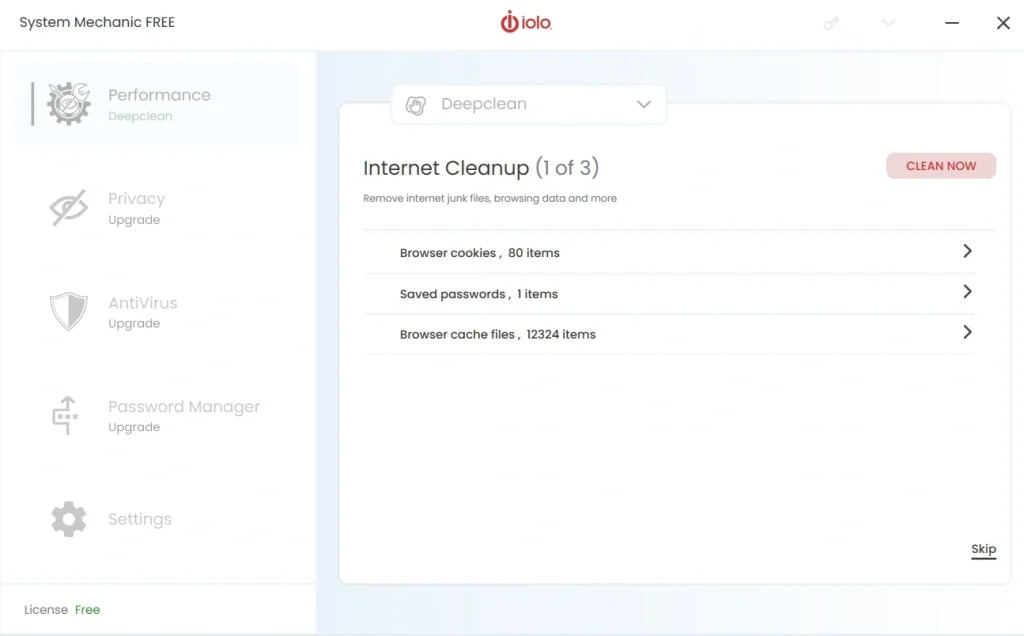
Step 3: Once the scan completes, you will see a list of problems it found, sorted by category. Review these results and click the option to fix or repair them. After this, you can turn on ActiveCare so future maintenance happens automatically in the background.
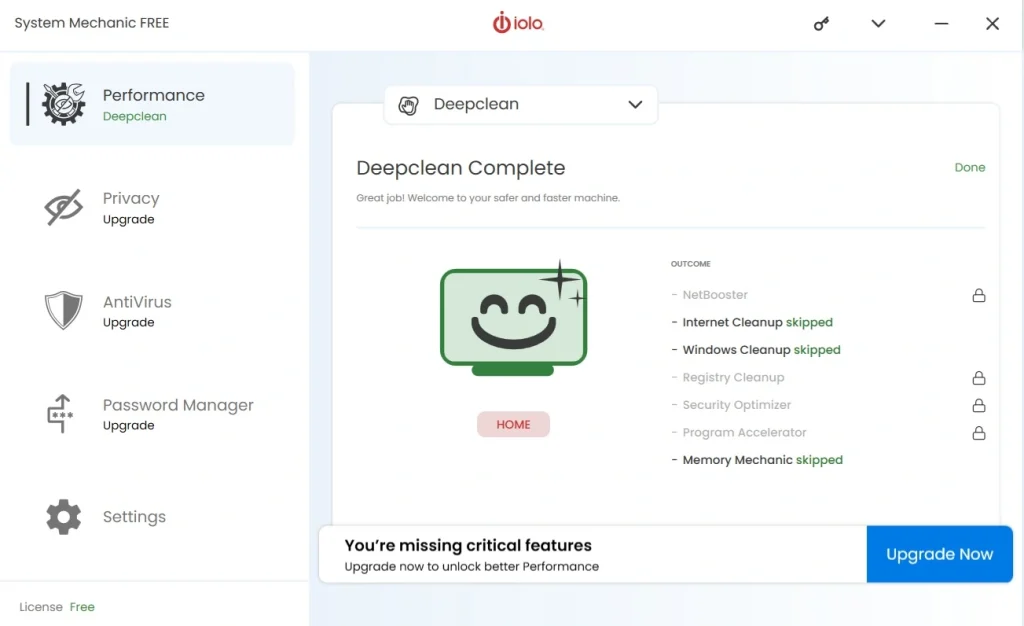
Part 5: The Good and The Bad: Iolo System Mechanic Pros and Cons
No software is perfect, and this one is no exception. Some users love it while others feel it falls short in certain areas. Here is an honest breakdown of what works well and what could use improvement.
Pros
- Smooth installation: The setup file was lightweight, and the install finished in under two minutes. No bloat or unnecessary prompts.
- Clean interface: The dashboard felt intuitive. I didn’t need a manual to figure out where things were.
- Noticeable speed boost: After running the first cleanup, my startup time dropped by almost 20 seconds. Apps opened faster too.
- ActiveCare automation: It quietly handled background maintenance without slowing me down.
- Extra tools: Features like Privacy Guardian and DriveScrubber gave me peace of mind beyond just performance.
Cons
- Aggressive upsells: The trial kept nudging me toward the Ultimate Defense bundle, which felt pushy.
- Resource spikes: During deep scans, CPU usage shot up to 80%, making multitasking tough.
- Limited free version: The trial only unlocked basic cleanup. Most advanced features stayed locked.
Part 6: Pricing Plans: Iolo System Mechanic Tool
Pricing for this software varies depending on the plan and how many devices you want to cover. Prices also shift often due to seasonal discounts, so it helps to check the official site before buying. Below is a general breakdown based on standard listed pricing.
- System Mechanic Standard, 1 PC, 1 year: around 19.95 dollars
- System Mechanic Pro, 1 device, 1 year: around 29.95 dollars
- System Mechanic Pro, 3 devices, 1 year: around 34.95 dollars
- System Mechanic Pro, 10 devices, 1 year: around 39.95 dollars
- System Mechanic Ultimate Defense bundle: around 59.99 dollars
| Feature | Free Tools | Paid Plan |
| Junk file cleanup | Limited | Full access |
| Registry repair | Not included | Included |
| Startup optimizer | Basic view only | Full control |
| ActiveCare automation | Not available | Included |
| Internet speed booster | Not available | Included |
| Live technical support | Not available | Included |
| Multi-device license | Not available | Available on select plans |
Part 7: Honest Feedback of Using Iolo System Mechanic on My PC
When I first installed System Mechanic, the process was quick and painless. The installer was small, and within minutes I had the dashboard open. The interface looked clean, with clear buttons and simple navigation. I didn’t feel overwhelmed, which is a big plus for a tool that promises deep optimization.
Running the first cleanup was eye-opening. My startup time dropped noticeably, and apps opened faster. The ActiveCare automation worked quietly in the background, fixing issues without interrupting me. It felt like the tool was genuinely improving performance rather than just showing flashy progress bars.
That said, I did notice some drawbacks. The free version also felt limited, with many advanced features locked behind the paid upgrade. And while the tool boosted speed, the Malware Killer scans were slower compared to dedicated antivirus software.
Overall, it’s a solid optimization tool, but it shines more in performance tweaks than in security.
Part 8: Iolo System Mechanic: How Much Do People Trust This Tool Worldwide?
Worldwide, Iolo System Mechanic enjoys strong trust with over 100 million downloads and an average rating of 4.2/5 across major platforms. Users praise its ability to speed up aging PCs and highlight reliable tech support, though billing practices and upsells remain common complaints.
Global Trust Snapshot
- Downloads: 100M+ worldwide since launch in 1998.
- Aggregate Rating: 4.2/5 across Trustpilot, Capterra, TechRadar, and PC Magazine.
- Trustpilot Reviews: 3,900+ reviews, with 60% 5-star ratings.
- Longevity: Many users report sticking with System Mechanic for 10+ years, citing consistent updates and performance improvements.
What People Praise
- Performance boost: Users consistently mention faster startup times and smoother multitasking after cleanup.
- Hardware longevity: Especially popular among those with older PCs, extending usability.
- Tech support: LiveTech support is frequently highlighted, with reviewers naming technicians who solved issues quickly.
- Ease of use: Clean interface and simple navigation make it beginner-friendly.
Common Criticisms
- Billing & auto-renewal: The most frequent complaint worldwide; users advise disabling auto-renewal.
- Aggressive upsells: Trial versions often push upgrades to Ultimate Defense.
- Mixed malware protection: Effective but slower compared to dedicated antivirus tools.
- Subscription costs: Some long-term users feel pricing has risen sharply in recent years.
Trust Table
| Aspect | User Sentiment |
| Performance Boost | Strongly Positive |
| Tech Support | Strongly Positive |
| Ease of Use | Positive |
| Billing Practices | Negative |
| Malware Protection | Mixed |
| Pricing | Mixed |
In short, System Mechanic is globally trusted for PC optimization and support, but users remain cautious about billing transparency and upsells.
Conclusion
After going through every part of this software, from the core features to actual hands-on use, it is clear this tool holds a solid place in the PC optimization space. It is not flashy or overcomplicated. It focuses on real fixes like registry repair, startup management, and background maintenance that genuinely help a sluggish computer feel faster again.
That said, it is not a perfect fit for everyone. Users on very old hardware might find scans take a while, and the constant nudges toward paid upgrades can feel a bit much at times. Anyone expecting a fully free experience will be a little disappointed, since most of the real value sits behind a paid plan.
Still, for anyone dealing with a slow, cluttered Windows PC, this tool offers a practical solution backed by decades of development. The pricing is reasonable compared to many competitors, and the automatic maintenance feature makes it easy to set up once and mostly forget about. If your PC has been dragging its feet lately, this is a tool worth considering.
FAQs
Is this software safe to use on my PC?
Yes, it is generally considered safe when downloaded directly from the official website. Since it touches deep system files like the registry, it is always a good idea to back up important data before running any deep cleaning tool, just as a precaution.
Does it work on both Windows and Mac computers?
This software is built mainly for Windows PCs and offers the most complete feature set there. Mac support is limited, so Mac users may want to look at other tools that are built specifically for their operating system.
Can I try it before paying for a full plan?
There is a limited free version available with basic tools, but most of the deeper cleaning and automation features require a paid plan. Many users try the limited version first to get a feel for the interface before deciding to upgrade.

Author Bio:
Dinesh Lakhwani, the entrepreneurial brain behind “TechCommuters,” achieved big things in the tech world. He started the company to make smart and user-friendly tech solutions. Thanks to his sharp thinking, focus on quality and the motto of never giving up, TechCommuters became a top player in the industry. His commitment to excellence has propelled the company to a leading position in the industry.
Popular Post






Recent Post
Windows Disk Cleanup Review: Features, Steps, and Real Results
Storage space does not disappear overnight. Tiny pieces of data accumulate little by little while Windows performs routine tasks. Old update files, temporary program data, and other unused items often remain saved on the drive. Eventually, these forgotten files can take up room that could be used for something more important. Disk Cleanup is a […]

JetClean Junk File Cleaner and PC Cleaning Tool: A Complete Review
Heads up before you read further: JetClean (made by BlueSprig) is discontinued. Its last version dates to 2016, and several listings say the official download is gone. Let’s begin our review article! Few Windows utilities stay in circulation for more than a decade without a major update. JetClean is one of them. The tool first […]

Defencebyte Computer Optimizer: An In-Depth Review
Slow startup, delayed app launches, and freezing windows are among the most common complaints from Windows users. In many cases, the cause is not failing hardware. It is the gradual buildup of leftover data. Uninstalled programs leave registry entries behind. Temporary files and logs collect in system folders. Broken file paths and unused extensions stay […]

Windows Storage Sense For PC Cleaning: Everything You Need To Know
The low disk space warning always shows up at the worst time. A big update is waiting to install. A file refuses to save. The storage bar in Settings has turned red, and nobody remembers what filled it. Most people react by hunting for a cleaner to download. Many never notice that Windows already has […]

EaseUS CleanGenius Reviewed: Features, Pricing, and Real Results
Nobody notices the first temporary file. Nobody notices the hundredth either. Then one day the drive is almost full, the browser drags, and Windows takes ages to start. Clutter builds in quiet ways. Installers leave leftovers. Browsers store cache and cookies. Apps write logs that nobody reads. Programs add themselves to startup without asking. None […]

Advanced SystemCare: Tool To Clean Your PC [Complete Review]
The first thing I notice is how the startup screen hangs. The fan kicks in fast and stays loud. If I open a simple folder, the whole system pauses for a moment. It does not look like a clear hard failure, yet the PC feels heavy and slow. This is not usually one big problem. […]

CCleaner PC Cleaning Tool: An In-Depth Review
Learn how to clean your PC with CCleaner. This complete guide covers features, step-by-step instructions, pros, cons, pricing, and FAQs to help you decide.

Avira PC Speed Up Tool: Is It Actually Worth It?
A fresh Windows install feels like a different world. Isn’t it? Everything opens fast. Menus snap into place. Then a year passes, sometimes less, and that same machine starts to feel heavy for no clear reason. Nothing dramatic happened. No single event caused it. It was just months of small leftovers stacking up quietly in […]

Avast PC Cleanup Tool: A Detailed Review
Computers do not slow down overnight. Well, yes! That’s right! It happens in small steps. A temporary file here. A leftover installer there. A browser cache that quietly grows for months without anyone noticing. Add a few startup programs that load automatically, and soon your once fast machine feels like it is wading through mud. […]

Outbyte PC Repair and Cleanup Tool: A Detailed Review
The laptop took nearly two minutes to open one folder. Chrome froze twice. The fan sounded like a tiny jet engine. Most of us have lived through a day like this. Right? Don’t worry! The machine is not dying. It is just tired and messy. A good cleanup can often bring back some of the […]
