Windows Storage Sense For PC Cleaning: Everything You Need To Know
The low disk space warning always shows up at the worst time. A big update is waiting to install. A file refuses to save. The storage bar in Settings has turned red, and nobody remembers what filled it.
Most people react by hunting for a cleaner to download. Many never notice that Windows already has one. It is called Storage Sense. It sits inside Settings, costs nothing, and can clean your drive on its own. Yet it stays off for many users, simply because nobody turned it on.
In this guide, we walk through everything Storage Sense offers. We look at its features, its limits, the steps to set it up, and how it performed on a real PC. By the end, you will know if this built-in tool is enough for your cleanup needs.
Windows Storage Sense Explained: Features, Setup, and Real Results
Part 1: Brief Overview: Windows Storage Sense

Storage Sense is a built-in storage management feature made by Microsoft. It first appeared in Windows 10 and continues in Windows 11. It frees up drive space by removing items you do not need, such as temporary files and old items in the Recycle Bin.
The feature lives in the Settings app under System and Storage. It works on the system drive only, which is usually C:. To manage other drives, you need the Advanced storage settings section. It also runs only when you are signed in and online for more than ten minutes.
The goal is simple. It keeps your drive from filling up without asking you to do the work. You set the rules once, and Windows follows them. Windows 11 also adds Cleanup recommendations, a manual tool that suggests what to remove.
Key features at a glance:
- Automatic cleanup that runs daily, weekly, monthly, or when space is low
- Temporary system and app file cleanup
- Recycle Bin cleanup after a set number of days
- Optional Downloads folder cleanup
- OneDrive files that become online only when unused
- A Run Storage Sense now button for instant cleanup
- Cleanup recommendations for large files, unused apps, and cloud-synced files
Quick Info About Windows Storage Sense
- Developer: Microsoft
- Availability: Windows 11 and Windows 10
- Cost: Free, built into Windows
- Where to Find It: Start > Settings > System > Storage
- Works On: System drive (C:) only
- Default State: Off. Windows may turn it on when disk space runs low, then notify you.
- Settings Scope: Apply per user account
Notable Points in Windows 11
- Cleanup recommendations group suggestions into Temporary files, Large or unused files, Files synced to the cloud, and Unused apps.
- Since Windows 11 version 22H2, OneDrive files become online only after 30 days without being opened by default.
- The previous Windows installation can be removed from the Temporary files section.
- IT admins can manage Storage Sense through policy settings.
Part 2: Why Windows Storage Sense Is Worth Using
Choosing a cleanup method can feel confusing. Many tools promise the same result. Below are the strongest reasons why so many people rely on Storage Sense.
- Nothing to install: It is already inside Windows. There is no download, no setup file, and no extra app running in the background.
- Free forever: It has no trial, no paid tier, and no upgrade prompts. Every setting is available to everyone.
- Set it and forget it: Once you choose a schedule, it cleans on its own. You do not need to remember to run scans.
- Made by Microsoft: It is a first-party feature, so it works closely with Windows and OneDrive. It also targets only files that Windows considers safe to clear.
- Careful defaults: By default, it only handles temporary files and the Recycle Bin. Downloads and cloud content stay untouched unless you say otherwise.
- Cloud space savings: It can turn unused OneDrive files into online-only files. That frees local space without deleting anything.
- Protected files: Any file marked Always keep on this device is exempt from cleanup.
- Personal settings: Each user account on the PC has its own Storage Sense settings, so one person cannot change another person’s rules.
Part 3: Key Features Explained: Windows Storage Sense Tool
Storage Sense looks basic on the surface. Inside, it offers several useful controls. Below, we explain the seven that matter most in daily use.
Automatic Cleanup Schedule
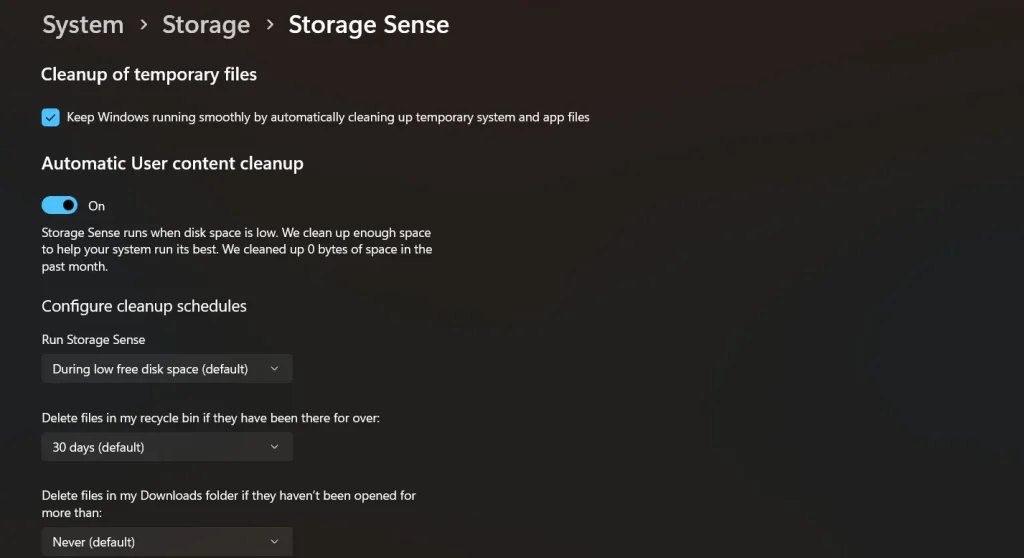
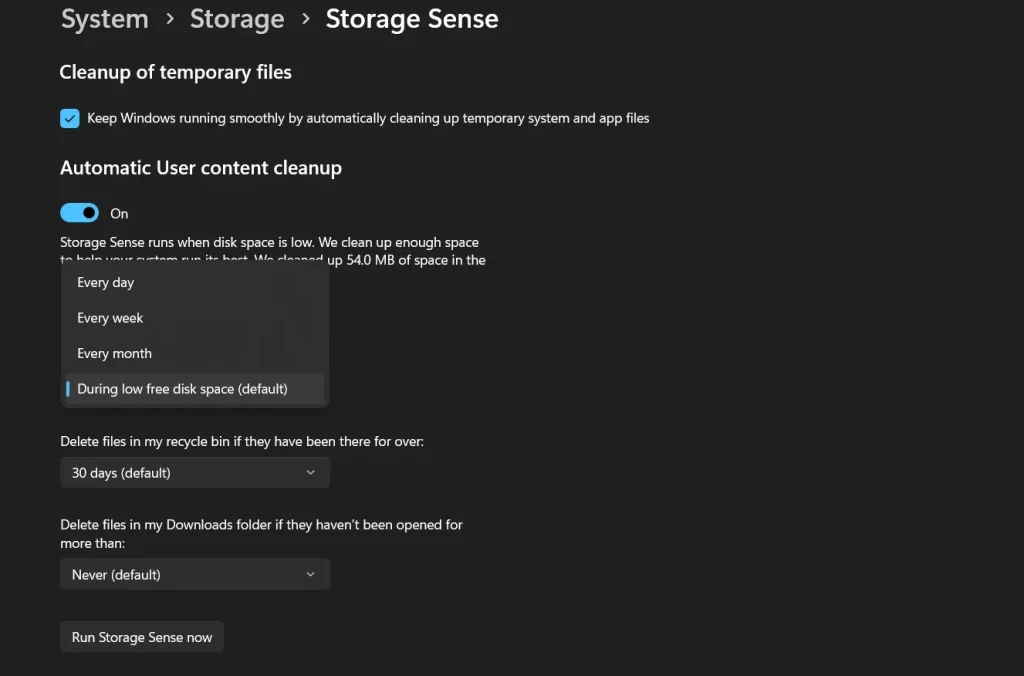
This is the heart of the feature. Under Run Storage Sense, you choose how often it runs. The options are every day, every week, every month, or during low free disk space. The last option is the default. Low free disk space depends on your drive size. You are in a low disk state when the capacity bar in Storage settings turns red. For most people, the default is a good starting point.
Temporary Files Cleanup
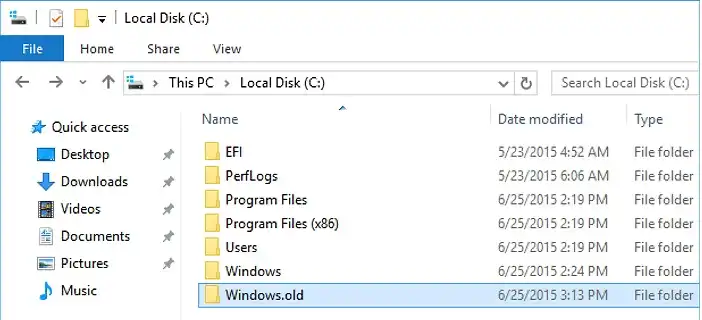
Windows and apps create many temporary files. They pile up over time and serve no purpose after a task ends. The Cleanup of temporary files option clears temporary system and app files automatically. In the Temporary files list, you can also see items such as Windows Update Cleanup and files from Microsoft Store apps. This section also holds the Previous Windows Installation option, which removes the Windows.old folder.
Recycle Bin Cleanup
Deleted files do not vanish. They sit in the Recycle Bin and keep using space. Storage Sense can delete items that have been there for a chosen number of days. In current Windows 11 builds, the default is 30 days. You can pick a shorter time or turn the rule off. It is a small setting that quietly recovers space over the months.
Locally Available Cloud Content
Cloud files can sit fully on your disk or exist online only. Storage Sense can turn unused cloud files into online-only files after a chosen time. This setting does not delete anything. Files can be downloaded again when you need them, if you have free space and a network connection. You will see this setting only when you are signed in to your cloud account.
Run Storage Sense Now
Sometimes you need space right away. The Run Storage Sense now button starts a cleanup with your current settings. It saves you from waiting for the next scheduled run. This is handy before a big Windows update or a large download.
Cleanup Recommendations
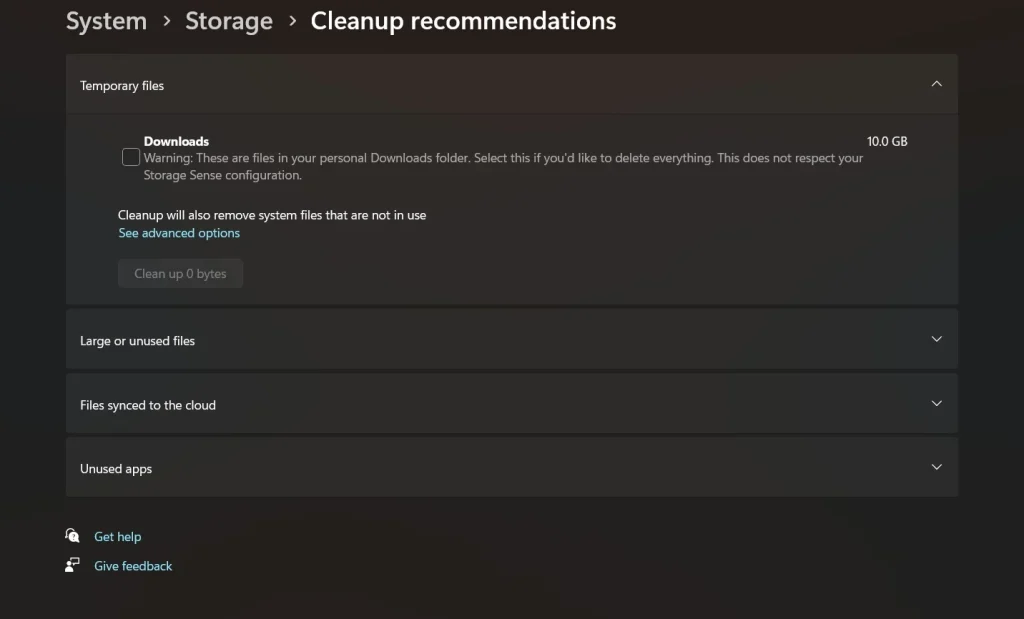
Cleanup recommendations are the manual side of storage care in Windows 11. It sits under Start > Settings > System > Storage. It lists four groups: Temporary files, Large or unused files, Files synced to the cloud, and Unused apps. Windows shows how much space each group can free. You select the items and click Clean up for each section. It is a good choice if you prefer to review everything yourself.
Part 4: How to Use Windows Storage Sense Tool: Step-by-Step Guide
Getting started is easy. You do not need any technical background. The whole setup takes about five minutes. Nothing needs downloading.
Before you begin, check your free space. Open File Explorer, click This PC, and look under Devices and drives. Also move any files you want to keep out of the Downloads folder. This matters if you plan to turn on Downloads cleanup. Then follow these three steps.
Step 1: Open Storage Settings
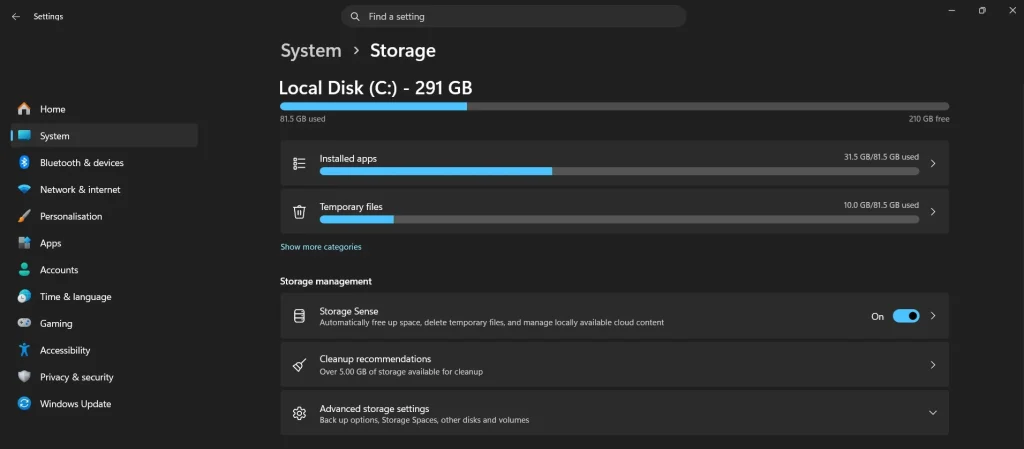
Click Start and open Settings. Go to System, then Storage. You will see a bar that shows how your drive is used. Below it, find the Storage Sense option under Storage management. Set it to On.
Step 2: Choose Your Cleanup Rules
Click Storage Sense to open its settings. Under Run Storage Sense, pick how often it should run. Next, set the Recycle Bin rule. Then decide if you want the Downloads folder rule. Leave it on Never if you are unsure. If you use OneDrive, choose when unused files become online only. Keep Cleanup of temporary files turned on.
Step 3: Run It and Review
Click the Run Storage Sense now button to start the first cleanup. When it finishes, return to the Storage page and check your free space. Then open Cleanup recommendations to see items that need a manual look. Review each group, tick the items you want to remove, and click Clean up. Be careful with the previous Windows installation. Deleting it cannot be undone, and you will lose the option to go back to the old version.
Part 5: Windows Storage Sense: Benefits and Drawbacks
No tool is perfect, and understanding its limitations is just as important as knowing its benefits. Here is a clear overview of the key pros and cons, based on our experience and common observations from user reviews.
Pros
- Free and built-in: There is nothing to buy or install.
- Automatic cleanup: After the first setup, it works without your help.
- Safe defaults: Only temporary files and the Recycle Bin are handled unless you add more rules.
- Cloud-aware: Unused OneDrive files can become online only to save local space.
- Clear control: Each rule has simple options, and you can turn any rule off.
- No upsells: There are no ads, pop-ups, or locked features.
Cons
- System drive only: It manages C: and does not clean other drives by itself.
- Limited reach: Does not clean caches from third-party apps or browsers.
- Basic scope: It has no registry cleaner, startup manager, or duplicate finder.
- Off by default: You must turn it on yourself, and its default trigger is low disk space only.
- Downloads rule needs care: If you enable it, files you forgot about can be deleted.
Part 6: Cost and Availability: Windows Storage Sense Tool
Storage Sense has no pricing plans. It ships with Windows 10 and Windows 11 at no extra cost. There is nothing to buy, no license key, and no subscription. Every setting is open to every user.
- Cost: Free. Included with Windows.
- Availability: Windows 11 and Windows 10.
- Requirements: You must be signed in and online for more than ten minutes for it to run.
- For businesses: IT admins can manage Storage Sense through policy settings. They can turn it on, set the run schedule, and set the Recycle Bin rule across many PCs.
Here is a side-by-side look at the two Windows cleanup tools in the Storage page: Storage Sense and Cleanup recommendations.
| Feature | Storage Sense | Cleanup Recommendations |
| Runs automatically | Yes | No, you run it by hand |
| Schedule | Daily, weekly, monthly, or low disk space | None |
| Temporary files | Yes | Yes |
| Recycle Bin rule | Yes | Not listed |
| Downloads folder rule | Yes, optional | Not listed |
| OneDrive online-only files | Yes | Files synced to the cloud group |
| Large or unused files | No | Yes |
| Unused apps | No | Yes |
| Cost | Free | Free |
Summary: Storage Sense is best for hands-off upkeep. Cleanup recommendations are best for a one-time review. Used together, they cover most basic cleanup jobs.
Part 7: Performance in Practice: How the Tool Handled My PC
I tried Storage Sense on my Windows 11 laptop because the drive was getting full. I opened Settings, went to Storage, and switched Storage Sense on. It took about a minute to find the options. The layout was calm and clear, with no extra offers.
I set it to run every week. I left the Downloads rule on Never, because I keep a few files there that I still need. Then I clicked Run Storage Sense now. The first run cleared temporary files and old items from the Recycle Bin. After that, I opened Cleanup recommendations and looked through the large and unused files. That list helped me spot a few things I had forgotten about.
It was not a dramatic change. Storage Sense does not speed up boot time or manage startup items, and it does not claim to. It simply keeps the drive tidy.
What I liked most was the quiet, hands-off style. There were no pop-ups and no upgrade prompts. I would keep it on for regular upkeep.
Part 8: Global Trust and Reviews for Windows Storage Sense Tool
Storage Sense is widely trusted because it comes from Microsoft and lives inside Windows. Most reviewers praise its simple setup and its safe defaults. The main criticism is that it does less than dedicated PC cleaners.
Global Trust and Reputation
- First-party tool: It is made and documented by Microsoft, and its settings can be managed by IT policy.
- Long track record: It has been part of Windows since Windows 10 and continues in Windows 11.
- Expert view: Reviewers say it covers the basics well, but does not replace tools with broader features.
Reviews and Ratings
| Source | Rating | Highlights | Concerns |
| Microsoft Support | No rating | Official steps, safe defaults, clear FAQ | Works on the system drive only |
| MakeUseOf (2026) | Positive, no score | Free, set once, works with OneDrive | Does not clean third-party app or browser caches |
| XDA Developers (2026) | Positive, no score | Does more than expected; always keep on this device protection | Needs setup to reach its full value |
| TheWindowsClub (2026) | Positive, no score | Clear setup steps for Windows 11 | Triggers only when disk space is low by default |
Strengths Noted Worldwide
- Simplicity: A few toggles control the whole feature.
- Safety: Microsoft’s defaults leave Downloads and cloud content alone.
- Value: It is free and has no locked features.
Limitations Affecting Trust
- Limited scope: It focuses on system drive storage, not on speed tuning or registry care.
- Manual setup: It is off by default, so many people never use it.
- Rules need care: Downloads cleanup can remove files you forgot about.
- Sign in needed: It does not run unless you are signed in and online.
Conclusion
Windows Storage Sense is a simple, free way to keep your drive from filling up. It clears temporary files, empties the Recycle Bin on schedule, and can turn unused OneDrive files into online-only files. Cleanup recommendations add a manual view for large files and unused apps. Together they cover most everyday cleanup needs.
The limits are clear too. It works on the system drive only. It does not clean browser or third-party app caches. It has no startup manager or registry tools. If you expect it to speed up a slow PC, you may be disappointed. Its job is storage upkeep, and it does that job well.
For most people, turning it on is an easy win. Set a schedule, keep the Downloads rule on Never unless you are sure, and run it now once to see the result. If you later need broader tools, you can add them. Until then, the cleaner you need may already be sitting in Settings.
FAQs
1. Is Windows Storage Sense safe to use?
Yes, it is safe. It is a built-in Microsoft feature. With the default settings, it only clears temporary files and, after a set time, items in the Recycle Bin. Microsoft says your Downloads folder and cloud content are not touched unless you set rules for them. Before you turn on the Downloads rule, move anything important out of that folder. Files marked Always keep on this device are also exempt.
2. Why is Storage Sense not running, or not cleaning my other drives?
There are a few common reasons. Storage Sense is off by default, so you must turn it on in Settings. Its default schedule runs only when disk space is low, so it may seem idle on a healthy drive. It also runs only when you are signed in and online for more than ten minutes. Finally, it manages the system drive only. To free space on other drives, go to Storage > Advanced storage settings > Storage used on other drives.
3. Can Storage Sense replace a third-party PC cleaner?
For basic storage upkeep, yes. It handles temporary files, the Recycle Bin, and OneDrive content well. It does not clear browser or third-party app caches, and it offers no registry cleaner, startup manager, or duplicate finder. If you only need to keep the drive from filling up, it is enough. If you want deeper tuning, you may want extra tools.

Author Bio:
Dinesh Lakhwani, the entrepreneurial brain behind “TechCommuters,” achieved big things in the tech world. He started the company to make smart and user-friendly tech solutions. Thanks to his sharp thinking, focus on quality and the motto of never giving up, TechCommuters became a top player in the industry. His commitment to excellence has propelled the company to a leading position in the industry.
Popular Post






Recent Post

Windows Storage Sense For PC Cleaning: Everything You Need To Know
The low disk space warning always shows up at the worst time. A big update is waiting to install. A file refuses to save. The storage bar in Settings has turned red, and nobody remembers what filled it. Most people react by hunting for a cleaner to download. Many never notice that Windows already has […]

EaseUS CleanGenius Reviewed: Features, Pricing, and Real Results
Nobody notices the first temporary file. Nobody notices the hundredth either. Then one day the drive is almost full, the browser drags, and Windows takes ages to start. Clutter builds in quiet ways. Installers leave leftovers. Browsers store cache and cookies. Apps write logs that nobody reads. Programs add themselves to startup without asking. None […]

Advanced SystemCare: Tool To Clean Your PC [Complete Review]
The first thing I notice is how the startup screen hangs. The fan kicks in fast and stays loud. If I open a simple folder, the whole system pauses for a moment. It does not look like a clear hard failure, yet the PC feels heavy and slow. This is not usually one big problem. […]

CCleaner PC Cleaning Tool: An In-Depth Review
Learn how to clean your PC with CCleaner. This complete guide covers features, step-by-step instructions, pros, cons, pricing, and FAQs to help you decide.

Avira PC Speed Up Tool: Is It Actually Worth It?
A fresh Windows install feels like a different world. Isn’t it? Everything opens fast. Menus snap into place. Then a year passes, sometimes less, and that same machine starts to feel heavy for no clear reason. Nothing dramatic happened. No single event caused it. It was just months of small leftovers stacking up quietly in […]

Avast PC Cleanup Tool: A Detailed Review
Computers do not slow down overnight. Well, yes! That’s right! It happens in small steps. A temporary file here. A leftover installer there. A browser cache that quietly grows for months without anyone noticing. Add a few startup programs that load automatically, and soon your once fast machine feels like it is wading through mud. […]

Outbyte PC Repair and Cleanup Tool: A Detailed Review
The laptop took nearly two minutes to open one folder. Chrome froze twice. The fan sounded like a tiny jet engine. Most of us have lived through a day like this. Right? Don’t worry! The machine is not dying. It is just tired and messy. A good cleanup can often bring back some of the […]

WMaster Cleanup PC Cleaner Tool: A Detailed Review
Your PC was fast on day one. Right? Every click felt instant, every app opened in a snap, and the fan barely made a sound. Then came the browser tabs, the half-finished downloads, and the apps you tried once and forgot to remove. Slowly, without any warning, that same machine started to feel tired. Boot-ups […]

BleachBit PC Cleaner Tool: Complete Review After Running Tests
A PC never stays clean on its own. Every app you open, every website you visit, and every file you download leaves something behind. Weeks turn into months, and suddenly your storage feels tight, and your PC feels slower, with no clear reason why. The usual fix is a cleaning tool. But the market is […]

Iolo System Mechanic Review: Full Breakdown and Honest Take
Iolo System Mechanic is designed for users who want their PC to feel fresh and responsive again. With just a few clicks, it digs into the system, clears out unnecessary clutter, and delivers noticeable speed improvements. The interface is straightforward and beginner‑friendly, making it easy to navigate without confusion. But this tool goes beyond simple […]
