Outbyte PC Repair and Cleanup Tool: A Detailed Review
The laptop took nearly two minutes to open one folder. Chrome froze twice. The fan sounded like a tiny jet engine.
Most of us have lived through a day like this. Right? Don’t worry! The machine is not dying. It is just tired and messy. A good cleanup can often bring back some of the old speed.
Old files pile up in hidden corners. Apps start with Windows and never quit. Browsers keep trackers for months. Small errors gather in the background and slow everything down. This is where PC care tools step in. Outbyte PC Repair is one of the most talked-about names in this space. Some people praise it. Some people doubt it. Both groups have a point, and that is why a fair review is needed.
This review looks at the tool from every side. We cover what it does, how to use it, what it costs, and what real users say. We also list the good and the bad in plain words. The goal is simple. By the end, you will know if it fits your PC and your budget. Let us start.
Outbyte PC Repair and Cleanup Tool Review: Does It Really Speed Up Your PC?
Part 1: Brief Overview: Outbyte PC Repair and Cleanup
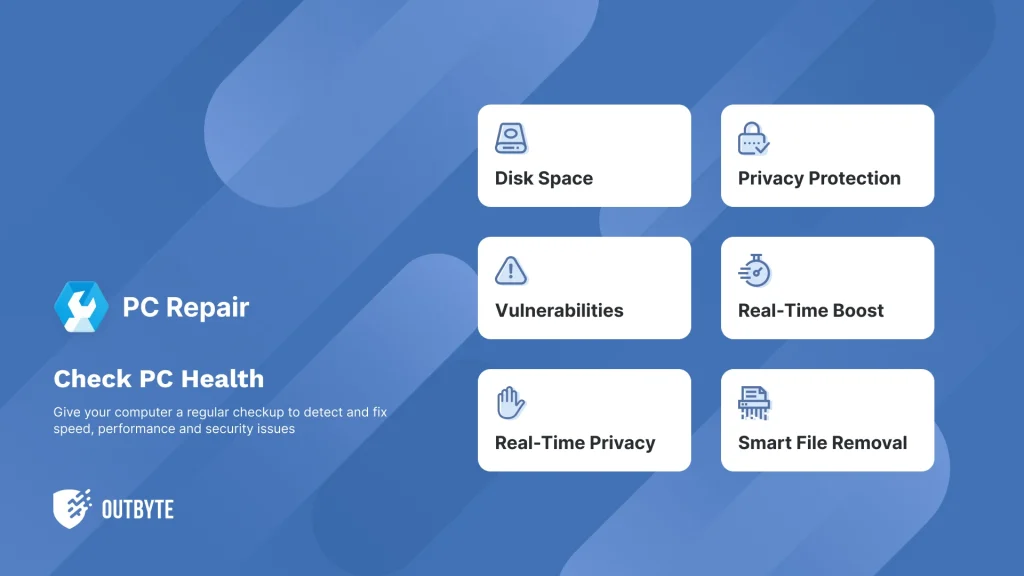
Outbyte PC Repair is a Windows tool made by Outbyte. The company has been building PC care software since 2016. The tool scans your computer for common problems and helps you fix them. It works on Windows 11, 10, 8, and 7. Think of it as one place for cleaning, tuning, and basic safety checks. It also helps you win back some disk space when a drive feels full.
The tool is made for everyday users. You press scan, look at the results, and pick what to fix. It is not built to replace your antivirus. Outbyte says this on its own site. It works best as a helper that sits next to your security software and handles system optimization tasks. That focus keeps the app light and the screens simple. New users can learn the basics in one sitting.
Here are the quick features:
- Full system scan that finds common PC issues
- Junk file cleaner for temporary and cached files
- Tweaks that cut down background load on Windows
- Tracking cookie removal and browser history cleanup
- Alerts about missing Windows updates and risky websites
- Lightweight scan for unwanted apps and known malware
- Real-time Boost to give your active app more CPU time
- File Shredder for safe deletion from the Recycle Bin.
Quick Info
- Latest Version: 2.0.1.54517 (Updated September 11, 2026)
- File Size: 16.2 MB (installer size)
- Company Name: Outbyte Computing Pty Ltd
- Supported OS: Windows 11, 10, 8, 7 (32/64-bit)
- License: Demo / Trial version available; full version starts at $29.95 (3-month subscription)
- Developer Website: Outbyte official homepage.
Part 2: Eight Smart Reasons to Give This PC Fixer a Try
Here are eight reasons why people pick it. Each one comes from what the tool actually offers, not from marketing talk.
- Simple design. The layout is easy to follow. Scan, review, fix. That is the whole flow. Beginners will feel at home from the first minute, and there is no long setup to sit through.
- More free storage. Temporary files and cached data can grow to many gigabytes over time. The tool finds them and clears them out. This gives back disk space on small SSDs, where every gigabyte counts. Laptop owners will notice this the most.
- Fixes common Windows problems. Outbyte says the tool can handle more than a hundred common issues. These include bad redirects, shared DLL problems, and other small system faults.
- Better control of what runs at boot. Too many startup programs make Windows slow to wake up. The tool points out settings that add load. You then choose what to change. Nothing is forced on you, which is a nice touch.
- Basic online privacy. It removes tracking cookies and clears old browser history. It can also switch off some Windows telemetry features. That means fewer traces are left behind, and fewer ads follow you around the web. This gives you simple privacy protection without extra apps.
- Extra safety checks. The tool warns you about missing Windows updates and risky websites. It also runs a light scan for unwanted apps and some known malware.
- Real-Time Boost. This feature shifts CPU priority to the app you are using. A video editor or a game gets more power when it needs it. Your other apps step back for a while. It is a small trick, but it can make work feel smoother.
- Low risk to try. You can try the tool for free before deciding to buy. The paid version also includes a 30‑day refund policy, so you can test the results without risk. This makes the purchase feel safer and gives you time to see if it truly improves your PC.
Part 3: Key Features Explained: Outbyte PC Repair and Cleanup Tool
1. System Scan and Repair
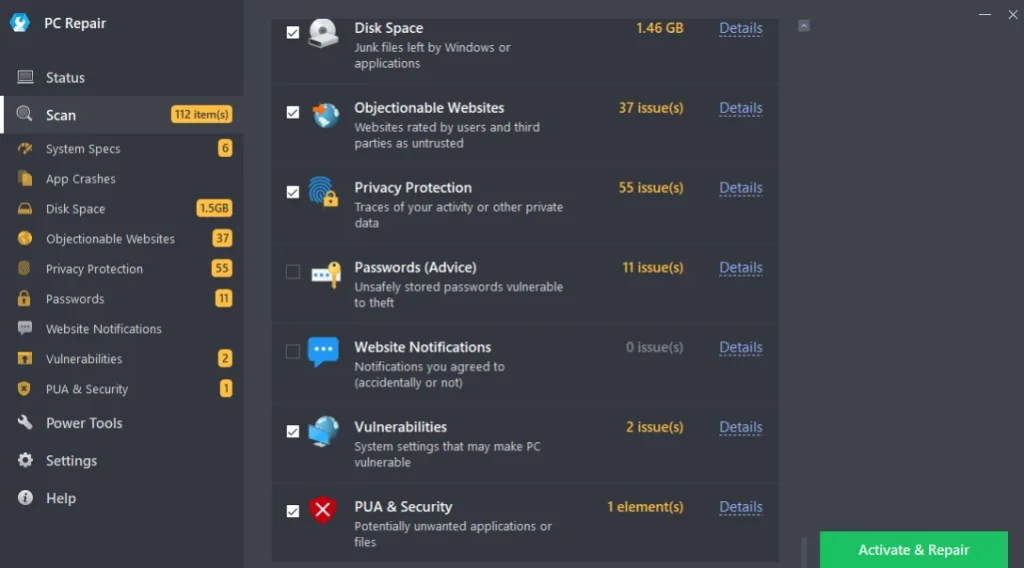
The scan is the main function of the tool. It runs through your system and creates a clear list of issues it finds. These can include broken settings, invalid shortcuts, shared file errors, and more. You can review the list yourself and decide which items to repair. This gives you full control and makes sure no changes happen without your approval.
2. Junk File Cleanup
Every program leaves small scraps behind. Temp files, cache files, and old logs pile up over time. Outbyte works as a junk file cleaner that finds these scraps and removes them in one go. It helps most on laptops with small drives, where free space runs out fast. Clearing this clutter will not always make Windows faster. Outbyte itself says junk does not hurt speed much. But it does free up disk space, and that alone is worth a lot. A cleaner drive also leaves Windows more room for updates. Run this cleanup once a month to keep the clutter under control.
3. Windows Tweaks and Speed Boost
Windows runs many background tasks. Some of them are not needed. They eat memory, storage access, and CPU power. Outbyte suggests changes to Windows settings that reduce this load. It also shows what may slow down your startup programs. You can then decide what to trim. The gain depends on your PC. A crowded system may feel lighter after a few changes. A clean system may show little change at all. This is basic system optimization, and it works best when you make small changes and then restart. Do not turn everything off at once.
4. Security Checks
Outbyte helps you turn some Windows features on or off to keep the system steadier. It tells you when Windows updates are missing, which matters because old updates leave doors open. It also has a light scanner that looks for unwanted apps and some known malware. Please treat this as a bonus. It is not a full antivirus. Outbyte states clearly that the tool should work alongside your main security program, not instead of it. Think of the scanner as a quick check, and let your main antivirus do the deep work.
5. Real-Time Boost
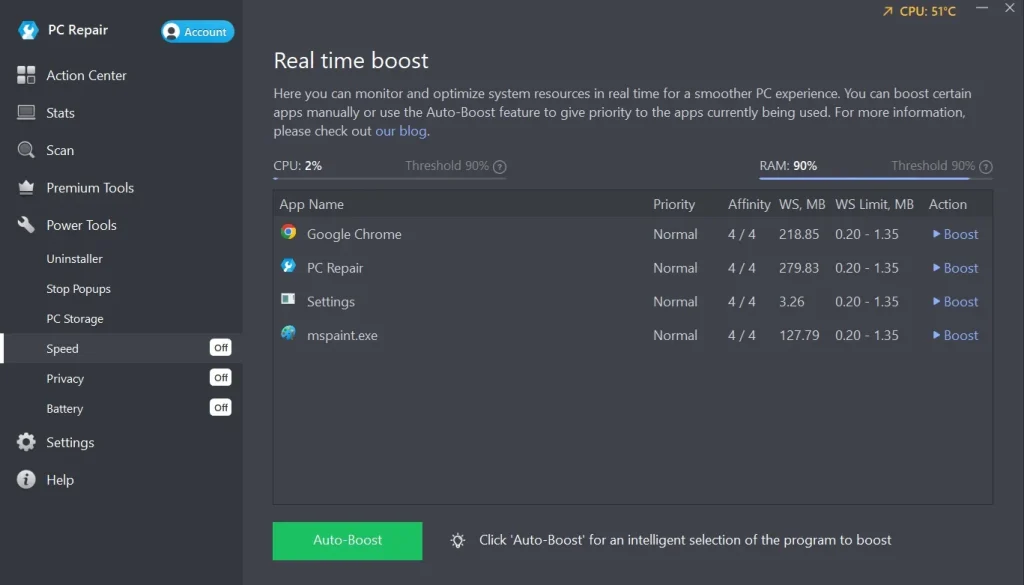
This one is handy for busy users. Real Time Boost changes CPU priority as you switch between apps. If you jump from a browser to a video editor, the editor gets more power. Then the browser gets it back when you return. The result is a smoother feel while you work. It will not turn an old PC into a new one. But on a mid-range machine, the shift can be easy to notice. Gamers and video editors will enjoy it the most, as they often push the CPU hard.
6. Privacy Tools
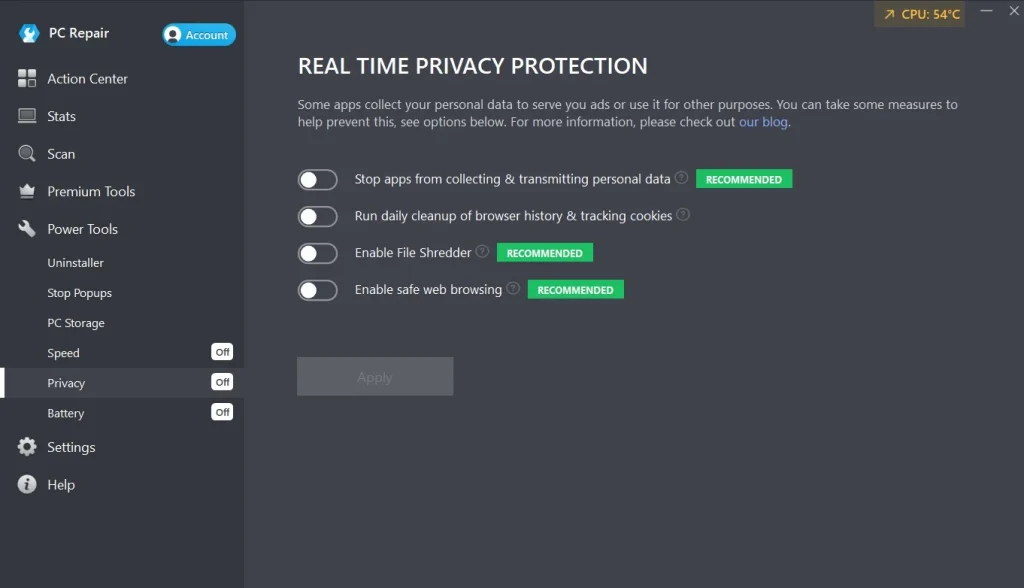
Websites use tracking cookies to follow what you view and buy. Then ads chase you from page to page. Outbyte can delete these cookies in one sweep. It also warns you about risky websites. Another tool clears old browser history on its own, and you can turn off Windows telemetry too. Together, these steps offer decent privacy protection for daily use. They are not a full privacy suite, but they cover the basics well for most people. If you share your PC with family, the cookie cleanup is a simple way to keep browsing habits private.
Part 4: How to Use Outbyte PC Repair and Cleanup Tool: Step-by-Step Guide
Using the tool is easy. The steps are short and clear. There are no hard menus to learn. Even a first-time user can finish a full scan in a few minutes. Before you begin, close your open files and save your work. This keeps things safe if a restart is needed later.
It also helps to think about your goal. Do you want more free space? Do you want a smoother start? Or do you want cleaner browsing? Knowing this makes system optimization much easier, because you can focus on the results that matter to you. Keep that goal in mind as you go.
Now let us walk through the steps.
Step 1: Download and install the tool.
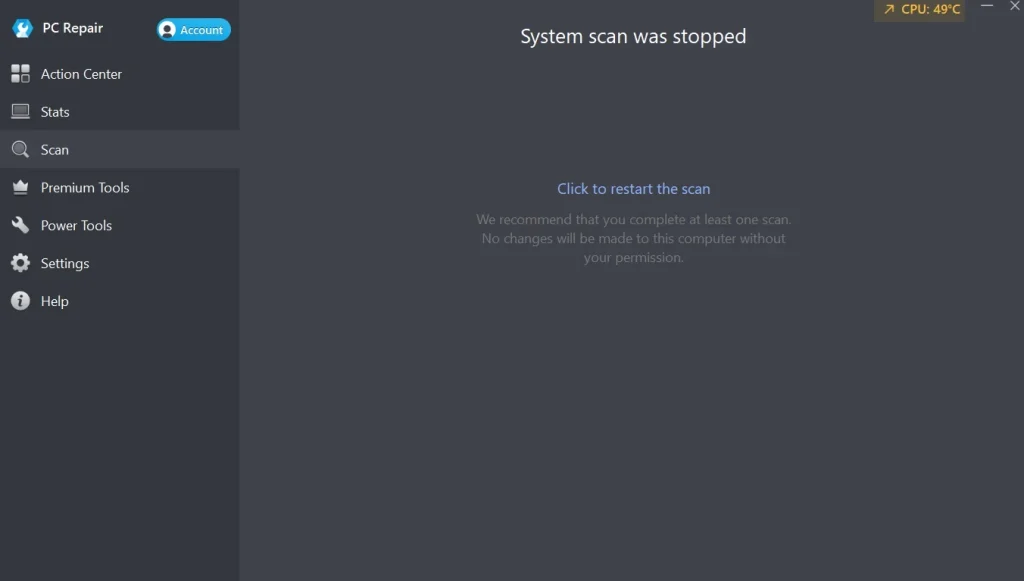
Download the tool from the official Outbyte website. Run the installer and follow the setup instructions. Once installed, open the program to access the main dashboard. Click Scan to start checking your PC for issues.
Step 2: Run a full scan.
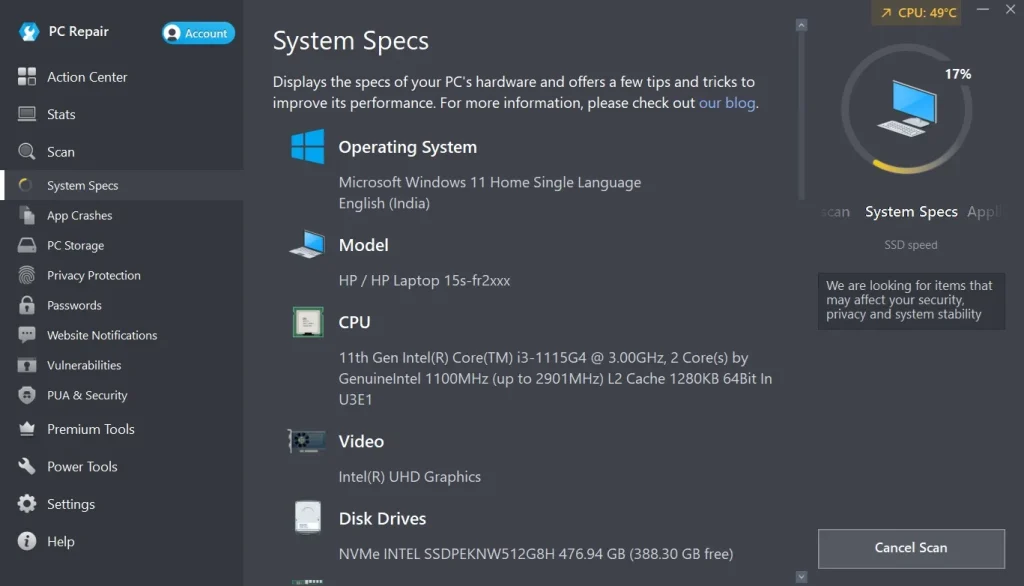
The tool will analyze system specs, system files, registry entries, performance settings, and more. Wait for the scan to finish. It usually takes a few minutes.
Step 3: Review and fix the issues.
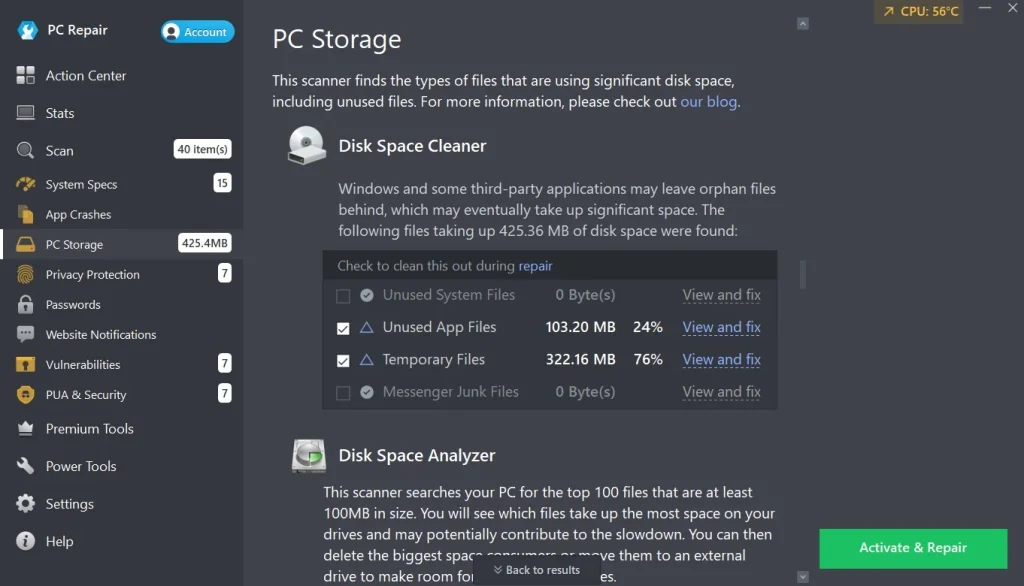
Review the detected issues and click Repair to fix them. Use the PC Storage sections to remove junk files and boost performance. Restart your PC for best results.
Part 5: Pros and Cons Explained: Where This Tool Shines and Where It Slips
Every tool has strong and weak sides. Outbyte PC Repair is no different. It does some things very well. In other areas, it leaves room for doubt.
Here is an honest look at both sides, so you can decide with a clear head. The list is split into pros and cons to keep things easy to scan.
Pros
- Easy to use. The layout suits beginners. A single scan shows everything in one place, with no need to jump through menus. Most people can finish a full run without reading a manual.
- Wide range of tools. It covers cleaning, tuning, privacy, and light security. You get a lot in one app. A good junk file cleaner is only one part of the package. That saves you from installing three or four separate programs.
- You stay in control. The scan results can be reviewed before any repair. You choose what to keep and what to fix. This lowers the fear of breaking something by mistake.
- Safe to try. A free trial and a 30-day money-back guarantee lower the risk for new buyers. If the tool does not help, you can ask for your money back within the window.
Cons
- Short license period. A paid license runs for three months, not a full year. This makes the true yearly cost higher than it first looks. Many PC tools sell yearly plans instead.
- Auto renewal at a higher price. Reports say the renewal is billed at the standard price. That is well above the first term price. Watch your billing dates so the charge does not surprise you. A calendar reminder takes less than a minute to set.
- Limited registry tools. Expert reviewers say power users may find the registry options thin. Other tools go deeper here. If you love fine control, this may feel too basic.
Part 6: Pricing Plans: Outbyte PC Repair and Cleanup Tool
Outbyte PC Repair follows a subscription model. Each license runs for three months and then renews. The price you see first is a starting price. Costs may change from time to time, so always check the official site before you buy. Here is what the plans look like based on the latest reports.
Keep in mind that sale offers can pop up, and the numbers may look different on the day you visit.
- Free trial: You can download the tool and scan your PC at no cost. The trial lets you fix detected items category by category. Outbyte pages list slightly different trial lengths, so check the current terms before you install.
- 1 PC license: Starts at $29.95 for a three-month subscription. This is the price shown on the official product page.
- 5 PC license: Listed at $39.95 for three months by BestReviews. Outbyte’s own page shows only a “from” price, so confirm this at checkout.
- Unlimited PC license: Listed at $49.95 for three months by BestReviews. Confirm this at checkout too.
- Renewal price: BestReviews reports that plans renew at the standard price. That means $59.95, $69.95, and $79.95 for the same three plans. Cancel before the date if you do not want another term. Also note that the tool checks your subscription status about once a week. A renewal may take a few days to show up.
- Money-back guarantee: Every purchase comes with a 30-day refund window. Use it if the results do not meet your needs.
Here is a simple table that compares the free trial with the paid plan.
| Feature | Free Trial | Paid Plan |
| Cost | $0 | From $29.95 per three months |
| Time period | A few days | Three months, then renews |
| System scan | Yes | Yes |
| Repairs | Limited, category by category | Full access to repairs |
| Junk cleanup | Limited by the trial rules | Full use |
| Privacy tools | Limited by the trial rules | Full use |
| Extra tools, such as Real Time Boost and File Shredder | Trial terms may limit these | Part of the full product |
| PCs covered | The PC you test on | 1 PC, or more on higher plans |
| Renewal | None | Auto-renews at the standard price |
| Refund | Not needed | 30-day money-back guarantee |
| Best for | A quick check of your PC | Regular PC care |
Part 7: Honest Feedback on Using Outbyte PC Repair and Cleanup On My PC
When I first installed Outbyte PC Repair and Cleanup, I wanted something that could quickly fix small system issues and improve performance. The setup was smooth, and the interface looked clean and easy to use.
I liked how the dashboard showed clear sections for scanning, cleaning, and optimizing, which made it simple to understand what each part did.
After running a full scan, the tool found several registry errors and unnecessary files. The cleanup process was fast, and I noticed my PC booted a bit quicker afterward. However, some of the suggested fixes felt more like general recommendations than real problems. I appreciated the detailed report, but I wished it explained more about how each fix affected performance.
Overall, Outbyte PC Repair and Cleanup worked well for basic maintenance. It’s good for freeing up space and keeping the system tidy, but it’s not a magic solution for deep performance issues. I’d say it’s a helpful tool for regular upkeep, especially if you prefer something easy to use and visually clear.
Part 8: What the World Says: Trust, Reviews and Ratings
Outbyte PC Repair has mixed but generally positive trust levels among users. Many appreciate its clean interface and simple repair process. It’s often praised for detecting registry errors and improving boot speed.
User Reviews
On review platforms like Trustpilot and SiteJabber, ratings vary between 3.5 and 4.2 stars. Users highlight ease of use and quick scans as strong points. Negative reviews mostly mention limited features in the free version and occasional false positives in system scans. Tech forums often describe it as “a decent maintenance tool but not a deep optimizer.”
Ratings Summary
- Softpedia: 4.1/5 (Clean and safe software badge)
- FileHorse: 4/5 (Good for regular cleanup tasks)
Trustpilot: 3.8/5 (Mixed feedback on pricing and support)
- Overall, Outbyte PC Repair earns moderate trust — reliable for basic cleanup, but not a top-tier optimizer compared to tools like CCleaner or Advanced SystemCare.
Conclusion
Outbyte PC Repair is a simple and friendly tool. It cleans junk, trims background load, and adds a few privacy and safety checks. It is not a miracle. It will not make a very old PC feel brand new. But for everyday users, it can tidy things up without much effort. The clean design, the privacy protection tools, and the control it gives you are its best points. It also delivers steady system optimization for people who do not want to fiddle with settings.
The main weak spot is the pricing. A three-month license and a higher renewal cost can catch buyers off guard. The free trial is the best way to test it. Read the terms, set a reminder, and keep your antivirus running. Those small steps protect your money and your PC. Also stay away from sites that promise free keys. They are not worth the risk.
So, is it worth it? If you want an easy tool for regular PC care, yes, it is worth a look. If you are a power user who wants deep registry control, you may want something else. Either way, try the scan first. Let your own results guide the choice. A tidy PC is a happy PC, and a small tool can help you get there. Give it a fair test on your own machine. Look at what it finds. Keep only the changes that make sense to you. That way, you stay in charge from start to finish.
FAQs
Is Outbyte PC Repair safe to use?
Outbyte PC Repair is a legitimate Windows tool from a company that has been active since 2016. Some review sites report that it holds AppEsteem certification. A few antivirus programs may flag the installer by mistake. To stay safe, download it only from the official Outbyte website. Also keep your own antivirus active, since this tool is not built to replace one.
Is there a free version of Outbyte PC Repair?
There is no fully free version. You can download the tool and run a scan at no cost. A free trial also lets you fix detected items by category. To get full access to repairs and features, you need a paid license. Be careful with sites that offer free activation keys. Outbyte does not publish them, and those files can hide unwanted software. Use the official trial or buy a license instead.
Will Outbyte PC Repair speed up my computer?
It depends on your PC. If your system is full of junk files or has many heavy startup items, you may feel a clear gain. If your PC is already clean, the change may be small. Outbyte itself says most slowdowns come from a few heavy apps. The tool helps you spot those causes so you can act on them. Restart the PC after any change, then compare how it feels.

Author Bio:
Dinesh Lakhwani, the entrepreneurial brain behind “TechCommuters,” achieved big things in the tech world. He started the company to make smart and user-friendly tech solutions. Thanks to his sharp thinking, focus on quality and the motto of never giving up, TechCommuters became a top player in the industry. His commitment to excellence has propelled the company to a leading position in the industry.
Popular Post


Recent Post

Outbyte PC Repair and Cleanup Tool: A Detailed Review
The laptop took nearly two minutes to open one folder. Chrome froze twice. The fan sounded like a tiny jet engine. Most of us have lived through a day like this. Right? Don’t worry! The machine is not dying. It is just tired and messy. A good cleanup can often bring back some of the […]

WMaster Cleanup PC Cleaner Tool: A Detailed Review
Your PC was fast on day one. Right? Every click felt instant, every app opened in a snap, and the fan barely made a sound. Then came the browser tabs, the half-finished downloads, and the apps you tried once and forgot to remove. Slowly, without any warning, that same machine started to feel tired. Boot-ups […]

BleachBit PC Cleaner Tool: Complete Review After Running Tests
A PC never stays clean on its own. Every app you open, every website you visit, and every file you download leaves something behind. Weeks turn into months, and suddenly your storage feels tight, and your PC feels slower, with no clear reason why. The usual fix is a cleaning tool. But the market is […]

Iolo System Mechanic Review: Full Breakdown and Honest Take
Iolo System Mechanic is designed for users who want their PC to feel fresh and responsive again. With just a few clicks, it digs into the system, clears out unnecessary clutter, and delivers noticeable speed improvements. The interface is straightforward and beginner‑friendly, making it easy to navigate without confusion. But this tool goes beyond simple […]

Clean Master for PC Tested: A Full Breakdown of Its Tools
A computer doesn’t slow down overnight. Right? It happens bit by bit. Extra downloads, leftover cache, startup apps piling up. Soon the fast machine you loved feels sluggish. Boot times drag, programs freeze, and even opening a browser tab feels heavy. This slow decline is common, caused by junk files, cluttered registries, and hidden tasks […]
How To Clean Your PC/Laptop: Guide for Beginners to Experts
A computer never announces that it needs help. Well, yes! It just gets slower, hotter, and noisier, one day at a time, until you finally stop and wonder what changed. Nothing changed overnight. What happened is dust and clutter, working quietly in the background for months. Dust settles inside fans and vents, trapping heat and […]

Wise Care 365 PC Cleaner Tool: A Hands-On Review
Every Windows user knows the feeling. Your computer runs fast on day one. Then months pass. Files pile up. The registry gets messy. Startup takes longer. Apps freeze more often. This slow decline is normal, but it is also annoying. Most people just live with it. Some restart their PC often, hoping it helps. It […]

Glary Utilities PC Cleaner: Complete Review [Tested and Trusted]
Glary Utilities is one of the most popular PC optimization tools available today. It combines cleaning, repair, and performance‑boosting features into a single suite. The goal is simple: keep your computer running fast and stable without needing multiple separate programs. In this review, we’ll look at how Glary Utilities performs in real use, what features […]

Microsoft PC Manager: Complete In-Depth Review
A slow computer can ruin your whole day. Files pile up. Startup apps multiply. Before you know it, your once fast machine feels sluggish and tired. Most people search for a fix, but many tools out there are bloated, pushy, or full of ads. Microsoft PC Manager was built to solve this exact problem. It […]

AVG TuneUp Guide: Features, Pros, Cons, and Pricing
PC performance often drops with time. Junk files build up. Startup programs increase. Storage fills up. As a result, your computer may take longer to boot, feel sluggish, or run out of space. The good news is that these problems are usually easy to fix. AVG TuneUp is a PC optimization tool for Windows. It […]
