JetClean Junk File Cleaner and PC Cleaning Tool: A Complete Review
Heads up before you read further: JetClean (made by BlueSprig) is discontinued. Its last version dates to 2016, and several listings say the official download is gone.
Let’s begin our review article!
Few Windows utilities stay in circulation for more than a decade without a major update. JetClean is one of them. The tool first appeared in beta form in 2011, and people still search for it today. That alone raises a fair question: is it a hidden gem or a relic that has outlived its time?
The appeal is easy to understand. JetClean is tiny, free, and built around a single idea. One click scans the registry, Windows folders, apps, shortcuts, and memory for clutter. It also offers a safety net that lets you undo changes. For anyone with an older PC, that mix has always sounded attractive.
This review looks at JetClean from every angle. It covers the features, the setup process, the pricing, and what reviewers say. It also covers the part many articles skip: the tool’s current status and the risks of downloading it today.
By the end, you will know if JetClean still deserves a place on your PC.
JetClean Reviewed: Features, Pricing, and Real Results
Part 1: Brief Overview: JetClean PC Cleaner Tool
JetClean is a lightweight Windows cleanup and tune-up suite made by BlueSprig, Inc. The same company also made JetBoost, a tool that speeds up a PC by closing unneeded processes. JetClean combines that idea with registry cleaning, junk file removal, and privacy cleanup. It comes in a free edition and a paid edition called JetClean PRO.
JetClean tries to give a slow PC a fresh feel with minimal effort. It targets leftover files, broken registry entries, and background processes that waste memory. A built in Rescue feature backs up changes so you can undo them. The program is only a few megabytes, so it installs fast and uses few resources.
There is an important caveat. The final version, 1.5.0.129, dates to 2016. Several download sites now list the program as discontinued or the download link as gone. This review explains how the tool works, and it also explains what that status means for you.
Key features at a glance:
- One-click scan for registry, Windows, apps, shortcuts, and RAM
- Registry cleaner for old and invalid entries
- Windows cleaner for temp files, logs, and the Recycle Bin
- Privacy cleanup for browser traces
- Startup optimizer and program uninstaller
- Performance Booster and RAM cleaner
- Rescue feature that backs up changes
- Portable mode for USB drives
Quick Info About JetClean
- Latest Version: 1.5.0.129
- Last Update Listed: February 29, 2016
- Setup Size: About 3.6 MB (4.2 MB on some mirrors)
- Developer: BlueSprig, Inc.
- Supported OS: Windows XP, Vista, 7, and 8 officially. Some listings report it running on Windows 10 and 11.
- License: Freeware, with a paid JetClean PRO edition
- Languages: More than 20
- Status: Reported as discontinued on several listings
Notable Points About the Final Release
- Version 1.5 improved support for Windows 8.
- It added stronger privacy cleaning for newer apps.
- It fixed bugs from earlier builds.
- Download.it notes that Windows 10 use is unofficial and works through compatibility mode.
Part 2: Why This Tool Deserves a Spot on Your PC: Top Reasons
Choosing a cleaner can feel confusing. Many tools promise the same results. Below are the reasons why users have kept JetClean installed for so many years.
- Very small size: The setup file is only about 3.6 MB. It installs quickly and does not weigh down an older PC.
- One-click scan: A single scan checks the registry, Windows folders, apps, shortcuts, and RAM. Beginners do not need to choose from long menus.
- Rescue feature: JetClean backs up the changes it makes. If something goes wrong, you can undo it.
- Free to use: The main edition is freeware. You can clean your PC without a subscription.
- Portable mode: Reviewers note that you can create a portable copy and run it from a USB drive. That helps on PCs where you prefer not to install anything.
- Wide cleaning coverage: It handles registry entries, Windows junk, browser traces, shortcuts, and leftover program data in one tool.
- Performance Booster: Based on JetBoost, it can close unnecessary processes while you game or work.
- Startup optimizer: It rearranges the apps that launch with Windows, which can help startup time.
Part 3: Key Features Explained: JetClean PC and Junk File Cleaner Tool
JetClean packs several tools into one small window. Below, we explain the seven that matter most in daily use.
One Click Scan
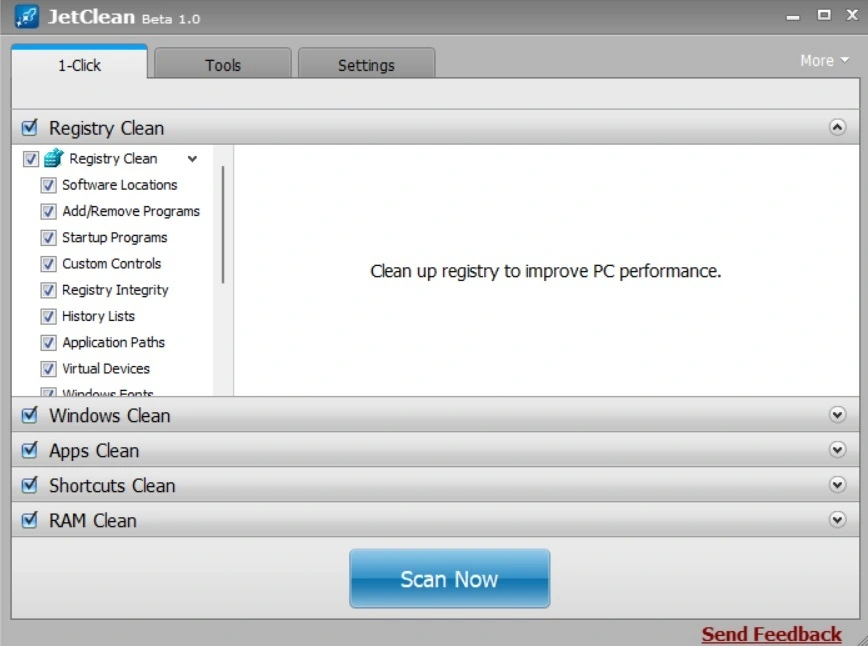
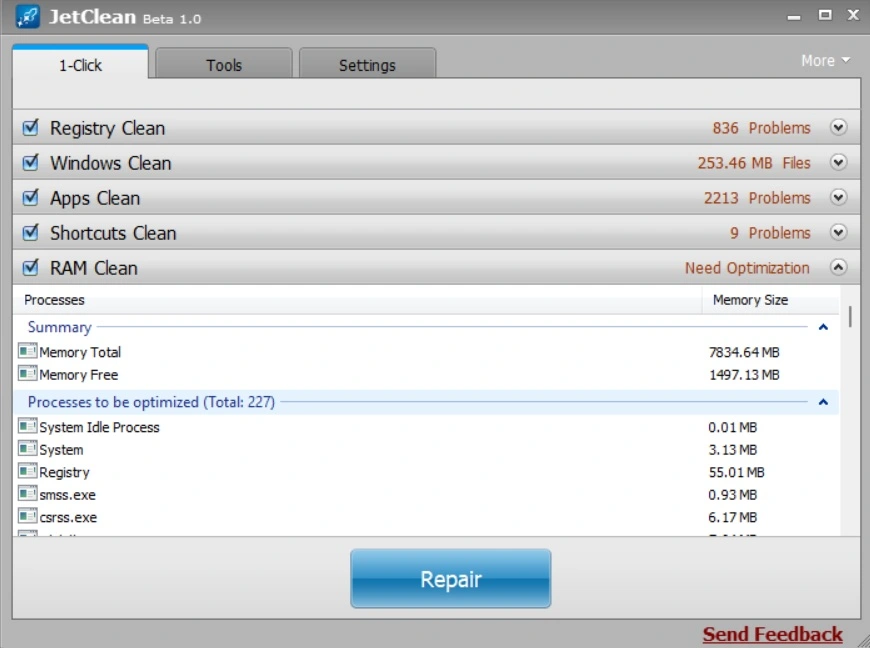
This is the feature the whole tool is built around. A single click runs a scan across your registry, Windows folders, apps, shortcuts, and RAM. The results appear in one list, grouped by area. You can then fix everything at once or pick items by hand. Softpedia called the interface clean and intuitive, which makes this first step easy for new users.
Registry Cleaner
The Windows registry stores settings for the system and your apps. Over time, it collects broken entries. JetClean looks for unused and old entries, empty registry values, invalid file extensions, nonexistent paths, Windows fonts, help files, icons, and invalid shortcuts. Registry cleaning gives small gains at best. Always back up the registry or rely on the Rescue feature before you apply changes.
Windows Cleaner
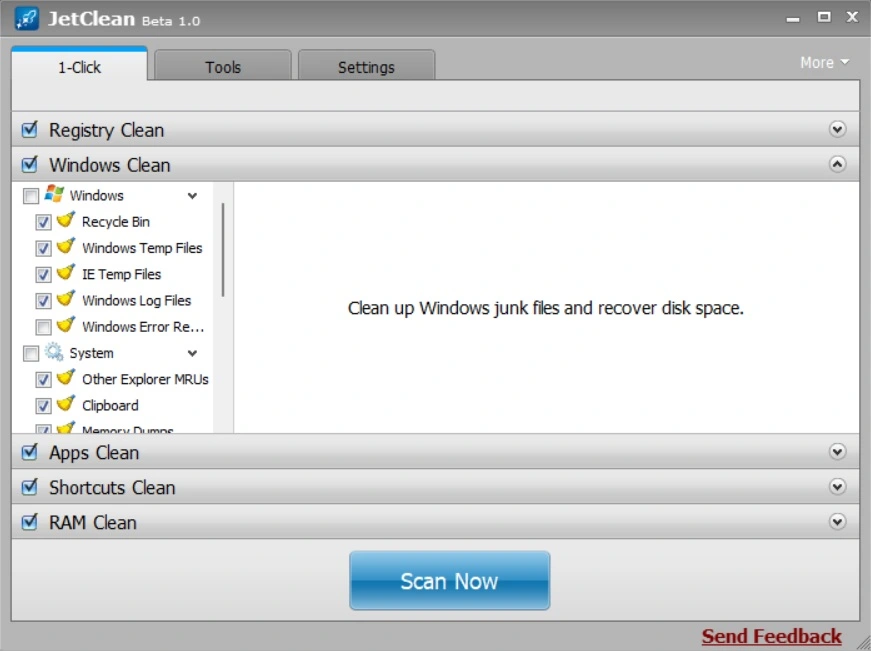
This feature hunts for junk inside Windows itself. The publisher lists the Recycle Bin, recent documents, temporary files, log files, the clipboard, memory dumps, the DNS cache, run history, error reporting data, and jump lists. These items pile up and take space. Clearing them frees storage and tidies the system, though the gain depends on how long it has been since the last cleanup.
Apps and Privacy Cleaner
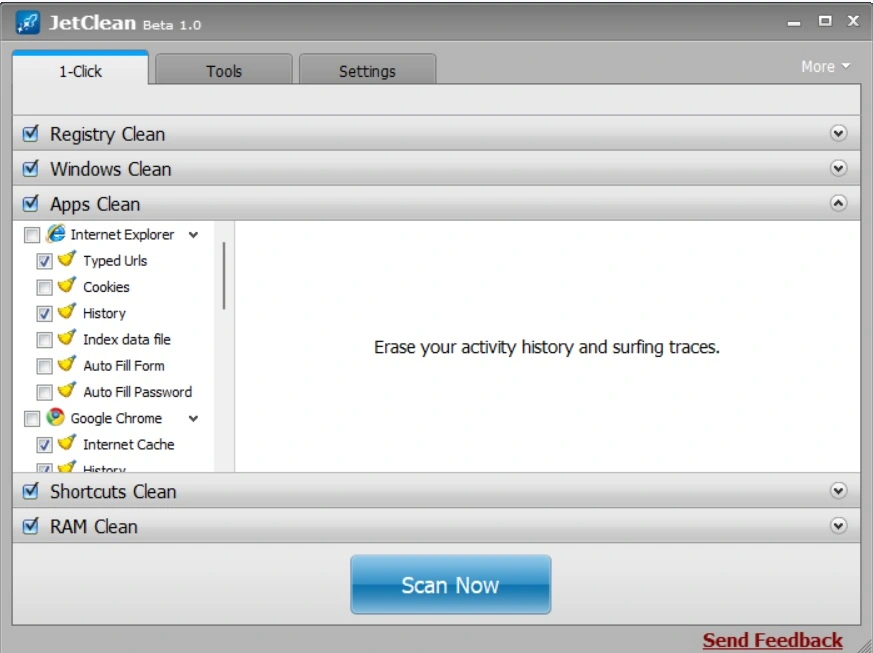
Browsers and apps leave traces behind. Softpedia notes that JetClean can clear Internet Explorer history, cookies, typed URLs, autofill data, the internet cache, and saved passwords. This protects privacy on a shared PC. Because the tool was built in the Internet Explorer era, check which modern browsers it actually covers before you rely on it.
Startup Optimizer and Uninstaller
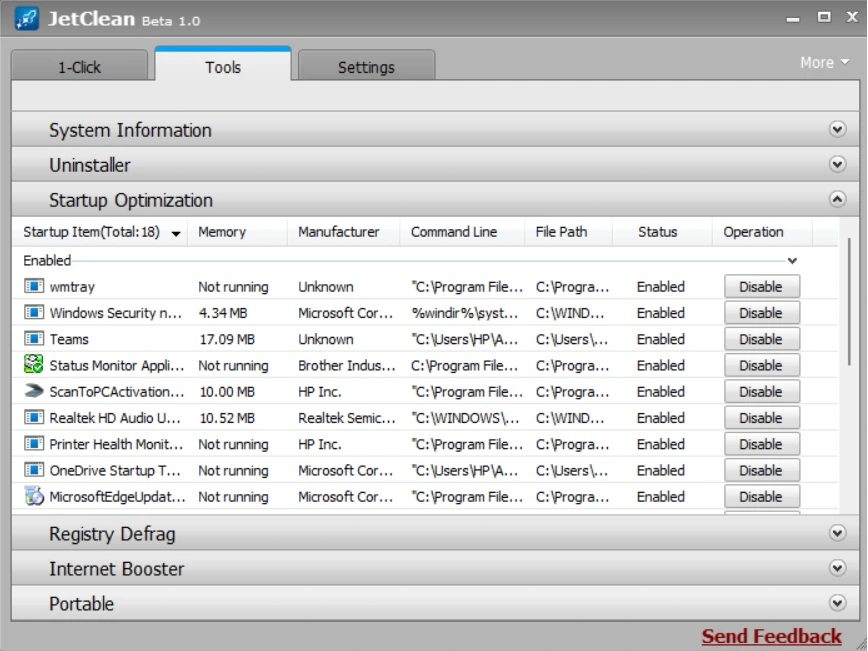
Slow startup is a common complaint. JetClean helps by rearranging the apps that launch together with Windows. The Tools area also includes an uninstaller that lists installed programs by category. It has a separate option for toolbars, which is a nice touch. Reviewers also mention an internet connection optimizer and a registry defrag option in version 1.5.
Performance Booster and RAM Cleaner
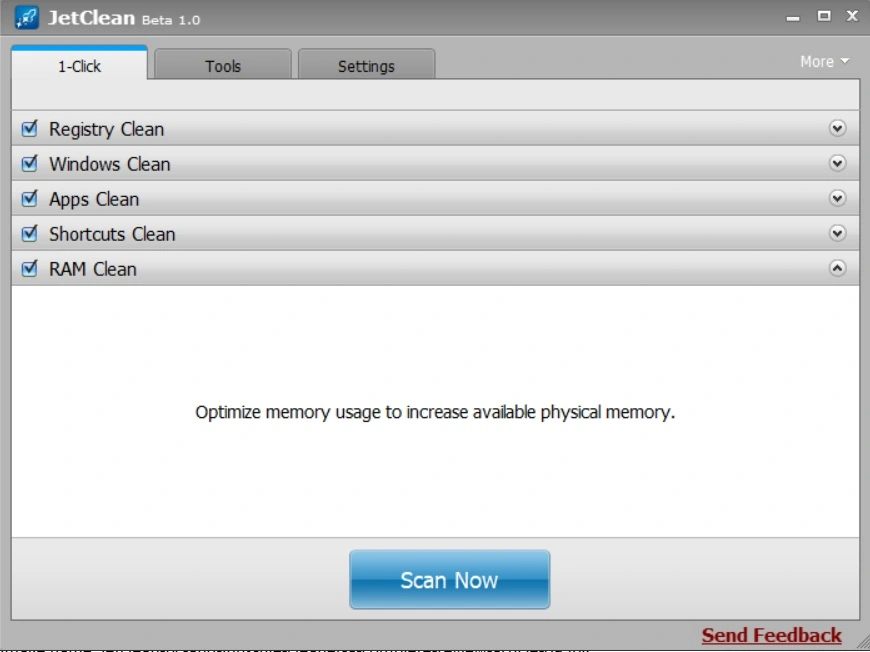
The Performance Booster comes from BlueSprig’s JetBoost tool. It closes unnecessary processes to give your active apps more power. This is useful during games or demanding work. The RAM Cleaner works in a similar way. It tries to free memory so more is available for what you are doing. These tools give short term relief, not a permanent fix for a weak PC.
Rescue Feature and Portable Mode
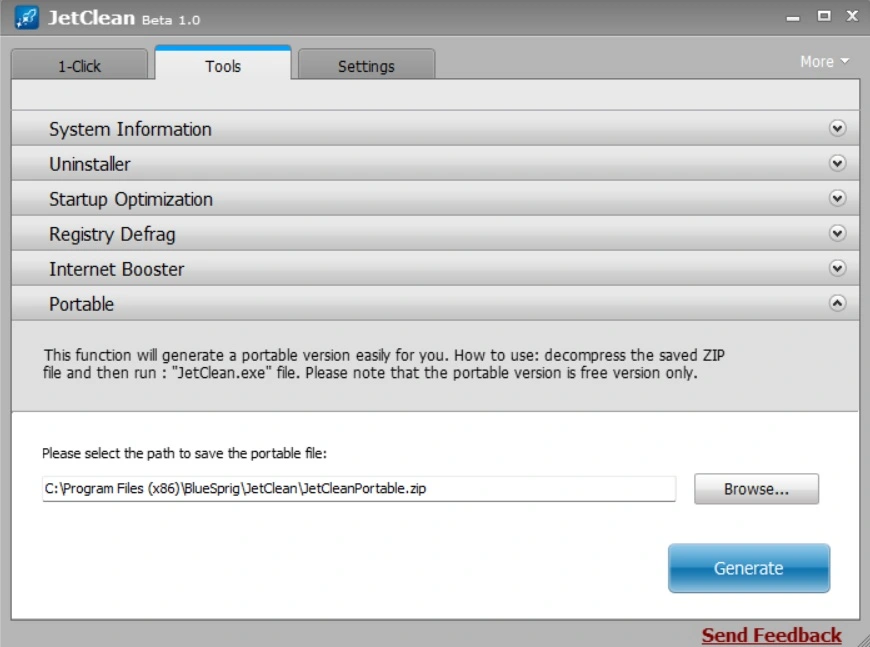
The Rescue feature automatically backs up changes and lets you undo them. That is a major comfort when you clean the registry. JetClean also recommends creating a system restore point during setup. Beyond that, reviewers note that you can generate a portable version and run it from a USB flash drive. Together, these options make the tool feel safer and more flexible than its size suggests.
Part 4: How to Use JetClean PC and Junk File Cleaner Tool: Step-by-Step Guide
Using JetClean is simple. The whole process, from install to your first cleanup, takes about ten minutes. The program itself is small, so there is little waiting.
The bigger issue is where you get it. Since the official download is reported as gone, be careful with every download site. Some pages that claim to offer the “official” download are not run by BlueSprig. Scan any installer with your antivirus before you run it. Also create a Windows restore point and back up your files. Then follow these three steps.
Step 1: Get the Installer and Set Up
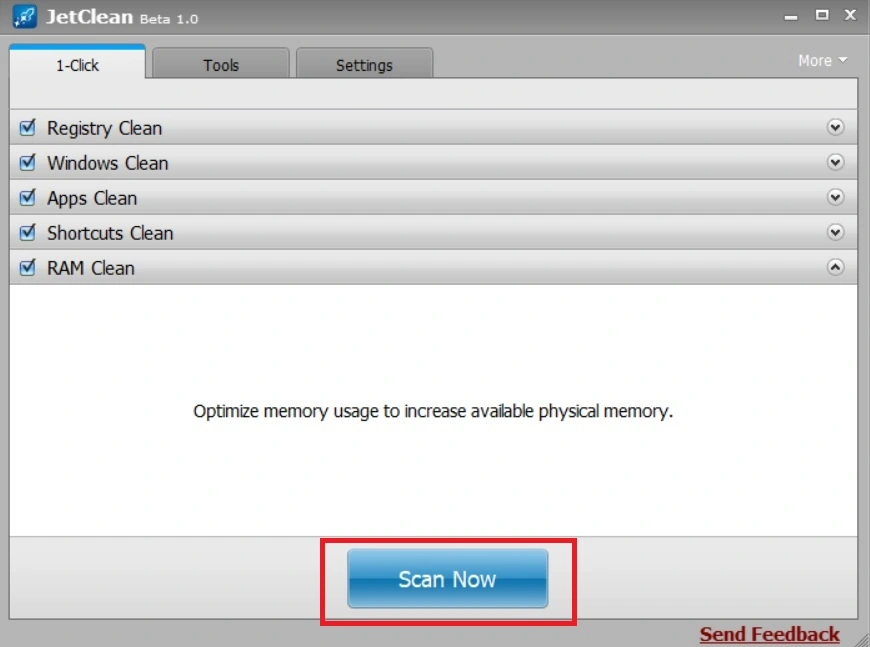
Choose a trusted software archive and download JetClean version 1.5.0.129. Run the installer and read every screen. A user on Software Informer reports that a BlueSprig toolbar tried to reinstall itself, so decline any toolbar or extra offers. During setup, agree to create a restore point when JetClean recommends it. Open JetClean and click the Scan Now button on the main screen.
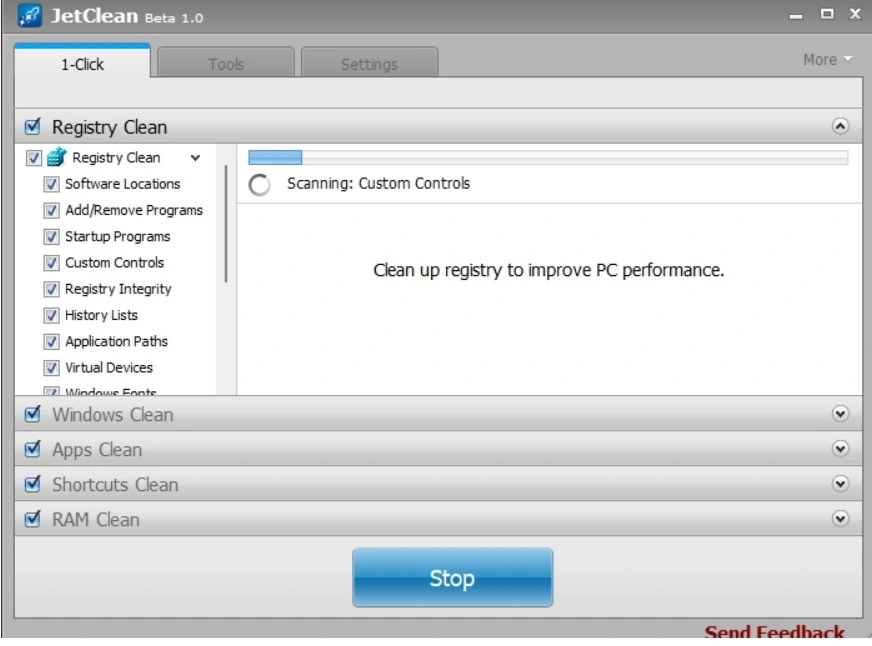
Step 2: Run the One-Click Scan
Wait for a while. The tool checks the registry, Windows folders, apps, shortcuts, and RAM. Avoid heavy tasks while the scan runs.
Step 3: Review and Clean
When the scan ends, read the list before you act. Uncheck anything you do not recognize, especially registry items. Then click the “Repair” button to fix the selected issues. After cleaning, open the Tools area to try the uninstaller or the startup optimizer. If something stops working, use the Rescue feature to undo the changes, or return to your restore point.
Part 5: Pros and Cons of JetClean PC and Junk File Cleaner Software
No software is perfect. Being honest about weak points matters as much as praising strong ones. Below is a clear list of pros and cons, based on our use and on common patterns in reviews.
Pros
- Tiny and fast: The installer is only a few megabytes, and the app runs without strain.
- Free edition: The main tool costs nothing.
- Safety net: The Rescue feature and restore point option reduce the risk of mistakes.
- Broad toolset: Cleaner, uninstaller, startup tool, and booster share one window.
- Portable option: You can run it from a USB drive.
- Simple interface: Softpedia found it clean and intuitive for all experience levels.
Cons
- Reported as discontinued: AlternativeTo flags it as discontinued, and several sites say the download is no longer available.
- Dated software: The last version is from 2016, and official support covers Windows XP to 8 only.
- Installer concerns: One user on Software Informer reports that a toolbar kept returning. Decline extra offers during setup.
- Modules lack depth: Downloadcrew notes that the individual cleaning modules are not particularly thorough.
- Registry risk: Registry cleaning gives small gains and can cause trouble if you apply changes blindly.
Part 6: Pricing Plans: JetClean PC and Junk File Cleaner Tool
JetClean follows a freemium model. The main edition is free, and a paid edition called JetClean PRO adds extras. Pricing details are the hardest part to confirm, because the program is no longer actively sold on its original site. The information below comes from older reviews and software listings.
- JetClean (Free Edition): No cost. It includes the registry cleaner, Windows cleaner, apps cleaner, and the Rescue feature.
- JetClean PRO: A paid subscription. An older Downloadcrew review listed prices from $1.66 per month through the Upgrade button inside the app. We could not confirm if PRO is still sold or what it costs today.
- PRO Extras: Reviewers mention an Automatic Clean option that runs on a schedule or when the PC is idle.
- Current Status: AlternativeTo lists the app as discontinued, so check availability before you plan to buy.
Here is a side-by-side look at the free and PRO editions, based on what reviewers report.
| Feature | Free Edition | JetClean PRO |
| Registry cleaner | Yes | Yes |
| Windows and apps cleaner | Yes | Yes |
| Rescue backup and undo | Yes | Yes |
| Performance Booster and RAM cleaner | Yes | Yes |
| Automatic Clean (scheduled or idle) | No | Yes |
| Portable version | Yes | Yes |
| Support | Not listed | Not listed |
| Current availability | Reported as discontinued | Not confirmed |
| Price | Free | From about $1.66 per month (older price) |
Summary: The free edition covers the basics. PRO adds automation. Because the tool is no longer actively sold, the free edition is the only part most people can realistically try.
Part 7: Performance in Practice: How the Tool Handled My PC
I tested JetClean on my Windows 11 laptop. Since the official download is no longer available, I took the installer from a software archive and scanned it with antivirus first.
I also created a restore point. During setup, I declined every extra offer. The whole install took only a minute or two.
The window felt dated, but it was easy to read. I ran the one-click scan and let it finish. The results listed registry entries, Windows junk, and a few shortcuts. I read the list carefully and left the registry items for last. After cleaning, I used the startup optimizer and restarted the PC. The laptop felt slightly lighter, but the change was small. That matches what I expected from a cleaner this simple.
There were drawbacks. The program is old, so I could not be sure it knew about newer Windows features and browsers. I also missed an updated help file. Still, JetClean never froze, and the Rescue feature gave me comfort. As a light tool for an older PC, it did its job. For a modern Windows 11 machine, I would pick a tool that still receives updates.
Part 8: Global Trust and Reviews for JetClean PC and Junk File Cleaner Tool
JetClean earned a steady reputation during its active years. Most reviewers praised its size, price, and simple layout. The main criticism today is its age and its reported discontinuation.
Global Trust and Reputation
- Long history: NirmalTV covered the beta in 2011, and the final listed version dates to 2016.
- Positive early reviews: Findmysoft rated it 4 out of 5, and Softpedia recommended it to all users.
- Recent signs of life: A SourceForge user said in June 2025 that it still works on Windows 11.
- Expert caution: Reviewers warn that the program is old, that registry cleaning needs care, and that download sites vary in quality.
Reviews and Ratings
| Source | Rating | Highlights | Concerns |
| Findmysoft (2012) | 4 out of 5 | Many features, uninstaller, startup optimizer, registry defrag | Many tools may take time to master |
| Software Informer | 4.1 out of 5 from 64 votes | Free, broad cleaning, restore point support | One user reports a toolbar reinstalling |
| SourceForge (2025) | 5.0 out of 5 from 1 review | Praised as a registry cleaner that still works on Windows 11 | Only one review |
| Softpedia | No score, recommended | Stable, clean interface, portable use | No help file |
| Downloadcrew | No score | Easy to use, lots of features | Modules are not especially thorough |
Strengths Noted Worldwide
- Light footprint: The tool uses very little space and memory.
- Safety options: Rescue and restore points limit the risk of mistakes.
- Value: The main edition is free.
Limitations Affecting Trust
- Discontinued status: Without updates, compatibility and security can lag.
- Unclear download sources: Many sites host old copies, and quality varies.
- Limited depth: Individual modules are basic.
- Registry cleaning: Gains are small, and careless changes can cause problems.
Conclusion
JetClean is a compact cleaner with a clear idea. One click scans the registry, Windows folders, apps, shortcuts, and RAM. A Rescue feature helps you undo changes, and a portable mode lets you carry the tool on a USB drive. For its size and price, it offered a lot during its active years.
The picture today is different. The last version dates to 2016, and several listings report the tool as discontinued. Official support covers Windows XP to 8. Some users say it still runs on Windows 11, but that is unofficial. Download sources vary in quality, and one user reports toolbar issues during setup.
JetClean may still suit someone who wants a tiny, free cleaner for an older PC. If you try it, scan the installer, create a restore point, and decline extra offers. If you use a modern Windows 11 PC and want regular updates, consider a tool that is still maintained. Windows also includes free cleanup tools, such as Storage Sense, that cover many basic tasks.
FAQs
1. Is JetClean still available, and is it safe to download?
JetClean is reported as discontinued. AlternativeTo flags it that way, and some listings say the download link is gone. Many sites still host old copies. Quality varies, and some pages falsely call themselves official. If you decide to try it, use a well-known software archive and scan the installer with antivirus. Decline any toolbar offers during setup, and create a restore point first.
2. Does JetClean work on Windows 11?
It is not officially supported. The last version, 1.5.0.129, lists support for Windows XP to 8, and Download.it says Windows 10 use runs through compatibility mode. Some user reports say it still works on Windows 11. Since the tool is old, test it with care. Back up your files, and use the Rescue feature before you apply registry changes.
3. Is JetClean free or paid?
The main edition of JetClean is freeware. A paid edition called JetClean PRO added extras such as Automatic Clean. An older review listed PRO at $1.66 per month. We could not confirm if PRO is still sold or what it costs today. For most people, the free edition is the only option to try.

Author Bio:
Dinesh Lakhwani, the entrepreneurial brain behind “TechCommuters,” achieved big things in the tech world. He started the company to make smart and user-friendly tech solutions. Thanks to his sharp thinking, focus on quality and the motto of never giving up, TechCommuters became a top player in the industry. His commitment to excellence has propelled the company to a leading position in the industry.
Popular Post






Recent Post

JetClean Junk File Cleaner and PC Cleaning Tool: A Complete Review
Heads up before you read further: JetClean (made by BlueSprig) is discontinued. Its last version dates to 2016, and several listings say the official download is gone. Let’s begin our review article! Few Windows utilities stay in circulation for more than a decade without a major update. JetClean is one of them. The tool first […]

Defencebyte Computer Optimizer: An In-Depth Review
Slow startup, delayed app launches, and freezing windows are among the most common complaints from Windows users. In many cases, the cause is not failing hardware. It is the gradual buildup of leftover data. Uninstalled programs leave registry entries behind. Temporary files and logs collect in system folders. Broken file paths and unused extensions stay […]

Windows Storage Sense For PC Cleaning: Everything You Need To Know
The low disk space warning always shows up at the worst time. A big update is waiting to install. A file refuses to save. The storage bar in Settings has turned red, and nobody remembers what filled it. Most people react by hunting for a cleaner to download. Many never notice that Windows already has […]

EaseUS CleanGenius Reviewed: Features, Pricing, and Real Results
Nobody notices the first temporary file. Nobody notices the hundredth either. Then one day the drive is almost full, the browser drags, and Windows takes ages to start. Clutter builds in quiet ways. Installers leave leftovers. Browsers store cache and cookies. Apps write logs that nobody reads. Programs add themselves to startup without asking. None […]

Advanced SystemCare: Tool To Clean Your PC [Complete Review]
The first thing I notice is how the startup screen hangs. The fan kicks in fast and stays loud. If I open a simple folder, the whole system pauses for a moment. It does not look like a clear hard failure, yet the PC feels heavy and slow. This is not usually one big problem. […]

CCleaner PC Cleaning Tool: An In-Depth Review
Learn how to clean your PC with CCleaner. This complete guide covers features, step-by-step instructions, pros, cons, pricing, and FAQs to help you decide.

Avira PC Speed Up Tool: Is It Actually Worth It?
A fresh Windows install feels like a different world. Isn’t it? Everything opens fast. Menus snap into place. Then a year passes, sometimes less, and that same machine starts to feel heavy for no clear reason. Nothing dramatic happened. No single event caused it. It was just months of small leftovers stacking up quietly in […]
Avast PC Cleanup Tool: A Detailed Review
Computers do not slow down overnight. Well, yes! That’s right! It happens in small steps. A temporary file here. A leftover installer there. A browser cache that quietly grows for months without anyone noticing. Add a few startup programs that load automatically, and soon your once fast machine feels like it is wading through mud. […]

Outbyte PC Repair and Cleanup Tool: A Detailed Review
The laptop took nearly two minutes to open one folder. Chrome froze twice. The fan sounded like a tiny jet engine. Most of us have lived through a day like this. Right? Don’t worry! The machine is not dying. It is just tired and messy. A good cleanup can often bring back some of the […]
WMaster Cleanup PC Cleaner Tool: A Detailed Review
Your PC was fast on day one. Right? Every click felt instant, every app opened in a snap, and the fan barely made a sound. Then came the browser tabs, the half-finished downloads, and the apps you tried once and forgot to remove. Slowly, without any warning, that same machine started to feel tired. Boot-ups […]
