Ashampoo WinOptimizer: Features and Process [Complete Guide]
Ashampoo WinOptimizer is built for users who want a faster, cleaner, and safer PC. In this review, I’ll walk through its features and how the optimization process works. The software promises one‑click fixes, smart automation, and tools that go beyond basic cleanup.
The PC cleaning and optimization tool covers performance tuning, privacy protection, and system maintenance. From clearing junk files to adjusting startup programs, it aims to make everyday computing smoother. Each module is designed to save time while giving users control over their system’s health.
What makes WinOptimizer stand out is its streamlined process. A quick scan highlights issues, offers clear recommendations, and applies fixes instantly. This balance of simplicity and depth is what makes it worth reviewing in detail.
Part 1: What is Ashampoo WinOptimizer: Brief Introduction
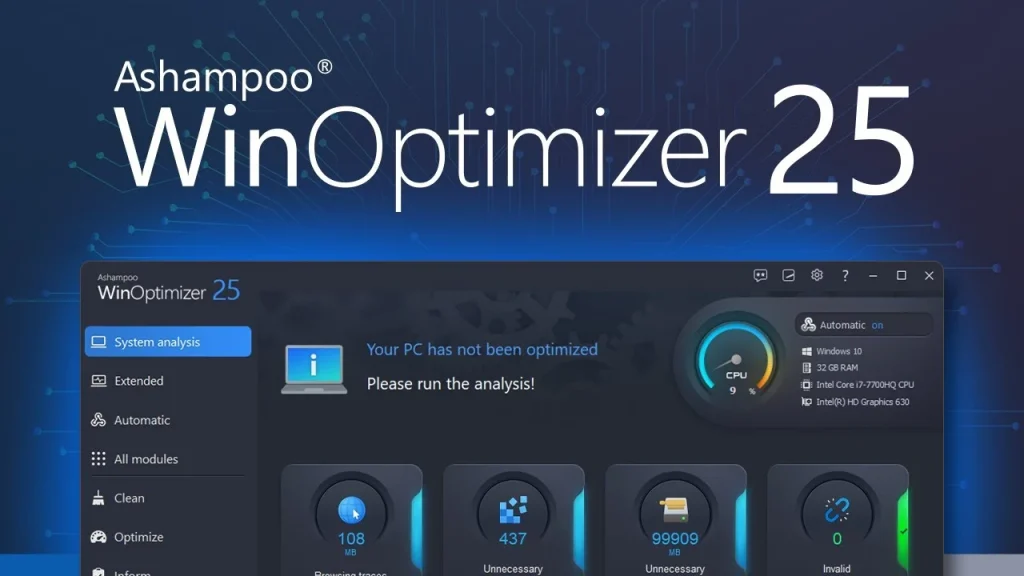
Ashampoo WinOptimizer is a system maintenance suite made for Windows PCs. Ashampoo, a German company well known for its utility software, developed WinOptimizer to simplify PC care. Instead of juggling multiple apps, it brings a wide range of tools together in one place. With this single dashboard, you can clean, tune, and protect your system without needing separate programs.
The tool covers a wide range of tasks. It cleans junk files. It manages startup programs. It clears browser traces. It also has a registry cleaner and a driver update checker. Everything runs from one main screen, so switching between tasks feels smooth and quick.
What makes this software stand out is its simplicity. The interface is not cluttered. Even a first-time user can find their way around without a manual. It shows clear buttons for each task, along with short explanations. This makes it a good pick for people who are not comfortable with technical settings.
Quick features of the tool include:
- One‑click cleaner – instantly removes junk files and boosts speed.
- Registry optimizer – fixes errors and streamlines system performance.
- Startup manager – controls boot programs for faster load times.
- Privacy & browser cleaner – removes traces. Protects online activity.
- Disk analyzer – shows space usage and helps free storage.
- Game booster – maximizes resources for smoother gameplay.
Part 2: Key Features Explained: Ashampoo WinOptimizer
This tool packs many features under one roof. Below, we explain the main ones in detail, so you know exactly what each one does before you use it.
System Cleaner
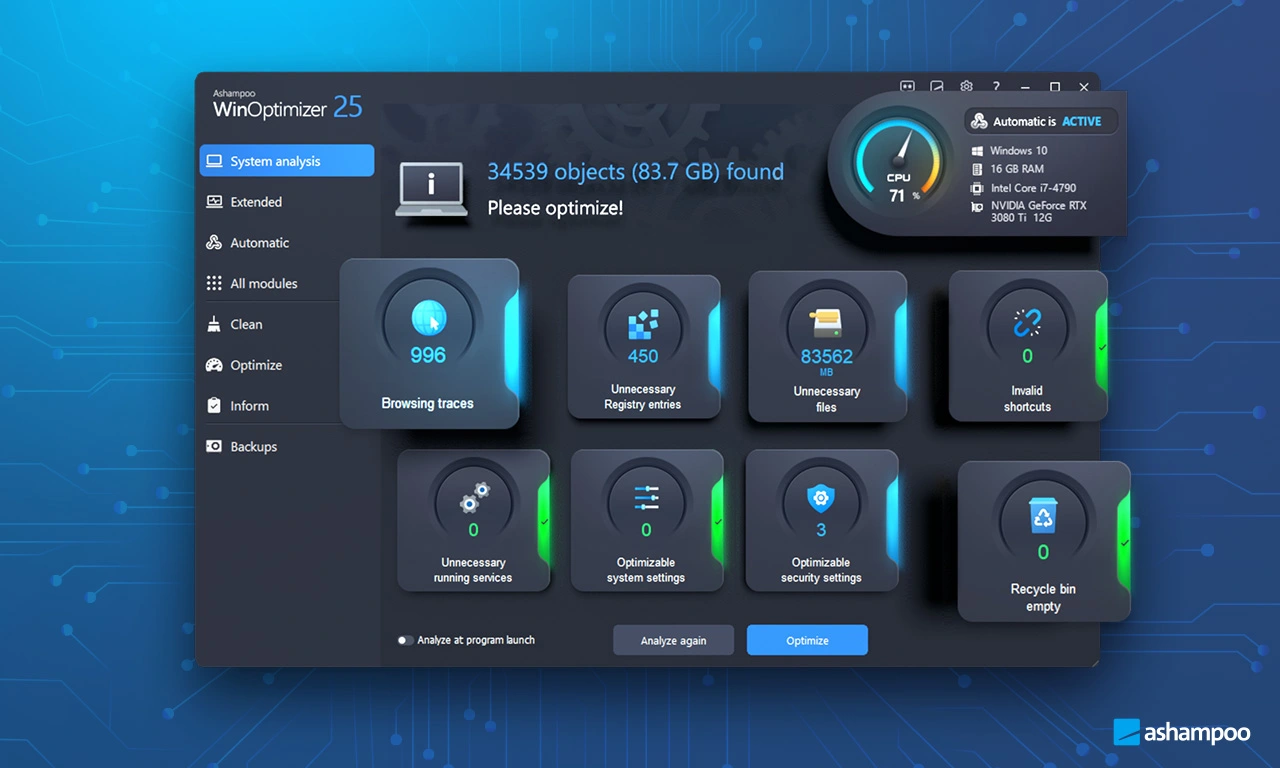
This is the core feature of the tool. It scans your drives for temporary files, log files, and leftover data from uninstalled programs. Once the scan finishes, it shows you a full list of what it found, along with the space each item takes up. You can review the list and choose what to delete. This helps free up storage without touching files you actually need.
Registry Optimizer
The Windows registry stores settings for your apps and system. Over time, it collects broken or unused entries. This tool scans the registry and flags these entries. It then removes them safely, which can help your system feel more responsive. It also creates a backup before making changes, so you can undo anything if needed.
Startup Manager
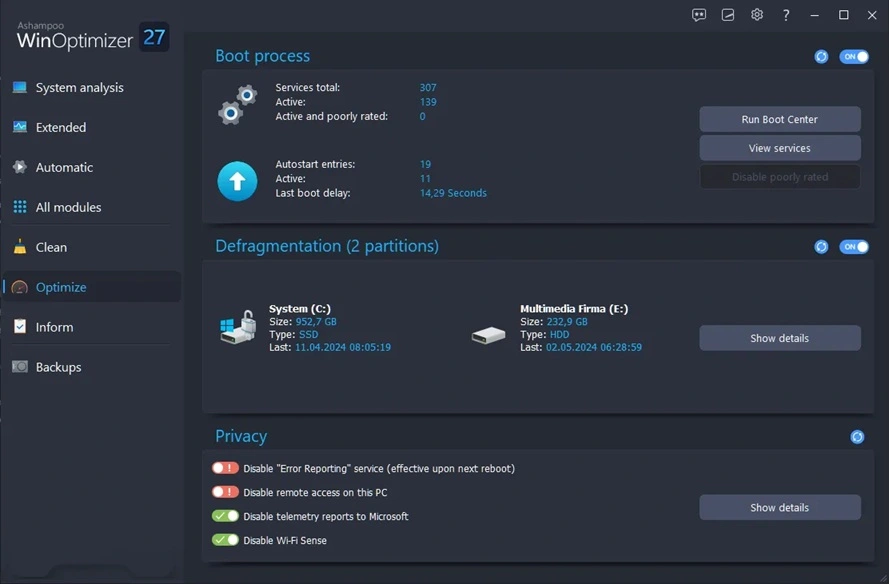
Many programs set themselves to launch when Windows starts, even if you rarely use them. This slows down your boot time. The startup manager lists every program set to launch automatically. You can disable the ones you do not need with a single click, which speeds up how fast your PC becomes usable.
Internet Cleaner
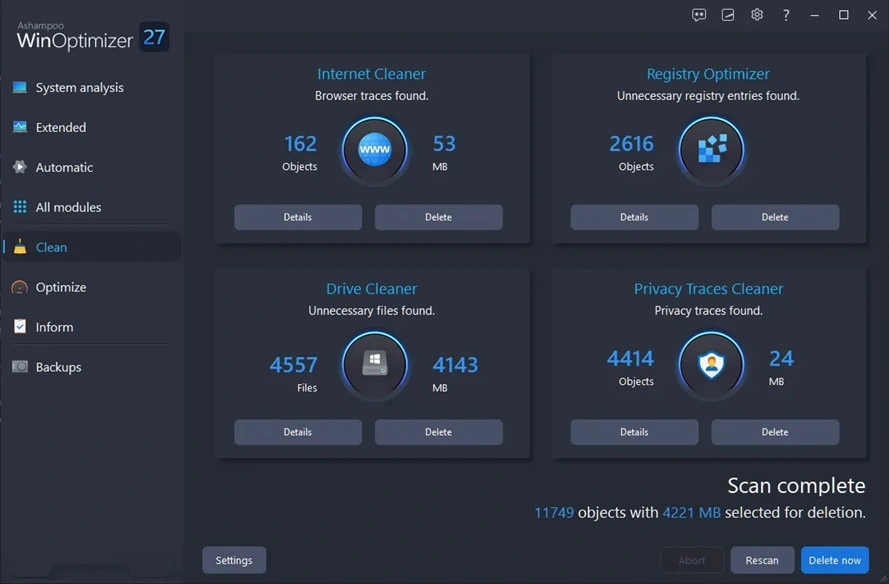
This feature clears cookies, cached files, and browsing history from your web browsers. It works with most common browsers, including Chrome, Firefox, and Edge. Clearing this data regularly can improve browser speed and also protects your privacy, since it removes traces of your online activity from the system.
Disk Space Explorer
This tool shows you a visual breakdown of what is taking up space on your drives. It sorts files by size and type, so you can quickly spot large files you may have forgotten about. This is helpful when your drive is nearly full, and you need to find space fast.
Game Booster
This mode is built for gamers. When turned on, it pauses background processes and services that are not needed while gaming. This frees up RAM and processing power for the game itself. It is a simple toggle, so you do not need to manually close programs before playing.
Part 3: How to Clean PC With Ashampoo WinOptimizer: Step-by-Step Guide
Cleaning your PC with this tool does not take long. The process is designed to be simple, even for someone using it for the first time. You do not need to change any advanced settings unless you want to.
Before you begin, make sure the software is installed and updated to its latest version. It is also a good idea to close other running programs, so the scan runs faster and gives you accurate results.
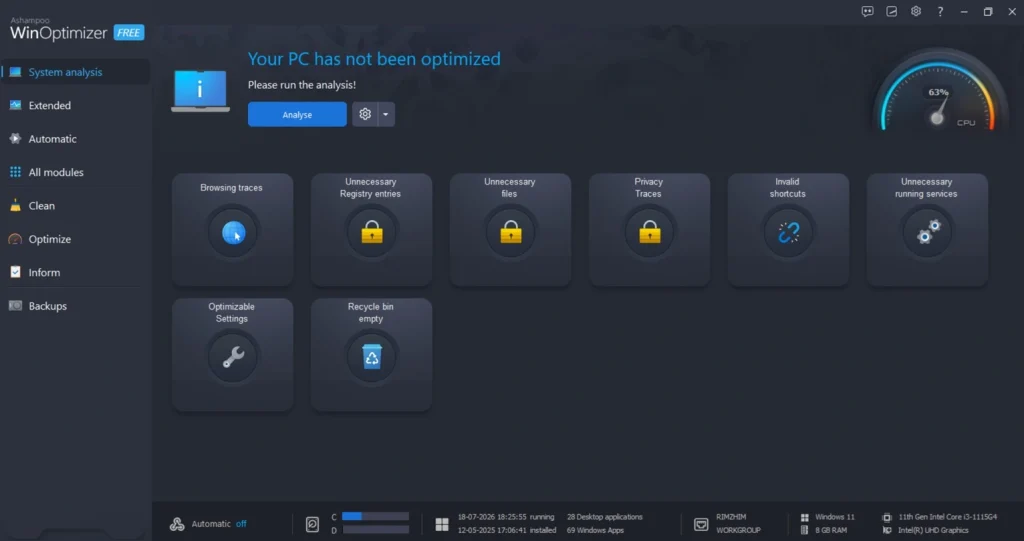
Step 1: Open the Ashampoo WinOptimizer app and go to the main dashboard. Click on the Analyse button. This starts a scan across your system, checking for junk files, registry issues, and privacy traces. The scan usually takes a few minutes, depending on how much data is on your drive.
Step 2: After the scan finishes, WinOptimizer presents a clear report of the issues it detected. This can include junk files, broken registry entries, or outdated startup items. You can review the list and deselect anything you prefer to keep, giving you full control before changes are made. Once ready, simply click Optimize to apply the fixes.
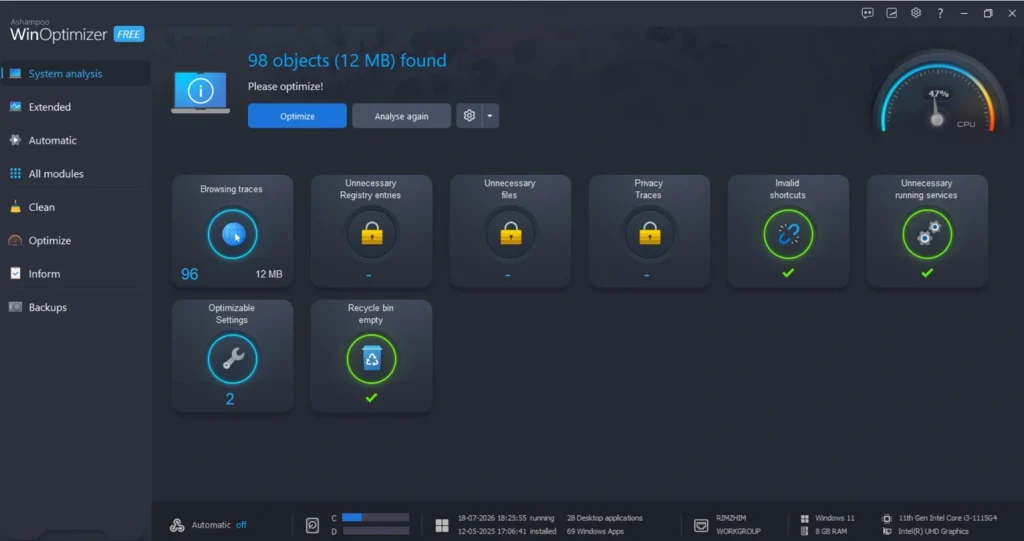
Step 3: After reviewing the list, click the clean or optimize button. The tool will remove the selected items and apply the fixes. Once finished, it shows a summary of the space you freed up and the changes made. Restart your PC if the tool suggests it, so all changes take full effect.
Part 4: Pros and Cons of Ashampoo WinOptimizer: An Honest Breakdown
After running this tool on my own PC over several weeks, I noticed both strong points and a few limits. Below is an honest list based on real use, not just what the product page claims.
Pros:
- The interface is clean and easy to read, even for beginners who have never used a tuning tool before.
- The one-click cleanup found over two gigabytes of junk files on my first scan, which was more than expected.
- The registry cleaner backs up changes automatically, so I felt safe letting it run without worrying about breaking anything.
- The startup manager made my boot time noticeably shorter after disabling a few unneeded programs.
Cons:
- Some features, like the internet cleaner, overlap with what browsers already offer for free, which makes them feel less essential.
- Setting up the tool requires an email address and an Ashampoo account, even if you only want to try the free trial.
- The free version is quite limited, and you will need to upgrade to unlock most useful tools.
Part 5: Pricing Plans Explained: Ashampoo WinOptimizer
The pricing for this tool is fairly simple compared to many subscription-based competitors. There is a free trial, a paid full version, and an upgrade option for existing users moving to a newer release.
- Free trial: available for 30 days with full access to test features
- Full version: starts around 14 dollars as a promotional price
- Upgrade for existing owners: around 16 dollars to move to the latest release
- Standard retail price: around 30 dollars depending on your region
- 30-day money-back guarantee on all paid purchases
| Feature | Free Version | Paid Version |
| System cleaner | Limited scan | Full scan and cleanup |
| Registry optimizer | Not included | Included |
| Startup manager | Basic access | Full control |
| Driver updater | Not included | Included |
| Game booster | Not included | Included |
| Support | Community only | Direct support |
If you only need basic cleanup once in a while, the free trial gives you a fair idea of what the tool can do. But if you want full control over your system, including the registry cleaner and driver updater, the paid version is worth the small one-time cost.
Most regular users will get more value from the full version, since it unlocks nearly every feature in one purchase.
Part 6: Reputation and Review of Ashampoo WinOptimizer
- Ashampoo WinOptimizer has earned a solid reputation, especially among users who prefer a one‑time purchase over recurring subscriptions. Reviews across major software sites highlight a mix of praise and a few recurring concerns.
- Many users appreciate the clean interface, calling it beginner‑friendly and easy to navigate. The tool is often praised for effectively freeing disk space and improving system speed.
- On the flip side, some reviewers feel certain features overlap with Windows built‑in tools. Others note that scans can take longer on older hardware. Still, the one‑time pricing model remains a strong advantage compared to yearly subscription competitors.
Part 7: My Experience with the Tool: Ashampoo WinOptimizer
I installed Ashampoo WinOptimizer on my personal laptop after noticing it had started taking almost a full minute to boot up.
Right at the start, the tool asked me to sign up and enter my email address before I could even open the main dashboard. This felt a little annoying, since I just wanted to run a quick scan and did not expect an account requirement this early in the process. I was also skeptical going in, since I had tried a couple of other cleanup tools before that promised a lot but did very little.
Once I got past the sign-up step, the dashboard loaded without any confusion. I ran the one-click scan right away, mostly to see what kind of junk had built up over the months. The results actually surprised me. The scan picked up old installer files I had completely forgotten about, along with a good number of broken registry entries.
I went through the list carefully before deleting anything, just to be safe, and nothing important got flagged for removal. After applying the cleanup, my laptop felt noticeably lighter.
Conclusion
Ashampoo WinOptimizer is a solid choice for anyone who wants a simple way to clean and speed up their Windows PC. It brings together many small tools into one place, so you do not need to install separate apps for each task.
The tool is especially useful for beginners, thanks to its clear interface and one-click options. At the same time, it offers enough depth, through features like the registry optimizer and driver updater, to satisfy users who want more control over their system.
If you are dealing with a slow PC and want an easy fix, this tool is worth trying. Start with the free trial, test the features that matter to you, and decide if the full version fits your needs.
FAQs
Is Ashampoo WinOptimizer safe to use?
Yes, it is generally safe. The tool creates backups before making changes to your registry, so you can undo anything that causes issues. It also shows you exactly what it plans to remove before taking any action, which gives you full control over the process.
Does it work on all versions of Windows?
The tool supports recent versions of Windows, including Windows 10 and Windows 11. Before installing, it is a good idea to check the system requirements listed on the official website, since older Windows versions may not be fully supported.
Can I use it for free?
There is a free trial that lasts 30 days, giving you access to the full set of features. After the trial ends, you will need to purchase the full version to keep using most of the advanced tools, since the permanent free version has limited functionality.

Author Bio:
Dinesh Lakhwani, the entrepreneurial brain behind “TechCommuters,” achieved big things in the tech world. He started the company to make smart and user-friendly tech solutions. Thanks to his sharp thinking, focus on quality and the motto of never giving up, TechCommuters became a top player in the industry. His commitment to excellence has propelled the company to a leading position in the industry.
Popular Post






Recent Post

JetClean Junk File Cleaner and PC Cleaning Tool: A Complete Review
Heads up before you read further: JetClean (made by BlueSprig) is discontinued. Its last version dates to 2016, and several listings say the official download is gone. Let’s begin our review article! Few Windows utilities stay in circulation for more than a decade without a major update. JetClean is one of them. The tool first […]

Defencebyte Computer Optimizer: An In-Depth Review
Slow startup, delayed app launches, and freezing windows are among the most common complaints from Windows users. In many cases, the cause is not failing hardware. It is the gradual buildup of leftover data. Uninstalled programs leave registry entries behind. Temporary files and logs collect in system folders. Broken file paths and unused extensions stay […]

Windows Storage Sense For PC Cleaning: Everything You Need To Know
The low disk space warning always shows up at the worst time. A big update is waiting to install. A file refuses to save. The storage bar in Settings has turned red, and nobody remembers what filled it. Most people react by hunting for a cleaner to download. Many never notice that Windows already has […]

EaseUS CleanGenius Reviewed: Features, Pricing, and Real Results
Nobody notices the first temporary file. Nobody notices the hundredth either. Then one day the drive is almost full, the browser drags, and Windows takes ages to start. Clutter builds in quiet ways. Installers leave leftovers. Browsers store cache and cookies. Apps write logs that nobody reads. Programs add themselves to startup without asking. None […]

Advanced SystemCare: Tool To Clean Your PC [Complete Review]
The first thing I notice is how the startup screen hangs. The fan kicks in fast and stays loud. If I open a simple folder, the whole system pauses for a moment. It does not look like a clear hard failure, yet the PC feels heavy and slow. This is not usually one big problem. […]

CCleaner PC Cleaning Tool: An In-Depth Review
Learn how to clean your PC with CCleaner. This complete guide covers features, step-by-step instructions, pros, cons, pricing, and FAQs to help you decide.

Avira PC Speed Up Tool: Is It Actually Worth It?
A fresh Windows install feels like a different world. Isn’t it? Everything opens fast. Menus snap into place. Then a year passes, sometimes less, and that same machine starts to feel heavy for no clear reason. Nothing dramatic happened. No single event caused it. It was just months of small leftovers stacking up quietly in […]

Avast PC Cleanup Tool: A Detailed Review
Computers do not slow down overnight. Well, yes! That’s right! It happens in small steps. A temporary file here. A leftover installer there. A browser cache that quietly grows for months without anyone noticing. Add a few startup programs that load automatically, and soon your once fast machine feels like it is wading through mud. […]

Outbyte PC Repair and Cleanup Tool: A Detailed Review
The laptop took nearly two minutes to open one folder. Chrome froze twice. The fan sounded like a tiny jet engine. Most of us have lived through a day like this. Right? Don’t worry! The machine is not dying. It is just tired and messy. A good cleanup can often bring back some of the […]

WMaster Cleanup PC Cleaner Tool: A Detailed Review
Your PC was fast on day one. Right? Every click felt instant, every app opened in a snap, and the fan barely made a sound. Then came the browser tabs, the half-finished downloads, and the apps you tried once and forgot to remove. Slowly, without any warning, that same machine started to feel tired. Boot-ups […]
