Advanced SystemCare: Tool To Clean Your PC
Your computer slows down over time. Files pile up, junk builds inside the system, and things start to feel sluggish. You open a browser, and it takes forever. Programs crash without warning. This is a sign that your PC needs a good cleanup.
Many users ignore these signs. They think buying a new computer is the only fix. But most of the time, a good cleaning tool can bring your old PC back to life. Advanced SystemCare is one such tool. It has been around for years and has built a solid reputation among Windows users.
This article takes a close look at Advanced SystemCare. You will learn what it does, how it works, and whether it is worth your time and money.
By the end, you will know if this tool is the right fit for your PC.
What Can Advanced SystemCare Do for Your PC?
Advanced SystemCare is developed by IObit. It is designed to clean, speed up, and protect your Windows computer. The tool works on multiple fronts at the same time. It removes junk files, fixes registry errors, blocks privacy threats, and more.
Key features explained:
Deep Cleaning of Junk Files:
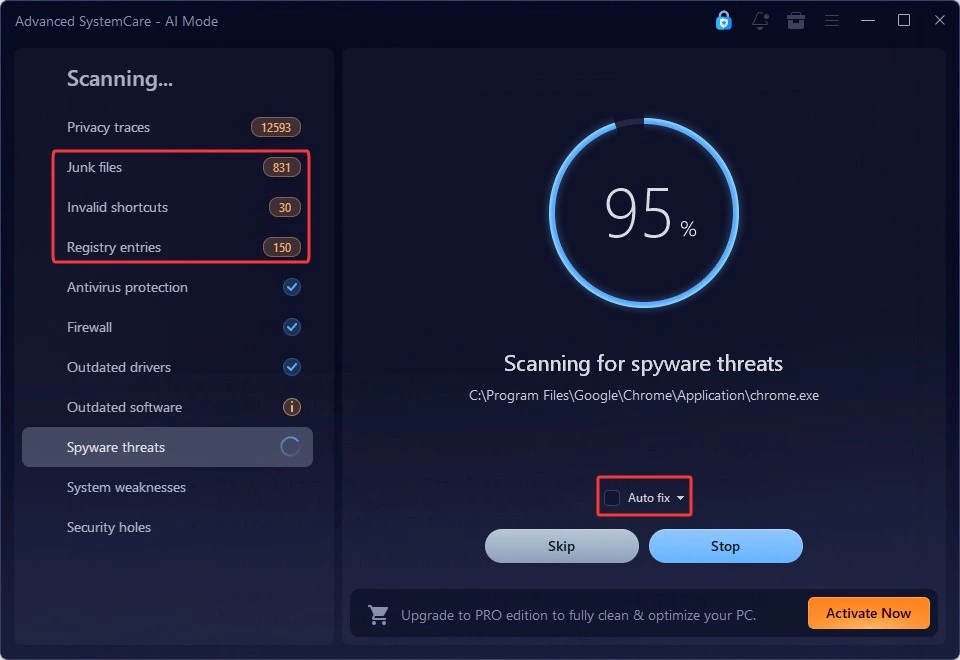
Your PC collects a lot of unnecessary files over time. These include browser cache, temp files, and leftover data from uninstalled apps. Advanced SystemCare scans your system and removes all of this junk in one go. This frees up space and helps your PC run faster.
Registry Fix and Optimization:
The Windows registry stores settings for your system and installed programs. Over time, it collects broken and outdated entries. These can slow down your PC or cause errors. Advanced SystemCare scans the registry and fixes these issues automatically.
Real-Time Performance Boost:
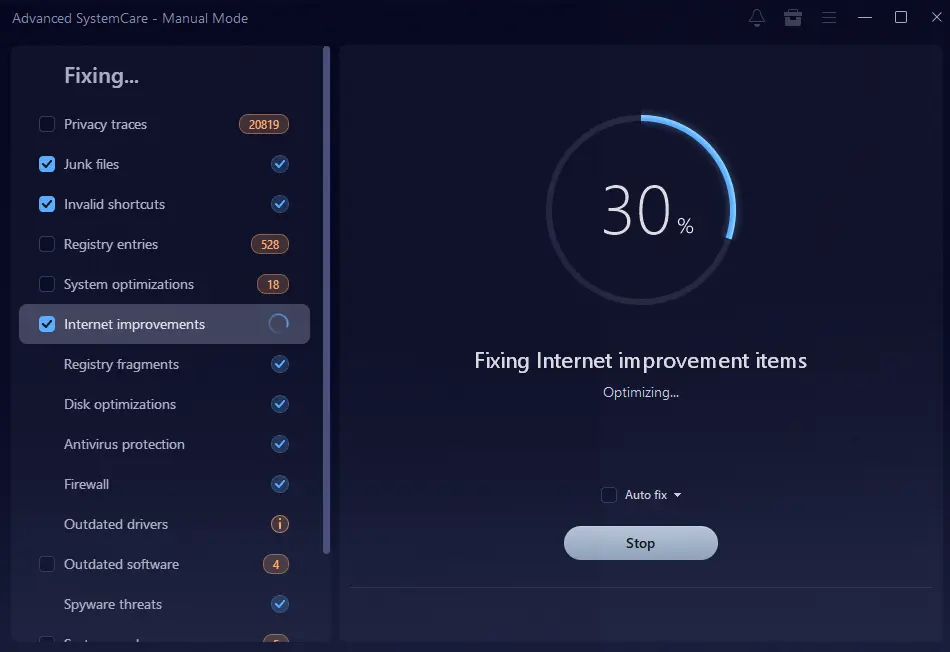
The tool runs quietly in the background. It monitors your system resources and frees up RAM when your PC starts to slow down. This helps your computer stay responsive even when you are running multiple apps at once.
Privacy Protection:
Advanced SystemCare can remove traces of your online activity. It clears browser history, cookies, and search records. This protects your personal data from being accessed by others who may use your computer.
Startup Optimization:
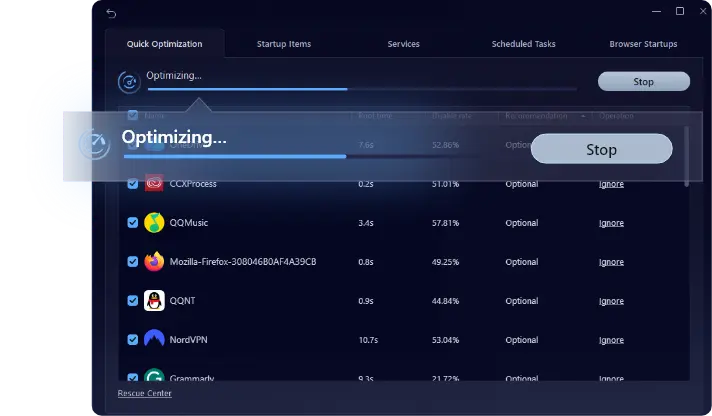
Too many programs launching at startup can make your PC slow to boot. Advanced SystemCare lets you manage startup items easily. You can disable programs that you do not need at startup, which cuts down your boot time.
Disk Defragmentation:
Over time, files on your hard drive get scattered. This is called fragmentation. It makes your PC slower because the drive has to work harder to read files. Advanced SystemCare includes a disk defrag feature that organizes your drive and improves read speeds.
Malware and Spyware Removal:
The tool can detect and remove basic threats like spyware and adware. It adds a layer of security by scanning for harmful software that may have slipped past your main antivirus.
Internet Boost:
Advanced SystemCare includes a feature that tweaks your network settings for better browsing speed. It adjusts certain parameters to help pages load faster and reduce lag during online activities.
How to Clean Your PC With Advanced SystemCare
Using Advanced SystemCare is simple. You do not need any technical knowledge to get started. The interface is clean. Here is a quick guide to get your PC cleaned in just two steps.
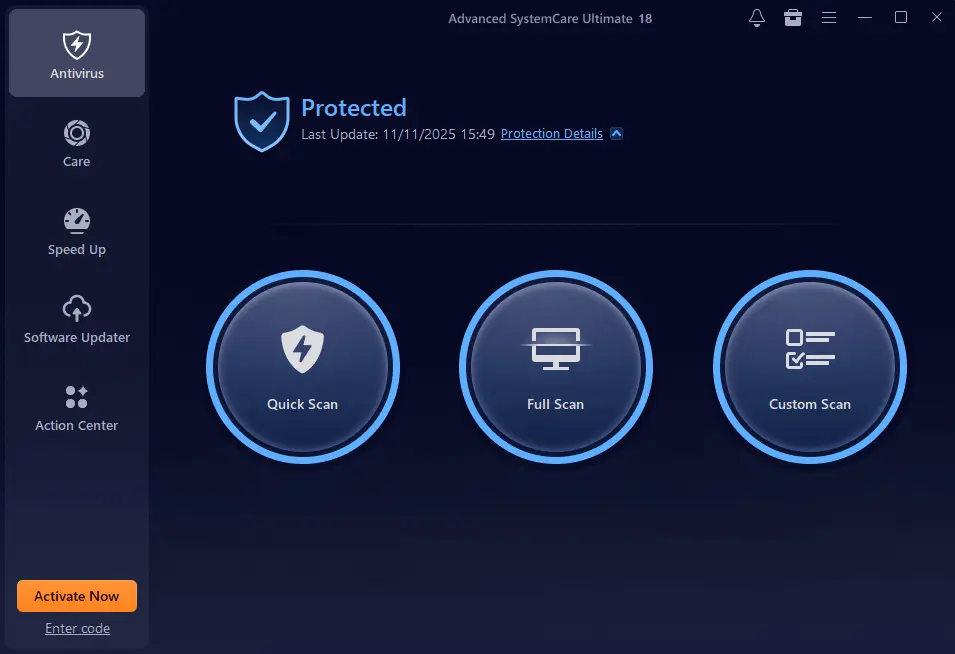
Step 1: Go to the IObit website and download the free version of Advanced SystemCare. The installer is small and installs quickly. Once installed, open the program. You will see a clean dashboard with a large scan button in the center. Click the “Scan” button.
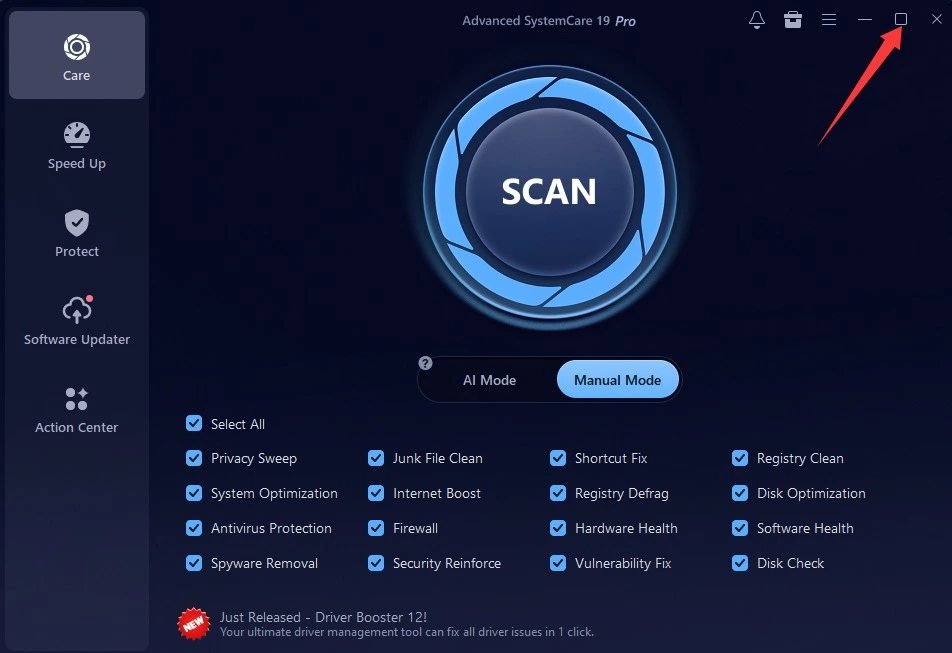
Step 2: The tool will start checking your PC for junk files, registry errors, privacy risks, and performance issues. Once the scan is done, you will see a summary of all the problems found.
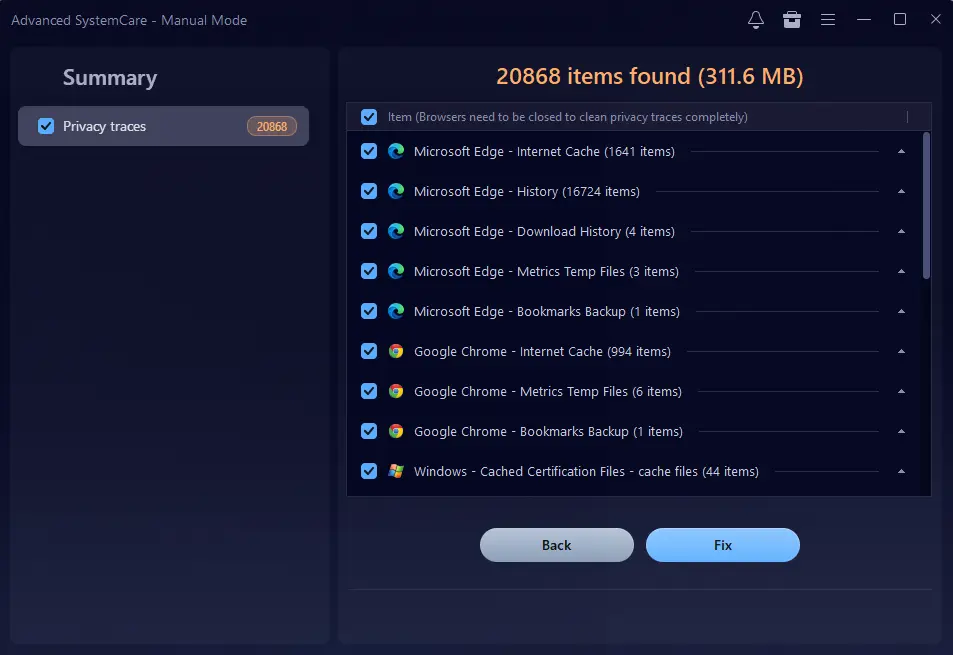
Step 3: Click “Fix” to resolve them all at once. Your PC will feel noticeably faster after this.
Pros: The Strong Points of Advanced SystemCare
Advanced SystemCare comes with a good set of advantages. It is one of the most downloaded PC optimization tools in the world, and for good reason. Here is what it does well.
- Easy to Use. The interface is clean and easy to understand. Even someone using it for the first time can quickly run a scan and resolve issues without any guidance. The menus are clearly organized, and each step is simple to follow.
- All-in-One Tool Most PC cleaning tools focus on just one thing. Advanced SystemCare covers many tasks in a single program. You get junk cleaning, registry fixing, startup management, privacy protection, and more, all in one place.
- Free Version Available: You can get started without spending anything. The free version includes plenty of useful tools and is capable of fixing many everyday PC problems. For most users, it provides enough features to clean and optimize a computer without any cost.
- Lightweight on System Resources. Some optimization tools use too much memory while running. Advanced SystemCare is designed to be light. It does its job without eating into the system resources you need for other tasks.
- Regular Updates: IObit updates Advanced SystemCare regularly. This means the tool stays compatible with new Windows versions and keeps up with the latest types of junk and threats.
- Custom Scan Options: You are not forced to run a full scan every time. The tool lets you choose what you want to scan. If you only want to clean junk files or fix the registry, you can do that on your own.
- Scheduled Cleaning: You can set the tool to run automatically at a specific time. This is useful if you want your PC cleaned on a regular basis without having to remember to do it yourself.
- Trusted by Millions. Advanced SystemCare has been downloaded over 500 million times globally. That kind of adoption speaks to its reliability and usefulness in real-world use.
Cons: The Weak Points of Advanced SystemCare
No tool is perfect. Advanced SystemCare has some drawbacks that are worth knowing before you commit to it. Here is an honest look at the cons.
- Free Version Is Limited. The free version works, but it holds back several important features. Things like real-time protection and deeper optimization tools are only available in the Pro version. You may feel pushed toward upgrading fairly quickly.
- Bundled Software During Install During installation, Advanced SystemCare may try to install other IObit products along with itself. If you are not careful and click through quickly, you could end up with extra software you did not ask for.
- Aggressive Upsell Notifications: The free version shows frequent pop-ups encouraging you to upgrade to Pro. Some users find this annoying, especially when the notifications appear while you are in the middle of using your PC.
- Overstates Some Issues. Like many optimization tools, Advanced SystemCare sometimes flags items as problems when they are not serious threats. This can make your PC seem worse off than it actually is, nudging you to pay for the Pro version.
- Not a Replacement for Antivirus. The malware scanning feature is basic. It can catch some threats, but it is not a substitute for a dedicated antivirus program. You should not rely on it as your main line of defense.
- Privacy Concerns: Some users have raised concerns about data collection by IObit tools. While the company has a privacy policy in place, cautious users may want to read it carefully before installing.
- Disk Defrag Is Basic. The built-in disk defrag tool is functional but not very advanced. If you have a hard drive that needs serious defragmentation work, a dedicated defrag tool may do a better job.
Advanced SystemCare Pricing Plans: A Quick Glance
Advanced SystemCare is available in both a free and a paid version. The paid version is called Advanced SystemCare Pro. Here is a breakdown of what each plan costs and what you get.
The free version is available at no cost and covers basic PC cleaning and optimization. It is a good starting point for most users.
- Advanced SystemCare Pro (1 PC / 1 Year): Around $19.99 per year. This gives you access to all premium features, including real-time protection, deeper junk cleaning, and priority customer support.
- Advanced SystemCare Pro (3 PCs / 1 Year): Around $29.99 per year. A better deal if you want to cover multiple computers in your household.
- Lifetime License: Available at a higher one-time price. This removes the need for yearly renewals.
- IObit Software Suite: IObit also bundles Advanced SystemCare Pro with other tools like Driver Booster and IObit Uninstaller at a discounted price.
Pricing may vary based on your region and ongoing promotions. Always check the official IObit website for the latest offers.
Reputation of Advanced SystemCare
Advanced SystemCare has been in the market for a long time. It has earned a mixed but largely positive reputation among PC users and tech reviewers. Here is how it is seen across different platforms and communities.
- Download Count: The tool has been downloaded over 500 million times worldwide. This is one of the highest numbers for any PC optimization software.
- User Reviews on Trustpilot and G2: Most users rate it positively for ease of use and effectiveness. Common praise includes faster boot times and noticeable improvements in PC speed.
- Tech Review Sites: Websites like PCMag and TechRadar have generally reviewed Advanced SystemCare as a solid option for everyday PC maintenance, though they often note the limitations of the free version.
- Reddit Feedback: On forums like Reddit, opinions are more divided. Some users swear by it for quick cleanup tasks. Others prefer manual cleaning or alternative tools. A common concern is the bundled software during installation.
- IObit’s Track Record: IObit has been around since 2004. The company has a long history of developing Windows tools. While they have had some controversies in the past, they have continued to update and support their products actively.
- Awards and Recognition: Advanced SystemCare has received editor’s choice awards from several tech publications over the years, which adds to its credibility as a mainstream cleaning tool.
Conclusion
Advanced SystemCare is a capable and easy-to-use PC cleaning tool. It covers a wide range of tasks under one roof. From junk removal and registry fixes to privacy protection and startup management, it handles the common issues that slow down a Windows PC. The free version is enough for basic maintenance, and the Pro version offers more power for users who need deeper optimization.
That said, it is not without flaws. The upsell notifications can be frustrating, and the free version is limited in scope. You should also keep a separate antivirus in place rather than relying on its malware scanner alone.
Overall, Advanced SystemCare is a solid choice for users who want a simple, reliable tool to keep their PC running well without getting into technical details.
FAQs
1. Is Advanced SystemCare safe to use?
Yes, Advanced SystemCare is generally safe for most users. It is developed by IObit, a company with over 20 years in the software industry. The tool does not harm your system files and only targets junk, outdated registry entries, and privacy risks. However, you should pay attention during installation to avoid accidentally installing bundled software. Also, make sure you download it from the official IObit website to avoid fake or modified versions.
2. Is the free version of Advanced SystemCare good enough?
For basic PC cleaning, the free version works well. It can remove junk files, fix registry errors, and manage startup programs without any cost. However, if you want real-time protection, deeper optimization, and access to all premium tools, you will need to upgrade to the Pro version. Most home users with a moderately maintained PC will find the free version sufficient for routine cleanup tasks.
3. How often should I run Advanced SystemCare on my PC?
Running it once a week is a good habit for most users. If you use your PC heavily every day, browsing a lot or installing and uninstalling programs frequently, you may want to run it more often. Advanced SystemCare also has a scheduled scan feature that lets you automate this. You can set it to run at a time when you are not actively using your computer, like late at night or early morning.

Author Bio:
Dinesh Lakhwani, the entrepreneurial brain behind “TechCommuters,” achieved big things in the tech world. He started the company to make smart and user-friendly tech solutions. Thanks to his sharp thinking, focus on quality and the motto of never giving up, TechCommuters became a top player in the industry. His commitment to excellence has propelled the company to a leading position in the industry.
Popular Post

Recent Post

WMaster Cleanup PC Cleaner Tool: A Detailed Review
Your PC was fast on day one. Right? Every click felt instant, every app opened in a snap, and the fan barely made a sound. Then came the browser tabs, the half-finished downloads, and the apps you tried once and forgot to remove. Slowly, without any warning, that same machine started to feel tired. Boot-ups […]

BleachBit PC Cleaner Tool: Complete Review After Running Tests
A PC never stays clean on its own. Every app you open, every website you visit, and every file you download leaves something behind. Weeks turn into months, and suddenly your storage feels tight, and your PC feels slower, with no clear reason why. The usual fix is a cleaning tool. But the market is […]

Iolo System Mechanic Review: Full Breakdown and Honest Take
Iolo System Mechanic is designed for users who want their PC to feel fresh and responsive again. With just a few clicks, it digs into the system, clears out unnecessary clutter, and delivers noticeable speed improvements. The interface is straightforward and beginner‑friendly, making it easy to navigate without confusion. But this tool goes beyond simple […]

Clean Master for PC Tested: A Full Breakdown of Its Tools
A computer doesn’t slow down overnight. Right? It happens bit by bit. Extra downloads, leftover cache, startup apps piling up. Soon the fast machine you loved feels sluggish. Boot times drag, programs freeze, and even opening a browser tab feels heavy. This slow decline is common, caused by junk files, cluttered registries, and hidden tasks […]
How To Clean Your PC/Laptop: Guide for Beginners to Experts
A computer never announces that it needs help. Well, yes! It just gets slower, hotter, and noisier, one day at a time, until you finally stop and wonder what changed. Nothing changed overnight. What happened is dust and clutter, working quietly in the background for months. Dust settles inside fans and vents, trapping heat and […]

Wise Care 365 PC Cleaner Tool: A Hands-On Review
Every Windows user knows the feeling. Your computer runs fast on day one. Then months pass. Files pile up. The registry gets messy. Startup takes longer. Apps freeze more often. This slow decline is normal, but it is also annoying. Most people just live with it. Some restart their PC often, hoping it helps. It […]

Glary Utilities PC Cleaner: Complete Review [Tested and Trusted]
Glary Utilities is one of the most popular PC optimization tools available today. It combines cleaning, repair, and performance‑boosting features into a single suite. The goal is simple: keep your computer running fast and stable without needing multiple separate programs. In this review, we’ll look at how Glary Utilities performs in real use, what features […]

Microsoft PC Manager: Complete In-Depth Review
A slow computer can ruin your whole day. Files pile up. Startup apps multiply. Before you know it, your once fast machine feels sluggish and tired. Most people search for a fix, but many tools out there are bloated, pushy, or full of ads. Microsoft PC Manager was built to solve this exact problem. It […]

AVG TuneUp Guide: Features, Pros, Cons, and Pricing
PC performance often drops with time. Junk files build up. Startup programs increase. Storage fills up. As a result, your computer may take longer to boot, feel sluggish, or run out of space. The good news is that these problems are usually easy to fix. AVG TuneUp is a PC optimization tool for Windows. It […]

Ashampoo WinOptimizer: Features and Process [Complete Guide]
Ashampoo WinOptimizer is built for users who want a faster, cleaner, and safer PC. In this review, I’ll walk through its features and how the optimization process works. The software promises one‑click fixes, smart automation, and tools that go beyond basic cleanup. The PC cleaning and optimization tool covers performance tuning, privacy protection, and system […]
