Clean Master for PC Tested: A Full Breakdown of Its Tools
A computer doesn’t slow down overnight. Right? It happens bit by bit. Extra downloads, leftover cache, startup apps piling up. Soon the fast machine you loved feels sluggish. Boot times drag, programs freeze, and even opening a browser tab feels heavy. This slow decline is common, caused by junk files, cluttered registries, and hidden tasks eating memory.
That’s where Clean Master for PC steps in. It offers a simple way to clear clutter without technical know-how. In this review, we’ll test its features, check pricing, and weigh strengths against weaknesses.
By the end, you’ll know if it deserves a place on your PC or if another cleaner fits better.
Clean Master for PC: A Complete Review and Guide
Part 1: Brief Overview: Clean Master for PC
Clean Master for PC is a cleaning and optimization tool made for Windows systems. It began life as a Clean Master for PC is a system optimization tool designed to clear junk files, browser cache, and invalid registry entries. The free version focuses on quick cleanups and privacy protection, making it useful for casual users who want faster boot times and smoother performance without much effort. Its one-click interface makes scans simple, and results are shown by category so you can see exactly where space is being freed.
The Professional edition adds advanced features like driver updates, file recovery, auto-clean scheduling, and secure file shredding. These extras make it more suitable for long-term maintenance and users who want deeper control over their system health. While effective at cleaning and boosting speed, it doesn’t include antivirus or threat protection, so it works best as a companion tool rather than a full security suite.
Quick features at a glance:
- One-click junk file scanning and removal across common folders
- Registry cleanup that targets old, broken entries for smoother performance
- Startup optimization designed to reduce boot time noticeably
- Privacy cleaner that clears browsing traces, cookies, and saved form data
- Driver Booster that checks for outdated or missing device drivers
- File shredder for permanent, unrecoverable file deletion
- Simple graph view showing exactly how much space each scan recovered
- Support for scanning and cleaning over 1,000 common applications.
Quick Info: Clean Master for PC
- Latest Version: 7.4.2 (Windows build, July 2026)
- File Size: 25–30 MB depending on source
- License: Freemium (Free + Paid Professional upgrade)
- Developer: Cheetah Mobile, Inc.
- Supported OS: Windows 7, 8, 10, 11 (32-bit & 64-bit)
- System Requirements:
- CPU: ARMv7 1.2 GHz or above (dual-core recommended)
- RAM: 1 GB minimum, 2 GB recommended
- Storage: 50 MB free space
- GPU: OpenGL ES 2.0+
- Key Features: Junk file cleaner, registry cleaner, privacy clean, startup optimization, driver updater (Pro), file recovery (Pro), file shredder (Pro).
- Release Highlights: UI enhancements, faster junk cleaning algorithm, night mode scheduling.
Part 2: Why Choose This Cleaner? Top Reasons Why People Trust It
Here are the main reasons users turn to this software for their PC maintenance needs, based on what stands out most in daily use.
- Easy for beginners: The interface uses plain buttons and clear labels instead of technical jargon. Anyone can run a scan without reading a manual first, which matters a lot for users who just want their computer to work without extra steps.
- Fast scan speed: The scan finishes in seconds for most systems, even ones with a fair amount of clutter. There is no long wait before you see results, so the whole process fits easily into a short break.
- Wide app coverage: It checks over a thousand common programs for leftover junk, including browsers, games, chat apps, and everyday office software. This wide net means fewer hidden junk files slip past unnoticed.
- Visual feedback: A bar graph shows exactly how much space each category freed up after a cleanup. This makes the process feel real and measurable, rather than a vague promise of improvement.
- Built-in privacy tools: Browsing history, cookies, and saved form data get cleared in one pass. This helps guard personal information from anyone else who might use the same computer.
- Driver support included: The driver checker scans for outdated or broken drivers across common hardware. Fixing these can solve odd issues like flickering screens, weak sound, or unresponsive peripherals.
- Regular updates: The developer keeps adding new junk file patterns and small fixes over time. This keeps the scan list current, even as new software and browser versions come out.
- Lightweight on system resources: The program itself doesn’t demand much memory or processing power while running, so it doesn’t slow down the very computer it’s meant to speed up. This makes it practical to run alongside other open programs.
Part 3: Key Features Explained: Clean Master for PC PC Cleaner Tool
Below are the seven main features worth knowing before you install it, along with a clear look at how each one actually works.
Junk File Cleaner:
This is the heart of the program. It scans deep into system folders and browser caches to find files that serve no purpose anymore, things like temporary installer data, leftover update files, and old error logs. Once found, these files get listed by category, so you can choose what to remove and what to keep. Most users simply hit the clean button and let it clear everything at once, which usually takes just a minute or two even on a fairly cluttered drive.
The categories are labeled in plain terms, so even someone unfamiliar with folder names can understand what each group represents before deleting anything.
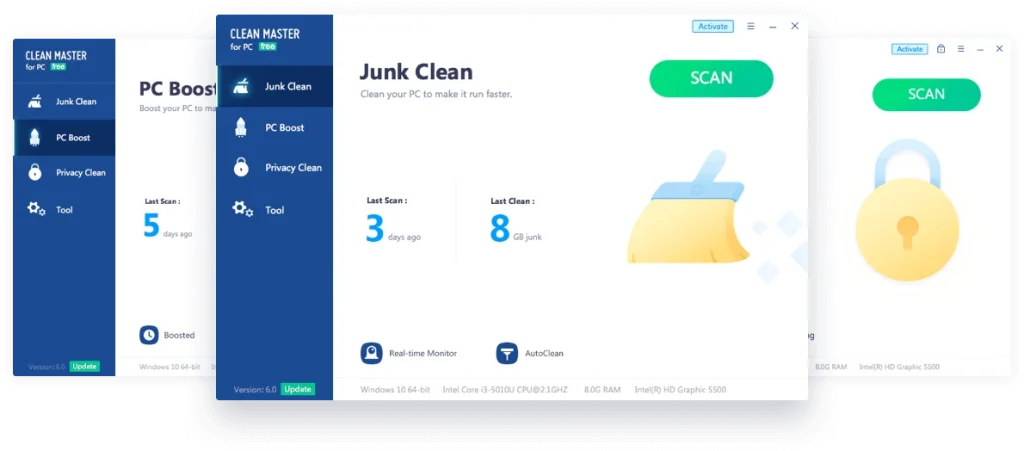
Registry Cleaner:
Over time, the Windows registry fills with old entries from uninstalled programs, broken shortcuts, and settings that no longer point to real files. These leftover keys can slow down how the system reads and writes data, especially during startup and when opening new programs. The registry cleaner scans for these broken links and removes them safely, which can lead to smoother day-to-day performance and fewer strange error messages popping up out of nowhere.
PC Boost:
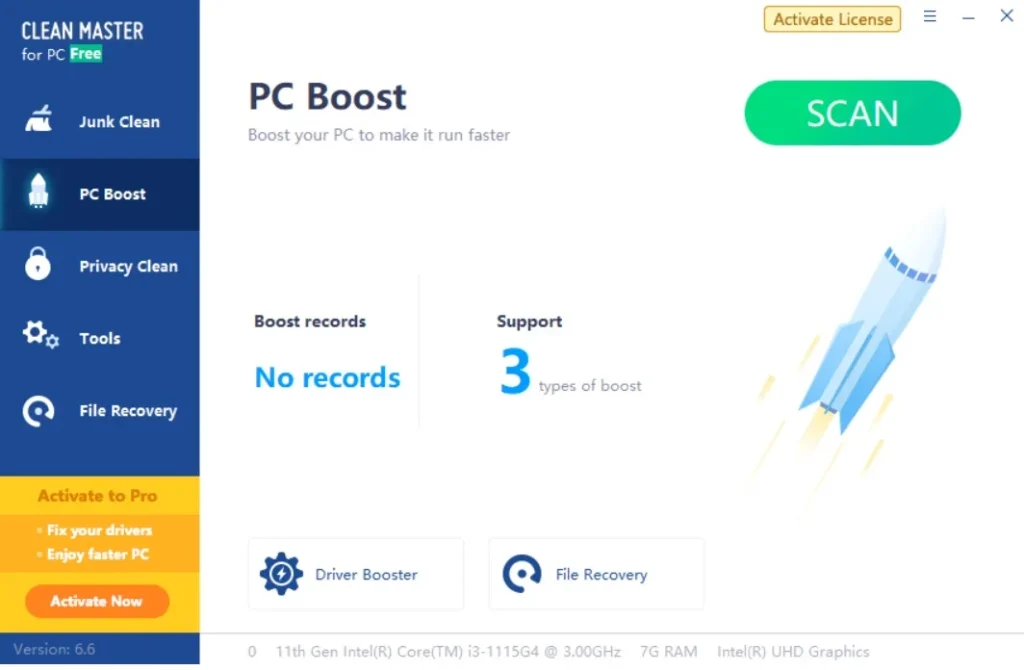
This feature targets startup programs that load automatically when Windows turns on, many of which run quietly in the background without the user ever noticing. Too many of these can stretch boot time to a crawl, turning a simple power-on into a long wait. PC Boost lets you disable the ones you don’t need right away, cutting down startup delays in a noticeable way and freeing up memory for the programs you actually want to use first.
Each entry shows the program name and how much impact it has on startup, so choosing what to disable takes only a moment.
Privacy Cleaner:
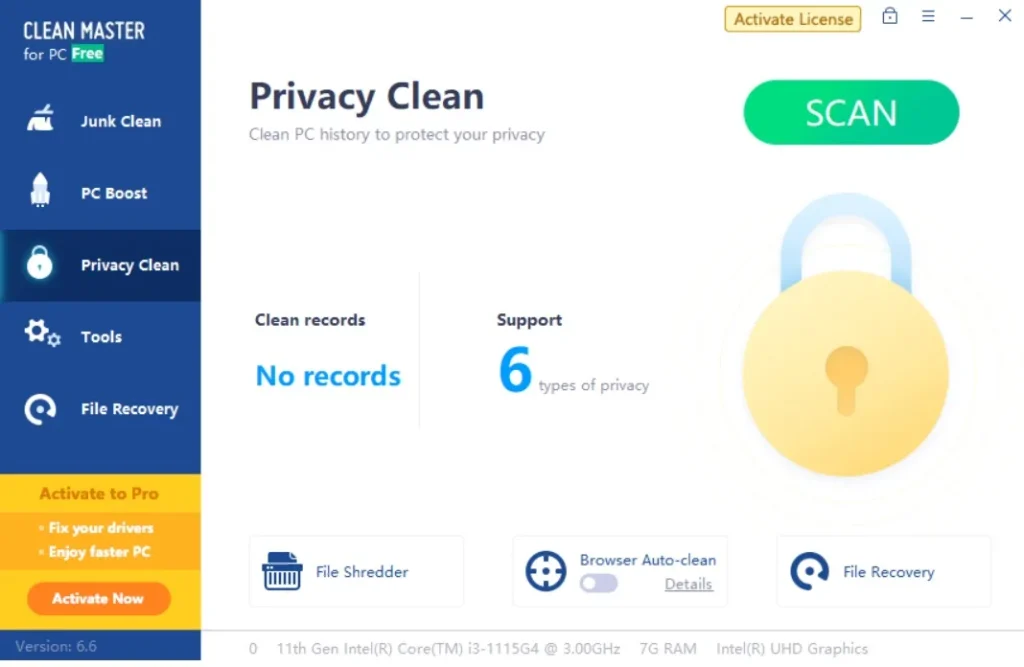
Browsing leaves a trail, whether people think about it or not. Cookies, saved passwords, form data, and history all sit on your drive unless cleared out regularly. The privacy cleaner wipes this trail in one pass, covering major browsers like Chrome, Edge, and Firefox, and reducing the risk of someone else viewing your online activity if they gain access to the same machine.
Driver Booster:
Outdated drivers cause more problems than most people realize, from screen glitches and sound issues to unstable Wi-Fi connections. This feature scans installed hardware and compares driver versions against a large database covering millions of devices. When it finds an outdated match, it flags it for an update, saving the trouble of hunting down manufacturer websites one by one. The scan also lists the current driver version next to the newer one available, which helps users decide whether an update is really necessary before installing it.
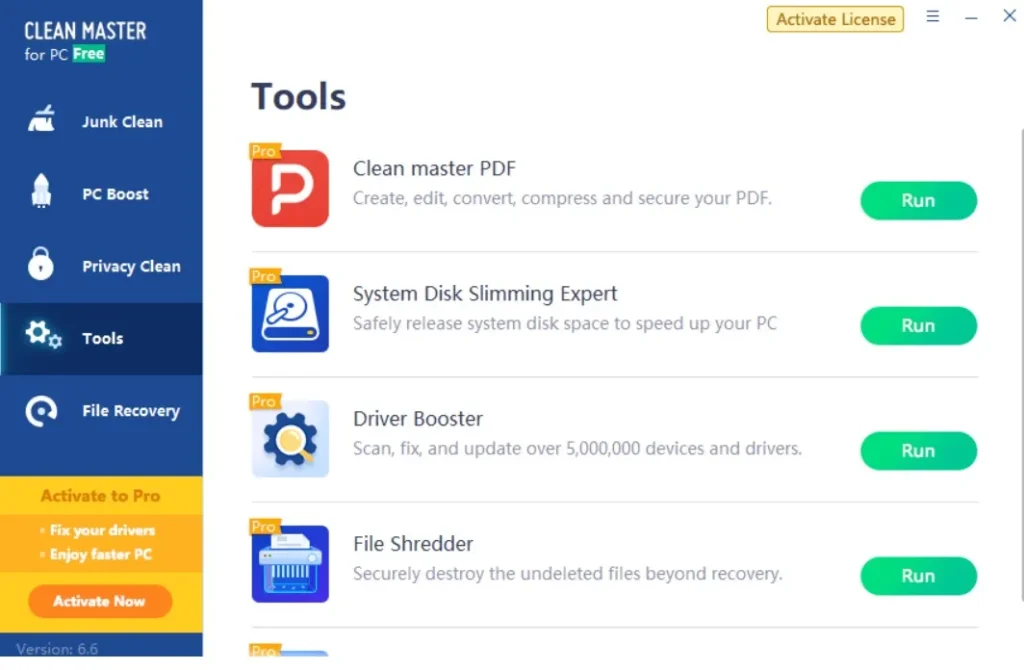
File Shredder:
Deleting a file the normal way does not always erase it fully from the drive. Traces can remain in unused disk space and be recovered later with the right recovery tools. The file shredder overwrites that data several times so it cannot be restored, which matters a great deal for anyone handling sensitive documents, financial records, or personal photos before selling or donating a device.
Data Recovery:
Mistakes happen, and sometimes a needed file gets deleted by accident during a quick cleanup or a moment of carelessness. The recovery tool scans the drive for traces of removed files and attempts to bring them back to a usable state. It works best soon after deletion, before new data has a chance to overwrite the old space where the file once lived. The scan results show a preview where possible, so users can confirm they are recovering the right file before restoring it to the drive.
Part 4: How to Use Clean Master for PC Tool: Step-by-Step Guide
Getting started with this software does not take long, even for someone who has never installed a system tool before. The setup process is short, and the main dashboard is easy to read from the very first launch.
Step 1: Download and Install
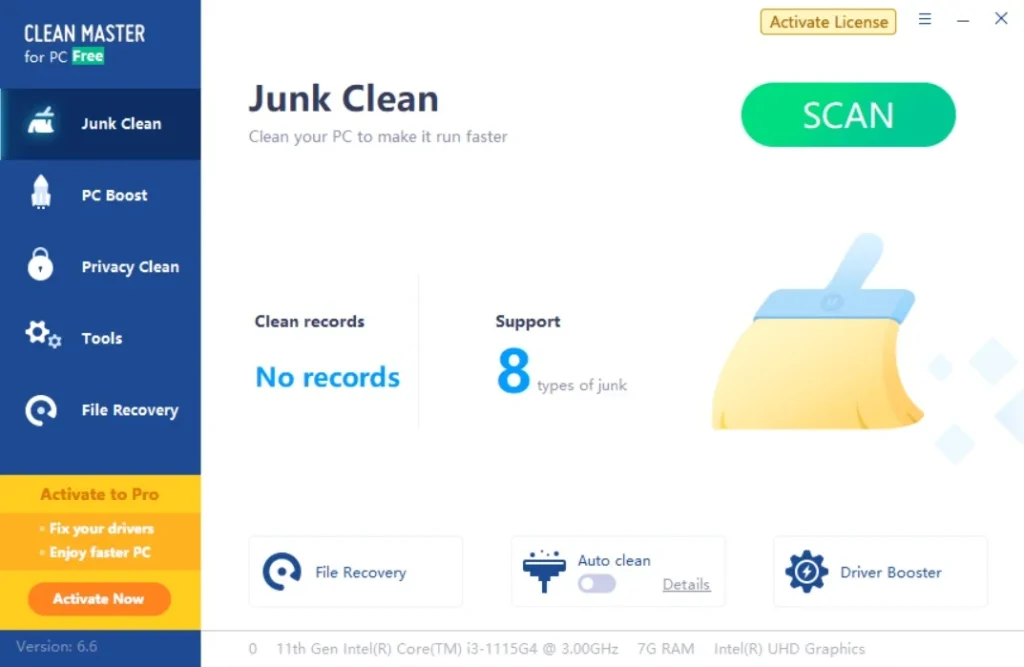
Go to the official Clean Master site and grab the installer for Windows. Run it, click Next a few times, and accept the terms. It installs in under two minutes, and you can start right away without a restart. Open the program and hit the Scan button.
Step 2: Run a Full Scan
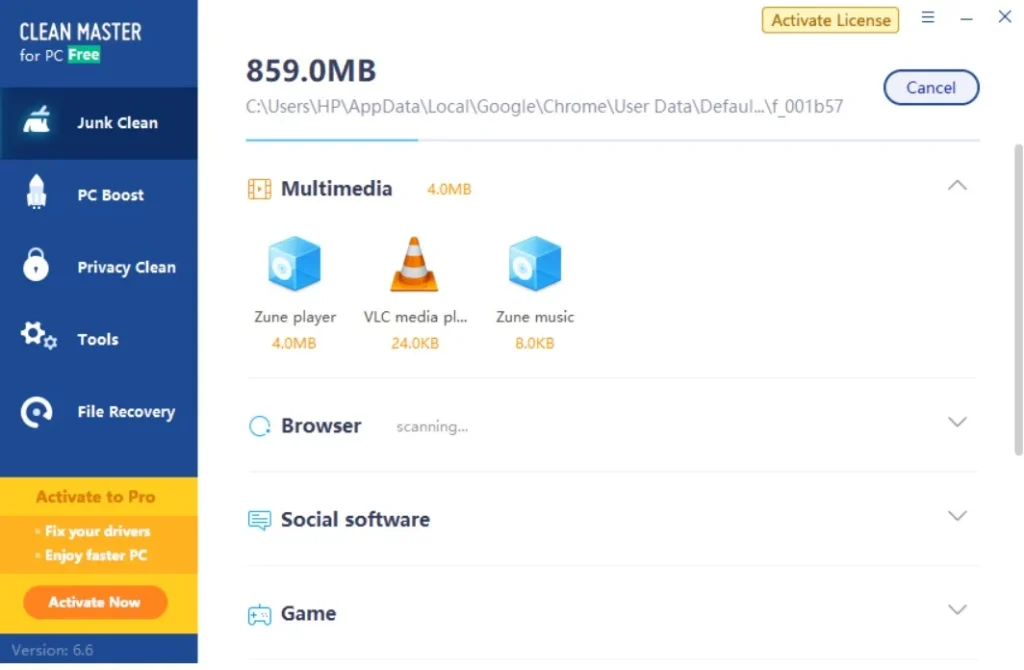
It checks drives, browser data, and the registry. A progress bar shows the scan, and results are sorted by category when finished.
Step 3: Review and Clean
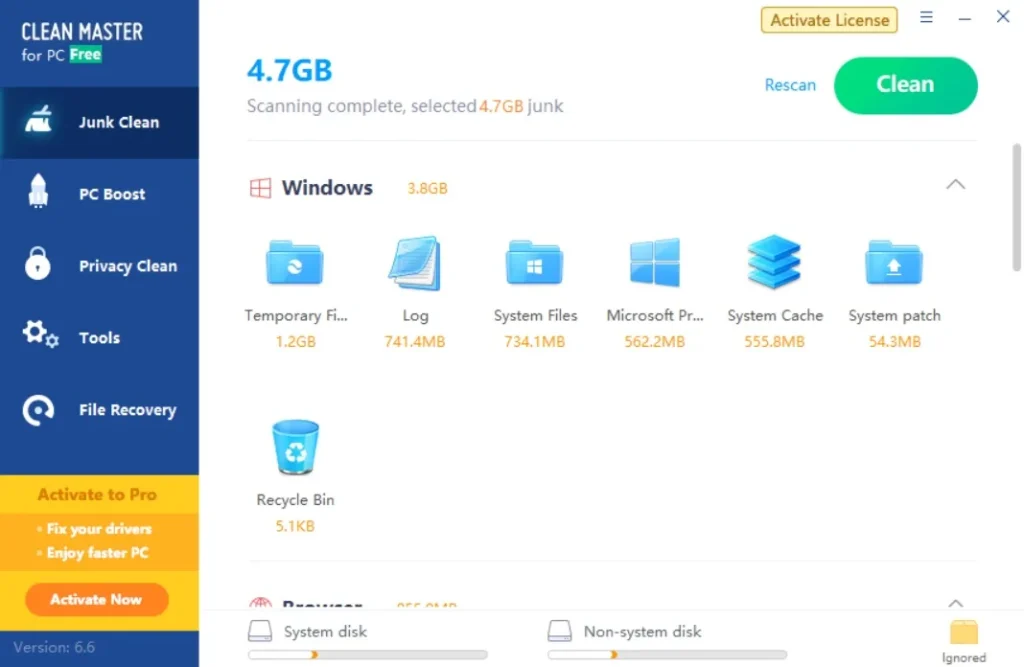
Look at the categories with space details. Pick all or select specific ones. Click Clean, and the tool deletes them. A summary shows how much space you recovered.
Part 5: Weighing It All: Pros and Cons Explained
Here is an honest breakdown to help you judge if it fits your situation, listed separately so the full picture is easy to scan.
Pros:
- It cleaned almost 4.7 GB of junk files in the first scan, mostly browser cache and temp folders.
- My laptop booted faster, and apps opened more smoothly right after cleanup.
- The one-click clean button made it quick to run without digging through menus.
- The driver updater in the paid version found two outdated drivers I hadn’t noticed, and updating them fixed my Wi-Fi drops.
- The file shredder worked well. I deleted old PDFs and confirmed they couldn’t be recovered.
Cons:
- The free version kept showing upgrade prompts, which felt pushy.
- The file recovery tool was slow and didn’t always bring back what I expected.
- The interface looked a bit dated compared to tools like CCleaner.
- It doesn’t include antivirus or threat protection, so I had to rely on another security suite.
- Some features felt more like extras than essentials, especially for casual users.
Part 6: Pricing Plans: Clean Master for PC Tool
Clean Master for PC Pricing Plans
| Edition | Cost | Key Features |
| Standard Free | Free download | Junk file cleaning, basic PC boost, privacy clean |
| Professional | $29.90 one-time | Registry cleaning, driver booster (5M+ devices), file recovery, auto updates, file shredder, browser auto-clean, customizable auto-clean tasks |
Key Considerations
- One-time vs. Subscription: The official Clean Master for PC Professional edition is a one-time $29.90 license, while CleanMaster Pro offers extremely low monthly/yearly plans.
- Feature Depth: The Pro edition adds driver updates, file recovery, and auto-clean scheduling, which are missing in the free version.
- Privacy & Security: Both emphasize privacy cleaning and file shredding, but Pro adds browser auto-clean and cloud encryption.
- Value for Money: The CleanMaster Pro plans are unusually cheap compared to industry norms, suggesting they may be promotional or region-specific.
Risks & Limitations
- Vendor Confusion: “Clean Master for PC” and “CleanMaster Pro” appear under different branding, which may confuse buyers. Always verify the official vendor site before purchase.
- No Antivirus: Clean Master focuses on optimization and privacy, but does not include antivirus or threat response. Users may need a separate security suite.
- Support & Updates: Free version lacks auto updates and advanced support. Paid plans ensure ongoing updates and customer service.
Free VS Paid Plan:
Here’s a clear Free vs Paid comparison table for Clean Master for PC so you can quickly see what you get with each plan:
| Feature | Free Version | Professional Paid |
| Junk File Cleaning | ✔️ | ✔️ (enhanced) |
| Registry Cleaner | ✖️ | ✔️ |
| Privacy Clean (browser history, cookies) | ✔️ | ✔️ (auto-clean scheduling) |
| PC Boost (startup optimization) | ✔️ | ✔️ (advanced boost) |
| Driver Updates | ✖️ | ✔️ (5M+ devices supported) |
| File Recovery Tool | ✖️ | ✔️ |
| File Shredder (secure delete) | ✖️ | ✔️ |
| Auto Updates | ✖️ | ✔️ |
| Customer Support | Basic | Priority |
| Cost | Free | $29.90 one-time license |
Quick Take
- The Free version is good for basic junk cleaning and privacy protection.
- The Paid Professional plan adds driver updates, file recovery, registry cleaning, and automation, making it more suitable for long-term PC health.
- The one-time cost of $29.90 is relatively affordable compared to subscription-based competitors.
Part 7: Honest Feedback of Using Clean Master for PC On My PC
I installed Clean Master for PC and ran the free version first. It scanned quickly and removed almost 4.7 GB of junk files, mostly browser cache and temp folders. My laptop booted faster afterward, and switching between apps felt smoother. The one-click clean button was handy, though the tool kept reminding me about upgrading.
Still, the tool isn’t perfect. The interface felt a bit pushy with upgrade prompts, and some features like file recovery seemed slow. Compared to CCleaner or Iolo System Mechanic, Clean Master is simpler but less polished. It’s fine for quick cleaning, but if you want deeper optimization, you may find Avast Cleanup or other tools more reliable.
Part 8: Worldwide Trust: Reviews and Ratings of Clean Master for PC
Global Ratings Snapshot
| Platform | Average Rating | Highlights |
| G2 | 4.1/5 (80 reviews) | Users like fast junk cleaning and space recovery. Complaints about frequent ads in the free version. |
| Capterra | 4.5/5 (12 reviews) | Praised for ease of use and effective junk removal. Lacks antivirus and threat response features. |
| Trustpilot/Other Forums | ~4/5 (varies) | Positive comments on speed boost and privacy cleaning. Mixed feedback on upgrade prompts. |
Strengths Reported by Users
- Ease of Use: One-click cleaning is widely praised.
- Performance Boost: Noticeable speed improvements after cleaning.
- Privacy Protection: Removes browser history and cookies effectively.
- Driver Updates & File Recovery: Paid version adds useful extras.
Common Criticisms
- Ads in Free Version: Many users find them distracting.
- Limited Security: No antivirus or threat response, unlike full security suites.
- Upgrade Pushes: Interface often nudges users toward paid plans.
- Regional Differences: Stronger adoption in Asia, but fewer reviews from Europe and North America.
Key Considerations
- Reliability: Good for cleaning and optimization, but not a full security solution.
- Competitors: Tools like CCleaner and Iolo System Mechanic have broader global trust and more features.
- Best Use Case: Quick cleanups and freeing disk space, especially for casual users.
Conclusion
Clean Master for PC earns its place among today’s top cleaning tools, at least within the free-tool category where it competes on ease of use and speed. It handles the basics of junk removal, privacy clearing, and startup management with a simple, friendly interface that doesn’t ask much of the user. For everyday users who just want a lighter, faster system without diving into technical settings, it delivers on that core promise in a fairly reliable way.
The paid tier adds useful extras like file shredding and data recovery, though the free plan already covers what most people need day to day for routine maintenance. The occasional ad prompt is a minor trade-off for a tool that costs nothing at its base level, and it rarely gets in the way of actually getting a scan done. Anyone weighing the upgrade should think about how often they would realistically use the shredder or recovery tools before deciding, since paying for features that go untouched rarely makes sense for a casual home user.
If your PC has slowed down and you want a straightforward fix without a steep learning curve, this software is worth trying.
FAQs
Is Clean Master for PC safe to use on Windows?
Yes, the tool is generally considered safe when downloaded from its official source rather than a third-party mirror site. It focuses on file cleanup and system optimization rather than deep, risky system changes, which keeps the chance of damage low during normal, regular use.
Does the free version include everything I need?
For most users, yes, since the free plan covers junk cleaning, privacy clearing, and startup boosting, which handles the bulk of routine PC maintenance. Only advanced tools like file shredding and data recovery require the paid tier, and those matter mainly for specific, less frequent situations.
Will this tool speed up an old computer?
It can help, especially if the slowdown comes from clutter and too many startup programs competing for memory at once. It won’t fix hardware limits like a weak processor or low RAM, but it often brings a noticeable, if modest, improvement to everyday responsiveness.

Author Bio:
Dinesh Lakhwani, the entrepreneurial brain behind “TechCommuters,” achieved big things in the tech world. He started the company to make smart and user-friendly tech solutions. Thanks to his sharp thinking, focus on quality and the motto of never giving up, TechCommuters became a top player in the industry. His commitment to excellence has propelled the company to a leading position in the industry.
Popular Post






Recent Post

JetClean Junk File Cleaner and PC Cleaning Tool: A Complete Review
Heads up before you read further: JetClean (made by BlueSprig) is discontinued. Its last version dates to 2016, and several listings say the official download is gone. Let’s begin our review article! Few Windows utilities stay in circulation for more than a decade without a major update. JetClean is one of them. The tool first […]

Defencebyte Computer Optimizer: An In-Depth Review
Slow startup, delayed app launches, and freezing windows are among the most common complaints from Windows users. In many cases, the cause is not failing hardware. It is the gradual buildup of leftover data. Uninstalled programs leave registry entries behind. Temporary files and logs collect in system folders. Broken file paths and unused extensions stay […]

Windows Storage Sense For PC Cleaning: Everything You Need To Know
The low disk space warning always shows up at the worst time. A big update is waiting to install. A file refuses to save. The storage bar in Settings has turned red, and nobody remembers what filled it. Most people react by hunting for a cleaner to download. Many never notice that Windows already has […]

EaseUS CleanGenius Reviewed: Features, Pricing, and Real Results
Nobody notices the first temporary file. Nobody notices the hundredth either. Then one day the drive is almost full, the browser drags, and Windows takes ages to start. Clutter builds in quiet ways. Installers leave leftovers. Browsers store cache and cookies. Apps write logs that nobody reads. Programs add themselves to startup without asking. None […]

Advanced SystemCare: Tool To Clean Your PC [Complete Review]
The first thing I notice is how the startup screen hangs. The fan kicks in fast and stays loud. If I open a simple folder, the whole system pauses for a moment. It does not look like a clear hard failure, yet the PC feels heavy and slow. This is not usually one big problem. […]

CCleaner PC Cleaning Tool: An In-Depth Review
Learn how to clean your PC with CCleaner. This complete guide covers features, step-by-step instructions, pros, cons, pricing, and FAQs to help you decide.

Avira PC Speed Up Tool: Is It Actually Worth It?
A fresh Windows install feels like a different world. Isn’t it? Everything opens fast. Menus snap into place. Then a year passes, sometimes less, and that same machine starts to feel heavy for no clear reason. Nothing dramatic happened. No single event caused it. It was just months of small leftovers stacking up quietly in […]
Avast PC Cleanup Tool: A Detailed Review
Computers do not slow down overnight. Well, yes! That’s right! It happens in small steps. A temporary file here. A leftover installer there. A browser cache that quietly grows for months without anyone noticing. Add a few startup programs that load automatically, and soon your once fast machine feels like it is wading through mud. […]

Outbyte PC Repair and Cleanup Tool: A Detailed Review
The laptop took nearly two minutes to open one folder. Chrome froze twice. The fan sounded like a tiny jet engine. Most of us have lived through a day like this. Right? Don’t worry! The machine is not dying. It is just tired and messy. A good cleanup can often bring back some of the […]

WMaster Cleanup PC Cleaner Tool: A Detailed Review
Your PC was fast on day one. Right? Every click felt instant, every app opened in a snap, and the fan barely made a sound. Then came the browser tabs, the half-finished downloads, and the apps you tried once and forgot to remove. Slowly, without any warning, that same machine started to feel tired. Boot-ups […]
