How to Remove PUP Files: Simple Methods to Try
Last month, a friend called me in a panic. Her laptop had slowed to a crawl. A strange search page kept opening in her browser. Ads showed up even when she was just reading a plain document. She thought she had a virus. She had not visited any risky site. At least, that is what she believed. A week earlier, she had installed a free PDF tool. It came with extra programs that she never noticed.
Those extra programs are called PUPs. The full form is potentially unwanted programs. They are not always viruses. But they behave in ways that nobody wants. They change your home page. They push ads. They watch what you search and click. Some of them use a lot of memory and make the PC slow. Most of them sneak in with free software. People click Next, Next, Next without reading the screen. That is how they get in.
The good news is that this can be fixed at home. You do not need to be a tech expert. This guide shows simple ways to remove PUP files from your Windows PC.
It also shows how to clean PUP files that hide in odd places. Every method has short steps that are easy to follow. Pick the one that suits you. If it does not work, move on to the next one.
What Are PUPs and How Do They Get on Your PC?

PUP stands for potentially unwanted program. Some people also say PUA, which means potentially unwanted application. Both words mean the same thing. A PUP is a program that you did not really choose to install. It may not break your PC on its own.
But it brings clutter, ads, and risk. Security companies place PUPs in a gray area. They are not pure malware. Yet they are not clean software either.
PUPs come in many shapes. Here are the common ones:
- Adware: shows pop-up ads, banners, and fake offers on your screen.
- Browser hijackers: change your home page, new tab page, and search engine.
- Toolbars: add extra bars to your browser that you never asked for.
- Fake optimizers: claim your PC has hundreds of errors and ask you to pay for a fix.
- Bundled apps: extra programs that ride along with a free download.
- Trackers: collect your browsing data and share it with ad networks.
Most PUPs arrive through bundled installers. A free video player or a PDF tool may offer extra software during setup. The offer is often hidden under a button that says Recommended or Quick. Some PUPs come from ads that say your PC is at risk. Others come from fake update alerts. A few arrive through shared files and cracked software.
Why should you care? A PUP can slow down your startup. It can fill your disk with junk. It can send your browsing habits to strangers. Some PUPs even open the door to real malware. That is why it is wise to deal with them early. The longer they stay, the more places they spread to.
Signs That PUPs Are Living on Your PC
PUPs rarely announce themselves. They show up as small, annoying changes. Look at this list. If you see two or three of these signs, you likely have a PUP problem.
- Your home page or search engine changed on its own.
- New toolbars or extensions appear in your browser.
- Pop-up ads show up, even on safe websites.
- Your PC takes much longer to start.
- You see programs that you do not remember installing.
- Your browser opens strange tabs by itself.
- The fan runs loudly, and the CPU stays busy for no clear reason.
- Fake alerts say your PC is infected and push you to buy something.
Do not panic if you spot these signs. They are common. They are also fixable. The methods below go from the easiest to the most detailed. Start at Method 1 and work your way down.
Precautions to Take Before You Start
A little care now can save you from bigger problems later. Keep these points in mind before you touch anything.
- Back up your important files. Copy your documents, photos, and work files to a USB drive or cloud storage. Do this before you change anything.
- Create a restore point. Type Create a restore point in the Start menu search and follow the prompts. It lets you go back if something goes wrong.
- Note the names of suspicious programs. Write them down or take a screenshot of your installed apps list. This helps you track them later.
- Download tools only from official websites. Many fake cleaners are PUPs too. Always use the maker’s own site.
- Do not delete unknown files from system folders. Some odd-looking files are part of Windows. Search the name online first.
- Go offline while you delete files by hand. This stops a PUP from sending data or pulling in more files while you work. Reconnect only when you need to download a trusted tool.
- Close all browser windows and extra apps before you run a scan. This keeps the scan fast and avoids errors.
- Stay away from the Registry unless you know what you are doing. One wrong edit can stop Windows from starting. If you are unsure, skip it.
How to Remove PUP Files: Quick Methods to Try
Method 1: Uninstall Suspicious Programs from Windows Settings
This is the easiest place to start. Many PUPs show up in the list of installed apps. They look like normal software. So you can remove them the same way you remove any other app.
Look for names that you do not know. Look for apps that were installed on the day your PC started acting odd. Common clues are names with words like Search, Coupon, Deals, Converter, Optimizer, Booster, or Helper. Not every app with these words is bad. But they deserve a closer look.
If you are not sure about an app, search its name online with the word PUP or unwanted. A quick check can save you from deleting something useful. Take your time here. There is no rush.
Follow these steps:
- Open Settings. Go to Apps> Installed Apps. Click the three dots next to the app and choose Uninstall. On Windows 10, click the app and then click Uninstall.
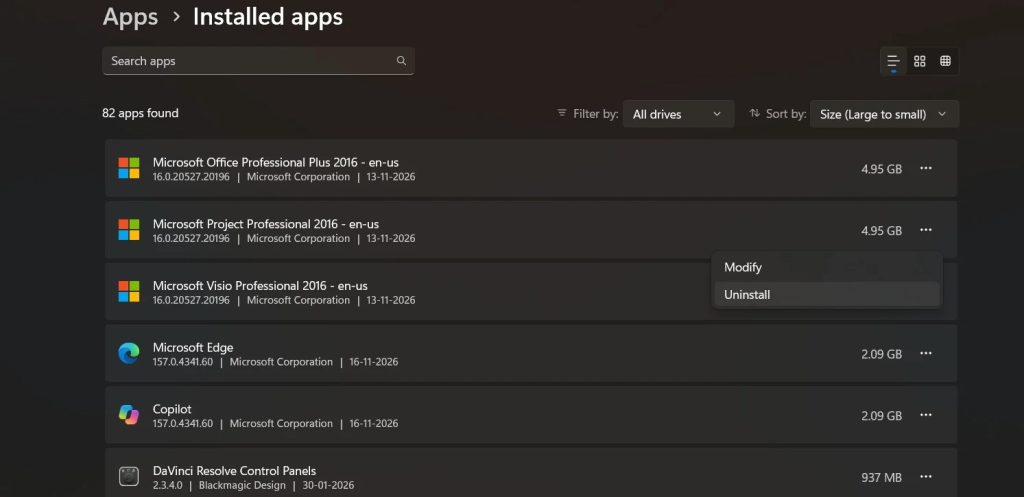
- Click Uninstall again to confirm. Follow the prompts on the screen. Repeat for every unwanted app on your list. Restart your PC after you finish.
Some PUPs fight back. An app may refuse to uninstall, or it may reinstall itself. If that happens, try Safe Mode. Go to Settings, then System, then Recovery. Click Restart now next to Advanced startup. After the restart, choose Troubleshoot, then Advanced options, then Startup Settings, then Restart. Press 4 to enter Safe Mode.
Try the uninstall again from there. Safe Mode loads only the basic parts of Windows, so a stubborn PUP often cannot protect itself.
Method 2: Scan Your PC with Windows Security
Windows already comes with a free security tool. It is called Windows Security, and it uses Microsoft Defender. Many people forget that it is there. It can find and block many PUPs. It is also a handy way to remove PUP files without installing anything extra.
First, turn on the PUP blocker. This feature may not be on by default. It stops new unwanted apps from being installed. Then run a full scan to catch what is already on your PC. The two steps work well together. One blocks new problems. The other finds old ones.
To turn on the PUP blocker:
- Click Start, type Windows Security, and open the app. Click App and browser control.
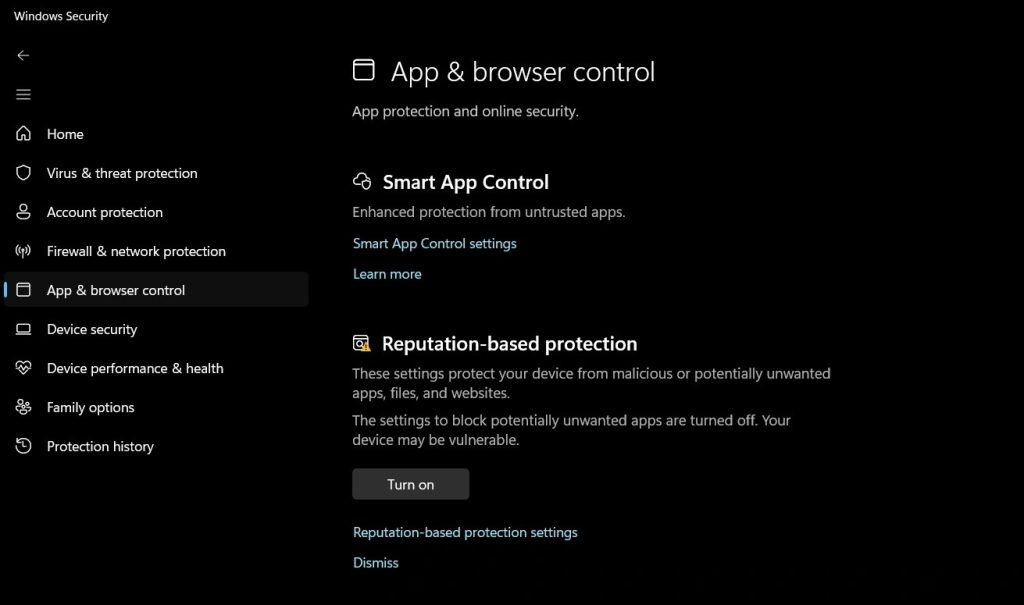
- Click Reputation-based protection settings. Turn on Potentially unwanted app blocking.
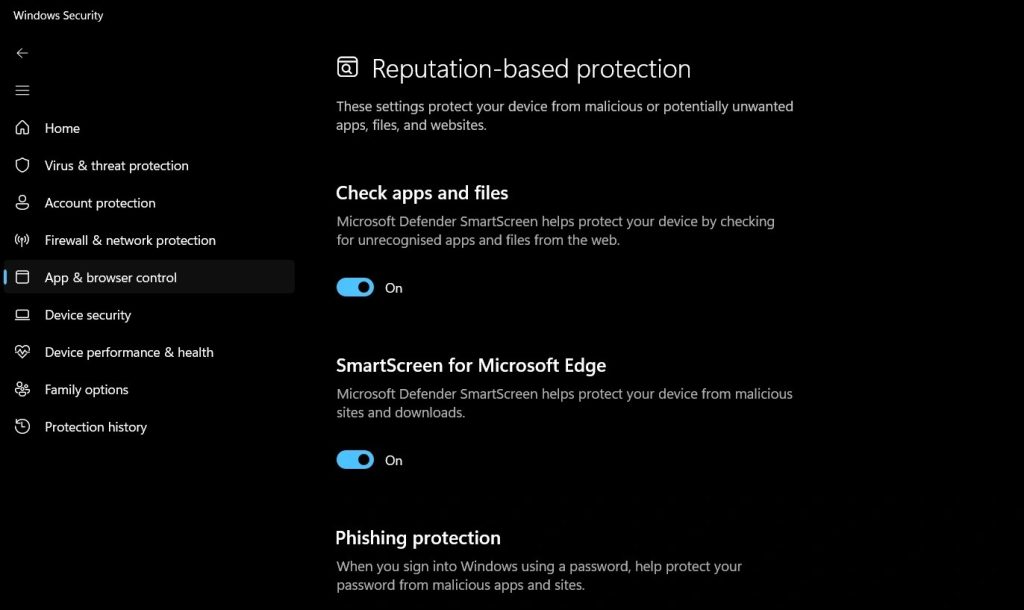
- Tick both options: Block apps and Block downloads.
To run a full scan:
- In Windows Security, click Virus and threat protection. Click Scan options. Choose Full scan and click Scan now.
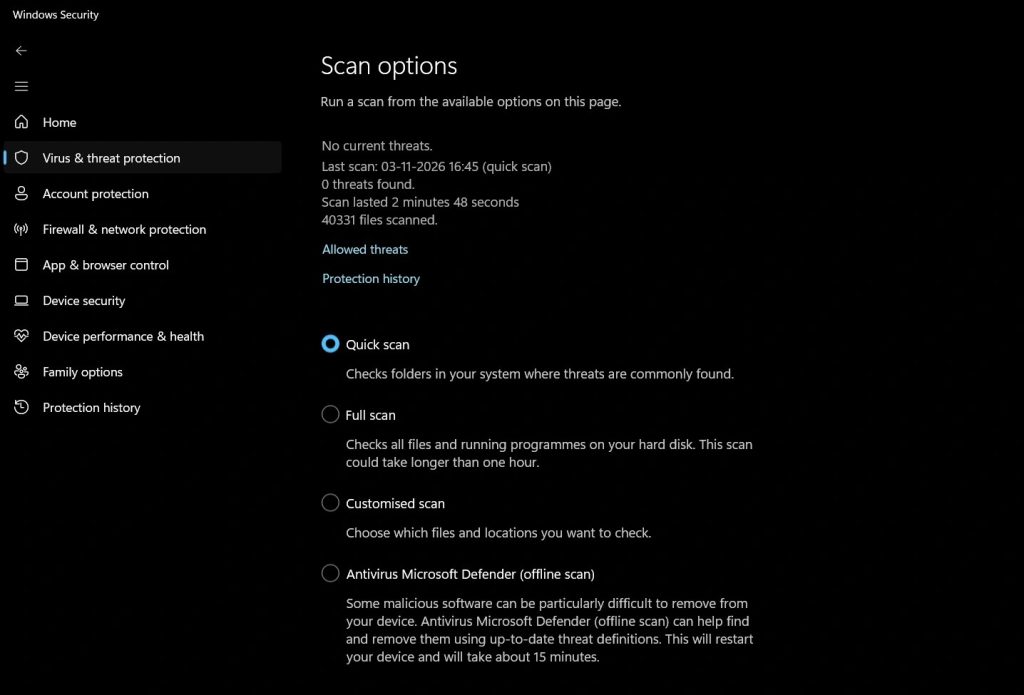
- Wait for the scan to finish. A full scan can take an hour or more. You can keep using your PC, but it may feel slower. When the scan ends, review the results. Choose Remove or Quarantine for each item. Restart your PC.
Menu names can change a little between Windows versions. If you cannot find an option, use the search box inside Windows Security. It usually finds the right page.
If a PUP keeps coming back, try the Microsoft Defender Offline scan. Under Scan options, choose Microsoft Defender Offline scan and click Scan now. Your PC will restart and scan before Windows loads. This helps catch items that hide while Windows is running.
Method 3: Remove PUP Extensions and Reset Your Browser
Many PUPs live inside the browser. They do not need a big install. A single extension can change your search engine and show ads on every page. So even after you uninstall the app, the problem may stay. That is why the browser needs its own cleanup.
Start with extensions. Delete anything that you do not remember adding. Then check your home page, new tab page, and search engine. Then check site notifications. Some PUPs trick people into clicking Allow on notifications. After that, spam alerts keep popping up on the desktop, even when you are not browsing.
In Google Chrome:
- Click the three dots at the top right. Choose Extensions, then Manage Extensions.
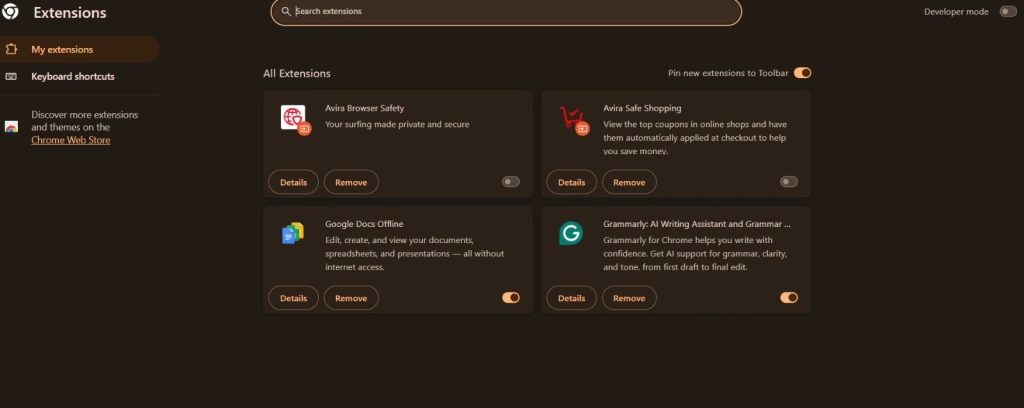
- Click Remove on any extension that looks odd.
- Go to Settings, then Search engine, and set the one you want. Go to Settings, then Reset settings, and click Restore settings to their original defaults.
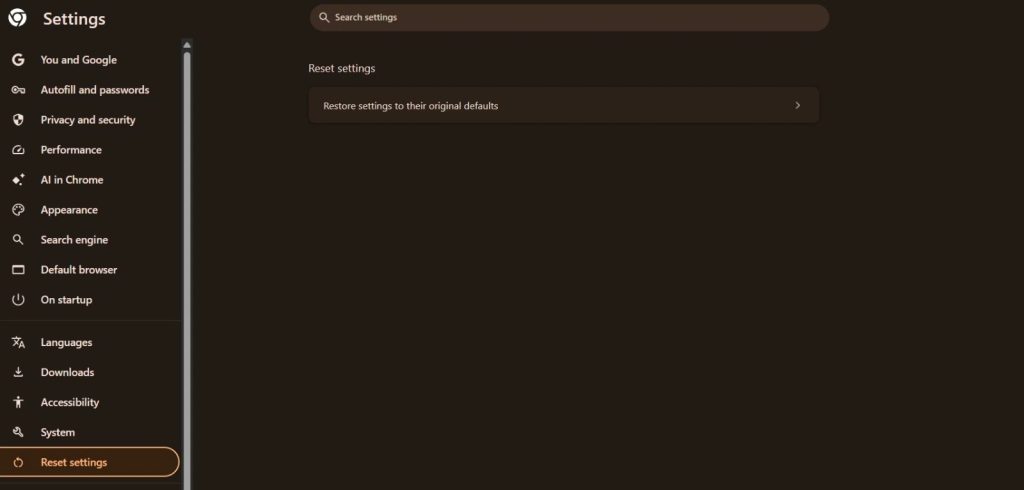
- Click Reset settings to confirm.
In Microsoft Edge:
- Click the three dots at the top right. Choose Extensions, then Manage extensions.
- Remove the extensions that you do not trust.
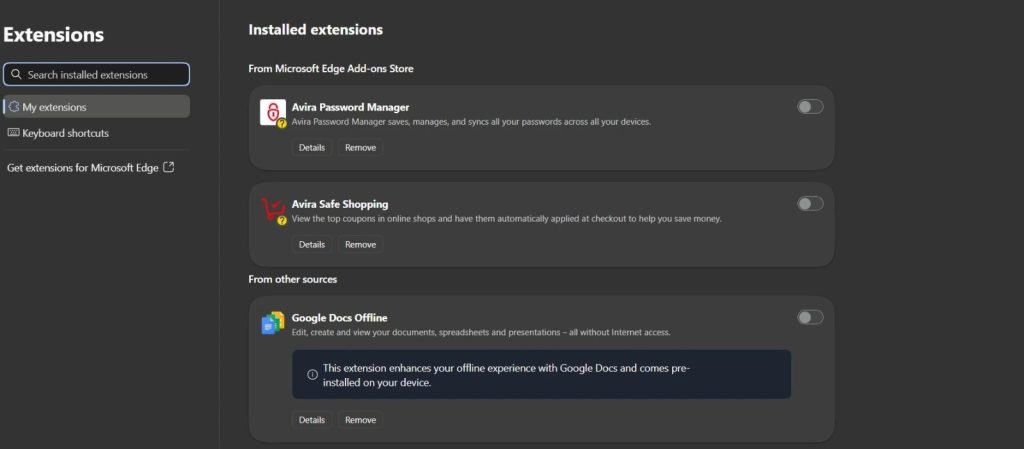
- Go to Settings, then Reset settings, and click Restore settings to their default values.
- Click Reset to confirm.
In Mozilla Firefox:
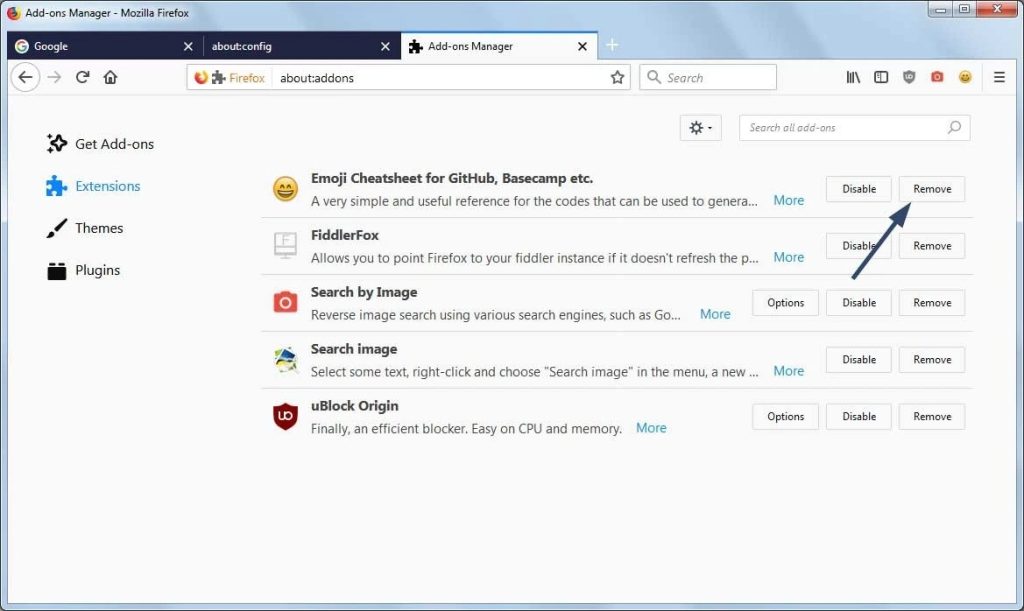
- Click the menu button and choose Extensions and themes.
- Remove the unknown extensions.
- Click the menu button again. Choose Help, then More troubleshooting information.
- Click Refresh Firefox and confirm.
A reset turns off your extensions and clears temporary data. It does not delete your bookmarks or saved passwords in most cases. Still, sync your account first if you are worried. After the reset, open the notification settings. In Chrome, go to Settings, then Privacy and security, then Site settings, then Notifications. Block any site that you do not know. This keeps spam alerts away.
Method 4: Use a Trusted Malware Removal Tool
Sometimes the manual way is not enough. Some PUPs hide well. Some come back after every restart. A good cleaner tool can help you find them faster than you can. It lists programs, startup items, and junk files in one place.
One good option is CCleaner. It is a popular PC cleaning tool for Windows. It has a free version. It shows your installed programs, startup items, and browser plugins in one place. It also clears the junk files that PUPs leave behind. Note that CCleaner is a cleaner, not a full antivirus. So use it along with Windows Security from Method 2.
Here is how to use CCleaner:
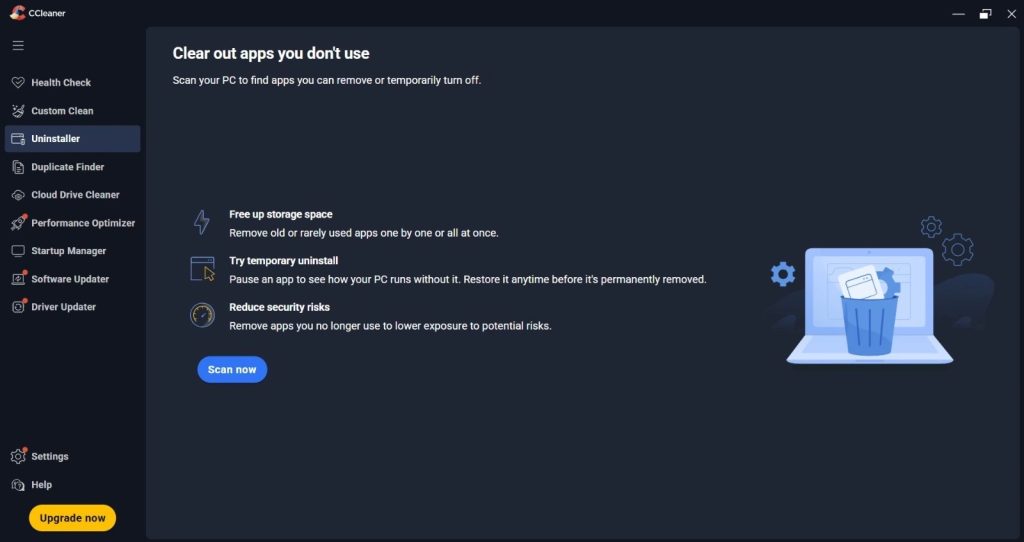
- Download CCleaner from the official CCleaner website. Install it. Read each screen and untick any extra offers. Open CCleaner. Click Uninstaller. Sort the list by install date and select any unknown program. Then click Uninstall.
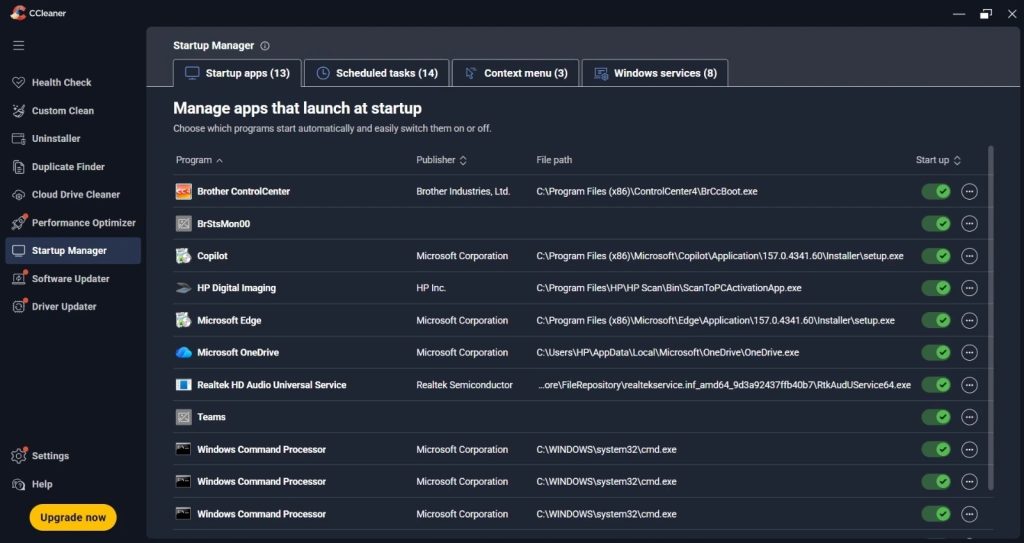
- Click Startup Manager. Select the unknown entries and click Disable or Delete.
- Restart your PC.
Be careful when you download. Fake sites copy the look of real ones. Type the tool name in your search bar and check the web address before you click. A fake cleaner can be a PUP itself. That would defeat the whole point.
A quick word on the Registry cleaner. CCleaner also has one. Skip it unless you know what you are doing. A wrong change can cause problems. The Uninstall, Startup, and Custom Clean tools are enough for this method.
Method 5: Clean Leftover Files, Startup Items, and Scheduled Tasks
Even after an uninstall, small pieces can stay behind. These are leftover folders, startup entries, and scheduled tasks. A leftover task can bring the PUP back later. So it pays to look. This is the right time to clean PUP files that remain on your system.
Take this method slowly. Check one place at a time. Only delete items that you are sure belong to the PUP. If you have doubts, disable the item instead of deleting it. You can turn it back on later.
Check your startup items:
- Press Ctrl + Shift + Esc to open Task Manager. Open the Startup apps tab. On Windows 10, it is called Startup.
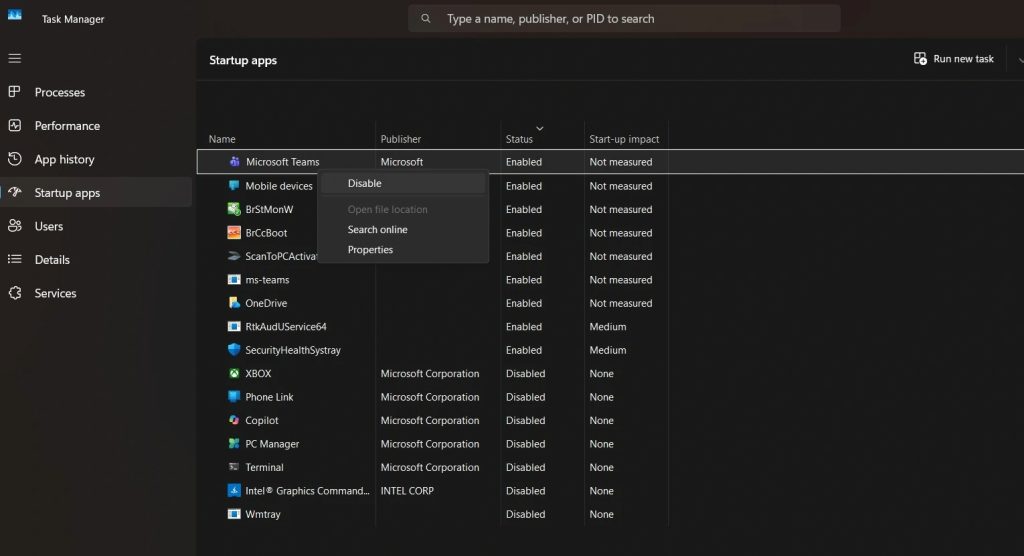
- Right-click any unknown item and choose Disable.
Check Task Scheduler:
- Type Task Scheduler in the Start menu search and open it. Click Task Scheduler Library on the left.
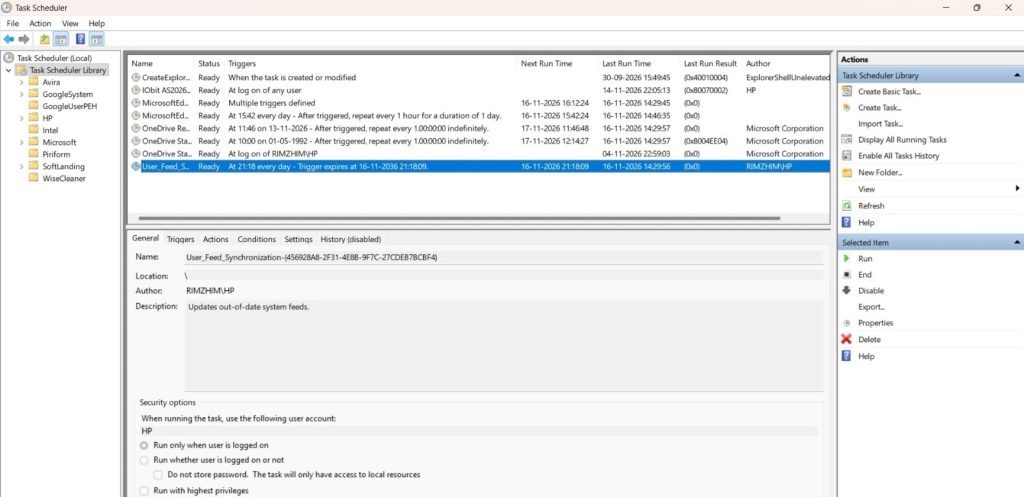
- Look for tasks with odd names. Also look for tasks that run files from the AppData or Temp folders. Right-click the task and choose Delete. If you are unsure, choose Disable.
One more check is worth your time. Right-click your browser shortcut and choose Properties. Look at the Target box. It should end with the program name, such as chrome.exe or msedge.exe. If you see a web address after it, a PUP has edited the shortcut. Delete that text, or delete the shortcut and make a new one.
Tips to Keep PUPs Away for Good
Getting rid of PUPs feels great. Keeping them away feels even better. These habits make a big difference.
- Choose Custom or Advanced install. Read every screen. Untick any extra offers.
- Download software from the maker’s website or from the Microsoft Store.
- Keep Windows and your browsers updated. Updates close security holes.
- Keep PUP blocking turned on in Windows Security.
- Run a quick scan every week and a full scan every month. Acting early helps you remove PUP files before they spread.
- Close any tab that says your PC is infected. Real warnings do not come from websites.
- Review your browser extensions once a month. Delete the ones you do not use.
- Stay away from cracked software and free license keys. They are a top source of PUPs.
- Use a standard user account for daily work. It stops many installs from running without your approval.
- Set a monthly reminder to clean PUP files from your startup list and installed apps.
Conclusion
PUPs may look small, but they cause real trouble. They slow your PC, flood you with ads, and watch what you do online. The good news is that you have many ways to fight back. Start with the simple step of uninstalling unknown apps. Then use Windows Security, fix your browser, and run a trusted scanner. Each step takes only a few minutes. Together, they give you the best chance to remove PUP files for good.
Do not skip the last method. Leftover tasks and folders can bring the problem back. A final check of startup items and folders closes the door. Also take the precautions seriously. A backup and a restore point cost nothing. They give you peace of mind while you work.
Prevention is easier than cure. Read the screens during setup. Download only from trusted places. Keep your system updated. If you build a habit of cleaning PUP files every month, your PC will stay faster and safer. Your browser will feel like your own again.
FAQs
Are PUPs the same as viruses?
No, they are not the same. A virus is built to harm your PC or spread itself. A PUP is usually software that you agreed to install, often without noticing. It may show ads, change settings, or track you. Still, some PUPs carry real risks. They can open doors for other threats. So treat them with care and deal with them early.
Is it safe to delete PUPs on my own?
Yes, it is safe if you follow the right steps. Uninstalling apps, resetting browsers, and running trusted scanners are all low risk. The risk comes from deleting system files or editing the Registry without knowing what they do. That is why a backup and a restore point matter. If you feel unsure about an item, search its name online or skip it. You can also ask a trusted tech friend for help.
Why do PUPs keep coming back after I delete them?
Usually, something is left behind. It may be a scheduled task, a startup entry, or a browser extension. The main app may be gone, but a helper file can reinstall it. Another reason is that you keep downloading from the same risky source. Go through Method 5 again and check your download habits. A full scan and a browser reset also help. If nothing works, a Windows reset is the last option. Back up your files first.

Author Bio:
Dinesh Lakhwani, the entrepreneurial brain behind “TechCommuters,” achieved big things in the tech world. He started the company to make smart and user-friendly tech solutions. Thanks to his sharp thinking, focus on quality and the motto of never giving up, TechCommuters became a top player in the industry. His commitment to excellence has propelled the company to a leading position in the industry.
Popular Post

Recent Post
How to Remove PUP Files: Simple Methods to Try
Last month, a friend called me in a panic. Her laptop had slowed to a crawl. A strange search page kept opening in her browser. Ads showed up even when she was just reading a plain document. She thought she had a virus. She had not visited any risky site. At least, that is what […]
How To Clean a Gaming PC: Complete Guide
A clear and expanded guide that shows how to clean your gaming computer, maintain airflow, protect hardware, and keep performance smooth with simple methods for all user levels.
CCleaner vs. BleachBit: Complete Comparison Guide
Over time, every Windows PC accumulates unnecessary files that take up valuable storage space. Temporary files, browser caches, cookies, and forgotten installers can slowly build up on the system. While these files may seem harmless individually, their combined size can consume disk space and affect system performance. Cleaning utilities help remove this digital clutter, and […]
Total PC Cleaner: Clean Disk, Antivirus for Windows (An Honest Review)
Simply type “PC cleaner” into the Microsoft Store search box and a long list appears. Well, yes! The icons look alike. The names overlap, and almost every description promises a faster, cleaner, safer computer. Many also use the word antivirus, which adds to the confusion. Total PC Cleaner: Clean Disk, Antivirus is one of the […]
PrivaZer PC Cleaning Tool: An In-Depth Review
Deleting a file in Windows does less than most people think. The system removes the file’s entry from its index and marks the space as free. The actual data often stays on the disk until something else overwrites it. That is why recovery tools can bring back files long after they were deleted. Files are […]
Windows Disk Cleanup Review: Features, Steps, and Real Results
Storage space does not disappear overnight. Tiny pieces of data accumulate little by little while Windows performs routine tasks. Old update files, temporary program data, and other unused items often remain saved on the drive. Eventually, these forgotten files can take up room that could be used for something more important. Disk Cleanup is a […]
JetClean Junk File Cleaner and PC Cleaning Tool: A Complete Review
Heads up before you read further: JetClean (made by BlueSprig) is discontinued. Its last version dates to 2016, and several listings say the official download is gone. Let’s begin our review article! Few Windows utilities stay in circulation for more than a decade without a major update. JetClean is one of them. The tool first […]
Defencebyte Computer Optimizer: An In-Depth Review
Slow startup, delayed app launches, and freezing windows are among the most common complaints from Windows users. In many cases, the cause is not failing hardware. It is the gradual buildup of leftover data. Uninstalled programs leave registry entries behind. Temporary files and logs collect in system folders. Broken file paths and unused extensions stay […]
Windows Storage Sense For PC Cleaning: Everything You Need To Know
The low disk space warning always shows up at the worst time. A big update is waiting to install. A file refuses to save. The storage bar in Settings has turned red, and nobody remembers what filled it. Most people react by hunting for a cleaner to download. Many never notice that Windows already has […]

EaseUS CleanGenius Reviewed: Features, Pricing, and Real Results
Nobody notices the first temporary file. Nobody notices the hundredth either. Then one day the drive is almost full, the browser drags, and Windows takes ages to start. Clutter builds in quiet ways. Installers leave leftovers. Browsers store cache and cookies. Apps write logs that nobody reads. Programs add themselves to startup without asking. None […]
