How To Clean a Mouse Pad Without Damage At Home
Last updated on February 17th, 2026 at 12:32 pm
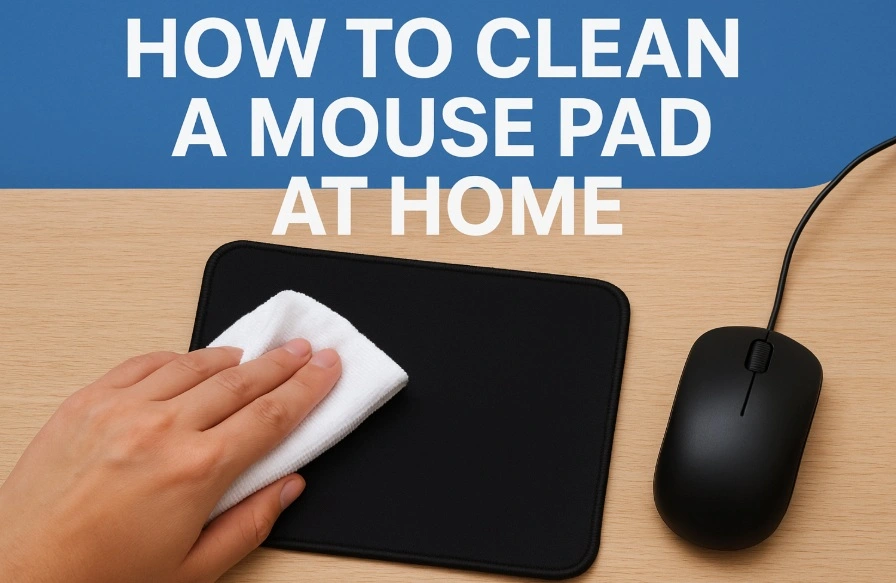
A mouse pad is one of the most used items on your desk. Every day, your hands touch it, and your mouse moves across it hundreds of times.
Over time, the surface collects dirt, sweat, dust, and sometimes even food crumbs. These build-ups not only make the pad look dirty but also affect how smoothly your mouse moves. A dirty pad can slow down your work and even cause frustration during gaming.
The good news is that cleaning a mouse pad is simple. You do not need special tools or expensive cleaners. In this guide, we will go step by step to show you how to clean a mouse pad at home.
Part 1: Know Your Mouse Pad Type
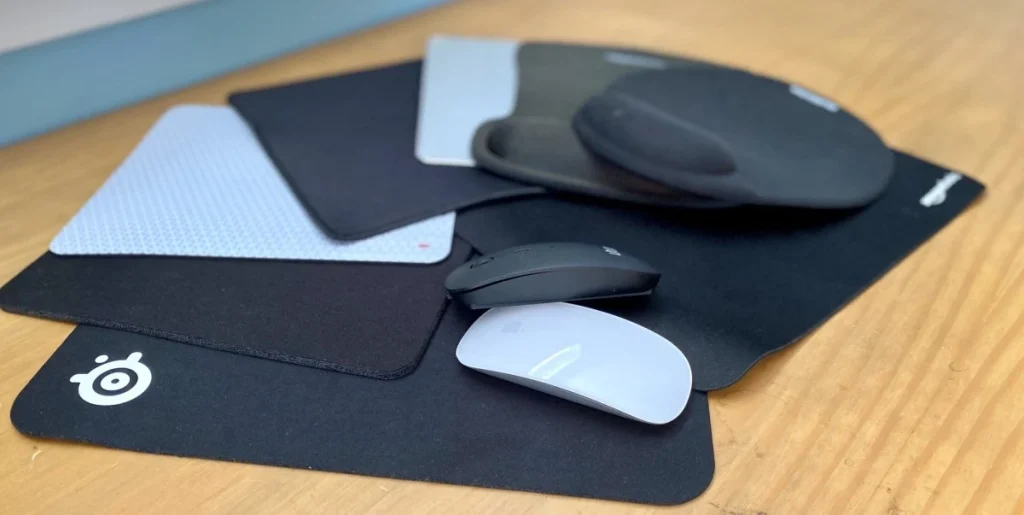
Before cleaning, it is important to know what type of mouse pad you have. Different materials need different care. Using the wrong method may damage the pad or shorten its life.
- Cloth mouse pad: These are the most common. They have a soft fabric surface and a rubber base. They get dirty easily but can be cleaned with soap and water.
- Hard plastic or rubber pad: These are smooth and easy to clean. They do not absorb sweat or dust as much as cloth pads. A simple wipe is usually enough.
- RGB or electronic mouse pad: These come with lights or built-in parts. They are sensitive to water, so you must be extra careful. Never soak them in water.
Knowing your type will help you choose the right method.
Part 2: Clean a Mouse Pad at Home: Quick Daily Cleaning
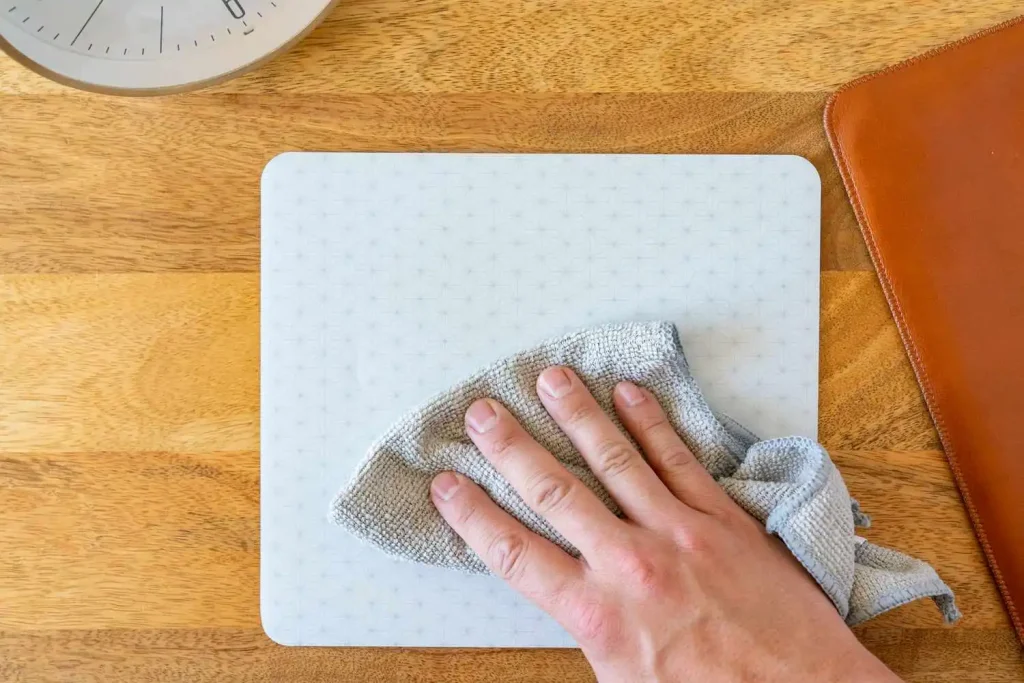
You do not always need to do a deep clean. A quick wipe every day can keep your pad fresh and prevent dirt from building up. This is helpful if you eat near your desk or use the mouse for long hours.
- Microfiber cloth: Take a soft microfiber cloth and wipe the surface. This removes dust and sweat.
- Damp cloth: For a little more cleaning, wet the cloth with plain water. Squeeze out extra water so it is only damp, not dripping. Wipe the pad gently.
- Small stains: If you notice a small stain, gently dab the spot using a cloth soaked in mild soapy water.
Quick cleaning takes less than a minute. Doing this daily will make deep cleaning much easier later.
Part 3: Deep Cleaning Cloth Mouse Pads
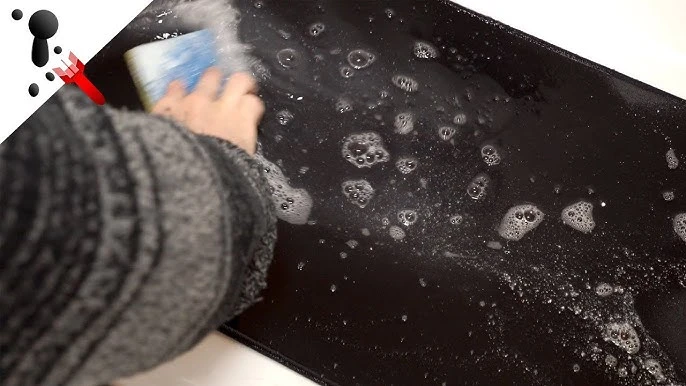
Cloth mouse pads get dirty faster because they absorb sweat, dust, and oil from your hands. If your pad looks dull, sticky, or has stains, it is time for deep cleaning. Here’s how:
Step 1: Prepare cleaning water
Fill a basin or sink with warm water. Add a small amount of mild soap or shampoo. Mix until it foams lightly. Avoid using strong detergents or bleach.
Step 2: Soak the pad
Place the mouse pad in the water. Let it soak for about 5–10 minutes. This loosens the dirt and stains.
Step 3: Scrub gently
Gently clean the surface using a soft sponge or cloth, paying extra attention to spots with stains or sweat marks. Avoid scrubbing too firmly to prevent harming the fabric.
Step 4: Rinse well
Rinse the pad with clean water until no soap remains. Soap left behind can make the surface sticky.
Step 5: Dry properly
Gently press a towel against the pad to absorb any leftover water. Then, set it down flat on a clean surface and let it air dry. Keep it away from direct sunlight or heat, as high temperatures can warp the rubber underside.
This method keeps your cloth pad fresh and safe. Doing this once every 1–2 months is enough for most people.
Part 4: Cleaning Hard Surface Mouse Pads
Hard plastic or rubber mouse pads are easier to clean. They do not absorb liquids and stains as much as cloth ones. Here’s the process:
- Take a damp cloth with a small amount of soap.
- Wipe the pad in circles to remove dirt.
- For stubborn marks, use a soft sponge.
- Rinse the cloth well with clean water to remove any soap residue, then wipe the surface once more. Afterward, gently dry it with a towel and let it sit for a few minutes to air dry.
This type of pad usually dries quickly. You can clean it once a week or whenever it feels dirty.
Part 5: What to Avoid When Cleaning a Mouse Pad
While cleaning is easy, there are also things you must not do. These mistakes can damage the pad.
- Avoid using bleach or strong chemicals, as they can damage the material and cause the colors to fade.
- Avoid using extremely hot water, as high temperatures can harm the rubber base and make it warp or bend out of shape.
- Do not put the pad in a washing machine unless the maker says it is safe.
- Do not use a dryer or hair dryer. The strong heat can cause warping.
- Do not soak RGB or electronic mouse pads. Only wipe them with a damp cloth.
Following these rules will make your pad last much longer.
Part 6: Tips to Keep Mouse Pad Clean Longer
A little care can reduce how often you need to wash the pad. Here are simple habits that help:
- Wash your hands before using the computer.
- Keep food and drinks away from your desk.
- Wipe the mouse pad once a day with a dry cloth.
- Do not rest oily or sweaty hands on the pad.
- Store the pad flat when not in use.
- Avoid rolling or folding cloth pads.
- Use a desk cover if you eat near your computer.
- Deep clean every 1–2 months, depending on use.
These small steps save time and effort in the long run.
Conclusion
Keeping your mouse pad clean is simple and makes a big difference. A clean pad feels fresh, looks better, and helps your mouse move smoothly. It also prevents germs from building up, which is important if you use the computer every day.
Now that you know how to clean a mouse pad at home, you can do it anytime without stress. Whether it is a quick wipe or a full wash, these methods are safe and effective. With regular care, your mouse pad will stay in good shape for years.
FAQs:
1. Can I put my mouse pad in the washing machine?
Most cloth pads should not be machine-washed. The spinning and strong detergents may damage the fabric or the rubber base. Always check the label first. If it says “machine washable,” use cold water and mild soap on a gentle cycle.
2. How often should I clean my mouse pad?
It depends on how often you use it. For daily use, a quick wipe once a day and a deep clean every 1–2 months is enough. Gamers or people who sweat a lot may need to wash it more often.
3. Can I dry my mouse pad in the sun?
It is better to avoid direct sunlight. Strong heat can make the rubber base bend or peel. Always air dry in a shaded place at room temperature.
Popular Post
Recent Post

How To Clear Cache Memory On Windows 11/10 [2026]
Learn how to clear cache memory on Windows 11/10 using safe built-in methods to improve speed, free space, and maintain smooth system performance.

Windows Installer Cleanup Utility: Complete Review And Alternatives
Detailed review of Windows Installer Cleanup Utility, reasons for removal, risks, and safer modern alternatives explained clearly.

How To Clean Junk Files On Windows 11/10
Learn how to clean junk files on Windows 11 and 10 using safe, simple steps to boost speed and free storage space effectively.

Clearing App Cache Data on Windows 11/10: Complete Guide
Learn how to safely clear app cache on Windows 11 and 10 to fix slow apps, free disk space, and improve overall system performance.

How To Clean Up System Files On Windows 11/10: Complete Guide
Explore a step-by-step guide explaining how Windows users can safely remove unnecessary system data using built-in tools.

How To Clean a Laptop Fan Without Opening [2026 Guide]
Learn how to clean a laptop fan without opening the device using safe steps, simple tools, and easy methods for better cooling.

How to Clear the Queue in the Printer Automatically in 2026
Learn how to clear the queue in the printer with simple steps. This easy guide explains why print jobs get stuck and how to fix them safely for smooth printing.

How To Clear Delivery Optimization Cache In Windows
Learn how to clear Delivery Optimization Cache in Windows safely and easily. This guide explains steps, precautions, benefits, and FAQs to free space and avoid update issues.

How To Clear Cache in Edge [Windows 11/10]: Latest Guide
Learn how to clear cache in Edge on Windows 11 and Windows 10. Step by step guide with precautions, FAQs, and tips to fix slow pages and errors.

Top 15 Questions About PC Cleaning and Their Answers
Learn safe and simple ways to clean your PC. This guide answers top questions, covers precautions, and gives advanced tips for better PC health and performance.
