How To Clean a Windows Desktop: Complete Guide
Last updated on February 17th, 2026 at 12:39 pm
A messy desktop slows down your PC. Files pile up. Icons cover your screen. You can’t find what you need. This happens to everyone. But you can fix it fast.
This guide shows you how to clean a Windows desktop. You’ll learn simple steps. Your PC will run better. You’ll feel less stressed. Let’s start now.
Part 1: Why Clean a Windows Desktop?
Your desktop needs regular cleaning. Think of it like your real desk. Clutter causes problems. Here’s why you should clean your desktop often.
- Your PC runs faster. Fewer desktop files mean better performance. Windows loads quicker. Programs open faster.
- You find files easily. A clean desktop helps you locate documents. No more searching through piles of icons.
- Your PC looks professional. A tidy screen impresses others. It shows you care about your work.
- You reduce stress. Clutter makes you anxious. A clean space calms your mind.
- Backups work better. Organized files are easier to back up. You won’t lose important data.
- Updates install smoothly. Windows updates run better with less desktop clutter. Your system stays secure.
- You save storage space. Removing unused files frees up disk space. Your hard drive thanks you.
- Viruses hide less easily. A clean desktop makes threats visible. You spot problems faster.
Part 2: 9 Top Ways to Clean a Windows Desktop
Let’s explore the best methods to organize your screen. Each way is simple. Each one takes just minutes. Pick the ones that work for you.
1. Delete Unused Files and Shortcuts
Start with the basics. Remove what you don’t need. Most desktop icons go unused. They just sit there forever.
Look at each icon carefully. Ask yourself when you last used it. Be honest. If it’s been months, delete it. You can always reinstall programs later.
How it helps:
- Clears visual clutter instantly
- Frees up mental space
- Makes important files stand out
- Speeds up desktop loading time
Step 1. Right-click any unused icon.
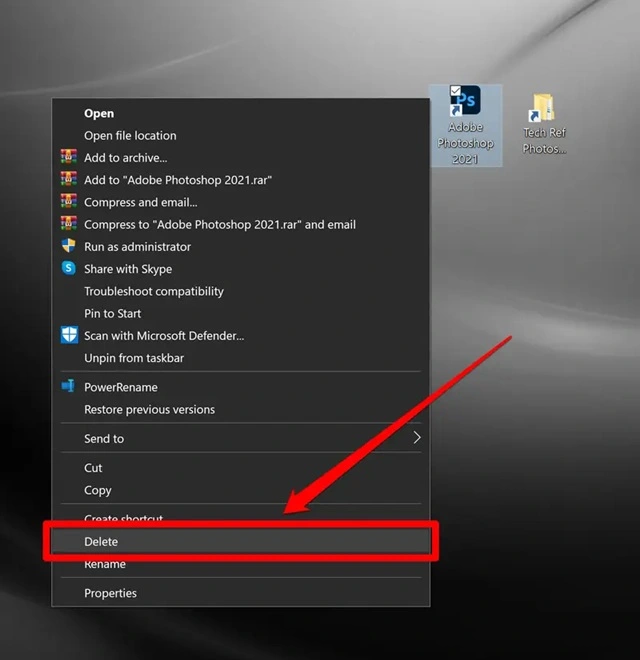
Step 2. Click “Delete” and confirm your choice.
2. Create Desktop Folders
Group similar files together. Use folders to organize everything. This method works wonders for clean desktop maintenance.
Think about categories that make sense. Work files go in one folder. Personal stuff goes in another. Photos get their own space. This system keeps things neat.
How it helps:
- Reduces visible icons dramatically
- Creates logical organization
- Makes files easier to find
- Gives your desktop breathing room
Step 1. Right-click an empty desktop area and select “New” then “Folder.”
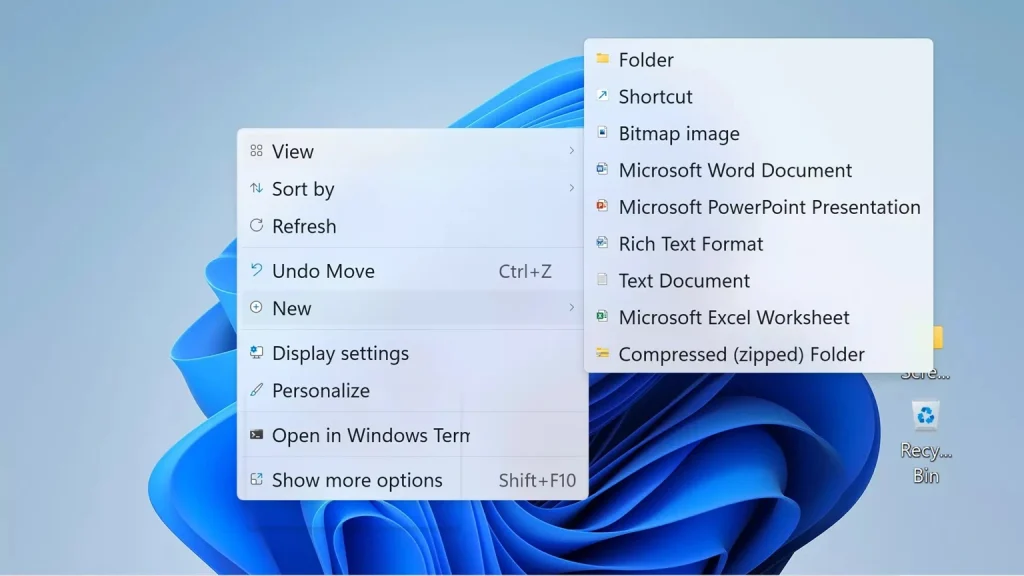
Step 2. Name the folder and drag related files into it.
3. Use the Desktop Cleanup Tool
Windows has a built-in helper. It finds old files for you. This tool makes cleaning automatic and easy.
The cleanup wizard scans your desktop. It spots files you haven’t touched in weeks. Then it offers to move them. You just click and approve.
How it helps:
- Automates the cleaning process
- Identifies forgotten files
- Saves you decision-making time
- Works without manual sorting
Step 1. Open Windows Search. Search for “Disk Cleanup”.
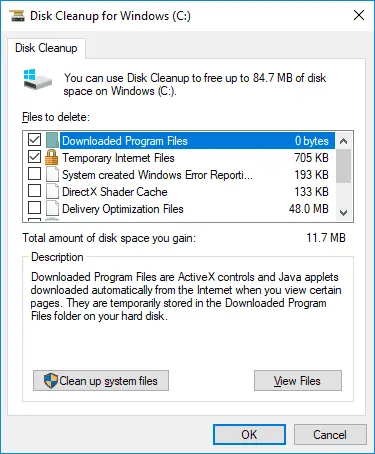
Step 2. Select your drive and check “Desktop,” then click “OK.”
4. Move Files to Proper Locations
Your desktop isn’t storage. It’s a workspace. Move files where they belong. Documents go to the Documents folder. Pictures go to Pictures.
This habit keeps your desktop clean. It also protects your files. If Windows crashes, proper folders are safer. Your desktop can get wiped easily.
How it helps:
- Establishes good file habits
- Protects important documents
- Keeps the desktop functional
- Follows Windows best practices
Step 1. Open File Explorer and locate your Documents or Pictures folder.
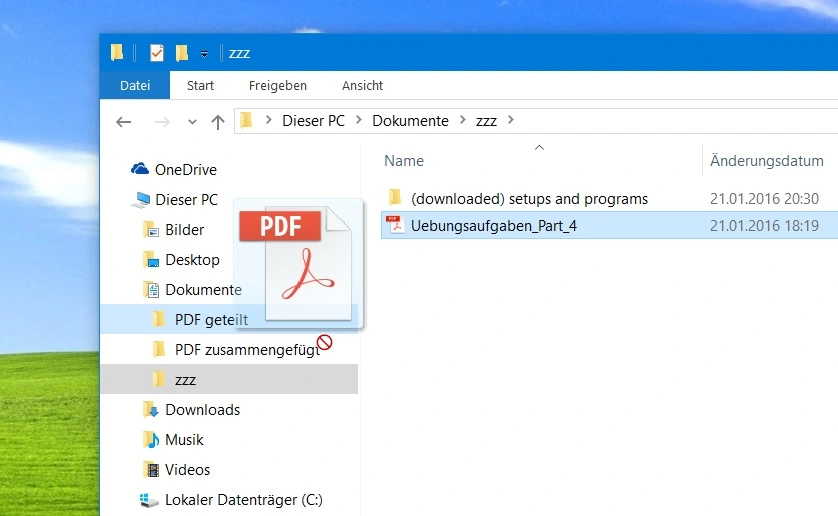
Step 2. Drag desktop files to their correct locations.
5. Disable Desktop Icons Completely
Want a totally clean Windows desktop? Hide all icons. Your wallpaper shines through. Your screen looks amazing.
You can still access everything. Use the Start menu instead. Or press Windows + E for File Explorer. Your files are there, just hidden.
How it helps:
- Creates a minimalist look
- Eliminates all visual distractions
- Forces better file organization
- Makes your wallpaper pop
Step 1. Right-click the desktop and select “View.”
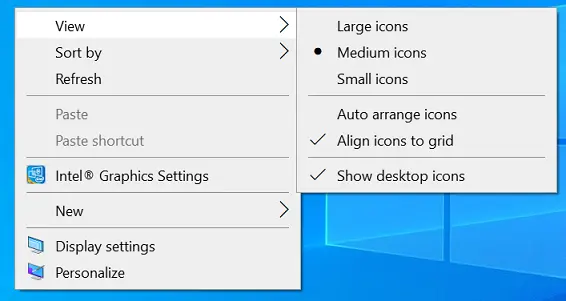
Step 2. Uncheck “Show desktop icons.”
6. Set Up Automatic File Sorting
Let Windows organize for you. Set rules that run automatically. New files go to assigned folders. Your desktop stays clean forever.
This method requires setup once. Then it works in the background. Downloads go to Downloads. Screenshots go to Pictures. Everything has a place.
How it helps:
- Prevents future clutter buildup
- Works without your effort
- Maintains organization consistently
- Saves hours of manual work
Step 1. Install a desktop organizer app like Windows Storage Sense.
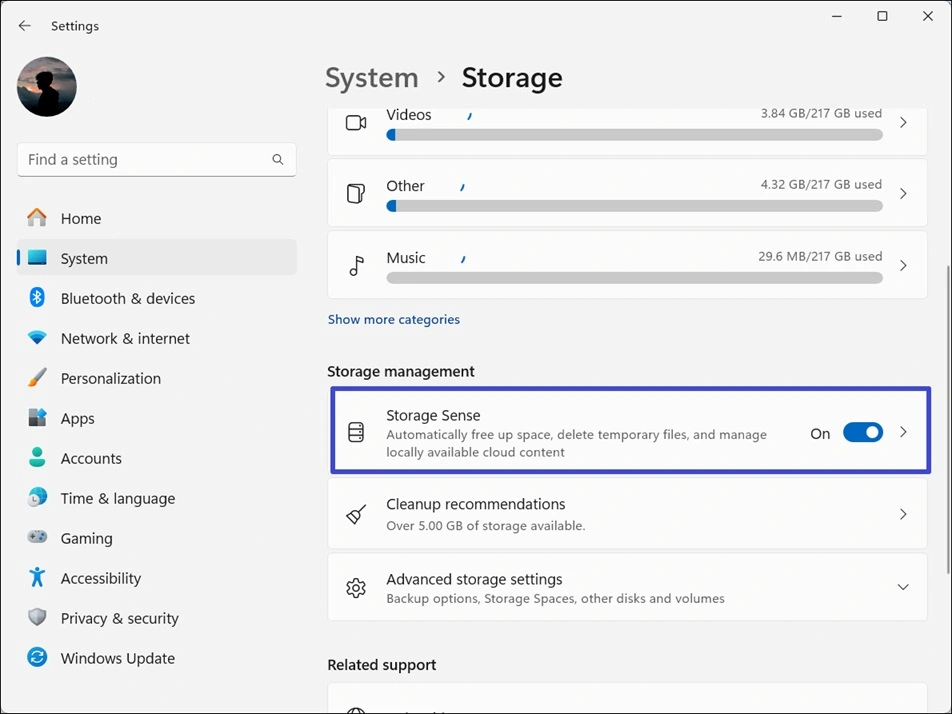
Step 2. Configure rules for automatic file sorting by type.
7. Remove System Icons You Don’t Use
Windows adds icons you might not need. The Recycle Bin sits there always. Network icons clutter things up. Remove what you don’t use.
You can access these features elsewhere. The Recycle Bin is in File Explorer. Network settings are in the taskbar. Clean your desktop by removing them.
How it helps:
- Reduces permanent icon clutter
- Customizes your workspace
- Gives you more screen space
- Makes the desktop yours
Step 1. Right-click the desktop, select “Personalize”. Select “Themes,” then “Desktop icon settings.”
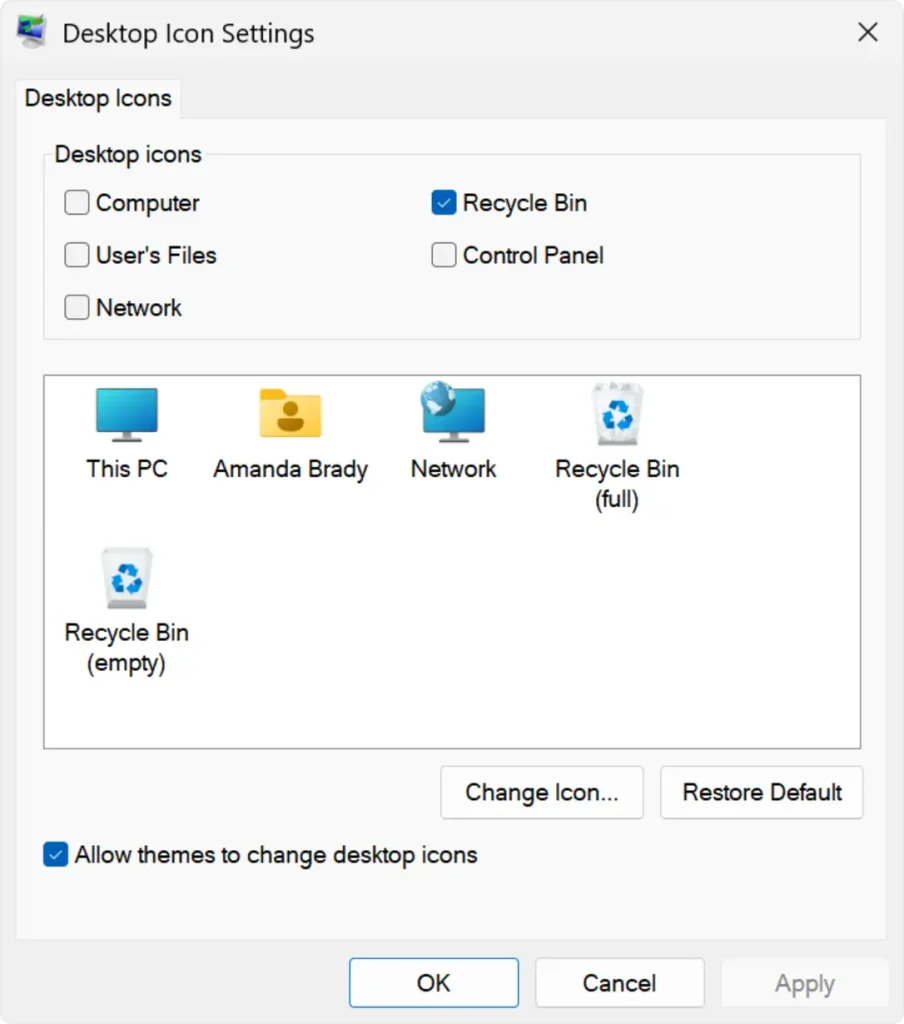
Step 2. Uncheck icons you don’t need and click “OK.”
8. Schedule Regular Cleanup Sessions
Make cleaning a habit. Set a calendar reminder. Every Friday, spend five minutes. Keep your clean desktop maintained.
Regular cleaning prevents massive buildup. Small efforts add up. You won’t face huge cleanup projects. Your desktop stays organized naturally.
How it helps:
- Prevents overwhelming clutter
- Creates lasting habits
- Keeps organization manageable
- Reduces stress over time
Step 1. Set a weekly reminder on your phone or calendar.
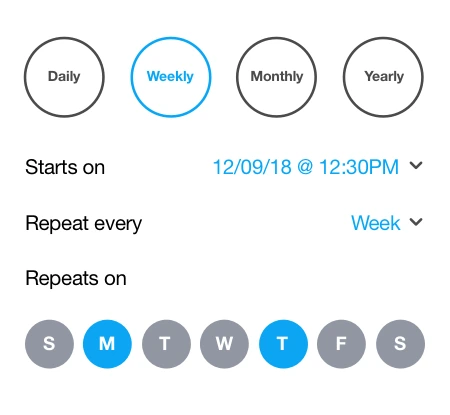
Step 2. Spend 5 minutes each week reviewing and organizing files.
9. Use Cloud Storage for Big Files
Big files eat space fast. Videos and installers are huge. Move them to the cloud. Use OneDrive, Google Drive, or Dropbox.
Cloud storage clears your desktop. It also backs up files safely. You can access them anywhere. Your PC runs faster, too.
How it helps:
- Frees massive storage space
- Backs up files automatically
- Allows access from any device
- Speeds up your computer
Step 1. Sign up for a cloud storage service like OneDrive if you haven’t already.
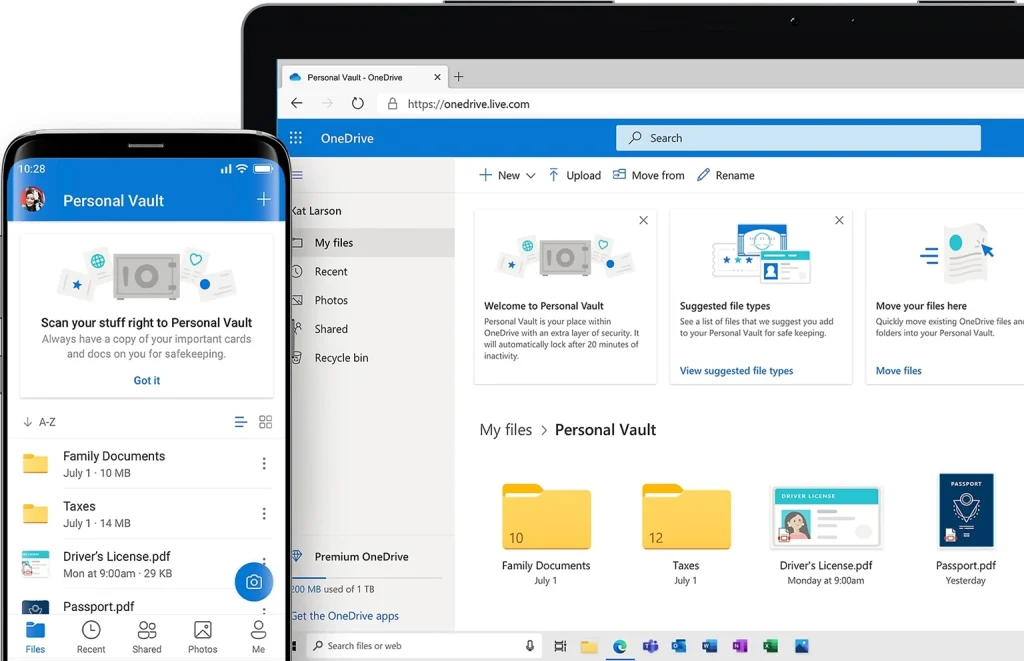
Step 2. Move large desktop files to your personal vault or cloud folder.
Part 3: Pro Tips to Clean a Desktop
Want expert-level organization? These tips take cleaning further. They’re secrets that power users know. Try them today.
- Use keyboard shortcuts. Press Ctrl + A to select all desktop items. Then move them together. This saves tons of time.
- Name files properly. Use clear, descriptive names. “Project_Report_2025.pdf” beats “Document1.pdf” every time.
- Sort icons automatically. Right-click the desktop. Choose “Sort by” then “Name” or “Date modified.” Instant organization appears.
- Create a temporary folder. Make one called “TO_SORT.” Dump everything there. Sort it weekly. This prevents desktop buildup.
- Use desktop wallpaper wisely. Choose simple backgrounds. Busy wallpapers make clutter worse. Calm colors help you focus.
- Limit desktop shortcuts. Keep only 5-10 icons maximum. Anything more becomes clutter. Be ruthless with what stays.
- Archive old projects. Zip completed project folders. Move them to an Archive folder. They’re saved but not in your way.
- Review downloads regularly. Your Downloads folder fills fast. Move or delete files weekly. Don’t let them migrate to the desktop.
Author’s TIP
Here’s our secret. I treat my desktop like a landing pad. Files land there temporarily. But they don’t stay long.
Every evening, I spend two minutes. I sort everything that landed that day. Work files go to Work. Personal stuff goes to Personal. Downloads get reviewed. This tiny habit keeps my desktop spotless.
The key is consistency. Don’t let files sit for days. Deal with them immediately. Your future self will thank you. A clean Windows desktop becomes automatic. You won’t even think about it anymore.
Conclusion
You now know how to clean a Windows desktop. These methods work for everyone. Pick two or three to start. You don’t need to use them all.
Start small. Delete five icons today. Create two folders tomorrow. Build your habits slowly. Organization becomes natural over time.
A clean desktop changes everything. Your PC runs better. You feel more productive. Your stress drops. Take action now. Your screen deserves it.
FAQs
Q1: How often should I clean my Windows desktop?
Clean your desktop once a week minimum. If you download many files, clean it daily. Set a specific day and time. Friday afternoons work well for most people. Regular cleaning takes just minutes. It prevents massive cleanup projects later. Make it a habit like brushing your teeth. Your desktop stays organized effortlessly.
Q2: Will cleaning my desktop make my computer faster?
Yes, cleaning your desktop helps speed up your PC. Windows loads all desktop icons at startup. Fewer icons mean faster boot times. Your system uses less memory too. You’ll notice the difference especially on older computers. Combine desktop cleaning with disk cleanup for best results. Your PC will feel new again.
Q3: What should I do with files I might need later?
Create an “Archive” folder for uncertain files. Move them there instead of deleting them. This keeps your clean desktop while saving potentially useful files. Review this folder every three months. Delete what you didn’t need. This system prevents regret while maintaining organization. You get the best of both worlds.
Popular Post
Recent Post

How To Clear Cache Memory On Windows 11/10 [2026]
Learn how to clear cache memory on Windows 11/10 using safe built-in methods to improve speed, free space, and maintain smooth system performance.

Windows Installer Cleanup Utility: Complete Review And Alternatives
Detailed review of Windows Installer Cleanup Utility, reasons for removal, risks, and safer modern alternatives explained clearly.

How To Clean Junk Files On Windows 11/10
Learn how to clean junk files on Windows 11 and 10 using safe, simple steps to boost speed and free storage space effectively.

Clearing App Cache Data on Windows 11/10: Complete Guide
Learn how to safely clear app cache on Windows 11 and 10 to fix slow apps, free disk space, and improve overall system performance.

How To Clean Up System Files On Windows 11/10: Complete Guide
Explore a step-by-step guide explaining how Windows users can safely remove unnecessary system data using built-in tools.

How To Clean a Laptop Fan Without Opening [2026 Guide]
Learn how to clean a laptop fan without opening the device using safe steps, simple tools, and easy methods for better cooling.

How to Clear the Queue in the Printer Automatically in 2026
Learn how to clear the queue in the printer with simple steps. This easy guide explains why print jobs get stuck and how to fix them safely for smooth printing.

How To Clear Delivery Optimization Cache In Windows
Learn how to clear Delivery Optimization Cache in Windows safely and easily. This guide explains steps, precautions, benefits, and FAQs to free space and avoid update issues.

How To Clear Cache in Edge [Windows 11/10]: Latest Guide
Learn how to clear cache in Edge on Windows 11 and Windows 10. Step by step guide with precautions, FAQs, and tips to fix slow pages and errors.

Top 15 Questions About PC Cleaning and Their Answers
Learn safe and simple ways to clean your PC. This guide answers top questions, covers precautions, and gives advanced tips for better PC health and performance.
