How to Clean Your Windows Registry (Safe Methods)

Last updated on March 5th, 2026 at 2:33 am
Your computer stores system information in a large database called the Windows registry. It contains details about programs, settings, drivers, and many other parts of the system. When this database stays organised, the computer works in a smooth way and responds fast.
Over time, old entries gather in the registry. This often happens when apps update or when you remove old software. A messy registry can slow down the system. It can also cause random errors.
For this reason, users try to clean Windows registry files from time to time. If you want to clean registry on Windows in a safe way, it is important to follow the right steps. This guide explains those steps.
Precautions Before You Change the Registry
Safety First
Before you start any fixes inside the registry, you should take care of a few important points. A mistake inside this database can create system problems. Some errors can even stop Windows from loading. These steps lower the risk and keep your data safe.
- Do not rush into changes
Your registry holds deep system settings. A quick change can break a feature. Slow steps help you avoid errors. - Avoid random editing
You should not delete entries that you do not understand. Many entries look confusing. They may still be important for the system. - Check your system for malware
Viruses can damage or change registry values. Scan your system before you edit anything. A clean system keeps the fix safe. - Remove unused programs first
Old software creates leftover entries. Uninstall programs you no longer use. This removes some clutter even before you touch the registry. - Do not install unknown cleaners
Some tools do more harm than good. Pick trusted software only. This keeps your registry in stable shape. - Record all manual edits
Write down what you changed. If something goes wrong, this record helps you undo the change. - Restart your computer afterward
A restart helps the system load new settings. It also helps you check if any change caused trouble. - Seek help from support channels if unsure
Many users break the registry by guessing. If you are not sure, ask for help before you edit anything.
First, Let’s Discuss These Questions:
1. Why does the registry become messy?
The registry grows in size when you install apps and change parts of the system. Each app places entries inside it. When you remove apps, some entries stay behind. Apps also update themselves. This creates new values that replace old ones. Drivers also add their own entries. Over time, these changes build clutter in many parts of the registry. A messy registry can slow down searches inside it. This creates delays that your system may show as slow boot times or small errors. So users try to clean the Windows registry data to keep things stable.
2. Is it risky to change registry entries?
Yes, it is risky when you do it without proper care. The registry controls how the system loads. Wrong edits can stop apps from starting. Some edits may also stop hardware drivers. But with the right steps, the process becomes safe. A small mistake can be undone when you create a backup. This is why every guide teaches you to take a backup first. When you plan to clean the registry on Windows, you should always follow safe steps.
3. Can registry cleaning fix system errors?
Some errors come from incorrect entries. These entries appear when software crashes or shuts down in a strange way. Cleaning these entries can fix problems in some cases. It can also help when an app does not open. A tidy registry helps Windows load faster. But cleaning the registry does not fix every issue. It works best when the issue is caused by leftover values or broken paths.
4. How often should you clean the registry?
Most users do not need to clean the registry often. Modern systems manage it in a safe way. You can clean it if your computer runs slowly or if you have removed many programs. You can also clean it after a major update. If your system works fine, then you do not need to touch the registry at all. When you decide to clean Windows registry files, always check the system first. You should only clean registry on Windows when you see clear signs of clutter.
How to Clean Your Windows Registry (3 Safe Methods)
There are safe ways to clean the registry. These methods do not harm the system when used with care. Each method has its own purpose. Some require built-in tools. Some require trusted software. All steps are simple to follow.
Method 1: Use Windows Built-in Tools
Windows offers a few tools that support system cleanup. Disk Cleanup is the most common one. It removes temporary files. It also removes update leftovers. This keeps the system light. While it does not directly change the registry, it clears the system so the registry stays clean in the long run.
Many users like this method because it is safe. It uses trusted tools from Windows itself. The tool has a simple design. You do not need advanced skills to run it. The value of this method is in the way it keeps clutter low.
Why use this method
- Safe for all users
- Does not change deep system settings
- Helps remove leftover update files
- Makes your system faster
- Easy to run and understand
Steps
Step 1. Open Disk Cleanup from the Start menu.
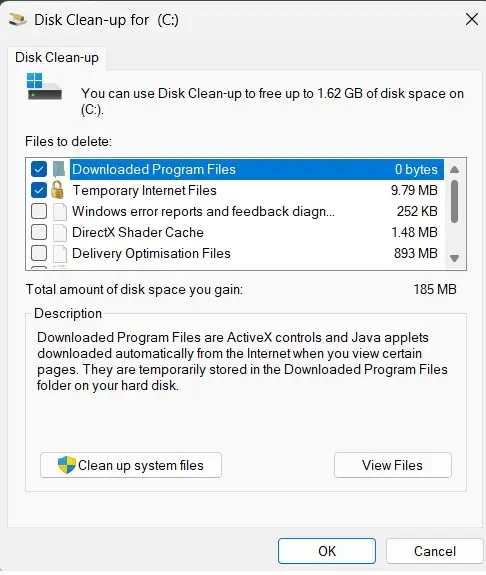
Step 2. Select the drive and remove the listed files.
Method 2: Create a Backup and Restore Point
This method protects you before you make changes. A restore point takes a snapshot of system settings. A registry backup holds a copy of your registry. If a problem occurs, you can return to the old state. This is the safest habit when you plan to change something inside the registry.
Creating backups keeps your trust in the system. It also helps you test edits. When you know you can return to the old state, you work with more care. This method is good for both new users and advanced users.
Why use this method
- Works as a safety blanket
- Let’s you undo mistakes
- Protects you from system errors
- Quick to set up
- Recommended for all edits
Steps
Step 1. Create a restore point through the System Protection window.
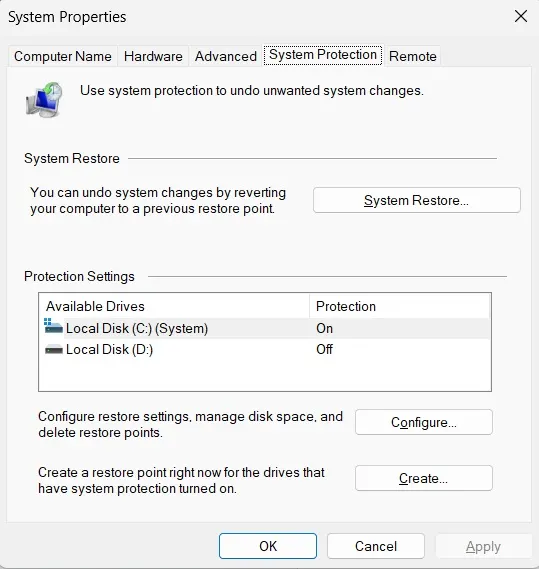
Step 2. Export a registry backup through the Registry Editor.
Method 3: Use Reliable Third-party Registry Cleaners
Some apps scan the registry for old entries. They remove broken keys. They also fix path problems. They do this with one click. This can save time for users who do not want to edit things manually. You should pick trusted tools only. A good tool checks values and avoids risky edits.
This method helps you avoid deep manual work. The tool does the heavy scan. It finds errors inside many parts of the registry. You should choose software with a known track record. Do not pick unknown tools.
Why use this method
- Saves time
- Finds deep leftover entries
- Fixes broken paths
- Gives clear reports
- Good for regular scan plans
Steps
Step 1. Install a trusted registry cleaner like Revo Registry Cleaner.
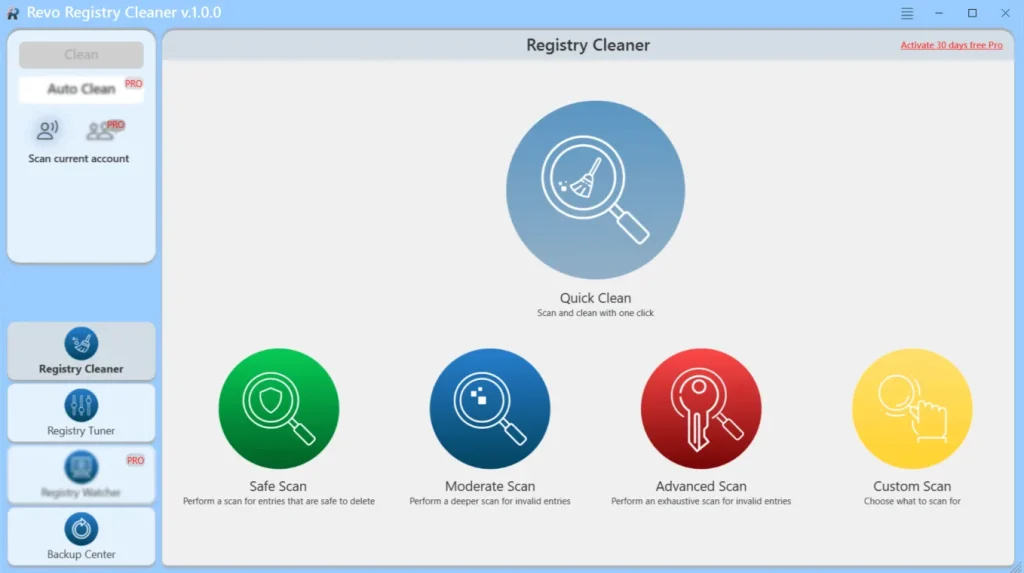
Step 2. Run the scan and remove only the suggested safe entries.
Author’s Tip
If your system still works fine, do not touch the registry. Most users do not need to clean it. Focus on removing unused apps and old files instead. This keeps the system tidy without risk.
If you still want to edit the registry, take your time. Read each guide with care. Make a backup. Restart after each edit. A slow and calm approach keeps your system safe.
Advanced Tips
Extra Steps for Experienced Users
Once you know the basics, you can try deeper steps to keep the system in good shape. These steps help the registry stay light and responsive. They also help you avoid errors from old entries.
- Check startup entries
Some programs add startup entries in the registry. Remove unused ones. This reduces system load. - Review app folders
Some apps leave folders behind. Remove leftover folders. This keeps the registry clean after uninstall. - Check services
Read service lists. Some old services stay active. Turn off unwanted services. - Update drivers
New drivers create better registry entries. Old drivers may leave clutter. Keep them updated. - Check background tasks
Some tasks add registry triggers. Remove the ones you do not need. - Use proper uninstall tools
Some uninstallers remove deep entries. This reduces clutter. - Inspect event logs
Errors in logs may point to broken registry keys. Fix or remove those keys. - Keep Windows updated
Updates tidy some parts of the registry. They also fix errors that come from old keys.
Conclusion
A clean registry keeps your system stable. You do not need to edit it often. Most of the time, Windows handles its own entries. Still, clutter can build up from apps and drivers. When you need to tidy it, use the safe steps listed here.
Always start with a backup. Do not install unknown cleaners. Use reliable tools only. Keep your apps updated and remove the ones you do not need. When you work in a careful way, the system stays safe. Your computer also runs better when the registry stays organised.
FAQs
1. Does cleaning the registry increase speed?
It may increase speed when clutter is the cause of the slowdown. It removes old and broken entries. This can help the system load faster. But the speed gain is often small.
2. Can I break Windows by editing the registry?
Yes, you can damage the system if you delete important entries. This is why you should create a backup and restore point before you make changes. If you follow safe steps, you reduce the risk.
3. Is third-party software safe for registry cleaning?
It is safe when you use software with a good reputation. Avoid unknown brands. Quality tools scan the registry and remove unwanted entries without harming the system.
Popular Post
Recent Post

How To Clear Cache Memory On Windows 11/10 [2026]
Learn how to clear cache memory on Windows 11/10 using safe built-in methods to improve speed, free space, and maintain smooth system performance.

Windows Installer Cleanup Utility: Complete Review And Alternatives
Detailed review of Windows Installer Cleanup Utility, reasons for removal, risks, and safer modern alternatives explained clearly.

How To Clean Junk Files On Windows 11/10
Learn how to clean junk files on Windows 11 and 10 using safe, simple steps to boost speed and free storage space effectively.

Clearing App Cache Data on Windows 11/10: Complete Guide
Learn how to safely clear app cache on Windows 11 and 10 to fix slow apps, free disk space, and improve overall system performance.

How To Clean Up System Files On Windows 11/10: Complete Guide
Explore a step-by-step guide explaining how Windows users can safely remove unnecessary system data using built-in tools.

How To Clean a Laptop Fan Without Opening [2026 Guide]
Learn how to clean a laptop fan without opening the device using safe steps, simple tools, and easy methods for better cooling.

How to Clear the Queue in the Printer Automatically in 2026
Learn how to clear the queue in the printer with simple steps. This easy guide explains why print jobs get stuck and how to fix them safely for smooth printing.

How To Clear Delivery Optimization Cache In Windows
Learn how to clear Delivery Optimization Cache in Windows safely and easily. This guide explains steps, precautions, benefits, and FAQs to free space and avoid update issues.

How To Clear Cache in Edge [Windows 11/10]: Latest Guide
Learn how to clear cache in Edge on Windows 11 and Windows 10. Step by step guide with precautions, FAQs, and tips to fix slow pages and errors.

Top 15 Questions About PC Cleaning and Their Answers
Learn safe and simple ways to clean your PC. This guide answers top questions, covers precautions, and gives advanced tips for better PC health and performance.
