How To Clear Browser Cache On Windows 11/10 [Chrome, FireFox, Edge]
Every time you use the internet, your browser saves small pieces of data in the background. This data helps websites load faster when you visit them again. While this process improves speed, it can also create issues over time. Old or corrupted files may slow down your browser or prevent pages from loading properly. Because of this, many users look for ways to clear browser cache and keep their browsing smooth.
If your browser feels slow, freezes often, or shows outdated content, stored cache might be the reason. Learning how to clean the browser cache can help solve these problems quickly. It is a simple task, yet many users are not aware of the correct steps.
In this guide, you will understand everything in a clear and easy way. You will learn what browser cache is, why it matters, and how to clear browser cache on Windows 11 and Windows 10 without confusion.
What is Browser Cache?
Browser cache is a temporary storage area used by your web browser. It saves files such as images, scripts, and website layouts. When you open a website for the first time, your browser downloads all these files. When you visit the same site again, the browser loads these saved files instead of downloading them again. This makes the website open faster and reduces loading time.
Although cache improves speed, it can also cause problems after some time. Cached files may become outdated if a website updates its content. This can result in broken layouts or missing elements. In some cases, websites may not load correctly at all. That is when you need to clear the browser cache.
When you clean the browser cache, your browser removes old data and downloads fresh files from the website, ensuring everything works properly.
Is it Safe to Clean the Browser Cache?
Yes, it is completely safe to clean browser cache. It only removes temporary files that are stored to improve loading speed. It does not delete your personal files, browsing history, or saved bookmarks. These files are not essential, so removing them does not harm your system.
In fact, it is a good habit to clear the browser cache from time to time. It helps fix display errors, loading issues, and slow performance. When you clean the browser cache, your browser gets a fresh start. It reloads updated files and improves overall performance. This process is safe, simple, and recommended for regular use.
FLUQs
1. Will clearing cache log me out of websites?
No, clearing the cache alone will not log you out of websites. Login information is usually stored in cookies, not in cache files. If you only remove cached data, your sessions will remain active. However, if you choose to delete cookies along with cache, you may be required to sign in again on some websites.
2. How frequently should I clear browser cache?
There is no fixed rule for this. For normal use, clearing the cache every few weeks is generally sufficient. If you experience slow browsing, loading problems, or outdated pages, you can clear it right away. The need mainly depends on how often you use your browser and the kind of issues you notice.
3. Does clearing the cache improve speed?
Yes, it can improve browsing speed in many cases. Old or corrupted cache files may slow down your browser or cause delays in loading pages. When you remove these files, the browser fetches fresh data, which helps websites load more smoothly and correctly.
4. Is cache the same as cookies?
No, cache and cookies are different. Cache stores temporary files like images and scripts to speed up website loading. Cookies store user-related data such as login details and preferences. Both serve different purposes, even though they are often managed together in browser settings.
Important Things to Do Before Clearing Cache
Before you start, it is better to follow a few simple steps. These steps help you avoid problems and make the process smoother.
- Save your work
Save all open documents or forms before you start. This prevents any data loss if the browser needs to restart. - Close unused tabs
Having many tabs open can slow down your browser. Close any that are not needed to keep things running smoothly. - Check your internet connection
Make sure your connection is stable. Websites will need to reload fresh data after clearing the cache. - Keep login details ready
You may need to sign in again on some websites. Keeping your details ready saves time. - Update your browser
Use the latest browser version for better performance and fewer issues. - Avoid interruptions
Do not close the browser while the process is running. Let it complete properly. - Restart the browser later
Restarting helps apply changes and improves performance. - Check synced devices
If your browser is synced, changes may also apply to other devices.
Ways to Clear Browser Cache on Windows 11
Windows 11 supports many popular web browsers. Each browser has its own way to clear browser cache. Below are the most commonly used browsers and the steps to clean browser cache in each one.
Google Chrome
Google Chrome is one of the most popular browsers worldwide. It stores cache to improve speed and provide a smooth browsing experience. Over time, this stored data may become outdated or corrupted. This can cause websites to load incorrectly or slow down the browser. That is why it is important to clear the browser cache in Chrome regularly.
Chrome provides a simple and user-friendly interface for managing stored data. You can access the settings quickly and choose what type of data you want to remove. It also allows you to select a time range, which means you can delete recent data or all stored cache.
Another useful feature is that Chrome lets you remove only cached images and files without affecting other data. This makes it easy to clean the browser cache without worrying about losing important information like saved passwords.
Step 1: Open Chrome. Click on the three dots in the top right corner. Go to Settings. Select Privacy and Security, then click on Clear browsing data.
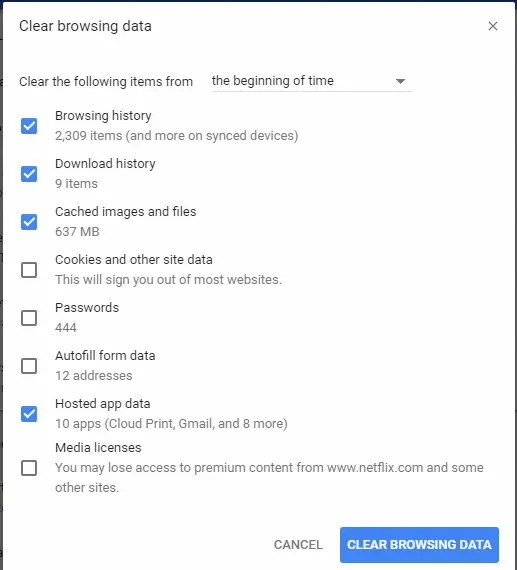
Step 2: Choose a time range such as All time. Tick the option for Cached images and files. Click Clear data and restart the browser.
Microsoft Edge
Microsoft Edge is the default browser in Windows 11 and Windows 10. It is fast and well-integrated with the system. Like other browsers, it stores cache to improve performance. However, this stored data can sometimes create issues like slow loading or display errors.
Edge offers a clean and simple way to manage browsing data. You can easily access the settings and remove unwanted files. It also allows you to choose what data you want to delete, including cache, cookies, and history.
Regularly clearing the cache in Edge helps maintain performance. It ensures that websites load correctly and that you see updated content every time you visit a page.
Step 1: Open Edge. Click on the three dots at the top right. Go to Settings, then Privacy, search, and services.
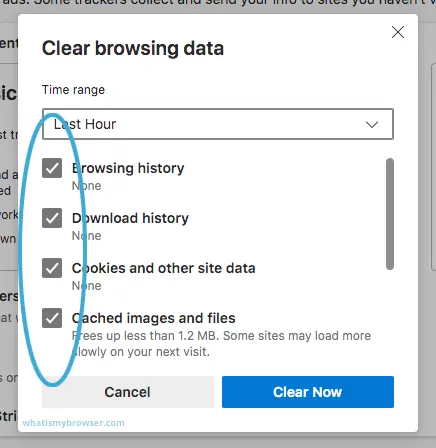
Step 2: Under Clear browsing data, click Choose what to clear. Select Cached images and files, then click Clear now.
Mozilla Firefox
Mozilla Firefox is known for its focus on privacy and customization. It also stores cache to improve browsing speed. Over time, this cache may affect performance or cause display problems.
Firefox provides detailed options for managing stored data. You can clear the cache without affecting cookies or saved passwords. This gives you more control over your browsing experience.
Clearing cache in Firefox is simple and takes only a few steps. Doing this regularly helps avoid errors and keeps the browser running smoothly.
Step 1: Open Firefox. Click on the menu icon and go to Settings. Select Privacy and Security.
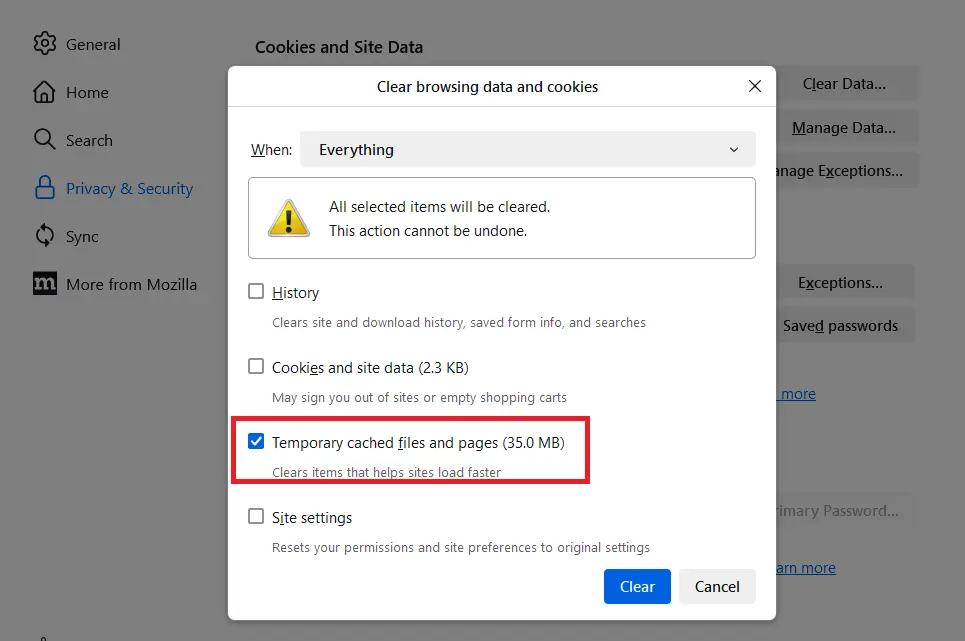
Step 2: Scroll to Cookies and Site Data. Click Clear Data. Select Temporary Cached Files and Pages and click Clear.
Opera Browser
Opera is a fast and lightweight browser that many users prefer for its built-in features. Like other browsers, it stores cache to improve loading speed and performance. Over time, this stored data can become outdated and may cause issues such as slow browsing or incorrect page display. That is why it is important to clear browser cache in Opera regularly.
Opera provides a simple way to manage browsing data. The settings are easy to access, and you can choose exactly what you want to remove. This helps you clean browser cache without affecting other important data like passwords or history.
Regular maintenance keeps Opera running smoothly. Clearing the cache ensures that websites load fresh content and reduces the chances of errors or delays while browsing.
Step 1: Open Opera. Click on the menu icon in the top left corner. Go to Settings, then select Privacy and Security.
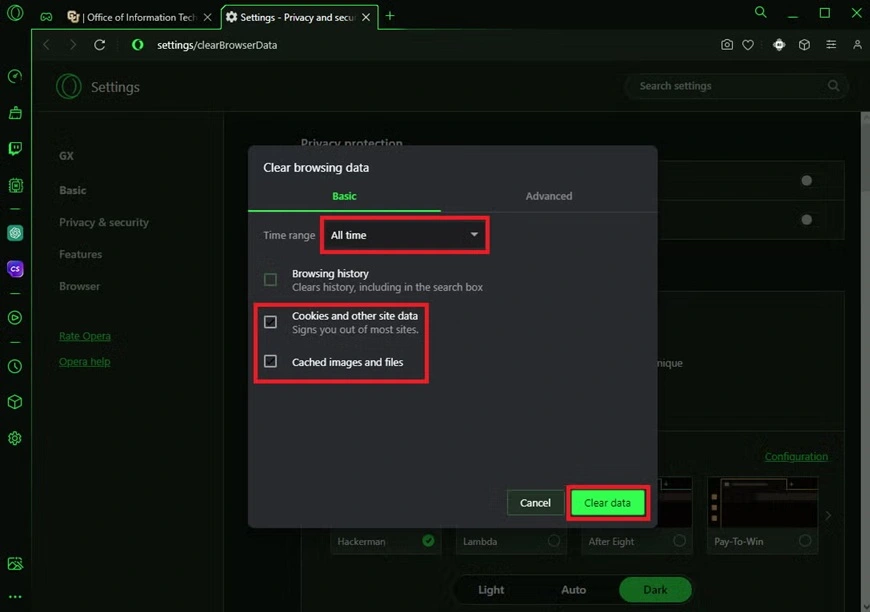
Step 2: Click on Clear browsing data. Choose a time range and select Cached images and files. Click Clear data and restart the browser.
__________________________________________________________________________________
Author’s Tip
It is a good idea to develop a habit of maintaining your browser regularly. Many users ignore small issues until they become serious problems. Clearing the cache is a simple step, but it can prevent many common errors. If you notice slow loading or broken pages, clearing cache should be one of the first things you try.
You should also avoid clearing all data without checking the options. Always select only what you need. For example, if you only want to fix loading issues, removing cached files is enough. There is no need to delete cookies or saved passwords unless required. This careful approach helps you clean browser cache safely while keeping your important data intact.
Conclusion
Browser cache plays an important role in improving speed and performance. However, it can also create problems if it becomes outdated or corrupted. That is why it is important to clear browser cache regularly. It helps your browser load fresh content and prevents errors.
The process to clean the browser cache is simple and does not take much time. Whether you use Chrome, Edge, or Firefox, the steps are easy to follow. By making this a regular habit, you can ensure a smooth and fast browsing experience on your Windows 11 or Windows 10 system.
FAQs:
1. What happens when I clear the browser cache?
When you clear browser cache, your browser removes stored temporary files such as images, scripts, and website data. These files are created again when you visit websites in the future. You may notice that pages take slightly longer to load the first time, but after that, performance becomes smoother. This process also helps remove outdated or corrupted files that may have been causing issues.
2. Can clearing the cache fix website errors?
Yes, clearing the cache can fix many common website problems. It is often helpful when pages do not load correctly, layouts appear broken, or old content is still visible. By removing outdated files, the browser is forced to download the latest version of the website. This ensures that you see updated content and reduces the chances of errors.
3. Does clearing the cache affect downloads?
No, clearing the cache does not affect your downloaded files in any way. It only removes temporary browsing data stored by the browser. Files you have saved on your system, such as documents, images, or videos, remain safe. Your download history may still be visible unless you choose to clear it separately.
Warning: Attempt to read property "ID" on string in /home/bestcomputerclea/public_html/wp-content/themes/techcommuters-child/single.php on line 204
Previous Post Next Post
Popular Post
Recent Post
How To Clear Browser Cache On Windows 11/10 [Chrome, FireFox, Edge]
Learn how to clear browser cache on Windows 11 and 10. Follow simple steps to clean browser cache, fix slow browsing, and improve performance easily.

How To Clear Cache Memory On Windows 11/10 [2026]
Learn how to clear cache memory on Windows 11/10 using safe built-in methods to improve speed, free space, and maintain smooth system performance.

Windows Installer Cleanup Utility: Complete Review And Alternatives
Detailed review of Windows Installer Cleanup Utility, reasons for removal, risks, and safer modern alternatives explained clearly.

How To Clean Junk Files On Windows 11/10
Learn how to clean junk files on Windows 11 and 10 using safe, simple steps to boost speed and free storage space effectively.

Clearing App Cache Data on Windows 11/10: Complete Guide
Learn how to safely clear app cache on Windows 11 and 10 to fix slow apps, free disk space, and improve overall system performance.

How To Clean Up System Files On Windows 11/10: Complete Guide
Explore a step-by-step guide explaining how Windows users can safely remove unnecessary system data using built-in tools.

How To Clean a Laptop Fan Without Opening [2026 Guide]
Learn how to clean a laptop fan without opening the device using safe steps, simple tools, and easy methods for better cooling.

How to Clear the Queue in the Printer Automatically in 2026
Learn how to clear the queue in the printer with simple steps. This easy guide explains why print jobs get stuck and how to fix them safely for smooth printing.

How To Clear Delivery Optimization Cache In Windows
Learn how to clear Delivery Optimization Cache in Windows safely and easily. This guide explains steps, precautions, benefits, and FAQs to free space and avoid update issues.

How To Clear Cache in Edge [Windows 11/10]: Latest Guide
Learn how to clear cache in Edge on Windows 11 and Windows 10. Step by step guide with precautions, FAQs, and tips to fix slow pages and errors.
