How To Clear Cache in Edge [Windows 11/10]: Latest Guide

Every time you open a website, your browser saves small parts of it. These parts include images, text styles, and page structure. The goal is simple. When you visit the same site again, it loads faster. Microsoft Edge does this automatically in the background. Most users never notice it.
Over weeks and months, these saved files pile up. They take up space and can cause small errors. Pages may not load fully. Some buttons stop working. Videos may buffer more than usual. In many cases, learning how to clear cache in Edge fixes these problems quickly.
Windows 11 and Windows 10 users depend on Edge for work and daily browsing. It handles emails, banking, streaming, and research. Even so, no browser stays perfect forever. Old cache files can conflict with updated websites. This leads to slow response and display issues. Clearing the cache removes these old files. It forces Edge to load fresh versions of pages. This simple action often restores speed and smooth performance without any advanced settings.
Common Questions About Edge Cache and Browsing Data
What exactly does the browser cache store?
Cache stores copies of website elements. These include logos, banners, scripts, and layout files. The browser keeps them, so it does not need to download the same data again. This saves time and internet data. Over time, cached files may no longer match the current website version.
Is cache different from cookies?
Cache and cookies serve different purposes. The cache stores temporary page files to help websites load faster, while cookies keep track of login details and user preferences. Removing cached data won’t erase saved passwords, but deleting cookies can sign you out of your accounts.
Can cache cause website loading errors?
Yes. If a site changes its structure, old cache files can conflict with new ones. This causes broken layouts or blank pages. Clearing the cache removes the conflict and loads new files.
Does cache use a lot of storage space?
Individually, cache files are small. Together, they can use hundreds of megabytes. On systems with limited storage, this can matter. Cleaning the cache frees some disk space.
Precautions to Take Before Clearing Edge Cache
- Save open work first: Open forms or drafts may refresh after cache removal. Save them to avoid data loss.
- Remember important logins: Some sites may ask you to sign in again. Keep your passwords ready.
- Close unnecessary tabs: This avoids reload confusion after clearing cached files.
- Select the right data type: Ensure that you select only cached images and files.
- Avoid clearing during heavy tasks: Do not clear the cache while downloading large files.
- Check Edge profiles: Clear the cache in the correct user profile if more than one exists.
- Do not panic after reloads: Pages may take slightly longer to load once.
- Restart the browser after cleaning: This ensures all changes apply properly.
How to Clear Cache in Edge on Windows 11 and 10
Microsoft Edge offers built-in tools for browser cleanup. You do not need third-party software. The steps remain nearly the same for Windows 11 and Windows 10. Anyone can follow them. Even users with little technical experience can complete the task safely. This method removes only temporary website files.
Many common browser issues disappear after this process. Page errors, slow loading, and display glitches often relate to old cache data. When you clear the cache in Edge, you remove outdated page files and allow the browser to start fresh.
Why clearing the cache is helpful
- Fixes pages that load incorrectly: Old cache files can clash with updated websites. This can cause broken layouts, missing images, or buttons that do not respond. Clearing the cache forces the browser to load the page again in its correct form.
- Removes outdated site elements: Websites change often. Cached images and scripts may no longer match the current version. Clearing the cache removes these old elements and replaces them with fresh ones from the website.
- Improves browsing stability: A large or corrupted cache can make the browser behave oddly. Clearing it reduces small glitches and helps Edge run in a more stable way during daily use.
- Reduces random freezing: When too many temporary files build up, the browser may freeze for short moments. Cleaning the cache removes this extra load and helps Edge respond faster.
- Helps websites update properly: Some websites may keep showing old content even after updates. Clearing the cache ensures you see the latest version of pages, including new features and fixes.
- Keeps browser performance smooth: A clean cache allows Edge to manage resources better. Pages open more cleanly, scrolling feels smoother, and overall browsing becomes more comfortable.
Step-by-step process
- Open Microsoft Edge on your computer. Tap the three‑dot icon in the upper‑right corner, choose Settings, then navigate to Privacy, Search, and Services.
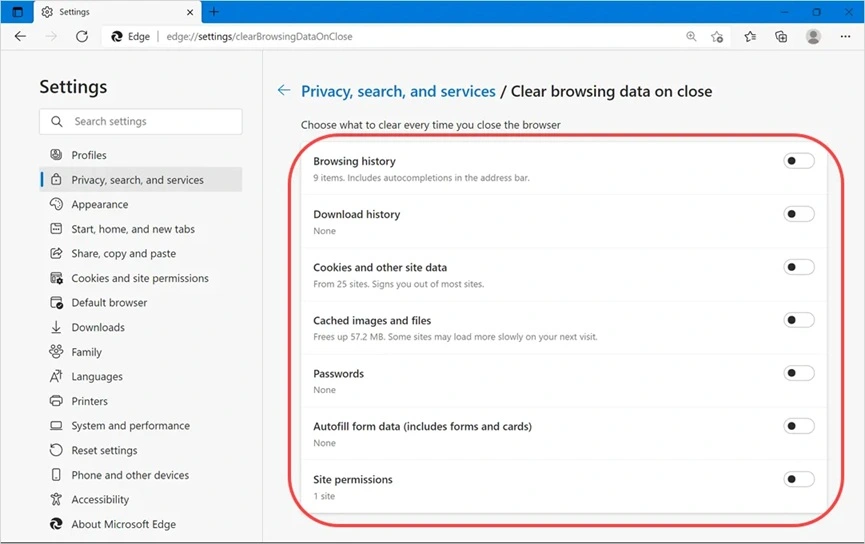
- Find Clear browsing data. Choose a time range. Select Cached images and files only.
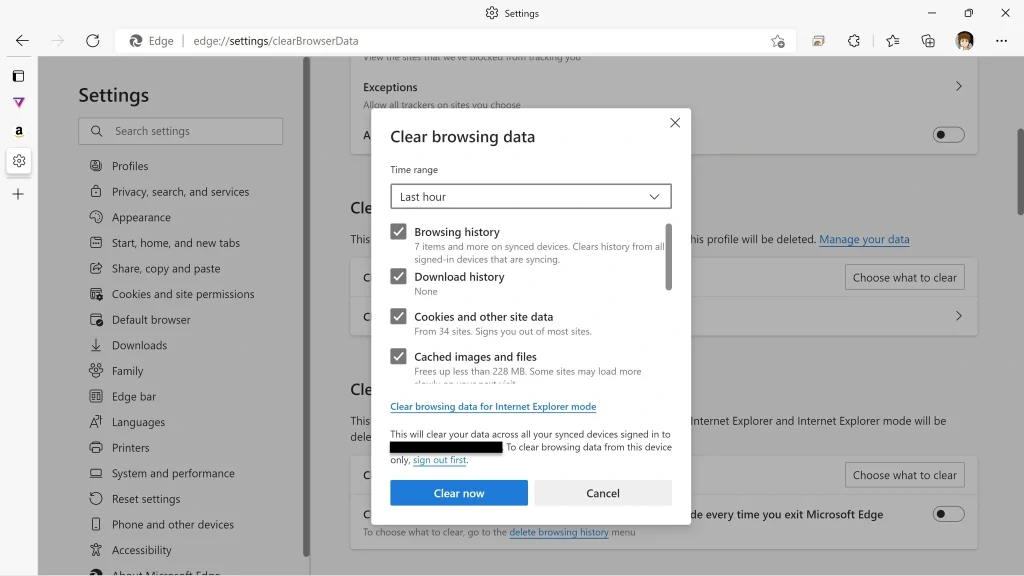
- Click Clear now and wait a few seconds. Close Edge completely. Open it again to finish the cleanup.
What Happens After Cache Is Cleared?
Once the cache is cleared, Microsoft Edge starts fresh with website data. The first time you open a site, it may take a little longer to load. This happens because the browser needs to download images, scripts, and page files again. This delay is normal and usually lasts only for the first visit. After that, Edge creates new cache files based on the latest version of each website.
You may notice that websites look cleaner and load more accurately. Layout issues often disappear. Images that were missing may return. Buttons and forms respond better. Video playback improves in many cases. Pages that were stuck or looping before often start working normally again.
Clearing the cache can also reduce small freezes or lag. The browser has fewer temporary files to process. Scrolling feels smoother. Tabs respond faster. Overall, browsing becomes more stable. These changes are subtle but noticeable, especially for users who browse many sites daily.
Author’s Tip
Cache is not harmful by nature. It helps speed up browsing. Many users make the mistake of clearing it too often. This removes the benefit of faster loading. Only clean it when there is a clear reason. Slow pages, broken sites, or visual errors are good signs.
For users who rely on Edge for work portals or learning platforms, avoid clearing cookies unless required. Cache cleaning alone is enough in most cases. This keeps settings and preferences intact.
Conclusion
Browser maintenance does not need advanced skills. A simple cleanup routine keeps Edge responsive. Cache builds up quietly and causes issues over time. Clearing it refreshes the browser without affecting personal data. Knowing when and how to clear cache in Edge helps avoid unnecessary frustration.
This process works the same on Windows 11 and Windows 10. It takes less than a minute. When done occasionally, it keeps browsing fast and stable. Make it a basic habit rather than a daily task.
FAQs
Is clearing the cache safe for regular users?
Yes, clearing the cache is safe for regular users. A cache only stores temporary website files, such as images and page elements. These files help websites load faster, but they are not essential. When you remove them, the browser simply downloads fresh copies later. This process does not harm Microsoft Edge or the Windows system in any way.
Will bookmarks or history be deleted?
No, bookmarks and browsing history will not be deleted if you clear cache only. These items are stored separately in the browser. As long as you select only cached images and files, your saved websites, visited pages, passwords, and settings will remain exactly the same.
Can cache clearing fix login errors?
Yes, in many cases it can. Login errors often happen when a website updates its sign in system. Old cache files may conflict with the new page design. Clearing the cache removes those outdated files and forces the site to load the updated login page correctly.
Popular Post
Recent Post

How To Clear Cache Memory On Windows 11/10 [2026]
Learn how to clear cache memory on Windows 11/10 using safe built-in methods to improve speed, free space, and maintain smooth system performance.

Windows Installer Cleanup Utility: Complete Review And Alternatives
Detailed review of Windows Installer Cleanup Utility, reasons for removal, risks, and safer modern alternatives explained clearly.

How To Clean Junk Files On Windows 11/10
Learn how to clean junk files on Windows 11 and 10 using safe, simple steps to boost speed and free storage space effectively.

Clearing App Cache Data on Windows 11/10: Complete Guide
Learn how to safely clear app cache on Windows 11 and 10 to fix slow apps, free disk space, and improve overall system performance.

How To Clean Up System Files On Windows 11/10: Complete Guide
Explore a step-by-step guide explaining how Windows users can safely remove unnecessary system data using built-in tools.

How To Clean a Laptop Fan Without Opening [2026 Guide]
Learn how to clean a laptop fan without opening the device using safe steps, simple tools, and easy methods for better cooling.

How to Clear the Queue in the Printer Automatically in 2026
Learn how to clear the queue in the printer with simple steps. This easy guide explains why print jobs get stuck and how to fix them safely for smooth printing.

How To Clear Delivery Optimization Cache In Windows
Learn how to clear Delivery Optimization Cache in Windows safely and easily. This guide explains steps, precautions, benefits, and FAQs to free space and avoid update issues.
How To Clear Cache in Edge [Windows 11/10]: Latest Guide
Learn how to clear cache in Edge on Windows 11 and Windows 10. Step by step guide with precautions, FAQs, and tips to fix slow pages and errors.

Top 15 Questions About PC Cleaning and Their Answers
Learn safe and simple ways to clean your PC. This guide answers top questions, covers precautions, and gives advanced tips for better PC health and performance.
