How To Clear Delivery Optimization Cache In Windows

Windows updates keep your system safe and steady. They fix bugs. They close security gaps. They also add small improvements that most users never notice. To speed up this update process, Windows uses a background service called Delivery Optimization. This service helps your PC download updates faster by sharing parts of update files with other computers on the same network or nearby systems.
Over time, these shared files stay stored on your system. This stored data is known as the cache. Many users never check it. That is why learning how to clear Delivery Optimization Cache in Windows is useful for regular system care.
The cache is not harmful on its own. It is meant to help Windows work better. But it can grow large. It may take up several gigabytes of disk space. On small drives, this matters a lot. Some users also face slow updates or storage warnings. Others simply want more control over what is stored on their PC. Clearing this cache is safe in most cases. It does not delete personal files. It does not break Windows updates. It only removes old or unused update data that Windows can download again if needed.
Common Questions Users Ask About Delivery Optimization
What is Delivery Optimization, and why does Windows use it?
Delivery Optimization is a Windows feature that helps manage update downloads. Instead of pulling all files from Microsoft servers, Windows can share updated parts between PCs. This reduces bandwidth use and can speed up updates on shared networks. The cached files are stored locally so your system can reuse them when needed.
Is it safe to delete the Delivery Optimization cache?
Yes, it is safe in most cases. Windows treats the cache as temporary data. If any file is missing, Windows will download it again. Clearing the cache does not affect installed updates or personal data. It only removes leftover update files that are no longer needed.
How often should the cache be cleared?
There is no fixed rule. Most users can clear it once every few months. If you have limited storage or notice large update files piling up, you can do it more often. Windows also cleans parts of it on its own, but not always fully.
Precautions Before Clearing the Cache
Before you clear any system data, it is wise to take a few simple steps. This avoids confusion and ensures the process stays smooth. Clearing the Delivery Optimization cache is simple, but basic care always helps.
- Save your work first: Close files and save active documents. This avoids any chance of data loss during system changes.
- Pause active updates: Make sure Windows Update is not downloading files at the moment. Clearing cache during active downloads can cause delays.
- Check available disk space: Know how much space you are trying to free. This helps you see if the cleanup made a real difference.
- Use an admin account: Some cleanup steps need admin rights. Log in with an account that has proper permissions.
- Do not force-stop system services: Avoid stopping random Windows services unless guided. Incorrect changes can cause errors.
- Avoid third-party cleanup tools: Some tools remove files aggressively. They may delete more than needed.
- Restart after cleanup: A restart helps Windows rebuild small parts of the cache correctly.
- Do not panic if files return: Windows may recreate some cache files later. This is normal behavior.
How To Clear Delivery Optimization Cache
Clearing this cache helps free disk space and keeps update files tidy. Many users never realize how much space is taken up by old update data. This task is especially helpful for laptops and older systems. If you see storage warnings or slow updates, this cleanup can help.
Learning how to clear Delivery Optimization Cache in Windows also gives you better control over system storage.
There are a few reasons why users choose to do this. The most common one is low disk space. Others want to reduce background activity. Some users simply like keeping their system clean. Windows will always recreate what it needs. You are not breaking anything by clearing old files.
Why should you clear it?
- It frees up disk space.: Old update files can take up a surprising amount of space over time. Clearing them helps recover storage that can be used for apps, files, and system tasks.
- It removes unused update files.: Many cached files are no longer needed after updates are installed successfully. Removing them prevents unnecessary clutter from building up in the background.
- It can reduce update-related errors.: Corrupt or incomplete files sometimes cause update failures. Clearing the cache removes these files and allows Windows to download fresh copies.
- It helps on systems with small SSDs: On laptops and budget PCs, storage fills up quickly. Clearing the cache can make a noticeable difference on drives with limited space.
- It keeps system storage organized: Regular cleanup prevents temporary system files from piling up. This makes overall storage management easier and more predictable.
- It gives users peace of mind: Knowing that unnecessary files are cleared helps users feel more in control of their system and reduces worry about hidden storage usage.
Steps to clear the cache
Step 1: Open Disk Cleanup
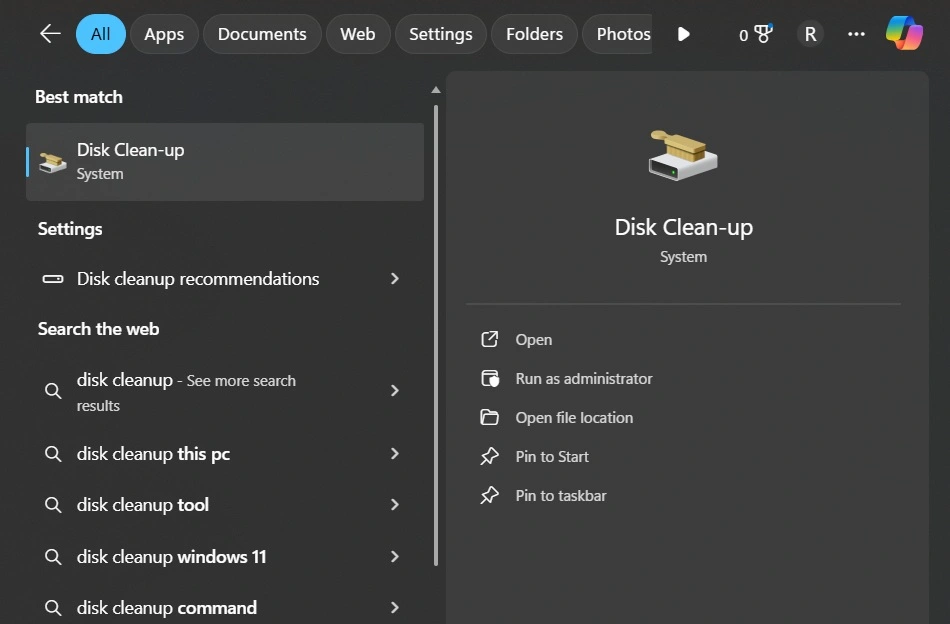
Click the Start menu. Type Disk Cleanup. Open the tool. Choose the drive where Windows is installed, usually C:.
Step 2: Select Delivery Optimization Files
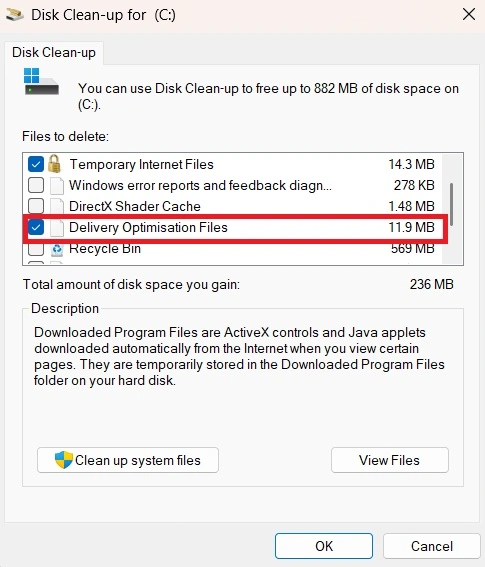
After the scan finishes, look for Delivery Optimization Files in the list. Check the box next to it. Review other items if you wish.
Step 3: Start the cleanup
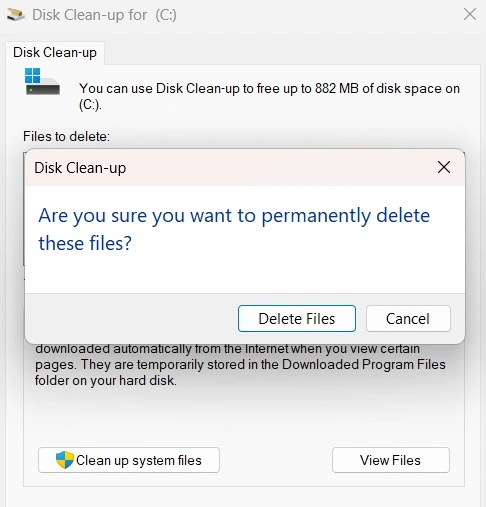
Click OK. Confirm when asked. Windows will remove the cached update files. The process may take a few minutes.
Author’s Tip
If your system has enough storage, you do not need to obsess over clearing caches. Windows is built to manage itself reasonably well. Manual cleanup is useful, but it should not become a daily habit. Focus on clearing large clutter when you actually need space. This keeps your system stable and predictable.
For advanced users, checking Delivery Optimization settings is also helpful. You can limit how much data Windows shares with other PCs. This reduces cache growth over time. Combining sensible settings with occasional cleanup offers the best balance between speed and storage use.
Conclusion
Windows relies on many background systems to work smoothly. Delivery Optimization is one of them. It helps speed up updates and reduce network load. Over time, its cache can grow without notice. Clearing it is a safe and simple way to reclaim space. Understanding how to clear the Delivery Optimization Cache in Windows puts you in control of your system maintenance.
This task does not require technical skills. It only takes a few clicks. When done occasionally, it keeps your PC cleaner and more efficient. Windows will continue to update normally. Old files will be replaced only when needed.
For most users, this small habit can make a noticeable difference in storage management.
FAQs
Does clearing the cache slow down future updates?
No, it does not create any lasting slowdown. After the cache is cleared, Windows may need to download some update files again. This usually happens only once. After that, updates run normally. In many cases, the update process feels the same or even smoother because old files are no longer in the way.
Can the cache be cleared automatically?
Yes, Windows can clear parts of the cache on its own through Storage Sense. This feature runs in the background and removes some temporary files from time to time. However, it is not always clear what is related to Delivery Optimization. If you want quick results or need to free space urgently, manual cleanup works better.
Will this fix update errors?
In some cases, it can help. Update errors often happen due to damaged or incomplete files left behind in the cache. When you clear it, those files are removed. Windows then downloads fresh copies during the next update. This can fix common update failures, though it may not solve every issue.
Popular Post
Recent Post

How To Clear Cache Memory On Windows 11/10 [2026]
Learn how to clear cache memory on Windows 11/10 using safe built-in methods to improve speed, free space, and maintain smooth system performance.

Windows Installer Cleanup Utility: Complete Review And Alternatives
Detailed review of Windows Installer Cleanup Utility, reasons for removal, risks, and safer modern alternatives explained clearly.

How To Clean Junk Files On Windows 11/10
Learn how to clean junk files on Windows 11 and 10 using safe, simple steps to boost speed and free storage space effectively.

Clearing App Cache Data on Windows 11/10: Complete Guide
Learn how to safely clear app cache on Windows 11 and 10 to fix slow apps, free disk space, and improve overall system performance.

How To Clean Up System Files On Windows 11/10: Complete Guide
Explore a step-by-step guide explaining how Windows users can safely remove unnecessary system data using built-in tools.

How To Clean a Laptop Fan Without Opening [2026 Guide]
Learn how to clean a laptop fan without opening the device using safe steps, simple tools, and easy methods for better cooling.

How to Clear the Queue in the Printer Automatically in 2026
Learn how to clear the queue in the printer with simple steps. This easy guide explains why print jobs get stuck and how to fix them safely for smooth printing.
How To Clear Delivery Optimization Cache In Windows
Learn how to clear Delivery Optimization Cache in Windows safely and easily. This guide explains steps, precautions, benefits, and FAQs to free space and avoid update issues.

How To Clear Cache in Edge [Windows 11/10]: Latest Guide
Learn how to clear cache in Edge on Windows 11 and Windows 10. Step by step guide with precautions, FAQs, and tips to fix slow pages and errors.

Top 15 Questions About PC Cleaning and Their Answers
Learn safe and simple ways to clean your PC. This guide answers top questions, covers precautions, and gives advanced tips for better PC health and performance.
