How to Clear the Queue in the Printer Automatically in 2026

Last updated on February 3rd, 2026 at 2:35 am
Printers are used every day at home and at work. People rely on them for documents, forms, photos, and reports. When a printer works well, no one notices it. When it stops, it becomes a problem very quickly. One of the most common printer problems is when files stop printing and remain stuck. This happens when print jobs in queue do not move forward. The printer shows no clear error, yet nothing prints.
This problem can confuse many users. Some think the printer is broken. Others restart their computer again and again. In most cases, the issue is much simpler. The printer queue just needs to be cleared. Learning how to empty my printer queue saves time and avoids stress. You do not need special tools or expert knowledge. With a few simple steps, anyone can clear my printer queue and start printing again.
Common Questions About Printer Queues
Everything You Should Know About Printer Queues
What is a printer queue, and why does it exist?
A printer queue is a holding area. Every document sent to print waits there. The printer reads tasks one by one. This helps manage orders and avoid conflicts. When a problem happens, print jobs in queue stop moving. Clearing the queue removes blocked files and lets new tasks start.
Why do print jobs get stuck so often?
Files can get stuck due to paper jams, low ink, power loss, or driver errors. Even a brief connection drop can freeze the queue. When users try to clear my printer queue, they usually remove files that the printer cannot process anymore.
Is clearing the printer queue risky?
No, it is safe. Clearing the queue does not harm the printer or computer. It only removes waiting tasks. When you empty my printer queue, unfinished documents will need to be sent again.
Do printer queues affect system performance?
Yes, they can. A large number of print jobs in queue may slow down printing services. Clearing them reduces background load and improves response time.
Is It Possible to Clear the Printer Queue Automatically?
Yes! In many cases, the printer queue can be cleared automatically. This is helpful when print jobs get stuck again and again.
The simplest way is by restarting the Print Spooler service. This service manages all print jobs. When it restarts, it clears stuck or broken files from the queue on its own. This is also why restarting your computer often fixes printer problems without extra effort.
Most operating systems also include built-in printer troubleshooters. These tools scan for common issues and clear the queue automatically when needed. You only need to run the troubleshooter and follow the on-screen steps.
For frequent printer problems, automatic clearing can be set up using simple scripts or scheduled tasks. These automatically restart the Print Spooler at specific times or when errors occur. This option is more common in offices where many people use the same printer.
NOTE: Keep in mind that automatic clearing removes all current print jobs. If an important document is printing, it may need to be sent again. For this reason, automatic methods are best used when the queue keeps getting stuck repeatedly.
Precautions Before Clearing the Queue
Things to Check Before You Proceed
Before clearing anything, it is good to pause and check a few details. These steps help avoid losing important work. They also prevent repeated errors later. If you plan to clear my printer queue, take a moment to review these points.
- Save your document
Always save files before printing. Clearing the queue removes unsent jobs permanently. - Check paper trays
Empty trays or paper jams can cause queue blocks. Fix physical issues first. - Confirm printer connection
Make sure cables or wireless connections are stable. - Look at the ink or toner status
Low ink can pause printing even if the printer looks ready. - Close open print dialogs
Open apps can lock the queue. Closing them helps release tasks. - Avoid forced shutdowns
Turning devices off suddenly can corrupt print jobs in the queue. - Be cautious on shared systems
Clearing the queue affects all users on that printer. - Restart only when needed
Restarting clears memory but interrupts other tasks.
How to Clear the Printer Queue Step by Step
Printer queue issues usually feel bigger than they are. Most of the time, the fix takes only a few minutes. Understanding how the process works makes it easier to stay calm. Knowing how to clear my printer queue helps restore printing without panic.
The queue works like a waiting line. If the first task fails, the line stops. Removing blocked items allows the line to move again. When users empty my printer queue, they remove the obstacle and let new files print.
Why Clearing the Queue Is Important
- It removes frozen or broken files
- It fixes the paused printer status
- It restores normal printing speed
- It prevents repeated error messages
- It helps printers accept new tasks
- It reduces background service load
Three Clear and Simple Steps
Step 1: Access the printer queue window
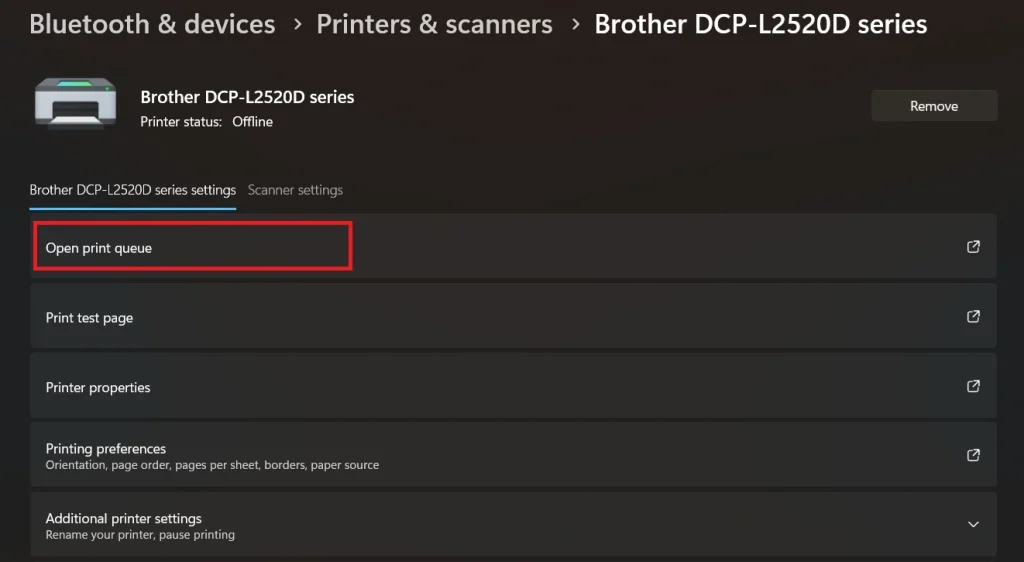
Open Settings on your computer. Navigate to Devices > Printers & scanners. Select your active printer from the list. Click Open Print Queue to view all print jobs currently waiting to be processed.
Step 2: Cancel all pending items
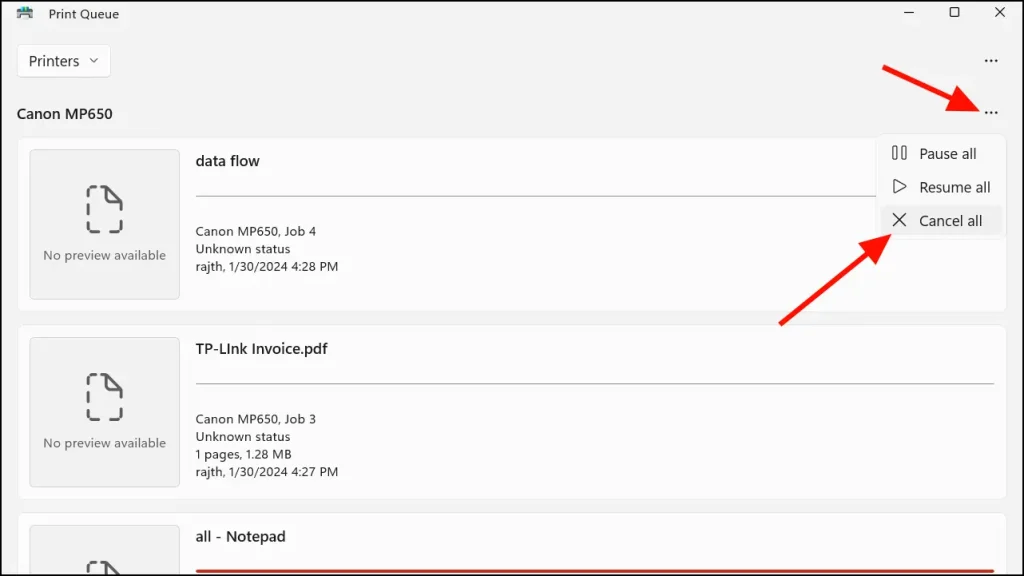
In the queue window, select each document individually or use Ctrl + A to select all. Right-click and choose Cancel or click the Cancel All Documents button. Confirm the action if prompted. This will remove all stuck or pending print jobs from the queue.
Step 3: Refresh the printer
Turn off your printer using the power button. Wait at least 10 seconds to allow the internal memory to clear. Turn the printer back on. This completes the reset and prepares it for new print jobs.
Print Queue Stuck? Try this Fix!
To clear a stuck printer queue in Windows 10 or 11, you need to stop the Print Spooler service, delete the queue files, and restart the service. This process removes all pending print jobs and resets the printer system.
Here’s a step-by-step guide:
Step 1: Stop the Print Spooler Service
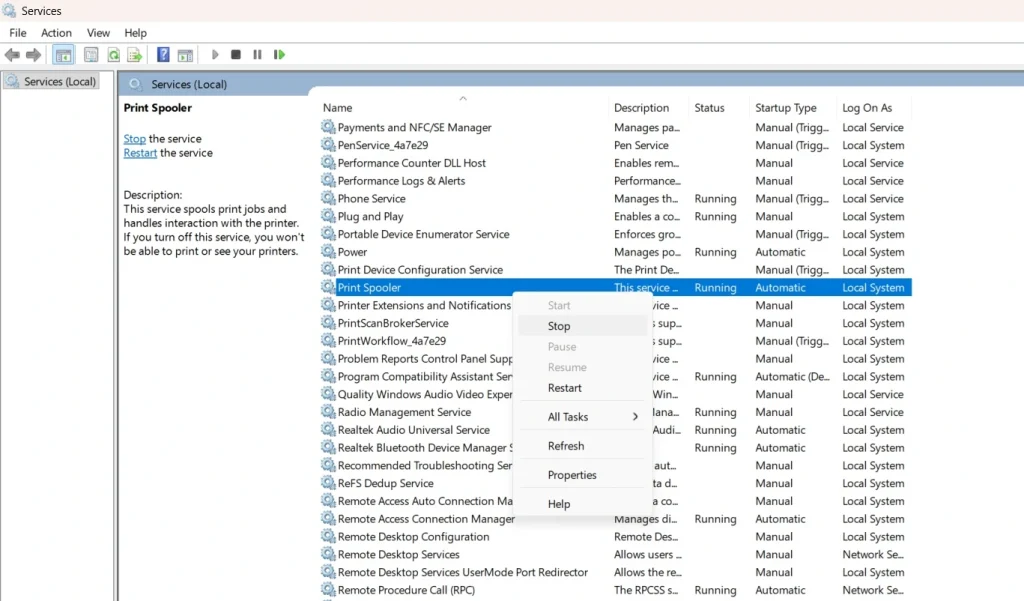
- Press Windows + R. This will open the Run dialog. Type services.msc and press Enter.
- In the Services window. Scroll down. Find Print Spooler. Right-click on it and select Stop. This halts the service that manages print jobs, allowing you to clear the queue safely.
Step 2: Delete Print Queue Files
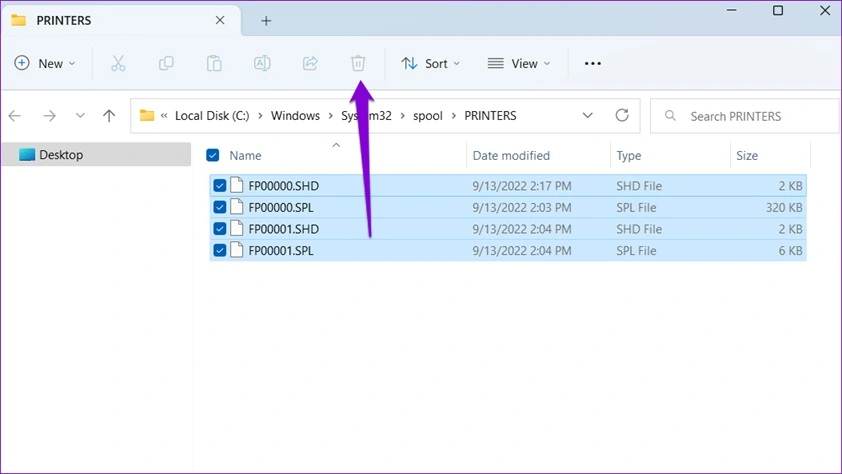
- Open File Explorer and navigate to: C:\Windows\System32\spool\PRINTERS
- If prompted for permission, click Continue. Delete all files in this folder. These are the stuck print jobs. This step ensures the queue is completely emptied.
Step 3: Restart the Print Spooler Service
- Go back to the Services window. Right-click Print Spooler again and choose Start.
- Your printer queue is now cleared, and the system is ready to accept new print jobs.
Optional Tips
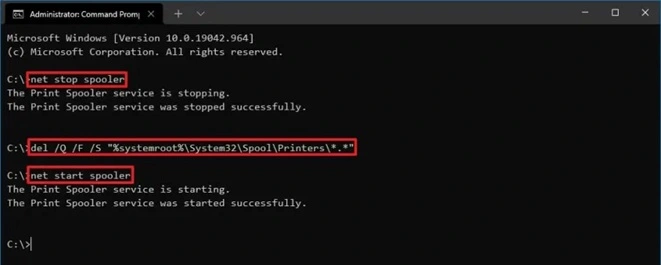
If the issue persists, restart your computer and printer. You can also clear the queue using Command Prompt with admin rights:
net stop spooler
del %systemroot%\System32\spool\printers\* /Q
net start spooler
Author’s Tip
If you often see print jobs in queue getting stuck, it is best not to ignore the pattern. Repeated problems usually point to outdated drivers or software conflicts. Over time, small errors build up and affect how the printer communicates with the system. Updating printer drivers every few months keeps the connection stable and improves performance. This simple habit greatly reduces how often you need to clear my printer queue during regular use.
Another helpful tip is to avoid sending very large files in one go. Big documents use more memory and increase the risk of failure. Splitting long files into smaller sections makes printing more reliable. Try printing a few pages first to check stability. This method lowers system strain and reduces the need to empty my printer queue again later.
Conclusion
Printer queues are a normal part of printing. They help organize tasks and maintain order. Problems start only when something interrupts the process. Knowing how to handle this situation removes stress and saves time.
With basic care and simple steps, anyone can manage printer queues. When you clear my printer queue properly, printers work faster and more reliably. These small actions make daily printing smoother at home and in the office.
FAQs
Does clearing the queue delete my saved files?
No. Clearing the printer queue does not touch files stored on your computer. It only removes tasks that were waiting to print. Your documents remain safe in their folders. After you empty my printer queue, you can send the file again without any loss.
Can clearing the queue fix printer offline errors?
In many situations, yes. When print jobs in queue get stuck, the printer may stop responding and appear offline. Clearing the queue removes blocked tasks and allows the system to reconnect. Once cleared, the printer often returns to a ready state.
Why does the queue keep filling again after clearing?
This usually happens because of software or connection problems. Outdated drivers, weak network signals, or system glitches can cause repeated issues. Updating the printer driver and checking cables or WiFi stability helps prevent the queue from filling again after you clear my printer queue.
Popular Post
Recent Post

How To Clear Cache Memory On Windows 11/10 [2026]
Learn how to clear cache memory on Windows 11/10 using safe built-in methods to improve speed, free space, and maintain smooth system performance.

Windows Installer Cleanup Utility: Complete Review And Alternatives
Detailed review of Windows Installer Cleanup Utility, reasons for removal, risks, and safer modern alternatives explained clearly.

How To Clean Junk Files On Windows 11/10
Learn how to clean junk files on Windows 11 and 10 using safe, simple steps to boost speed and free storage space effectively.

Clearing App Cache Data on Windows 11/10: Complete Guide
Learn how to safely clear app cache on Windows 11 and 10 to fix slow apps, free disk space, and improve overall system performance.

How To Clean Up System Files On Windows 11/10: Complete Guide
Explore a step-by-step guide explaining how Windows users can safely remove unnecessary system data using built-in tools.

How To Clean a Laptop Fan Without Opening [2026 Guide]
Learn how to clean a laptop fan without opening the device using safe steps, simple tools, and easy methods for better cooling.
How to Clear the Queue in the Printer Automatically in 2026
Learn how to clear the queue in the printer with simple steps. This easy guide explains why print jobs get stuck and how to fix them safely for smooth printing.

How To Clear Delivery Optimization Cache In Windows
Learn how to clear Delivery Optimization Cache in Windows safely and easily. This guide explains steps, precautions, benefits, and FAQs to free space and avoid update issues.

How To Clear Cache in Edge [Windows 11/10]: Latest Guide
Learn how to clear cache in Edge on Windows 11 and Windows 10. Step by step guide with precautions, FAQs, and tips to fix slow pages and errors.

Top 15 Questions About PC Cleaning and Their Answers
Learn safe and simple ways to clean your PC. This guide answers top questions, covers precautions, and gives advanced tips for better PC health and performance.
