How to Clear Your PC’s Cache in Windows 11 [Complete Guide]

Last updated on February 19th, 2026 at 6:56 am
Clearing the cache in Windows 11 is really important. It helps your PC run faster. Cache files can take up a lot of space, and removing them frees up valuable storage. It also solves problems with apps. Sometimes, cached files cause issues, and clearing the cache can fix them. Plus, it protects your privacy. Cached files store personal information, so removing them keeps your data secure.
In this article, you’ll learn how to clear cache in Windows 11. We’ll cover why it’s important and how to do it effortlessly. Additionally, we’ll provide extra tips for managing your PC’s cache. By the end, you’ll have the knowledge to keep your PC running smoothly.
Part 1: Why Clear Cache in Windows 11?
Clearing the cache in Windows 11 has several benefits:
- It can improve your PC’s performance. Cache files can slow down your system. By removing them, you can speed up your PC.
- It can fix issues with apps and programs. Sometimes, cached files can cause problems or conflicts.
- It can protect your privacy. Cached files can store personal information. Removing them ensures that your data stays secure.
Part 2: How to Clear Cache in Windows 11: 3 Best Methods
Clearing the cache in Windows 11 can be done in several ways. Here are three of the best methods: using Disk Cleanup, which is a built-in tool for removing unnecessary files; using the Settings app, which provides an easy way to delete temporary files; and using Command Prompt, which can be used to clear the Windows Store cache. Each method is simple and effective, helping to keep your PC running smoothly.
Method 1: Using Disk Cleanup
Disk Cleanup is a built-in tool that helps you remove unnecessary files from your system.
Step 1: Use the Windows Search Bar. Open Disk Cleanup. Select the drive you want to clean (usually C:).
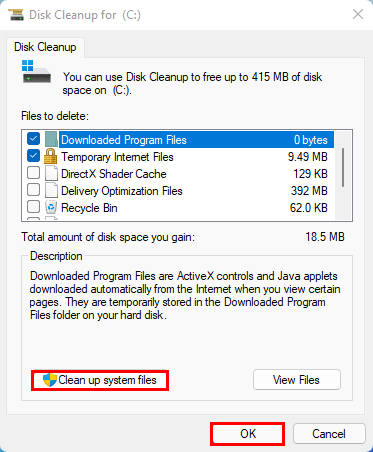
Step 2: Check the box next to “Temporary files” and other files you want to delete. Click “OK”.
Method 2: Using Settings
The Settings app provides an easy way to clear cache files.
Step 1: Open Settings. Go to “System” and then “Storage.”
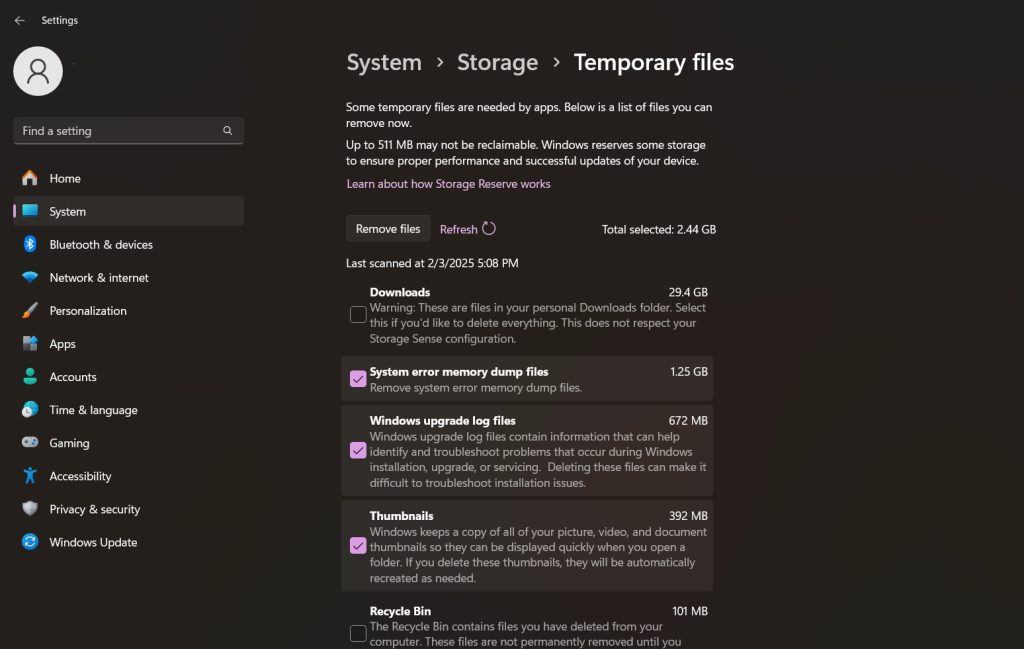
Step 2: Navigate to “Temporary files.” Choose the files you wish to delete and click “Remove files.”
Method 3: Using Command Prompt
The Command Prompt can be used to clear the Windows Store cache.
Step 1: Open Command Prompt as an administrator. Type the following command. Press Enter: wsreset.exe
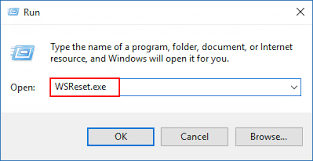
Step 2: Wait for the process to complete.
Part 3: Additional Tips to Clear Cache in Windows 11
Apart from the main methods, there are some additional tips that can help you effectively clear cache in Windows 11. These tips can enhance your PC’s performance and ensure that it runs smoothly.
- Regularly clear your browser cache: This can improve your browsing speed and protect your privacy. Different browsers have different steps to clear cache, but it’s usually found in the settings menu.
- Use a third-party cleaner tool: There are several reliable tools available that can help you find and remove cache files. These tools can also clean up other unnecessary files, helping to keep your system tidy and efficient.
- Keep your system updated: Updates often include performance improvements and bug fixes that can help your system run more smoothly. Make sure to regularly check for and install updates for your operating system and applications.
- Monitor your disk usage: Keep an eye on how much space your cache files are taking up. You can do this through the storage settings in Windows 11. If you notice a large amount of space being used by temporary files, it’s a good indication that it’s time to clear the cache.
- Enable Storage Sense: This is a built-in feature in Windows 11 that automatically removes temporary files and manages your storage space. You can enable and configure Storage Sense in the system settings.
By following these additional tips, you can ensure that your PC remains optimized and that you regularly clear cache in Windows 11. This will help maintain the overall performance and health of your system.
Conclusion
Clearing the cache in Windows 11 is an important maintenance task. It can help improve your PC’s performance, fix issues with apps, and protect your privacy. By following the methods we’ve outlined, you can easily clear cache in Windows 11. Remember to do this regularly to keep your system running smoothly.
In addition to clearing the cache, there are other steps you can take to optimize your PC. Regularly update your software, remove unnecessary programs, and keep your system clean. These steps can help you get the most out of your Windows 11 experience.
Don’t forget that clearing the cache is just one part of maintaining your PC. Be proactive in taking care of your system. By doing so, you can ensure that your PC runs efficiently and remains secure.
FAQs
1. What is cache?
Cache is a temporary storage area that stores files and data that your system and apps use frequently. When you visit a website or open an application, the cache stores some of the data and files so that they can be accessed quickly the next time you use them. This helps to speed up your system and improve performance. However, over time, these cached files can accumulate and take up valuable storage space, which is why it’s important to clear cache in Windows 11 regularly.
2. Is it safe to clear cache in Windows 11?
Yes, it is completely safe to clear cache in Windows 11. Clearing the cache removes temporary files that are not needed for the proper functioning of your system or applications. These files are usually generated by apps and websites to improve performance, but they can be safely deleted without affecting your personal files or settings. Clearing the cache can also help resolve issues with apps and improve your PC’s overall performance.
3. How often should I clear cache in Windows 11?
The frequency of clearing cache in Windows 11 depends on your usage and needs. Generally, clearing the cache once a month is a good practice to keep your system running smoothly. However, if you notice that your PC is slowing down or experiencing issues with apps, you may want to clear the cache more frequently. Regular maintenance can help prevent the build-up of unnecessary files and ensure optimal performance.
4. Will clearing the cache delete my personal files?
No, clearing the cache will not delete your personal files. The cache consists of temporary files that are used by your system and applications to improve performance. When you clear the cache, you are only removing these temporary files, not your personal documents, photos, or other important data. This process helps free up storage space and can resolve issues with apps without affecting your personal files.
Popular Post
Recent Post

How To Clear Cache Memory On Windows 11/10 [2026]
Learn how to clear cache memory on Windows 11/10 using safe built-in methods to improve speed, free space, and maintain smooth system performance.

Windows Installer Cleanup Utility: Complete Review And Alternatives
Detailed review of Windows Installer Cleanup Utility, reasons for removal, risks, and safer modern alternatives explained clearly.

How To Clean Junk Files On Windows 11/10
Learn how to clean junk files on Windows 11 and 10 using safe, simple steps to boost speed and free storage space effectively.

Clearing App Cache Data on Windows 11/10: Complete Guide
Learn how to safely clear app cache on Windows 11 and 10 to fix slow apps, free disk space, and improve overall system performance.

How To Clean Up System Files On Windows 11/10: Complete Guide
Explore a step-by-step guide explaining how Windows users can safely remove unnecessary system data using built-in tools.

How To Clean a Laptop Fan Without Opening [2026 Guide]
Learn how to clean a laptop fan without opening the device using safe steps, simple tools, and easy methods for better cooling.

How to Clear the Queue in the Printer Automatically in 2026
Learn how to clear the queue in the printer with simple steps. This easy guide explains why print jobs get stuck and how to fix them safely for smooth printing.

How To Clear Delivery Optimization Cache In Windows
Learn how to clear Delivery Optimization Cache in Windows safely and easily. This guide explains steps, precautions, benefits, and FAQs to free space and avoid update issues.

How To Clear Cache in Edge [Windows 11/10]: Latest Guide
Learn how to clear cache in Edge on Windows 11 and Windows 10. Step by step guide with precautions, FAQs, and tips to fix slow pages and errors.

Top 15 Questions About PC Cleaning and Their Answers
Learn safe and simple ways to clean your PC. This guide answers top questions, covers precautions, and gives advanced tips for better PC health and performance.
