How to Debloat Windows 11: Complete Guide [2026]
Last updated on March 5th, 2026 at 2:33 am
Over time, users often notice their computers slowing down. This happens because Windows installs extra apps and features that most people never use. These programs run quietly in the background, consuming system resources, increasing startup time, and making the device feel sluggish.
When a system is cluttered with unused software, everyday tasks start to lag, the machine may heat up more quickly, and storage space gets wasted. As a result, users begin searching for straightforward ways to clean things up. That’s where learning how to debloat Windows 11 becomes essential.
Part 1: What Is the Meaning of “Debloating Windows”?
Debloating means removing apps, features, and services that you do not need. Windows 11 comes with many built-in tools, trial apps, and background items. These do not harm your system, but they take up space and slow things down. When you debloat, you clean these extra items.
Many users think debloating is only for experts. That is not true. Anyone can do it with the right steps. You only remove what you do not use. After this, the system becomes lighter. Your PC starts faster. Every day tasks feel smooth. When you understand how to debloat Windows 11, you can control what stays on your device.
Part 2: Precautions to Take: Debloat Windows Safely
Before you remove anything from your system, you should take a few precautions. These points help you avoid mistakes and protect your data. They also make the process smooth and safe.
Important Safety Tips
• Create a restore point
A restore point acts like a backup. If something goes wrong, you can bring the system back to normal.
• Check app purpose
Do not remove apps blindly. Search the name of the app to know what it does. Some apps look useless, but support system tools.
• Keep Microsoft Store active
You may need it later to reinstall apps. So it is better to leave it as it is.
• Do not touch core services
Windows has services that control updates, drivers, login, and system start. Do not disable these.
• Free space first
Delete large files before debloating. It helps you understand how much space you really save.
• Check tasks running in the background
Open Task Manager. See what uses the most memory. This helps you pick the right items to remove.
• Disconnect external drives
This avoids confusion. Some tools may show external items during cleaning.
• Keep the power supply on laptops
During system changes, the device should not shut down. Keep it plugged in during the full process.
Part 3: FLUQ:
1. What does “debloating” Windows 11 actually mean, and how does it improve performance?
Debloating Windows 11 means removing unnecessary pre-installed apps, background services, and system processes that consume resources but add little value to most users. By trimming these extras, your PC can boot faster, run smoother, and free up memory and CPU cycles for the tasks you actually care about, resulting in a leaner, more responsive system.
2. Which pre-installed apps and services are safe to remove without breaking core functionality?
Safe candidates include consumer apps like Xbox Game Bar, Cortana, OneDrive (if you don’t use it), Microsoft Teams, and trialware such as Spotify or TikTok. These are not essential for Windows to function, so removing them won’t affect system stability. However, avoid deleting core components like Windows Security, Microsoft Store, or system drivers, as they are critical for updates and protection.
3. Can debloating Windows 11 cause system instability or affect future updates from Microsoft?
Yes, if you remove essential system apps or services, you may encounter errors, missing features, or issues with Windows Update. That’s why it’s important to stick to safe removals and use trusted debloating scripts or tools. Even then, major updates may reinstall some default apps, so debloating is often a recurring maintenance task rather than a one-time fix.
4. What are the best tools or scripts available to automate the debloating process effectively?
Popular options include Windows 10 Debloater (which also works on Windows 11), O&O AppBuster, and Bloatbox, all of which provide user-friendly interfaces or scripts to remove unwanted apps in bulk. These tools save time compared to manual removal and often include restore options, so you can easily bring back an app if you change your mind later.
Part 4: How to Debloat Windows 11: Simple Methods
Many tools and settings help you clean the system. You do not need expert skills. Each method has its own advantage. When you learn these steps, you understand how to debloat Windows 11 in a simple and safe way.
Below are six helpful methods.
Method 1: Uninstall Extra Apps From Settings
This is the easiest method. Windows allows you to remove apps from the Settings menu. You can remove trial apps, games, or tools you never use. This method helps because it frees space and reduces background load.
Many users forget how many apps sit idle on their device. When you check the list, you will see items you never knew were installed. Removing them is safe and quick.
How it helps
• Saves storage
• Reduces background tasks
• Speeds up boot time
• Makes Start Menu cleaner
• Improves overall system mood
Steps
Step 1. Open Settings and go to Apps.
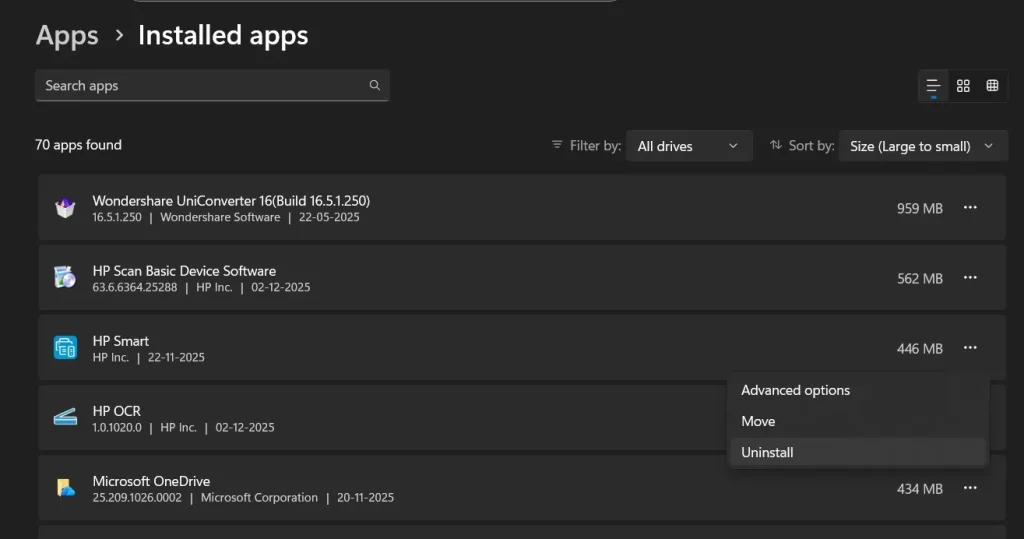
Step 2. Select the app you do not want and choose Uninstall.
Method 2: Disable Startup Apps
Many apps run at startup even when you do not need them. This slows the system. When you disable these items, your PC starts faster. This method is important when learning how to debloat Windows 11, because startup apps often cause major delays.
This step also helps laptops with small memory. Fewer apps at startup means a lighter load on RAM.
How it helps
• Faster boot time
• Less memory usage
• Fewer background activities
• More stable performance
• Longer battery life
Steps
Step 1. Open Task Manager.
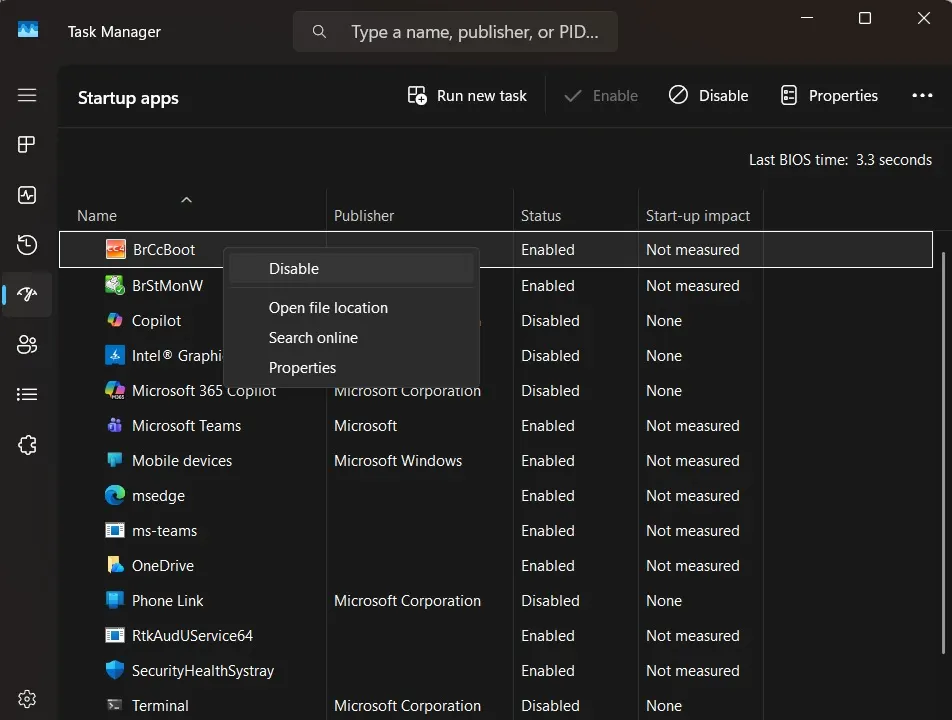
Step 2. Go to Startup Apps and disable unwanted items.
Method 3: Remove Bloatware With PowerShell
PowerShell allows advanced cleaning. You can remove built-in apps that cannot be removed from Settings. This method is powerful, so follow the commands carefully.
This works well for users who want full control. It also helps when apps keep reinstalling after updates.
How it helps
• Deep system cleaning
• Removes hidden apps
• More control over the system
• Helps keep system light
• Stops auto-reinstall of some apps
Steps
Step 1. Press Win + X and select Windows Terminal (Admin) or PowerShell (Admin). This ensures you have the necessary permissions to uninstall system apps.
Step 2. Use the following command to uninstall a specific app (replace AppName with the actual package name):
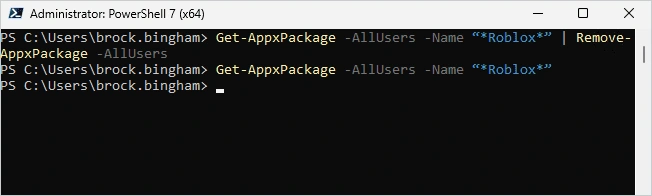
Get-AppxPackage *AppName* | Remove-AppxPackage
Example: To remove Roblox:
Get-AppxPackage *Roblox* | Remove-AppxPackage
You can repeat this for other unwanted apps like Cortana, Teams, or OneDrive.
Method 4: Turn Off Background Apps
Windows allows many apps to run in the background. They check updates, gather info, or sync files. You may not need them. Turning them off improves speed.
This is helpful for older devices. It reduces memory use and keeps the CPU cool.
How it helps
• Less CPU usage
• Lower RAM use
• Stable system
• Better battery time
• Fewer interruptions
Steps
Step 1. Open Settings and go to Apps.
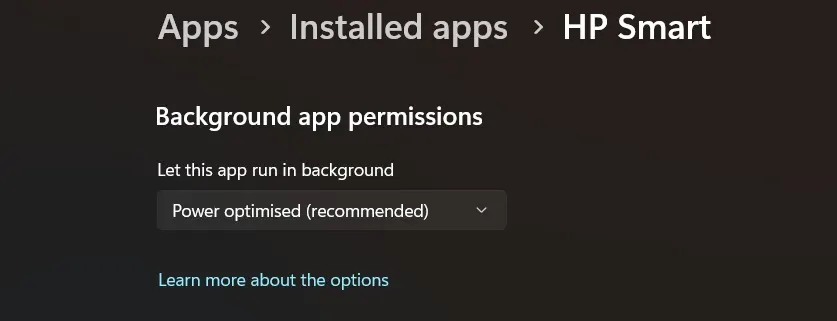
Step 2. Turn off background permission for unwanted apps.
Method 5: Use Storage Sense
Storage Sense cleans temporary files, cache, and old data. This makes storage lighter. Many users never enable it. When turned on, it works quietly.
This is one of the softest ways to debloat. It does not remove apps. It only clears waste files.
How it helps
• Frees storage
• Prevents clutter
• Cleans old update files
• Makes the system fresh
• Works automatically
Steps
Step 1. Open Settings and select System.
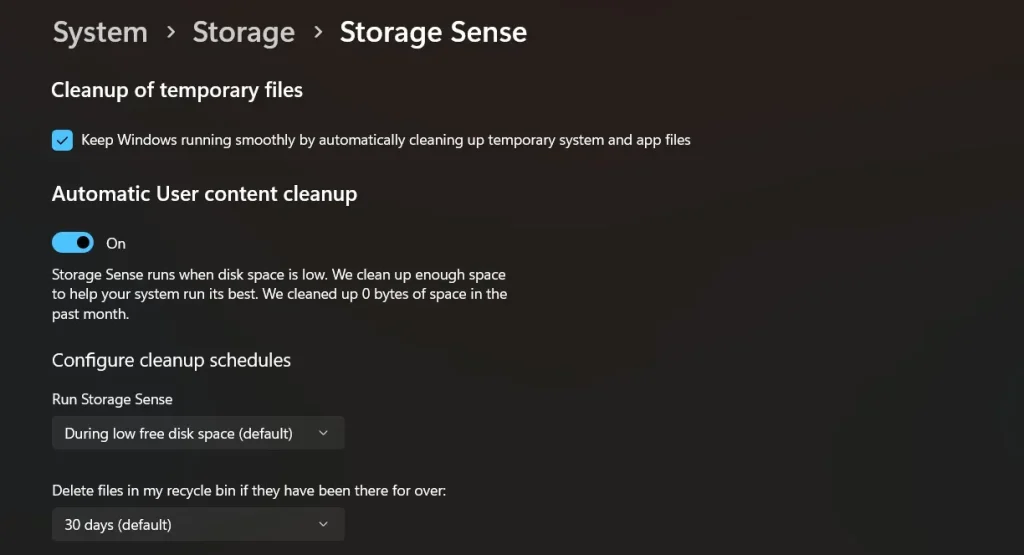
Step 2. Enable Storage Sense and configure cleanup.
Method 6: Use a Trusted Debloat Tool
Some developers create tools that help remove bloatware. These tools scan the system and list safe items to remove. They offer checkboxes and clear options.
This method is useful if you want a fast solution. Just choose a trusted tool. Never use unknown tools from random sites.
How it helps
• Quick cleaning
• Easy interface
• Bulk removal
• Helpful suggestions
• Saves time
Steps
Step 1. Download a trusted debloat tool like O&O App Buster.
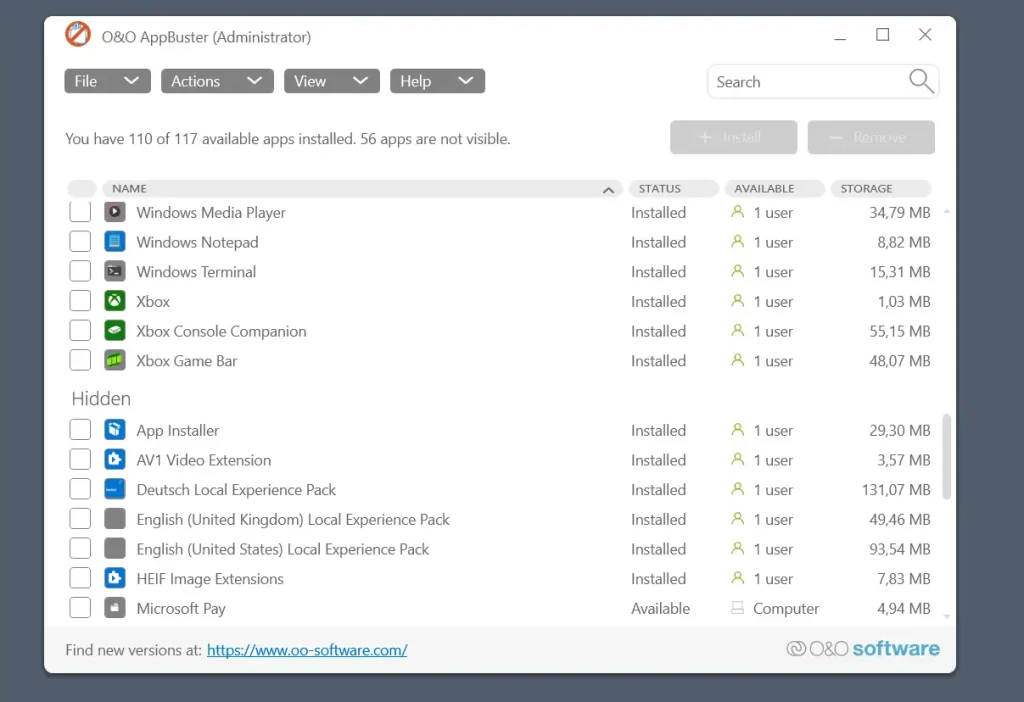
Step 2. Run the tool and select the items you want to remove.
Author’s Tip
When you learn how to debloat Windows 11, try to do it in small parts. Do not remove everything at once. First, clean apps. Then disable startup items. After that, turn off background apps. When you work in stages, the system stays stable. You also understand what change gives what result.
Another simple tip is to note down changes. If the system behaves strangely, you can undo the last step. This makes the process safe and easy to manage. Small changes bring great improvements. It keeps your computer fast for a long time.
Part 5: Pro Tips to Debloat Windows 11
There are many small actions that help you keep the system light. These do not take much time. When done together, the system feels fresh.
Smart Tips
• Disable tips and suggestions
Windows shows pop-ups and advice. Turning these off keeps the system quiet.
• Turn off animation effects
This makes the interface simple. It helps older systems run faster.
• Limit OneDrive sync
Sync runs often. Turn it off for folders you do not need.
• Clear browser junk
Browsers save cache and cookies. Clean them once a week.
• Stop optional features you never use
Features like fax tools or legacy items are not needed by most users. Turning them off saves space.
• Reduce search indexing
Indexing affects speed. Limit it to selected folders.
• Keep drivers updated
Old drivers cause slow performance. Update them to keep the system smooth.
• Reboot once a week
A simple restart clears memory and improves speed.
Conclusion
Debloating is one of the best ways to keep your system light. It does not require expert skills. You only remove what you do not use. When you follow simple steps, the computer feels new again. Speed improves. Storage stays clean. The full system becomes stable.
When users search for how to debloat Windows 11, they want easy answers. This guide gives clear steps, safe methods, and helpful tips. You can use these steps once a month and keep your PC in good shape.
FAQs
1. Is debloating Windows 11 safe?
Yes, it is safe when you remove only the extra apps. Do not touch core Windows services. Create a restore point before starting. Follow the steps as written.
2. Does debloating improve performance?
Yes. When you remove background apps, startup items, and waste files, the system becomes faster. It also uses less memory. The effect is clear on older devices.
3. Do I need to debloat again after updates?
Sometimes updates add new apps. You may check the system once in a while. Remove anything you do not need using the same methods.
Popular Post
Recent Post

How To Clear Cache Memory On Windows 11/10 [2026]
Learn how to clear cache memory on Windows 11/10 using safe built-in methods to improve speed, free space, and maintain smooth system performance.

Windows Installer Cleanup Utility: Complete Review And Alternatives
Detailed review of Windows Installer Cleanup Utility, reasons for removal, risks, and safer modern alternatives explained clearly.

How To Clean Junk Files On Windows 11/10
Learn how to clean junk files on Windows 11 and 10 using safe, simple steps to boost speed and free storage space effectively.

Clearing App Cache Data on Windows 11/10: Complete Guide
Learn how to safely clear app cache on Windows 11 and 10 to fix slow apps, free disk space, and improve overall system performance.

How To Clean Up System Files On Windows 11/10: Complete Guide
Explore a step-by-step guide explaining how Windows users can safely remove unnecessary system data using built-in tools.

How To Clean a Laptop Fan Without Opening [2026 Guide]
Learn how to clean a laptop fan without opening the device using safe steps, simple tools, and easy methods for better cooling.

How to Clear the Queue in the Printer Automatically in 2026
Learn how to clear the queue in the printer with simple steps. This easy guide explains why print jobs get stuck and how to fix them safely for smooth printing.

How To Clear Delivery Optimization Cache In Windows
Learn how to clear Delivery Optimization Cache in Windows safely and easily. This guide explains steps, precautions, benefits, and FAQs to free space and avoid update issues.

How To Clear Cache in Edge [Windows 11/10]: Latest Guide
Learn how to clear cache in Edge on Windows 11 and Windows 10. Step by step guide with precautions, FAQs, and tips to fix slow pages and errors.

Top 15 Questions About PC Cleaning and Their Answers
Learn safe and simple ways to clean your PC. This guide answers top questions, covers precautions, and gives advanced tips for better PC health and performance.
