Windows Installer Cleanup Utility: Complete Review And Alternatives

The Windows Installer Cleanup Utility was once considered a practical solution for a very specific problem. Many Windows users faced situations where a program would not uninstall properly. Error messages appeared again and again.
The system believed the software was still installed, even after files were removed. This tool was designed to handle such cases. It worked by deleting damaged installer records from the system database. These records were often left behind after failed installs or incomplete removals. For users dealing with constant setup errors, this felt like relief.
At the time, Windows did not include advanced built-in troubleshooters. Users relied on external tools to fix installer-related problems. The Windows Installer Cleanup Utility became popular because it was simple. It did not require technical knowledge. However, simplicity also created confusion. Many users believed it fully removed programs. In reality, it only removed installer references. Over time, this misunderstanding caused more system problems. This is one major reason the tool is no longer supported today.
Common Questions People Ask About Windows Installer Cleanup Utility
What was the Windows Installer Cleanup Utility used for?
This utility was mainly used when normal uninstall methods failed. If a program refused to uninstall or reinstall, users turned to this tool. It removed broken installer entries that confused the system. After the cleanup, users could reinstall the software without error messages. It did not delete program files or folders. This often surprised users. The tool was never meant to act as a full uninstaller. Its role was limited to installer data repair only.
Why did Microsoft remove this utility?
Microsoft noticed that the tool caused unintended damage. It removed installer information without checking shared dependencies. Some applications rely on common installer files. Removing them affected other programs. This resulted in repair and update failures. Microsoft later confirmed that the risks were too high. They replaced it with safer diagnostic tools. These newer tools focus on targeted fixes instead of a wide cleanup.
Is it safe to use the old version today?
Using the old version today is risky. It was designed for older Windows systems. Modern Windows versions handle installations differently. Running outdated tools can remove important system records. This may cause the software to malfunction later. Since there is no official support, fixing damage becomes difficult. For these reasons, experts strongly recommend avoiding it.
Are there better alternatives available now?
Yes, modern alternatives are much safer. Microsoft offers official uninstall troubleshooters. These tools repair installer issues step by step. They do not remove records blindly. Many third-party uninstallers also exist. They scan deeply but offer previews before deleting anything. This allows users to stay in control. Modern tools also clean leftover files, folders, and registry entries.
Precautions Before Using Any Cleanup Tool

Installer cleanup tools interact with sensitive system data. Even one wrong action can cause long-term issues. Before using any such tool, preparation is essential. Users often skip basic safety steps. This increases the chance of failure. A calm and careful approach always works better.
Understanding what a tool does is just as important. Many tools sound powerful but do limited tasks. Others go much deeper than expected. Always read documentation. Check compatibility with your Windows version. Never rely on outdated guides. Technology changes quickly.
Important Safety Points
- Create a system restore point
This allows you to undo changes if something goes wrong. - Close all running programs
Active apps may block installer components. - Avoid unknown cleanup tools
Unverified tools may include harmful software. - Do not remove shared components blindly
Some files are used by multiple programs. - Read tool instructions fully
Skipping steps leads to mistakes. - Use admin rights carefully
Administrative access allows deep system changes. - Test changes one at a time
This helps identify problems early. - Keep Windows updated
Updates often fix installer issues automatically.
How Windows Installer Cleanup Utility Works: Step by Step
Installer repair tools follow a logical process. First, they examine system installer records. These records store information about installed software. When records become damaged, Windows gets confused. This leads to installation or uninstallation failures. Cleanup tools remove or repair these broken entries.
Modern tools improve this process. They check for file dependencies. They display warnings before deleting anything. Some also offer backup options. This makes recovery easier if mistakes happen. Following proper steps reduces risks greatly.
Simple Steps to Follow:
1. Launch the Utility
- After installation, open the Windows Installer Cleanup Utility from the Start Menu.
- The tool scans your system for all programs installed using the Windows Installer (MSI).
- You’ll see a list of applications that have installer information stored on your PC.
2. Select the Problematic Program
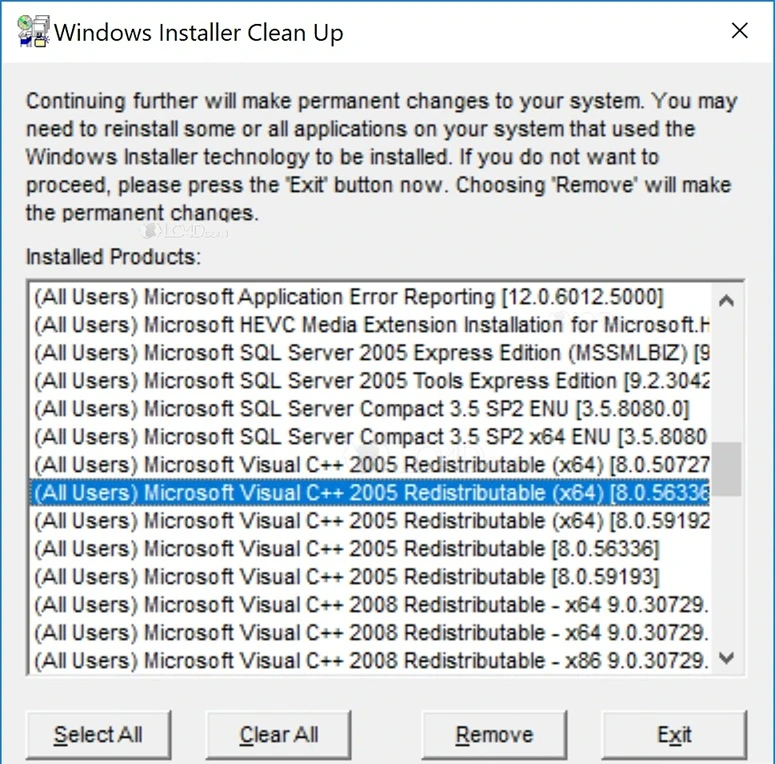
- From the list, highlight the program that is giving errors (e.g., failing to uninstall, reinstall, or update).
- The utility does not remove the actual program files, but it deletes the installer configuration data that Windows uses to manage installations.
3. Clean Up the Installer Data
- Click Remove to delete the installer information for the selected program. This clears corrupted registry entries and installation records.
- Once cleaned, you can reinstall or manually delete leftover files without Windows blocking you due to broken installer data.
Important Notes:
- Microsoft discontinued WICU in 2010 because it could sometimes remove essential system files and cause instability.
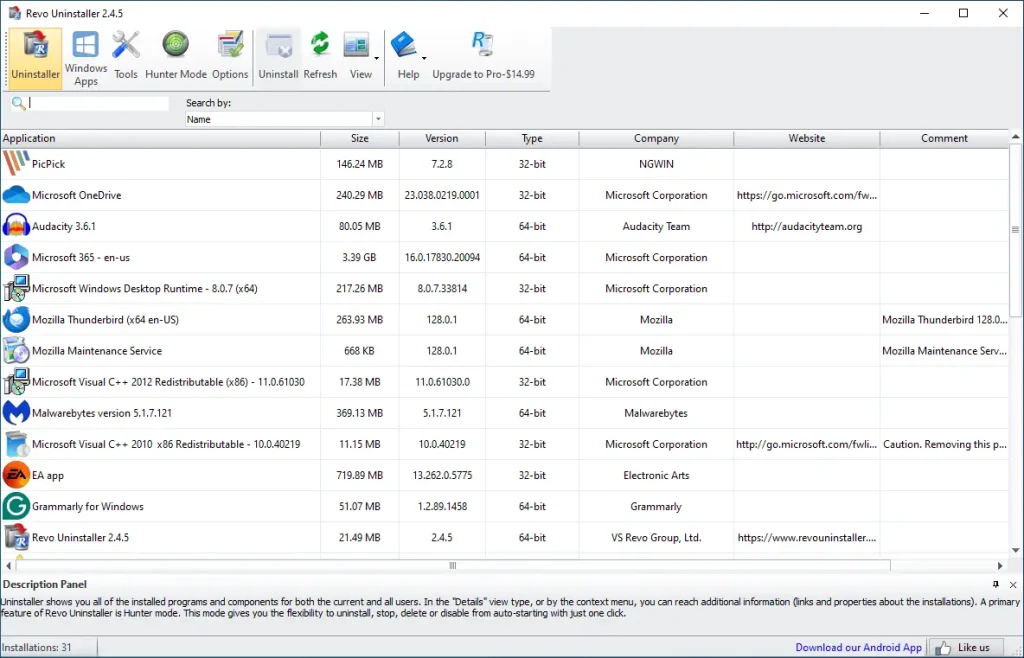
- Safer modern alternatives include Microsoft’s Program Install and Uninstall Troubleshooter or third-party uninstallers like Revo Uninstaller.
- Always back up your system before using such tools.
Modern Alternatives to the Old Cleanup Utility
As Windows systems improved, safer and more reliable uninstall solutions became available. These tools are designed to work with current installer systems. They focus on fixing specific problems instead of removing data blindly. This makes them suitable for both home users and professionals. Most modern tools guide users through each step clearly. They also warn users before making important changes.
Microsoft provides an official Program Install and Uninstall troubleshooter. It targets common installation and removal errors. It repairs damaged entries instead of deleting everything. Trusted third-party uninstall tools also offer strong alternatives. Many of them remove leftover files, folders, and registry traces together. They usually include preview screens and backup options. This allows users to review changes before applying them. Using these alternatives reduces risk and keeps the system stable.
_________________________________________________________________________________
Author’s Tip
Many users feel frustrated when uninstallation fails. This frustration leads them to search for quick fixes. Old utilities often appear in search results. This can be misleading. Just because something worked years ago does not mean it is safe today.
Always start with built-in Windows options. Repair features often solve the problem. Official troubleshooters should be the next step. Only use advanced tools when necessary. A careful approach protects system health and saves time later.
Common Mistakes Users Make With Installer Cleanup Tools
Installer cleanup tools look simple on the surface, but they work on sensitive system data. Many users assume these tools are safe for routine use. This assumption leads to careless actions. People often run cleanup tools without understanding what will be removed. They trust the tool to decide everything. This lack of awareness increases the chance of system problems.
Another reason mistakes happen is frustration. When a program refuses to uninstall, users want fast results. They skip research and safety steps. They follow outdated guides or random forum advice. Over time, this creates a cycle of errors. Knowing these common mistakes helps users avoid unnecessary damage.
- Using cleanup tools as a first solution
Many installer problems can be fixed with repair or restart options. Cleanup should be a last step. - Removing all detected entries at once
Not every listed item is broken. Bulk removal can delete valid installer records. - Ignoring program names and versions
Users sometimes remove entries they do not recognize. This may belong to important software. - Skipping system backups
Without a restore point, recovering from mistakes becomes difficult. - Using outdated or unsupported tools
Old tools may not work properly on modern Windows systems. - Running cleanup tools repeatedly
Frequent use increases the risk of missing dependencies or shared components. - Assuming cleanup improves performance
Installer records use very little space. Removing them does not speed up the system.
When You Should Avoid Using Cleanup Tools Entirely?
There are situations where cleanup tools should not be used at all. If a program is still working, do not attempt cleanup just to free space. Installer records use very little storage. Removing them provides no real benefit. It only increases the chance of error later.
Cleanup tools should also be avoided on business or work systems without approval. These systems often rely on licensed software and managed updates. Removing installer records can break license verification or automated updates. In such cases, professional IT support is the safest option.
__________________________________________________________________________________
Conclusion
The Windows Installer Cleanup Utility was useful in its time and solved a real and frustrating problem for many users. It helped deal with damaged installer records that blocked software removal or reinstallation. However, its design was limited and sometimes too aggressive. By removing installer data without proper checks, it could cause new issues. As Windows continued to evolve, installer systems became more complex. The old tool could not keep up with these changes. Because of the risk it posed to system stability, it was eventually discontinued.
Today, users have access to far better solutions. Modern uninstall and repair tools are designed with safety in mind. They explain each step and reduce accidental damage. Many also include backup and recovery options. Understanding why older utilities are no longer suitable helps users make better choices. Relying on modern tools ensures a more stable system and fewer problems in the future.
FAQs
Can I still download the old cleanup utility?
The old cleanup utility is no longer provided by Microsoft. Any versions found on random websites are not trustworthy. These copies may be modified or infected with harmful software. Installing such tools can damage system files or create security risks. It is best to stay away from them and use supported solutions instead.
What should I use instead for uninstall errors?
Microsoft offers an official Program Install and Uninstall troubleshooter that is safe to use. It helps fix common installation and removal problems without harming the system. Trusted third-party uninstall tools can also help when used carefully. These tools are updated for current Windows versions and follow safer removal methods.
Will cleanup tools improve system speed?
Cleanup tools are not meant to boost system speed. Their main purpose is to fix installer-related errors and conflicts. Removing broken installer records may reduce error messages. However, you should not expect noticeable performance improvements from using them.
Popular Post
Recent Post
How To Clean a CPU Without Damaging It [Complete Guide]
Learn how to clean a CPU safely without damage. Follow simple steps, precautions, and methods to improve cooling, boost performance, and extend your computer’s life.

How To Clear Browser Cache On Windows 11/10 [Chrome, FireFox, Edge]
Learn how to clear browser cache on Windows 11 and 10. Follow simple steps to clean browser cache, fix slow browsing, and improve performance easily.

How To Clear Cache Memory On Windows 11/10 [2026]
Learn how to clear cache memory on Windows 11/10 using safe built-in methods to improve speed, free space, and maintain smooth system performance.
Windows Installer Cleanup Utility: Complete Review And Alternatives
Detailed review of Windows Installer Cleanup Utility, reasons for removal, risks, and safer modern alternatives explained clearly.

How To Clean Junk Files On Windows 11/10
Learn how to clean junk files on Windows 11 and 10 using safe, simple steps to boost speed and free storage space effectively.

Clearing App Cache Data on Windows 11/10: Complete Guide
Learn how to safely clear app cache on Windows 11 and 10 to fix slow apps, free disk space, and improve overall system performance.

How To Clean Up System Files On Windows 11/10: Complete Guide
Explore a step-by-step guide explaining how Windows users can safely remove unnecessary system data using built-in tools.

How To Clean a Laptop Fan Without Opening [2026 Guide]
Learn how to clean a laptop fan without opening the device using safe steps, simple tools, and easy methods for better cooling.

How to Clear the Queue in the Printer Automatically in 2026
Learn how to clear the queue in the printer with simple steps. This easy guide explains why print jobs get stuck and how to fix them safely for smooth printing.

How To Clear Delivery Optimization Cache In Windows
Learn how to clear Delivery Optimization Cache in Windows safely and easily. This guide explains steps, precautions, benefits, and FAQs to free space and avoid update issues.
