How To Clean A Computer Cable At Home Without Damage
Computer cables get dirty over time. Dust, grime, and oils from your hands build up on them. This makes your cables look bad and can hurt their performance. Clean cables work better and last longer.
Learning how to clean computer cable connections is easy. You need the right tools and steps. This guide covers all the essentials to help you maintain your cables in top condition—keeping them organized, functional, and long-lasting.
Part 1: Types of Computer Cables
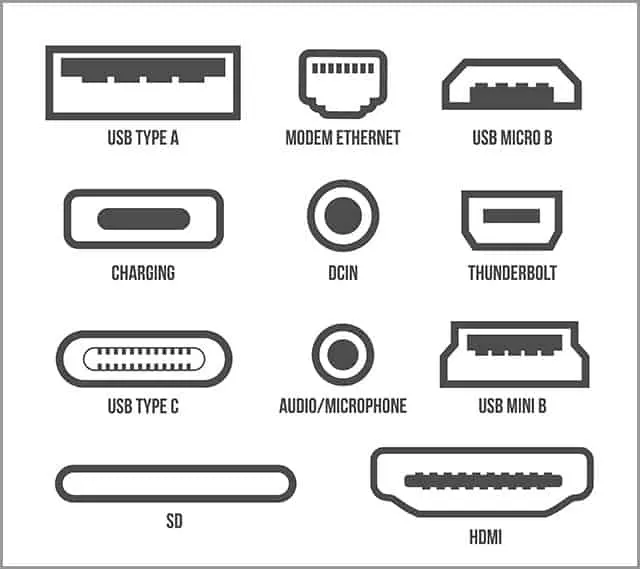
Different cables need different cleaning methods. Each type has its own design and materials. Knowing your cable types helps you clean them safely.
Here are the main computer cable types:
- USB cables (USB-A, USB-C, micro-USB) – Connect devices like phones, keyboards, and mice to computers
- HDMI cables for video and audio – Send high-quality video and sound to TVs and monitors
- Ethernet cables for internet – Deliver reliable, high-speed wired connections for consistent performance.
- Power cables and adapters – Supply electricity to laptops, monitors, and other devices
- Audio cables (3.5mm, XLR) – Connect headphones, speakers, and microphones
- VGA and DVI cables for monitors – Older cable types still used for some displays
Part 2: Safety First: Getting Started with Cleaning Computer Cable Pre-Requisites
Safety comes first when cleaning any electronic equipment. Wrong cleaning can damage your cables or hurt you. Follow these safety rules before you start.
- Turn off and unplug all devices
- Remove cables from all ports
- Work in a well-lit, dry area
- Avoid getting liquid in connectors
- Never use harsh chemicals
- Don’t pull cables by the wire
- Let everything dry completely
- Check cables for damage first
Part 3: Materials You’ll Need: Clean a Computer Cable

Before diving into any cleaning task—especially when dealing with electronics or delicate surfaces—it’s essential to gather the right tools. Having everything ready not only saves time but also ensures the process is safe and effective. The good news? You don’t need fancy or expensive equipment. Just a few reliable items will do the trick:
Must-Have Cleaning Materials
- Isopropyl Alcohol (70% or Higher): This is your go-to disinfectant and degreaser. It evaporates quickly and doesn’t leave residue, making it ideal for cleaning electronics, screens, and other sensitive surfaces. Always use it in a well-ventilated area and avoid soaking components—just dampen your cloth or swab.
- Cotton Swabs or Q-tips: Perfect for reaching tight corners, crevices, and small ports. Use them to gently clean around buttons, seams, or inside headphone jacks. Dip lightly in alcohol for better results, but avoid oversaturating.
- Microfiber Cloths: These are gentle on surfaces and highly effective at picking up dust and oils without scratching. Use them dry for dusting or slightly dampened with alcohol for deeper cleaning. Avoid paper towels.
- Compressed Air Can: Ideal for blowing out dust from keyboards, vents, and other hard-to-reach areas. Hold the can upright and use short bursts to avoid moisture buildup. Never shake the can while spraying.
- Small Soft Brush (An Old Toothbrush Works): A soft-bristled brush helps dislodge stubborn dirt and debris from textured surfaces or between keys. Make sure it’s clean and dry before use. If repurposing a toothbrush, choose one with soft bristles to avoid abrasion.
Part 4: How To Clean A Computer Cable: Step-by-Step
This detailed process shows you how to clean computer cable connections properly. Follow each step carefully. Take your time to avoid damage.
Step 1: Prepare Your Workspace.
Set up your workspace on a clean, level surface. Ensure the area is well-lit so you can easily spot any dirt or damage. Keep all your cleaning tools and supplies close at hand for convenience.
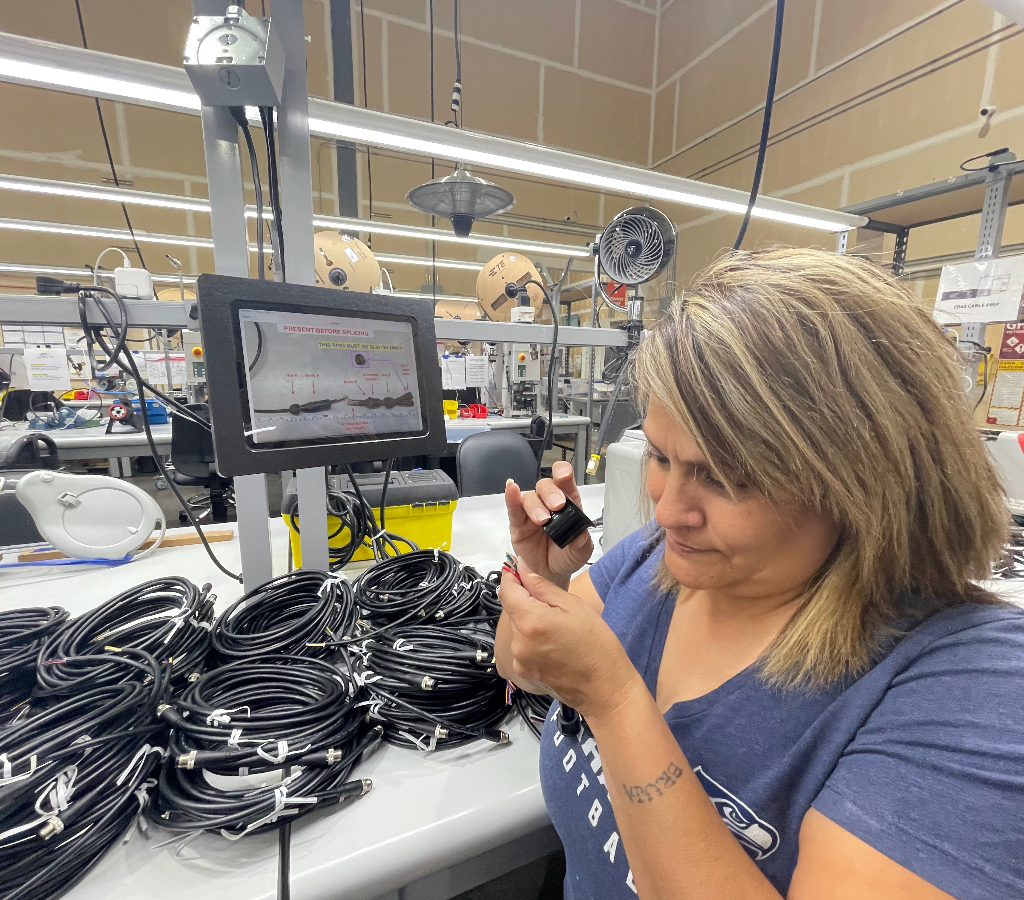
Step 2: Inspect the Cable.
Look at the entire cable for damage. Inspect cables carefully for any cracks, bent connectors, or frayed wiring. If you find damage, avoid cleaning—it’s safer to replace the cable entirely.
Step 3: Clean the Cable Body.
Dampen a microfiber cloth with isopropyl alcohol. Wipe the entire cable length gently. Remove fingerprints, dust, and sticky residue. Don’t soak the cable.
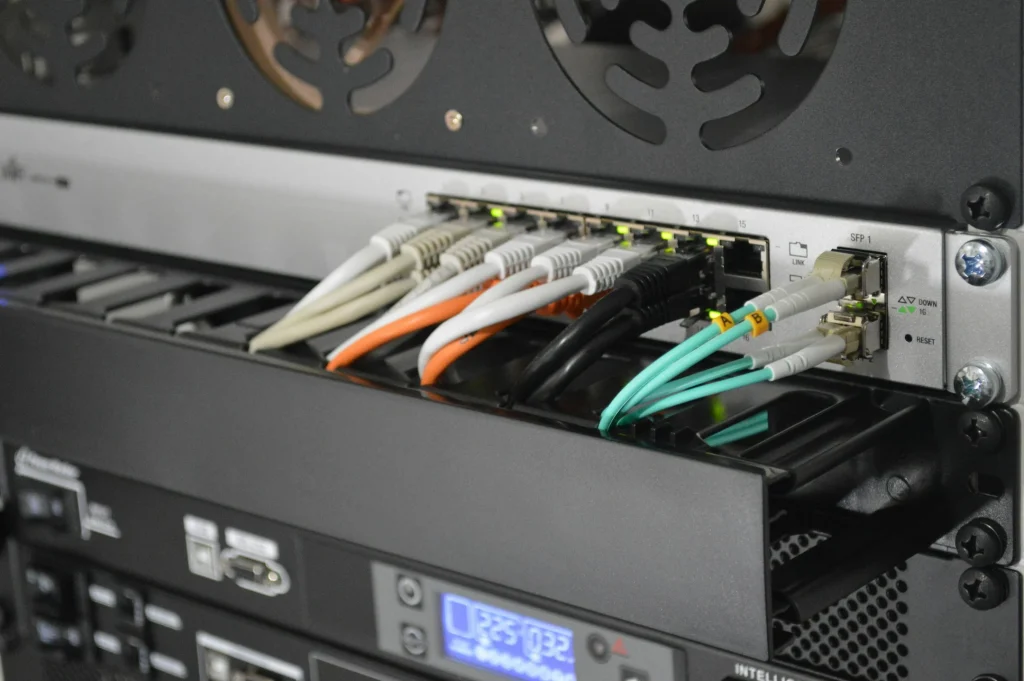
Step 4: Clean the Connectors.
This is the most important part. Dip a cotton swab in isopropyl alcohol. Clean the metal contacts carefully. Use a dry swab to remove excess moisture.
Step 5: Use Compressed Air.
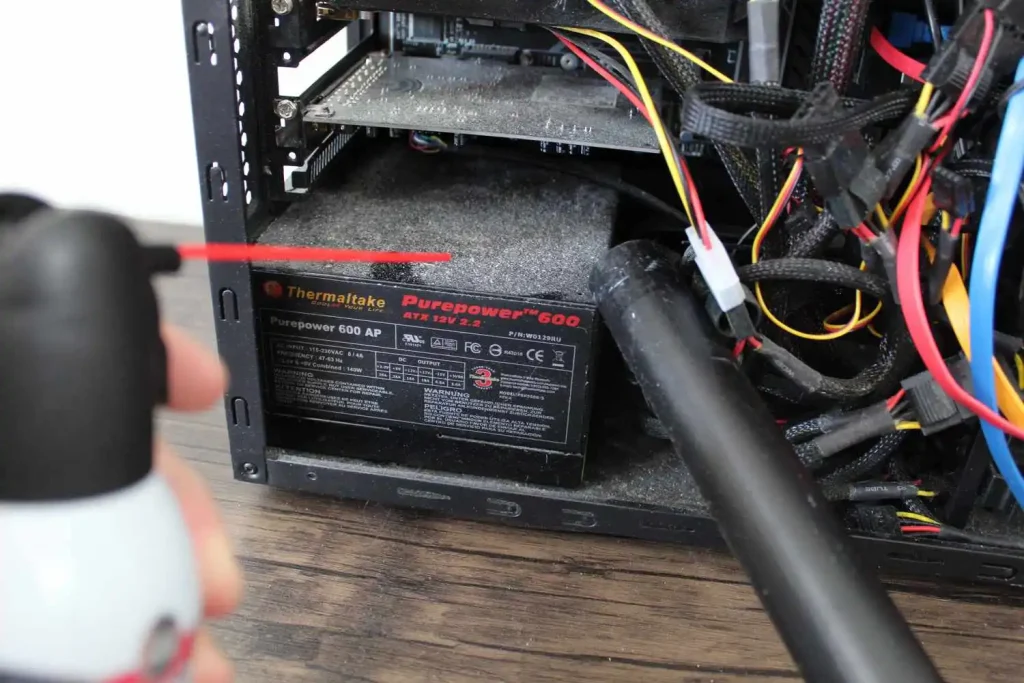
Blow out dust from the connector ports. Hold the can upright. Use short bursts to avoid moisture buildup. This removes particles you can’t see.
Step 6: Brush Away Stubborn Dirt.
Use a soft brush for stuck-on grime. Brush gently to avoid scratching. Work in one direction, not back and forth.
Step 7: Final Wipe Down.
Use a clean, dry microfiber cloth for the final cleaning. Remove any leftover cleaning residue. Make sure everything looks clean and dry.
Step 8: Let Everything Dry.
Wait at least 10 minutes before using cables. This ensures all alcohol evaporates. Moisture can damage electronic devices.
Part 5: Tips for Long-Term Maintenance
Regular care keeps your cables clean longer. Good habits prevent heavy dirt buildup. This saves you time and extends cable life.
- Clean cables monthly or when visibly dirty – Regular cleaning prevents heavy buildup and extends cable life
- Store cables properly when not in use – Coil them loosely and keep them in dry, safe places
- Avoid eating near computer equipment – Food crumbs and spills make cables sticky and dirty
- Keep pets away from cable areas – Pet hair and dander stick to cables and cause clogs
- Use cable organizers to prevent tangling – Organized cables are easier to clean and maintain
- Check cables during regular computer maintenance – Early detection prevents bigger problems later
- Replace old or damaged cables promptly – Bad cables can harm your expensive devices
- Keep your workspace clean and dust-free – A clean area means cleaner cables that need less work
Author’s Tip
How to clean computer cable maintenance becomes easier with practice. Start with the less important cables first. This builds your confidence before cleaning expensive equipment.
Temperature matters when cleaning electronics. Room temperature works best for cleaning solutions. Very hot or cold conditions can cause problems. Let cables reach room temperature before cleaning if they were stored elsewhere.
Prevention beats cleaning every time. Keep your computer area clean. Dust your desk weekly. This reduces how often you need deep cable cleaning. A clean workspace means cleaner cables that last longer.
Conclusion
Clean computer cables work better and look professional. Regular maintenance prevents performance problems. You now know how to clean computer cable connections safely and effectively.
The key is being gentle and patient. Rush jobs can damage expensive equipment. Take your time and follow the safety rules. Your cables will thank you with better performance.
Start your cleaning routine today. Pick one dirty cable and try these steps. You’ll be surprised how much better it looks and works. Clean cables are happy cables that serve you well for years.
FAQs:
Q: How often should I clean my computer cables?
Clean your cables once a month or when they look dirty. Heavy users might need weekly cleaning. Light users can clean every two months. Check cables when you clean your computer.
Q: Can I use water instead of isopropyl alcohol?
No, don’t use plain water on electronic cables. Water can cause corrosion and electrical problems. Isopropyl alcohol evaporates quickly and doesn’t leave residue. It’s much safer for electronics.
Q: What should I do if my cable gets damaged during cleaning?
Stop using a damaged cable right away. Damaged cables can harm your devices or cause electrical hazards. Replace the cable with a new one. Don’t try to fix electrical cables yourself.

Author Bio:
Dinesh Lakhwani, the entrepreneurial brain behind “TechCommuters,” achieved big things in the tech world. He started the company to make smart and user-friendly tech solutions. Thanks to his sharp thinking, focus on quality and the motto of never giving up, TechCommuters became a top player in the industry. His commitment to excellence has propelled the company to a leading position in the industry.
Popular Post
Recent Post
BleachBit PC Cleaner Tool: Complete Review After Running Tests
A PC never stays clean on its own. Every app you open, every website you visit, and every file you download leaves something behind. Weeks turn into months, and suddenly your storage feels tight, and your PC feels slower, with no clear reason why. The usual fix is a cleaning tool. But the market is […]

Iolo System Mechanic Review: Full Breakdown and Honest Take
Iolo System Mechanic is designed for users who want their PC to feel fresh and responsive again. With just a few clicks, it digs into the system, clears out unnecessary clutter, and delivers noticeable speed improvements. The interface is straightforward and beginner‑friendly, making it easy to navigate without confusion. But this tool goes beyond simple […]
Clean Master for PC Tested: A Full Breakdown of Its Tools
A computer doesn’t slow down overnight. Right? It happens bit by bit. Extra downloads, leftover cache, startup apps piling up. Soon the fast machine you loved feels sluggish. Boot times drag, programs freeze, and even opening a browser tab feels heavy. This slow decline is common, caused by junk files, cluttered registries, and hidden tasks […]
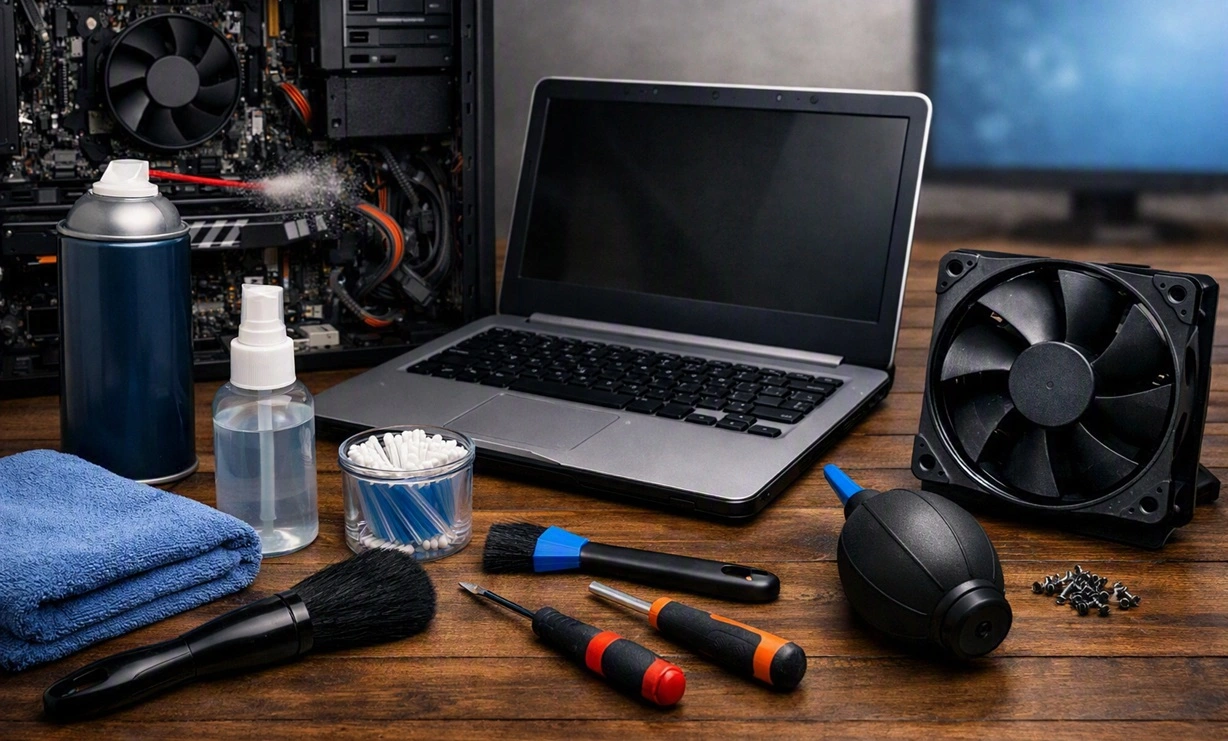
How To Clean Your PC/Laptop: Guide for Beginners to Experts
A computer never announces that it needs help. Well, yes! It just gets slower, hotter, and noisier, one day at a time, until you finally stop and wonder what changed. Nothing changed overnight. What happened is dust and clutter, working quietly in the background for months. Dust settles inside fans and vents, trapping heat and […]

Wise Care 365 PC Cleaner Tool: A Hands-On Review
Every Windows user knows the feeling. Your computer runs fast on day one. Then months pass. Files pile up. The registry gets messy. Startup takes longer. Apps freeze more often. This slow decline is normal, but it is also annoying. Most people just live with it. Some restart their PC often, hoping it helps. It […]

Glary Utilities PC Cleaner: Complete Review [Tested and Trusted]
Glary Utilities is one of the most popular PC optimization tools available today. It combines cleaning, repair, and performance‑boosting features into a single suite. The goal is simple: keep your computer running fast and stable without needing multiple separate programs. In this review, we’ll look at how Glary Utilities performs in real use, what features […]

Microsoft PC Manager: Complete In-Depth Review
A slow computer can ruin your whole day. Files pile up. Startup apps multiply. Before you know it, your once fast machine feels sluggish and tired. Most people search for a fix, but many tools out there are bloated, pushy, or full of ads. Microsoft PC Manager was built to solve this exact problem. It […]

AVG TuneUp Guide: Features, Pros, Cons, and Pricing
PC performance often drops with time. Junk files build up. Startup programs increase. Storage fills up. As a result, your computer may take longer to boot, feel sluggish, or run out of space. The good news is that these problems are usually easy to fix. AVG TuneUp is a PC optimization tool for Windows. It […]

Ashampoo WinOptimizer: Features and Process [Complete Guide]
Ashampoo WinOptimizer is built for users who want a faster, cleaner, and safer PC. In this review, I’ll walk through its features and how the optimization process works. The software promises one‑click fixes, smart automation, and tools that go beyond basic cleanup. The PC cleaning and optimization tool covers performance tuning, privacy protection, and system […]

Top 10 PC Cleaning and Optimization Tools For Windows 11/10 [2026]
Discover the best PC cleaning and optimization tools for Windows 11 and 10. Remove junk files, improve speed, and keep your PC healthy with trusted cleaners.
