How To Clean Your GPU/Graphics Card [Complete Guide]
Introduction
A graphics card is one of the most important parts of a computer. It handles visuals, gaming, video editing, and design work. Over time, dust builds up inside it. This dust blocks airflow and traps heat. When heat increases, performance drops. In some cases, the system may even crash. That is why learning how to clean your GPU is useful for every user who wants stable performance.
Many users ignore this task. They think it is risky or too technical. In reality, it is simple if done with care. You do not need advanced knowledge or special training. You only need the right tools and a calm approach.
In this guide, you will learn how to clean your GPU step by step. You will also understand when and why you should clean your graphic card to keep it working properly.
Is it Safe to Clean a GPU?
Cleaning internal components is generally safe. This includes both the CPU and GPU. The key is to follow proper steps and avoid rushing. These parts are delicate and expensive. Rough handling can cause permanent damage. If you stay gentle and focused, the process becomes safe and effective.
You should always turn off your system first. Unplug all cables before starting. Static electricity can harm internal components. It is best to touch a metal surface before you begin. This helps remove any static charge from your body. You can also use an anti-static wrist strap for extra safety.
Avoid using water or strong cleaning liquids. Moisture can damage circuits and connectors. Dry cleaning methods are always recommended. Tools like compressed air, a soft brush, and a microfiber cloth work well. When done properly, cleaning improves airflow and cooling. It also helps maintain stable performance for a long time.
Advantages and Disadvantages of Cleaning Your GPU
Cleaning your GPU is important for long-term performance. It keeps your system cool and stable. However, there are also a few small risks if the process is not done correctly. Understanding both sides will help you make the right decision.
Cleaning helps your system run better. It also prevents future problems. At the same time, mistakes during cleaning can cause issues. Below are the main advantages and disadvantages explained in detail.
Advantages
- Better cooling
Dust blocks vents and fans. When you clean your graphics card, airflow improves. This helps the GPU stay cool during heavy use. - Improved performance
A cooler GPU performs better. Games run smoother, and applications respond faster. This is one of the main benefits of learning how to clean your GPU. - Longer lifespan
Heat is one of the biggest enemies of electronic parts. Removing dust reduces heat stress. This helps your GPU last longer. - Reduced fan noise
Dust makes fans work harder. This increases noise. Cleaning allows fans to spin freely and quietly. - Stable system performance
Overheating can cause lag or crashes. Cleaning reduces this risk. Your system becomes more stable during long sessions. - Better efficiency
A clean GPU uses power more efficiently. It does not struggle to cool itself. This can improve overall system balance. - Prevents dust buildup in other parts
When you clean your graphic card, you often clean nearby areas too. This helps maintain the whole system. - Cost savings
Regular cleaning can prevent damage. This reduces the need for repairs or replacements.
Disadvantages
- Risk of damage
If you are not careful, you may damage small components. Always handle parts gently. - Static electricity risk
Touching parts without grounding can cause static damage. This is why safety steps are important. - Time-consuming process
Cleaning properly takes time. You should not rush the process. - Requires basic tools
You may need compressed air or a brush. Not everyone has these tools ready. - Possible warranty concerns
Opening the GPU may affect the warranty in some cases. - Fear of handling hardware
Many users feel nervous about touching internal parts. - Improper cleaning methods
Using liquids or sharp objects can damage the GPU. - Need for regular maintenance
Cleaning is not a one-time task. It needs to be done regularly.
Precautions Before Cleaning Your GPU
Cleaning a GPU is straightforward, but it requires careful attention. By following the right precautions, you can protect the hardware and ensure the process goes smoothly. Even minor errors may cause issues, so taking a little time to prepare beforehand can make all the difference.
Important Precautions to Follow
Before you start, make sure you understand the basics. A careful approach will help you clean your graphics card without risk.
- Turn off the system
Always shut down your computer completely. Do not clean while it is running. - Unplug all cables
Remove the power cable and other connections. This ensures safety. - Ground yourself
Before handling computer components, touch a grounded metal surface to discharge any built-up static electricity. This simple step helps prevent accidental damage to sensitive parts. - Work in a clean area
Choose a dust-free space. This prevents more dirt from entering the GPU. - Use proper tools
Use compressed air, a soft brush, and a cloth. Avoid sharp or rough objects. - Avoid liquids
Do not use water or cleaning sprays. They can damage circuits. - Handle with care
Hold the GPU by its edges. Do not touch small components directly. - Keep screws safe
If you remove screws, store them properly. Do not lose them.
How To Clean Your GPU: 3 Quick Methods to Try
Cleaning your GPU doesn’t involve complicated procedures. You can select an approach that suits your comfort level. Some people prefer a quick surface clean without removing the card, while others go for a thorough deep clean to achieve better results.
Both options are outlined below.
Method 1: Basic Cleaning Without Removing the GPU
This method is simple and safe for beginners. It is useful when the dust buildup is light. It also saves time since you do not need to remove the GPU from the system.
This approach focuses on external cleaning. You clean fans, vents, and visible areas. It improves airflow and removes loose dust. It is a good starting point if you are new to this process.
If done regularly, this method can prevent heavy dust buildup. It also reduces the need for deep cleaning later.
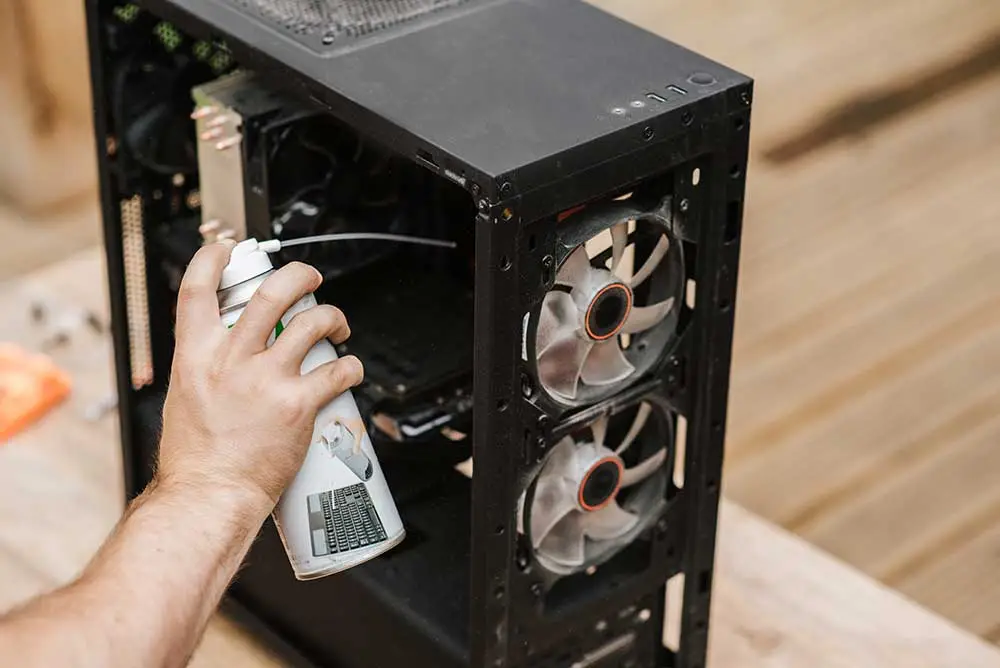
Step 1: Turn off your computer and open the case. Use compressed air to blow dust away from the GPU fans and vents. Hold the fan in place while cleaning.
Step 2: Use a soft brush to remove remaining dust. Clean gently around the edges. Make sure no dust is left behind.
Method 2: Deep Cleaning by Removing the GPU
This method is more detailed. It is useful when the dust buildup is heavy. It allows you to clean hidden areas that are not visible from the outside.
You need to remove the GPU from the motherboard. This requires extra care. Make sure you follow proper steps and do not rush.
Deep cleaning gives better results. It improves cooling and performance more than basic cleaning. It is ideal if your GPU is overheating.
Step 1: Turn off the system and unplug all cables. Remove the GPU carefully from the slot. Place it on a clean surface.
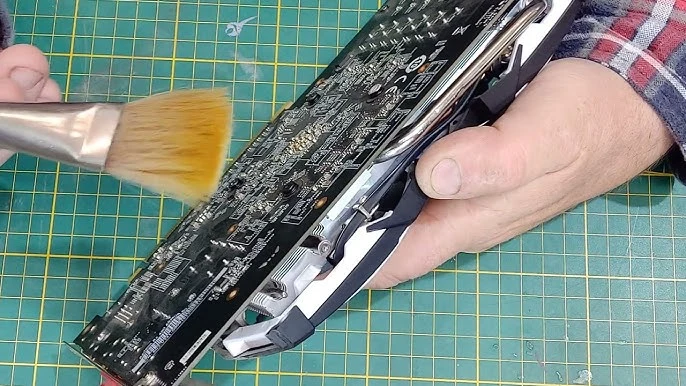
Step 2: Use compressed air and a brush to clean all parts. Focus on fans and heatsinks. Remove dust completely before reinstalling.
Author’s Tip
Always clean your system in a calm and unhurried way. Rushing can lead to mistakes. Take your time and focus on each step. Even simple cleaning can make a big difference if done properly.
Try to clean your GPU every few months. The exact timing depends on your environment. If you live in a dusty area, you may need to clean more often. Regular maintenance keeps your system healthy.
Also, keep your computer area clean. Less dust in the room means less dust inside your system. Small habits like this reduce the need for frequent deep cleaning.
Conclusion
Cleaning your GPU is an important part of system maintenance. It helps improve cooling and performance. It also reduces the risk of overheating and damage. When done correctly, it is a safe and simple process.
You do not need advanced skills to do this. Basic tools and careful handling are enough. Learning how to clean your GPU can save money and extend the life of your system.
Make it a regular habit. Even simple cleaning can keep your system running smoothly. A clean GPU performs better and lasts longer. This small effort brings long-term benefits.
FAQs
1. How often should I clean my GPU?
You should clean your GPU every three to six months for the best results. The exact timing depends on your environment and usage. If your room collects dust quickly or you use your system for long hours, cleaning may be needed more often. Regular checks will help you notice dust buildup early. Keeping a schedule ensures stable performance and better cooling over time.
2. Can I clean my GPU without removing it?
Yes, you can clean your GPU without removing it from the case. This method is simple and suitable for basic maintenance. You can use compressed air to blow dust away from the fans and vents. It is important to clean gently and avoid touching delicate parts. This method works well for light dust buildup and helps maintain airflow without much effort.
3. What tools do I need to clean your graphic card?
You need a few basic tools to clean your graphic card safely. Compressed air is useful for removing loose dust from fans and small gaps. A soft brush helps clean areas where air cannot reach easily. A microfiber cloth can be used to wipe surfaces gently. These tools are safe for electronic parts and help you clean effectively without causing damage.

Author Bio:
Dinesh Lakhwani, the entrepreneurial brain behind “TechCommuters,” achieved big things in the tech world. He started the company to make smart and user-friendly tech solutions. Thanks to his sharp thinking, focus on quality and the motto of never giving up, TechCommuters became a top player in the industry. His commitment to excellence has propelled the company to a leading position in the industry.
Popular Post






Recent Post

Defencebyte Computer Optimizer: An In-Depth Review
Slow startup, delayed app launches, and freezing windows are among the most common complaints from Windows users. In many cases, the cause is not failing hardware. It is the gradual buildup of leftover data. Uninstalled programs leave registry entries behind. Temporary files and logs collect in system folders. Broken file paths and unused extensions stay […]

Windows Storage Sense For PC Cleaning: Everything You Need To Know
The low disk space warning always shows up at the worst time. A big update is waiting to install. A file refuses to save. The storage bar in Settings has turned red, and nobody remembers what filled it. Most people react by hunting for a cleaner to download. Many never notice that Windows already has […]

EaseUS CleanGenius Reviewed: Features, Pricing, and Real Results
Nobody notices the first temporary file. Nobody notices the hundredth either. Then one day the drive is almost full, the browser drags, and Windows takes ages to start. Clutter builds in quiet ways. Installers leave leftovers. Browsers store cache and cookies. Apps write logs that nobody reads. Programs add themselves to startup without asking. None […]

Advanced SystemCare: Tool To Clean Your PC [Complete Review]
The first thing I notice is how the startup screen hangs. The fan kicks in fast and stays loud. If I open a simple folder, the whole system pauses for a moment. It does not look like a clear hard failure, yet the PC feels heavy and slow. This is not usually one big problem. […]

CCleaner PC Cleaning Tool: An In-Depth Review
Learn how to clean your PC with CCleaner. This complete guide covers features, step-by-step instructions, pros, cons, pricing, and FAQs to help you decide.

Avira PC Speed Up Tool: Is It Actually Worth It?
A fresh Windows install feels like a different world. Isn’t it? Everything opens fast. Menus snap into place. Then a year passes, sometimes less, and that same machine starts to feel heavy for no clear reason. Nothing dramatic happened. No single event caused it. It was just months of small leftovers stacking up quietly in […]

Avast PC Cleanup Tool: A Detailed Review
Computers do not slow down overnight. Well, yes! That’s right! It happens in small steps. A temporary file here. A leftover installer there. A browser cache that quietly grows for months without anyone noticing. Add a few startup programs that load automatically, and soon your once fast machine feels like it is wading through mud. […]

Outbyte PC Repair and Cleanup Tool: A Detailed Review
The laptop took nearly two minutes to open one folder. Chrome froze twice. The fan sounded like a tiny jet engine. Most of us have lived through a day like this. Right? Don’t worry! The machine is not dying. It is just tired and messy. A good cleanup can often bring back some of the […]

WMaster Cleanup PC Cleaner Tool: A Detailed Review
Your PC was fast on day one. Right? Every click felt instant, every app opened in a snap, and the fan barely made a sound. Then came the browser tabs, the half-finished downloads, and the apps you tried once and forgot to remove. Slowly, without any warning, that same machine started to feel tired. Boot-ups […]
BleachBit PC Cleaner Tool: Complete Review After Running Tests
A PC never stays clean on its own. Every app you open, every website you visit, and every file you download leaves something behind. Weeks turn into months, and suddenly your storage feels tight, and your PC feels slower, with no clear reason why. The usual fix is a cleaning tool. But the market is […]
