Computer Cleaning Habits You Must Follow
Last updated on February 6th, 2026 at 4:20 am
Using a computer for long hours is part of everyday life, but proper care is often ignored. Even when a device looks fine on the outside, it quietly gathers dust, outdated files, and digital clutter that slow it down. Regular habits prevent these issues from piling up, helping your computer run faster, stay cooler, and remain stable even under heavy use.
Cleaning isn’t complicated. It only feels overwhelming when neglected for too long. A simple weekly routine makes a big difference, keeping your system smooth without requiring expert skills. Once these habits become second nature, your computer boots quickly, avoids random errors, and supports your work without interruptions.
Part 1: Why Cleaning Habits Matter for Every Computer
Cleaning protects both the machine and your data. A computer collects dust, heat, junk files, broken shortcuts, leftover app data, and temporary items created by the system. When these items stay untouched, they slow down the device. Some apps may start crashing. Start up time increases. Browsers freeze more often. These small signals show that your computer needs care.
A regular cleaning routine keeps your computer stable. Think of it as simple maintenance. A clean system uses fewer resources. It loads programs with ease. It stays safer because malware often hides inside random files left behind by apps. Cleaning also reduces stress on the hardware. Fans work with less pressure, the processor stays cool, and the hard drive has room to breathe. When each part works comfortably, the whole device performs better.
Part 2: Clean Physical Parts Often
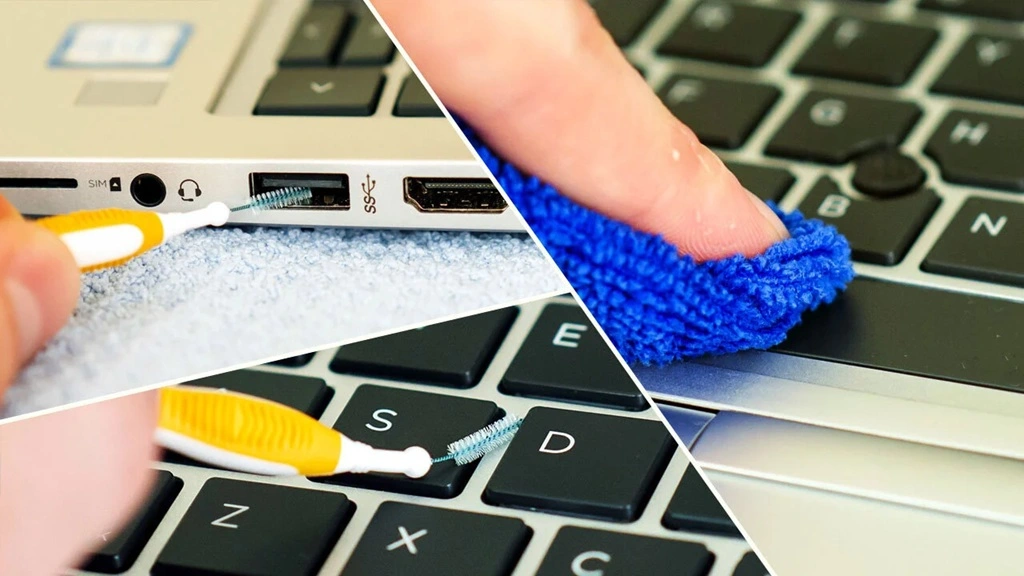
Physical cleaning is one of the most ignored tasks. Many users only wipe the screen occasionally and never clean the vents or keyboard. Dust enters through every small opening. It collects inside the case, around the fans, inside ports, and on top of the motherboard. When too much dust gathers, heat levels rise. Heat forces the system to slow down.
You can follow simple steps to clean the outer parts safely.
Steps for safe physical cleaning
Step 1: Turn off the computer
Never clean the computer while it is on. Wait until it has cooled down.
Step 2: Unplug the power cable
This protects both you and the device.
Step 3: Use a dry microfiber cloth
Gently wipe the screen, keyboard, and outer surface.
Step 4: Use compressed air for vents and fans
Hold the can upright. Blow short bursts of air into vents to remove dust.
Step 5: Clean the keyboard lightly
Turn it upside down and shake gently. Use compressed air between the keys.
Step 6: Clean the mouse
Wipe the top surface. Clean the underside carefully so the sensor works well.
Step 7: Make your desk clean
A dusty desk brings more dust into the system. Keep the workspace neat to reduce buildup.
Doing this once every week or two keeps your computer cool and helps the parts last much longer.
Part 3: Remove Junk Files and Temporary Data
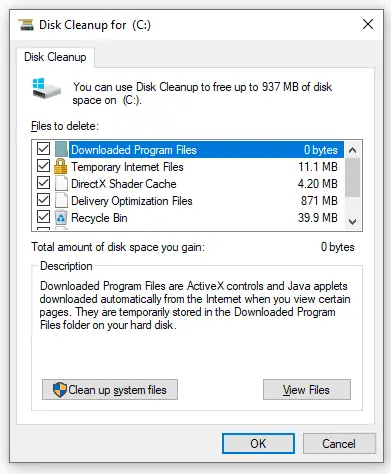
Software cleaning is just as important as physical cleaning. Every time you use your system, it creates temporary files. Browsers save cached pages. Updates leave logs behind. Apps create leftover files that stay even after removal. Over time, these small items fill up storage.
When storage becomes tight, the system slows down. Programs need space to run properly. Removing junk files is one of the fastest ways to improve performance.
Follow these steps to remove junk files
Step 1: Open the system cleanup tool
Windows has Disk Cleanup or Storage Sense. Both scan your system for junk.
Step 2: Select the items you want to remove
This often includes temporary files, cache, old updates, thumbnails, and delivery optimization files.
Step 3: Clear the browser cache
Go to browser settings and find the clear browsing data option. Select cache, cookies, and history if needed.
Step 4: Delete items in the Downloads folder
This folder collects old installers, random documents, and files you no longer need.
Step 5: Uninstall unused apps
Some apps run in the background and consume memory. Remove them if you do not use them often.
Quick reminders
- Junk files gather every day.
- Clearing them keeps the system light.
- Always check the size of the Recycle Bin.
This habit keeps your computer running smoothly. It also frees enough space for updates and new apps.
Part 4: Organize Files and Keep Storage Neat
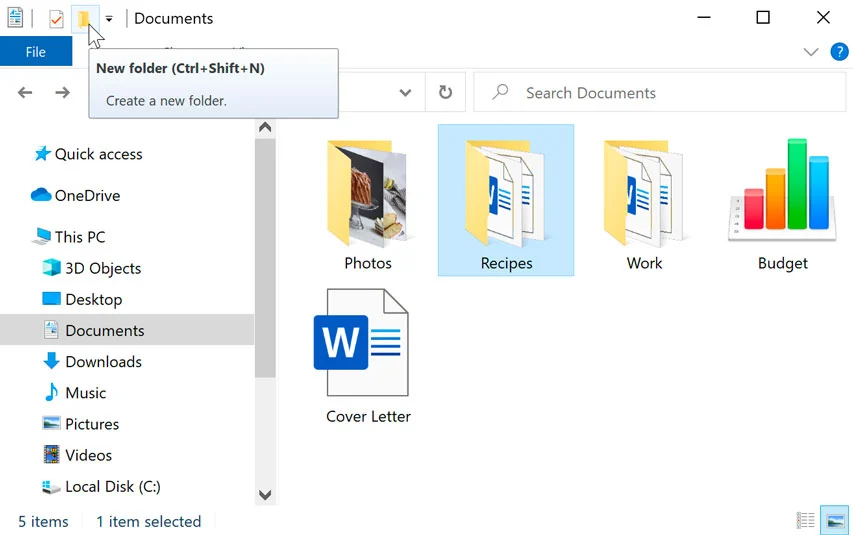
A messy file structure can create confusion and slow down your system. Many users save everything on the desktop. This may look simple, but it affects the computer. A crowded desktop can slow startup and create visual clutter.
File management is part of good computer cleaning. You do not need advanced skills. Just follow the simple steps.
Steps for keeping your files organized
Step 1: Create clear folders
Make folders such as Work, Personal, Photos, Videos, and Projects.
Step 2: Move items off the desktop
Keep only shortcuts on the desktop. Move real files into their folders.
Step 3: Remove duplicate files
Duplicates waste space and confuse you. Delete them when you find them.
Step 4: Archive old items
Place old files in a folder named Archive or Old Files. This keeps your main folders lean.
Step 5: Check storage usage regularly
Look at which folders take up the most space. Remove items you no longer need.
With clean storage, the system does not strain itself. You also find your documents faster. This saves time and keeps your workflow smooth.
Part 5: Keep Software Updated
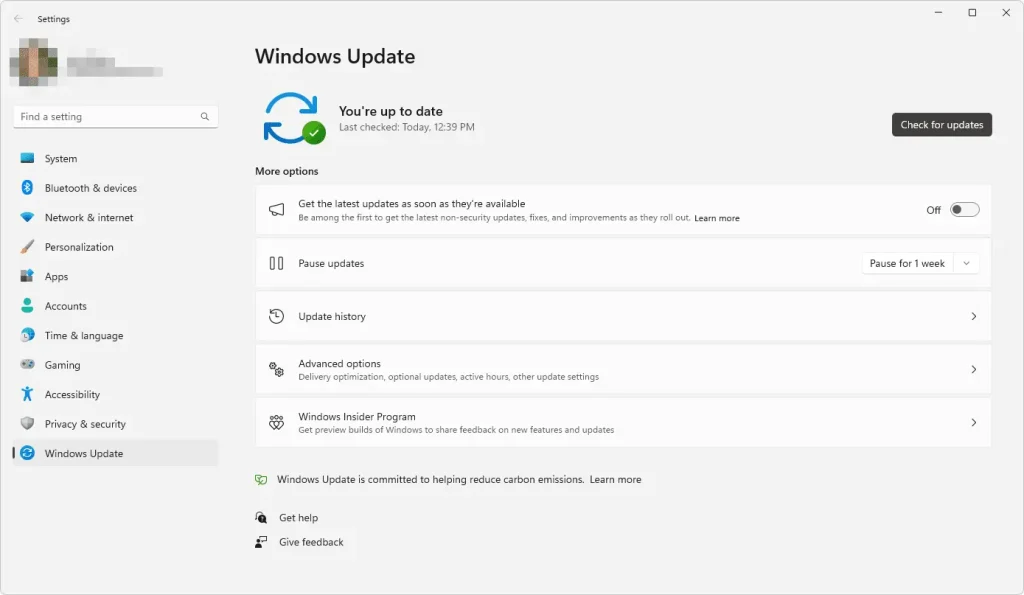
Updates may feel annoying, but they are important. Old versions contain bugs, security issues, and performance problems. Updates fix these flaws and make your system stronger.
Ignoring updates may cause your apps to crash more often. Your computer may also become open to threats. Updates often improve speed because they optimize how the system handles memory.
Follow these update steps
Step 1: Check for Windows updates
Go to Settings and open the Update section. Install all important updates.
Step 2: Update your apps
Open the Microsoft Store or the app’s internal update tool. Install available updates.
Step 3: Update drivers
Drivers control your hardware parts. A new driver can improve performance and fix issues.
Step 4: Turn on automatic updates
This keeps your system updated without effort.
Updates keep the computer secure. They also help software run at full potential.
Part 6: Strengthen Security and Remove Threats
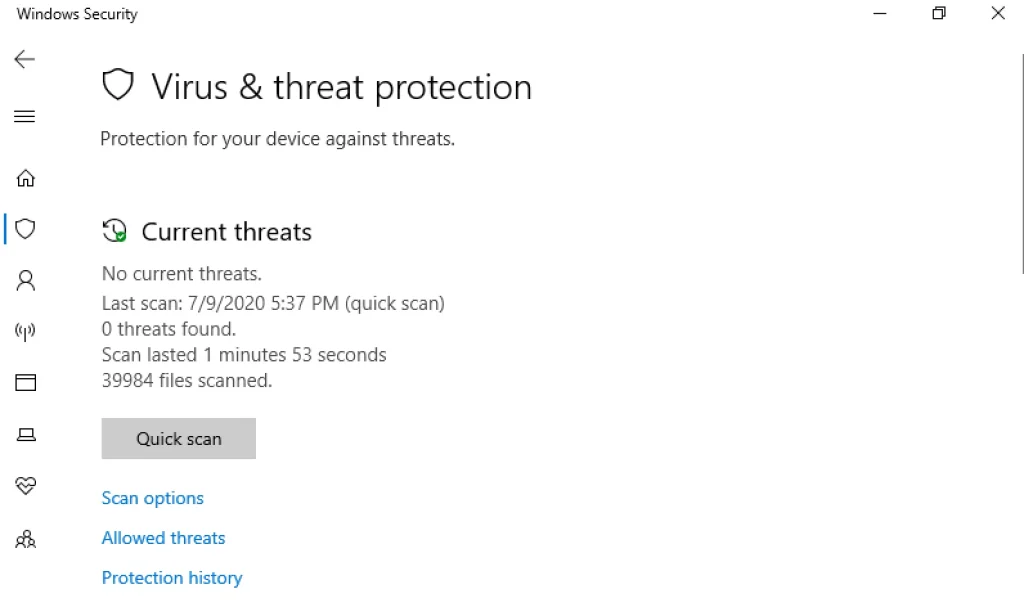
Viruses, malware, and unwanted programs behave like dirt inside the system. They reduce speed, display unwanted ads, steal data, or damage files. Cleaning your system also means removing security threats.
Security habits form an important part of computer cleaning. A harmful file can hide anywhere. Good cleaning habits protect both your system and your personal information.
Important security habits
- Install a reliable antivirus tool.
- Run full scans every week.
- Avoid unsafe sites.
- Do not open unknown email attachments.
- Check installed apps regularly.
- Remove suspicious programs at once.
Steps to clean threats
Step 1: Run a full antivirus scan
A full scan finds deep threats that quick scans may miss.
Step 2: Remove flagged items
Delete or quarantine harmful files.
Step 3: Check browser extensions
Remove extensions you do not trust or use.
Step 4: Review startup programs
Some malware runs at startup. Remove any unknown program from the startup list.
Good security habits reduce risk and remove harmful items before they cause trouble.
Part 7: Control Startup Programs and Background Apps
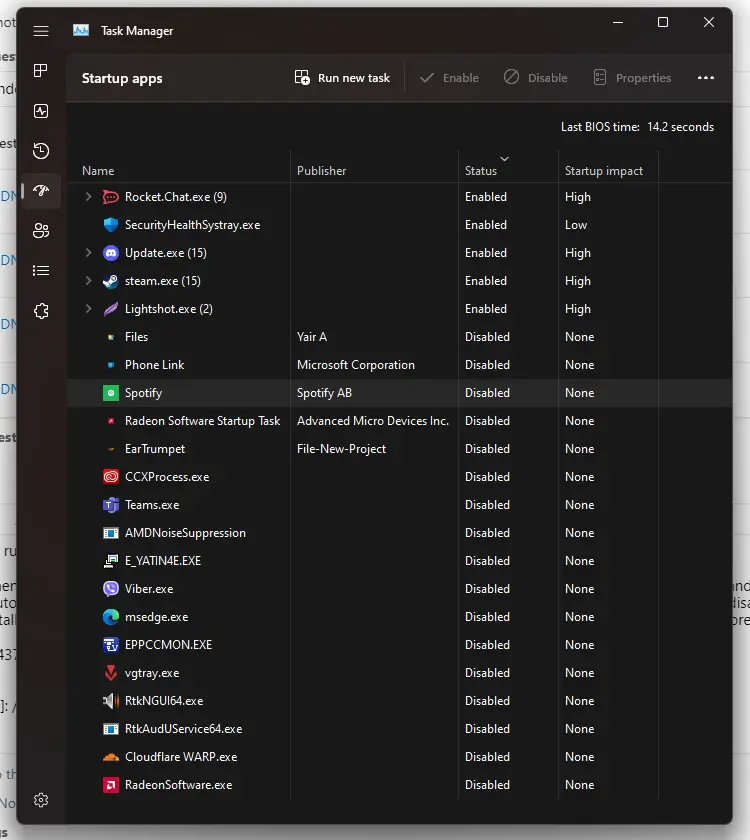
Startup programs load automatically when the computer turns on. Some are useful, but many are not. Too many startup apps slow the boot process. You will notice a delay when the desktop loads.
Controlling startup apps is a simple habit that improves speed. Background apps also consume memory. Cleaning them helps your system run smoothly even when many programs are open.
Steps for managing startup apps
Step 1: Open Task Manager
Go to the Startup tab.
Step 2: Disable non-essential programs
Disable items you do not use at startup. Keep only important ones like antivirus.
Step 3: Check background apps
Turn off apps that run silently and waste memory.
Step 4: Restart the system
You will notice a smoother start after the restart.
This habit takes only a few minutes but gives strong results.
Part 8: Clean Browsers for Smooth Internet Use
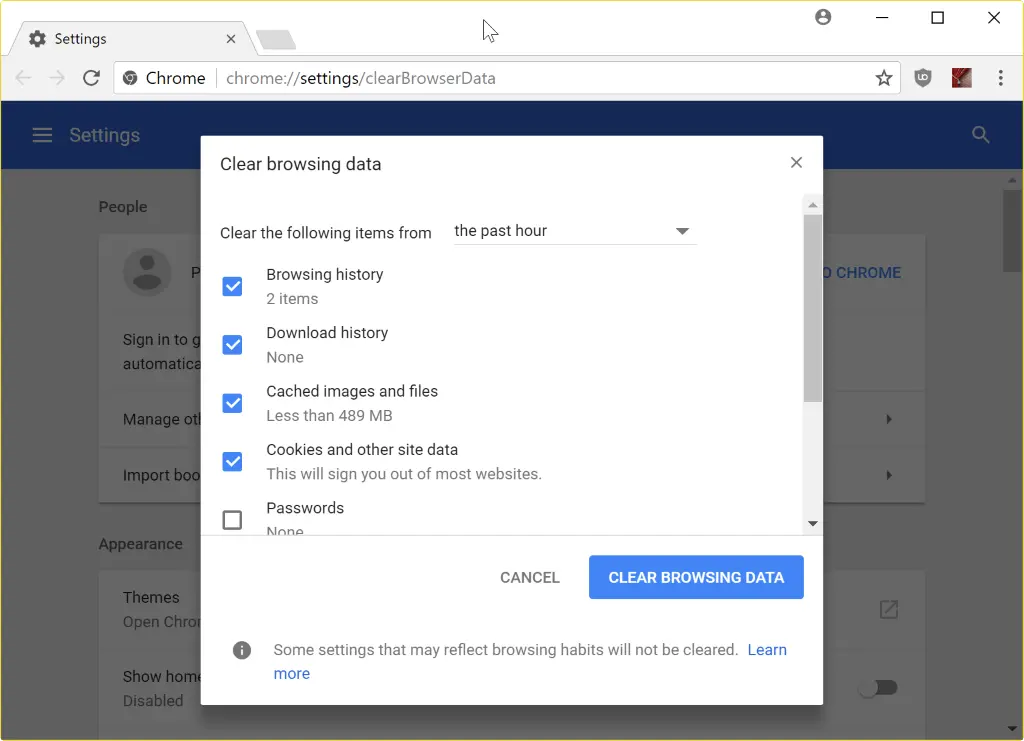
Your browser collects a large amount of data. This includes saved history, cookies, cached pages, videos, forms, and many small items. These items slow down loading speed and sometimes cause websites to break.
A clean browser improves your internet speed. Pages load quicker. Videos play smoothly. You avoid issues caused by outdated cached data.
Steps for cleaning your browser
Step 1: Open the browser menu
Go to the settings or privacy section.
Step 2: Clear browsing data
Select history, cached images, and cookies.
Step 3: Remove unused extensions
Some extensions slow down the browser. Remove the ones you do not need.
Step 4: Reset the browser if needed
A full reset clears deep problems without harming your main files.
Benefits of cleaning your browser
- Faster loading.
- Fewer freezes.
- Improved privacy.
- Less background data usage.
A clean browser helps your computer stay responsive even during heavy browsing hours.
Conclusion
A clean computer runs faster, lasts longer, and protects your work from sudden problems. The habits listed here are simple and easy to follow. They do not require advanced skills or expensive tools. A regular cleaning routine improves speed and keeps your device ready for everyday tasks without stress.
When you clean both the outside and the inside of the system, you build a complete care routine. The computer remains stable, safe, and strong even after years of use. Good habits prevent major breakdowns. They also save money because you avoid unnecessary repairs.
With the right attention at the right time, your computer becomes a reliable partner for work, study, and personal tasks.
FAQs:
1. I am scared that cleaning my computer may delete something important. What should I do?
You can avoid mistakes by removing only items marked as temporary files, cache, or leftover update files. These are safe to delete. Before cleaning, check the list shown by your cleanup tool. If you feel unsure, take a quick backup of your personal folders. This gives you peace of mind while cleaning and keeps your data safe.
2. What will I lose if I ignore cleaning habits for too long?
You may lose speed, storage space, and system health. Dust can raise heat, which shortens the life of the parts. Junk files can slow down apps and cause freezes. Old browser data may expose your privacy. Cleaning on time prevents these problems and keeps your computer in good shape.
3. My computer is getting slower each week. What should I check first?
Start by checking startup apps, browser data, and junk files. These items often cause slowdowns. If the speed does not improve after cleaning, then check storage health, updates, and antivirus results. This helps you find the real cause and fix the issue before it gets worse.
Popular Post
Recent Post

How To Clear Cache Memory On Windows 11/10 [2026]
Learn how to clear cache memory on Windows 11/10 using safe built-in methods to improve speed, free space, and maintain smooth system performance.

Windows Installer Cleanup Utility: Complete Review And Alternatives
Detailed review of Windows Installer Cleanup Utility, reasons for removal, risks, and safer modern alternatives explained clearly.

How To Clean Junk Files On Windows 11/10
Learn how to clean junk files on Windows 11 and 10 using safe, simple steps to boost speed and free storage space effectively.

Clearing App Cache Data on Windows 11/10: Complete Guide
Learn how to safely clear app cache on Windows 11 and 10 to fix slow apps, free disk space, and improve overall system performance.

How To Clean Up System Files On Windows 11/10: Complete Guide
Explore a step-by-step guide explaining how Windows users can safely remove unnecessary system data using built-in tools.

How To Clean a Laptop Fan Without Opening [2026 Guide]
Learn how to clean a laptop fan without opening the device using safe steps, simple tools, and easy methods for better cooling.

How to Clear the Queue in the Printer Automatically in 2026
Learn how to clear the queue in the printer with simple steps. This easy guide explains why print jobs get stuck and how to fix them safely for smooth printing.

How To Clear Delivery Optimization Cache In Windows
Learn how to clear Delivery Optimization Cache in Windows safely and easily. This guide explains steps, precautions, benefits, and FAQs to free space and avoid update issues.

How To Clear Cache in Edge [Windows 11/10]: Latest Guide
Learn how to clear cache in Edge on Windows 11 and Windows 10. Step by step guide with precautions, FAQs, and tips to fix slow pages and errors.

Top 15 Questions About PC Cleaning and Their Answers
Learn safe and simple ways to clean your PC. This guide answers top questions, covers precautions, and gives advanced tips for better PC health and performance.
