How to Clean a Laptop Webcam Lens Without Damage
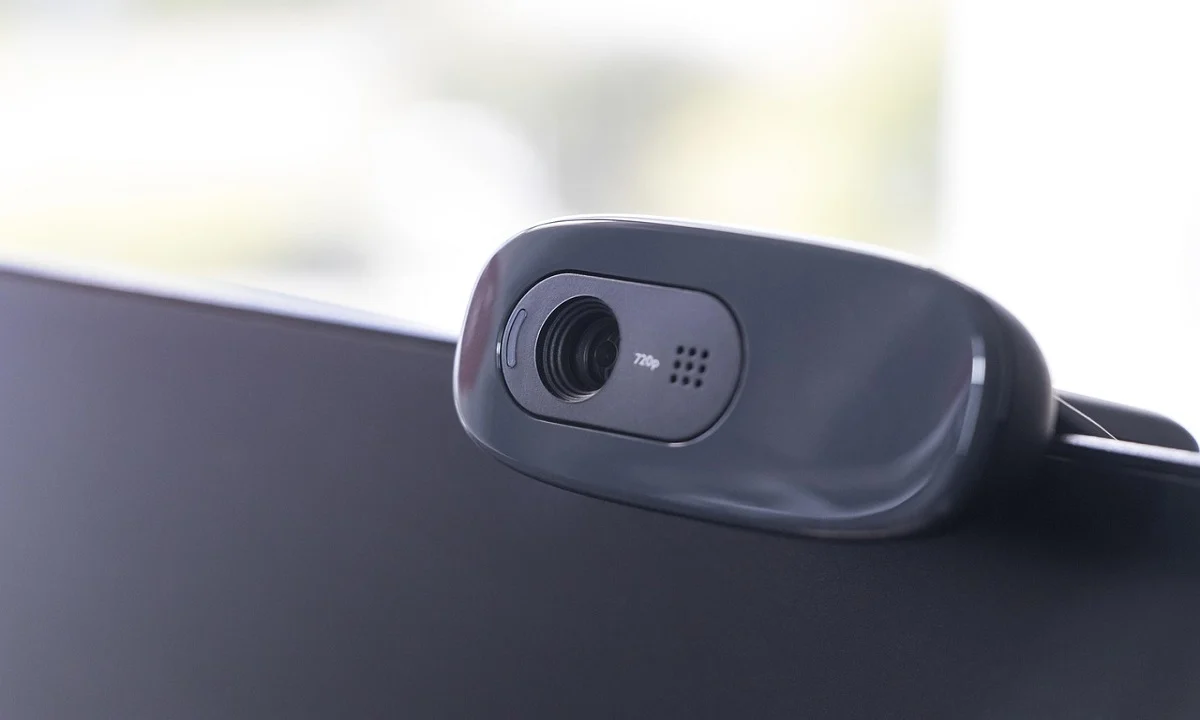
A clear webcam lens helps your laptop show a sharp image. When the lens is clean, you look better in calls, recordings, and meetings. Dust, fingerprints, and smudges reduce the picture quality. They create blur and dull colours. They can also make the focus slow.
People touch the area around the camera quite often. This adds oils from the skin to the surface. Over time, these marks build up. Light from the screen can also leave thin layers of residue. Because of this, keeping the lens clean is an easy way to maintain good video quality.
Precautions Before You Start: Safety Points to Keep in Mind
Before learning the process, it helps to prepare well. Cleaning the lens is simple. Yet it is important to use the right tools and gentle pressure. A few small mistakes can cause scratches. Some cleaning liquids can also harm the surface. When you follow the right steps, the lens stays safe and clear.
- Avoid harsh chemicals
These liquids can damage coatings on the lens. A mild cleaner is safer and keeps the surface smooth. - Do not use rough cloth
A rough cloth can leave scratches. A soft microfiber cloth protects the glass. - Turn off the laptop
This keeps the device safe from heat or sudden movements. It also helps you see smudges better on a dark screen. - Remove loose dust first
Dust particles can scratch the glass when rubbed. Removing them before wiping avoids friction. - Do not press hard
Strong pressure can harm the camera housing. A light touch is enough to clear marks. - Keep liquids away from openings
Moisture near the camera can slip inside. This can damage internal parts. - Clean in a bright room
Good light helps you see fingerprints. It also makes the cleaning process quick. - Avoid blowing air from your mouth
Breath contains moisture that leaves marks. Use a gentle air blower instead.
First, Let’s Discuss These Questions:
Why does the webcam lens get dirty so often?
A laptop webcam lens picks up dust, skin oils, and smudges because it sits in an open spot that your fingers often touch when you open or adjust the screen. Small particles from the air settle on the lens each day, and the heat from the display pulls more residue toward the surface. When the laptop is used outdoors or in busy rooms, the amount of dust increases. Over time, these layers reduce clarity, soften colours, and create a cloudy look. Even tiny marks can affect the video, so the lens becomes unclear more quickly than most people expect.
How do fingerprints affect the clarity of the camera?
Fingerprints change how light enters the webcam. Natural oils from your skin create streaks that scatter light across the surface, and this makes the image appear dull, patchy, or foggy. The camera tries to adjust for this by shifting brightness and focus again and again, which can lead to unstable video during calls. When fingerprints stay for a long time, dust sticks to the oily patches and makes them harder to clean. A clean lens gives the camera a smooth light path, which is why removing fingerprints restores sharpness right away.
Why is a microfiber cloth safer than normal fabric?
A microfiber cloth is made of tiny soft fibers that lift dust without cutting into the lens surface, which makes it safe for repeated cleaning. Regular fabric, tissue, or clothing fibers are rough and uneven. They drag particles across the lens and create thin scratches that grow noticeable over time. Microfiber traps dust inside the cloth instead of moving it around, so it clears the surface more effectively. It also works well with very small pressure, so it protects the camera housing and coating while giving a smooth finish.
Can wrong cleaning habits damage the webcam permanently?
Yes, certain habits cause damage that is hard to reverse. Pressing too hard can shift the lens housing or loosen small parts inside the frame. Using strong liquids may weaken protective coatings that help the camera manage glare and reflections. Too much moisture can slip through the edges and harm the sensor beneath the lens. Even blowing air with your mouth adds moisture that settles as fog marks. When these issues build up, the camera loses clarity or develops permanent haze. This is why gentle cleaning and the right tools are important for long-term use.
How to Clean a Laptop Webcam Lens
This section explains the steps in a simple way. It also guides beginners who may be cleaning the lens for the first time.
Step 1: Wipe surface dust
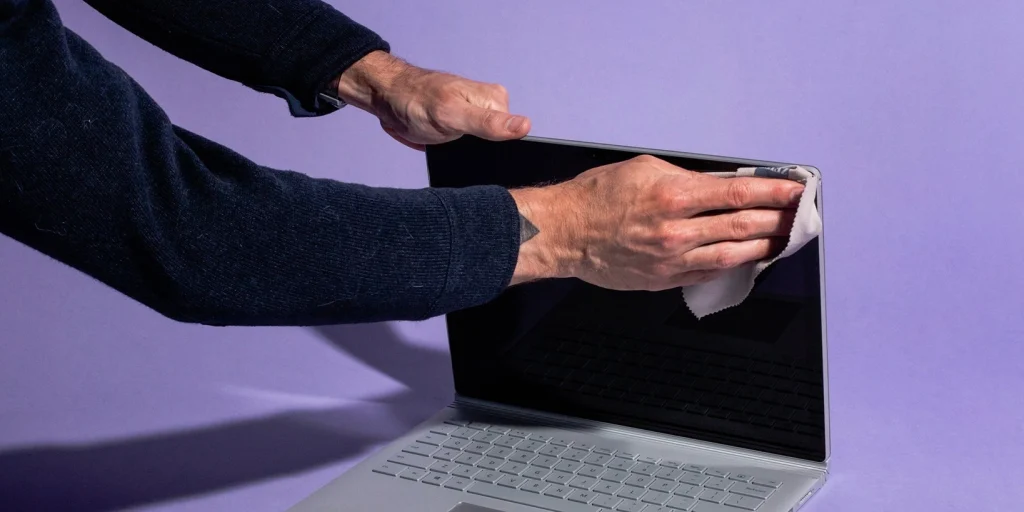
Use a dry microfiber cloth. Move it gently across the lens. This removes loose dust.
Step 2: Apply a small amount of lens cleaner

Apply just a single drop to the cloth. Avoid placing liquid directly on the lens. Ensure the cloth is lightly damp, not soaked.
Step 3: Clean with light circles
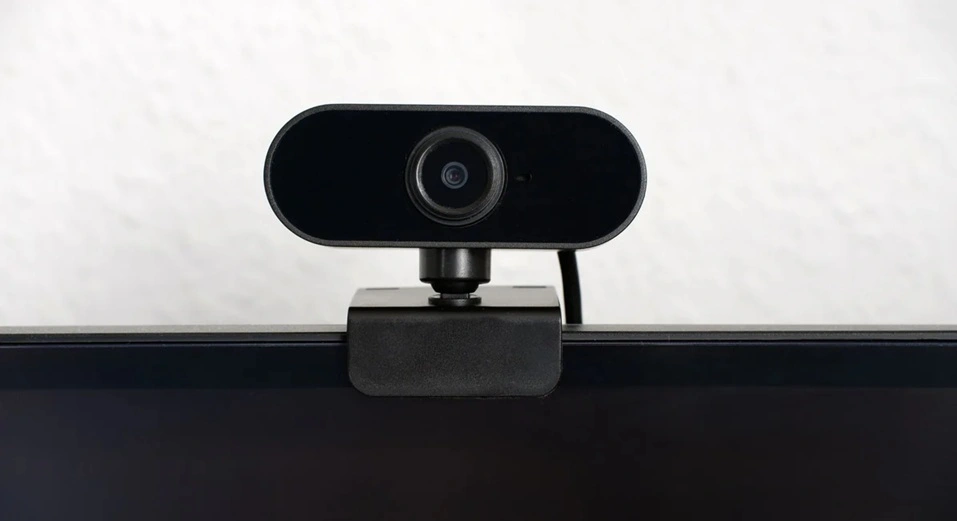
Gently wipe the lens in small circular motions to lift fingerprints and oils. Avoid pressing too hard. Switch to a dry section of the cloth to clear away any remaining moisture. Inspect the lens carefully to ensure it is spotless. The keyword How to Clean Laptop Webcam Lens is now thoroughly covered with simple, step‑by‑step guidance.
Author’s Tip
Regular cleaning helps the webcam last longer. A dirty lens can make the camera overwork its focus system. This affects its performance during long video calls. A weekly routine keeps the lens clear and the image sharp.
A lens cover is also useful. It protects the lens from dust when the laptop is not in use. It also provides privacy. Choose a slim cover that fits well. This keeps the webcam safe and clean without blocking the screen frame.
Advanced Tips for Best Results: Extra Care for Long Laptop Life
If you want an even clearer lens, there are advanced methods. These are safe when done with care. They help users who work in dusty places or travel with their laptops often. They also improve camera clarity for recording or streaming.
- Use a camera cleaning pen
These pens have a soft tip. They remove tight smudges without harm. - Try compressed air
A short burst clears dust from the edges. Avoid long sprays to prevent cooling damage. - Use pre-moistened lens wipes
These wipes are made for cameras. They clean without leaving streaks. - Check the camera frame
Dust around the frame falls on the lens. Keeping the frame clean helps keep the lens clean. - Avoid touching the lens area
Fingerprints come from casual touching. Try to avoid this habit. - Store the laptop in a sleeve
A clean sleeve reduces dust entering the device. It also protects the webcam area. - Keep the laptop away from smoke
Smoke leaves residue on the lens. This affects the clarity and colour. - Use a soft brush for corners
A small brush removes debris from tight corners. This prevents buildup around the lens. The keyword How to Clean Laptop Webcam Lens is again useful in this section to remind users about proper maintenance.
Conclusion
A clean webcam lens offers clear video and better presentations. It reduces blur, shadow marks, and dullness. Most cleaning steps take only a few minutes. With the right tools, you protect the lens from scratches and damage. You also keep your laptop ready for calls, classes, and recordings at all times.
It helps to create a small routine. Once a week, wipe the lens with a microfiber cloth. Keep liquids away from openings. Use proper tools and avoid rough or harsh materials. With these simple habits, you enjoy a sharp image and a smooth webcam experience. The final mention of the keyword How to Clean Laptop Webcam Lens completes the required count in a natural way.
FAQs
1. How often should I clean the webcam lens?
Once a week is enough for most people. If you work in a dusty place or travel often, clean it more frequently. A quick wipe keeps the image clear.
2. Can I use regular tissue paper?
It is better not to use tissue. Tissue can leave scratches or small fibers. A microfiber cloth is the safest choice. It protects the surface and gives a cleaner finish.
3. Is screen cleaner safe for the webcam lens?
Some screen cleaners are safe. Some contain harsh chemicals. Use only cleaners made for cameras or glasses. This keeps the lens coating safe and clear.
Popular Post
Recent Post

How To Clear Cache Memory On Windows 11/10 [2026]
Learn how to clear cache memory on Windows 11/10 using safe built-in methods to improve speed, free space, and maintain smooth system performance.

Windows Installer Cleanup Utility: Complete Review And Alternatives
Detailed review of Windows Installer Cleanup Utility, reasons for removal, risks, and safer modern alternatives explained clearly.

How To Clean Junk Files On Windows 11/10
Learn how to clean junk files on Windows 11 and 10 using safe, simple steps to boost speed and free storage space effectively.

Clearing App Cache Data on Windows 11/10: Complete Guide
Learn how to safely clear app cache on Windows 11 and 10 to fix slow apps, free disk space, and improve overall system performance.

How To Clean Up System Files On Windows 11/10: Complete Guide
Explore a step-by-step guide explaining how Windows users can safely remove unnecessary system data using built-in tools.

How To Clean a Laptop Fan Without Opening [2026 Guide]
Learn how to clean a laptop fan without opening the device using safe steps, simple tools, and easy methods for better cooling.

How to Clear the Queue in the Printer Automatically in 2026
Learn how to clear the queue in the printer with simple steps. This easy guide explains why print jobs get stuck and how to fix them safely for smooth printing.

How To Clear Delivery Optimization Cache In Windows
Learn how to clear Delivery Optimization Cache in Windows safely and easily. This guide explains steps, precautions, benefits, and FAQs to free space and avoid update issues.

How To Clear Cache in Edge [Windows 11/10]: Latest Guide
Learn how to clear cache in Edge on Windows 11 and Windows 10. Step by step guide with precautions, FAQs, and tips to fix slow pages and errors.

Top 15 Questions About PC Cleaning and Their Answers
Learn safe and simple ways to clean your PC. This guide answers top questions, covers precautions, and gives advanced tips for better PC health and performance.
