How To Clean the Speakers of Your PC or Laptop
Speakers gather dust over time. Small bits of dirt settle into the grill and weaken the sound. When this happens, voices lose clarity. Music loses depth. Even small system alerts do not sound as sharp as before. A simple cleaning routine can help bring back the lost tone.
Many people avoid touching their speakers because they fear damage. The task is safe when you use the right method. You do not need special tools. You only need gentle care. A short cleaning session now and then will keep your sound bright and steady.
Precautions: Safety First Before You Start Cleaning Speakers
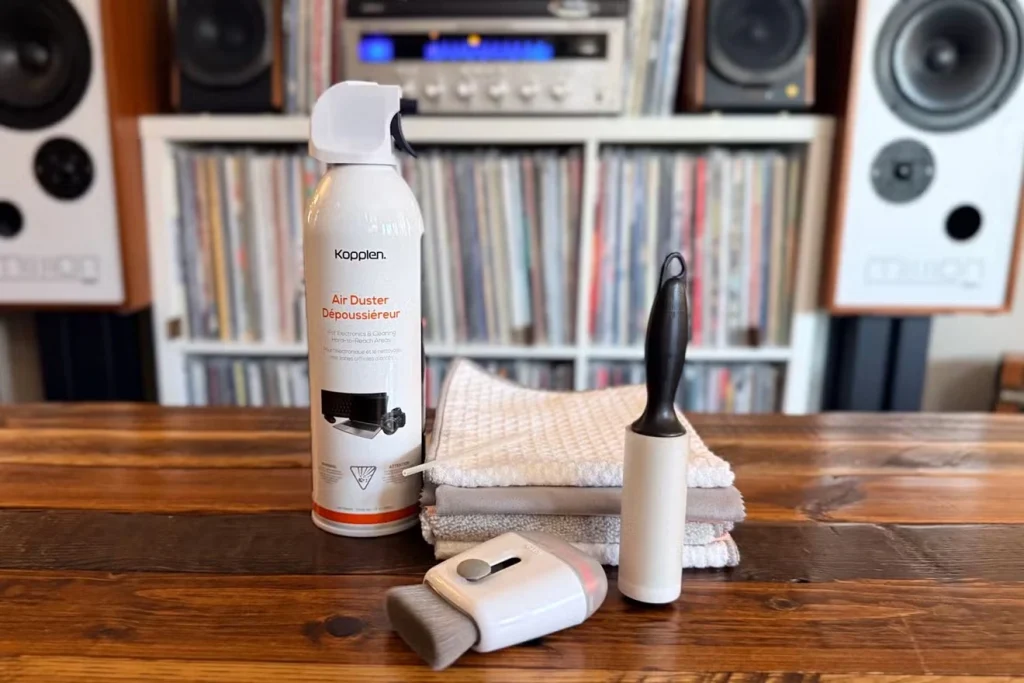
Cleaning speakers looks simple, but you should still take care. A brief check of a few basic points helps prevent harm to the device. This also keeps your work smooth and stress-free.
- Turn off the device
Shut down the computer. Pull the plug if the speakers are external. This prevents short circuits when you move cloth over the surface. - Unplug all cables
Loose cables can snap or pull during cleaning. Remove power cables and audio cables. This keeps the area clear. - Use a soft cloth only
Rough cloth can scratch the surface of the speaker grill. A cotton cloth or microfiber cloth works well. - Keep water away
Moisture can slip through small holes in the grill. Do not spray water on the speaker. If you need moisture, use a lightly damp cloth. - Avoid strong cleaners
Chemical cleaners can weaken the finish and harm the inner parts. Stick to mild cleaning methods. - Move with light pressure
Pressing too hard can push dust deeper into the grill. Light, steady strokes pull dust out. - Do not use pins
Sharp items can poke holes in the grill. They can also tear the mesh. - Work in a bright place
Good light helps you see the dust. You can clean better and avoid mistakes.
Before You Start, First Know The Answers To These Questions:
1. Why do speakers collect dust so fast
Speakers pull air in small bursts when sound plays. Even though the movement is tiny, it often attracts dust. This dust rests on the outer grill. Over time, it builds layers. Rooms with fans or open windows allow more dirt to move around. Laptops gather dust faster because the lower space near the keyboard traps dirt that later shifts toward the speakers. When you ignore this buildup, it changes the airflow. This reduces sound quality and makes the output feel dull. Regular cleaning helps stop this slow drop in sound performance.
2. Can dust damage the inside of the speaker
Dust sitting outside is not harmful at first. Problems begin when too much dust pushes past the grill. Speakers have delicate cones. These cones vibrate to form sound. If dust layers grow thick, the cones do not move the way they should. This weakens sharp tones. In rare cases, if dust mixes with moisture, the mix becomes sticky. This sticky layer can block vibration. Long months of neglect can create this issue. A simple cleaning habit every week or two keeps the inside safe from harm.
3. Should you use compressed air on small laptop speakers
Compressed air is strong. When used at full force, it can push dust deeper instead of bringing it out. It can also strain the thin mesh on many laptops. A short burst from a safe distance works fine for large desktop speakers, but laptop grills are smaller. They need careful handling. If you must use compressed air, keep the nozzle far and use it in short puffs. Most users can skip compressed air completely and still get good results from gentle dusting.
4. How often should you clean speakers
This depends on your room. If you have a fan running most of the time or if your window stays open, dust collects faster. A light dusting once a week keeps things fresh. A deeper clean once a month is usually enough for indoor spaces. Gamers or office workers who sit close to the screen may notice dust sooner and may prefer more frequent cleaning. A steady routine prevents buildup and saves you from hard scrubbing later.
How To Clean the Speakers of Your PC or Laptop
Cleaning the speakers is a simple task. It does not need advanced skill. You only need patience and a soft hand. The aim is to clear the grill without forcing dust inside.
Tip 1: Use a Dry Microfiber Cloth
Benefit
A microfiber cloth pulls dust without leaving marks. It holds fine dirt in its fibers, so the grill clears faster. This method is safe for all speaker types and ideal for quick daily upkeep.
- Step 1: Fold the cloth neatly.
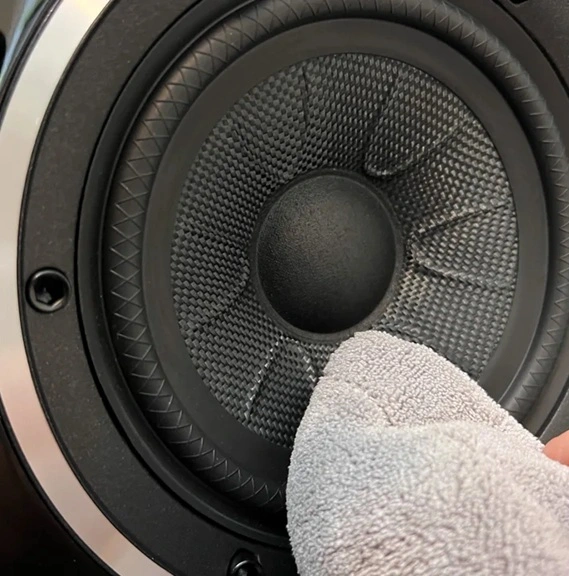
Step 2: Wipe the grill in small, slow circles.
Tip 2: Try a Soft Brush
Benefit
A soft brush reaches inside the tiny holes of the grill. It lifts settled dust that cloth alone cannot catch. The brush moves lightly, so the mesh stays safe.
- Step 1: Pick a clean, soft makeup brush or paintbrush.
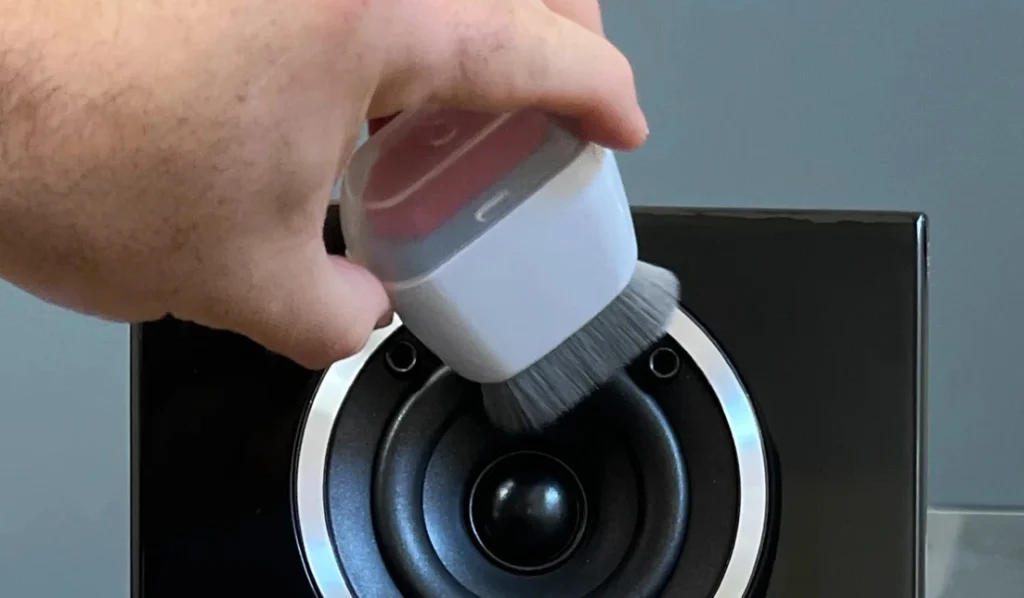
- Step 2: Sweep across the grill with gentle strokes.
Tip 3: Use a Lightly Damp Cloth for Stubborn Dirt
Benefit
Moisture helps loosen sticky layers that dry dusting cannot remove. A small amount of water softens dirt so it lifts easily. This refreshes the grill without rough scrubbing.
- Step 1: Dampen one corner of the cloth with plain water.
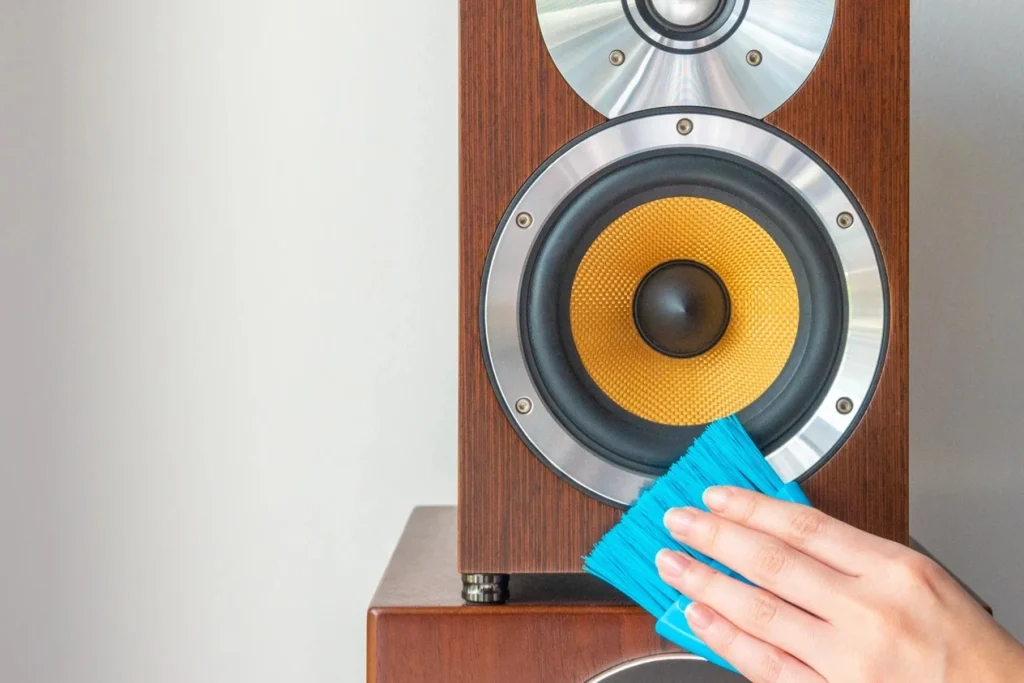
- Step 2: Tap the grill gently and lift dirt little by little.
Tip 4: Clean the Frame Around the Speaker
Benefit
Dust settles on the frame and moves inward over time. Keeping the outer frame clean prevents future buildup on the grill. It also gives the speaker a neat look.
- Step 1: Wipe the edges of the speaker area.
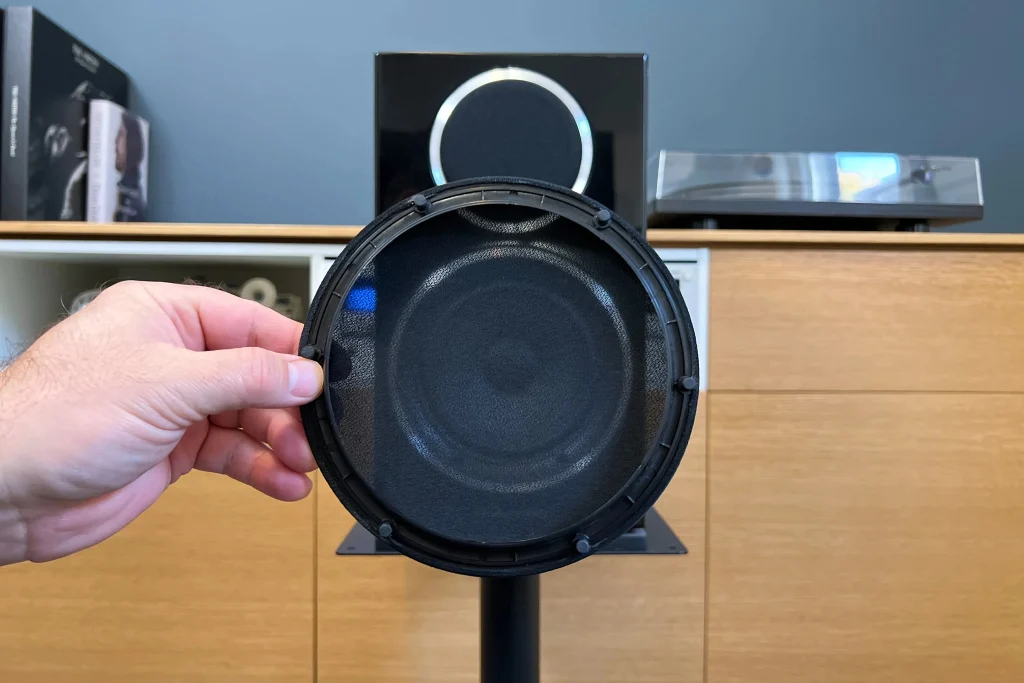
- Step 2: Check corners and lift hidden dirt.
Tip 5: Clean Headphones and Audio Ports
Benefit
Ports collect dust that travels toward internal circuits. Cleaning them keeps sound paths clear. It also prevents loose connections and muffled audio.
- Step 1: Insert a clean cotton swab into the port.
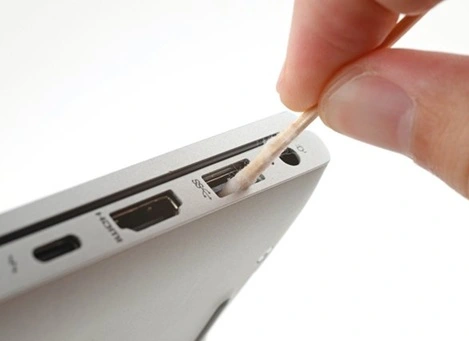
- Step 2: Rotate the swab gently and lift dirt.
Tip 6: Clean External Speaker Stands or Bases
Benefit
Dust gathers on the stands and rises toward the grill. Cleaning the base stops dust from traveling upward. It also helps the speaker stay steady.
- Step 1: Lift the speaker carefully.
- Step 2: Wipe the stand or base.
Author’s Tip
A good habit is to keep the area around your computer clean. Dust on tables and shelves always rises toward speakers. A quick wipe of the desk once a day keeps that dust under control. A small step like this keeps your speakers fresh for long hours of work or play.
Another helpful habit is to avoid eating near the device. Small crumbs can fall through gaps and bounce into the speaker area. Even light snacks leave fine debris. Keeping food away from your computer protects both the speaker grill and the ports.
Advanced Tips: For Users Who Want Deeper Care
Some people enjoy taking speaker care a bit further. These points help you reach a higher level of upkeep without special tools. They work well for both laptops and desktops.
- Use a handheld vacuum with a brush tip
A small handheld vacuum set to low power can help remove dust around the speaker edges. The brush tip keeps the suction soft. - Remove detachable grills on external speakers
Some desktop speakers have removable grills. If yours do, lift them carefully and wipe the inside section. - Clean vents near the speaker
Vents help airflow. Dirt builds up in these spaces and later travels toward the speaker. Keeping vents clean helps sound performance. - Use an anti-static cloth
This type of cloth reduces dust cling. It helps keep the grill cleaner for a longer time. - Store external speakers away from the floor
Floor-level spaces have more dust. Raising speakers even a little helps reduce buildup. - Cover speakers when not in use
A simple cloth cover protects the grill from open-air dust. This is useful in bedrooms or open rooms. - Check cables for dust
Dust gathers on cables and later slides toward ports. A clean cable keeps the whole area tidy. - Clean the filters of the air conditioners in the room
Dirty room filters push dust into the air. Clean filters keep the area around your computer cleaner.
Conclusion
Speaker cleaning does not take long, but it has a strong effect on sound. Dust blocks the free movement of air. When you clean the grill, you remove that barrier. The result is a clearer tone. This helps with calls, music, games, and simple daily tasks.
A steady routine helps your device stay fresh. You do not need strong sprays or special tools. You only need care. With this habit, your speakers will last longer and work at their full strength.
FAQs
1. Will cleaning improve the volume
Cleaning does not raise electronic volume. It clears the path for sound. When dust lifts off, the sound feels brighter and more open. This can feel like a mild boost in loudness.
2. Can I use alcohol wipes
Alcohol wipes are strong for speaker grills. They may dry the surface too much. Only use them on surrounding plastic parts. Keep them away from the mesh.
3. Why does my laptop sound muffled even after cleaning
If the sound stays dull, the problem may be inside the device. Software settings, audio drivers or damaged cones may cause it. Cleaning only helps when dust is the main cause.

Author Bio:
Dinesh Lakhwani, the entrepreneurial brain behind “TechCommuters,” achieved big things in the tech world. He started the company to make smart and user-friendly tech solutions. Thanks to his sharp thinking, focus on quality and the motto of never giving up, TechCommuters became a top player in the industry. His commitment to excellence has propelled the company to a leading position in the industry.
Popular Post






Recent Post

Total PC Cleaner: Clean Disk, Antivirus for Windows (An Honest Review)
Simply type “PC cleaner” into the Microsoft Store search box and a long list appears. Well, yes! The icons look alike. The names overlap, and almost every description promises a faster, cleaner, safer computer. Many also use the word antivirus, which adds to the confusion. Total PC Cleaner: Clean Disk, Antivirus is one of the […]
PrivaZer PC Cleaning Tool: An In-Depth Review
Deleting a file in Windows does less than most people think. The system removes the file’s entry from its index and marks the space as free. The actual data often stays on the disk until something else overwrites it. That is why recovery tools can bring back files long after they were deleted. Files are […]
Windows Disk Cleanup Review: Features, Steps, and Real Results
Storage space does not disappear overnight. Tiny pieces of data accumulate little by little while Windows performs routine tasks. Old update files, temporary program data, and other unused items often remain saved on the drive. Eventually, these forgotten files can take up room that could be used for something more important. Disk Cleanup is a […]

JetClean Junk File Cleaner and PC Cleaning Tool: A Complete Review
Heads up before you read further: JetClean (made by BlueSprig) is discontinued. Its last version dates to 2016, and several listings say the official download is gone. Let’s begin our review article! Few Windows utilities stay in circulation for more than a decade without a major update. JetClean is one of them. The tool first […]

Defencebyte Computer Optimizer: An In-Depth Review
Slow startup, delayed app launches, and freezing windows are among the most common complaints from Windows users. In many cases, the cause is not failing hardware. It is the gradual buildup of leftover data. Uninstalled programs leave registry entries behind. Temporary files and logs collect in system folders. Broken file paths and unused extensions stay […]

Windows Storage Sense For PC Cleaning: Everything You Need To Know
The low disk space warning always shows up at the worst time. A big update is waiting to install. A file refuses to save. The storage bar in Settings has turned red, and nobody remembers what filled it. Most people react by hunting for a cleaner to download. Many never notice that Windows already has […]

EaseUS CleanGenius Reviewed: Features, Pricing, and Real Results
Nobody notices the first temporary file. Nobody notices the hundredth either. Then one day the drive is almost full, the browser drags, and Windows takes ages to start. Clutter builds in quiet ways. Installers leave leftovers. Browsers store cache and cookies. Apps write logs that nobody reads. Programs add themselves to startup without asking. None […]

Advanced SystemCare: Tool To Clean Your PC [Complete Review]
The first thing I notice is how the startup screen hangs. The fan kicks in fast and stays loud. If I open a simple folder, the whole system pauses for a moment. It does not look like a clear hard failure, yet the PC feels heavy and slow. This is not usually one big problem. […]

CCleaner PC Cleaning Tool: An In-Depth Review
Learn how to clean your PC with CCleaner. This complete guide covers features, step-by-step instructions, pros, cons, pricing, and FAQs to help you decide.

Avira PC Speed Up Tool: Is It Actually Worth It?
A fresh Windows install feels like a different world. Isn’t it? Everything opens fast. Menus snap into place. Then a year passes, sometimes less, and that same machine starts to feel heavy for no clear reason. Nothing dramatic happened. No single event caused it. It was just months of small leftovers stacking up quietly in […]
