PC Cleaning Tips For Beginners and Advanced Users In 2026
Computers are trusted daily for work, study, gaming, and casual browsing. While a machine often runs smoothly on its own, dust and clutter gradually weaken performance. This decline is easy to overlook because the system continues to function, yet its strength and speed diminish over time.
A clean device feels lighter, more responsive, handles demanding tasks without strain, and remains cool for extended periods.
A simple routine built on steady habits can safeguard any computer with minimal effort. These habits create the foundation of reliable maintenance and reinforce the practical methods outlined in this guide, including detailed PC Cleaning Tips suitable for users at every level.
Before You Start, First Know The Answer To These Questions:
1. Why does dust affect performance?
Dust builds up in corners where you cannot see it. As the dust grows, airflow becomes weak. When little air passes through the case, heat stays trapped inside. The processor and graphics card try to protect themselves by slowing their own speed, which leads to lag. Heat also dries thermal paste and gums up cooling fins. Over time, the machine becomes noisy and warm. A simple cleaning clears the airflow, cools the parts, and restores normal speed. This natural balance is why dust removal matters more than most people realize.
2. How often should a computer be cleaned?
Some homes collect dust faster than others. A house near a busy road or an open window gathers dust every day. If your computer sits on the floor, it draws dust even faster. A light cleaning every two to three months keeps things healthy. If you use pets or keep the device in a warm room, monthly cleaning works better. A deep internal cleaning twice a year protects the device for long term use. Consistency is the main rule. Small cleanings done often are far better than a large cleaning done once a year.
3. Does cleaning improve speed?
Cleaning improves speed by lowering heat. When the system stays cool, it uses its full power without slowing down. Dust removal helps fans turn freely. Better fan movement means strong airflow, and strong airflow means fast performance. Cleaning also frees storage space. Temporary files fill the drive and make programs load slowly. Removing them gives room for new data and helps the system find files faster. Together, these changes make the computer feel fresh without spending money on new hardware.
4. Is it safe for beginners to clean a PC?
It is safe as long as beginners follow a few careful steps. Start with easy areas such as the screen, case vents, and keyboard. These areas do not require opening the case. After gaining confidence, beginners can clean inside the case and the fans. Move slowly. Do not use force. If something feels stuck, check again. Many people learn that cleaning is easier than they expected. With the right habits, even first-time users can care for their device without fear.
Precautions
Important Safety Points Before You Start
- Shut down the computer
Turn off the system fully and disconnect the power line. This prevents shocks and stops the fans from spinning during cleaning. - Ground yourself to avoid static
Static can damage delicate parts. Touch a metal surface, or use a grounding strap if you have one. - Use soft cleaning tools
A gentle cloth and a soft brush are enough for most jobs. Hard cloths or rough brushes can scratch plastic and metal. - Stay away from strong cleaners
Strong chemicals leave marks on screens and surfaces. Choose mild cleaners made for electronics. - Do not spray liquid on the device
Spray only on the cloth. Let the cloth stay slightly damp, not wet. Water inside ports can cause short circuits. - Hold fans still when cleaning
A spinning fan can break if pushed too fast. Hold it in place while you spray short bursts of air around the blades. - Check cable placement before closing the case
Loose wires inside the case can block airflow. Check that each wire lies safely and does not touch the fan. - Store screws in one place
Small screws are easy to lose. Keep a bowl on your desk to store every screw you remove.
PC Cleaning Tips For Beginners and Advanced Users
A clean computer works longer, stays cool, and gives better performance. Many people believe cleaning is a technical task, yet most steps are simple. Even advanced users follow the same basic habits because these habits protect every part of the system.
The following methods cover external cleaning, internal cleaning, software cleanup, cable care, and airflow management. Each tip includes a short introduction and two easy steps so beginners can follow without confusion.
Tip 1. Clean the case vents
The vents help the system breathe. When these vents fill with dust, the fans must work harder. Strong fan activity increases noise and heat. Once the vents are clear, the temperature drops and the fans calm down. This also protects internal components.
Two steps
Step 1. Brush the vent edges with a soft brush.
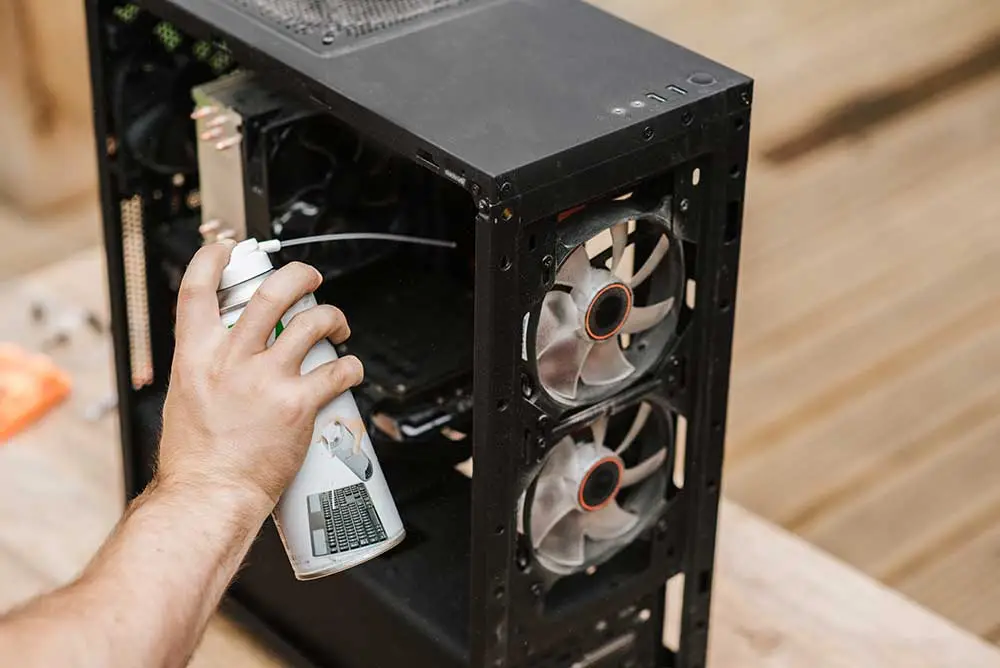
Step 2. Spray short bursts of compressed air from a safe distance.
Read This Complete Guide on Cleaning Fans
Tip 2. Wipe the screen
A clear screen makes text and images sharp. Stains and fingerprints cause glare and strain your eyes. Regular cleaning keeps the screen pleasant and safe for long hours of work.
Two steps
Step 1. Use a dry microfiber cloth on the dark screen.
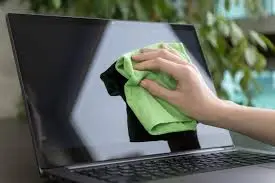
Step 2. Use a small amount of screen cleaner on the cloth and wipe gently.
Read This Complete Guide On Cleaning Screen
Tip 3. Organize the desktop
A crowded desktop slows startup time. A neat desktop makes navigation easier. Many users feel more focused when their desktop looks tidy.
Two steps
Step 1. Move saved items to named folders.
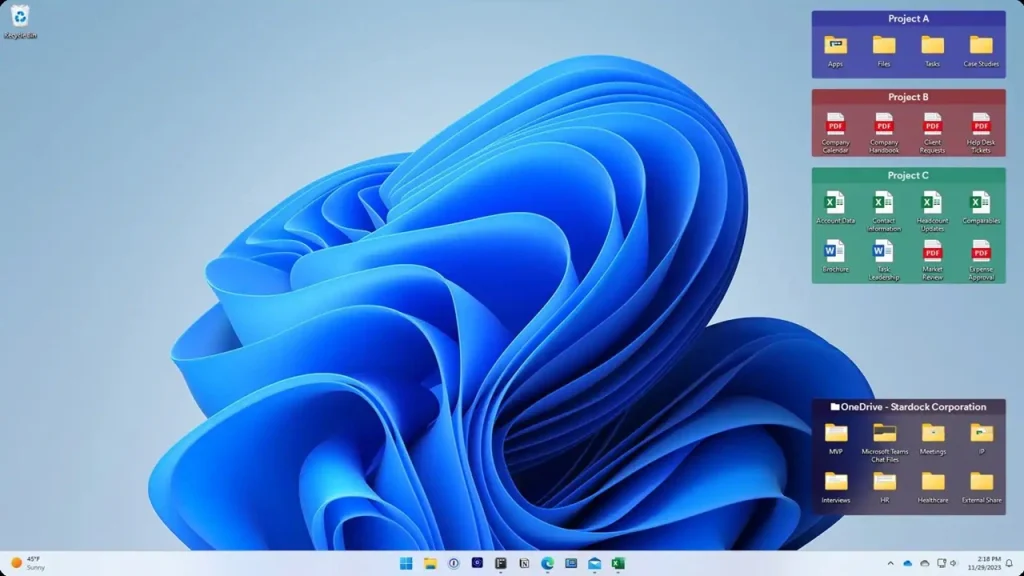
Step 2. Remove unused shortcuts and files.
Read This Complete Guide On Cleaning Desktop
Tip 4. Remove temporary files
Temporary files take up space. When too many pile up, the system struggles. Clearing them frees storage and improves speed.
Two steps
Step 1. Press Windows + R to open the Run dialog. Type %temp% and press Enter. This opens the temporary files folder.
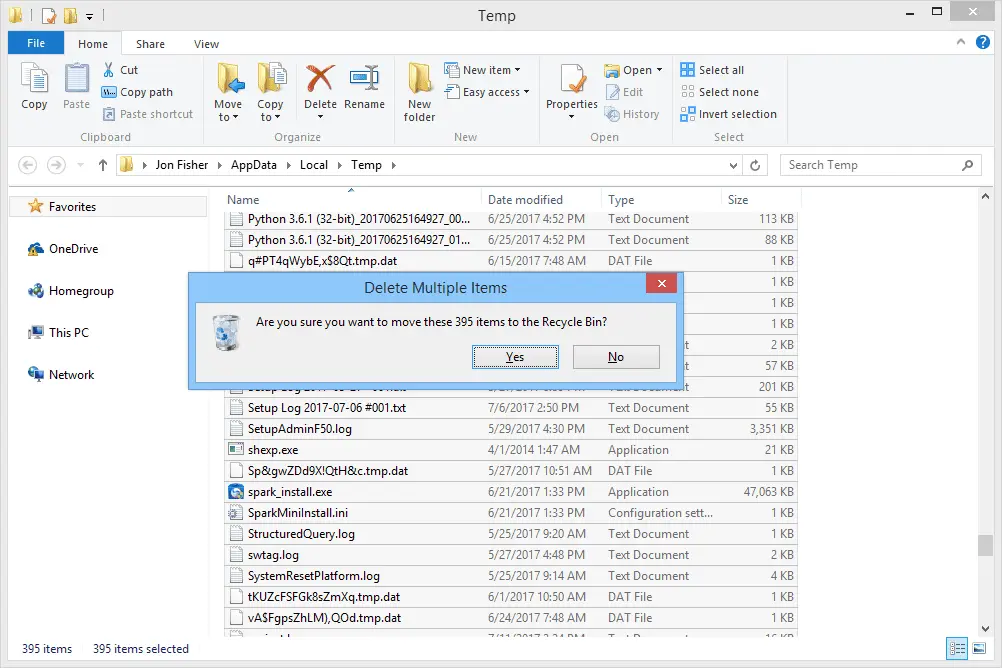
Step 2. Select all items (Ctrl + A). Press Delete on the keyboard. Confirm if prompted.
Read This Complete Guide On Cleaning Temp Files
Tip 5. Check cables and ports
Dust in ports affects charging and data transfer. Loose cables also cause random errors. A short check helps avoid these issues.
Two steps
Step 1. Unplug and inspect each cable.
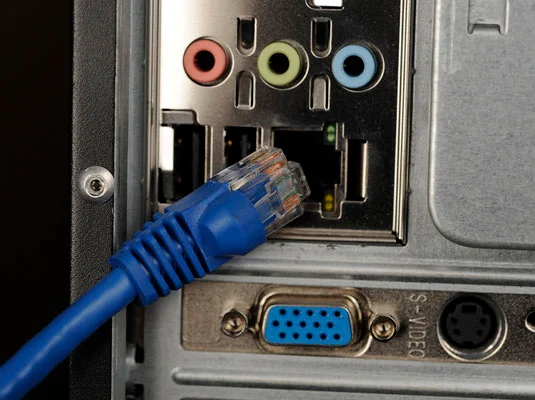
Step 2. Use a dry cotton swab to clean port edges.
Read This Complete Guide on Cleaning Ports
Tip 6. Clean the keyboard
Keyboards collect dust, hair, and crumbs. This affects typing comfort. A regular cleaning session keeps the keys responsive.
Two steps
Step 1. Turn the keyboard upside down and tap lightly.
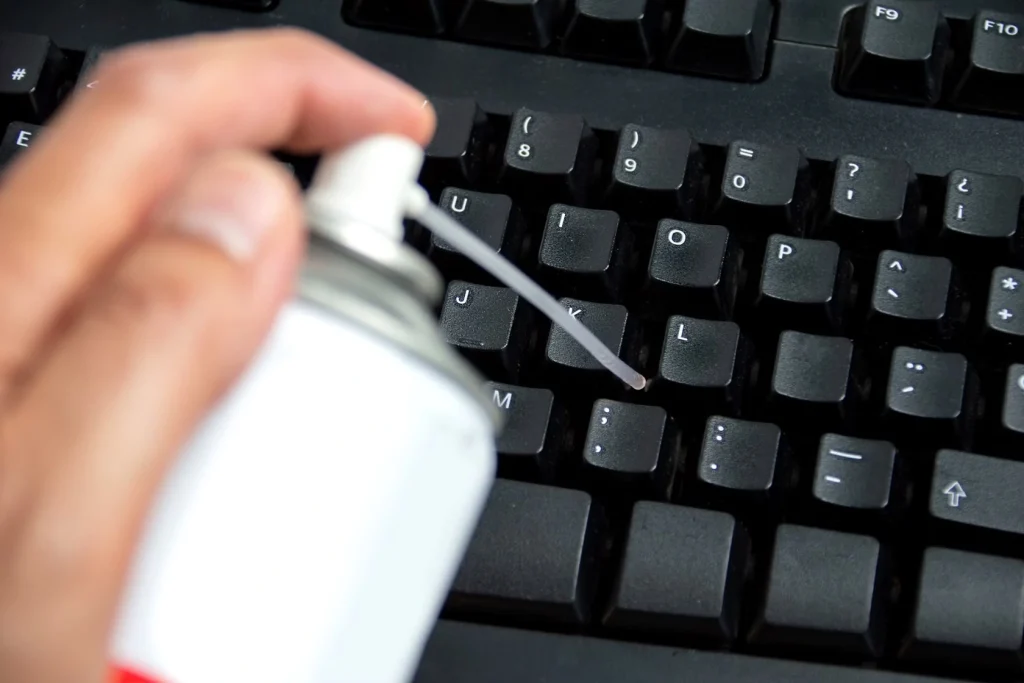
Step 2. Spray compressed air between the keys.
Read This Complete Guide on Cleaning Keyboards
Tip 7. Update installed programs
Old software files linger and create clutter. Updates keep programs stable and secure. Removing unused software clears space and reduces conflict.
Two steps
Step 1. Check for updates in each program.
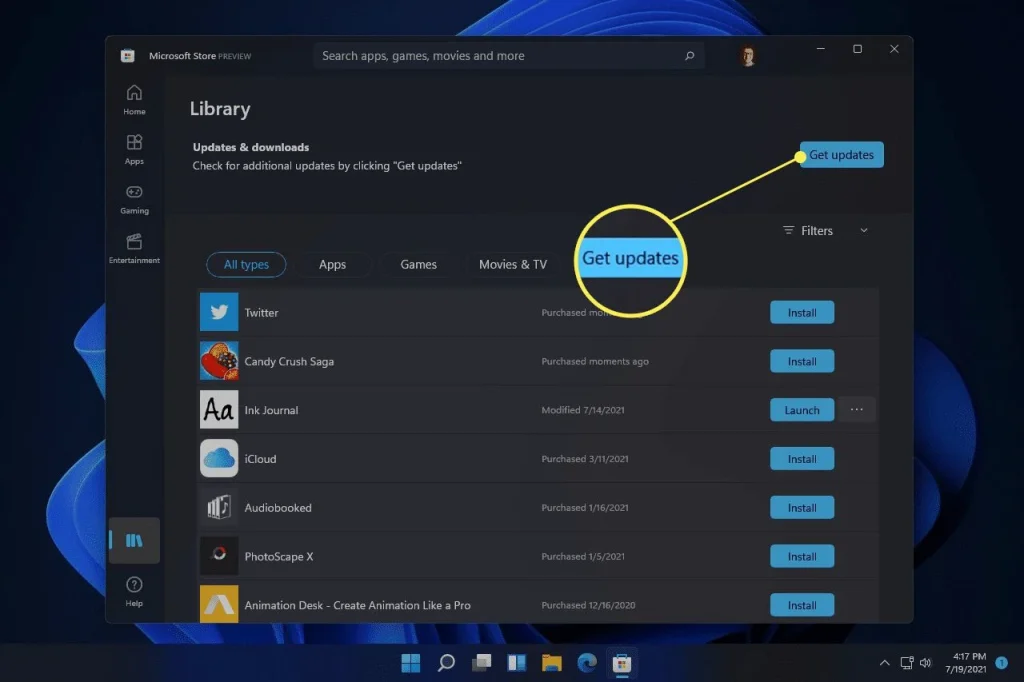
Step 2. Remove programs you no longer use.
Author’s Tip
Cleaning computers effectively requires patience. Rushing often leads to mistakes, while a steady pace allows attention to small details such as loose screws, dusty corners, or misplaced wires. These details are important because they influence airflow and overall stability. Gentle care helps protect systems from long-term damage. Expensive tools are rarely necessary; a soft brush, a cloth, and compressed air are sufficient for most cleaning tasks.
Planning the work is equally valuable. Decide which components need attention before starting. Arrange tools neatly on the desk and create a clear path between the chair and the system to ensure easy access.
Organized preparation reduces stress, prevents misplaced screws, and keeps the process smooth. This simple discipline turns each cleaning session into a more efficient and reliable routine.
Advanced Tips
Extra Steps For Experienced Users
- Deep-clean the CPU cooler
Remove the cooler and brush the metal fins. Dust on the fins blocks heat from leaving the processor. - Reapply thermal paste
Old paste dries out. Fresh paste improves heat transfer and helps the processor stay cool. - Clean the power supply vents
The power supply gathers dust at the back. Clearing these vents helps steady power delivery. - Manage startup programs
Some programs run at startup without a need. Removing them reduces boot time and frees memory. - Adjust fan curves
Fan curves control speed at different temperatures. Adjusting them improves cooling and reduces noise. - Replace old fans
Fans weaken with age. New fans give smoother airflow and help reduce heat. - Clean the graphics card shroud
The graphics card collects dust near its cooling area. Cleaning helps it maintain stable performance. - Plan airflow with intake and exhaust fans
Place fans in a pattern that guides air from front to back. This improves cooling and prevents heat pockets inside the case.
Conclusion
A well-cleaned computer lasts years longer than a neglected one. Regular care reduces heat, noise, and sudden errors. Even simple routines create a big difference. Many users believe cleaning requires skill, yet most tasks are easy. The right steps protect the device without special tools or technical training.
Both beginners and advanced users benefit from steady habits. A calm approach and regular maintenance prevent major problems. The system feels smooth, quiet, and strong. With patience and proper care, your computer serves you with reliable performance every day. This is the value behind thoughtful PC Cleaning Tips that guide both new and experienced users.
FAQs
Why is airflow important
Airflow removes heat from the case. When heat leaves the system, parts stay stable and run efficiently. Poor airflow forces the components to slow down, which leads to lag.
How do I know if my PC needs cleaning
If you hear louder fans, feel warm surfaces, or notice slow performance, it may be time to clean the device. Dust near vents is also a clear sign.
Can cleaning reduce noise
Yes. Dust makes fans spin harder. Once the dust is gone, the fans calm down and stay quieter during long sessions.

Author Bio:
Dinesh Lakhwani, the entrepreneurial brain behind “TechCommuters,” achieved big things in the tech world. He started the company to make smart and user-friendly tech solutions. Thanks to his sharp thinking, focus on quality and the motto of never giving up, TechCommuters became a top player in the industry. His commitment to excellence has propelled the company to a leading position in the industry.
Popular Post






Recent Post

Total PC Cleaner: Clean Disk, Antivirus for Windows (An Honest Review)
Simply type “PC cleaner” into the Microsoft Store search box and a long list appears. Well, yes! The icons look alike. The names overlap, and almost every description promises a faster, cleaner, safer computer. Many also use the word antivirus, which adds to the confusion. Total PC Cleaner: Clean Disk, Antivirus is one of the […]

PrivaZer PC Cleaning Tool: An In-Depth Review
Deleting a file in Windows does less than most people think. The system removes the file’s entry from its index and marks the space as free. The actual data often stays on the disk until something else overwrites it. That is why recovery tools can bring back files long after they were deleted. Files are […]
Windows Disk Cleanup Review: Features, Steps, and Real Results
Storage space does not disappear overnight. Tiny pieces of data accumulate little by little while Windows performs routine tasks. Old update files, temporary program data, and other unused items often remain saved on the drive. Eventually, these forgotten files can take up room that could be used for something more important. Disk Cleanup is a […]

JetClean Junk File Cleaner and PC Cleaning Tool: A Complete Review
Heads up before you read further: JetClean (made by BlueSprig) is discontinued. Its last version dates to 2016, and several listings say the official download is gone. Let’s begin our review article! Few Windows utilities stay in circulation for more than a decade without a major update. JetClean is one of them. The tool first […]

Defencebyte Computer Optimizer: An In-Depth Review
Slow startup, delayed app launches, and freezing windows are among the most common complaints from Windows users. In many cases, the cause is not failing hardware. It is the gradual buildup of leftover data. Uninstalled programs leave registry entries behind. Temporary files and logs collect in system folders. Broken file paths and unused extensions stay […]

Windows Storage Sense For PC Cleaning: Everything You Need To Know
The low disk space warning always shows up at the worst time. A big update is waiting to install. A file refuses to save. The storage bar in Settings has turned red, and nobody remembers what filled it. Most people react by hunting for a cleaner to download. Many never notice that Windows already has […]

EaseUS CleanGenius Reviewed: Features, Pricing, and Real Results
Nobody notices the first temporary file. Nobody notices the hundredth either. Then one day the drive is almost full, the browser drags, and Windows takes ages to start. Clutter builds in quiet ways. Installers leave leftovers. Browsers store cache and cookies. Apps write logs that nobody reads. Programs add themselves to startup without asking. None […]

Advanced SystemCare: Tool To Clean Your PC [Complete Review]
The first thing I notice is how the startup screen hangs. The fan kicks in fast and stays loud. If I open a simple folder, the whole system pauses for a moment. It does not look like a clear hard failure, yet the PC feels heavy and slow. This is not usually one big problem. […]

CCleaner PC Cleaning Tool: An In-Depth Review
Learn how to clean your PC with CCleaner. This complete guide covers features, step-by-step instructions, pros, cons, pricing, and FAQs to help you decide.

Avira PC Speed Up Tool: Is It Actually Worth It?
A fresh Windows install feels like a different world. Isn’t it? Everything opens fast. Menus snap into place. Then a year passes, sometimes less, and that same machine starts to feel heavy for no clear reason. Nothing dramatic happened. No single event caused it. It was just months of small leftovers stacking up quietly in […]
