How To Clear Cache Memory On Windows 11/10 [2026]

Every computer creates temporary files during daily use. These files are meant to help the system work faster. They store small pieces of information. This may include images, app data, or system logs. Windows does this silently in the background. Users rarely notice it happening. Over days and weeks, these files increase. They slowly start using more disk space. When storage fills up, the system feels heavy. Opening apps takes more time. Even simple tasks feel delayed.
Windows 11 and Windows 10 are advanced systems. They run many services at once. Browsers, updates, background apps, and tools all generate cache. Some of this data helps performance. Some become useless after a while. Old cache may belong to apps you no longer use. Some files may remain even after uninstalling the software. When this happens, the system carries unnecessary load. That is why cleaning the cache becomes important for long-term system health.
Many users believe slowing down is normal with age. That is not fully true. In many cases, the system is simply cluttered. Temporary files keep piling up. They compete with useful processes. Clearing them gives Windows space to breathe. It allows the system to refresh itself. Regular cleanup keeps performance steady. It also reduces random errors and freezes.
What Users Commonly Ask About Cache:
What is cache memory in Windows?
Cache memory is a temporary storage space. Windows uses it to store short-term data. This data helps apps open faster next time. For example, thumbnails load quicker. Browsers show websites faster. The idea is convenience and speed. At first, this works well. Over time, the stored data gets outdated. Some files no longer match current app versions. Others lose relevance. When the cache gets old, it stops helping. Instead, it starts slowing things down.
Cache files are not critical system files. Windows can work without them. The system recreates them when needed. This is why removing the cache is safe. It only removes stored shortcuts, not real data.
Is cache memory different from RAM?
Yes, they serve different purposes. RAM is active working memory. It holds data while apps are running. Once the system shuts down, RAM clears automatically. Cache memory stays on the disk. It remains even after a restart. Cache stores past usage information. RAM handles present tasks.
Clearing the cache does not affect RAM usage. It does not harm active processes. It only removes stored history files. This makes cache cleanup a safe maintenance step.
Does clearing the cache delete personal files?
No personal data is touched. Cache does not store documents, photos, or videos. It only stores temporary copies. These copies are created to speed things up. Deleting them does not delete the originals. Your folders remain unchanged. Installed programs stay installed. User settings remain intact.
This is why cache removal is often suggested first when troubleshooting slow systems.
How often should the cache be cleared?
There is no strict rule. It depends on usage. Heavy browsing creates more cache. Frequent updates also add to it. If your system feels slow, it may be time. If storage fills up quickly, it is another sign. Many users clean their cache once a month. Others do it when problems appear. Listening to system behavior is the best guide.
Precautions Before You Start: Clear Cache Memory Windows PC
Before you learn how to clean cache memory, preparation helps. Cache removal is low risk. Still, a few steps ensure smooth results. These precautions prevent confusion and errors.
- Close all running apps:
Active apps may recreate the cache instantly. Closing them avoids wasted effort. - Save all ongoing work:
Unsaved files should always be saved first. This avoids accidental loss during system actions. - Avoid aggressive cleaning tools:
Some tools delete more than needed. Built-in options are safer and controlled. - Stay patient during cleanup:
Let Windows finish each process. Interrupting tasks may cause incomplete cleanup. - Restart after cleaning:
A restart allows Windows to rebuild a fresh cache properly. - Do not remove unknown folders:
Stick to known cache locations only. Random deletion can cause app errors. - Check storage impact:
Seeing freed space helps understand the system condition. - Use administrator access when required
Some cache files are protected. Admin rights ensure a complete cleanup.
How To Clear Cache Memory On Windows 11/10
Cache files are built in small amounts every day. Browsing creates an image cache. Apps store temporary data. Windows updates leave behind logs. Over months, this data adds up. Users may not notice until issues appear. These issues include slow boot, delayed app launch, or lag.
Cleaning the cache helps Windows reset minor problems. It frees disk space. It reduces background load. It also removes outdated system data. The process is simple and safe. Windows offers built-in tools for this task. You do not need technical skills to use them.
Understanding why cleanup matters helps users take action early. Routine maintenance prevents larger issues later.
Why You Should Do It
- Frees up unused disk space
- Improves boot and shutdown speed
- Fixes minor system glitches
- Reduces app loading delays
- Helps updates install smoothly
Available Methods
- Disk Cleanup Tool
- Storage Settings Cleanup
- Temporary Files Folder
Method 1: Using the Disk Cleanup Tool
Disk Cleanup is one of the oldest Windows utilities. It scans selected drives. It looks for files that are safe to remove. This includes temporary system files and thumbnails. It is designed for non-technical users.
The tool explains file types clearly. Users can choose what to remove. It avoids personal data by design. Disk Cleanup is trusted and efficient. It works well on both Windows 10 and Windows 11.
Running this tool occasionally helps keep the drive organized. It also removes old update leftovers that Windows no longer needs.
Steps
- Search for Disk Cleanup. Select the main system drive.
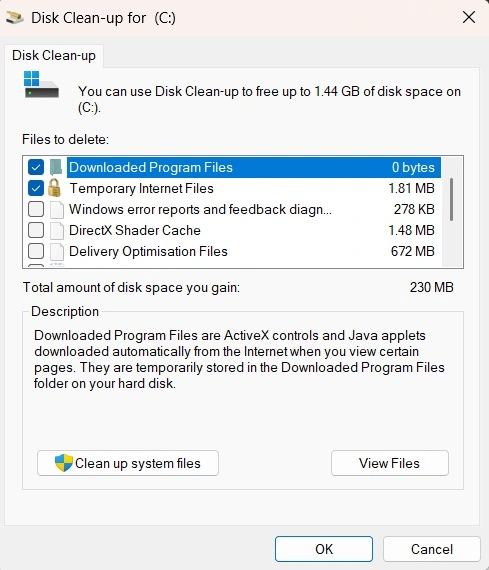
- Check the temporary files. Click OK and confirm.
Method 2: Using Storage Settings
Storage Settings offer a modern cleanup approach. This section shows what uses your disk space. It divides files into categories. Temporary files are listed clearly. Users can see what they are deleting.
This method is helpful for visual learners. It provides explanations for each file type. Windows handles the process safely. It is ideal for beginners who want clarity.
This option also works well for regular monitoring. Users can check storage health anytime.
Steps
- Open Settings. Go to System, then Storage.
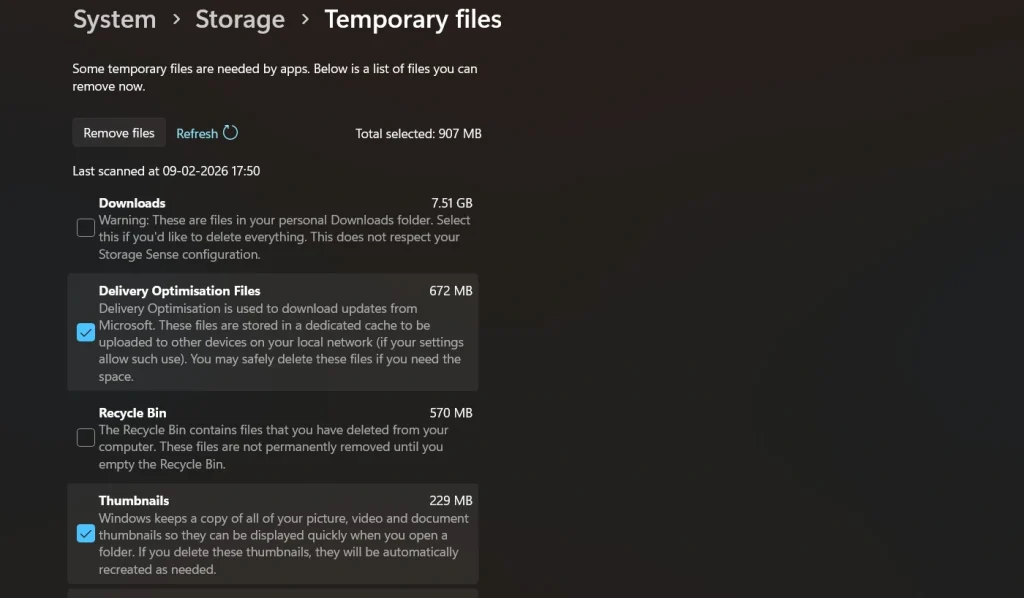
- Open Temporary files. Select items and remove them.
Method 3: Clearing the Temp Folder Manually
The temp folder stores short-term files created by apps. Many of these files are not needed after use. Windows sometimes leaves them behind. Manual cleanup targets these leftovers directly.
This method gives users full control. Some files may refuse deletion. That is normal. Those files are in use and can be skipped. Deleting the rest is safe.
This method is best done carefully. It should be used when you understand what you are deleting.
Steps
- Press Win + R. Type %temp% and press Enter.
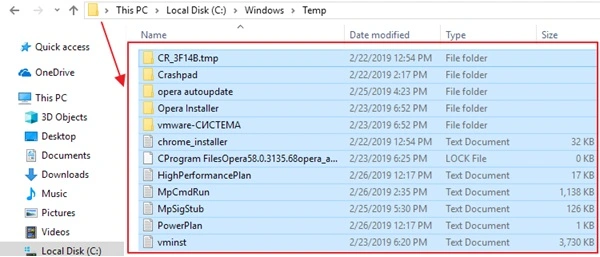
- Select files and delete what allows removal.
Author’s Tip
Do not wait for your system to slow down or freeze. Small maintenance steps work better than emergency fixes. Clearing the cache once in a while prevents junk from building up. It keeps storage clean and apps running smoothly. When you handle these tasks early, Windows stays responsive. You also avoid sudden performance drops.
Cleanup should never feel stressful or complicated. Built-in Windows tools are designed to be safe and simple. They remove only what is unnecessary. There is no need to rush or overdo it. Regular, gentle care builds long-term stability. Small habits make a noticeable difference over time.
Mistakes Users Make While Clearing Cache
Many users try to speed up their system without understanding how the cache works. This often leads to simple but avoidable mistakes. Clearing cache is safe when done correctly. Problems arise when users rush the process or delete files blindly. Knowing what not to do is just as important as knowing the steps.
- Deleting random system folders without knowing their purpose. This can lead to app crashes or missing features.
- Clearing files outside safe cache locations. This increases the risk of breaking app functions.
- Using multiple cleaning tools at the same time. This may remove useful system data and create instability.
- Trusting third-party cleaners that promise extreme speed boosts. These tools often delete more than needed.
- Cleaning the cache too frequently without a reason. Daily cleanup is unnecessary for most users.
- Expecting instant performance miracles after every cleanup. Results are often gradual.
- Forcing the deletion of files that are in use. This can interrupt running processes.
- Ignoring built-in Windows tools. These tools are designed to clean the cache safely and correctly.
__________________________________________________________________________________
Conclusion
Cache plays a helpful role in Windows performance. It supports faster loading and smoother use. However, it is not meant to stay forever. Old cache files lose purpose. They occupy space without benefit. This buildup affects system speed over time.
Learning to manage cache gives users control. It helps keep Windows stable. It avoids unnecessary slowdowns. You do not need special software. Simple built-in options are enough. With routine care, your system stays efficient and reliable.
FAQs:
Does clearing the cache improve gaming performance?
Yes, in many cases it does help. Games rely on temporary files for faster loading and smoother play. Over time, these files can become outdated or mismatched with new game patches or driver updates. This can cause stuttering, longer load times, or small glitches. Clearing the cache removes these old files and allows the system to create fresh ones. While it will not turn a low-end system into a high-end one, it can improve stability and reduce minor performance issues during gameplay.
Will Windows recreate cache files?
Yes, Windows recreates cache files on its own. Cache is a working part of the system, so it is rebuilt whenever apps or services need it. After cleanup, Windows starts fresh and only creates necessary files. This new cache is usually smaller and more efficient. You may notice some apps open slightly slower the first time. After that, performance returns to normal or improves.
Is it safe to clean the cache during updates?
It is safer to wait until updates are complete. During an update, Windows uses temporary files to install and configure system components. Removing the cache at that time can interrupt the process or cause errors. Once updates finish and the system restarts, cache cleaning becomes safe again. Waiting ensures updates install properly and prevents avoidable issues.
Popular Post
Recent Post
How To Clean a CPU Without Damaging It [Complete Guide]
Learn how to clean a CPU safely without damage. Follow simple steps, precautions, and methods to improve cooling, boost performance, and extend your computer’s life.
How To Clear Browser Cache On Windows 11/10 [Chrome, FireFox, Edge]
Learn how to clear browser cache on Windows 11 and 10. Follow simple steps to clean browser cache, fix slow browsing, and improve performance easily.
How To Clear Cache Memory On Windows 11/10 [2026]
Learn how to clear cache memory on Windows 11/10 using safe built-in methods to improve speed, free space, and maintain smooth system performance.

Windows Installer Cleanup Utility: Complete Review And Alternatives
Detailed review of Windows Installer Cleanup Utility, reasons for removal, risks, and safer modern alternatives explained clearly.

How To Clean Junk Files On Windows 11/10
Learn how to clean junk files on Windows 11 and 10 using safe, simple steps to boost speed and free storage space effectively.

Clearing App Cache Data on Windows 11/10: Complete Guide
Learn how to safely clear app cache on Windows 11 and 10 to fix slow apps, free disk space, and improve overall system performance.

How To Clean Up System Files On Windows 11/10: Complete Guide
Explore a step-by-step guide explaining how Windows users can safely remove unnecessary system data using built-in tools.

How To Clean a Laptop Fan Without Opening [2026 Guide]
Learn how to clean a laptop fan without opening the device using safe steps, simple tools, and easy methods for better cooling.

How to Clear the Queue in the Printer Automatically in 2026
Learn how to clear the queue in the printer with simple steps. This easy guide explains why print jobs get stuck and how to fix them safely for smooth printing.

How To Clear Delivery Optimization Cache In Windows
Learn how to clear Delivery Optimization Cache in Windows safely and easily. This guide explains steps, precautions, benefits, and FAQs to free space and avoid update issues.
