How to Fix Bluetooth Not Working in Windows 11
Last updated on February 23rd, 2026 at 6:21 am
Switching from Windows 10 to Windows 11 has not been smooth for many users. Some Windows 11 users have faced several system glitches after moving to the latest Microsoft OS. Bluetooth not working in Windows 11 is the most prevalent issue.
Many users have complained that their Bluetooth icon is missing for them or they are unable to send or receive files via Bluetooth. If you are also dealing with the same problem, there is no need to worry about it.
This guide will walk you through easy solutions to fix Bluetooth not working in Windows 11. Trust us; it is simple to fix Bluetooth errors.
Why Is Bluetooth Not Working on My Windows 11 Computer?
Bluetooth can go missing or can’t transfer and receive files in Windows 11 due to several reasons, such as:
- The Bluetooth version is not compatible with the version supported by your Windows 11
- Bluetooth is disabled from the settings or not properly connected
- Outdated, incompatible or corrupted Bluetooth drivers
- Random and temporary glitches
How to Fix Bluetooth Not Working in Windows 11?
A small connection disturbance to outdated Bluetooth drivers — anything can create Bluetooth problems on Windows 11 PC. Thus, considering all the Bluetooth not working in Windows 11 causes, we have compiled an ultimate fixes list. So, follow these solutions to fix Bluetooth not working in Windows 11:
Solution 1. Turn On Bluetooth
Obviously, if Bluetooth is turned off, you can not establish a Bluetooth connection. Sometimes you forget to turn on your Bluetooth, or other applications switch off Bluetooth depending on your system settings. Thus, it is better to check whether your Bluetooth is turned on as follows:
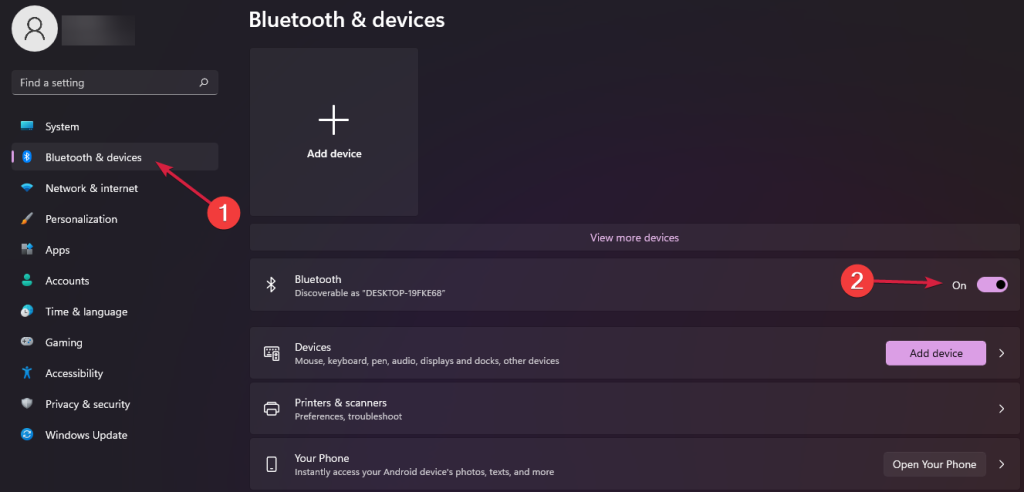
Step 1. Launch Windows Settings > Bluetooth & devices.
Step 2. Check if the Bluetooth has the On button enabled. If not, just enable it.
Solution 2. Use Bluetooth Troubleshooter
Windows 11 Troubleshooter is the best native feature to detect and fix system errors. So, you can run Troubleshooter and automatically fix Bluetooth not working in Windows 11 this way:
Step 1. Press the Windows key to open the Settings.
Step 2. Select System from the left pane and click on Troubleshoot from the right pane.
Step 3. Choose Other troubleshooters > Look for Bluetooth.
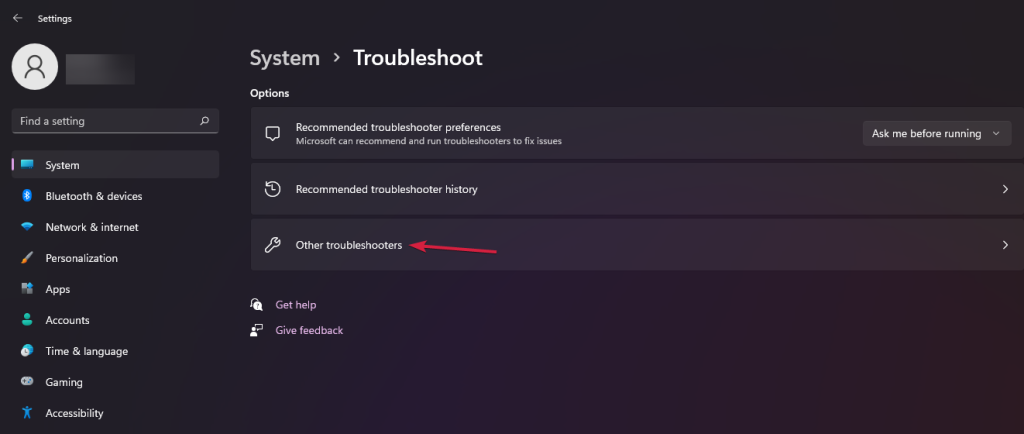
Step 4. Click on the Run button next to the Bluetooth option.
Step 5. Wait for a few minutes for Troubleshooter to scan your system for Bluetooth issues and fix them.
Solution 3. Check Bluetooth Support Service
When a Bluetooth Support Service is disabled or stopped, it can stop Bluetooth from working. Follow these steps to ensure the Bluetooth Support Service is running perfectly on your device:
Step 1. Go to the Taskbar and click on the Search icon. After that, type services and hit Enter.
Step 2. From the new window, double-click on the Bluetooth Support Service section.
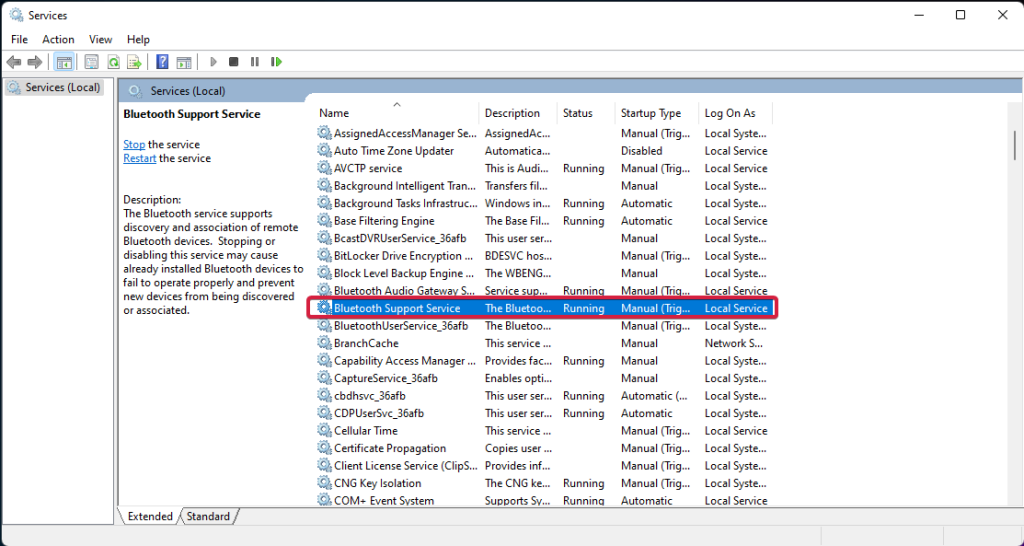
Step 3. Dropdown the Startup type menu and select Automatic. Tap on Apply > OK and check if Bluetooth is working now.
Solution 4. Update the Bluetooth Driver
Outdated Bluetooth drivers can create several Bluetooth-related errors on your Windows 11 computer. Thus, always ensure that you have up-to-date drivers. To do so, the Device Manager option is the best:
Step 1. Type Device Manager in the Taskbar Search field.
Step 2. Expand the Bluetooth menu, right-click on your Bluetooth name, and select Update Driver.
Step 3. Select Search automatically for drivers.
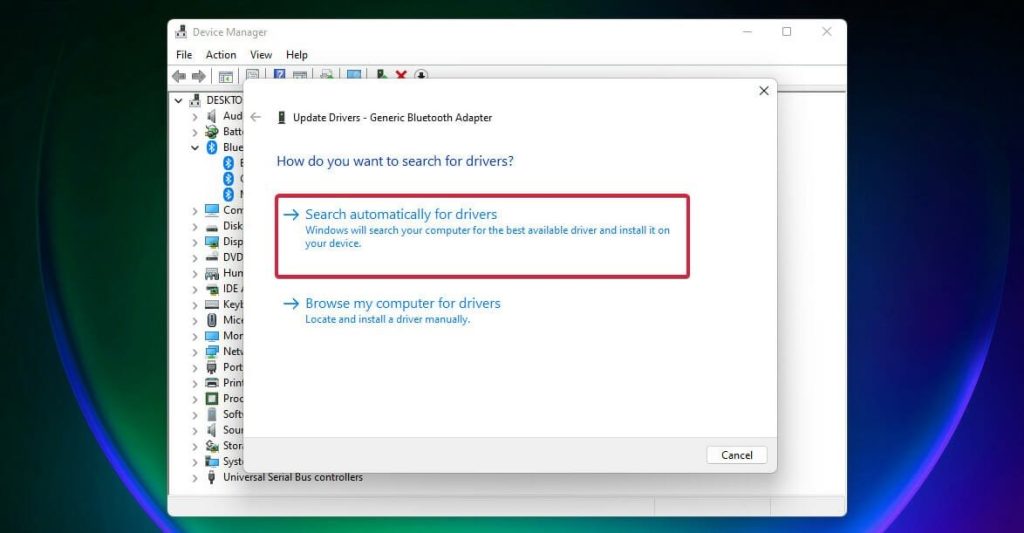
Step 4. If the system doesn’t find a new driver, click on Search for updated drivers in Windows Update.
Step 5. Click on the Check for updates button. If any updates are available, the system will download and install them.
Solution 5. Uninstall and Reinstall the Bluetooth Driver
If your current Bluetooth drivers are corrupt or incompatible, the best solution is to uninstall and reinstall them. This way, you can uninstall the right drivers to fix Bluetooth not working in Windows 11. Here’s how you can do it:
Step 1. Go to Device Manager > Expand the Bluetooth section > Right-click > Select Uninstall device.
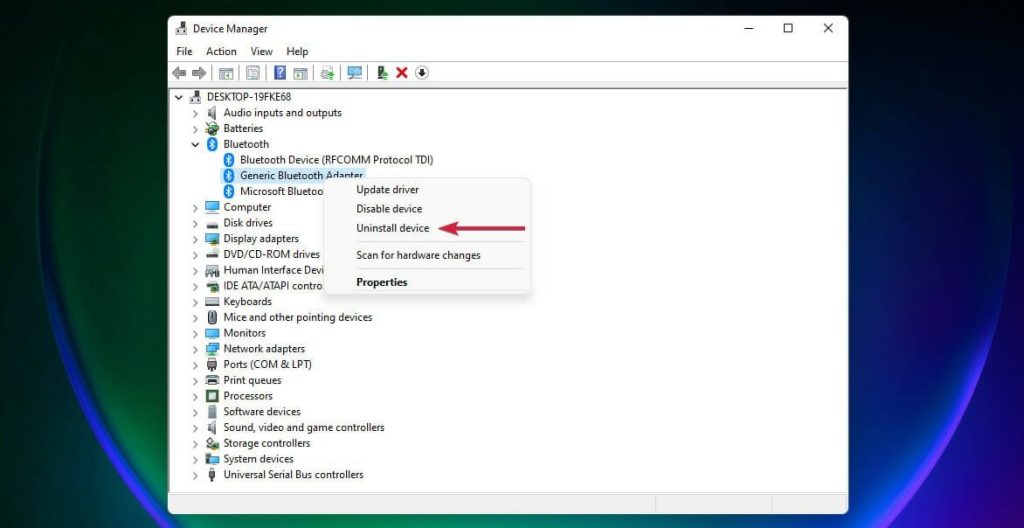
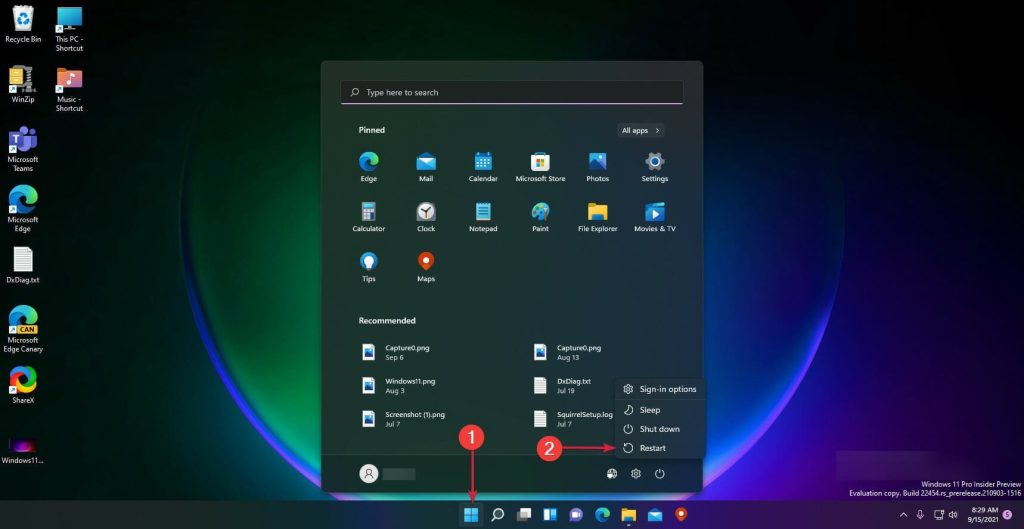
Step 2. Restart your computer, and the Windows system will automatically download the latest drivers.
Besides this, you can go to the driver manufacturer’s website to download the latest Bluetooth driver version. If you don’t want to manually search for Bluetooth drivers, use automated solutions like Driver Easy to find and download the compatible drivers with a click.
Solution 6. Add Bluetooth to Action Center
If your Bluetooth icon has disappeared from the Action Center, it can give you the impression that Bluetooth is not working on your device. In that case, you can easily add a Bluetooth icon to the Action Center as follows:
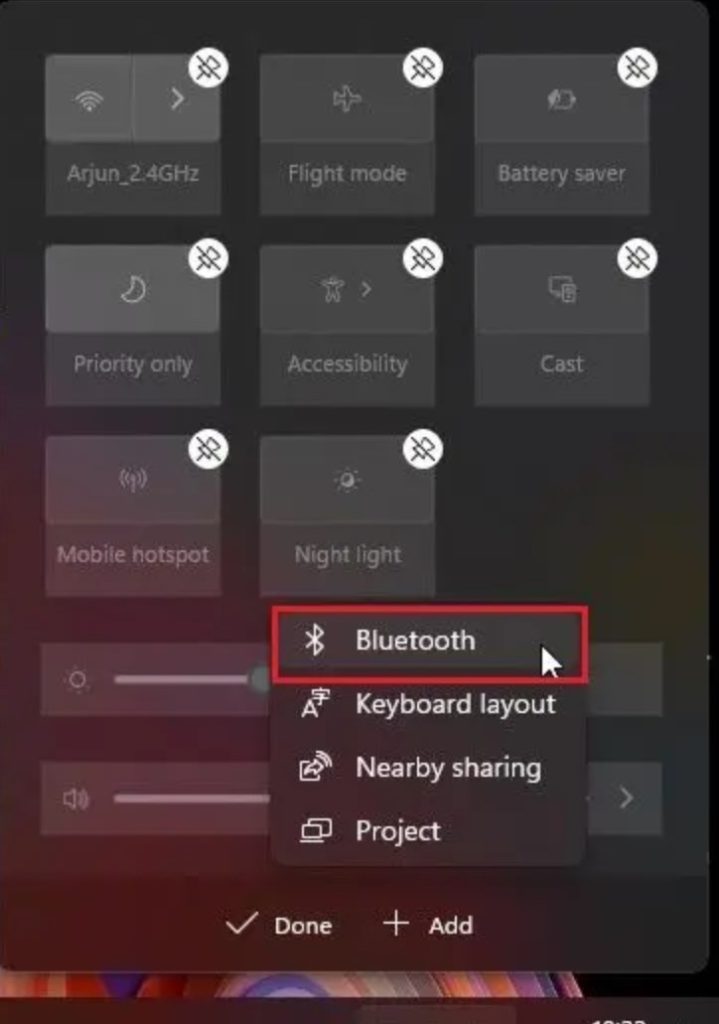
Step 1. Press Windows + A keys to open the Action Center. Click on the pencil icon.
Step 2. Click on the Add > Select Bluetooth.
Step 3. Now, you can find the Bluetooth icon on the Action Center.
Solution 7. Turn Off/On Airplane Mode
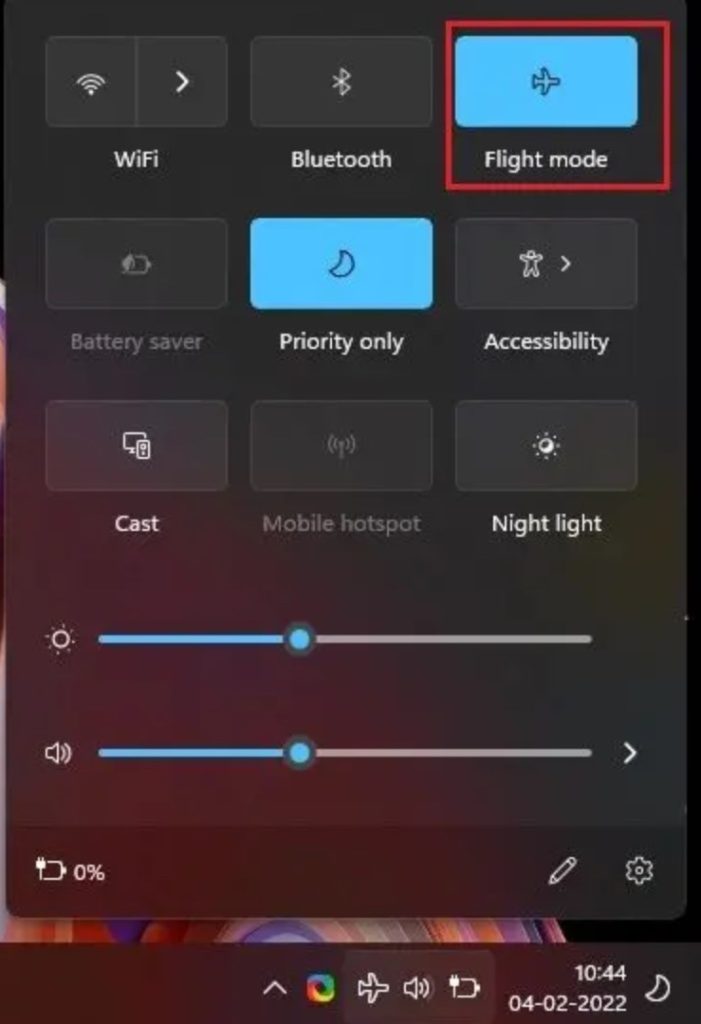
The easiest way to fix Bluetooth not working is to turn on and off Airplane Mode. It can also fix the radio device options like WiFi, Bluetooth, etc. Here’s how you do it:
Step 1. Open the Action Center and click on Airplane mode or Flight mode to enable the Bluetooth service.
Step 2. After that, you can disable the Airplane mode and try to reconnect the Bluetooth.
Solution 8. Change Power Management Settings
Often, Windows 11 turns off some radio devices to save power. In that case, you can modify the power management settings to stop Bluetooth from turning into sleep mode. Follow these steps to modify power management settings:
Step 1. Open the Device Manager window, right-click on the Bluetooth adapter and open Properties.
Step 2. Under the Power Management tab, untick “Allow the computer to turn off this device to save power.” Click on the OK. This change in settings will prevent Windows 11 from turning off the Bluetooth device when it’s inactive for a long.
Solution 9. Fix Using Device Manager
Many users complain that they can not see Bluetooth in Device Manager. If that’s also the case with you, follow these steps to add your Bluetooth device to the Device Manager:
Step 1. Open the Device Manager and click on View. After that, enable Show hidden devices from the dropdown menu.
Step 2. Open Action from the top and select Add legacy hardware.
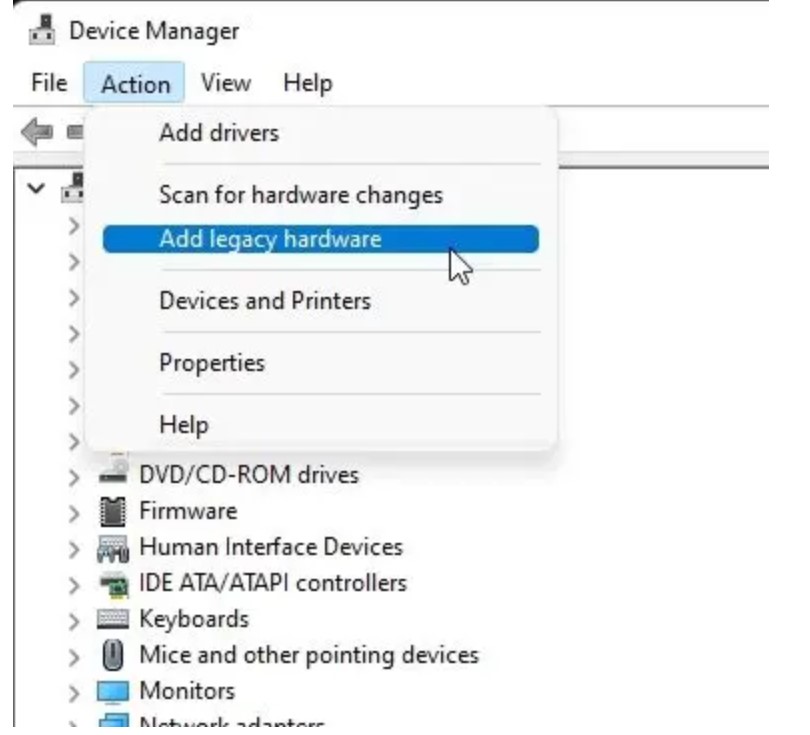
Step 3. On the new popup window, click on the Next and choose the “Install the hardware I manually select from a list (Advanced)” option.
Step 4. After that, scroll down and look for Network adapters.
Step 5. Go through all manufacturers and select the Bluetooth driver, and click on Next.
Step 6. Now, the driver will install, and Bluetooth will again show up in Device Manager.
Solution 10. Run Fsquirt.exe
Fsquirt.exe is a system program that is responsible for handling the Bluetooth user interface. If none of the above solutions worked, you could manually run this program on your computer to see if this has fixed Bluetooth not working on your device. To do so:
Step 1. Go to the C drive > Windows > System32 folder. Now, scroll down to the Fsquirt.exe program.
Step 2. Double-click on it. On the Bluetooth File Transfer window, try to send or receive files. You can also copy the program to your desktop for quick access.
Parting Remarks
That’s it for now! You can now run all the top 10 solutions to fix Bluetooth not working in Windows 11. However, first, try simple solutions like turning on/off Airplane mode or restarting Bluetooth devices. After that, you can try to update your Bluetooth drivers or run Fsquirt.exe.
Meanwhile, don’t forget to check other Windows 11 guides on this post.
Recommended Articles:
Popular Post
Recent Post

How To Clear Cache Memory On Windows 11/10 [2026]
Learn how to clear cache memory on Windows 11/10 using safe built-in methods to improve speed, free space, and maintain smooth system performance.

Windows Installer Cleanup Utility: Complete Review And Alternatives
Detailed review of Windows Installer Cleanup Utility, reasons for removal, risks, and safer modern alternatives explained clearly.

How To Clean Junk Files On Windows 11/10
Learn how to clean junk files on Windows 11 and 10 using safe, simple steps to boost speed and free storage space effectively.

Clearing App Cache Data on Windows 11/10: Complete Guide
Learn how to safely clear app cache on Windows 11 and 10 to fix slow apps, free disk space, and improve overall system performance.

How To Clean Up System Files On Windows 11/10: Complete Guide
Explore a step-by-step guide explaining how Windows users can safely remove unnecessary system data using built-in tools.

How To Clean a Laptop Fan Without Opening [2026 Guide]
Learn how to clean a laptop fan without opening the device using safe steps, simple tools, and easy methods for better cooling.

How to Clear the Queue in the Printer Automatically in 2026
Learn how to clear the queue in the printer with simple steps. This easy guide explains why print jobs get stuck and how to fix them safely for smooth printing.

How To Clear Delivery Optimization Cache In Windows
Learn how to clear Delivery Optimization Cache in Windows safely and easily. This guide explains steps, precautions, benefits, and FAQs to free space and avoid update issues.

How To Clear Cache in Edge [Windows 11/10]: Latest Guide
Learn how to clear cache in Edge on Windows 11 and Windows 10. Step by step guide with precautions, FAQs, and tips to fix slow pages and errors.

Top 15 Questions About PC Cleaning and Their Answers
Learn safe and simple ways to clean your PC. This guide answers top questions, covers precautions, and gives advanced tips for better PC health and performance.
