How to Fix WhatsApp Desktop Not Working on Your Computer?
Last updated on October 17th, 2025 at 3:24 pm
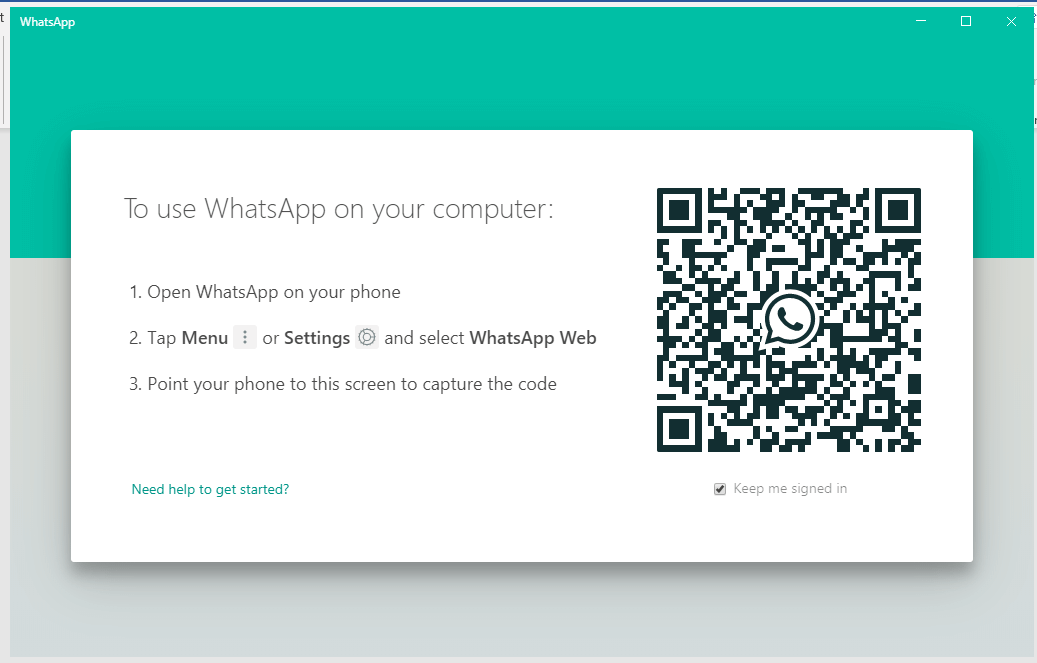
WhatsApp Desktop is the popular WhatsApp app’s official desktop client. The desktop version allows you to view, replay, and send messages without accessing your smartphone. Unfortunately, the desktop client does not support video or audio calling as of now.
WhatsApp Desktop has been available for a few years. Several fixes and improvements have been made to it over the years. However, despite regular updates, WhatsApp Desktop not working is a common glitch.
This guide will look at what you can do if WhatsApp Desktop is not opening for you properly.
10 Solutions to WhatsApp Desktop Not Working on Your Mac or Windows Computer
WhatsApp is a popular messaging app with over 2 billion users worldwide. However, WhatsApp Desktop is a more recent development than WhatsApp mobile app. Thus, it often causes issues like WhatsApp Desktop not opening or working at all.
So, when you are stuck with WhatsApp Desktop not opening error, you can shout out to the WhatsApp community or simply follow these handpicked solutions:
Solution 1. Close Your WhatsApp Desktop
The simplest way to resolve common issues is to close and reopen WhatsApp Desktop. However, when you close it, the WhatsApp services usually continue to run in the background. As a result, it’s best to kill it thoroughly and then reopen it to start over.
On Windows
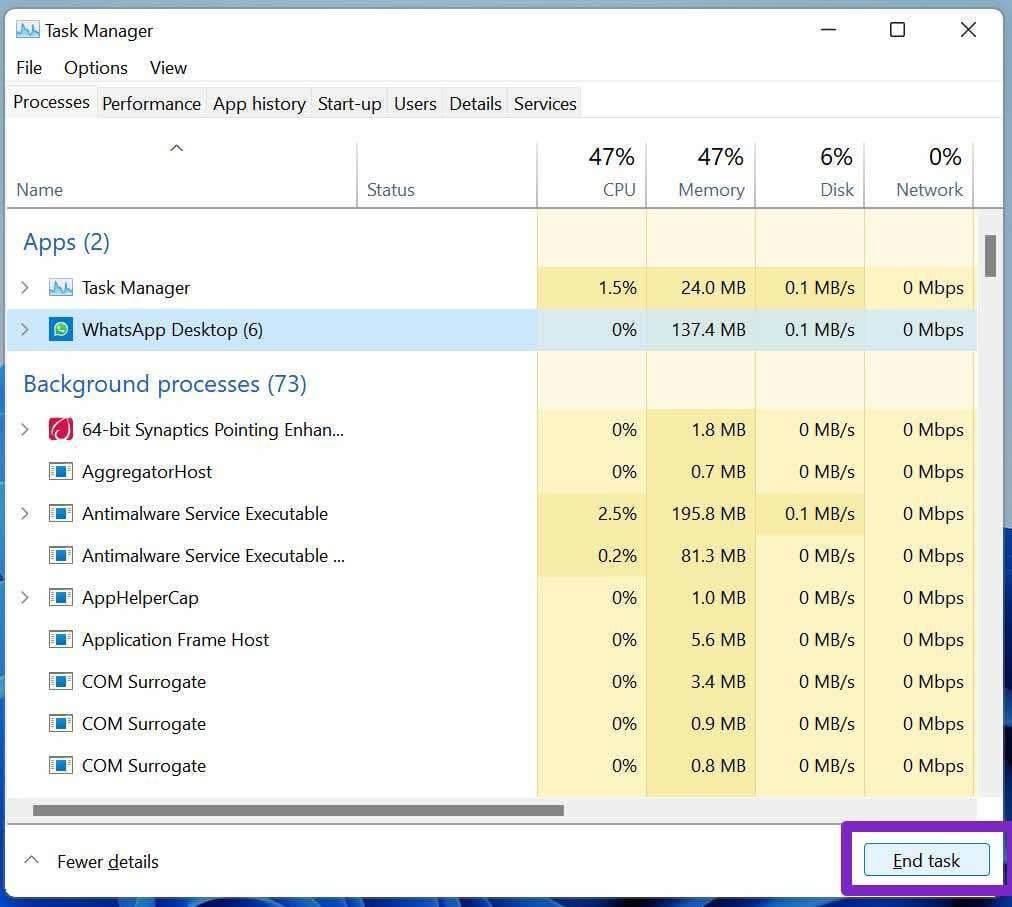
Step 1. On the Start Menu, type “task manager” into the search box. From the list of options, select Task Manager. Alternatively, you can also press CTRL + Shift + Esc at the same time.
Step 2. In the Processes tab, select all WhatsApp-related services.
Step 3. Click the End button from the bottom.
On Mac
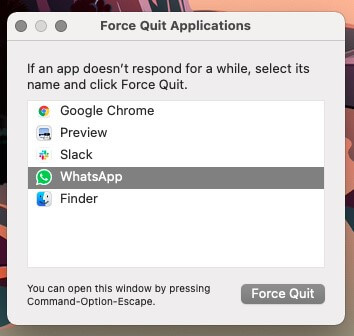
Step 1. On a Mac, press Command + Option + Escape to launch the Force Quit tool.
Step 2. Then, select WhatsApp and, at the bottom, click Force Quit. Alternatively, you can press Command + Q or the Apple logo and select Force Quit.
Solution 2. Check Your Internet Connection
Is your WhatsApp Desktop app stuck at “Organizing Messages” or “Downloading Messages”? Alternatively, does the QR code or interface not load at all? Your internet connection is the cause of the problem. Here are some steps you can take to test and troubleshoot your connection:
Step 1. Go to fast.com to see on your browser if your internet works properly.
Step 2. Check backend connectivity by restarting your WiFi router or mobile hotspot.
Step 3. If the problem continues, try changing your WiFi network.
Solution 3. Use the Internet Troubleshooter
If your PC’s internet connection is down, you will only see the loading indicator when using the WhatsApp desktop app.
Windows includes a capable internet troubleshooter that can resolve network-related issues on your PC. Here’s how to put it to use.
Step 1. Open the Settings app on your Windows PC (by pressing the Windows + I keys).
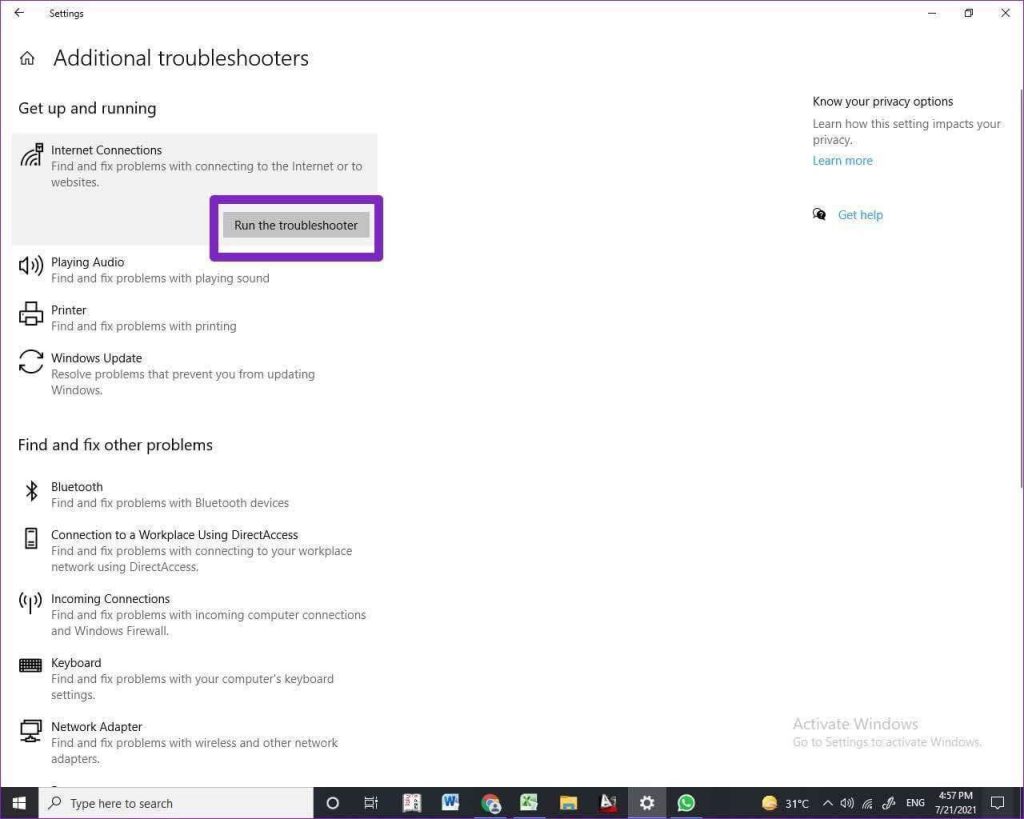
Step 2. Go to Update & Security > Troubleshoot > Additional troubleshooters > Internet Connections.
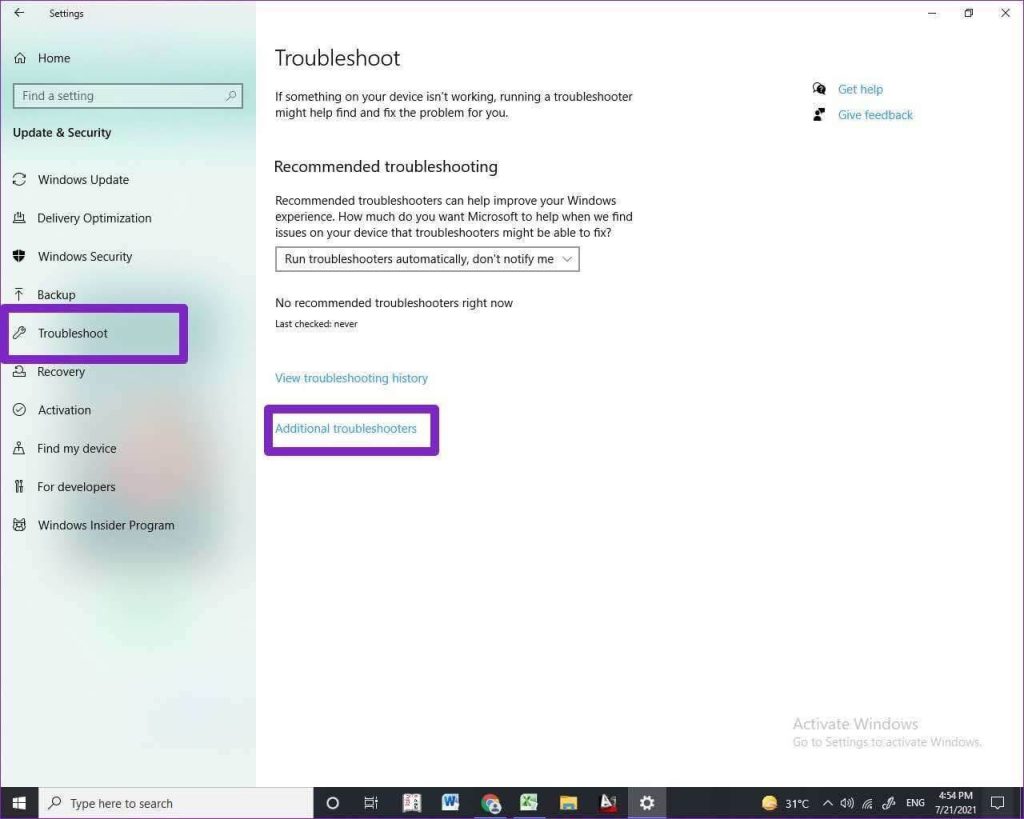
Step 3. Run the troubleshooter to resolve internet-related issues on your computer.
Solution 4. Repair WhatsApp Desktop
Microsoft’s Advanced options in the Settings menu allow you to repair installed apps on your PC. For example, to repair the WhatsApp app, follow the steps below:
Step 1. Launch the Windows Settings app (by pressing the Windows + I keys).
Step 2. Select Apps > Apps & features from the menu.
Step 3. Scroll down and select WhatsApp Advanced Options.
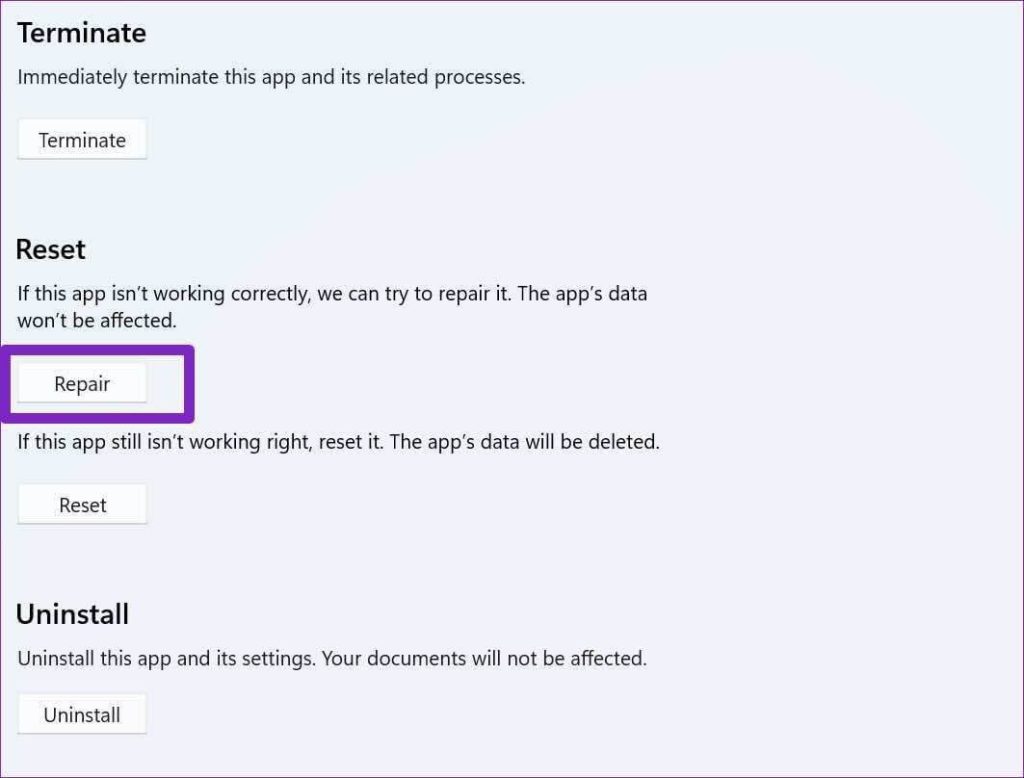
Step 4. Select Repair from the Reset menu and let Windows handle the troubleshooting.
Solution 5. Reset WhatsApp Desktop from Windows
In Windows, the Reset option deletes all data associated with the app and fixes the WhatsApp Desktop not working. When you clear WhatsApp Desktop’s data, it will revert to a freshly installed version and require you to log in with your account again. Here’s how to do it:
Step 1. Navigate to Settings on your Windows PC.
Step 2. Navigate to Apps > Apps and Features.
Step 3. Select WhatsApp from the three-dot menu. Choose Advanced Options.
Step 4. Scroll down and select Reset. To confirm, click Reset once more.
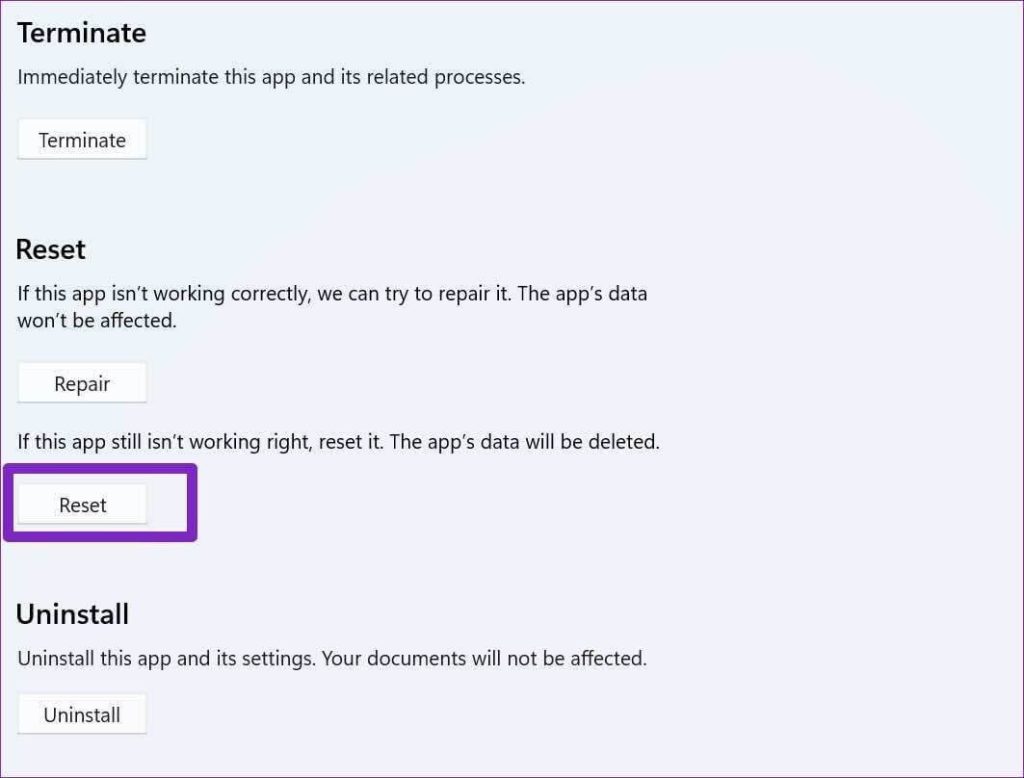
It will permanently delete all WhatsApp data, including sign-in information, from your computer. You will be unlogged.
Solution 6. Reinstall WhatsApp Desktop on Your Computer
Many users have reported that installing the Microsoft Store app has resolved the WhatsApp Desktop not opening or loading. The WhatsApp Desktop setup files for Windows can also be downloaded from the official website.
On Windows
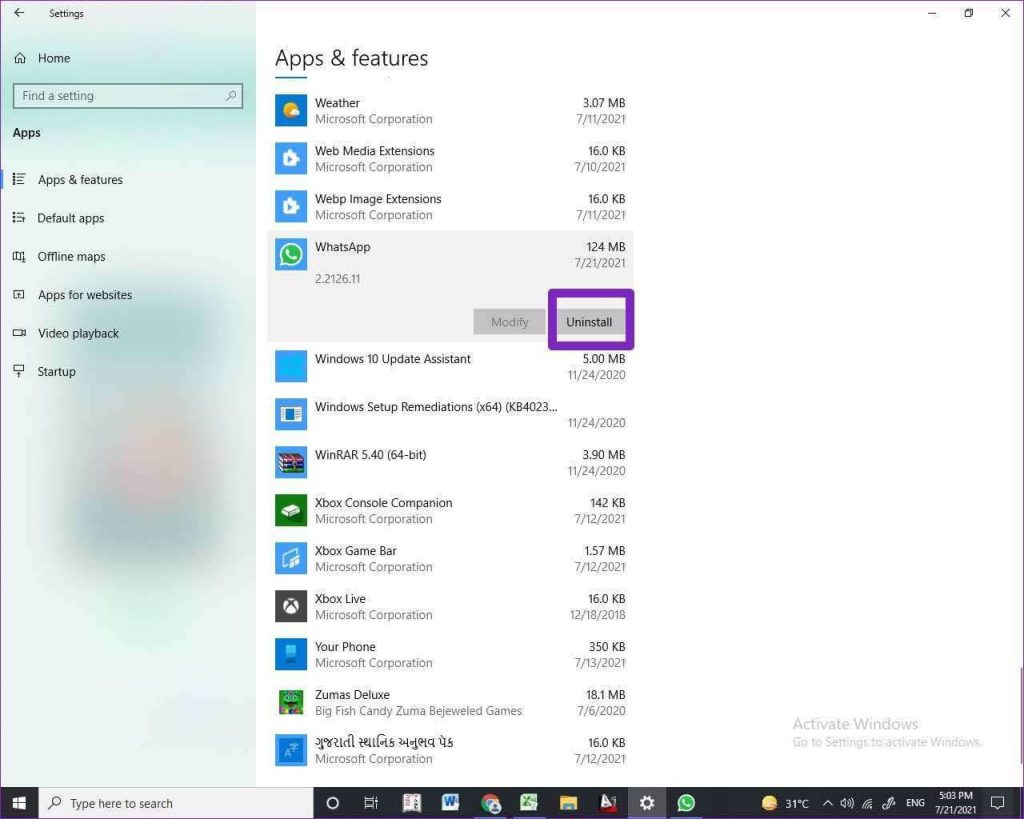
Step 1. Go to the Start screen. Uninstall WhatsApp by right-clicking it. You can also go to Settings > Apps & Features > WhatsApp > Uninstall.
Step 2. Next, go to the Microsoft App Store.
Step 3. Find and install WhatsApp Desktop.
On Mac
Step 1. Launch Finder and navigate to Applications.
Step 2. Right-click the WhatsApp.app and select Move to Bin.
Step 3. Launch Safari (or another browser), go to the link below and download WhatsApp.
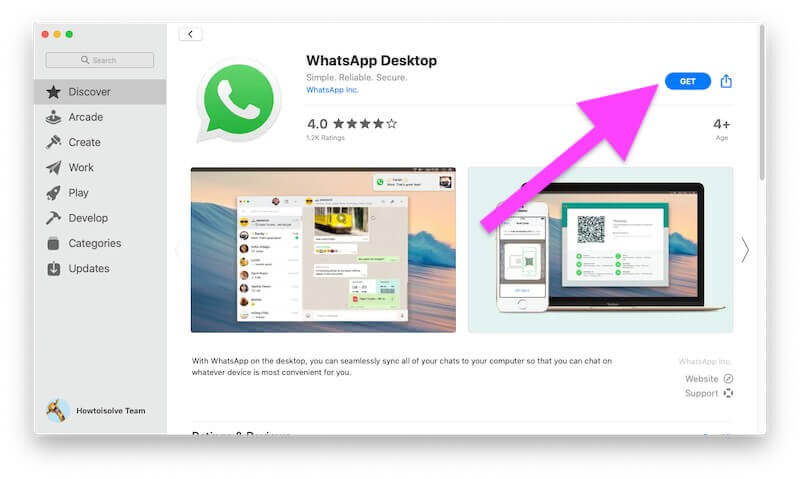
Step 4. Install the downloaded WhatsApp.dmg file.
Solution 7. Use Executable WhatsApp Files
Some users have complained that nothing happens when they click the WhatsApp executable file on their Windows PC. Instead, it simply does not open, creating uncertainty about the source of the problem.
In this case, one working method to open WhatsApp Desktop is to use one of the executable files in the install location. To do so:
Step 1. Navigate to the location where WhatsApp Desktop is installed on your computer. For example, C/Users/AppData/Local/WhatsApp is most likely. Alternatively, right-click the WhatsApp shortcut and select Open File Location.
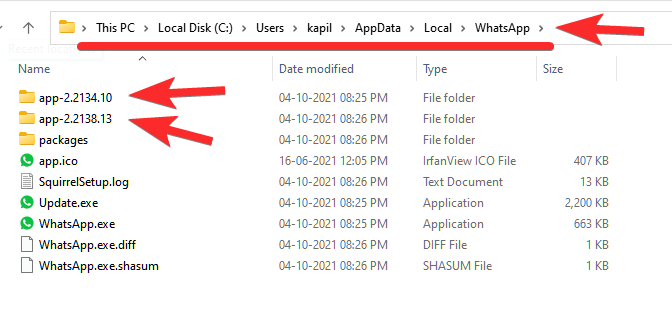
Step 2. WhatsApp folders named 2.22.xxx can be found here.
Step 3. Tap the WhatsApp.exe file in any of the folders. If it works, make a desktop shortcut for it.
Step 4. If there are two folders, copy all the files from the older folder and paste them into the newer folder. Skip copying files that have the same name.
Solution 8. Update WhatsApp Desktop App on Your PC
WhatsApp may be malfunctioning due to an outdated version. If you got the app from the Microsoft Store, open it, go to the top-right corner, and click the Download and updates icon.
To install the available update, locate WhatsApp Desktop and click Download WhatsApp Desktop.
Solution 9. Go for WhatsApp Web
If WhatsApp Desktop isn’t working for you, you can use WhatsApp Web for the time being. It includes all of the features in the WhatsApp Desktop app but does not require installation.
Navigate to web.whatsapp.com and scan the QR code from WhatsApp on your phone. It works with the Linked Devices feature, so you don’t need to keep logging in or keep your phone connected to the internet.
Solution 10. Use Android Emulator
Due to its complexity, few people would want to use this method, but those willing to participate can use WhatsApp on their Windows or Mac computer using an Android emulator.
To run Android apps on your PC, use Google’s Android Studio or third-party Android emulators such as Bluestacks, Genymotion, and Nox Player. It would work in the same manner as your phone. However, WhatsApp on your phone will no longer function.
You can use it for professional, or business WhatsApp accounts that you only access when using a laptop or desktop.
Conclusion:
WhatsApp is a vital medium of communication for millions of people worldwide. The majority of people use it to communicate with friends and family. When WhatsApp is not opening on your computer, you may be forced to look for alternatives. Before you do that, try the above mentioned tricks to resolve the problem.
Are you dealing with any other WhatsApp errors? Then, check out our other WhatsApp solution guides.
Popular Post
Recent Post

How To Clear Cache Memory On Windows 11/10 [2026]
Learn how to clear cache memory on Windows 11/10 using safe built-in methods to improve speed, free space, and maintain smooth system performance.

Windows Installer Cleanup Utility: Complete Review And Alternatives
Detailed review of Windows Installer Cleanup Utility, reasons for removal, risks, and safer modern alternatives explained clearly.

How To Clean Junk Files On Windows 11/10
Learn how to clean junk files on Windows 11 and 10 using safe, simple steps to boost speed and free storage space effectively.

Clearing App Cache Data on Windows 11/10: Complete Guide
Learn how to safely clear app cache on Windows 11 and 10 to fix slow apps, free disk space, and improve overall system performance.

How To Clean Up System Files On Windows 11/10: Complete Guide
Explore a step-by-step guide explaining how Windows users can safely remove unnecessary system data using built-in tools.

How To Clean a Laptop Fan Without Opening [2026 Guide]
Learn how to clean a laptop fan without opening the device using safe steps, simple tools, and easy methods for better cooling.

How to Clear the Queue in the Printer Automatically in 2026
Learn how to clear the queue in the printer with simple steps. This easy guide explains why print jobs get stuck and how to fix them safely for smooth printing.

How To Clear Delivery Optimization Cache In Windows
Learn how to clear Delivery Optimization Cache in Windows safely and easily. This guide explains steps, precautions, benefits, and FAQs to free space and avoid update issues.

How To Clear Cache in Edge [Windows 11/10]: Latest Guide
Learn how to clear cache in Edge on Windows 11 and Windows 10. Step by step guide with precautions, FAQs, and tips to fix slow pages and errors.

Top 15 Questions About PC Cleaning and Their Answers
Learn safe and simple ways to clean your PC. This guide answers top questions, covers precautions, and gives advanced tips for better PC health and performance.
