Quickly Learn How to Remove Bloatware from Windows 11
Last updated on February 26th, 2026 at 6:24 am
Have you just purchased a brand new Windows 11 laptop and now can’t wait to use it? But unfortunately, you are unable to do so because there stood bloatware in your way.
Windows 11 comes with several pre-installed applications that you might not need at the moment, like OneDrive, Calendar, etc. However, you can uninstall those unwanted apps, but some are seriously stubborn and don’t go away easily. And keep your system bloated.
But no worries! This post is particularly crafted to show some quick ways to remove bloatware from your Windows 11. Once you get rid of bloatware, you will observe better PC speed. So, let’s get the show started.
Why Is Windows 11 Bloated?
Windows 11 bloatware is the term used to describe all the pre-installed programs that come with a new Windows 11 and takes up a huge space on the hard drive. Most of these software are utility programs that many users do not need, like Paint, Solitaire, etc.
Thus, it is essential for new Windows 11 users to get rid of unwanted apps to free up hard drive space and optimize the PC speed. But that’s easier said than done.
First of all, you have to ensure that uninstalling a certain app will not affect the performance of your device. Plus, it is impossible to uninstall some pre-installed apps as they help to run your computer.
Secondly, you might not know the right process to uninstall the apps properly. There are several different ways available to remove bloatware from Windows 11. However, this guide will help you find the right ways to uninstall unwanted software from your computer.
Common Windows 11 Bloatware
Windows 11 comes with several utility software that can make your PC bloated. Here are the common Windows 11 bloatware:
- Solitaire collection
- Get Help
- Microsoft People
- Xbox Console Companion
- Paid 3D
- Movies & TV
- Mixed Reality Portal
- Windows Terminal
- Power Automate Desktop
- Sticky Notes
- Xbox Game Bar
- OneNote
How to Remove Bloatware from Windows 11?
There are several ways available to remove bloatware from your Windows 11 computer quickly, such as:
Way 1. Remove Bloatware from Windows 11 with Startup Menu
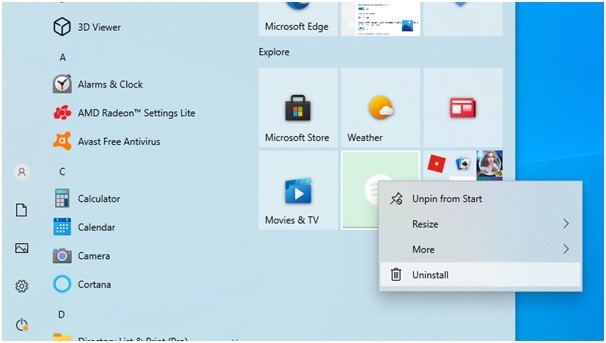
Windows 11 is not as complicated as you think. You can remove many applications with a simple right-click, like News, Sports, or Money. The apps that are hogging your Startup menu can be easily removed by:
Select the application > Right-click > Uninstall, and you are done. However, if this simple solution doesn’t work, follow the solutions discussed ahead to remove bloatware from your Windows 11.
Way 2. Remove Bloatware from Windows 11 with PowerShell Commands
Often, people consider PowerShell and Command Prompt the same, but they are not. PowerShell is a scripting language that allows you to control Windows 11 installation. Using PowerShell, you can easily uninstall bloatware as follows:
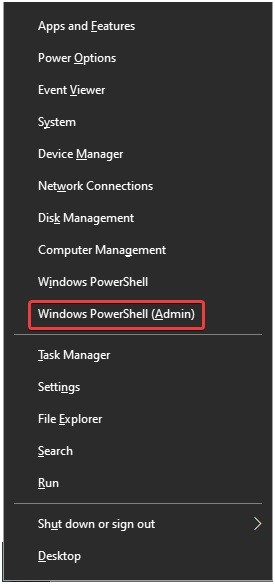
Step 1. Press Windows + X keys to launch the Windows PowerShell admin panel.
Step 2. Now, determine the app that you want to remove using PowerShell commands. With this command, you can delete various bloatware apps like Health, Calculator, Calendar, etc.
Step 3. Here is the command to remove different apps using PowerShell —
Get-AppxPackage -name “Microsoft.ZuneMusic” | Remove-AppxPackage
Get-AppxPackage -name “Microsoft.Music.Preview” | Remove-AppxPackage
Get-AppxPackage -name “Microsoft.XboxGameCallableUI” | Remove-AppxPackage
Get-AppxPackage -name “Microsoft.XboxIdentityProvider” | Remove-AppxPackage
Get-AppxPackage -name “Microsoft.BingTravel” | Remove-AppxPackage
Get-AppxPackage -name “Microsoft.BingHealthAndFitness” | Remove-AppxPackage
Get-AppxPackage -name “Microsoft.BingFoodAndDrink” | Remove-AppxPackage
Get-AppxPackage -name “Microsoft.People” | Remove-AppxPackage
Get-AppxPackage -name “Microsoft.BingFinance” | Remove-AppxPackage
Get-AppxPackage -name “Microsoft.3DBuilder” | Remove-AppxPackage
Get-AppxPackage -name “Microsoft.WindowsCalculator” | Remove-AppxPackage
Get-AppxPackage -name “Microsoft.BingNews” | Remove-AppxPackage
Get-AppxPackage -name “Microsoft.XboxApp” | Remove-AppxPackage
Get-AppxPackage -name “Microsoft.BingSports” | Remove-AppxPackage
Get-AppxPackage -name “Microsoft.WindowsCamera” | Remove-AppxPackage
Get-AppxPackage -name “Microsoft.Getstarted” | Remove-AppxPackage
Way 3. Remove Bloatware from Windows 11 with DISM
If the PowerShell command has only hidden the bloatware, but you want it completely gone, you need to use the DISM command. This command will fully remove the app from your computer and free up space on your disk. Here’s how you can do that:
Step 1. Press Windows + X keys and then select Windows PowerShell (Admin).
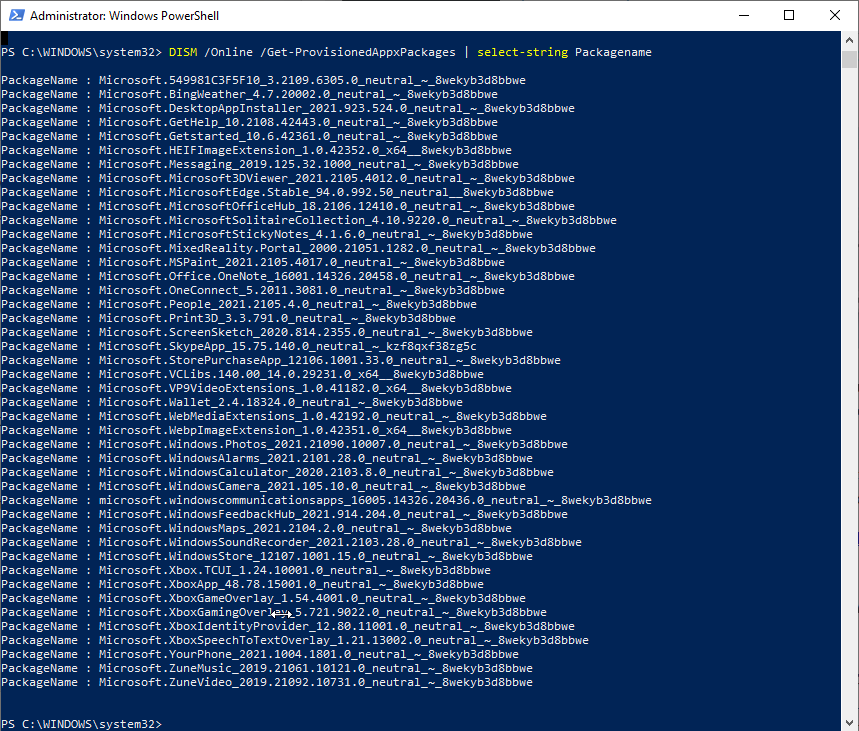
Step 2. Type the following command into the PowerShell window—
DISM /Online /Get-ProvisionedAppxPackages | select-string Packagename
Step 3. You will now get a list of all the apps that are bloating your system. Use this command to completely remove them—
DISM /Online /Remove-ProvisionedAppxPackage /PackageName:PACKAGENAME
Replace the PACKAGENAME with the app name you want to remove.
Step 4. Restart your computer once the operation is done to apply the changes. You will immediately notice a change in your PC’s speed.
Way 4. Remove Bloatware from Windows 11 with Control Panel
If you are not comfortable working with commands, simply head over to the Control Panel and get rid of pre-installed apps under the Programs and Features section. Here’s the step-by-step guide for your convenience:
Step 1. Go to the Search icon from the Taskbar, type Control Panel, and click on the app icon to launch it.
Step 2. Under the Programs, look for the Uninstall.
Step 3. From there, navigate to the app you want to delete, right-click on it, and click on Uninstall from the pop-up menu.
Way 5. Remove Bloatware from Windows 11 with Uninstaller Program
You must have noticed that some built-in apps are really stubborn and won’t uninstall even after all your attempts. In addition, it is simply a tedious task to uninstall several bloatware apps one by one.
Thus, to save your time and quickly remove bloatware, you can use third-party tools. Uninstaller programs are dedicated to remote native Windows 11 applications and make your PC lightweight. There are several Windows 11 Uninstaller programs available that you can select according to your budget, like Revo Uninstaller, IObit Uninstaller, etc.
Let’s Remove Bloatware Now!
As you can see, Windows 11 bloatware can be removed in several ways. Depending upon your comfort level, you can select the right method to remove the app.
If you are a non-technical user, you can use Control Panel, Startup menu or third-party tools to quickly remove bloatware from Windows 11. However, technical Windows users can opt for PowerShell and DISM commands.
Now, let’s wrap up and clear some bloatware from your PC. Also, do check other Windows guides on this website.
Popular Post
Recent Post

How To Clear Cache Memory On Windows 11/10 [2026]
Learn how to clear cache memory on Windows 11/10 using safe built-in methods to improve speed, free space, and maintain smooth system performance.

Windows Installer Cleanup Utility: Complete Review And Alternatives
Detailed review of Windows Installer Cleanup Utility, reasons for removal, risks, and safer modern alternatives explained clearly.

How To Clean Junk Files On Windows 11/10
Learn how to clean junk files on Windows 11 and 10 using safe, simple steps to boost speed and free storage space effectively.

Clearing App Cache Data on Windows 11/10: Complete Guide
Learn how to safely clear app cache on Windows 11 and 10 to fix slow apps, free disk space, and improve overall system performance.

How To Clean Up System Files On Windows 11/10: Complete Guide
Explore a step-by-step guide explaining how Windows users can safely remove unnecessary system data using built-in tools.

How To Clean a Laptop Fan Without Opening [2026 Guide]
Learn how to clean a laptop fan without opening the device using safe steps, simple tools, and easy methods for better cooling.

How to Clear the Queue in the Printer Automatically in 2026
Learn how to clear the queue in the printer with simple steps. This easy guide explains why print jobs get stuck and how to fix them safely for smooth printing.

How To Clear Delivery Optimization Cache In Windows
Learn how to clear Delivery Optimization Cache in Windows safely and easily. This guide explains steps, precautions, benefits, and FAQs to free space and avoid update issues.

How To Clear Cache in Edge [Windows 11/10]: Latest Guide
Learn how to clear cache in Edge on Windows 11 and Windows 10. Step by step guide with precautions, FAQs, and tips to fix slow pages and errors.

Top 15 Questions About PC Cleaning and Their Answers
Learn safe and simple ways to clean your PC. This guide answers top questions, covers precautions, and gives advanced tips for better PC health and performance.
