11 Mistakes To Avoid While Cleaning a PC

Cleaning a PC is important because dust and dirt can slow the system and heat up the parts. A clean computer also lasts longer and works with fewer sudden issues. Many users clean their PCs only when they notice noise or overheating. This delay can make the job harder and sometimes cause more trouble.
A regular cleaning routine keeps the machine healthy. It improves airflow and helps every part run at a normal temperature. It also gives you a chance to check the cables, fans, and other parts. When people forget a few simple rules, they end up doing harm to the system. This guide explains how to avoid those errors and clean the PC correctly.
Precautions Before You Start
Good care before the cleaning process keeps your PC safe. These steps reduce the risk of damage and help you work calmly and in control. Every user should learn them before touching any tool or part inside the case.
• Unplug the PC: Make sure the system is off, and the power cable is removed. This lowers the chance of electric shock and keeps the parts safe.
• Ground Yourself: Static charge can harm the parts inside the case. Touch a metal surface to release this charge before you begin.
• Work in a Clean Spot: Choose a table that has enough space for tools and parts. Any dirt or loose scraps on the table can end up inside the PC.
• Use Soft Tools Only: Hard brushes or rough cloths can scratch the parts. A soft brush or microfiber cloth works best.
• Keep Liquids Away: Do not place open containers near the machine. Even a few drops of water can damage the motherboard or power supply.
• Remove Jewelry: Rings, bracelets, and watches can cause scratches or short contact with metal parts. Take them off before you start.
• Check the Screws: Keep a small bowl or tray for screws. This helps you avoid losing them while opening the PC.
• Read Your PC Manual: Some parts need special handling. The manual explains how to open panels or remove components in the right way.
Before You Start, First Know The Answers To These Questions:
1. How often should I clean my PC
A PC that runs daily builds up dust fast. It is wise to clean it lightly every few weeks and do a deeper clean every few months. This pattern keeps the fans clear and prevents heat from building inside the case. Rooms with pets or heavy dust need more frequent cleaning. If you hear more fan noise than usual, it is a clear sign that your system needs fresh air and a short cleaning cycle.
2. Why is dust such a problem for a PC
Dust blocks airflow and traps heat around the parts. When this heat stays for long periods, it forces the fans to work harder. This also increases strain on the processor and graphics card. Dust settles on ports and contacts as well. When it builds up too much, the machine can behave in strange ways or slow down during heavy tasks. Good cleaning avoids these issues and keeps the hardware stable.
3. Can cleaning improve performance
Yes. A clean PC has better airflow, and parts stay at a normal temperature. When a processor does not heat up too much, it works at its best speed. Clean fans also reduce noise, and clean ports help you avoid loose connections. Many users feel the system respond faster after a good cleaning session. In some cases, the computer even stops lagging during heavy work.
4. Should I clean the inside or only the outside
Both areas matter. The outside gathers dust that enters through vents. The inside collects dirt around fans, cables, and heat sinks. Cleaning only the outside hides the real issue. You must open the case from time to time and clear the deeper dust. A simple routine for both areas keeps the computer safe and strong for a long time.
11 Mistakes To Avoid While Cleaning a PC
Cleaning a PC sounds simple, yet small mistakes can cause harm without warning. Learning about these mistakes helps you avoid extra costs and keeps your work smooth. This section explains each mistake in a clear way that anyone can follow.
1. Using too much liquid
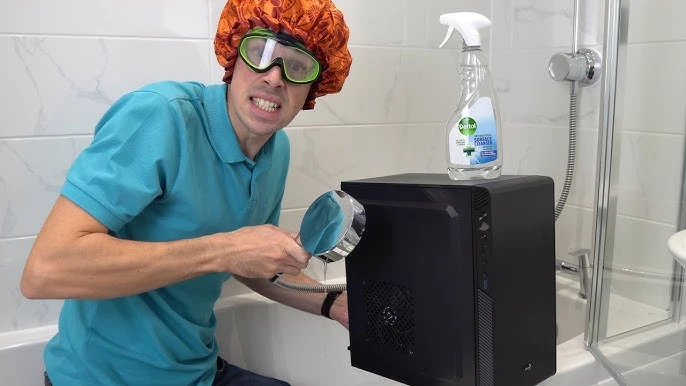
Users often think that a strong cleaning fluid will clean faster. This is dangerous. Any liquid that enters the system can harm delicate circuits.
2. Cleaning while the PC is on
Some users only turn off the screen. The machine must be fully off and unplugged before the cleaning starts.
3. Blowing air with your mouth
This pushes moisture into the parts. It also spreads saliva particles that become sticky and collect more dust later.
4. Using rough cloths
Rough material can scratch surfaces and damage sensitive parts. Soft cloths protect the finish and prevent marks.
5. Forgetting to hold fans in place

Fans spin fast when air hits them. This can damage their bearings. Always hold the fan still while using compressed air.
6. Removing parts without care
Some users pull cables with force or remove components without checking how they fit. This can bend pins or break clips.
7. Cleaning in a dusty room
Cleaning in a dirty place adds more dust to the machine. A clean spot avoids extra particles from entering the system.
8. Ignoring small ports
USB and audio ports collect dust often. If they remain dirty, they cause loose connections and weak signals.
9. Using kitchen cleaners
Strong home cleaners have chemicals that harm plastic and metal parts. PC parts need gentle cleaning tools only.
10. Skipping thermal paste checks
When dust is removed, the processor still needs good thermal contact. Some users forget to check old and dry paste.
11. Rushing the process
Hurry leads to mistakes. A calm and steady pace keeps the system safe and avoids damage.
Author’s Tip
A good cleaning habit keeps your system fresh and strong. Try to set a fixed day in the month for a quick check. This small act prevents bigger problems later. It also helps you understand how your machine behaves.
Keep a small cleaning kit at home. Include a microfiber cloth, a soft brush, compressed air, and a small tray for screws. When these tools are near you, cleaning feels simple and fast. Over time, the routine becomes easy and natural.
Advanced Tips
For Careful Users
Once you understand the basics, you can take your cleaning skills further. These advanced steps help long-term users who want stable performance and a tidy system.
• Check cable paths: Tidy cables improve airflow and reduce heat around the parts.
• Clean power supply filters: Some power supplies have filters that trap dust. Removing and cleaning them helps cool.
• Inspect fan speed: Look for fans that slow down. Cleaning them helps restore their normal speed.
• Wipe the outer vents: Outer vents collect the most dust. Clean them often to avoid heat buildup.
• Use soft brushes for heat sinks: Heat sinks have narrow spaces. Soft brushes remove dirt without damage.
• Look for loose screws: A loose part can vibrate and create noise. A quick check solves this.
• Clear the graphics card area: Fans on the graphics card need regular care. Clean the dust that gathers under the card.
• Test the temperature: After cleaning, check the temperature of the system. Good cleaning lowers heat levels.
Conclusion
Cleaning a PC keeps the system fast, cool, and healthy. It supports good airflow and removes hidden dirt that harms the parts. A simple routine every few weeks saves money and effort. It also reduces sudden slowdowns during work or games. Many users see a clear improvement after they clean their PCs with care.
Learning what to avoid is just as important. Each mistake in this guide can cause damage or shorten the life of the machine. A careful approach strengthens every part of the system. With the right steps, tools, and habits, anyone can keep a PC safe and clean for many years.
FAQs
1. How long does a full cleaning take
A full cleaning usually takes thirty to sixty minutes. The time depends on dust levels and how many parts you remove. Working slowly gives better results and avoids harm.
2. Can cleaning fix overheating
Yes. Cleaning improves airflow and lowers heat. When dust stops blocking fans and vents, the machine cools more easily and works better.
3. Is it safe to clean with a vacuum
A household vacuum is risky because it creates static charge. Use a small hand blower or compressed air instead. These tools are safer for parts inside the case.
Popular Post
Recent Post

How To Clear Cache Memory On Windows 11/10 [2026]
Learn how to clear cache memory on Windows 11/10 using safe built-in methods to improve speed, free space, and maintain smooth system performance.

Windows Installer Cleanup Utility: Complete Review And Alternatives
Detailed review of Windows Installer Cleanup Utility, reasons for removal, risks, and safer modern alternatives explained clearly.

How To Clean Junk Files On Windows 11/10
Learn how to clean junk files on Windows 11 and 10 using safe, simple steps to boost speed and free storage space effectively.

Clearing App Cache Data on Windows 11/10: Complete Guide
Learn how to safely clear app cache on Windows 11 and 10 to fix slow apps, free disk space, and improve overall system performance.

How To Clean Up System Files On Windows 11/10: Complete Guide
Explore a step-by-step guide explaining how Windows users can safely remove unnecessary system data using built-in tools.

How To Clean a Laptop Fan Without Opening [2026 Guide]
Learn how to clean a laptop fan without opening the device using safe steps, simple tools, and easy methods for better cooling.

How to Clear the Queue in the Printer Automatically in 2026
Learn how to clear the queue in the printer with simple steps. This easy guide explains why print jobs get stuck and how to fix them safely for smooth printing.

How To Clear Delivery Optimization Cache In Windows
Learn how to clear Delivery Optimization Cache in Windows safely and easily. This guide explains steps, precautions, benefits, and FAQs to free space and avoid update issues.

How To Clear Cache in Edge [Windows 11/10]: Latest Guide
Learn how to clear cache in Edge on Windows 11 and Windows 10. Step by step guide with precautions, FAQs, and tips to fix slow pages and errors.

Top 15 Questions About PC Cleaning and Their Answers
Learn safe and simple ways to clean your PC. This guide answers top questions, covers precautions, and gives advanced tips for better PC health and performance.
