Wise Disk Cleanup: Complete Review
Last updated on March 3rd, 2026 at 4:27 pm
Your computer slows down over time. Well, don’t worry. This is normal. Files pile up every day. Space runs out quickly.
Junk files hide everywhere. They take up valuable storage. They make your PC sluggish.
Wise Disk Cleanup is a free tool that fixes this problem. It removes junk files from your PC. It cleans up space you didn’t know you had. It works fast and safely.
This review covers everything you need to know. You’ll learn what it does. You’ll see how it works. You’ll find out if it’s right for you.
What Is Wise Disk Cleaner?
Wise Disk Cleanup is a Windows cleaning software. It finds unnecessary files on your computer. Then it deletes them safely.
The program was made by WiseCleaner. This company has been around since 2006. They specialize in PC optimization tools. They have millions of users worldwide.
The software targets specific file types. These include temporary files. Cache data gets removed, too. Log files that serve no purpose. Cookies from your browser. Old browser history. Leftover Windows updates.
These files eat up disk space. They serve no real purpose anymore. They just sit there taking up room. They also slow down your system over time.
Wise Disk Cleanup gets rid of them. It does this safely. Your important files stay untouched. Your system remains stable.
The tool is completely free. No hidden costs exist. No premium version to upgrade to. What you download is what you get.
Key Features: Wise Disk Cleaner
Smart Scanning Technology
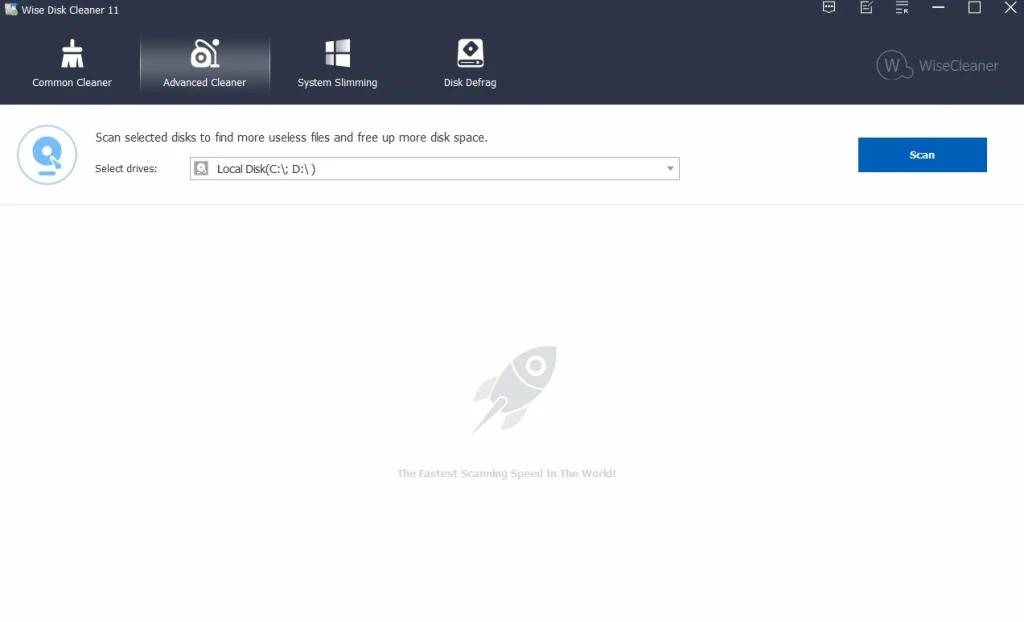
The tool scans your entire hard drive. It knows where junk files hide. The scan takes just a few minutes. Sometimes even less.
You get two scan modes. Quick scan checks basic areas. It looks in common locations. This takes about 30 seconds.
Deep scan looks everywhere. It checks every corner of your drive. This takes 2-3 minutes. It finds more files.
The scanner is intelligent. It knows what’s safe to remove. It won’t flag important system files. This keeps your computer safe.
Safe Cleaning Process
Safety matters when deleting files. Wise Disk Cleanup only removes files that won’t harm your system. It has built-in protection. It won’t delete important Windows files. Your programs stay intact.
You can review files before deletion. The software shows you everything. You see exactly what will be removed. This gives you full control.
You can uncheck items you want to keep. Maybe you need some temporary files. Just uncheck them. They’ll stay on your computer.
The cleaning process is reversible to some extent. The program creates a safety backup. This helps if something goes wrong.
Disk Defragmentation Tool
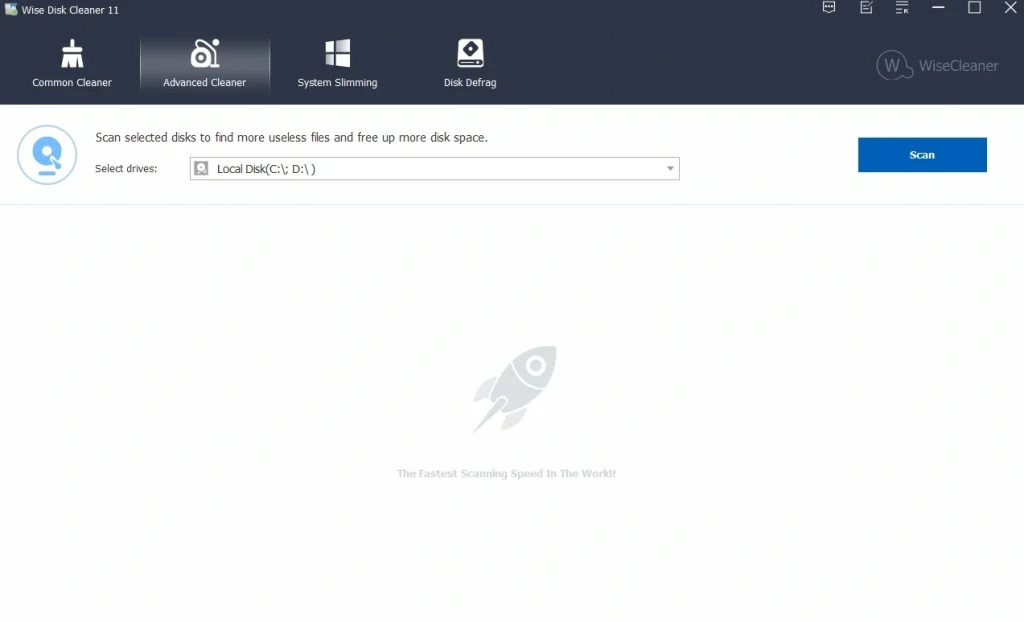
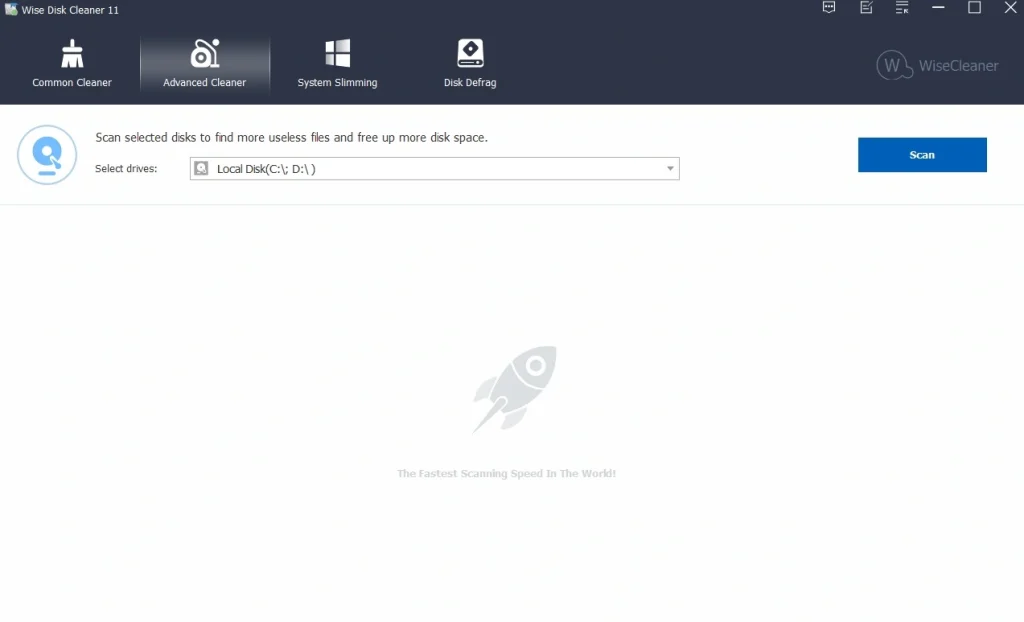
The software includes a basic defrag tool. This reorganizes files on your hard drive. Files get arranged more efficiently. This can improve performance.
Defragmentation works best on older HDDs. Traditional hard drives benefit from it. They have moving parts that need organization.
Scheduled Cleaning
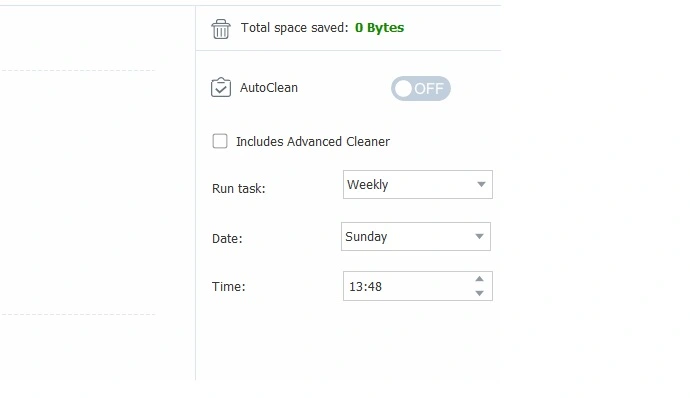
Set the program to run automatically. You choose the schedule. Daily cleaning is available. Weekly works for most people. Monthly is the minimum recommended.
The scheduler runs in the background. You won’t even notice it. Your PC gets cleaned while you work. Or while you sleep.
You can set specific times. Early morning works well. Late at night is another option. Pick whatever suits your routine.
Automatic cleaning saves time. You don’t need to remember. It just happens. Your computer always stays clean.
Custom Exclusions
You can tell the program what to skip. Maybe you want to keep certain cookies. Perhaps some temp files matter to you.
Add them to the exclusion list. The program will ignore them. They won’t appear in future scans. They won’t get deleted.
This feature gives you control. Every user has different needs. Exclusions let you customize the cleaning.
Step-by-Step Guide: Using the Wise Disk Cleanup Tool
Downloading the Software
The process is straightforward. No complicated steps. No confusing options.
Step 1. Download the Wise Disk Cleanup Tool. Launch Wise Disk Cleaner on your computer. Click “Scan.”
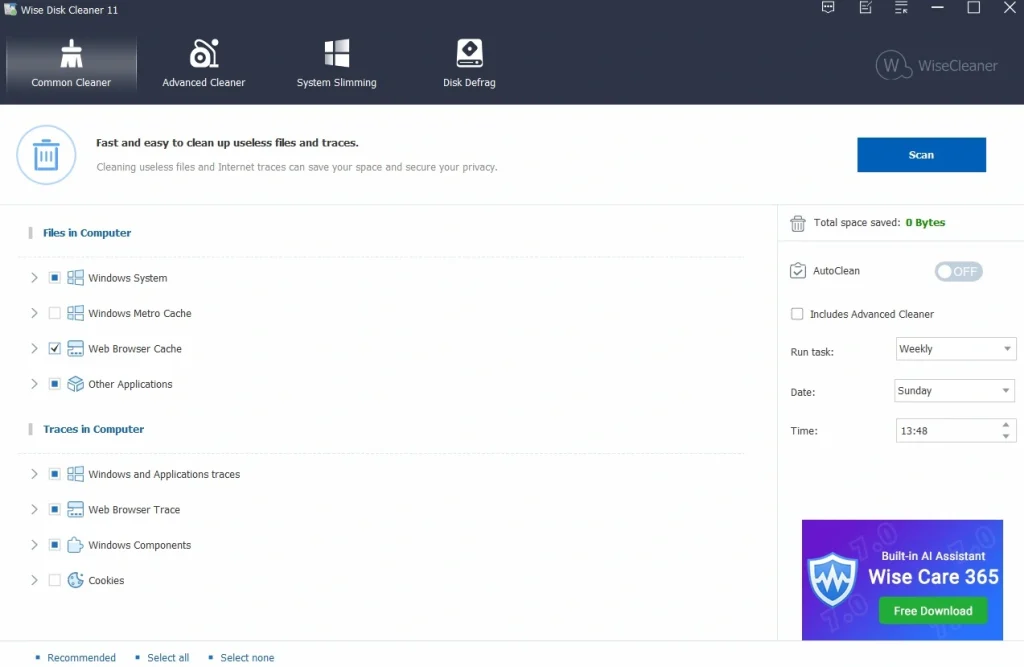
Step 2. It checks your system for junk files you don’t need. Click “Clean.”
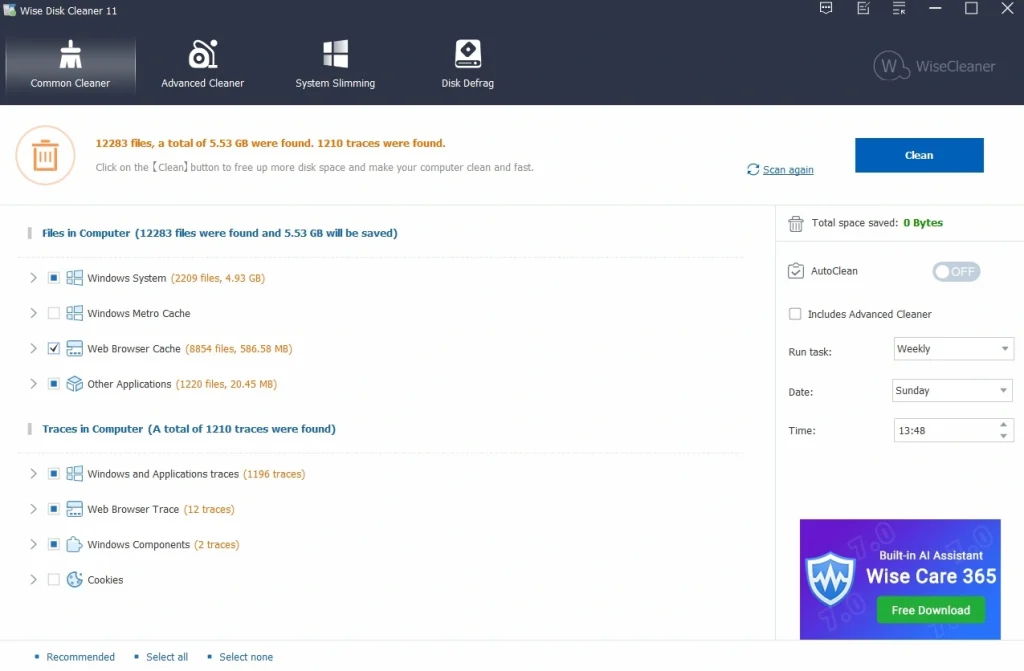
Step 3. It safely removes those files and frees up space!
Pros and Cons: Wise Disk Cleanup Tool
Advantages
Completely Free Software
You don’t pay anything. No credit card needed. No trial period that expires. No premium version exists. All features are included. Forever free. This is rare these days.
Extremely Easy to Use
The interface is simple. Big buttons. Clear labels. No confusing menus. Anyone can figure it out. Kids can use it. Seniors can use it. No tech knowledge needed.
Safe Operations
The tool won’t delete system files. Your Windows installation stays intact. Programs keep working. Documents remain untouched. Only junk gets removed. Built-in safety prevents mistakes.
Regular Updates
The developer keeps improving the software. New features get added regularly. Bugs get fixed quickly. Support for new Windows versions. The program stays current. You get updates for free.
Multilingual Support
Available in over 30 languages. English, Spanish, French, German. Chinese, Japanese, Korean. Portuguese, Russian, Italian. And many more. Pick your language. The interface translates instantly.
Good Customer Support
The company responds to emails. They have an active forum. Other users help each other. Solutions exist for common problems. You’re not alone if issues arise.
Disadvantages
Windows Only
Mac users can’t use it. Linux is not supported. Only Windows works. XP through Windows 11. If you use another OS, look elsewhere.
Basic Features
Advanced users might want more options. The tool focuses on simplicity. Power features are limited. Other programs offer more control. But complexity increases too.
Occasional Advertisements
The free version shows promotions. They’re for other WiseCleaner products. They appear sometimes after cleaning. They’re not intrusive. Just a small popup. Click “Close” and continue. No big deal for most users.
Pricing and Versions
Wise Disk Cleanup is 100% free. There’s no paid version. No trial period. No subscriptions. No hidden fees.
You get all features without paying. Every feature is unlocked. Nothing is held back. No upgrade prompts. No premium tier.
This makes it great for everyone. Home users love it. Small businesses use it. Students benefit from it. Everyone saves money.
How does the company make money? They offer other products. Some are paid. Some are free. Wise Disk Cleanup builds trust. Users try other products later. Smart business model.
System Requirements
The requirements are very low. Almost any PC can run it.
Operating System:
- Windows XP (yes, still supported!)
- Windows Vista
- Windows 7
- Windows 8/8.1
- Windows 10
- Windows 11
Both 32-bit and 64-bit versions work.
Disk Space: You need 50 MB free. That’s tiny. Even full drives have this much.
RAM: 512 MB minimum. 1 GB recommended. Modern computers have much more. This won’t be a problem.
Processor: Intel Pentium or compatible. AMD works fine, too. Any processor from the last 15 years works. Even older ones probably work.
Latest Version: Wise Disk Cleaner 11.2.7.
Tips for Best Results
Run Regular Scans
Clean your disk at least once a month. This prevents junk from building up. More frequent is better. Weekly works great for heavy users.
Review Before Cleaning
Always check what will be deleted. The list shows everything. Some temporary files might contain data you need. Take a quick look through the list.
Combine with Other Tools
Use Wise Disk Cleanup alongside antivirus software. They work well together. One cleans junk. The other fights malware. Both keep your PC healthy.
Update Regularly
Keep the software current. Updates fix bugs. They add new cleaning capabilities. Security patches get included. New Windows versions get supported.
Check for updates monthly. Or enable automatic updates. The program can update itself. You’ll always have the latest version.
Close Programs First
Exit other applications before cleaning. This ensures all temporary files can be removed. Some files stay locked when programs run.
Close your browser completely. Exit Microsoft Office. Shut down any games. Close everything you can.
Backup Important Data
Before any major cleanup, back up your files. This is good practice. You probably won’t need it. But safety first always.
Copy important documents elsewhere. Use an external drive. Or cloud storage. Or both.
Use Deep Scan Monthly
Quick scans work for weekly cleaning. They’re fast and efficient. They catch most junk.
Run a deep scan once a month. This catches files in unusual locations. Hidden temp folders. Forgotten caches. Old log files.
Don’t Overdo It
Cleaning daily isn’t necessary. Weekly is plenty for most users. Over-cleaning wastes time. It doesn’t help much.
Some temp files are useful. They speed up programs. Cleaning them constantly hurts performance. Balance is important.
Conclusion
Wise Disk Cleanup does what it promises. It cleans your disk effectively. It’s safe, free, and easy to use. No tricks. No gimmicks. Just good software.
The software works well for average users. You don’t need technical knowledge. Click a few buttons. Wait a minute. Done. Your computer is cleaner.
Should you try it? Absolutely. You’ve got nothing to lose. No cost involved. No risk present. Just benefits.
Frequently Asked Questions:
Is Wise Disk Cleanup safe to use?
Yes, it’s completely safe. The program only removes junk files. It won’t delete system files. Personal documents stay untouched.
Millions of users trust it worldwide. It’s been around since 2006. No major incidents have occurred. No malware. No security breaches.
How often should I clean my disk?
Once a month is good for most users. This prevents major buildup. Keeps your system running smooth.
If you download lots of files, clean weekly. If you browse heavily, weekly works too. Power users benefit from frequent cleaning.
Will it speed up my computer?
It can help, but don’t expect miracles. Freeing up disk space improves performance slightly. The effect varies by system.
If your drive is nearly full, cleaning helps a lot. Windows needs free space. 10-15% should stay empty. Cleaning ensures this.
Most users notice some improvement. Faster boot times. Quicker program loading. Smoother overall feel. Small changes add up.
Popular Post
Recent Post

How To Clear Cache Memory On Windows 11/10 [2026]
Learn how to clear cache memory on Windows 11/10 using safe built-in methods to improve speed, free space, and maintain smooth system performance.

Windows Installer Cleanup Utility: Complete Review And Alternatives
Detailed review of Windows Installer Cleanup Utility, reasons for removal, risks, and safer modern alternatives explained clearly.

How To Clean Junk Files On Windows 11/10
Learn how to clean junk files on Windows 11 and 10 using safe, simple steps to boost speed and free storage space effectively.

Clearing App Cache Data on Windows 11/10: Complete Guide
Learn how to safely clear app cache on Windows 11 and 10 to fix slow apps, free disk space, and improve overall system performance.

How To Clean Up System Files On Windows 11/10: Complete Guide
Explore a step-by-step guide explaining how Windows users can safely remove unnecessary system data using built-in tools.

How To Clean a Laptop Fan Without Opening [2026 Guide]
Learn how to clean a laptop fan without opening the device using safe steps, simple tools, and easy methods for better cooling.

How to Clear the Queue in the Printer Automatically in 2026
Learn how to clear the queue in the printer with simple steps. This easy guide explains why print jobs get stuck and how to fix them safely for smooth printing.

How To Clear Delivery Optimization Cache In Windows
Learn how to clear Delivery Optimization Cache in Windows safely and easily. This guide explains steps, precautions, benefits, and FAQs to free space and avoid update issues.

How To Clear Cache in Edge [Windows 11/10]: Latest Guide
Learn how to clear cache in Edge on Windows 11 and Windows 10. Step by step guide with precautions, FAQs, and tips to fix slow pages and errors.

Top 15 Questions About PC Cleaning and Their Answers
Learn safe and simple ways to clean your PC. This guide answers top questions, covers precautions, and gives advanced tips for better PC health and performance.
