3 Simple Ways to Uninstall a Printer from Your Mac

Last updated on October 13th, 2025 at 4:09 pm
Print documents are like history now. Today, we hardly see crisp documents printed on paper in this paperless world. Nowadays, cloud storage services or internal/external storage devices are used to store, manage and share documents.
Since printing documents is a task that you perform on rare occasions, what’s the purpose of keeping printer drivers on your Mac? They are simply occupying space on your disk and slowing its performance.
So, you could just uninstall a printer from your Mac and free up disk space. Plus, it hardly takes a couple of steps to uninstall and reinstall a printer on Macs.
Let’s scroll down to learn how to uninstall a printer from your Mac and reinstall it afterward.
Here’s How to Quickly Delete Printer Driver from Your Mac
Whether you want to replace your old printer or create some space on your disk, removing the printer from your Mac is easy. In addition, you should not keep old and new printer drivers on your system. They can conflict with one another and impact your print quality.
So, here is the quickest way to delete printer drivers from your Mac:
Step 1. Click on the Apple logo in the top-right corner and choose System Preferences.
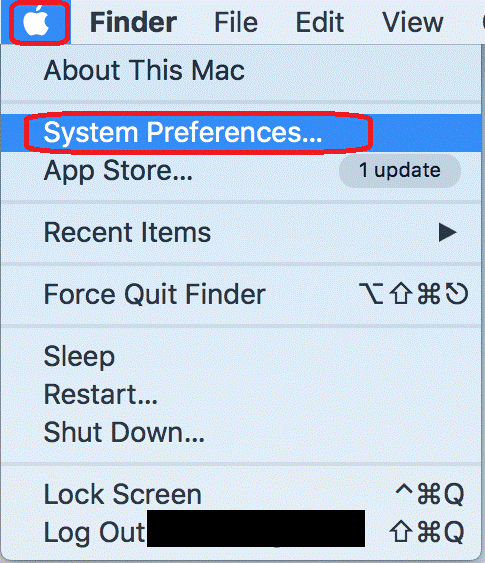
Step 2. Up next, you can click on the Printers & Scanners pane.
Step 3. Go to the printer that you plan to delete from the sidebar.
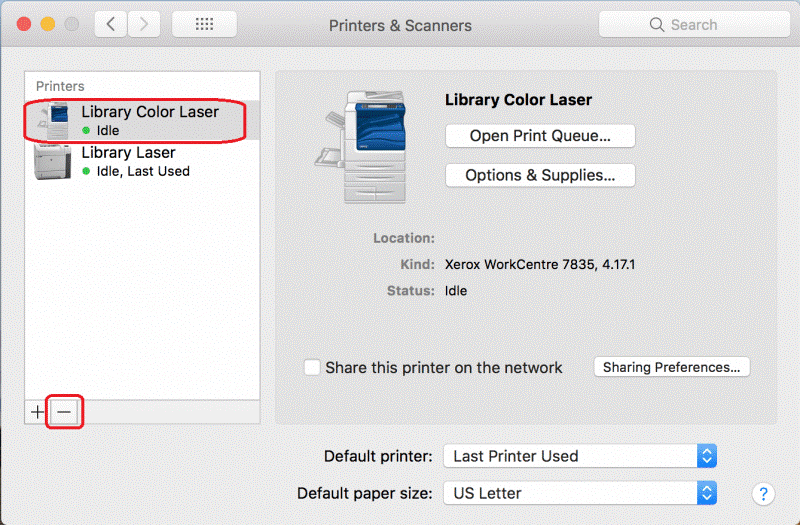
Step 4. After that, simply click on the “-“ sign from the bottom sidebar to delete printer drivers from your macOS.
How to Exactly Uninstall a Printer Driver from Your Mac
By following the above steps, you have only made printers unviable in the Print dialogue box. It is not fully uninstalled from your system.
Some printer files are still available on your Mac in different locations. Thus, you have to take a separate approach to uninstall a printer permanently on your Mac. Here are the three methods to do so:
Method 1. Using the Default Printer Installer
Nowadays, most printer manufacturers provide an Uninstaller to quickly uninstall the software. It is probably available in the Applications folder. It is the easiest way to uninstall a printer. Follow these steps to uninstall your printer using the Uninstaller:
Step 1. Go to the Applications folder located on your Mac. From there, look for a folder with your printer’s manufacturer name to uninstall it.
Step 2. Up next, you can navigate to the Uninstaller file and double-click to open it.
Step 3. Now, all you have to do is follow the on-screen instructions to uninstall printer files from your computer.
Method 2. Use the Finder
If you don’t find the printer Uninstaller file or your manufacturer doesn’t provide this option, you have to go the manual way. That means you have to manually uninstall printer driver files from your device. You have to go through different folders and delete all files with your printer name.
Unfortunately, it is a long and risky process. For example, you could delete the wrong files by mistake, leading to bigger trouble for your Mac. Or you can miss out on some files.
Though it is not a recommended method, you can use these steps to manually uninstall printer files:
Step 1. From the Dock, click on the Finder icon.
Step 2. Click on the Go Menu and next on the Go to Folder.
Step 3. Now, paste the following paths one by one into the text field. At every location, search for the files with your printer name and move them to the Trash folder—
~/Library/Cache
~/Library/Preferences
~/Library/Logs
~/Library/Application Support
~/Library/Containers
~/Library/Printers
Step 4. Once you are sure that you have deleted all files related to your printer, empty the Trash folder to permanently delete them.
Method 3. Go for Third-party Tools
So, it is not easy to uninstall a printer from Mac computers without the printer manufacturer’s Uninstaller file. Furthermore, it takes time and energy to manually delete all printer files. Thus, we recommend users get CleanMyMac X.
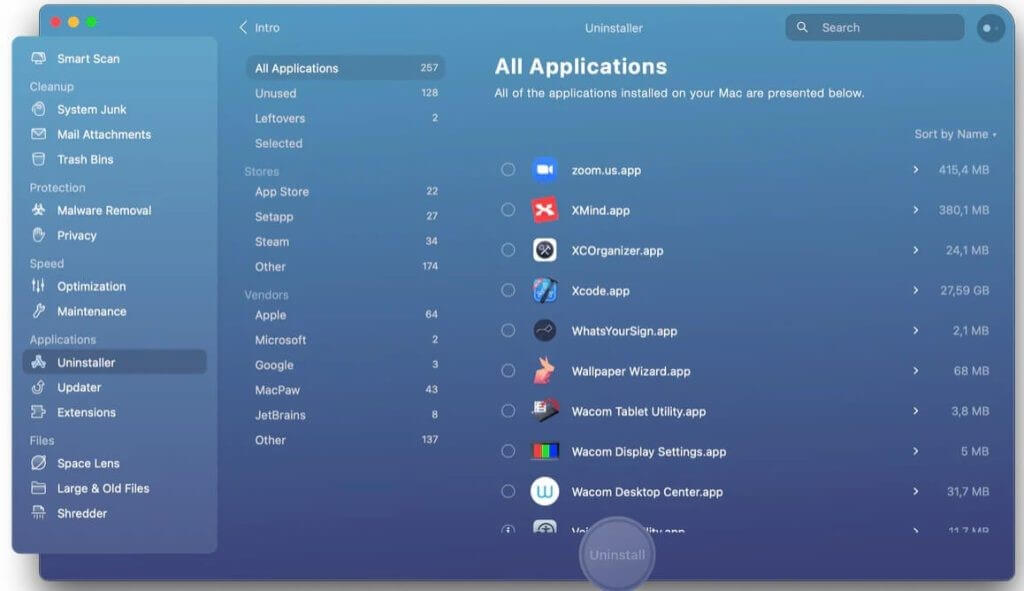
CleanMyMac X is a perfect tool to boost Mac’s performance by removing unwanted files, malware, etc. This tool has an Uninstaller module that you can use to uninstall print drivers. Here’s how it works:
Step 1. Download CleanMyMac on your Mac from the MacPaw website.
Step 2. Launch the software and click on the Uninstaller in the sidebar.
Step 3. Type your printer name in the search box.
Step 4. When the drivers appear in the right-hand pane, check the box next to them and press the Uninstall button.
How to Reinstall a Printer on Your Mac?
Do you want to print a hard copy of your CV for a job interview? Do you need photo printouts for your kid’s homework? No need to panic!
You can easily reinstall a printer on your Mac. There you have multiple options to reinstall printers, like:
- Using a USB
- With WiFi or a network
- Through the IP address
- Using Bluetooth
- With AirPort Time Capsule
For this guide, we will show how to reinstall a printer using a USB drive:
Step 1. Head over to the Apple Menu > App Store.
Step 2. Select the Updates to install the latest software updates. If there are no updates available, this means your Mac already has the latest printer software.
Step 3. Set up the printer and connect to your Mac using the user manual.
Step 4. Once you connect a printer and Mac using the USB, a message will prompt on your computer to download new software.
Step 5. Download and install the printer software to start printing.
Conclusion
There you go, peeps! You can now easily uninstall and reinstall a printer on your Mac. However, we recommend using CleanMyMac X to uninstall printer files in the absence of Uninstaller. That’s because manually uninstalling printer drivers takes time. Plus, CleanMyMac X can help to maintain your Mac’s good health.
Now, we hope you find this post helpful. And for more guides like this, keep on exploring our website.
Popular Post
Recent Post
Disk Cleanup This PC: A Complete Guide
Learn how to run Disk Cleanup on this PC with our complete guide. Free up storage space, speed up your computer, and keep Windows running smoothly with easy steps.

How to Reset Windows 11: Complete Guide
Learn how to reset Windows 11 in clear steps. This complete guide explains precautions, methods, tips, and answers to common questions to help you reset your system safely.
How to Debloat Windows 11: Complete Guide [2026]
Learn how to debloat Windows 11 with simple steps. Remove extra apps, reduce background load, and speed up your PC using safe and clear methods for better performance.

Computer Cleaning Habits You Must Follow
Learn simple computer cleaning habits that keep your device fast and healthy. Follow steps for file cleanup, dust removal, updates, and security in one clear guide.

How to Clean a Browser on a Windows PC: Chrome, Mozilla, Opera, Edge.
Learn how to clean your browser on a Windows PC for Chrome, Mozilla Firefox, Opera, and Edge. Improve speed, remove old data, and keep your system running smoothly.
What Files Are Safe To Clean On A Windows Computer?
Learn which files are safe to clean on a Windows computer. Simple guide with clear sections, tips, bullets, and FAQs to help you free space and keep your PC running smoothly.

How to Clean a PC from Virus: Complete Guide
A clear and simple guide on how to clean your PC from a virus. Learn practical methods, safety tips, and easy steps to remove threats and protect your computer.
How To Clean a Windows Desktop: Complete Guide
Learn how to clean a Windows desktop with 9 simple methods. Remove clutter, boost PC speed, and organize files easily. Get your clean desktop today!
How To Clean A Computer Cabinet: Clean PC Case
Learn how to clean a computer cabinet safely with our step-by-step guide. Keep your PC running cool and fast with proper case cleaning techniques and pro tips.
How To Clean A Computer Cable At Home Without Damage
Learn how to clean computer cable connections safely. Step-by-step guide with tips for USB, HDMI, and power cables. Keep your equipment running smoothly.
