Here’s How to Uninstall Drivers on Mac
Last updated on October 14th, 2025 at 1:54 pm
MacOS is a self-contained operating system. It doesn’t require drivers to support native hardware operations. But to run third-party hardware devices on Mac, you need to install the dedicated drivers.
Thus, once you no longer use the hardware, there is no purpose in keeping its drivers stored on your Mac device. So, you can uninstall drivers you don’t need anymore from your Mac and free up space on your disk.
Let’s scroll to know how to uninstall drivers on Mac.
What Does a Driver Do on a Mac?
Usually, drivers are associated with Windows PCs rather than Macs. That is because macOS doesn’t need drivers for most hardware. It is integrated with software to connect with common hardware peripherals.
For example, there is no need to install printer drivers on macOS. That is because macOS comes with a technology called AirPrint. It allows you to integrate with printers without any drivers. However, if your printer doesn’t support AirPrint, you have to download the necessary drivers.
Which Drivers Do You Need on Macs?
There are several drivers that you need to support hardware like game controllers and graphics tablets. In short, to support third-party hardware, you need to install dedicated drivers.
Besides this, you need to keep the drivers updated to make sure they configure well with the latest macOS versions. However, when the hardware manufacturer doesn’t create drivers compatible with your macOS version, that device will become obsolete for you. So, you’d better uninstall those drivers on your Mac.
Common Reasons Behind Uninstalling Drivers on Mac
There are many situations when you need to uninstall drivers on your Mac, like:
- Drivers are no longer compatible with your Mac
- The driver application is causing problems
- Drivers need updates to support the latest macOS
- The program is consuming a large space on your Mac drive
- The driver files conflict with other applications and operations on the Mac
Where Are Drivers Located on the Mac?
In many cases, you have to first uninstall the old drivers before you install the new ones. And for this purpose, you have to ensure that all driver-related files are removed from your computer.
Unfortunately, every driver software is installed in different locations on your Mac. Some hardware drivers are accessible from System Preferences, where you can configure the device.
In addition, some utility hardware is located in the Applications folder. Usually, drivers also store their files in the user Library folder or the system Library folder. Besides this, driver files are also seen in Application Support, LaunchAgents, and so on.
For instance, audio drivers are installed at the Library/Audio location.
How to Uninstall Drivers on Your Mac
Uninstalling driver files from a Mac can be a bit tricky, as drivers are scattered everywhere on your computer. In addition, removing some driver files will create further problems. Therefore, we recommend these solutions to fully uninstall drivers on your Mac:
Solution 1. Move Drivers to Trash via Finder
Finder is a simple search tool on Mac. It lets you detect driver files located on your computer and delete them one by one. Here’s how you can uninstall drivers using Finder:
Step 1. First, close the application you want to uninstall on your Mac. Go to the Dock, right-click on the app’s icon, and select the Exit option to close the app.
Step 2. Click on the Finder from the Dock and tap on the Application on the left pane.
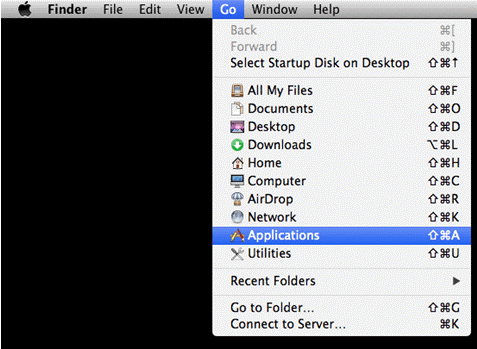
Step 3. You will see all programs in the right pane, navigate, and locate the drivers.
Step 4. Drag the program’s icon to the Trash.
Step 5. Right-click on the Trash icon on the Dock and select the Empty Trash option to delete the program you have just moved to the Trash folder.
Step 6. You should repeat the steps unless all driver files are removed from your system.
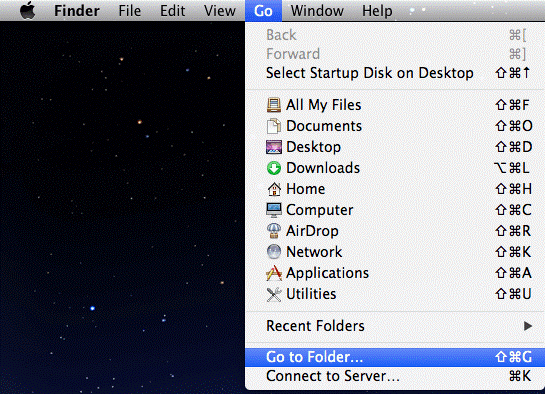
Step 7. Head over to the Go > Go to folder from the top menu.
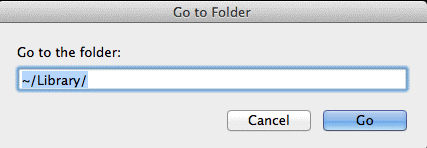
Step 8. Enter ~/library/ in the search box and press the Enter key to access the user’s library folder.
Step 9. Double-click to open the Application Support folder in the Library and look for the folder with your driver’s name to delete it.
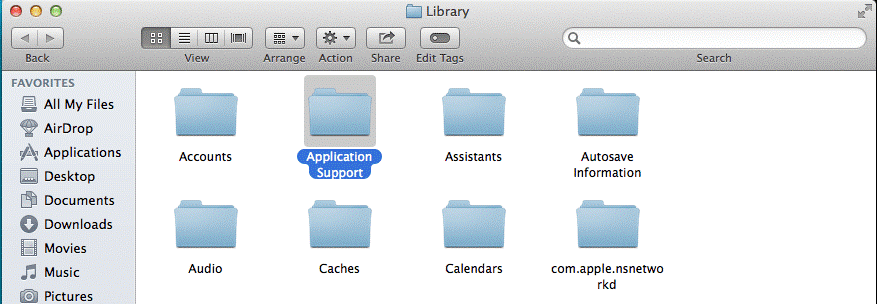
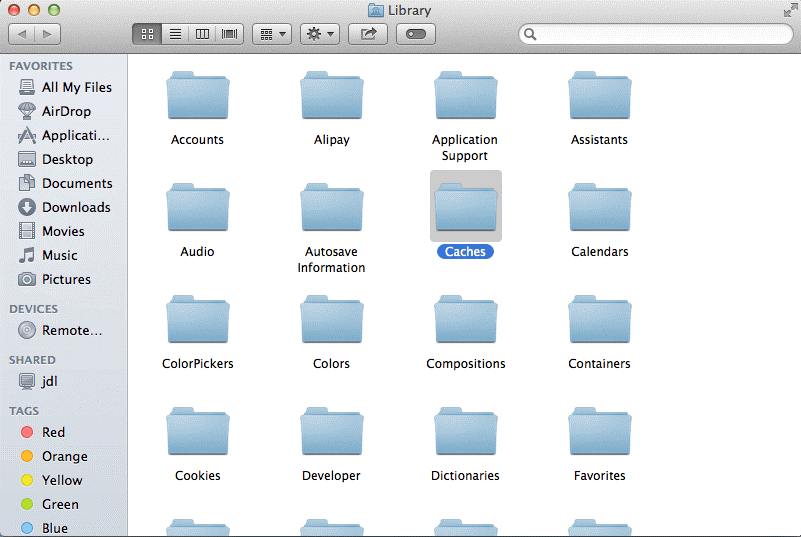
Step 10. Move back to the Library window and open Caches to delete the caches related to the driver you have just deleted.
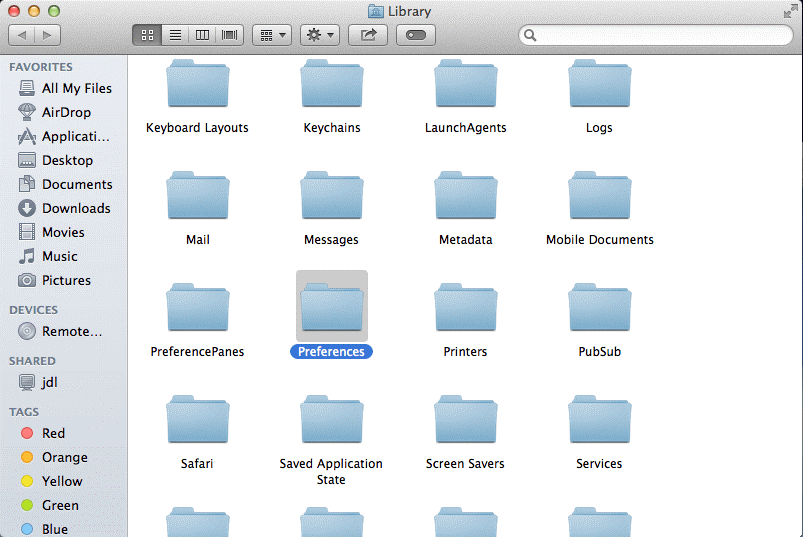
Step 11. Similarly, open the Preferences folder in the Library and delete all the app preferences.
Step 12. Once you are done cleaning all driver-related files, cross-check all the locations again to ensure you have fully uninstalled drivers on Mac.
Solution 2. Use Third-Party Tools
Manually finding and deleting all driver files from your system is not easy. It takes up a lot of time, and you might possibly miss a driver file. Thus, you can use an automatic solution to uninstall drivers from your Mac.
For this purpose, CleanMyMac X is a perfect tool. It is a free tool that can scan your entire system and make it easy to find your driver files. In addition, the software can find broken or outdated drivers to help you update them with a click.
Here’s how you can use CleanMyMac X to uninstall drivers on Mac:
Step 1. Download and install CleanMyMac X from the MacPaw website.
Step 2. Click on the Download Trial button and next click on the CleanMyMac.dmg file.
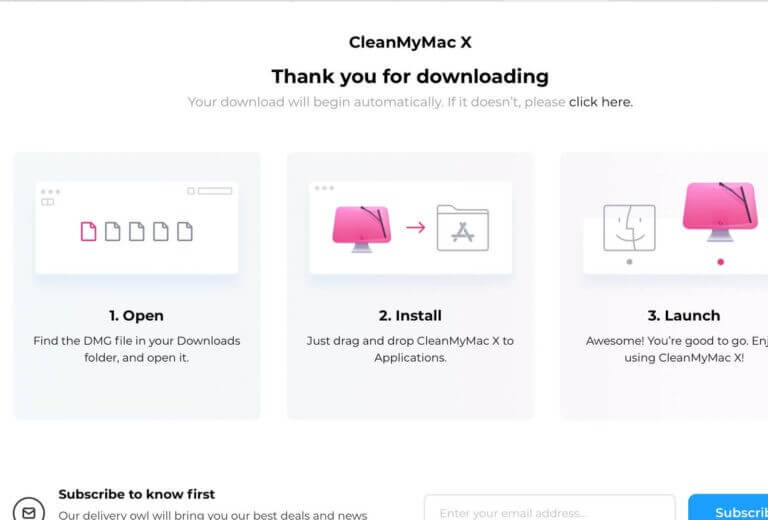
Step 3. After that, drag and drop the CleanMyMac X icon to the Application folder.
Step 4. Launch CleanMyMac X from the Application folder.
Step 5. Up next, click Activate in the upper right corner.
Step 6. Enter the Activation Number or resume with the free trial. Go to the Buyer License to find your Activation Number.
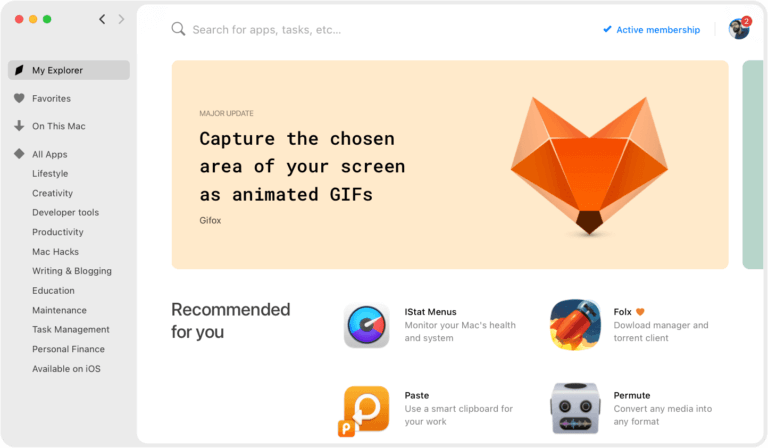
Step 7. Click on the CleanMyMac X icon and select the Uninstaller tab to find the list of all apps.
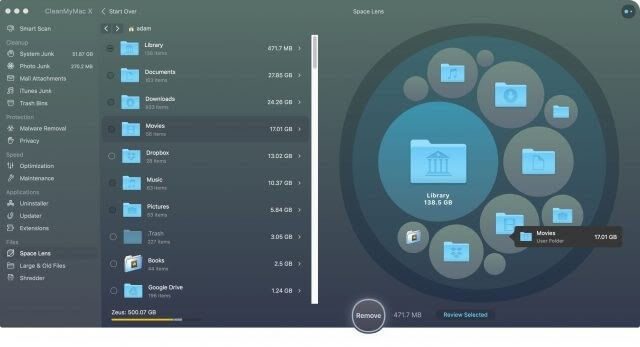
Step 8. Select the driver you want to uninstall and click on the Uninstall button. If you don’t find drivers in the list, click on the Optimization tab to find and delete them.
Parting Remarks
That’s it for now! You now know how to uninstall drivers on Mac using CleanMyMac X and the manual approach. Using tools is the easiest and fastest way to remove drivers.
In addition, CleanMyMac X lets you delete drivers for free. So, we recommend you get a tool and quickly get rid of your outdated drivers.
Oh, and don’t forget to check more Mac guides on this site.
Popular Post
Recent Post
Disk Cleanup This PC: A Complete Guide
Learn how to run Disk Cleanup on this PC with our complete guide. Free up storage space, speed up your computer, and keep Windows running smoothly with easy steps.

How to Reset Windows 11: Complete Guide
Learn how to reset Windows 11 in clear steps. This complete guide explains precautions, methods, tips, and answers to common questions to help you reset your system safely.
How to Debloat Windows 11: Complete Guide [2026]
Learn how to debloat Windows 11 with simple steps. Remove extra apps, reduce background load, and speed up your PC using safe and clear methods for better performance.

Computer Cleaning Habits You Must Follow
Learn simple computer cleaning habits that keep your device fast and healthy. Follow steps for file cleanup, dust removal, updates, and security in one clear guide.

How to Clean a Browser on a Windows PC: Chrome, Mozilla, Opera, Edge.
Learn how to clean your browser on a Windows PC for Chrome, Mozilla Firefox, Opera, and Edge. Improve speed, remove old data, and keep your system running smoothly.
What Files Are Safe To Clean On A Windows Computer?
Learn which files are safe to clean on a Windows computer. Simple guide with clear sections, tips, bullets, and FAQs to help you free space and keep your PC running smoothly.

How to Clean a PC from Virus: Complete Guide
A clear and simple guide on how to clean your PC from a virus. Learn practical methods, safety tips, and easy steps to remove threats and protect your computer.

How To Clean a Windows Desktop: Complete Guide
Learn how to clean a Windows desktop with 9 simple methods. Remove clutter, boost PC speed, and organize files easily. Get your clean desktop today!
How To Clean A Computer Cabinet: Clean PC Case
Learn how to clean a computer cabinet safely with our step-by-step guide. Keep your PC running cool and fast with proper case cleaning techniques and pro tips.
How To Clean A Computer Cable At Home Without Damage
Learn how to clean computer cable connections safely. Step-by-step guide with tips for USB, HDMI, and power cables. Keep your equipment running smoothly.
