How to Fix Calendar App Not Working on Windows (7 Solutions)
Introduction:
Staying organized is key to maintaining a productive lifestyle. Isn’t it? For many Windows users, the Calendar app plays a vital role in managing daily schedules, important events, and reminders. However, encountering issues with the Calendar app can quickly throw a wrench into your well-planned routine.
If you’ve found yourself in a situation where the Calendar app on your Windows system is not working as expected, don’t panic just yet. There are several common reasons why the Calendar app might be acting up, ranging from minor glitches to more complex technical problems. The good news is that, in most cases, you can resolve these issues on your own without the need for extensive technical knowledge.
In this troubleshooting guide, we will walk you through some effective methods to fix the Calendar app not working issue on Windows.
Calendar App Not Working on Windows 11/10? Try These Fixes!
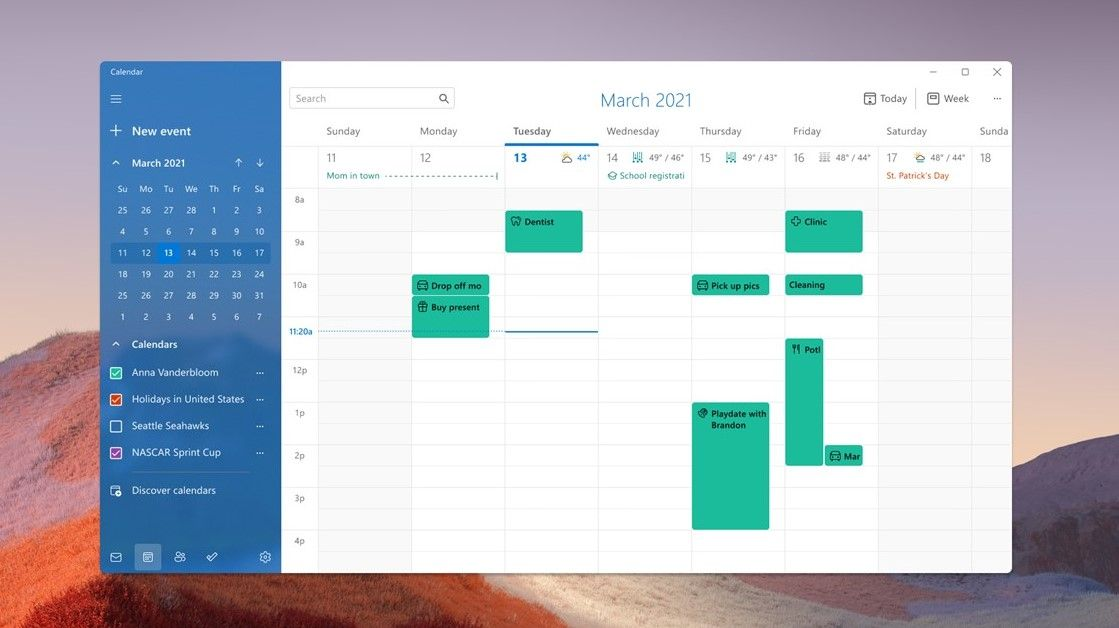
So, regardless of the specific Windows edition you’re using, there’s a good chance you’ll find the solutions outlined here applicable to your situation.
Solution 1: Update the Calendar App
If you’re having trouble with the Calendar app on your Windows system, the first thing we should try is updating the app to see if that resolves the issues. Here’s how:
- Open the Microsoft Store app.
- Click on the library icon from the left menu pane.

- Hit on the “Get updates” to check for updates.

- If there’s an update available for the Mail and Calendar app, click “Update.”
Once the update is complete, restart your computer and give the Calendar app another try. Hopefully, this update will fix any glitches and get everything back on track.
Solution 2: Reset the Calendar App
If updating the Calendar app didn’t do the trick, don’t fret! Another effective step you can take is resetting the app. Resetting the Calendar app can help clear any underlying issues or corrupted settings that may be causing it to malfunction.
Here’s how you can reset the Calendar app on Windows:
- Open the “Settings” app on your Windows system.
- In the Settings window, click on “Apps” and the “Installed Apps”.
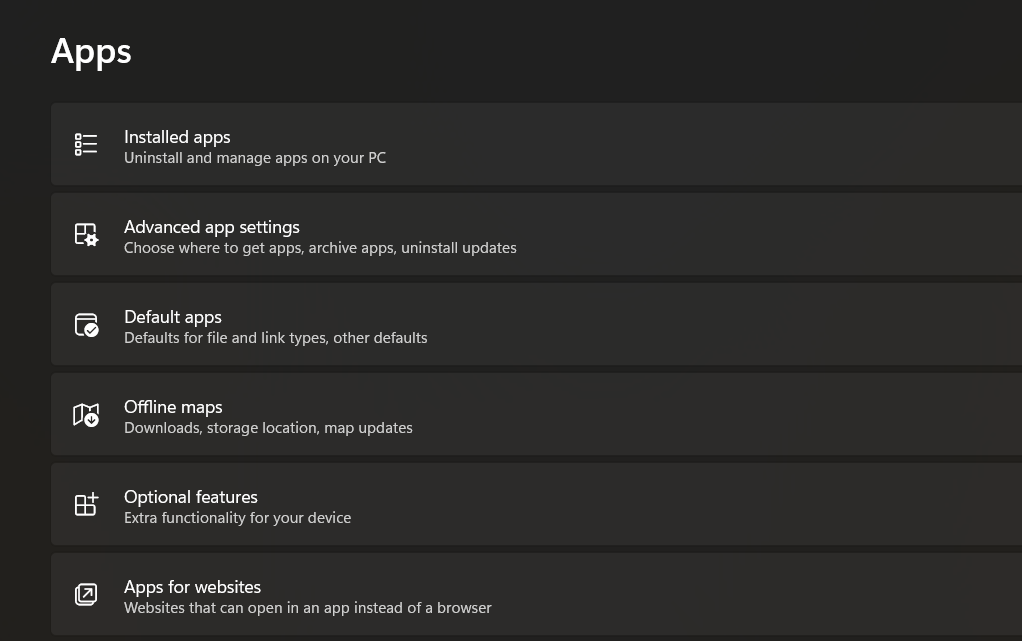
- On the Apps page, scroll down and locate the “Calendar” app. You can either browse through the list or use the search bar to find it more quickly.

- Once you’ve found the Calendar app, tap on the three-dot icon placed next to it and select “Advanced Options”.
- On the next screen, you will see a “Reset” button.
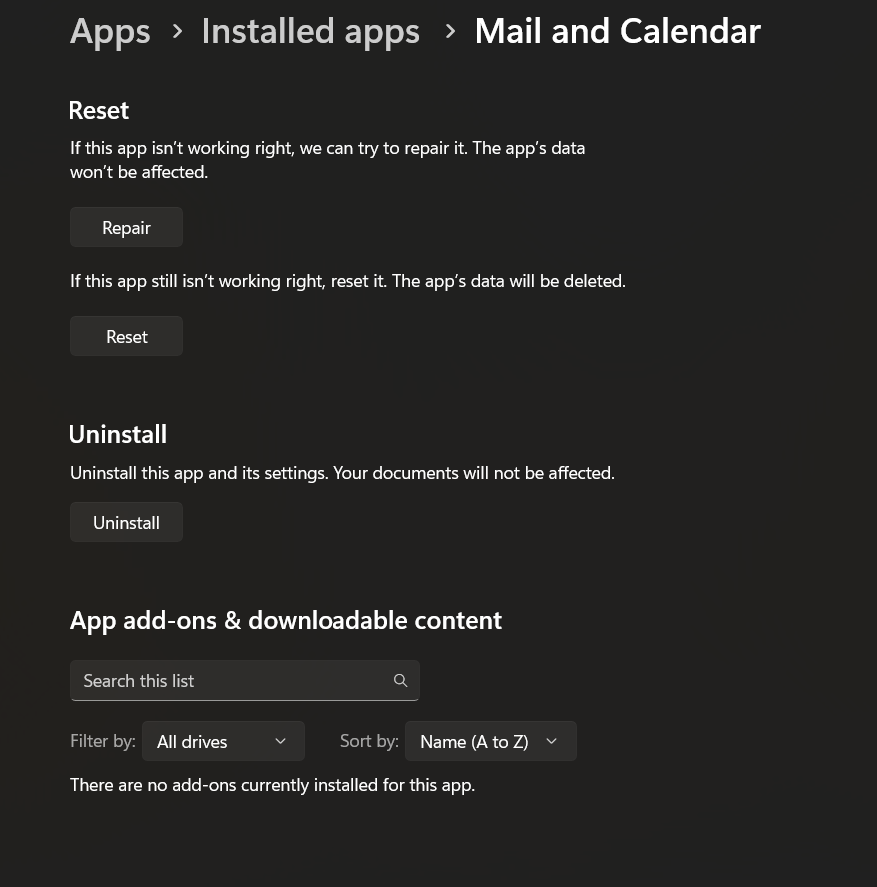
- Click on it to reset the Calendar app.
Windows will now reset the Calendar app, which may take a few moments. After the reset is complete, close the Settings app and try launching the Calendar app again. Hopefully, this reset will resolve any lingering issues and get the app back to its normal functioning state.
Solution 3: Uninstall Recent Windows Updates
If you’re still experiencing the calendar app not working issue, it’s worth considering whether recent Windows updates might be the culprit. Sometimes, certain updates can introduce compatibility problems or conflicts with specific apps. In such cases, uninstalling the recent updates may help resolve the issue.
NOTE: Uninstalling updates is an advanced troubleshooting step and should be done with caution. It’s recommended to create a system restore point or backup your important files before proceeding.
Here’s how you can uninstall recent Windows updates:
- Open the “Settings” app and switch to the “Windows Update” section from the left menu pane.
- Click on the “Update History” link.

- You will see a list of recent updates installed on your system. Scroll down at the bottom of the page and tap on “Uninstall Updates”.

- Pick the most recent update from the list and then hit the “Uninstall” button placed next to it.

Windows will guide you through the uninstallation process. Follow the on-screen instructions and restart your computer if prompted.
After uninstalling the updates, check if the Calendar app is functioning properly. If the issue persists, you can always reinstall the updates later.
Solution 4: Use the System Restore Feature
If the Calendar app on your Windows system is still misbehaving, you can try using the System Restore feature. Here’s how you can fix the calendar app not working issue.
- Search for “System Restore” and open the “Create a restore point” option.
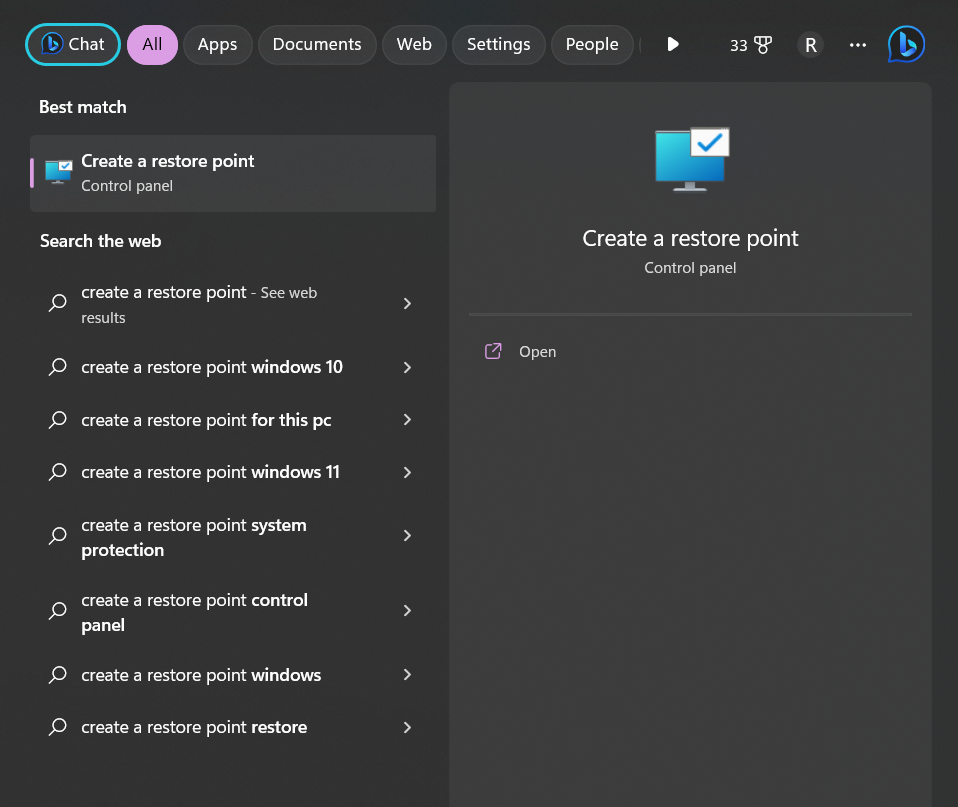
- Click on “System Restore” and follow the prompts.
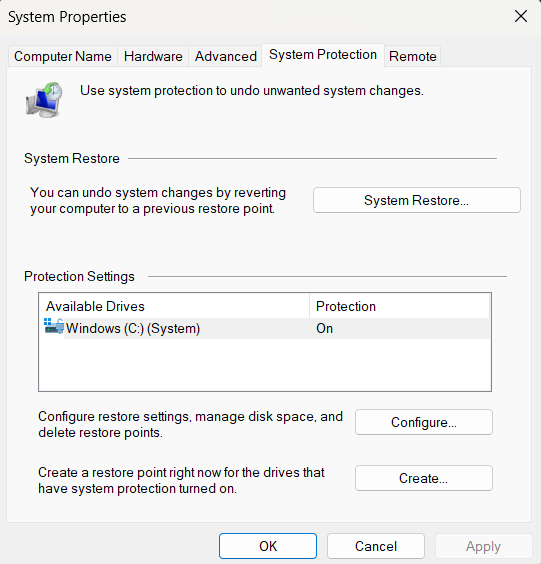
- Select a restore point from before the Calendar app started having issues.
- Confirm the restore process and let your computer restart.
After the restoration is complete, check if the Calendar app is working properly.
Using System Restore can revert your system to a previous state when the Calendar app was functioning correctly.
Solution 5: Open Calendar Using the Mail App
If you’re still facing the calendar app not working Windows 10/11 issue, an alternative approach you can try is accessing the calendar through the Mail app. The Mail app provides integrated access to your email and calendar, and it might help you bypass any issues specifically related to the standalone Calendar app.
Here’s how you can open the Calendar using the Mail app:
- Open the Mail app on your Windows system. You can find it by clicking on the “Start” button and searching for “Mail.”
- Once the Mail app is open, look for a small calendar icon located at the bottom-left corner of the window. It typically appears next to the “Folders” section.

- Click on the calendar icon, and it will switch the Mail app’s view to Calendar mode.
- Now, you should be able to view and manage your calendar events and appointments directly within the Mail app’s Calendar mode.
By accessing the Calendar through the Mail app, you can still maintain functionality and control over your schedule, even if the standalone Calendar app is not cooperating.
Solution 6: Check Date and Time Settings

Make sure that your computer’s date and time settings are accurate. Incorrect date and time settings can sometimes cause issues with the Calendar app. Right-click on the date and time in the taskbar, select “Adjust date/time,” and ensure that the settings are correct.
Solution 7: Disable Third-Party Antivirus or Firewall
Sometimes, third-party antivirus or firewall software can interfere with the proper functioning of the Calendar app. Temporarily disable your antivirus or firewall software and check if the Calendar app starts working. If it does, you may need to adjust the settings of your security software to allow the Calendar app to function.
Conclusion
In conclusion, troubleshooting issues with the Calendar app on Windows can be a frustrating experience, but with the right steps, you can regain control of your schedule and fix the calendar app not working Windows 10/11 issue within no time.
Whether it’s updating the app, resetting it, or exploring alternative access methods, these solutions can help resolve common problems. Remember, each system may have unique factors contributing to the issue, so don’t hesitate to seek further assistance if needed. Keep your calendar running smoothly and stay organized!

Author Bio:
Dinesh Lakhwani, the entrepreneurial brain behind “TechCommuters,” achieved big things in the tech world. He started the company to make smart and user-friendly tech solutions. Thanks to his sharp thinking, focus on quality and the motto of never giving up, TechCommuters became a top player in the industry. His commitment to excellence has propelled the company to a leading position in the industry.
Popular Post
Recent Post
BleachBit PC Cleaner Tool: Complete Review After Running Tests
A PC never stays clean on its own. Every app you open, every website you visit, and every file you download leaves something behind. Weeks turn into months, and suddenly your storage feels tight, and your PC feels slower, with no clear reason why. The usual fix is a cleaning tool. But the market is […]

Iolo System Mechanic Review: Full Breakdown and Honest Take
Iolo System Mechanic is designed for users who want their PC to feel fresh and responsive again. With just a few clicks, it digs into the system, clears out unnecessary clutter, and delivers noticeable speed improvements. The interface is straightforward and beginner‑friendly, making it easy to navigate without confusion. But this tool goes beyond simple […]

Clean Master for PC Tested: A Full Breakdown of Its Tools
A computer doesn’t slow down overnight. Right? It happens bit by bit. Extra downloads, leftover cache, startup apps piling up. Soon the fast machine you loved feels sluggish. Boot times drag, programs freeze, and even opening a browser tab feels heavy. This slow decline is common, caused by junk files, cluttered registries, and hidden tasks […]
How To Clean Your PC/Laptop: Guide for Beginners to Experts
A computer never announces that it needs help. Well, yes! It just gets slower, hotter, and noisier, one day at a time, until you finally stop and wonder what changed. Nothing changed overnight. What happened is dust and clutter, working quietly in the background for months. Dust settles inside fans and vents, trapping heat and […]

Wise Care 365 PC Cleaner Tool: A Hands-On Review
Every Windows user knows the feeling. Your computer runs fast on day one. Then months pass. Files pile up. The registry gets messy. Startup takes longer. Apps freeze more often. This slow decline is normal, but it is also annoying. Most people just live with it. Some restart their PC often, hoping it helps. It […]

Glary Utilities PC Cleaner: Complete Review [Tested and Trusted]
Glary Utilities is one of the most popular PC optimization tools available today. It combines cleaning, repair, and performance‑boosting features into a single suite. The goal is simple: keep your computer running fast and stable without needing multiple separate programs. In this review, we’ll look at how Glary Utilities performs in real use, what features […]

Microsoft PC Manager: Complete In-Depth Review
A slow computer can ruin your whole day. Files pile up. Startup apps multiply. Before you know it, your once fast machine feels sluggish and tired. Most people search for a fix, but many tools out there are bloated, pushy, or full of ads. Microsoft PC Manager was built to solve this exact problem. It […]

AVG TuneUp Guide: Features, Pros, Cons, and Pricing
PC performance often drops with time. Junk files build up. Startup programs increase. Storage fills up. As a result, your computer may take longer to boot, feel sluggish, or run out of space. The good news is that these problems are usually easy to fix. AVG TuneUp is a PC optimization tool for Windows. It […]

Ashampoo WinOptimizer: Features and Process [Complete Guide]
Ashampoo WinOptimizer is built for users who want a faster, cleaner, and safer PC. In this review, I’ll walk through its features and how the optimization process works. The software promises one‑click fixes, smart automation, and tools that go beyond basic cleanup. The PC cleaning and optimization tool covers performance tuning, privacy protection, and system […]

Top 10 PC Cleaning and Optimization Tools For Windows 11/10 [2026]
Discover the best PC cleaning and optimization tools for Windows 11 and 10. Remove junk files, improve speed, and keep your PC healthy with trusted cleaners.
