How to Fix Mac Won’t Boot Into Recovery Mode (9 Solutions)

Last updated on October 23rd, 2025 at 2:30 am
Owning a Mac comes with its fair share of perks and conveniences, making it a favored choice for millions of users worldwide. However, as with any sophisticated technology, Macs can encounter occasional glitches and issues that can leave us scratching our heads for solutions. One such common problem is “Mac won’t boot into recovery mode”.
Mac’s Recovery Mode is an essential tool that allows users to troubleshoot various problems, reinstall macOS, recover files from a Time Machine backup, and perform disk repairs. It serves as a lifeline when your operating system is misbehaving or encountering critical errors.
If you find yourself in a perplexing situation where your Mac stubbornly refuses to boot into Recovery Mode, fear not! In this comprehensive guide, we will explore the most probable causes behind this issue and provide you with proven troubleshooting steps to get your Mac back on track.
Mac Won’t Go Into Recovery Mode? Try These Fixes!
Solution 1: Check the Keyboard
If your Mac won’t go into Recovery Mode, start by checking your keyboard. Ensure it’s connected properly (for external keyboards) and has sufficient power (for wireless keyboards). Try using a different keyboard or connecting to another USB port to rule out keyboard-related issues.
Solution 2: Use a Different Keyboard Shortcut
Mac won’t go into recovery mode? Well, if the standard keyboard shortcut for entering Recovery Mode (Command + R) doesn’t work, try an alternative combination. Hold down Option (Alt) + Command + R or Shift + Option (Alt) + Command + R during the boot process to access Recovery Mode. Sometimes, using a different key combination can bypass any keyboard-related glitches and successfully initiate Recovery Mode.
Solution 3: Reset SMC
If your Mac still won’t enter Recovery Mode, resetting the SMC might help resolve the issue. The System Management Controller is responsible for managing various hardware functions, including keyboard response. To reset the SMC, follow these steps:
- Shut down your MacBook.
- Connect the power adapter or USB-C charger to your MacBook and a power source.
- On the built-in keyboard, press and hold the Shift, Control, and Option keys on the left side of the keyboard, along with the power button, all at the same time.
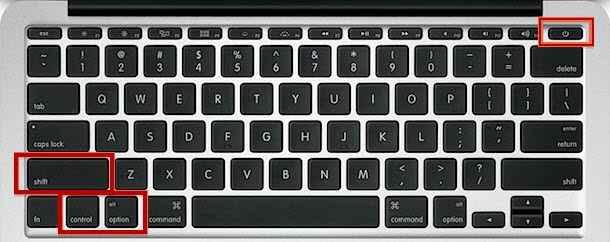
- Release all the keys and the power button simultaneously.
- Press the power button again to turn on your MacBook.
After resetting the SMC, try entering Recovery Mode again using the standard keyboard shortcut (Command + R). If the problem persists, move on to the next solution.
Solution 4: Boot Mac in Safe Mode
Boot your Mac in Safe Mode to troubleshoot potential software conflicts that might be preventing Recovery Mode from functioning correctly. Here’s how to do it:
1. Shut down your Mac: Click on the Apple menu and select “Shut Down.”
2. Start your Mac in Safe Mode: Press the power button, and immediately hold down the Shift key until the Apple logo or a progress bar appears on the screen.

3. Wait for Safe Mode to load: Your Mac will take longer to boot in Safe Mode as it performs additional checks and disables non-essential software.
4. Try entering Recovery Mode: Once your Mac is in Safe Mode, attempt to enter Recovery Mode using the standard keyboard shortcut (Command + R).
5. Exit Safe Mode: After troubleshooting in Safe Mode, restart your Mac normally to exit Safe Mode.
If you can enter Recovery Mode in Safe Mode but not in the regular boot, the issue might be related to third-party software or drivers. In such cases, investigate recently installed applications or updates that could be causing the problem. If the Mac won’t go into recovery mode, issue persists, move on to the next solution.
Solution 5: Create a Bootable Installer
Still, encountering the “Mac won’t boot into recovery mode” issue? If the Mac’s recovery mode is unresponsive, an alternative approach is to create a bootable installer using the Disk Utility feature. It is recommended to use a dedicated USB for this purpose. Follow the steps below:
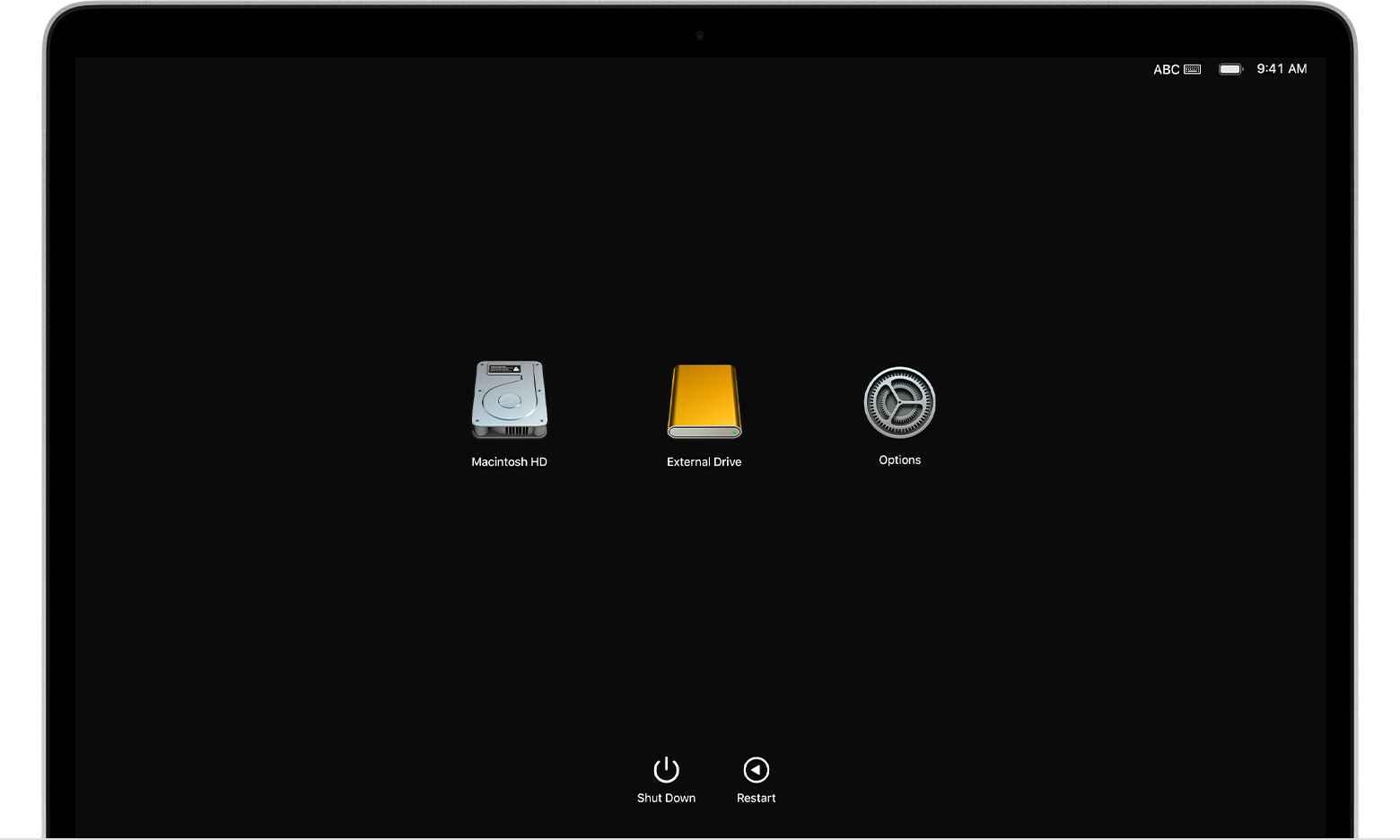
1. Restart your Mac and access the “Options” tab during start-up to reach the Utility window.
2. Select “Disk Utility” mode and connect a bootable installer drive to your Mac.

3. Choose the drive from the pop-up list, and your Mac will restart. Now you can effortlessly repair your Mac, restoring it to its former functionality.
Solution 6: Use Mac Internet Recovery

If standard Recovery Mode options fail, try Mac Internet Recovery. Restart your Mac, press Option + Command + R, and wait for the globe icon. Internet Recovery lets you access recovery tools online, allowing you to reinstall macOS or perform disk repairs. Ensure a stable internet connection for this method.
Solution 7: Verify Startup Disk
Ensuring that your Mac’s startup disk is correctly selected in System Preferences > Startup Disk is crucial for smooth booting and recovery processes. If you find that the wrong disk is selected, it may lead to booting issues and hinder access to Recovery Mode.
Hence, by choosing the appropriate startup disk and restarting your Mac, you are allowing the system to prioritize the correct boot drive, potentially resolving any conflicts related to the “Mac won’t boot into recovery mode” issue.
Taking a moment to verify and adjust the startup disk setting can save you time and effort in troubleshooting further issues down the line.
Solution 8: Check FileVault
If FileVault encryption is enabled on your Mac, it provides an added layer of security by encrypting your data. However, it’s essential to be aware that while FileVault enhances your Mac’s data protection, it can also impact certain system functionalities like Recovery Mode.
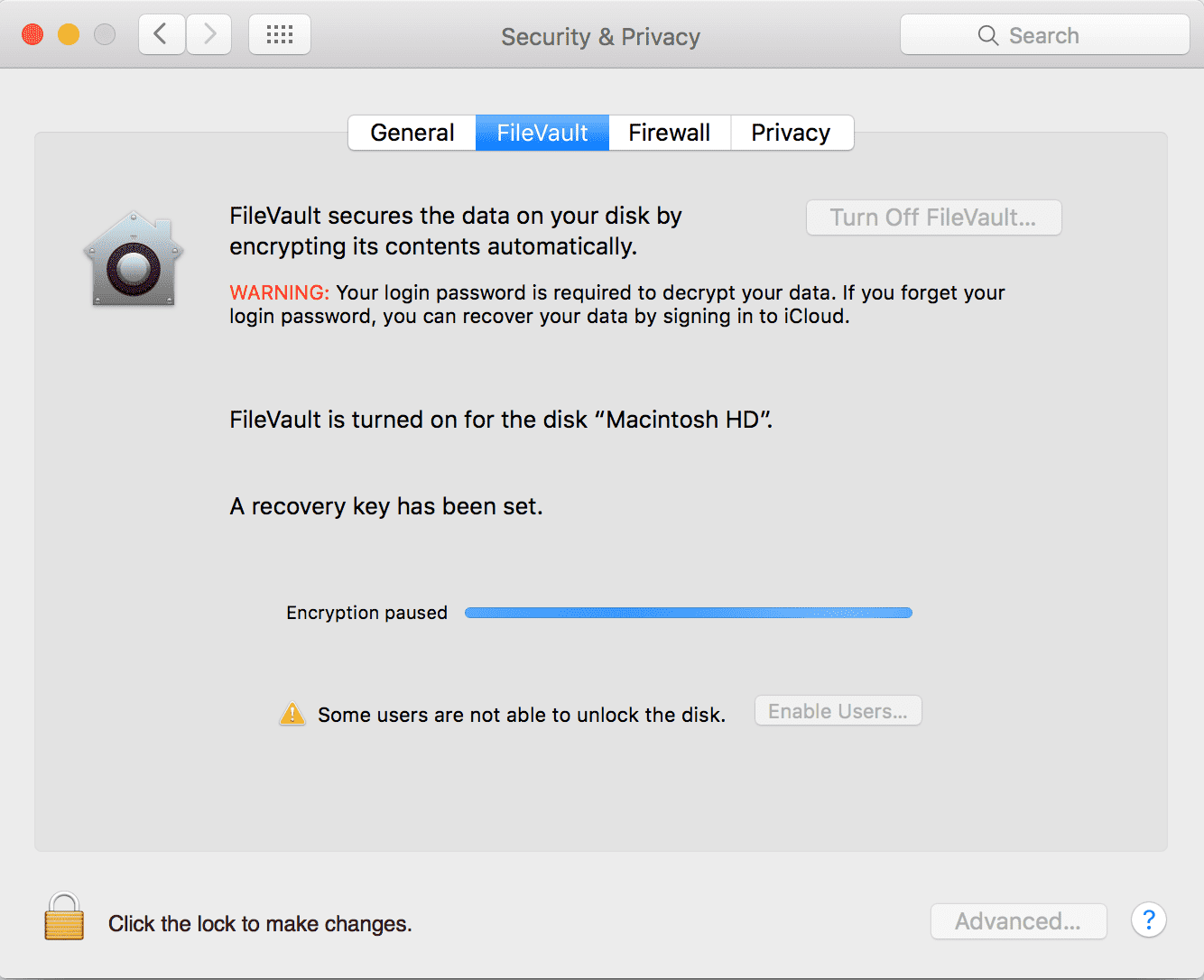
By turning off FileVault temporarily through System Preferences > Security & Privacy > FileVault, you are essentially decrypting your disk, which might resolve any conflicts hindering Recovery Mode access. Once you’ve performed the necessary troubleshooting in Recovery Mode, you can consider re-enabling FileVault to continue benefiting from its robust data encryption and security features.
Solution 9: Contact Apple Support
If none of the above solutions work, it’s best to reach out to Apple Support or visit an authorized service provider for further assistance. They can help diagnose and resolve more complex issues.
Conclusion
In conclusion, encountering the Mac won’t boot into recovery mode can be a frustrating experience, but it doesn’t have to be a roadblock. Right? With the troubleshooting solutions we’ve explored, from checking the keyboard and using alternative shortcuts to creating bootable installers and leveraging Mac Internet Recovery, you have a range of options at your disposal.
Remember to approach each step with care, back up your data, and seek professional help if needed.
Popular Post
Recent Post

How to Clear the Queue in the Printer: A Step-by-Step Guide
Learn how to clear the queue in the printer with simple steps. This easy guide explains why print jobs get stuck and how to fix them safely for smooth printing.

How To Clear Delivery Optimization Cache In Windows
Learn how to clear Delivery Optimization Cache in Windows safely and easily. This guide explains steps, precautions, benefits, and FAQs to free space and avoid update issues.

How To Clear Cache in Edge [Windows 11/10]: Latest Guide
Learn how to clear cache in Edge on Windows 11 and Windows 10. Step by step guide with precautions, FAQs, and tips to fix slow pages and errors.

Top 15 Questions About PC Cleaning and Their Answers
Learn safe and simple ways to clean your PC. This guide answers top questions, covers precautions, and gives advanced tips for better PC health and performance.

11 Mistakes To Avoid While Cleaning a PC
Cleaning a PC is important because dust and dirt can slow the system and heat up the parts. A clean computer also lasts longer and works with fewer sudden issues. Many users clean their PCs only when they notice noise or overheating. This delay can make the job harder and sometimes cause more trouble. A […]

How To Clean a Gaming PC: Complete Guide
A clear and expanded guide that shows how to clean your gaming computer, maintain airflow, protect hardware, and keep performance smooth with simple methods for all user levels.

How to Clean Your Windows Registry (Safe Methods)
Learn safe ways to clean Windows registry entries using built-in tools, backups, and trusted cleaners. Follow simple steps, avoid risks, and keep your system fast and stable.
How to Clean a Laptop Webcam Lens Without Damage
Learn how to clean a Laptop Webcam Lens with simple steps, safety tips, and advanced methods to keep your webcam clear, sharp, and ready for video calls or recordings.

How To Clean the Speakers of Your PC or Laptop
A clear and simple guide on how to clean speakers of a PC or laptop with safe steps, precautions, and advanced care tips that help restore bright and steady sound.

PC Cleaning Tips For Beginners and Advanced Users
A complete guide that explains simple cleaning methods, safety steps, airflow care, and advanced maintenance habits for beginners and skilled users.
