How To Clean the Speakers of Your PC or Laptop

Speakers gather dust over time. Small bits of dirt settle into the grill and weaken the sound. When this happens, voices lose clarity. Music loses depth. Even small system alerts do not sound as sharp as before. A simple cleaning routine can help bring back the lost tone.
Many people avoid touching their speakers because they fear damage. The task is safe when you use the right method. You do not need special tools. You only need gentle care. A short cleaning session now and then will keep your sound bright and steady.
Precautions: Safety First Before You Start Cleaning Speakers
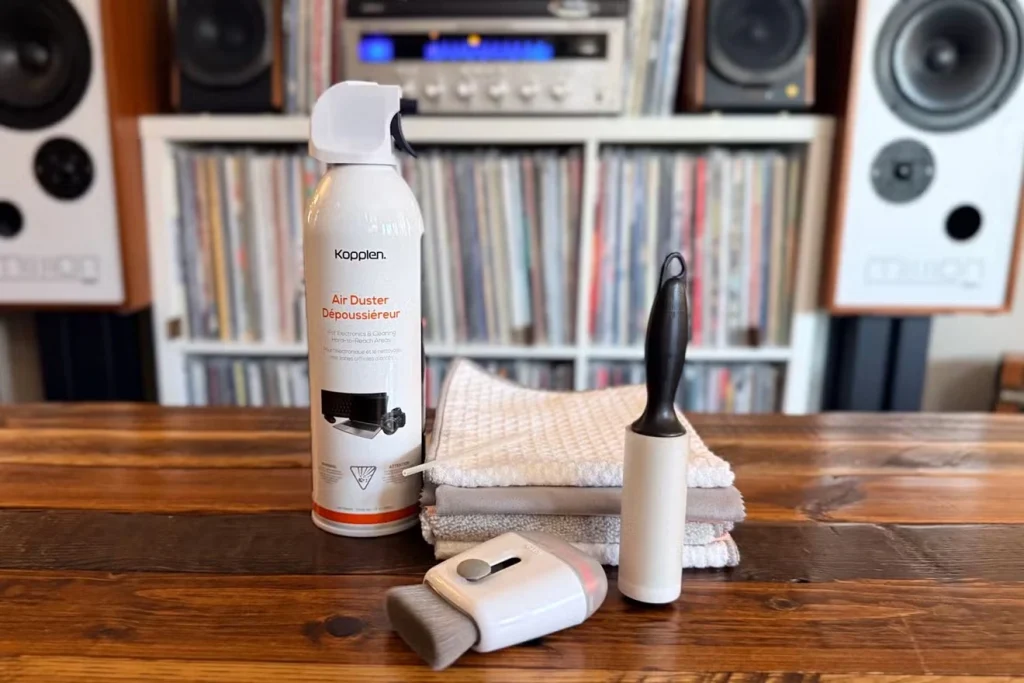
Cleaning speakers looks simple, but you should still take care. A brief check of a few basic points helps prevent harm to the device. This also keeps your work smooth and stress-free.
- Turn off the device
Shut down the computer. Pull the plug if the speakers are external. This prevents short circuits when you move cloth over the surface. - Unplug all cables
Loose cables can snap or pull during cleaning. Remove power cables and audio cables. This keeps the area clear. - Use a soft cloth only
Rough cloth can scratch the surface of the speaker grill. A cotton cloth or microfiber cloth works well. - Keep water away
Moisture can slip through small holes in the grill. Do not spray water on the speaker. If you need moisture, use a lightly damp cloth. - Avoid strong cleaners
Chemical cleaners can weaken the finish and harm the inner parts. Stick to mild cleaning methods. - Move with light pressure
Pressing too hard can push dust deeper into the grill. Light, steady strokes pull dust out. - Do not use pins
Sharp items can poke holes in the grill. They can also tear the mesh. - Work in a bright place
Good light helps you see the dust. You can clean better and avoid mistakes.
Before You Start, First Know The Answers To These Questions:
1. Why do speakers collect dust so fast
Speakers pull air in small bursts when sound plays. Even though the movement is tiny, it often attracts dust. This dust rests on the outer grill. Over time, it builds layers. Rooms with fans or open windows allow more dirt to move around. Laptops gather dust faster because the lower space near the keyboard traps dirt that later shifts toward the speakers. When you ignore this buildup, it changes the airflow. This reduces sound quality and makes the output feel dull. Regular cleaning helps stop this slow drop in sound performance.
2. Can dust damage the inside of the speaker
Dust sitting outside is not harmful at first. Problems begin when too much dust pushes past the grill. Speakers have delicate cones. These cones vibrate to form sound. If dust layers grow thick, the cones do not move the way they should. This weakens sharp tones. In rare cases, if dust mixes with moisture, the mix becomes sticky. This sticky layer can block vibration. Long months of neglect can create this issue. A simple cleaning habit every week or two keeps the inside safe from harm.
3. Should you use compressed air on small laptop speakers
Compressed air is strong. When used at full force, it can push dust deeper instead of bringing it out. It can also strain the thin mesh on many laptops. A short burst from a safe distance works fine for large desktop speakers, but laptop grills are smaller. They need careful handling. If you must use compressed air, keep the nozzle far and use it in short puffs. Most users can skip compressed air completely and still get good results from gentle dusting.
4. How often should you clean speakers
This depends on your room. If you have a fan running most of the time or if your window stays open, dust collects faster. A light dusting once a week keeps things fresh. A deeper clean once a month is usually enough for indoor spaces. Gamers or office workers who sit close to the screen may notice dust sooner and may prefer more frequent cleaning. A steady routine prevents buildup and saves you from hard scrubbing later.
How To Clean the Speakers of Your PC or Laptop
Cleaning the speakers is a simple task. It does not need advanced skill. You only need patience and a soft hand. The aim is to clear the grill without forcing dust inside.
Tip 1: Use a Dry Microfiber Cloth
Benefit
A microfiber cloth pulls dust without leaving marks. It holds fine dirt in its fibers, so the grill clears faster. This method is safe for all speaker types and ideal for quick daily upkeep.
- Step 1: Fold the cloth neatly.
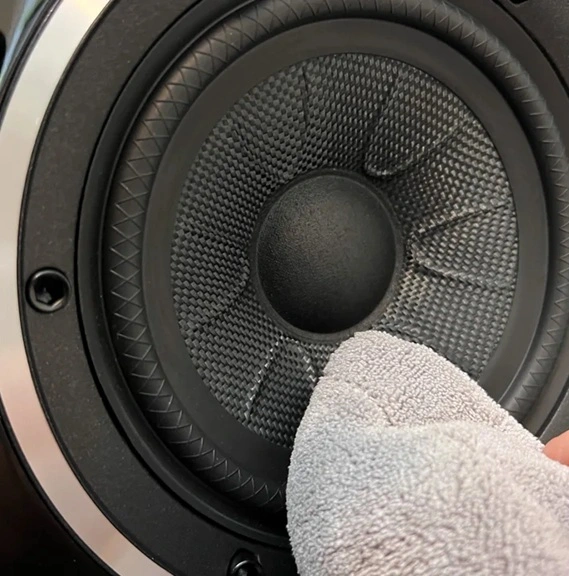
Step 2: Wipe the grill in small, slow circles.
Tip 2: Try a Soft Brush
Benefit
A soft brush reaches inside the tiny holes of the grill. It lifts settled dust that cloth alone cannot catch. The brush moves lightly, so the mesh stays safe.
- Step 1: Pick a clean, soft makeup brush or paintbrush.
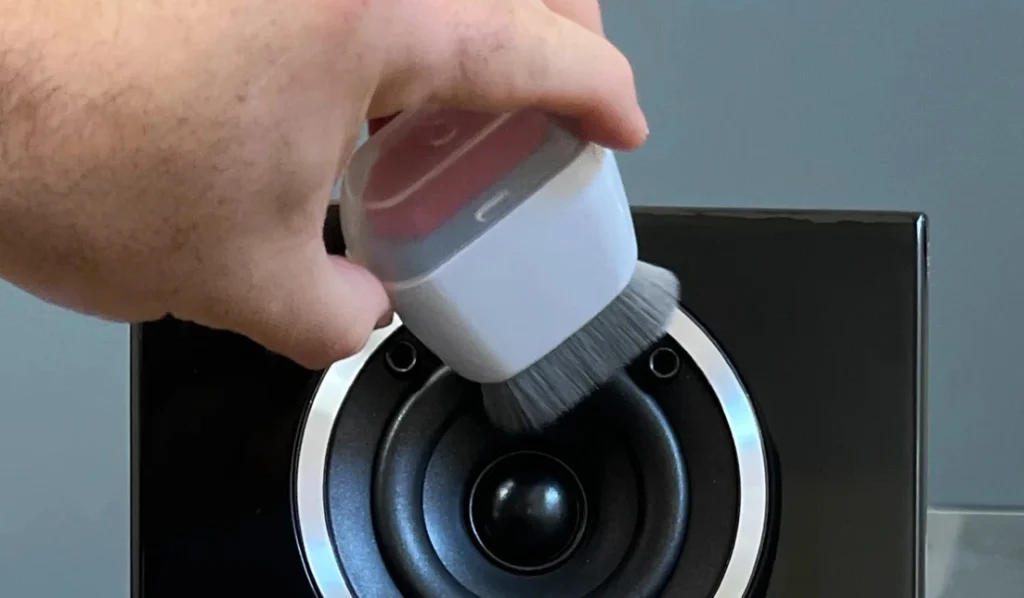
- Step 2: Sweep across the grill with gentle strokes.
Tip 3: Use a Lightly Damp Cloth for Stubborn Dirt
Benefit
Moisture helps loosen sticky layers that dry dusting cannot remove. A small amount of water softens dirt so it lifts easily. This refreshes the grill without rough scrubbing.
- Step 1: Dampen one corner of the cloth with plain water.
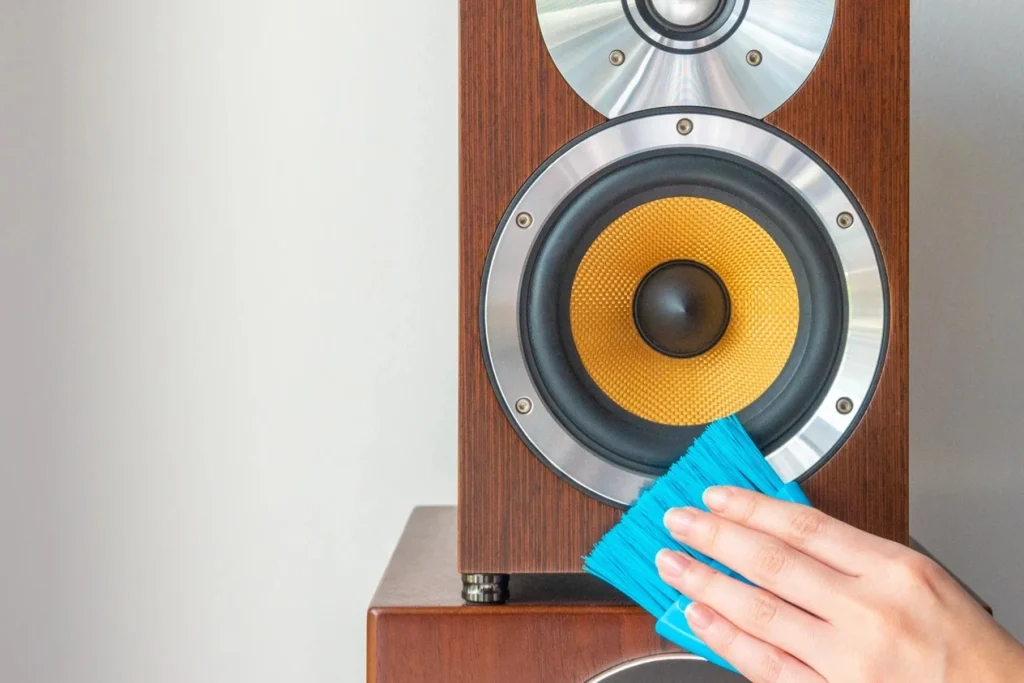
- Step 2: Tap the grill gently and lift dirt little by little.
Tip 4: Clean the Frame Around the Speaker
Benefit
Dust settles on the frame and moves inward over time. Keeping the outer frame clean prevents future buildup on the grill. It also gives the speaker a neat look.
- Step 1: Wipe the edges of the speaker area.
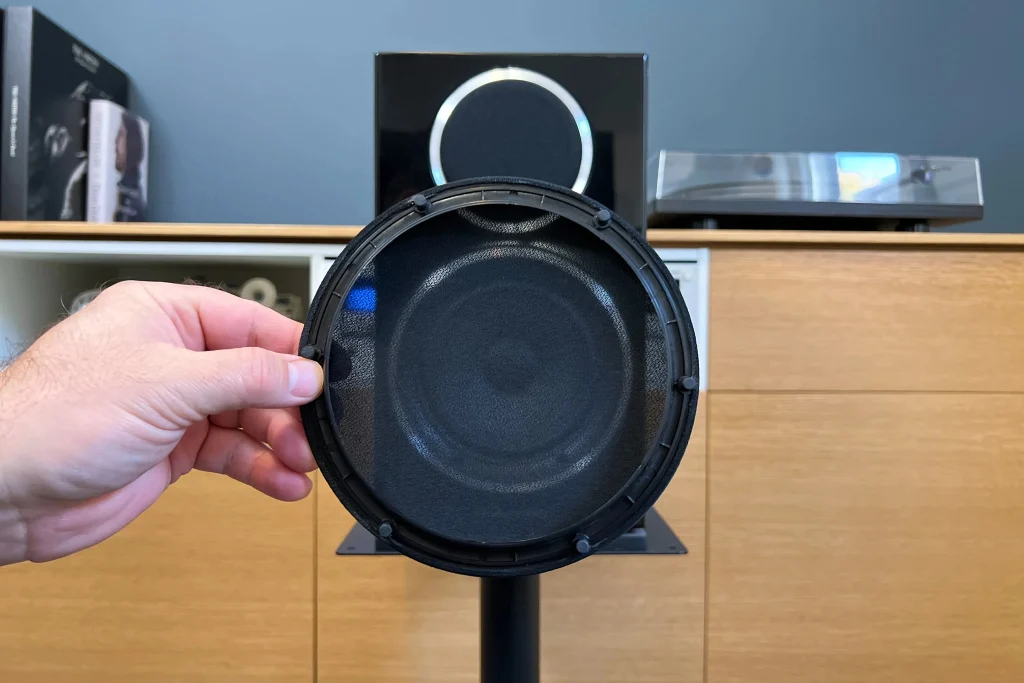
- Step 2: Check corners and lift hidden dirt.
Tip 5: Clean Headphones and Audio Ports
Benefit
Ports collect dust that travels toward internal circuits. Cleaning them keeps sound paths clear. It also prevents loose connections and muffled audio.
- Step 1: Insert a clean cotton swab into the port.
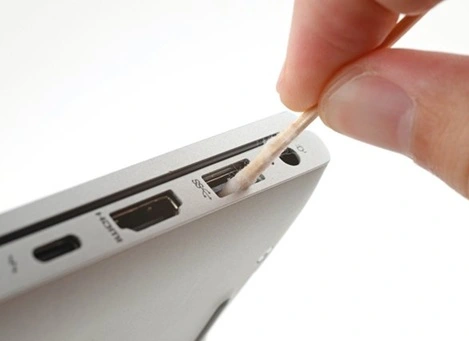
- Step 2: Rotate the swab gently and lift dirt.
Tip 6: Clean External Speaker Stands or Bases
Benefit
Dust gathers on the stands and rises toward the grill. Cleaning the base stops dust from traveling upward. It also helps the speaker stay steady.
- Step 1: Lift the speaker carefully.
- Step 2: Wipe the stand or base.
Author’s Tip
A good habit is to keep the area around your computer clean. Dust on tables and shelves always rises toward speakers. A quick wipe of the desk once a day keeps that dust under control. A small step like this keeps your speakers fresh for long hours of work or play.
Another helpful habit is to avoid eating near the device. Small crumbs can fall through gaps and bounce into the speaker area. Even light snacks leave fine debris. Keeping food away from your computer protects both the speaker grill and the ports.
Advanced Tips: For Users Who Want Deeper Care
Some people enjoy taking speaker care a bit further. These points help you reach a higher level of upkeep without special tools. They work well for both laptops and desktops.
- Use a handheld vacuum with a brush tip
A small handheld vacuum set to low power can help remove dust around the speaker edges. The brush tip keeps the suction soft. - Remove detachable grills on external speakers
Some desktop speakers have removable grills. If yours do, lift them carefully and wipe the inside section. - Clean vents near the speaker
Vents help airflow. Dirt builds up in these spaces and later travels toward the speaker. Keeping vents clean helps sound performance. - Use an anti-static cloth
This type of cloth reduces dust cling. It helps keep the grill cleaner for a longer time. - Store external speakers away from the floor
Floor-level spaces have more dust. Raising speakers even a little helps reduce buildup. - Cover speakers when not in use
A simple cloth cover protects the grill from open-air dust. This is useful in bedrooms or open rooms. - Check cables for dust
Dust gathers on cables and later slides toward ports. A clean cable keeps the whole area tidy. - Clean the filters of the air conditioners in the room
Dirty room filters push dust into the air. Clean filters keep the area around your computer cleaner.
Conclusion
Speaker cleaning does not take long, but it has a strong effect on sound. Dust blocks the free movement of air. When you clean the grill, you remove that barrier. The result is a clearer tone. This helps with calls, music, games, and simple daily tasks.
A steady routine helps your device stay fresh. You do not need strong sprays or special tools. You only need care. With this habit, your speakers will last longer and work at their full strength.
FAQs
1. Will cleaning improve the volume
Cleaning does not raise electronic volume. It clears the path for sound. When dust lifts off, the sound feels brighter and more open. This can feel like a mild boost in loudness.
2. Can I use alcohol wipes
Alcohol wipes are strong for speaker grills. They may dry the surface too much. Only use them on surrounding plastic parts. Keep them away from the mesh.
3. Why does my laptop sound muffled even after cleaning
If the sound stays dull, the problem may be inside the device. Software settings, audio drivers or damaged cones may cause it. Cleaning only helps when dust is the main cause.
Popular Post
Recent Post

How To Clear Cache Memory On Windows 11/10 [2026]
Learn how to clear cache memory on Windows 11/10 using safe built-in methods to improve speed, free space, and maintain smooth system performance.

Windows Installer Cleanup Utility: Complete Review And Alternatives
Detailed review of Windows Installer Cleanup Utility, reasons for removal, risks, and safer modern alternatives explained clearly.

How To Clean Junk Files On Windows 11/10
Learn how to clean junk files on Windows 11 and 10 using safe, simple steps to boost speed and free storage space effectively.

Clearing App Cache Data on Windows 11/10: Complete Guide
Learn how to safely clear app cache on Windows 11 and 10 to fix slow apps, free disk space, and improve overall system performance.

How To Clean Up System Files On Windows 11/10: Complete Guide
Explore a step-by-step guide explaining how Windows users can safely remove unnecessary system data using built-in tools.

How To Clean a Laptop Fan Without Opening [2026 Guide]
Learn how to clean a laptop fan without opening the device using safe steps, simple tools, and easy methods for better cooling.

How to Clear the Queue in the Printer Automatically in 2026
Learn how to clear the queue in the printer with simple steps. This easy guide explains why print jobs get stuck and how to fix them safely for smooth printing.

How To Clear Delivery Optimization Cache In Windows
Learn how to clear Delivery Optimization Cache in Windows safely and easily. This guide explains steps, precautions, benefits, and FAQs to free space and avoid update issues.

How To Clear Cache in Edge [Windows 11/10]: Latest Guide
Learn how to clear cache in Edge on Windows 11 and Windows 10. Step by step guide with precautions, FAQs, and tips to fix slow pages and errors.

Top 15 Questions About PC Cleaning and Their Answers
Learn safe and simple ways to clean your PC. This guide answers top questions, covers precautions, and gives advanced tips for better PC health and performance.
