How to Fix Windows Update Service Not Running? 10 Simple Solutions
Last updated on February 25th, 2026 at 6:15 am
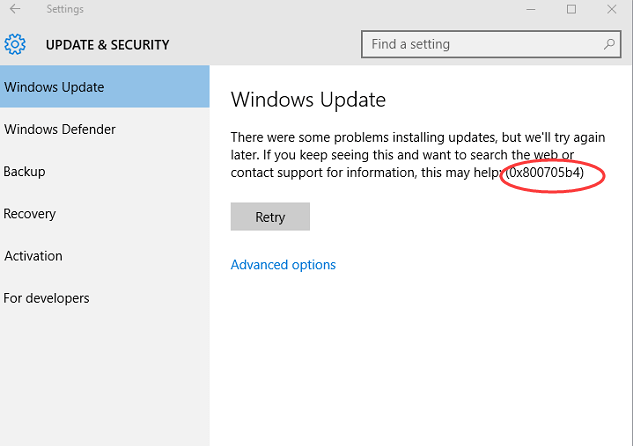
Windows Update is an important service that is responsible for keeping Windows versions and other Microsoft products up-to-date. But unfortunately, many users have reported getting an error that says, “Windows Update cannot currently check for updates because the service is not running “.
This error unable Windows users from installing any updates on their system. That isn’t very pleasant!
However, the Windows update service not running isn’t that big of an issue. Sometimes, incorrectly configured or conflicting settings can cause Windows Update issues that you can easily fix with some basic knowledge.
Below, we have disclosed the simple 10 solutions that can easily fix the “Windows update service not running” error. So, let’s get started.
10 Solutions to Fix Windows Update Service Is Not Running
You don’t have to try all the solutions to fix the Windows Update service not running problem. After understanding the root cause of the problem, you can use one or two solutions to fix the error.
Solution 1. Use Windows Update Troubleshooter
Windows has a built-in troubleshooter to fix all the issues, including Windows Update. Using the troubleshooter, you can automatically diagnose and resolve Windows Update issues this way:
Step 1. Press Windows and I keys to open the Settings.
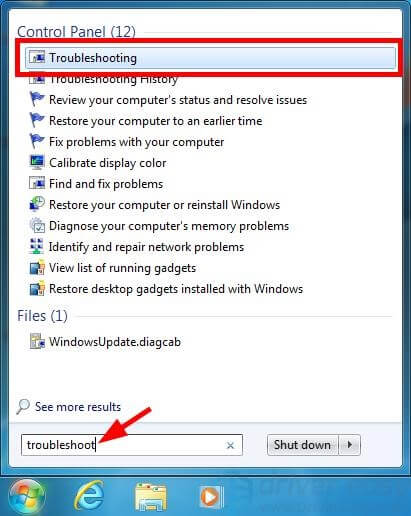
Step 2. Go to Update & Security > Troubleshoot on the sidebar.
Step 3. Choose the Additional troubleshooters option.
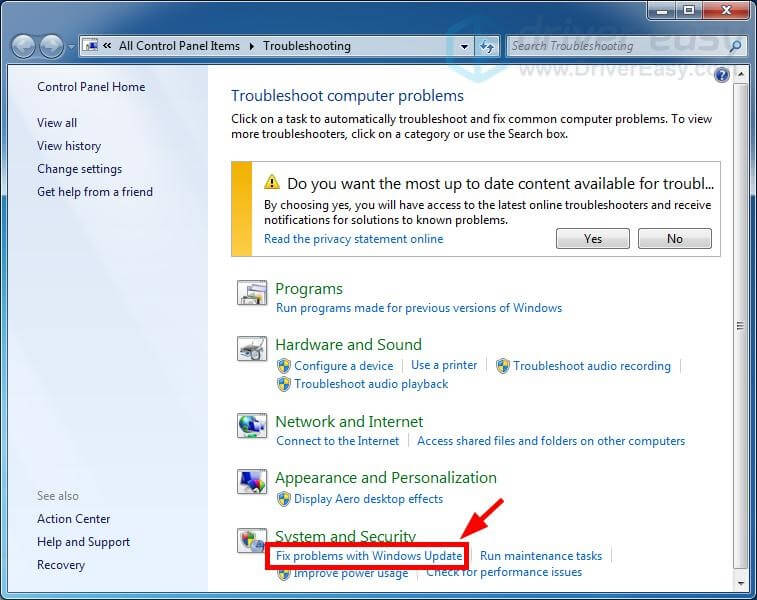
Step 4. Select Windows Update > Run the troubleshooter. Now, wait for the troubleshooter to scan your system and suggest solutions.
Solution 2. Restart Your Computer
Restarting the computer is the easiest solution to fix random service-related errors. This will flush the system memory and resolve all the temporary issues faster.
After restarting the PC, you can run Windows Update manually as follows: Go to Settings > Update & Security > Check for updates.
Solution 3. Restart Windows Update Associated Services
There is a chance that your Windows Update-related services are disabled, leading to Windows Update not running on your computer. So, you can restart those services and see if this fixes the error. Here is how you can do it:
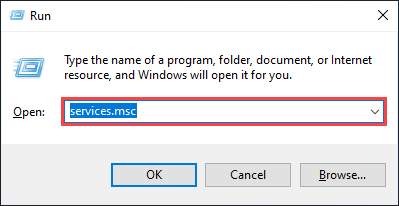
Step 1. Press the Windows and R keys to open the Run dialogue box.
Step 2. Enter “service.msc” and hit OK to open the Service snap-in.
Step 3. Now, double-click on the Background Intelligent Transfer Service.
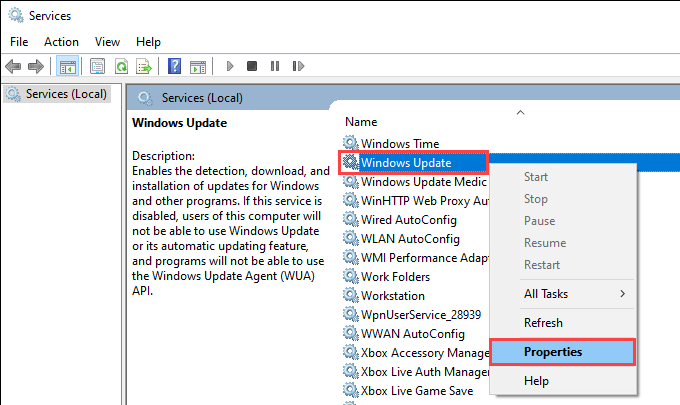
Step 4. Select the startup type to Automatic. After that, click on the Start button and then click on the OK button to close the screen.
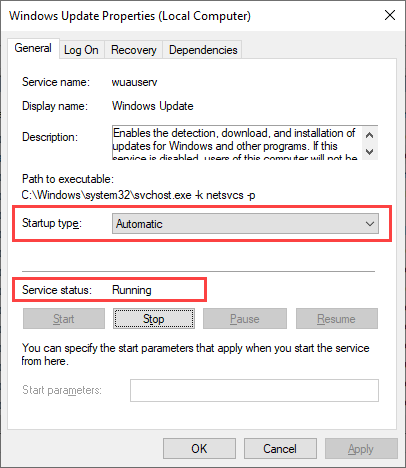
Step 5. Next, double-click on the Cryptographic Services.
Step 6. Repeat step 4 and double-click on the Windows Update.
Step 7. Once again, repeat step 4 and close the Service snap-in. Finally, restart your computer and check if the problem is fixed.
Solution 4. Run Malicious Scan
The Windows Update not running can be caused because of interference from malicious programs. Thus, we highly recommend you run a malware scan on your computer to find the malicious activities causing Windows Update issues.
You can use the built-in Windows antivirus system to scan your device. But for better and faster results, it would be nicer to get third-party antivirus software like Norton, Avast or McAfee. These tools will automatically scan your system and weed out all malicious content.
Once you have cleaned your PC, you can check if the Windows Updates are working for you now.
Solution 5. Clear the SoftwareDistribution Folder
The SoftwareDistribution folder is the place where temporary Windows Update files are stored. If any of these files get corrupted, you can face the problem of the Windows Update service not running on your computer. So, to fix the problem, you should remove all content from this folder as follows:
Step 1. Open the Run command box and type “service.msc”. And hit Enter.
Step 2. Click on Windows Update and then click on Stop.
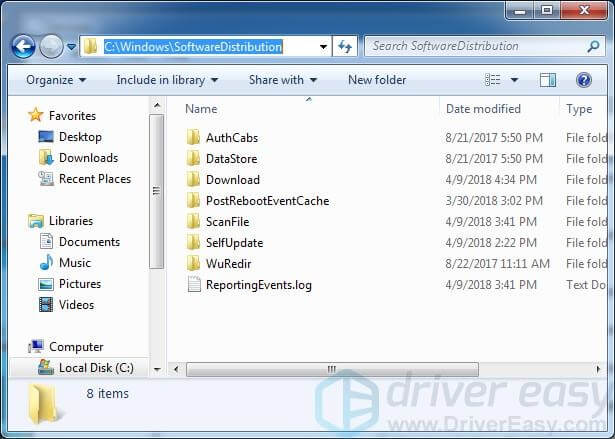
Step 3. Press the Windows and E keys to open File Explorer. Then, go to C:\Windows\SoftwareDistribution and delete all the files and folders there.
Step 4. Restore the Services snap-in and simultaneously click on the Windows Update and Start.
Step 5. Restart your computer and run the Windows Update to see if the error is fixed.
Solution 6. Update Device Drivers
The Windows Update service not running error can occur due to wrong or outdated device drivers. You should check all your device drivers and update all outdated ones to confirm this.
Manually updating drivers is a long and boring process. Thus, you can use Driver Easy to automatically recognize your system and install accurate drivers. With this tool, you don’t need to know what your computer system is or which drivers are compatible with your computer.
All you have to do is follow these quick steps to download and install the right system drivers:
Step 1. Foremost, download and install Driver Easy on your computer.
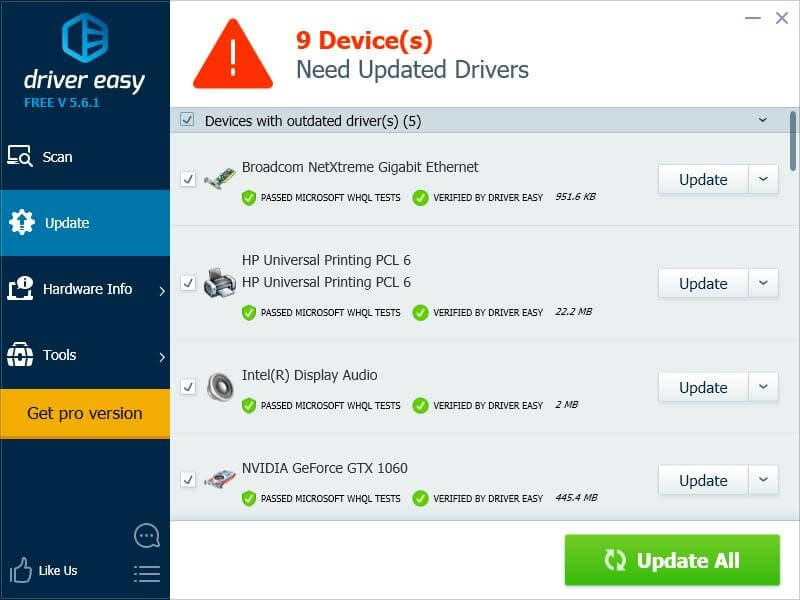
Step 2. Launch Driver Easy and click on the Scan Now button. The software will automatically scan your system and detect outdated drivers.
Step 3. Simply click on the Update button to download and install the correct driver. You can click on the Update All button to automatically update all missing or outdated drivers on your PC.
Step 4. Restart your computer to check if the problem is resolved.
Solution 7. Delete Temporary System Files
It is found that removing files from previous system updates can also fix the Windows Update issues. That’s because previous and new update files might conflict with one another. It is easy to delete temporary files; just go to:
Step 1. Select Settings > System > Storage on the sidebar.
Step 2. Choose the Temporary files option.
Step 3. Check the box next to Windows Update Cleanup.
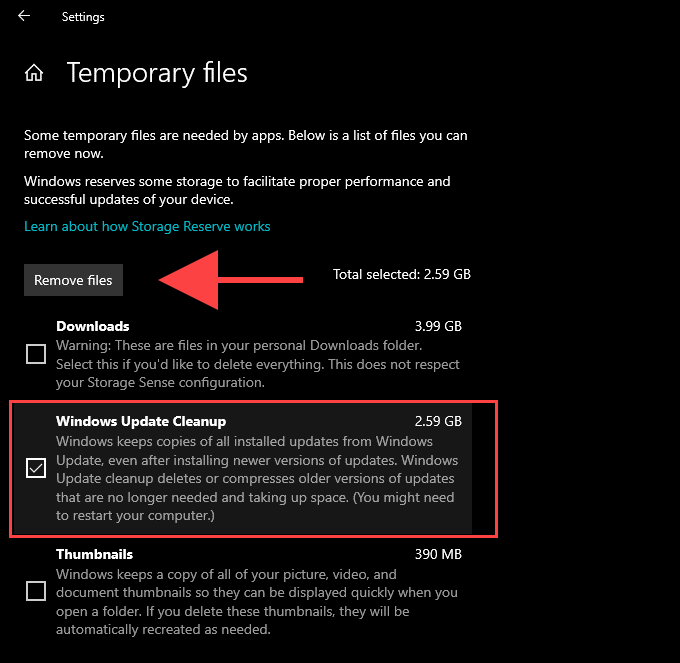
Step 4. Select Remove files, and your work is done.
Solution 8. Run SFC Scan and DISM Tool
If the Windows Update service is not running due to file corruption or other stability-related issues, you can fix them using the System File Checker (SFC) and Deployment Image Servicing and Management (DISM) tools.
Here’s how you can run an SFC scan:
Step 1. Open the enhanced Windows PowerShell console.
Step 2. Type this command and hit Enter:
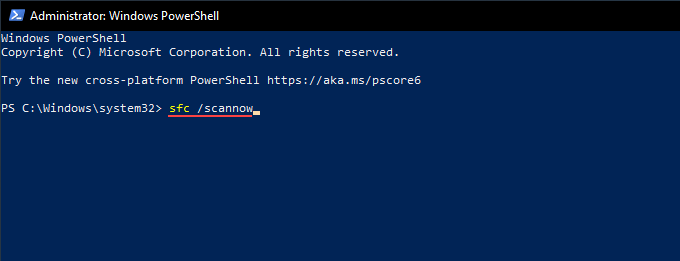
sfc /scannow
How to run DISM scan:
Step 1. Open the elevated Windows PowerShell console.
Step 2. Enter the following command:
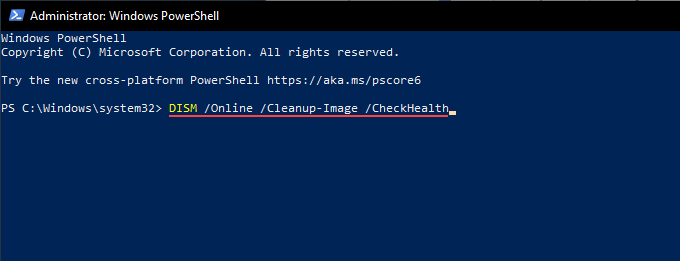
DISM /Online /Cleanup-Image /CheckHealth
Step 3. If the DISM detects any issues, you can run the following two commands:
DISM /Online /Cleanup-Image /ScanHealth
DISM /Online /Cleanup-Image /RestoreHealth
Solution 9. Use the Windows Update Assistant
If the Windows Update is still not running for you, use the Windows Update Assistant to force install the latest Windows updates.
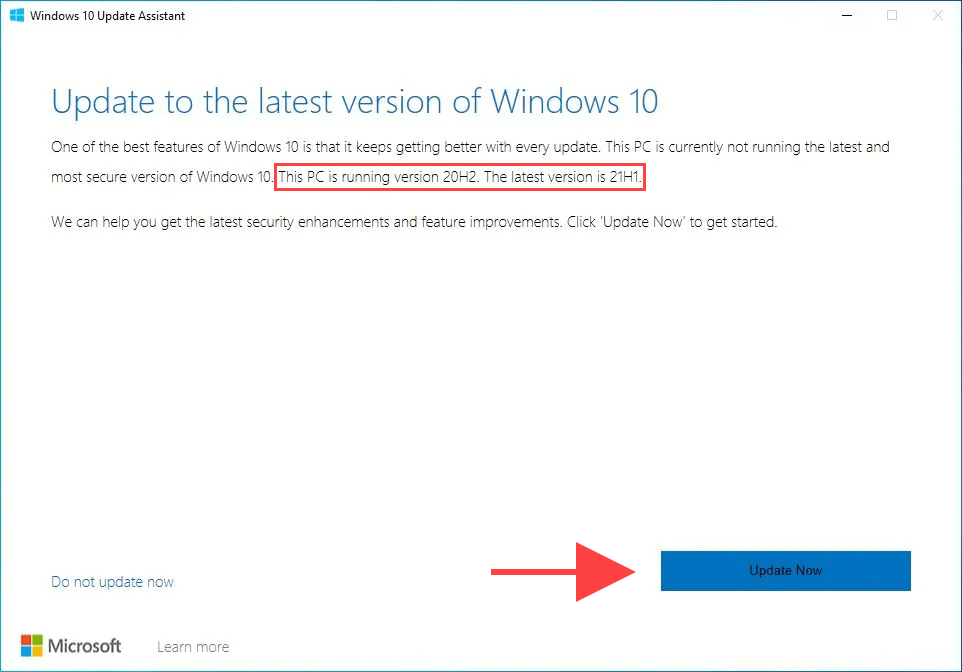
After downloading the applet to your PC, just run it and select Update Now.
Solution 10. Roll Back to the Older Windows Version
Sometimes your system updates can cause Windows Update to not run. That might be because your machine is too old for the new updates or certain applications don’t support the updates.
In that case, you can easily roll back to the older version and check whether the Update problem has been fixed or not. To do so:
Step 1. Go to the Start menu and type recovery in the search field.
Step 2. Choose Recovery options (System Settings).
Step 3. Under the Recovery tab, select Go back to Windows [X]. Here, X is the previous version of Windows.
Step 4. Choose a reason for going back, and click on the Next button.
Step 5. Click on the Go back to Windows [X] and follow the on-screen instructions to complete the process.
Parting Remarks
Windows Update not running can take your PC behind and restrict you from using the latest system updates. Thus, you should take Windows update problems seriously and quickly fix them.
For your convenience, we have already shared the top 10 solutions to fix the Windows Update service not running for you. These solutions will definitely fix the problem, but if not, you can comment below so we can together find a way to solve it.
Meanwhile, don’t forget to check other posts on this website.
Popular Post
Recent Post

How To Clear Cache Memory On Windows 11/10 [2026]
Learn how to clear cache memory on Windows 11/10 using safe built-in methods to improve speed, free space, and maintain smooth system performance.

Windows Installer Cleanup Utility: Complete Review And Alternatives
Detailed review of Windows Installer Cleanup Utility, reasons for removal, risks, and safer modern alternatives explained clearly.

How To Clean Junk Files On Windows 11/10
Learn how to clean junk files on Windows 11 and 10 using safe, simple steps to boost speed and free storage space effectively.

Clearing App Cache Data on Windows 11/10: Complete Guide
Learn how to safely clear app cache on Windows 11 and 10 to fix slow apps, free disk space, and improve overall system performance.

How To Clean Up System Files On Windows 11/10: Complete Guide
Explore a step-by-step guide explaining how Windows users can safely remove unnecessary system data using built-in tools.

How To Clean a Laptop Fan Without Opening [2026 Guide]
Learn how to clean a laptop fan without opening the device using safe steps, simple tools, and easy methods for better cooling.

How to Clear the Queue in the Printer Automatically in 2026
Learn how to clear the queue in the printer with simple steps. This easy guide explains why print jobs get stuck and how to fix them safely for smooth printing.

How To Clear Delivery Optimization Cache In Windows
Learn how to clear Delivery Optimization Cache in Windows safely and easily. This guide explains steps, precautions, benefits, and FAQs to free space and avoid update issues.

How To Clear Cache in Edge [Windows 11/10]: Latest Guide
Learn how to clear cache in Edge on Windows 11 and Windows 10. Step by step guide with precautions, FAQs, and tips to fix slow pages and errors.

Top 15 Questions About PC Cleaning and Their Answers
Learn safe and simple ways to clean your PC. This guide answers top questions, covers precautions, and gives advanced tips for better PC health and performance.
