Here’s How to Optimize Windows 11 For Gaming

Last updated on February 26th, 2026 at 5:58 am
Are you a hardcore gamer? Then, you must have purchased Windows 11 to experience dynamic gameplay and features.
Windows 11 is great for gaming purposes. But you must first optimize Windows 11 for gaming to play without interruption. This post will share some quick tips to optimize Windows 11 for a better experience.
So, let’s dig in.
Powerful Windows 11 Gaming Features
Microsoft has claimed that Windows 11 is a power machine. There are several advanced gaming features that Windows 11 offers, such as:
Xbox Game Pass
The Windows 10 Xbox app is replaced with a new Game Pass app that allows you to instantly buy, manage and remove games. It is easy to use as you are already familiar with the app. With this program, you will get benefits like EA Play, Xbox Live Gold and play across multiple devices using the cloud services.
Auto HDR
Windows 11 comes with auto HDR support. The feature automatically updates the color and lighting of your screen, resulting in high-quality and realistic graphics.
DirectStorage
DirectStorage is a great asset for gamers to download and install games. In addition, it enables you to play your games faster.
How to Optimize Windows 11 For Gaming
Since Microsoft has paid special attention to games in Windows 11. Thus, there are several options to optimize your Windows 11 for a better gaming experience and performance, such as:
Tip 1. Turn On the Game Mode
Windows 11 comes with a dedicated Gaming tab. This new setting allows you to set up your PC for a high gaming experience and features, such as:
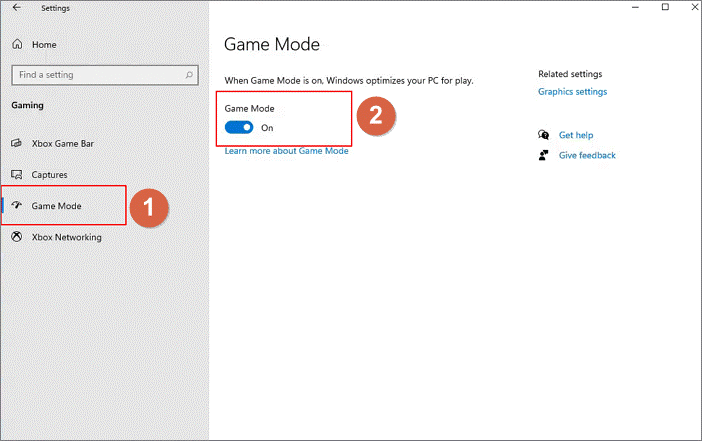
Step 1. Click on the Windows icon from the Taskbar and click to open the Settings.
Step 2. Go to Gaming > Game Mode from the left sidebar.
Step 3. Shift the toggle to turn On the Game Mode.
Tip 2. Disable the Nagle’s Algorithm
Nagle’s algorithm helps to improve the TCP/IP network’s efficiency. However, it can compromise your internet connection and ruin the online gaming experience. So, you can disable Nagle’s algorithm to optimize Windows 11 for better online gameplay. Here’s how to do it:
Step 1. Go to the search icon and type PowerShell.
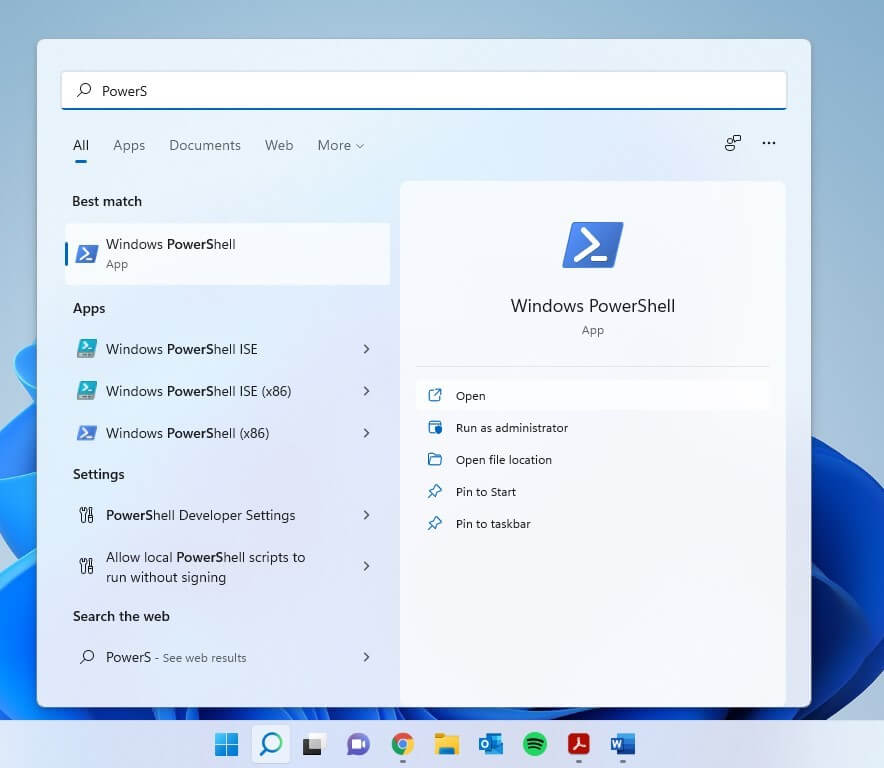
Step 2. On the PowerShell window, type ipconfig and hit the Enter button.
Step 3. Look for IPv4 Address and note it down.
Step 4. Next, create a system restore point using the Registry editor to backup your data beforehand. Then, press Windows + R keys to open the Run command box.
Step 5. Type regedit and press Enter.
Step 6. Click Yes when a prompt asks Do you want to allow this app to make changes to your device?
Step 7. Type the following command line in the address bar—
HKEY_LOCAL_MACHINE\SYSTEM\CurrentControlSet\Services\Tcpip\Parameters\Interfaces
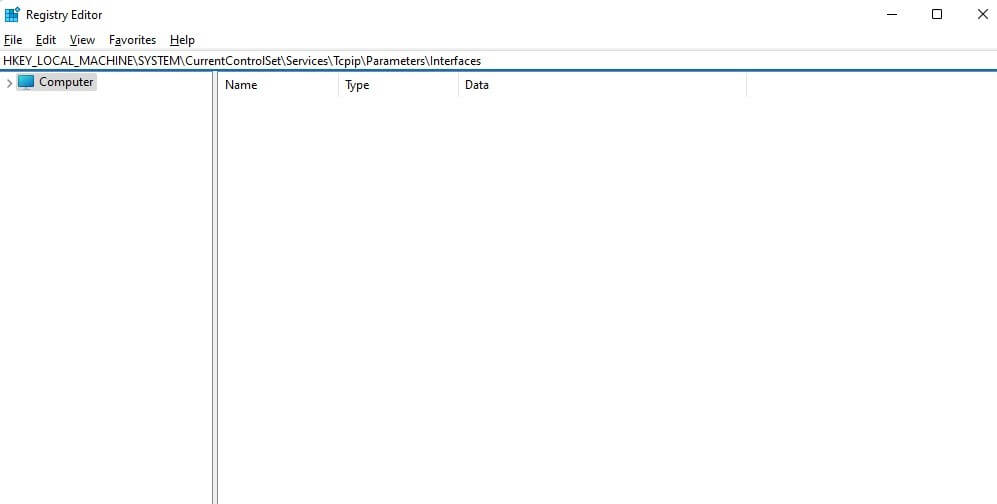
Step 8. From the left pane, locate the file that contains DhcpIPAddress.
Step 9. Right-click on the folder and select New > DWORD (32-bit) Value.
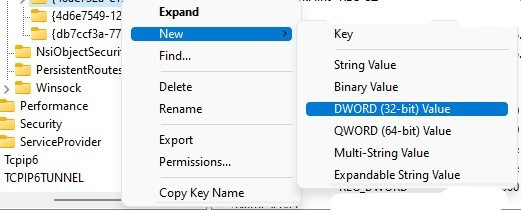
Step 10. Name the new folder as TcpAckFrequency and click OK.
Step 11. Create another DWORD (32-bit) Value and name it TCPNoDelay.
Step 12. Double-click on each folder and set the Value data as 1.
Tip 3. Change DNS Settings
The online gaming experience can also be boosted by tweaking DNS settings. It helps to load faster and more efficient to run a game. To do so:
Step 1. Use Windows + I keys to open the Settings.
Step 2. From the left pane, click on Network & Internet > Select Properties.
Step 3. Click on the Edit next to the DNS server assignment.
Step 4. From the dropdown menu, select Manual.
Step 5. Turn on the IPv4 toggle switch and enter the following DNS entries.
1.1.1.1
1.0.0.1
Step 6. Save the settings and restart your browser to enjoy smooth gaming sessions.
Tip 4. Disable Notifications
Random application notifications popping up here and there can ruin your gaming experience. Thus, disable notifications to optimize Windows 11 for uninterrupted gameplay as follows:
Step 1. Press Windows + I keys to launch the Settings app.
Step 2. From the right pane, select Focus Assist.
Step 3. Select Alarms only.
Step 4. Make sure the toggle next to When I’m playing a game is turned On.
Tip 5. Enhance Visuals
There is also a way to optimize Windows 11 for gaming by enhancing visuals as follows:
Step 1. Go to Settings > Type Performance and press the Enter button.
Step 2. From the right-pane, select the option saying Adjust the appearance and performance of Windows.
Step 3. Select Adjust for best performance from the new popup window.
Step 4. Click Apply > Advanced tab.
Step 5. Set the Adjust the best performance to Programs.
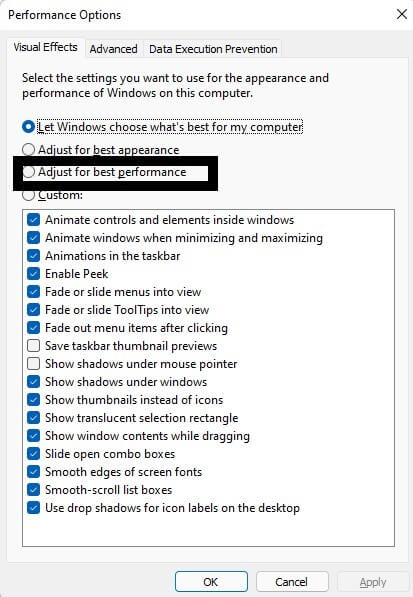
Step 6. Click Apply > OK to save the changes.
Tip 6. Tweak with Power Plan Settings
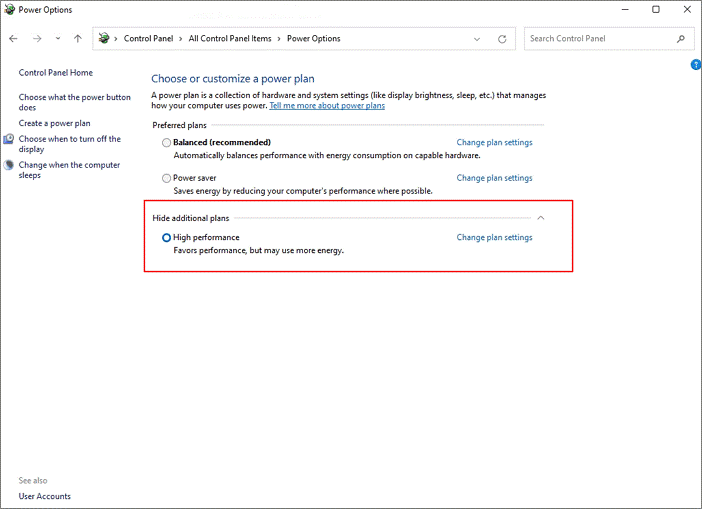
You can ruffle the Power Plan settings a bit to enhance the gaming experience in Windows 11. Here’s how to change Power Plan settings:
Step 1. Go to Settings > Power & battery.
Step 2. From the Power mode dropdown menu, select the Best performance option.
Tip 7. Use Per-App GPU Selection Settings
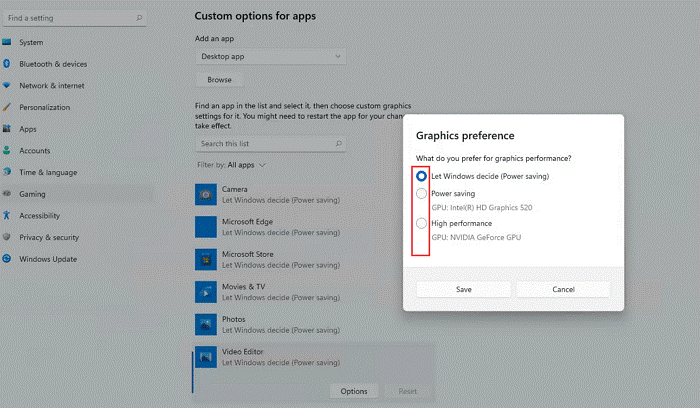
If you have a gaming laptop with two GPUs — iGPU and dGPU, you can decide which app can use which GPU. For this, follow these steps:
Step 1. Go to Settings > Gaming > Game Mode.
Step 2. Click on Graphics under the Related Settings.
Step 3. On the Graphics Performance page, select the GPU for your apps and add new apps to the list. By default, Windows 11 will automatically assign a GPU to each app that you can manually change.
Step 4. The Power Saving option must be allotted to the apps that don’t need graphics performance. You can set the High-Performance option for games and GPU-centric apps.
Tip 8. Use Dedicated NVIDIA and AMD GPU Software
NVIDIA and AMD GPU gaming laptop users can download NVIDIA’s GeForce Experience and AMD’s Radeon Software. This will allow you to change the graphics settings for each game and modify GPU performance.
Tip 9. Enhance C Drive Space
Another tip for optimizing Windows 11 for gaming is to expand your C drive space. Games can run slowly if your C drive is full because games need free space to render.
So, here you can use EaseUS Partition Master to extend the C drive. It is a powerful and simple tool to manage your disk partitions and spaces.
Follow these steps to extend a C drive with unallocated space:
Step 1. Right-click on the C drive and select Move/Resize.
Step 2. Drag the system partition end to the unallocated space to add it to your C drive. Click OK.
Step 3. Click Execute Operation > Apply to extend the C drive.
On the other hand, when you want to extend the C drive without unallocated space, follow these steps:
Step 1. Right-click on a big partition with enough free space on the system disk and choose Allocate Space.
Step 2. Select the drive at the Allocate Space From (*) To section. After that, drag the end of System C drive into the unallocated space. Click OK to confirm.
Step 3. Click on the Execute Operation; it will list down all the pending operations, and click Apply to save the changes and extend your C drive space.
Tip 10. Use Auto HDR
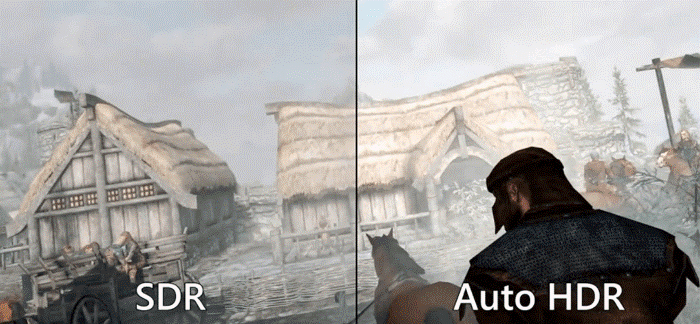
You can use the HDR to experience a bold and better game display. Anyone can easily spot the difference between SDR and HDR formats. If your monitor doesn’t support HDR, you can make a small investment to purchase one.
Parting Remarks
There you go, people! You have explored 10 easy ways to optimize your Windows 11 for gaming purposes. Be it a Game Mode or Auto HDR; there are several easy solutions to optimize your computer for gaming.
Now, let’s not wait anymore and optimize your PC for games. Meanwhile, do check out other Windows 11 guides only here.
Popular Post
Recent Post

How To Clear Cache Memory On Windows 11/10 [2026]
Learn how to clear cache memory on Windows 11/10 using safe built-in methods to improve speed, free space, and maintain smooth system performance.

Windows Installer Cleanup Utility: Complete Review And Alternatives
Detailed review of Windows Installer Cleanup Utility, reasons for removal, risks, and safer modern alternatives explained clearly.

How To Clean Junk Files On Windows 11/10
Learn how to clean junk files on Windows 11 and 10 using safe, simple steps to boost speed and free storage space effectively.

Clearing App Cache Data on Windows 11/10: Complete Guide
Learn how to safely clear app cache on Windows 11 and 10 to fix slow apps, free disk space, and improve overall system performance.

How To Clean Up System Files On Windows 11/10: Complete Guide
Explore a step-by-step guide explaining how Windows users can safely remove unnecessary system data using built-in tools.

How To Clean a Laptop Fan Without Opening [2026 Guide]
Learn how to clean a laptop fan without opening the device using safe steps, simple tools, and easy methods for better cooling.

How to Clear the Queue in the Printer Automatically in 2026
Learn how to clear the queue in the printer with simple steps. This easy guide explains why print jobs get stuck and how to fix them safely for smooth printing.

How To Clear Delivery Optimization Cache In Windows
Learn how to clear Delivery Optimization Cache in Windows safely and easily. This guide explains steps, precautions, benefits, and FAQs to free space and avoid update issues.

How To Clear Cache in Edge [Windows 11/10]: Latest Guide
Learn how to clear cache in Edge on Windows 11 and Windows 10. Step by step guide with precautions, FAQs, and tips to fix slow pages and errors.

Top 15 Questions About PC Cleaning and Their Answers
Learn safe and simple ways to clean your PC. This guide answers top questions, covers precautions, and gives advanced tips for better PC health and performance.
