How to Speed Up Gaming Experience on Windows 10?
Last updated on February 27th, 2026 at 6:40 am
Has your gameplay become choppy or sluggish on your Windows 10? Do your games take ages to load?
Then, it is a very common problem. Despite Windows 10 being a powerful gaming software, it often fails to provide an excellent gaming experience. This happens due to low-powered graphics cards, a shortage of hard disk space, outdated drivers, and so on.
But fortunately, it is easy to enhance your PC gaming experience by making a few tweaks to the system. Some of the best solutions to speed up the Windows 10 gaming experience are listed below. So, let’s scroll down to elevate your gameplay on a Windows computer.
Other Solution: Manual Ways To Speed Up Gaming Experience on Windows 10
Here are a few manual methods to optimize gameplay on your computer:
Turn on Game Mode
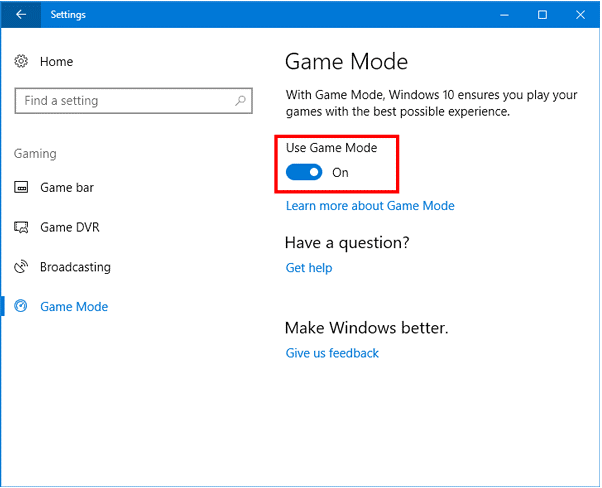
The easiest option for Windows 10 gamers is to enable the Game Mode to improve their gameplay. This feature stops all the background activities to boost FPS in the game, such as app notifications, Windows updates, and others.
The Game Mode is turned on by default, but it doesn’t hurt to check it quickly. For this, go to Settings > Gaming > Gaming Mode. If the toggle next to Game Mode is off, switch it on to optimize your gameplay.
Disable Nagle’s algorithm
Nagle’s algorithm helps to improve TCP/IP network efficiency by reducing the number of packets that need to be sent over the Internet. It bundles data packets to smooth the internet connection.
But it can impact Windows 10 for gamers. Thus, it is advisable to disable Nagle’s algorithm on your computer. To do so:
Step 1. Open the Run dialogue box by pressing the Windows and R keys together.
Step 2. Enter regedit in the box and click on the OK button to open the Registry Editor.
Step 3. After that, go to the folder HKEY_LOCAL_MACHINE\SYSTEM\CurrentControlSet\Services\Tcpip\Parameters\Interfaces.
Step 4. Now, you will see that there are several folders with numbers and letters. Here, you have to access the file that matches your IP address to the listed DhcpIPAddress in one of those folders.
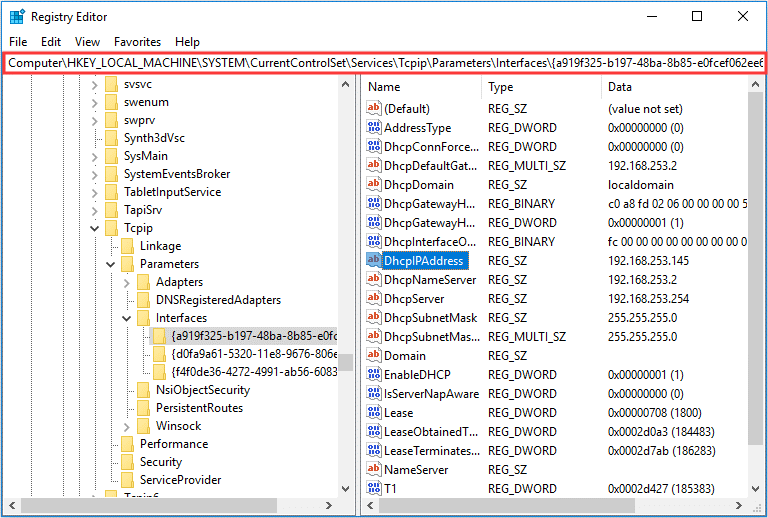
Step 5. Right-click on the right panel and select New > DWORD (32-bit) Value. Now, create two new keys and name them TcpAckFrequency and TCPNoDelay.
Step 6. Double-click on each of them to change their value data to 1. After this, Nagle’s algorithm will be disabled on your computer, and its gaming performance will boost.
Disable SysMain
SysMain is a built-in Windows 10 feature that helps to improve startup time for apps. But it doesn’t benefit gaming performance on Windows. Therefore, it is better to turn off SysMain as follows:
Step 1. Go to Task Manager > File > Run new task and type services.msc in the Create New Task box.
Step 2. The Windows services list will open, navigate to SysMain, and right-click on it. Then, select the Properties.
Step 3. Under the General tab, click on the Startup type option and change that to Disable from the dropdown menu. Then, click OK to apply the changes.
Set your Active Hours
Windows 10 keeps on installing new updates and rebooting your computer without your permission. It is a great feature to keep your system updated, but when you are playing, it can ruin your gaming experience.
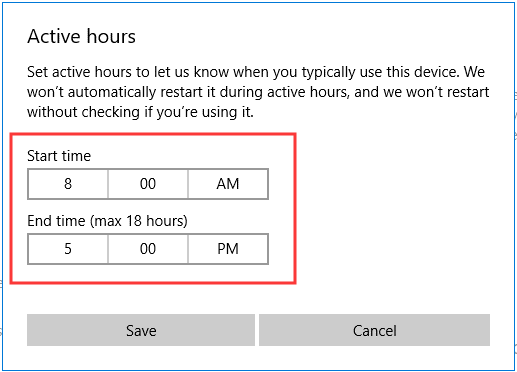
To fix that, you might want to disable automatic updates on your Windows 10. But there is a better option available for gamers. You can set Activity Hours according to your game-playing schedule so that Windows won’t update or reboot during that time.
To do so, go to Settings > Update & Security > Change active hours and save the changes.
Use Focus Assist
All the app notifications and chimes during your gameplay can reduce the performance and quality of your game. Therefore, you should use the Focus Assist feature on your Windows 10 to specify how and when you receive notifications.
This feature will prevent annoying notification messages and pop-ups when you are playing games. Simply go to System > Focus Assist and select Alarms Only or Priority Only to hide all unnecessary notifications.
Change your Visual Effects settings
The graphical user interface can be a great problem for you or game processing in many cases. There are many background graphics turned on by default on Windows 10 PC that can reduce your game’s graphical features.
Therefore, it is a good idea to have a look at your Visual Effects settings and tweak them a little. For this:
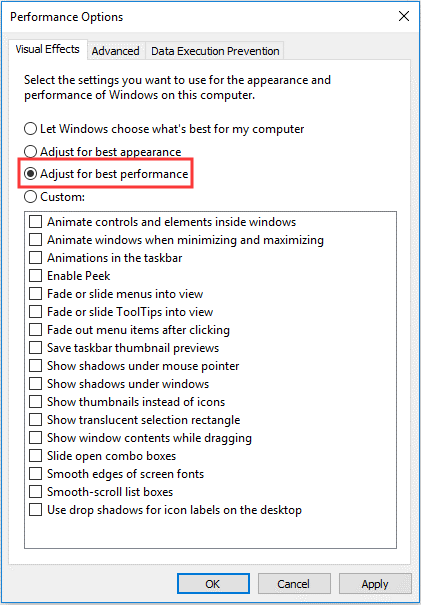
Step 1. Search for View advanced system settings in the Windows search box.
Step 2. Switch to the Advanced tab.
Step 3. Click on the Settings under the Performance section.
Step 4. Select the Adjust for the best performance option under the Visual Effects tab. Then click on the Apply and OK buttons to confirm changes.
Uninstall unwanted applications
One of the best ways to speed up your Windows 10 performance is to uninstall unwanted apps and programs. That’s because, with every new software or application, you reduce the lag time of your computer. This, in return, will impact your PC’s overall speed and gaming experience.
So, simply head over to Control Panel > Programs and Features > Select all the unwanted programs you haven’t used in a long time and hit the Uninstall button.
Disable Steam from auto-updating games
Do you buy and install your PC games from Steam? If yes, you must have to deal with a very annoying habit of Steam. This program will automatically update your games in the background while playing a game on your computer. This feature will eat up your computer’s power and reduce your gaming experience.
However, there’s a way to prevent Steam from auto-updating games in the background. Log in to your Steam account > Settings > Download > Uncheck the Allow downloads during gameplay.
Use High-Performance power settings
Changing your power plan on Windows 10 might help to better optimize your gaming experience. Many Windows 10 users prefer to use power-saving mode while playing games. Unfortunately, this feature takes up the power of your PC, which can reduce the gaming experience.
Thus, it is recommended to use a High Performance or Balanced power plan to improve Windows’ speed. Go to Settings > System > Power & Sleep tab > Additional power settings > Select the High Performance option.
Update GPU drive
This is a very important feature that can impact your gaming experience. If your graphics processing unit is outdated or corrupted in any way, it can create problems for your overall computer user experience.
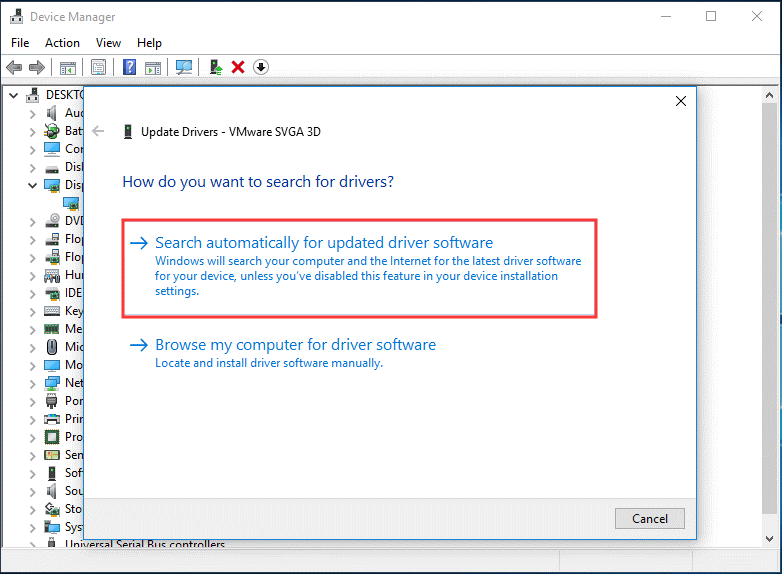
Therefore, you need to ensure that your GPU driver is up-to-date and installed properly. To do so, go to Device Manager, expand the Display adapter, and choose the driver on your computer.
Right-click on it and click the Update driver to continue. After that, select the Search automatically for updated driver software and follow the on-screen instructions to install the latest GPU driver version on your computer.
Disable mouse acceleration
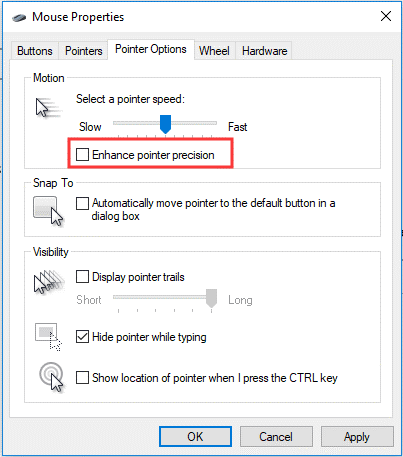
To enhance your gaming experience on a Windows 10 PC, you can choose to disable mouse acceleration. This could improve your personal gaming experience and enable the mouse to move not only based on the detection of physical movements but also on speed.
Go to Settings, click on Devices, and navigate to the Mouse tab to enable mouse acceleration. From there, click on Additional mouse options, navigate to Pointer Options, and uncheck the Enhance pointer precision option.
You have now successfully learned all the ways to optimize the Windows 10 gaming experience. However, we would like to recommend an automation method for our non-technical and technical users. That’s because the software will keep your system fully optimized and help you play games without any interruption.
Now, we would like to hear from you, and don’t forget to explore other posts on this website.
Warning: Attempt to read property "ID" on string in /home/bestcomputerclea/public_html/wp-content/themes/techcommuters-child/single.php on line 206
Previous Post Next Post
Popular Post
Recent Post

How To Clear Cache Memory On Windows 11/10 [2026]
Learn how to clear cache memory on Windows 11/10 using safe built-in methods to improve speed, free space, and maintain smooth system performance.

Windows Installer Cleanup Utility: Complete Review And Alternatives
Detailed review of Windows Installer Cleanup Utility, reasons for removal, risks, and safer modern alternatives explained clearly.

How To Clean Junk Files On Windows 11/10
Learn how to clean junk files on Windows 11 and 10 using safe, simple steps to boost speed and free storage space effectively.

Clearing App Cache Data on Windows 11/10: Complete Guide
Learn how to safely clear app cache on Windows 11 and 10 to fix slow apps, free disk space, and improve overall system performance.

How To Clean Up System Files On Windows 11/10: Complete Guide
Explore a step-by-step guide explaining how Windows users can safely remove unnecessary system data using built-in tools.

How To Clean a Laptop Fan Without Opening [2026 Guide]
Learn how to clean a laptop fan without opening the device using safe steps, simple tools, and easy methods for better cooling.

How to Clear the Queue in the Printer Automatically in 2026
Learn how to clear the queue in the printer with simple steps. This easy guide explains why print jobs get stuck and how to fix them safely for smooth printing.

How To Clear Delivery Optimization Cache In Windows
Learn how to clear Delivery Optimization Cache in Windows safely and easily. This guide explains steps, precautions, benefits, and FAQs to free space and avoid update issues.

How To Clear Cache in Edge [Windows 11/10]: Latest Guide
Learn how to clear cache in Edge on Windows 11 and Windows 10. Step by step guide with precautions, FAQs, and tips to fix slow pages and errors.

Top 15 Questions About PC Cleaning and Their Answers
Learn safe and simple ways to clean your PC. This guide answers top questions, covers precautions, and gives advanced tips for better PC health and performance.
