6 Ways to Reduce Shady Tracking on Your Computer

Last updated on March 3rd, 2026 at 2:50 pm
Most people spend hours browsing the internet for various tasks, like communication, shopping, entertainment, or work. Many of the websites on the internet that users open daily are top-level programs with solid security conditions.
However, many people do not know that some of the websites have privacy issues; companies or hackers watch their every move. These hacking attempts can cause major damage to your system or apps. Use robust software like Avast or Norton Antivirus to keep your system and browsing safe from shady trackers.
Here, we shall discuss what these methods are. Read ahead and use the best possible option for you.
Methods to reduce shady tracking on your PC
Many things track elements on computers, whether via hackers or tracking software elements, causing privacy issues. You should:
- Check the security of the devices you are using
- Use secure networks for browsing
- Work with browsers that have protective extensions or plugins
- Use an antivirus and safety software
Overall, there are particular methods you should adopt to safeguard your computer from shady trackers. Here, we have listed the six best we have tried and tested.
Method 1: Use comprehensive security software like Avast
One of the best protective options you can take to maintain proper security on your computer from trackers is Avast Antivirus software. The solution contains a lot of benefits that make it a suitable solution for browsing protection.
There are many benefits besides a safety guarantee from shady trackers that you can expect from this software. It effectively detects and blocks ransomware, viruses, and other malware threats. Secure your passwords using this software, and scan WiFi connections for security breaches. The firewall protection of this software is robust and keeps out hackers.
Webcam spying is not possible either with Avast software on your computer. Moreover, this all-in-one software includes a standardized VPN as well, namely Avast SecureLine VPN.
How to use Avast SecureLine VPN?
Step 1: Download the Avast Secure Browser Pro version and access it.
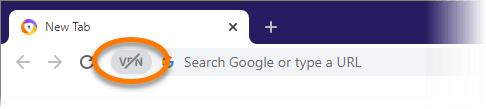
Step 2: Click on the icon of VPN. It is available on the left side of the address bar.
Step 3: Press the slider from the OFF button to ON.
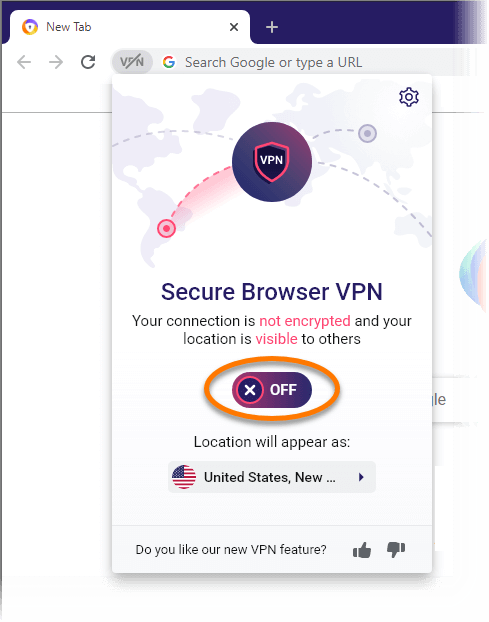
Step 4: Choose the location panel and open it. Select the location you want from the options that come up or directly browse and add a preferred area.
Step 5: Then, the Secure Browser VPN is activated.
Method 2: Work with Extensions or privacy plugins
Another suitable method you can choose to protect your system from shady trackers is to use extensions or privacy plugins. These are available through the manufacturer’s website; directly install them from the site. Or, you would find the plugins in your device’s settings.
Privacy plugins/extensions can optimize the quality of browsers to prevent tracking issues and safeguard privacy.
Common options include HTTPS Everywhere for Chrome, Firefox, and Opera or AdBlock Plus for Chrome, Firefox, Safari, IE, and Opera.
Method 3: Choose a Privacy-oriented browser
Another method for safety against shady trackers is to use a browser with good privacy settings directly. Firefox is one of the best options available, with strong privacy and safety. The incognito mode is very powerful in the browser as well.
Method 4: Access and apply a VPN service
Another method that you can use to protect your device from shady hacking attempts is using a VPN. The Virtual Private Network, or VPN, can completely hide the whole browsing history of localized ISP service providers. The ISP cannot see the access request
A reliable and robust VPN service provider guarantees a smooth browsing experience with top-quality privacy protection. Here, we would recommend using NordVPN. The software offers a next-gen encryption protection guarantee. Users can complete different fund transfers, log in securely, and handle all tasks minimally intensively.
NordVPN holds a 6,730+ Mbps speed during its connection and works with 5,200+ VPN Servers.
How to use NordVPN?
Solution 1: on Windows
Step 1: Download NordVPN for Windows and install the software on your Windows PC.
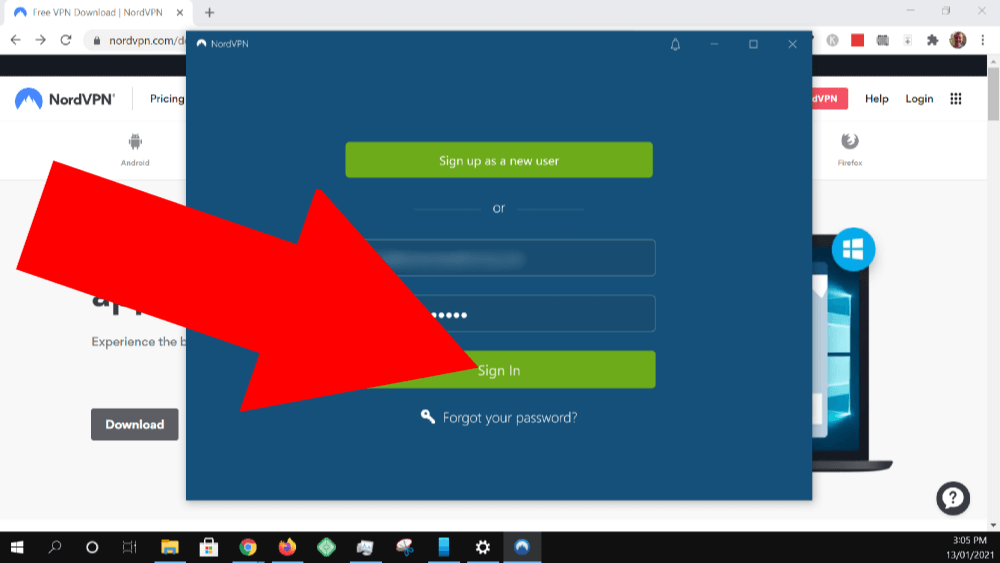
Step 2: Sign in to your account.
Step 3: You will see the “Quick Connect” button. Click on it to link with the faster server.
Step 4: After some time, the status bar would appear as ‘Connected’. The server location and IP address would appear.
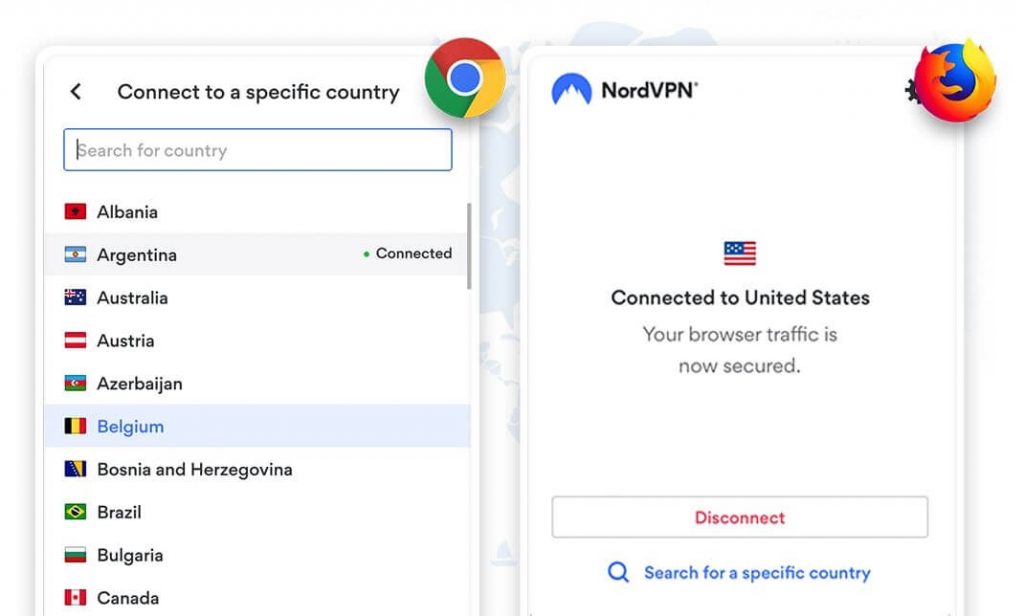
A popup window would come up confirming the connection.
Solution 2: on macOS
Step 1: Search for the software Quick Connect button under App Store for Mac. Set up an account.
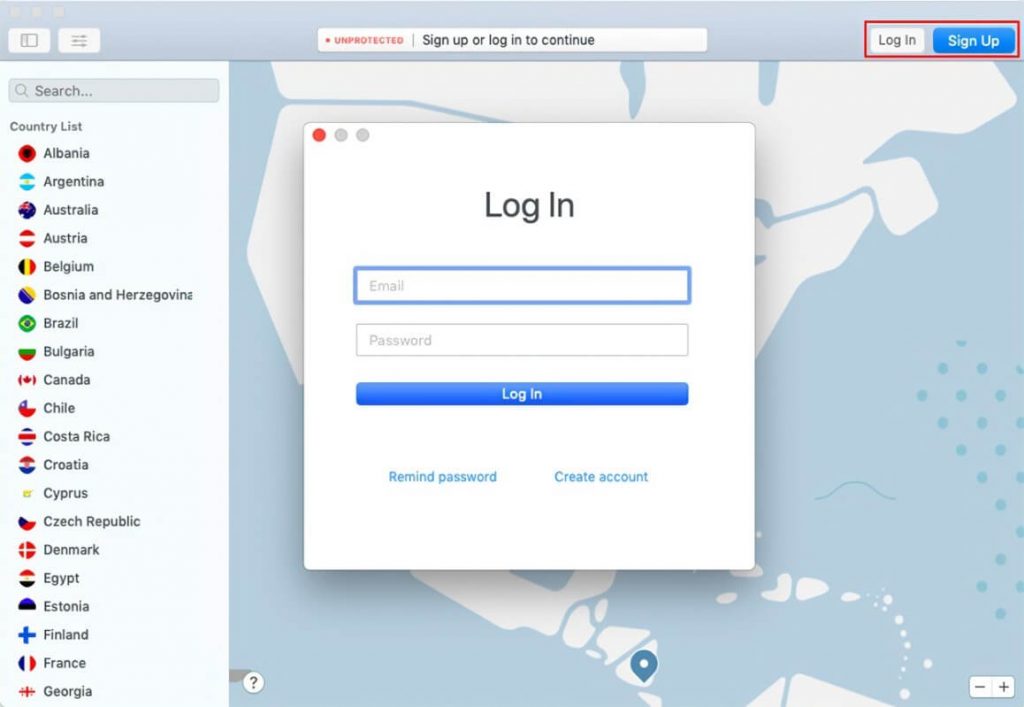
Step 2: You will see an icon of your profile on the upper-right side of the screen. Click on it.
Step 3: If the link is successful, you will see a pop-up for confirmation.
Method 5: Check the condition of app permissions
App permissions are crucial for any software to run smoothly on a device. Whether for macOS or Windows, a PC includes apps that request permission for personal data access. Review how the feature works on your device to ensure safety from shady trackers.
How to check for app permission?
Solution 1: on Windows
Step 1: Open the Start Menu.
Step 2: Access Settings.
Step 3: Open the Privacy & Security section and access App permissions to control all permissions manually.
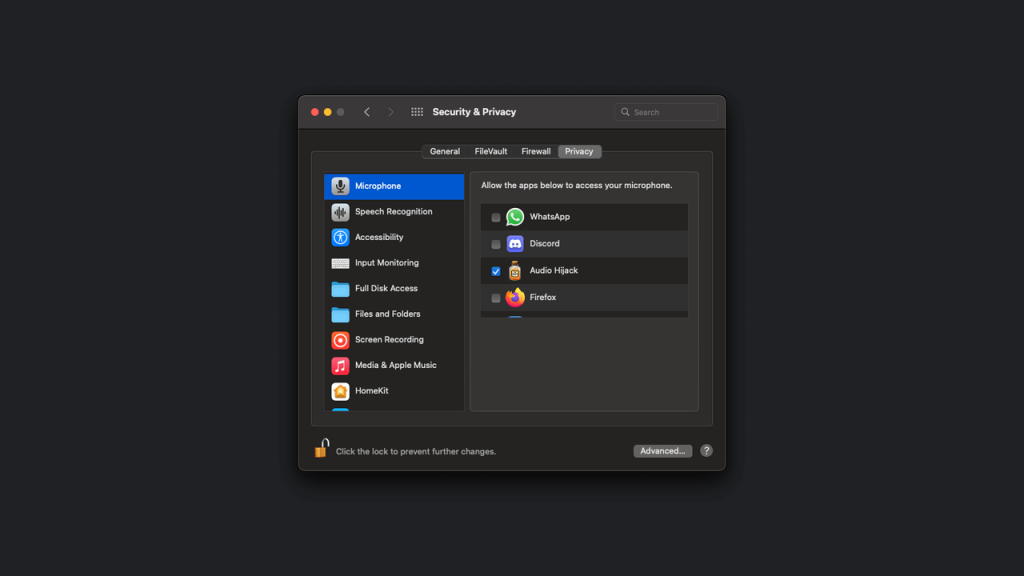
Solution 2: on macOS
Step 1: Go to System Preferences > Security & Privacy > Privacy.
Step 2: You will find the lock icon at the bottom left side of your screen. Click on it.
Step 3: Put in your Mac password to get access to the app permission settings. See the options on the left pane on your screen. Remove the permissions for all the apps you do not need.
Step 4: Keep the important ones switched on, like input monitoring, microphone, location services, screen recording, and camera. See the permissions on these apps individually and keep/remove the permissions.
Method 6: Opt for a firewall software like Norton
Another method you can adopt is downloading third-party software with robust firewall protection features. While Mac and Windows computers come with a built-in solid firewall, options like the Norton Antivirus software assure more benefits.
It has robust features like a password manager, real-time threat protection guarantees, device/data protection, and PC/Mac Firewall protection.
How to use Norton?
Step 1: Install and access the Norton Anti-Virus software.
Step 2: Open My Norton window > Device Security.
Step 3: The main windows of Norton would appear. Open Settings > Firewall.
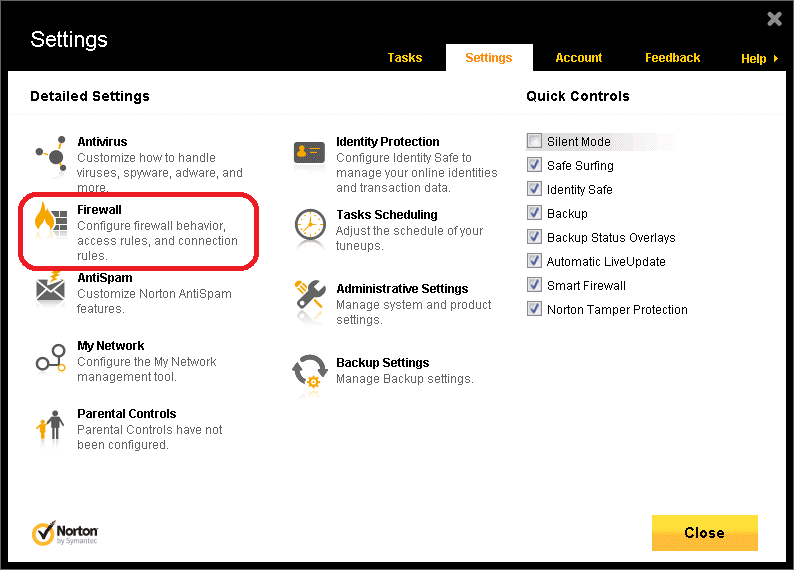
Step 4: The General Settings table would appear. Under the Smart Firewall row, switch the Off slider to the On setting in the available switch.
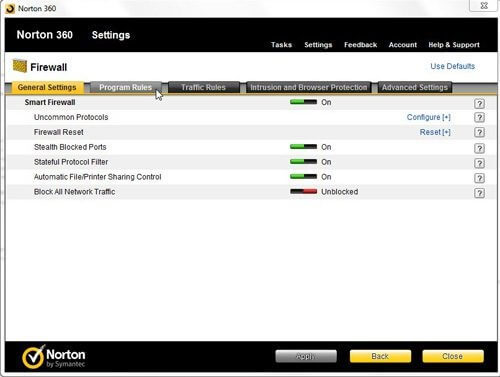
Step 5: Click your cursor on “Apply” to confirm.
Conclusion
Shady trackers can affect the quality of computer functionality and cause a threat to your privacy. You can use the methods mentioned here.
In our opinion, downloading and using antivirus software like Avast is a much better choice for you. It comes with more features for overall PC protection, like internet protection, cloud protection, etc. So, you can expect more benefits if you decide to use this particular solution.
Please go through our other guides and posts for similar software-related concerns.
Popular Post
Recent Post

How To Clear Cache Memory On Windows 11/10 [2026]
Learn how to clear cache memory on Windows 11/10 using safe built-in methods to improve speed, free space, and maintain smooth system performance.

Windows Installer Cleanup Utility: Complete Review And Alternatives
Detailed review of Windows Installer Cleanup Utility, reasons for removal, risks, and safer modern alternatives explained clearly.

How To Clean Junk Files On Windows 11/10
Learn how to clean junk files on Windows 11 and 10 using safe, simple steps to boost speed and free storage space effectively.

Clearing App Cache Data on Windows 11/10: Complete Guide
Learn how to safely clear app cache on Windows 11 and 10 to fix slow apps, free disk space, and improve overall system performance.

How To Clean Up System Files On Windows 11/10: Complete Guide
Explore a step-by-step guide explaining how Windows users can safely remove unnecessary system data using built-in tools.

How To Clean a Laptop Fan Without Opening [2026 Guide]
Learn how to clean a laptop fan without opening the device using safe steps, simple tools, and easy methods for better cooling.

How to Clear the Queue in the Printer Automatically in 2026
Learn how to clear the queue in the printer with simple steps. This easy guide explains why print jobs get stuck and how to fix them safely for smooth printing.

How To Clear Delivery Optimization Cache In Windows
Learn how to clear Delivery Optimization Cache in Windows safely and easily. This guide explains steps, precautions, benefits, and FAQs to free space and avoid update issues.

How To Clear Cache in Edge [Windows 11/10]: Latest Guide
Learn how to clear cache in Edge on Windows 11 and Windows 10. Step by step guide with precautions, FAQs, and tips to fix slow pages and errors.

Top 15 Questions About PC Cleaning and Their Answers
Learn safe and simple ways to clean your PC. This guide answers top questions, covers precautions, and gives advanced tips for better PC health and performance.
