What is Filerepmalware and How to Remove it?
Last updated on March 3rd, 2026 at 3:08 pm
Many users have encountered an issue as their third-party antivirus software programs have identified a dangerous malware entitled filerepmalware. If you have employed Avast or AVG antivirus programs, you must have seen this error appearing on your Windows desktop.
The problem doesn’t appear to be limited to a single version of Windows since it has been proven to appear in Windows 7/ 8.1/10. You might be wondering, what is filerepmalware? So, we are here to help you with all the information related to filerepmalware and the solutions to remove it. To know what this error is, its authenticity, and how to resolve it, continue reading the article.
What is filerepmalware?
A file’s FileRepMalware is merely a tag that numerous third-party antivirus programs will apply to it. It’s frequently linked to a fake KMSPICO, a third-party utility used to initiate Windows without paying for it. This security concern has been there for numerous years. Formerly, it was known as Win32:Evo-gen [Susp].
The detection’s beginnings, Win32, imply that this malware attack is restricted to Windows computers alone, and others are unaffected. The suffix Evo-gen, on the other hand, denotes a general categorization. It is a virus detection notification displayed by various antivirus and screening tools to warn that your machine has been infected with malware.
It can range from potentially unwanted programs (PUPs) to adware and trojans. Some of these may be quite harmless, but they may cause bothersome pop-ups. On the other hand, others may be a real attempt to obtain your data and information, destroy your system, or track your movements.
How can the Filerepmalware malware get into your computer?
Now that you know “what is filerepmalware” you must know how it causes. Filerepmalware may infiltrate your device in several ways. The following are the most prevalent processes:
- When a user clicks on a malicious pop-up ad, malware like FileRepMalware is silently deployed.
- Fake news and foreign media are two more typical methods.
- It can also acquire access using a software package.
- It is also spread through peer-to-peer (P2P) file-sharing platforms like Torrents.
- Files copied from external media (hard discs, USB devices, etc.);
- Malicious security software.
- Email attachments from unfamiliar sources can also include FileRepMalware.
How can you get rid of Filerepmalware?
It’s not enough to know “what is filerepmalware” since it won’t help you get rid of it. If Filerepmalware has invaded your computer and you want to get rid of it, follow these step-by-step instructions:
Step 1: Restart your computer in Safe Mode.
Windows Safe Mode is suitable for identifying and resolving severe system issues. Only system programs and a few critical programs operate in safe mode. Safe mode will most certainly terminate any apps or files that try to launch on your computer automatically. To start your Windows 10 computer in Safe Mode, follow the steps below.
- To access the power button, go to the Start menu and click on it. Select the Restart option while pressing down the Shift key. Press the shift key until a menu appears on your screen.
- Once that menu displays, select Troubleshoot. After that, click on Advanced options. Next, select Startup Settings, and then hit OK.
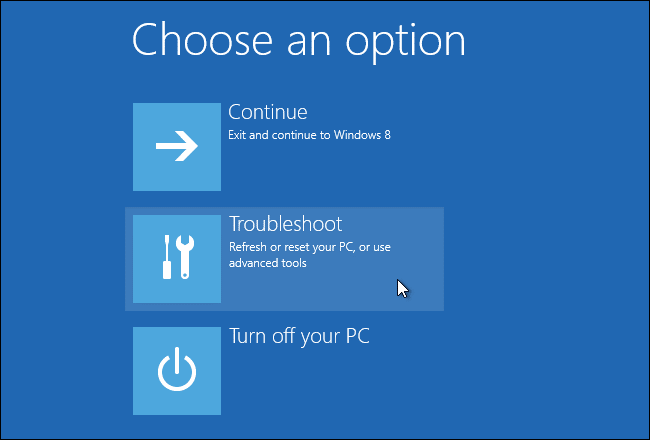
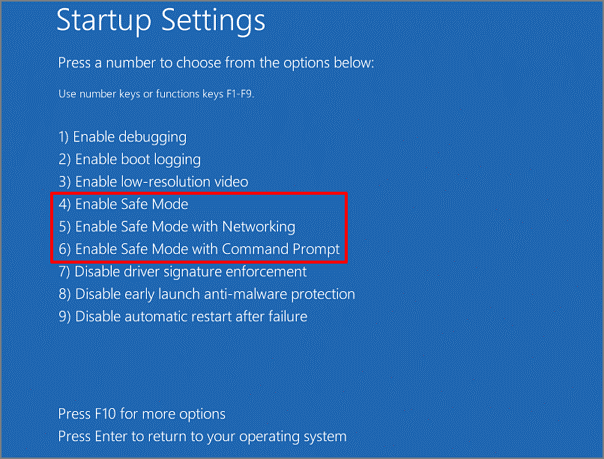
- Now is restart your device, then use the F4-F6 buttons to pick the safe mode type you want to use.
Step 2: Uninstall Any Suspicious Apps
If FileRepMalware remains present on your computer, locate and delete the offending program.
- Firstly, you need to choose the Task Manager by right-clicking on the taskbar.
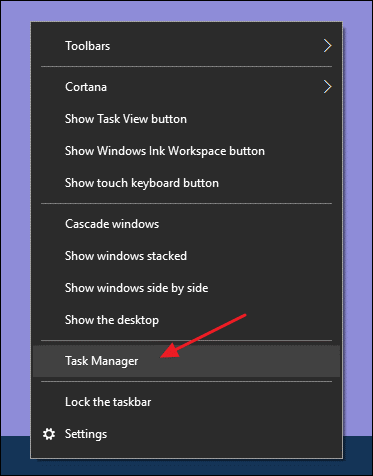
- Keep an eye out for apps using up system memory even though you haven’t installed or activated them.Then, locate the file location of the suspectable application and right-clicking on it to access it.
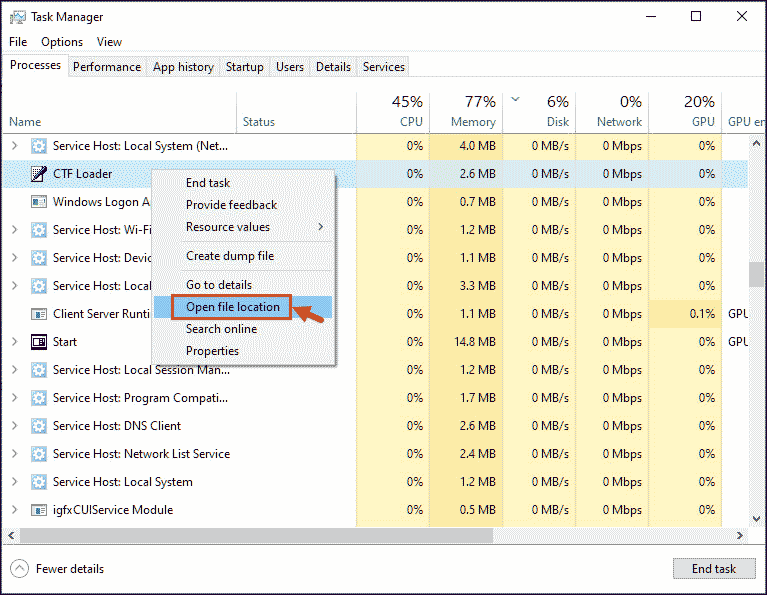
- After that, remove the file from its root directory.
- Lastly, you will have to scan for suspicious apps by going to the Control Panel and clicking Uninstall a program. Choose and remove them individually.
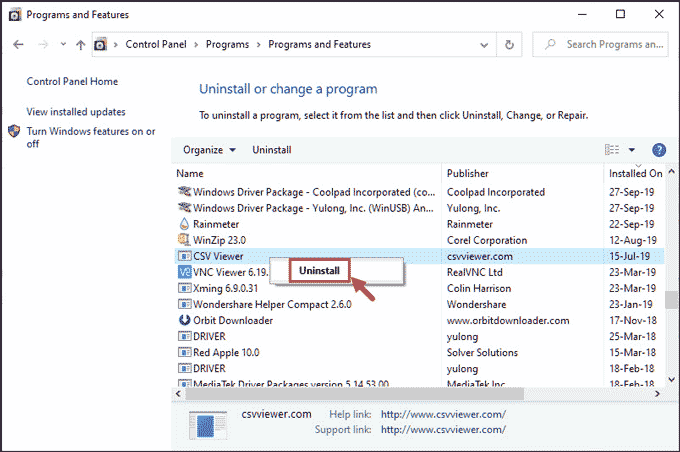
Step 3: Remove the Temporary Files
You can also find some malicious files in the temporary file directory. As a result, we suggest eliminating all temporary files or folders on a constant schedule for the system’s flawless operation. Deleting temporary files will help rid your system of unneeded junk and save up precious space. The procedures to delete the three temporary files are as follows:
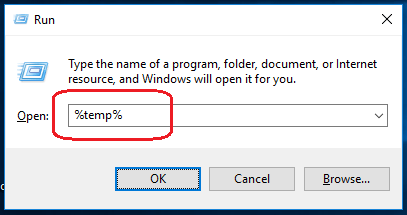
- First of all, you need to launch the Run command prompt. Press the Enter key after typing %temp%. To be precise, the run command will take you to the following location: C:\Users\[username]\AppData\Local\ The temp folder.
- Next, you will have to select and remove all of the files and directories in this folder. If they aren’t necessary for any of your duties, feel free to delete them.
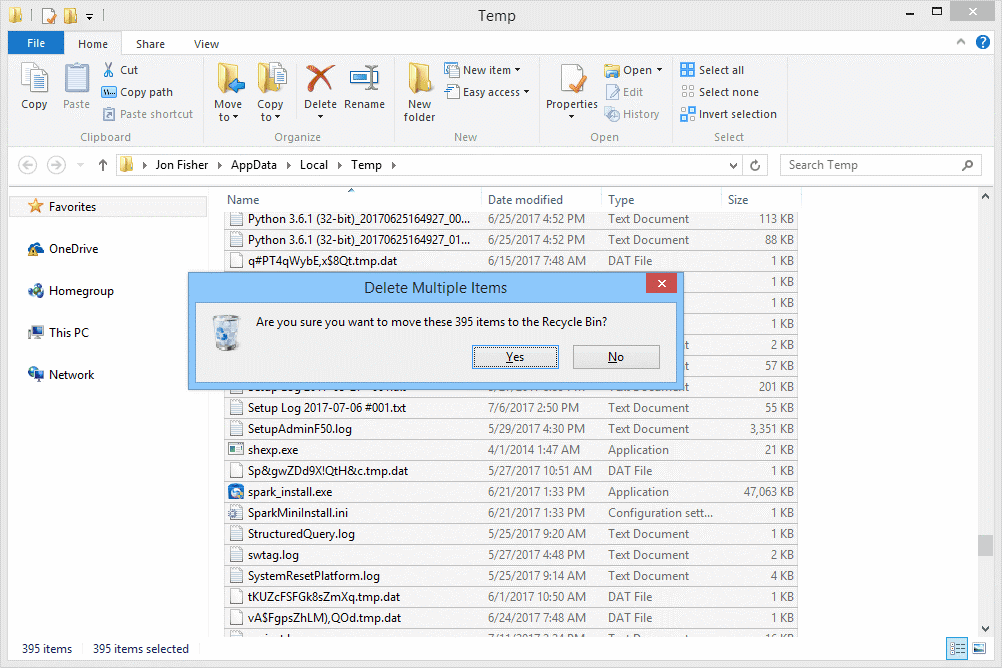
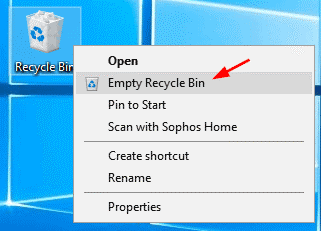
- Next, right-click the Recycle Bin and choose Empty Recycle Bin.
Step 4: Reset Your Web Browser Settings (Chrome)
You must revert to the default options if your browser is acting strangely due to the Filerepmalware error.
- Launch your Chrome browser and then click on the three dots present at the top right corner of your screen. Look for the Settings option and click on it.
- Next, you will need to navigate to the advanced option and click on it.
- Under the advanced option, click on the reset and clean up option.
- You will get to see an option that says “restore settings to their original defaults.”
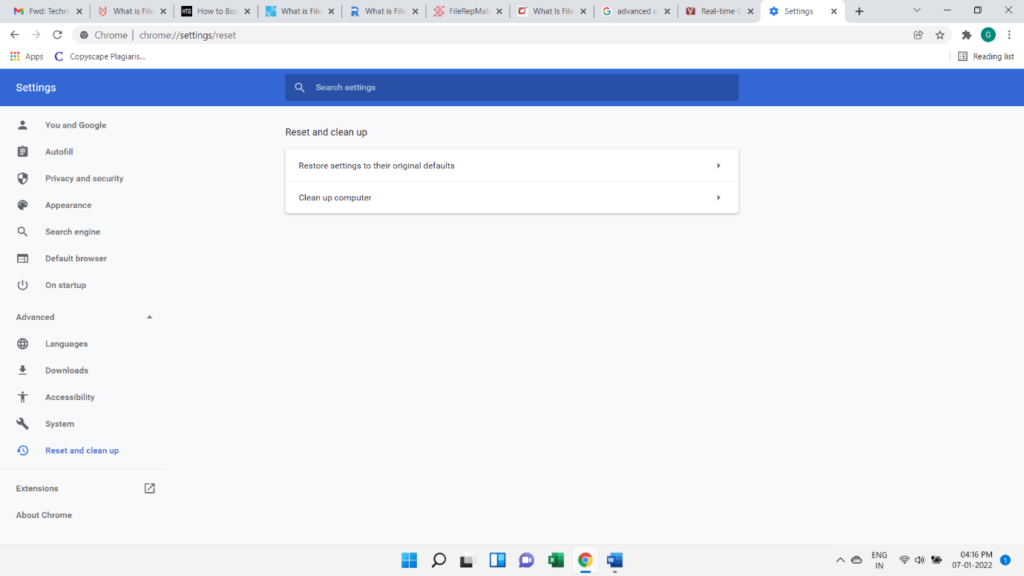
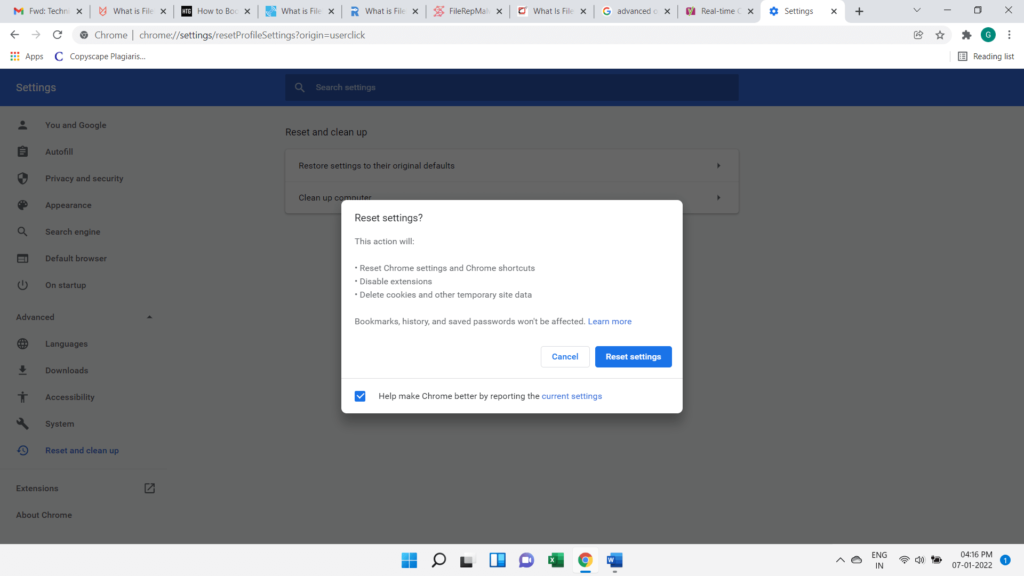
- As soon as you click on this option, a pop-up window will appear. Click on the reset settings options to reset your Chrome browser settings to default.
- Lastly, restart your Chrome browser.
Step 5: Eliminate any Plugins and Extensions from your Google Chrome browser
Viruses can be present in certain plugins, causing issues. To fix this, uninstall all of the extensions you’ve added to your Chrome browser. Install just those that you can get from official sites. Also, before adding any extensions, check their feedback and reviews.
Step 6: Install an Antimalware Program and Conduct a Malware Scan
Manual eradication of malware is a time-consuming process that requires much of our work and effort. For the people who have little knowledge of technology, it may bother you at times. However, there is nothing to be concerned about because several antimalware products are available on the market right now. You can get a powerful anti-malware tool that meets your requirements. The finest antimalware applications to help you remove the filerepmalware error are listed below.
- Avira
- Avast
- Iobit
After you’ve finished installing the malware detection solution on your computer, using the above anti-malware software, you may do a thorough malware scan. Also, look for any spyware or viruses on your computer. They will also swiftly locate and assist you in removing any malicious files or software that have been installed or downloaded into your machine.
Conclusion
In this article, we have mentioned everything, including what is filerepmalware, its causes, and the steps to resolve this error. You can easily conduct all the steps mentioned above and eliminate the error. If you find it difficult to perform the steps manually, you can follow the last step and install any anti-malware programs like Avast, Avira, or Iobit. This software will automatically detect and remove the filerepmalware error.
Popular Post
Recent Post

How To Clear Cache Memory On Windows 11/10 [2026]
Learn how to clear cache memory on Windows 11/10 using safe built-in methods to improve speed, free space, and maintain smooth system performance.

Windows Installer Cleanup Utility: Complete Review And Alternatives
Detailed review of Windows Installer Cleanup Utility, reasons for removal, risks, and safer modern alternatives explained clearly.

How To Clean Junk Files On Windows 11/10
Learn how to clean junk files on Windows 11 and 10 using safe, simple steps to boost speed and free storage space effectively.

Clearing App Cache Data on Windows 11/10: Complete Guide
Learn how to safely clear app cache on Windows 11 and 10 to fix slow apps, free disk space, and improve overall system performance.

How To Clean Up System Files On Windows 11/10: Complete Guide
Explore a step-by-step guide explaining how Windows users can safely remove unnecessary system data using built-in tools.

How To Clean a Laptop Fan Without Opening [2026 Guide]
Learn how to clean a laptop fan without opening the device using safe steps, simple tools, and easy methods for better cooling.

How to Clear the Queue in the Printer Automatically in 2026
Learn how to clear the queue in the printer with simple steps. This easy guide explains why print jobs get stuck and how to fix them safely for smooth printing.

How To Clear Delivery Optimization Cache In Windows
Learn how to clear Delivery Optimization Cache in Windows safely and easily. This guide explains steps, precautions, benefits, and FAQs to free space and avoid update issues.

How To Clear Cache in Edge [Windows 11/10]: Latest Guide
Learn how to clear cache in Edge on Windows 11 and Windows 10. Step by step guide with precautions, FAQs, and tips to fix slow pages and errors.

Top 15 Questions About PC Cleaning and Their Answers
Learn safe and simple ways to clean your PC. This guide answers top questions, covers precautions, and gives advanced tips for better PC health and performance.
