10 Common macOS Ventura Problems & How to Fix Them
Last updated on October 17th, 2025 at 3:15 pm
macOS Ventura is the forthcoming operating system from Apple for Mac computers. The beta was released in June 2022; it included several new Apple ecosystem features. Unfortunately, people are having trouble installing and using macOS Ventura because it is still in beta.
Even though these macOS Ventura issues are annoying, they are not a significant concern. Therefore, we took advantage of the opportunity to write a post that addresses the most common macOS Ventura problems and provides suggestions on how to fix them.
So, let’s not stop yourself from upgrading to the latest macOS, as these solutions can help in any tricky situation.
10 Common macOS Ventura Problems and Fixes
Are you not installing macOS Ventura because you have heard all the problematic stories about it? Then, don’t worry. This post contains all the common macOS Ventura problems that Mac users have reported by far. So, just keep this guide handy and upgrade your Mac to the latest OS update now.
Problem 1. Mac Running Slow After the Update
After installing macOS Ventura on your Mac or MacBook, you may notice that it runs slower than before.
If macOS Ventura also displayed a notification saying, “Optimizing Your Mac: Performance and battery life may be affected until completed,” this is normal because macOS Ventura is doing things behind the scenes that can initially impact performance.
After a day, your Mac should be as good as new (if not better). If you haven’t noticed an improvement by then, restart your Mac or MacBook.
Another thing to double-check is that all of your apps and software have been updated to the most recent version. If any of them have problems with Ventura, this could slow down your Mac.
If you have a brand new MacBook or Mac with Apple’s M1 chip or the new M1 Pro and M1 Max chips, you may be using apps that have not yet been optimized. While Apple’s Rosetta tool assists in running apps for Intel-based Macs on Apple M1 devices running Ventura, some performance issues may still exist. So watch out for the latest versions to see if an update for M1 Macs has been released.
You can also visit the Apple menu and choose ‘System Preferences.’ Click ‘Users & Groups’ in the window that appears. Select ‘Login Items,’ then select the apps you want to prevent from opening at startup and click the small minus sign from the bottom.
It’s also good to keep your apps up to date. Check the App Store or the app’s website for any available updates.
You can also restart your Mac to check if that makes a difference. If that doesn’t work, force-quit any apps that appear to be using a lot of RAM. These can be identified by using Activity Monitor (/Applications/Utilities) to determine which apps and processes are consuming the most CPU or RAM. Its CPU tab displays the status of active processes in real-time.
To force-quit an item, select it from the Activity Monitor list, click the X in the toolbar’s left corner, and confirm you want to force-quit.
Delete the cache as well. Open the Finder window, go to the top menu, and choose ‘Go to Folder.’
Enter /Library/Caches in the text box that appears.
Remove the data from each folder. Repeat the procedure with /Library/Caches (without the symbol). Using the Repair Disk tool within Disk Utility may also be beneficial.
Problem 2. macOS Ventura Update Stuck
It is the most common macOS Ventura problem reported by many users. macOS users are experiencing difficulties downloading Ventura, receiving notifications such as “macOS Ventura download has failed” or “Network connection lost.” Three things can assist you in resolving this.
- As the macOS update takes some time to download, ensure a stable Internet connection. WIFI Explorer can be used to assess network stability.
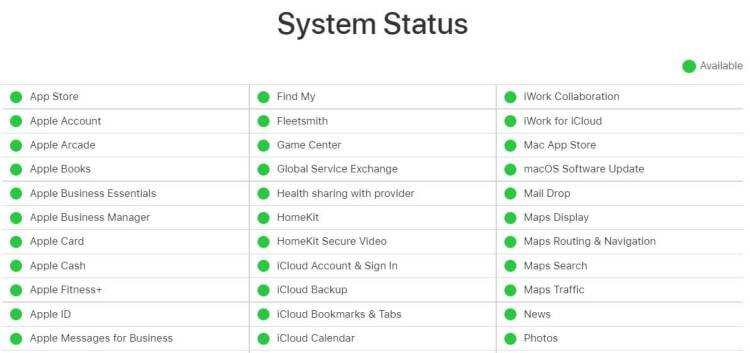
- Ascertain that all servers are operational. To check the status of your system, go to the Apple System Status page.
- In the third method, try to free up some space and save it for the new macOS. You can look for some useful tools to assist you in freeing up space on your Mac.
Problem 3. macOS Ventura Installation Fails
If your Mac does not update to Ventura after downloading, several possible causes and solutions exist.
- Examine Compatibility. Check to see if Ventura is compatible with the Mac you’re using. Next, examine the list of macOS Ventura-compatible models.
- Safe mode allows you to restart your Mac. Then restart the installation of macOS Ventura.
- Are you still having trouble installing Ventura? Reset the NVRAM by shutting down your Mac, holding down the “Command + Option + P+R” keys, and restarting the Mac without letting go of the keys.
Problem 4. Trouble with Booting Up
There may be issues booting your Mac after installing the macOS Ventura update. Here are some simple ways to troubleshoot the issue.
- Check your display configuration by ensuring that your monitors are turned on and plugged in, switching adapters, or using a different display. Then, unplug the cable and reconnect it.
- Change to another user account and try again because login items can sometimes interfere with the booting process.
Problem 5. Issues with WiFi or Bluetooth on macOS Ventura
Many Ventura users have complained about problems connecting to Bluetooth and WIFI. It is a common macOS Ventura problem that you can fix in many ways.
- First, try restarting your Mac in safe mode and seeing if you can connect. Keep an eye out for any future Apple updates.
- WIFI Explorer can check your signal strength and identify any network issues.
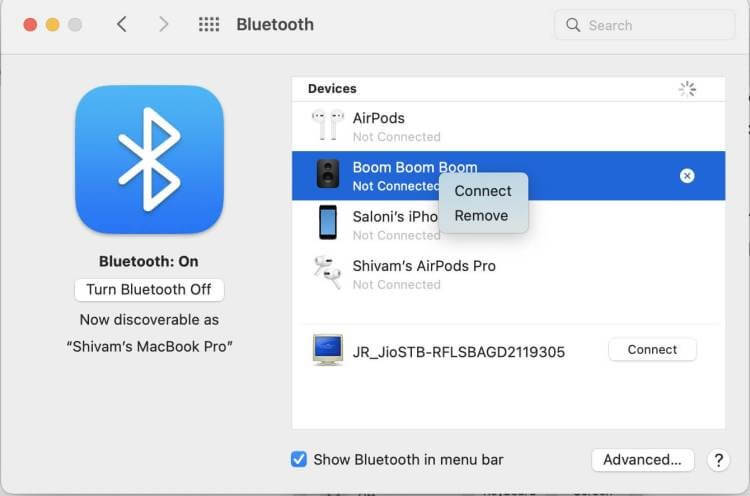
- To resolve Bluetooth issues, turn on/off Bluetooth or disconnect and reconnect all Bluetooth devices.
Problem 6. Mac Battery Problems While Using Ventura
The battery life is one of the primary reasons why Mac users do not install macOS Ventura.
Following the installation of Ventura, a few options can be considered.
- Unwanted apps can be deleted to save your Mac’s battery life.
- Switch to Safari browsers instead of other browsers because Safari uses less battery power than other browsers, such as Chrome.
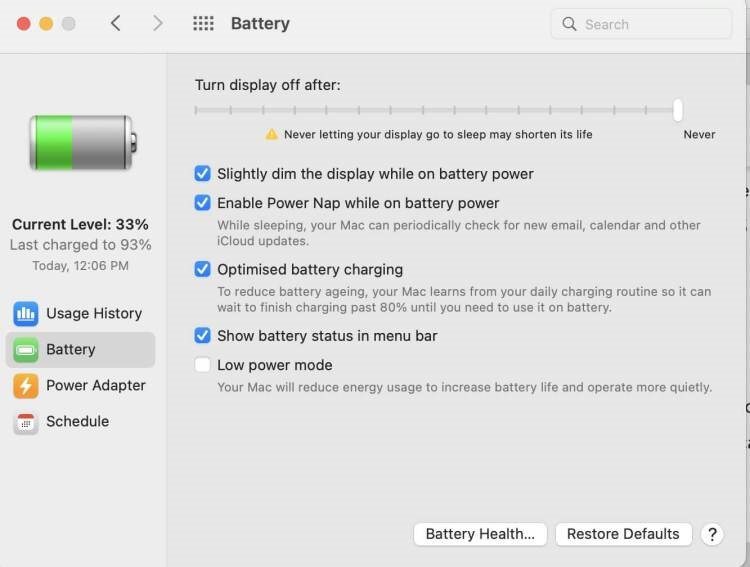
- To save battery life, set your Mac to low power mode. Then, navigate to Battery Preferences by clicking the battery icon in the upper right corner.
Problem 7. Mac Automatically Restarting
Some users have reported that after updating to Ventura, their Mac keeps restarting itself after a few minutes, and the fan is running very fast. To resolve this issue, delete and deactivate all self-starting programs and any VPN software you may have installed.
These are likely causing interference because third-party software has access to the system permissions. You must also disable the filtering extension in the network settings that accompany the kernel extension. If you cannot keep your Mac even for a short time, it is recommended that you use Safe Mode to try to fix the problem.
Problem 8. Apps Keep Crashing
Most applications should work fine with macOS Ventura, though many will require an upgrade to take advantage of the new features. First, examine the app store’s updates to see if the applications are crashing or acting strangely, and then confirm that they are updated. It is also possible to reinstall the application after removing it from the Applications folder.
Problem 9. Noisy Fan
Some users have reported that their MacBook fans have become noticeably louder after updating to macOS Ventura.
This is most likely because the MacBook is still hard at work in the background to update the rest of the operating system, including updating apps and re-indexing the Finder. This may cause the fans to activate to keep the MacBook cool. Hopefully, the fans will return to normal after a few hours.
Problem 10. AirDop Not Working
If AirDrop no longer works, try turning off WiFi and Bluetooth on your Mac and then re-enabling them. This can sometimes make it work. Restarting your Mac may also be beneficial.
You can also check your AirDrop settings. Just go to Finder and select ‘AirDrop’ from the ‘Go’ menu. Then, changing the ‘Allow me to be discovered by’ setting to ‘Everyone’ can resolve AirDrop issues, but make sure you’re comfortable with it before you enable it.
Just Uninstall macOS Ventura!
If you are still experiencing issues that cannot be resolved or dislike the new operating system, you can uninstall macOS Ventura and return to a previous version of macOS. Of course, this is an extreme measure, but it may help you get your Mac or MacBook working again if nothing else works.
Of course, you can reinstall macOS Ventura once Apple has issued a fix for your issue.
Turn off your Mac and boot into Recovery Mode to uninstall macOS Ventura. Hold Command R on your keyboard and turn on your Mac to accomplish this.
Press and hold the power button on newer M1-powered Macs until you see startup options. Select ‘Options’ and then ‘Continue.’ An administrator account password may be required.
Click ‘Disk Utility’ and then ‘Continue’ from the menu. Next, select the hard drive where macOS Ventura is installed and press the ‘Erase’ button. This will erase all your data, so ensure you’ve backed up your files and folders to iCloud or purchased one of the best external hard drives.
Format the drive as APFS, then return to the macOS Utilities menu, choose ‘Reinstall macOS Monterey,’ and follow the on-screen instructions.
Parting Remarks
There you have it. You have checked the 10 common macOS Ventura problems. Just avoid installing macOS Ventura on incompatible devices, and you will have no problem.
But still, you can follow our blog posts as we will cover all the new Ventura problems and fixes with you. Just stay tuned.
Popular Post
Recent Post

How to Clear the Queue in the Printer: A Step-by-Step Guide
Learn how to clear the queue in the printer with simple steps. This easy guide explains why print jobs get stuck and how to fix them safely for smooth printing.

How To Clear Delivery Optimization Cache In Windows
Learn how to clear Delivery Optimization Cache in Windows safely and easily. This guide explains steps, precautions, benefits, and FAQs to free space and avoid update issues.

How To Clear Cache in Edge [Windows 11/10]: Latest Guide
Learn how to clear cache in Edge on Windows 11 and Windows 10. Step by step guide with precautions, FAQs, and tips to fix slow pages and errors.

Top 15 Questions About PC Cleaning and Their Answers
Learn safe and simple ways to clean your PC. This guide answers top questions, covers precautions, and gives advanced tips for better PC health and performance.

11 Mistakes To Avoid While Cleaning a PC
Cleaning a PC is important because dust and dirt can slow the system and heat up the parts. A clean computer also lasts longer and works with fewer sudden issues. Many users clean their PCs only when they notice noise or overheating. This delay can make the job harder and sometimes cause more trouble. A […]
How To Clean a Gaming PC: Complete Guide
A clear and expanded guide that shows how to clean your gaming computer, maintain airflow, protect hardware, and keep performance smooth with simple methods for all user levels.

How to Clean Your Windows Registry (Safe Methods)
Learn safe ways to clean Windows registry entries using built-in tools, backups, and trusted cleaners. Follow simple steps, avoid risks, and keep your system fast and stable.
How to Clean a Laptop Webcam Lens Without Damage
Learn how to clean a Laptop Webcam Lens with simple steps, safety tips, and advanced methods to keep your webcam clear, sharp, and ready for video calls or recordings.

How To Clean the Speakers of Your PC or Laptop
A clear and simple guide on how to clean speakers of a PC or laptop with safe steps, precautions, and advanced care tips that help restore bright and steady sound.

PC Cleaning Tips For Beginners and Advanced Users
A complete guide that explains simple cleaning methods, safety steps, airflow care, and advanced maintenance habits for beginners and skilled users.
