How to fix VAC was unable to verify the game session?
Last updated on February 14th, 2026 at 4:51 pm
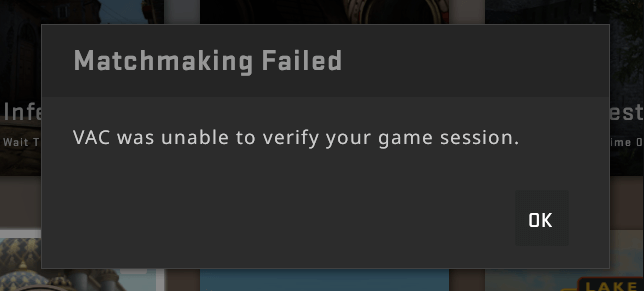
Have you received the “VAC was unable to verify your game session” message recently? Let us know all about this error observed during the matchmaking process in Steam details. We’ll go through the top reasons, quick checks, and detailed fixes for managing this VAC issue.
Why VAC was unable to verify the game session?
Valve’s Anti-Cheat or VAC is a software program that works with Steam and hunts down players attempting to enter the game session with a cheat software or hack enabled. Hence, it is an anti-cheat program aiming to immediately ban the user guilty of unfair means. Some of the top reasons causing VAC not to verify the game session include the following:
- Hack or cheat software is enabled,
- Unallowed program or script running with the game,
- Any changes to the game files, or
- Any altering to game processing.
Are you VAC-banned?
After going through the top reasons for VAC was unable to verify your game session, you may wonder if you’ve received a VAC ban. You may have received a VAC ban which may cause the system to be unable to verify the game session. So, you must confirm it before jumping to the quick fixes for the problem. The quick steps to confirm the VAC ban are:
- Open your Steam account and enter your Login details.
- Go to the “Settings” menu in the “Steam” option located in the top-left corner.
- Now click on the “Account” option in the left sidebar.
- Check the “VAC Status” in the right pane.
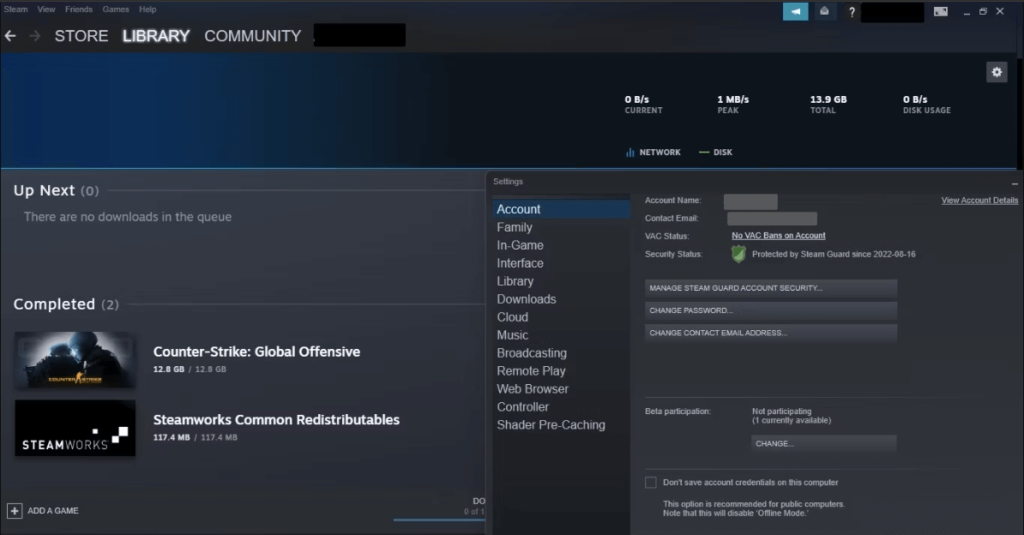
5. If it shows “No VAC Bans on Account,” there are no VAC bans on your Steam.
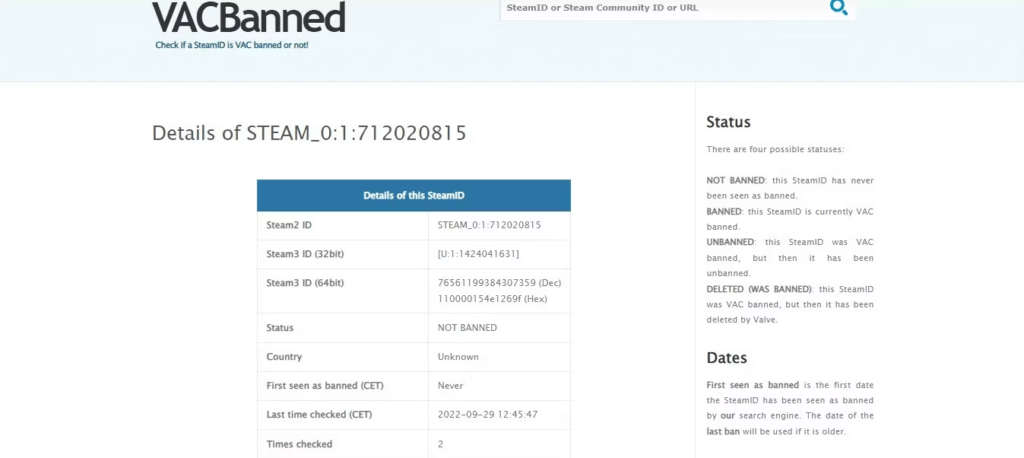
- If it says that you’re banned, it is easy to go to the VACBanned website and enter the SteamID.
- The VACBanned engine checker will show the VAC ban received.
- The investigation by the Steam support team might lead to the automatic removal of the VAC ban if it occurred without doing any wrong.
Quick checks- VAC was unable to verify your game session
The problem of VAC being unable to verify your game session may not be as big as you think. Once you’ve cross-checked the VAC ban on your Steam account, it is easy to go through the following quick checks:
- Try to restart your system.
- Restart the Steam client.
- Confirm by logging out of your Steam account and then re-logging.
- Leave the current game session and restart the game. Try to matchmake again now.
- Check if your system’s operating system is up to date.
- Confirm if your Steam game and client are up to date.
- It is recommended to check after turning off the VPN if used earlier.
- Check if any antivirus or Windows Defender is preventing the Steam client or directory folders from functioning.
Top fixes- VAC was unable to verify your game session
It is time to go through the detailed fixes for VAC not verifying the game session if the quick fixes mentioned above fail to yield desired results. So, below is a comprehensive list of the top seven fixes for VAC was unable to verify your game session:
- Repair the Steam library folder
The first method to eliminate VAC unable to verify the game session problem is to repair the Steam library folder. The detailed steps for the same are:
- Open your Steam account.
- Select the “Settings” option from the “Steam” menu in the top-left corner.
- Go to the “Downloads” tab in the left sidebar.
- Go to the “Steam Library Folders” in the right pane.
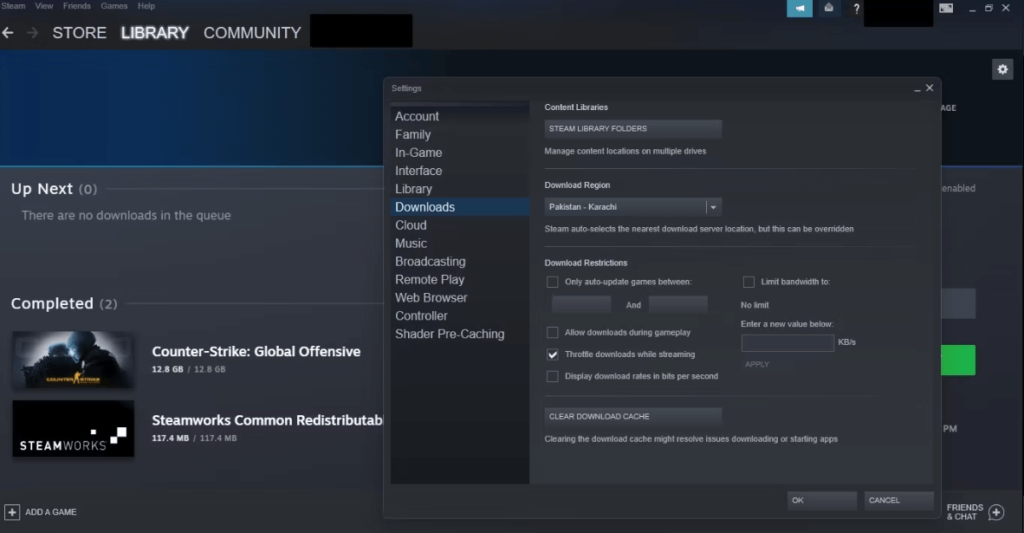
- Go to the three horizontal dots located next to the storage location.
- Select the “Repair Folder” option.
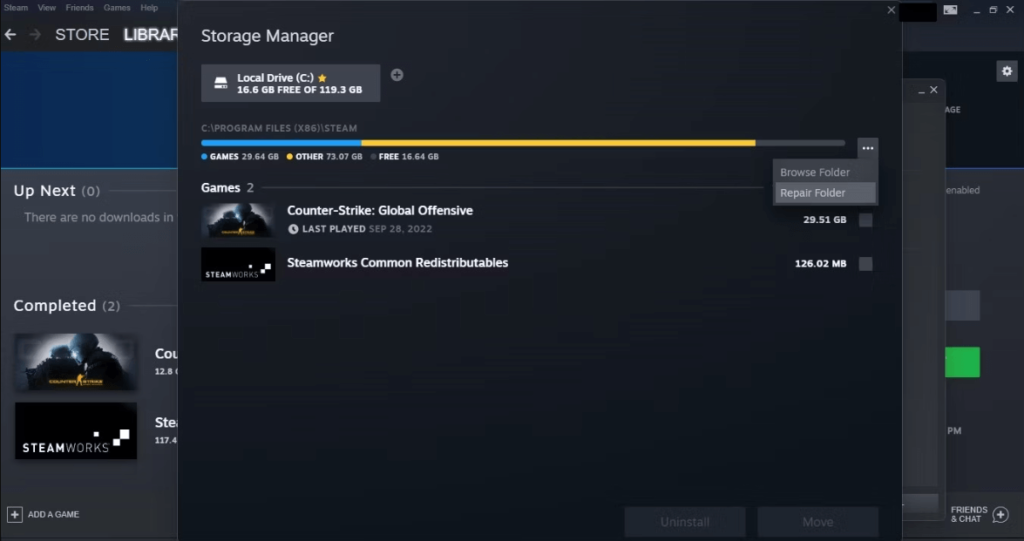
- Run Steam again to check if the folder is repaired.
- Switch to offline mode and back to online mode
The second fix for the VAC was unable to verify your game session, is to switch between Steam’s offline and online modes once. The quick steps for the same are as follows:
- Go to Steam and log in to your account.
- Select the “Steam” option in the top-left corner and select the “Go Offline” option.
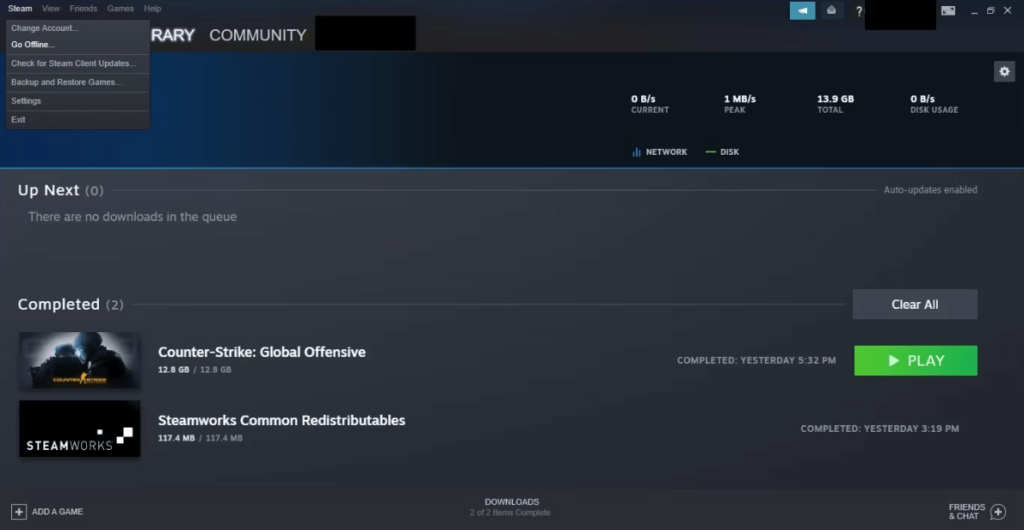
- Now, select the “Enter Offline Mode” option.
- Wait for some time and then go back to the “Steam” option and select the “Go Online” option.
- Now, select the “Leave Offline Mode” option.
- Verify the game files’ integrity
The improper installation of the game files may cause VAC to be unable to verify the game session error. Hence, even without making any unauthorized changes to the game files or running cheat programs, Steam may consider the improper installation of game files as a VAC guidelines violation. So, it is necessary to verify the game files’ integrity in the following ways:
- Go to your Steam account.
- Select the game creating issues and go to the “Properties” option.
- Go to the “Local Files” tab in the left sidebar.
- Now, click on the “Verify integrity of game files” in the right pane.
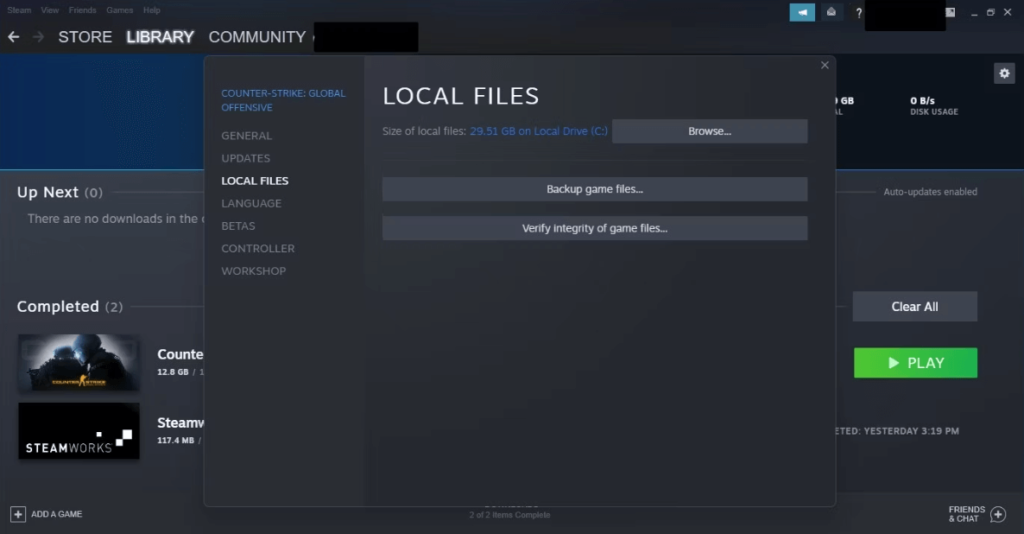
- Preventing interference from other programs
The VAC was unable to verify your game session problem can be due to the interference from other programs also. So, all you need to do is temporarily close all the apps or tasks running on the system. Check for the VAC again after closing other programs to confirm if the problem still persists.
- Run the game as an Administrator
It is easy to run the game as an administrator to ensure exclusive access to the different game files. So, the steps to run the game as an administrator are as follows:
- Open the Windows File Explorer.
- Paste the following path- C:\Program Files (x85) \Steam\steamapps\common
- Go to the game folder, creating issues.
- Select the game’s executable file. Right-click on it and open the “Properties” option.
- Go to the “Compatibility” tab in the “Properties” window.
- Check the option- “Run this program as an administrator.”
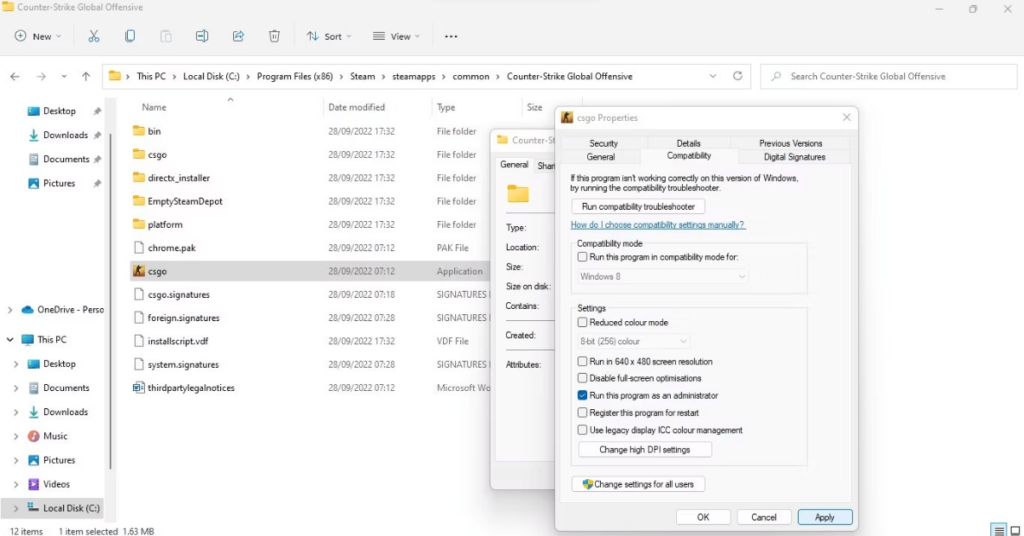
- Run Steam as an Administrator
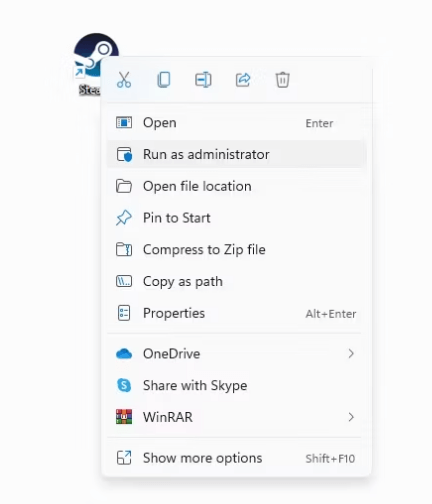
The next fix to solve this problem is to run Steam as an administrator. It rules out the possibility of incomplete access to specific game files and can be achieved in the following steps:
- Go to the Steam shortcut.
- Right-click on it.
- Select the “Run as Administrator” option.
- Re-install any error-prone game and Steam
Last but not least fix to manage VAC was unable to verify your game session problem is to re-install the erroneous game. If re-installing the game is not helping, then it is time to re-install Steam. It is recommended to back up your games and upload them to the Steam Cloud, as uninstalling Steam will erase all games and their saves.
Wrapping Up
Hope everything is clear to our readers about the top fixes for VAC was unable to verify your game session error. It can be due to multiple issues and can be fixed with some quick checks only. If the issue is persistent, it is best to go for the different detailed fixes mentioned above to ensure a seamless gaming experience.
Popular Post
Recent Post

How To Clear Cache Memory On Windows 11/10 [2026]
Learn how to clear cache memory on Windows 11/10 using safe built-in methods to improve speed, free space, and maintain smooth system performance.

Windows Installer Cleanup Utility: Complete Review And Alternatives
Detailed review of Windows Installer Cleanup Utility, reasons for removal, risks, and safer modern alternatives explained clearly.

How To Clean Junk Files On Windows 11/10
Learn how to clean junk files on Windows 11 and 10 using safe, simple steps to boost speed and free storage space effectively.

Clearing App Cache Data on Windows 11/10: Complete Guide
Learn how to safely clear app cache on Windows 11 and 10 to fix slow apps, free disk space, and improve overall system performance.

How To Clean Up System Files On Windows 11/10: Complete Guide
Explore a step-by-step guide explaining how Windows users can safely remove unnecessary system data using built-in tools.

How To Clean a Laptop Fan Without Opening [2026 Guide]
Learn how to clean a laptop fan without opening the device using safe steps, simple tools, and easy methods for better cooling.

How to Clear the Queue in the Printer Automatically in 2026
Learn how to clear the queue in the printer with simple steps. This easy guide explains why print jobs get stuck and how to fix them safely for smooth printing.

How To Clear Delivery Optimization Cache In Windows
Learn how to clear Delivery Optimization Cache in Windows safely and easily. This guide explains steps, precautions, benefits, and FAQs to free space and avoid update issues.

How To Clear Cache in Edge [Windows 11/10]: Latest Guide
Learn how to clear cache in Edge on Windows 11 and Windows 10. Step by step guide with precautions, FAQs, and tips to fix slow pages and errors.

Top 15 Questions About PC Cleaning and Their Answers
Learn safe and simple ways to clean your PC. This guide answers top questions, covers precautions, and gives advanced tips for better PC health and performance.
