How to disable feedback notifications on Windows 10 and 11?
Last updated on February 19th, 2026 at 9:37 am
Windows 10 and 11 are Microsoft’s highly optimized versions of this operating system. Loaded with different features, making it a perfect operating system for many personal and professional uses, Windows 10 and 11 aim to facilitate the user experience. However, users may soon get irritated with the annoying feedback notifications.
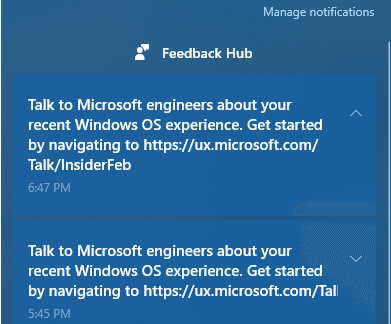
Microsoft asks for feedback, suggestions, bug reports, etc., through the Feedback Hub application on Windows 10 and 11. Users working on a crucial project may not want the feedback notification to open accidentally. Hence, the best way out is to disable system feedback notifications on Windows 10 and 11.
Why disable feedback notifications on Windows 10 and 11?
Microsoft takes every possible step to gather feedback from existing users and use it to improve its products and services. However, the feedback notifications on Windows 10 and 11 may soon get irritating due to high frequency and disruption.
Disabling these notifications doesn’t impact the quality of work or operational efficiency. Windows 10 and 11 users can enable or disable these feedback notifications on their system according to their needs. Hence, many users resort to disabling the feedback notifications to get rid of irritating popups.
Methods to disable feedback notifications on Windows 10 and 11:
The top four methods to get rid of the consistent feedback notifications on Windows 10 and 11 are:
- Using the group policy editor
The quick steps for using the group policy editor to disable feedback notifications on Windows 10 and 11 are:
- Open the “Run” command and type “gpedit. msc” in the search box to start the local group policy editor.
- Navigate the following location in the group policy editor window.
- Click on computer configuration then select administrative templates in windows components.
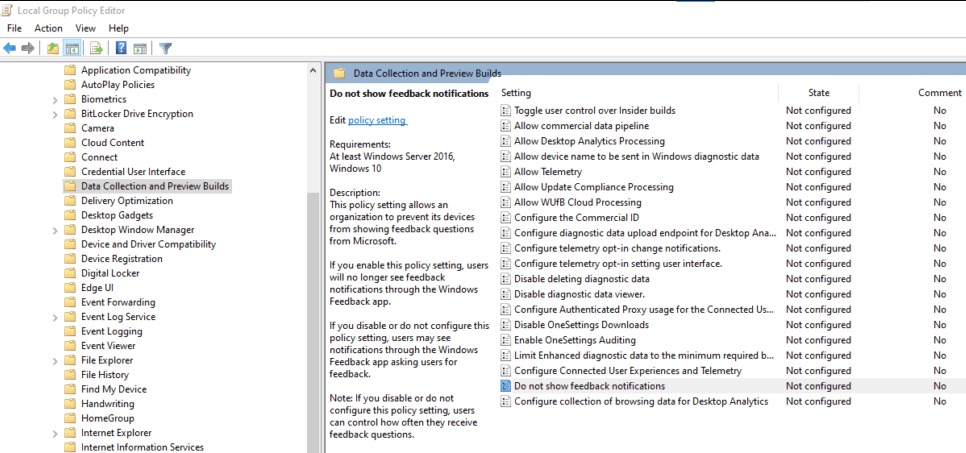
- Select the “Data Collection and Preview Builds” and double-click on the “Do not show feedback notifications” check box.
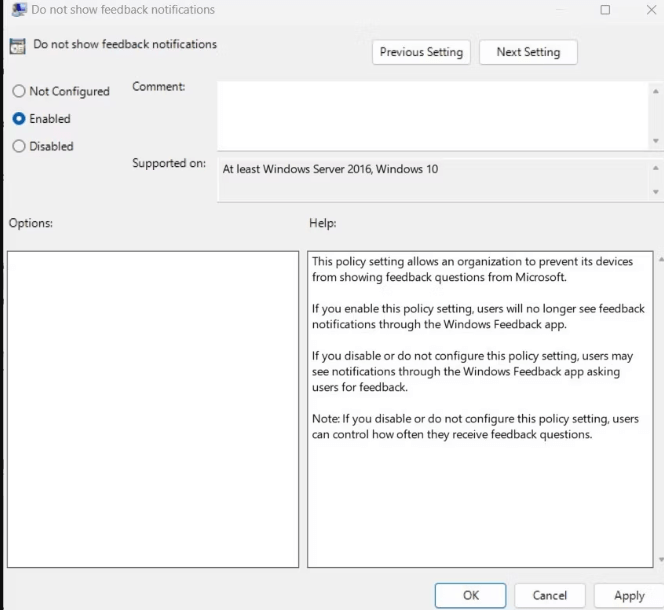
- Select “Enabled” from the dialogue box and press “Apply” and “OK” to save the changes.
- Restart the system to confirm changes.
- Using the registry editor
The details steps for using the registry editor to disable feedback notifications on Windows 10 and 11 are as follows:
- Open the “Run” command and type “regedit,” and click “OK.”
- If the UAC dialogue box appears, select “Yes” to confirm the activity.
- Navigate the following location in the registry editor.

- Create a DataCollection key by right-clicking on Windows and selecting New > Key. Enter “DataCollection” in the filename field and press “Enter.”
- Right-click on the open space in the right side pane and select New > DWORD (32-bit) Value from the context menu.
- Name the DWORD key DoNotShowFeedbackNotifications and click “Enter” to save it.
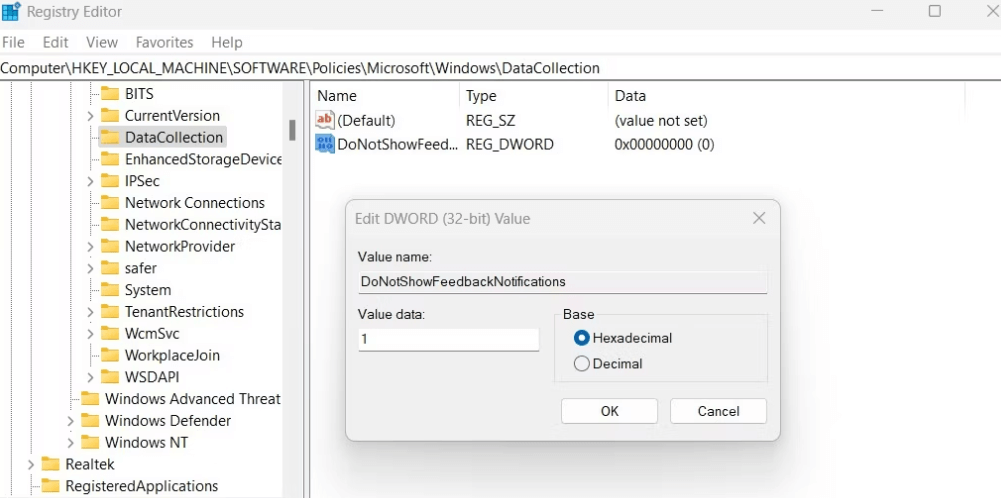
- Save the adjustments in the pop-up window by assigning the value data a value of 1, selecting the base of hexadecimal, and pressing “OK.”
- Restart the computer to confirm the changes.
Using the Windows settings
The process to use Windows settings for disabling feedback notifications on Windows 10 and 11 are:
- Right-click on the “Start” option and select “Settings.”
- Select the “Privacy and Security” option.
- Go to the “Diagnostics and Feedback” option in the Windows permission area.
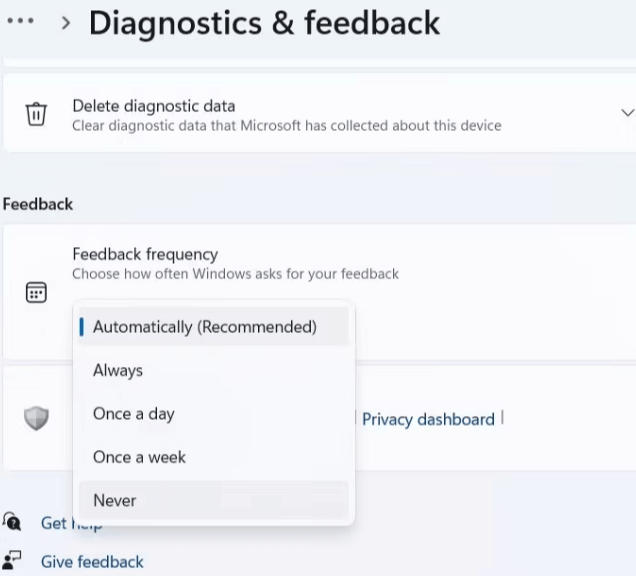
- Navigate to the Feedback section on the next page.
- Select “Never” from the drop-down choice next to the feedback frequency.
- Restart the computer to confirm the changes.
Using the PowerShell tool:
The steps to use the PowerShell tool to disable feedback notifications on Windows 10 and 11 are as follows:
- Click on the “Start” menu and type “PowerShell.”
- Select “Run as Administrator” and click “Yes” if UAC appears on the screen.
- Copy and paste the following command.

- Press enter after typing each one command.
- Restart the computer to confirm the changes.
Wrapping Up:
Hence, it is easy for Windows 10 and 11 users to disable system feedback notifications. The top three methods for the same are the group policy editor, the registry editor, the Windows settings, and using the PowerShell tool. It becomes easy for Windows users to get rid of the feedback notifications from Microsoft without any additional technical knowledge.
Beginners or professionals can use these methods to disable feedback notifications on Windows 10 and 11. It is easy to enjoy a seamless experience while removing the consistent feedback notifications from Microsoft aimed to improve its operating system.
Popular Post
Recent Post

How To Clear Cache Memory On Windows 11/10 [2026]
Learn how to clear cache memory on Windows 11/10 using safe built-in methods to improve speed, free space, and maintain smooth system performance.

Windows Installer Cleanup Utility: Complete Review And Alternatives
Detailed review of Windows Installer Cleanup Utility, reasons for removal, risks, and safer modern alternatives explained clearly.

How To Clean Junk Files On Windows 11/10
Learn how to clean junk files on Windows 11 and 10 using safe, simple steps to boost speed and free storage space effectively.

Clearing App Cache Data on Windows 11/10: Complete Guide
Learn how to safely clear app cache on Windows 11 and 10 to fix slow apps, free disk space, and improve overall system performance.

How To Clean Up System Files On Windows 11/10: Complete Guide
Explore a step-by-step guide explaining how Windows users can safely remove unnecessary system data using built-in tools.

How To Clean a Laptop Fan Without Opening [2026 Guide]
Learn how to clean a laptop fan without opening the device using safe steps, simple tools, and easy methods for better cooling.

How to Clear the Queue in the Printer Automatically in 2026
Learn how to clear the queue in the printer with simple steps. This easy guide explains why print jobs get stuck and how to fix them safely for smooth printing.

How To Clear Delivery Optimization Cache In Windows
Learn how to clear Delivery Optimization Cache in Windows safely and easily. This guide explains steps, precautions, benefits, and FAQs to free space and avoid update issues.

How To Clear Cache in Edge [Windows 11/10]: Latest Guide
Learn how to clear cache in Edge on Windows 11 and Windows 10. Step by step guide with precautions, FAQs, and tips to fix slow pages and errors.

Top 15 Questions About PC Cleaning and Their Answers
Learn safe and simple ways to clean your PC. This guide answers top questions, covers precautions, and gives advanced tips for better PC health and performance.
