How To Fix Battery Problems in Mac?
Last updated on November 6th, 2025 at 3:00 pm
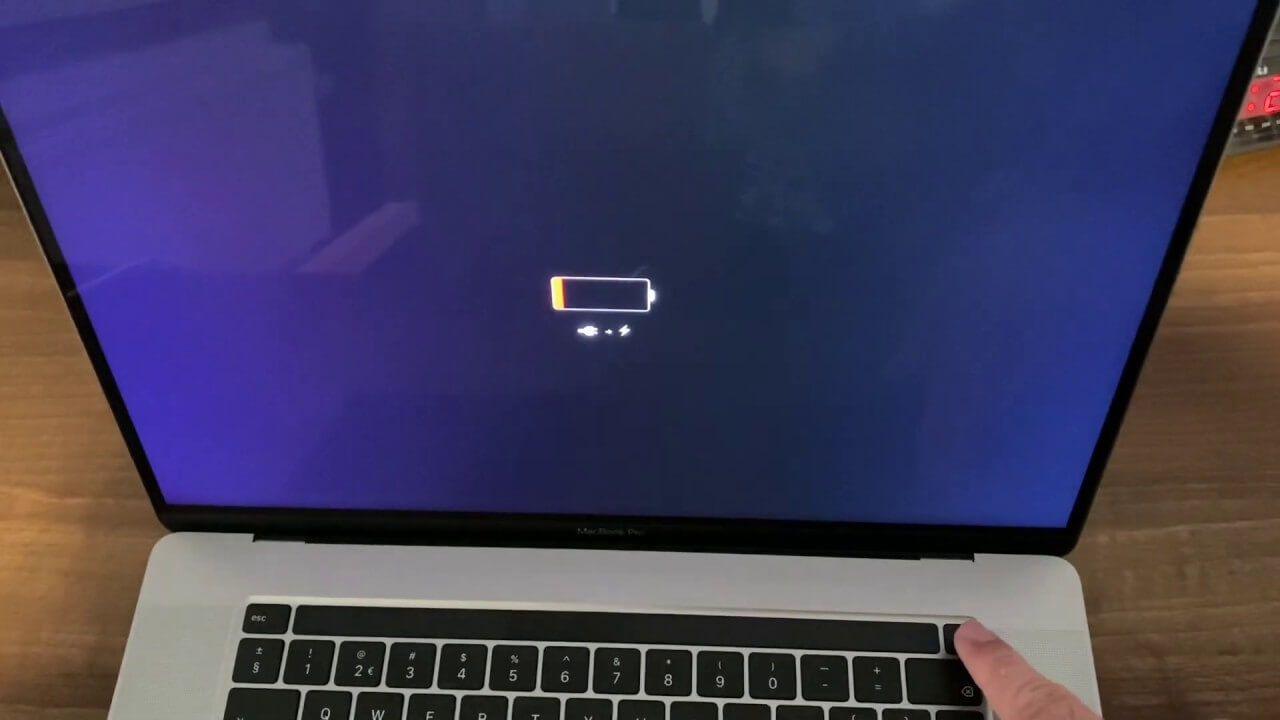
Mac devices’ battery condition and function are usually powerful and performance stably. However, the Macbook battery can sometimes show defects, like not having a strong charging capability. Users can notice the battery icon appearing with the battery charging indication but no battery percentage change.
In some cases, users notice the lightning bolt icon beside the battery icon showing that the device is charging, while some see just the plug symbol. Several factors can cause battery issues in Mac. You can use CleanMyMac X to see the device’s battery health and additional work like drive cleanup, batch-wise deactivation of unneeded apps, and startup optimization.
This post covers the best ways to fix the issue, so read ahead.
Methods to Fix Battery Issues in Mac
There are several reasons for the “Mac battery not charging” problem in Mac devices. The causes can range from faulty device battery software to connection issues. We went through different methods to fix battery issues in Mac, and here are the best techniques that we found.
Fix 1: Check for background running apps and disable them with CleanMyMac X
Multiple apps can run on Mac devices without the users having any idea that they are active. These apps take up power, which can affect the device’s battery. Additionally, a few apps automatically start operating during system startup and stay actively working in the background until the system shuts down.
You can use CleanMyMac X to detect these and disable them easily.
How to do this?
Step 1: Download and install the CleanMyMac X application on your Mac system.
Step 2: Click on the Uninstaller function.
Step 3: The software would scan all apps that are in the system. You can uninstall unnecessary apps or temporarily click on the “Rest” button to deactivate them.
Step 4: Additionally, open the Launch Agents section and open the Optimization tab.
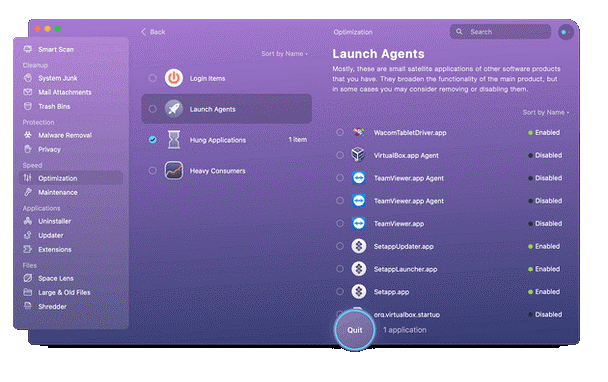
The smaller apps that are not easily visible to users appear in the list.
Step 5: Click on “Disable” beside each option to switch them off. This would return your battery power to normal.
Fix 2: Evaluate the main functions using excess battery energy on Mac
When the “Mac battery not working” problem appears on devices, the cause can be multiple functions/services on the devices taking up power. Detecting them first is important to fix the problem.
How to do this?
Step 1: Open the Applications option from your Mac home page taskbar.
Step 2: Click on the “Utilities” option. Then, open Activity Monitor.
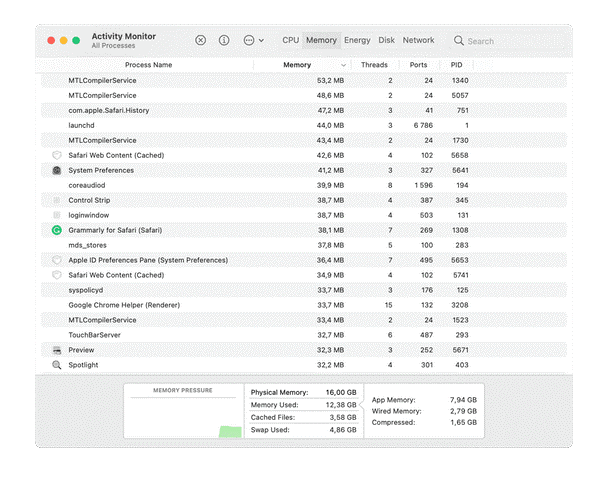
This section will show the information about the system’s factors, services, and functions lagging the GPU and CPU systems.
Step 3: Close all of the functions that are taking up the highest amount of battery power.
Fix 3: Decrease Screen brightness
During operations, battery issues in Mac can appear if a user is working on their device with the highest brightness. Screen brightness can take a lot of energy, so you need to adjust it properly.
How to do this?
Step 1: Open the Preferences section from your taskbar.
Step 2: Access the Display settings option. Make changes to the brightness by moving the toggle. Tick the checkbox for the “Automatically adjust brightness” option.
Fix 4: Adjust the Battery Settings on your Device
The sign for battery power on Mac devices usually appears in the top menu. You should access it to see the current battery percentage. Evaluate the speed of battery drainage.
How to do this?
Step 1: Click your cursor on top of the Battery icon. The applications taking up most of the system power would appear in a list.
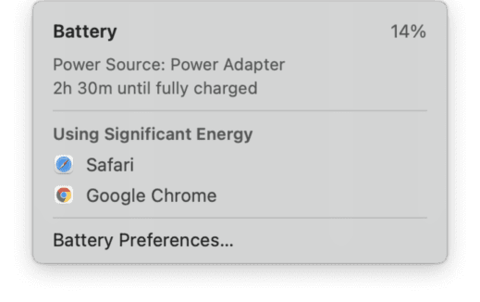
Step 2: Choose “Battery Preferences” at the end of the menu.
Step 3: Adjust the settings for the amount of time the system should wait to automatically turn the display off the system display when the user is not working on the device.
Fix 5: Manage the Preferences of Power Adapter settings
The power adapter can take up a lot of system power and show battery issues on Mac. You should adjust the settings preferences here to conserve adequate power in case the plug or power cord is not available.
How to do this?
Step 1: Open the main Apple menu from the homepage taskbar.
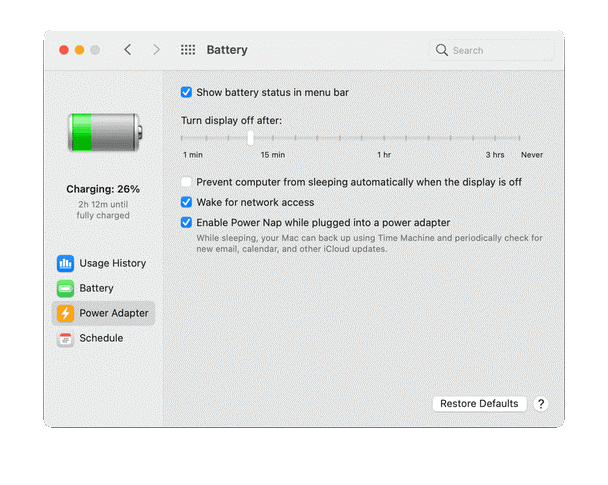
Step 2: Click on the “System Preferences” option and choose Battery.
Step 3: Then, click your cursor on the “Power Adapter” option.
Step 4: A slider will appear. Move the slider scale to adapt the settings for screen darkness after a set time period of system inactivity.
Step 5: Click the tick off from the “Enable Power Nap while plugged into a power adapter” option.
Fix 6: Improve the Battery Storage options
For the “Mac battery not working” issue, one of the main reasons is incorrect care and storage of the battery. Apple products can notice issues in battery power if a user does not charge the batteries of the MacBook devices before they drop below 20% power. If they, i.e., lithium-ion batteries, are kept like this for over 48 hours, battery drainage is possible.
How to do this?
It is important to store MacBook devices before they drop below 50% since most of them run on lithium-ion batteries. If you are storing the Mac device you own for many months, charge it up to 50% after 6 months each. These would keep their battery capacity intact.
Follow the documented instructions for other types of MacBook batteries during proper storage to avoid battery drainage.
Fix 7: Check the Battery cycles
If your battery condition is poor and showing either Replace Now or Replace Soon prompts, it means that the product is at the end of its cycle. Or, a damaged battery can show this prompt due to accidental damage to the device, like the laptop falling.
It is best to replace the battery at this point. Check the battery status first.
How to do this?
Step 1: Choose the Apple menu on the top-left side of the screen.
Step 2: Then, keep holding the OPTION key down.
Step 3: The About This Mac section would become “System Information”. Choose it and click on the “Power” option.
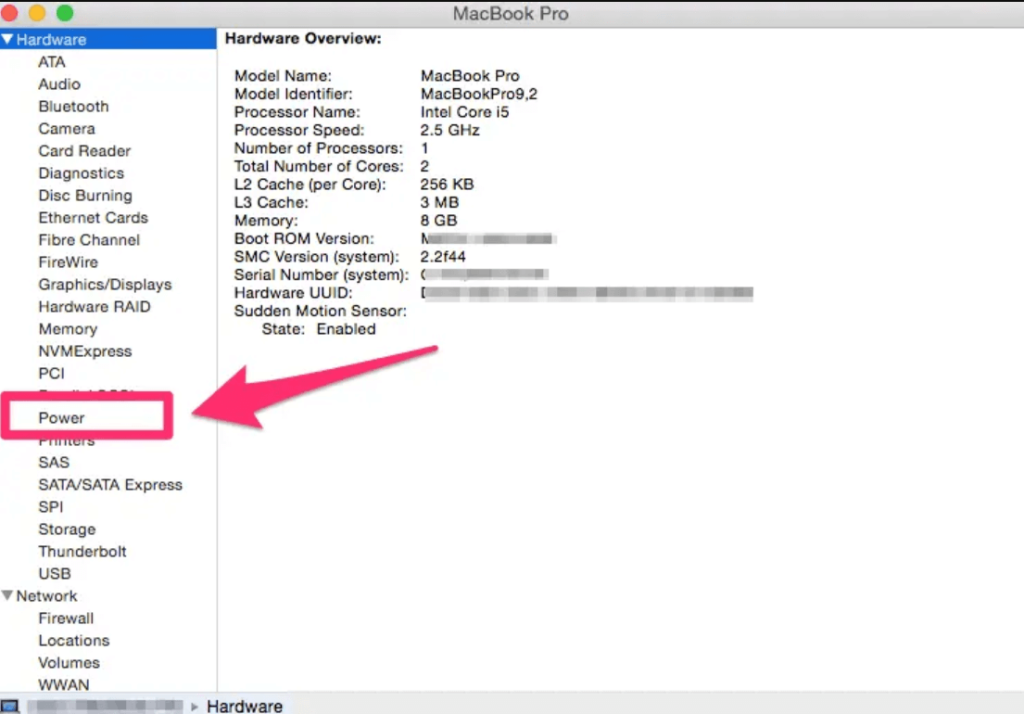
Step 4: Under the next tab, you can view the battery cycle of your device and its condition.
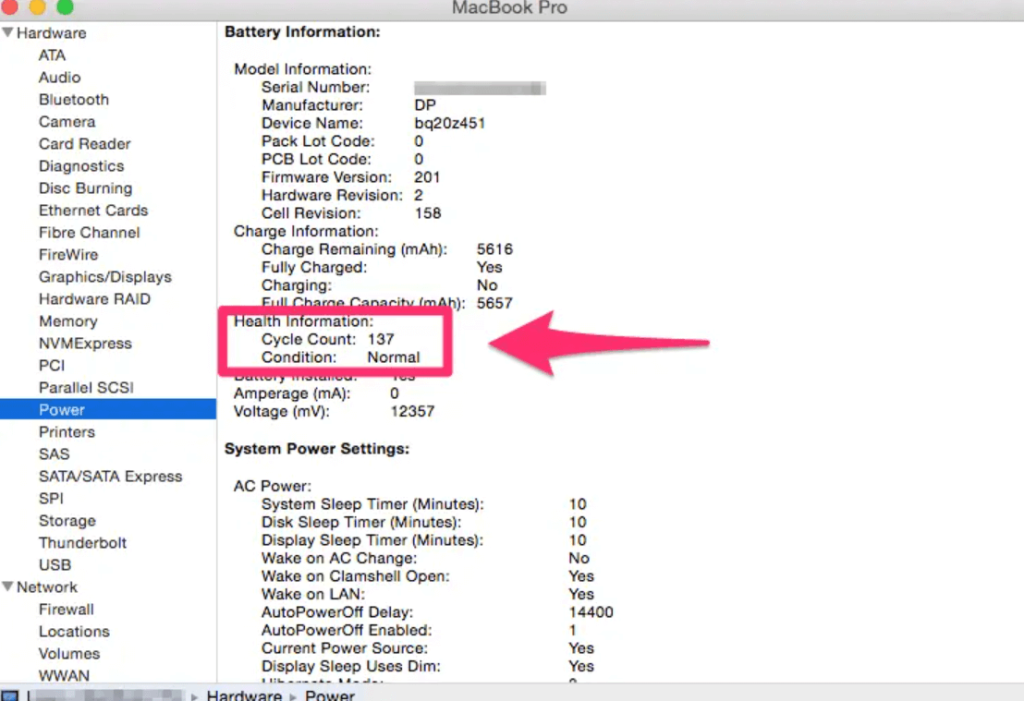
Step 5: There are no issues in case the condition appears as “Normal” or “Fair”. Replace the battery if the prompts “Check battery” or “Poor” come up instead.
Conclusion
You can improve the condition of the Mac Battery not charging with the methods mentioned, like troubleshooting the software, system updates, and hardware repair. Take the right step for fixing based on the main problem that causes the battery power defect. Detect the cause with a proper system health check and then follow these methods as necessary.
If you need help with other software-related matters, check out our other posts. We cover a lot of such problems and their solutions.
Popular Post
Recent Post

How to Clear the Queue in the Printer: A Step-by-Step Guide
Learn how to clear the queue in the printer with simple steps. This easy guide explains why print jobs get stuck and how to fix them safely for smooth printing.

How To Clear Delivery Optimization Cache In Windows
Learn how to clear Delivery Optimization Cache in Windows safely and easily. This guide explains steps, precautions, benefits, and FAQs to free space and avoid update issues.

How To Clear Cache in Edge [Windows 11/10]: Latest Guide
Learn how to clear cache in Edge on Windows 11 and Windows 10. Step by step guide with precautions, FAQs, and tips to fix slow pages and errors.

Top 15 Questions About PC Cleaning and Their Answers
Learn safe and simple ways to clean your PC. This guide answers top questions, covers precautions, and gives advanced tips for better PC health and performance.

11 Mistakes To Avoid While Cleaning a PC
Cleaning a PC is important because dust and dirt can slow the system and heat up the parts. A clean computer also lasts longer and works with fewer sudden issues. Many users clean their PCs only when they notice noise or overheating. This delay can make the job harder and sometimes cause more trouble. A […]

How To Clean a Gaming PC: Complete Guide
A clear and expanded guide that shows how to clean your gaming computer, maintain airflow, protect hardware, and keep performance smooth with simple methods for all user levels.

How to Clean Your Windows Registry (Safe Methods)
Learn safe ways to clean Windows registry entries using built-in tools, backups, and trusted cleaners. Follow simple steps, avoid risks, and keep your system fast and stable.

How to Clean a Laptop Webcam Lens Without Damage
Learn how to clean a Laptop Webcam Lens with simple steps, safety tips, and advanced methods to keep your webcam clear, sharp, and ready for video calls or recordings.

How To Clean the Speakers of Your PC or Laptop
A clear and simple guide on how to clean speakers of a PC or laptop with safe steps, precautions, and advanced care tips that help restore bright and steady sound.

PC Cleaning Tips For Beginners and Advanced Users
A complete guide that explains simple cleaning methods, safety steps, airflow care, and advanced maintenance habits for beginners and skilled users.
