How to Remove Viruses from Your Mac Computer?

Last updated on February 27th, 2026 at 5:52 am
Has your MacBook or iMac slowed down lately? Is your Mac screen swamped with annoying ads? Have your browser settings changed?
In short, is your Mac device behaving weirdly?
Then, all these are telltale signs that your Mac has a virus infection. Yes, Mac is not a 100% virus-proof machine as you think. Several harmful Mac viruses are available to slow down performance and tamper with your privacy.
Fortunately, it is easy to remove viruses from Mac devices. This guide shows all the possible solutions to make your Mac virus-free. So, let’s start the show.
Can Macs Catch a Virus Infection?
Macs have been considered one of the safest operating systems compared to Windows. Thanks to features like GateKeeper that don’t let Mac users install anything not approved by Apple.
But the tremendous popularity and increased Mac user base have put Mac devices on the radar of hackers and cybercriminals. Many advanced adware, malware, and PUP (potentially unwanted programs) have been designed to attack Mac gadgets.
So, the answer is Yes. Macs can indeed be infected with viruses if you are not cautious.
Common Symptoms of Mac Viruses
Before removing viruses from your Mac, let’s understand how you can detect early signs of Mac virus infections. Here are some common symptoms of Mac viruses:
- Macs can become sluggish or laggy in performing daily operations.
- There is a new toolbar in your browser that you have not installed. These toolbars claim to improve your search experience.
- Your search results are taking you to unexpected websites that you have never heard of before.
- All your web pages are loaded with ads, even those where you have never seen ads before.
- You cannot browse common websites, and it redirects you to spam advertising pages.
- Advertising windows have popped up on your desktop and don’t go away after several attempts.
- You find an application on your device that you have not installed, and it’s asking for your administrator password.
How to Remove Viruses from Your Mac Manually?
If you observe any of the Mac virus symptoms on your device, you should immediately take proactive actions to fix them. Using powerful Mac cleaners like CleanMyMac, you can easily scan your Mac for viruses, malware, and adware.
Once it is confirmed that you are dealing with a Mac infection, you can remove viruses from your Mac using these solutions:
1. Remove Unwanted Browser Extensions
Cybercriminals often use browser extensions to infect your Mac devices. Thus, if there is a browser extension that you have not installed or an extension disturbing your browsing experience, it is better to remove it. Here’s how you can do that:
Remove an Extension from Safari
Step 1. Open Safari and click on the top menu to select Safari Extensions.
Step 2. Look at the list of all extensions and read their descriptions to find the suspicious ones.
Step 3. Tick on all the unwanted extensions and remove them.
Remove an Extension from Google Chrome
Step 1. Open Chrome and click on the 3-dot icon located in the top right corner.
Step 2. Click on the More Tools option and select Extensions from the menu.
Step 3. Check all the extensions and click on the Remove button if you don’t recognize any extensions.
2. Remove Suspicious Applications
Next to browser extensions, applications are the favorite source to infect Mac devices. If you have recently downloaded an app that turns out to be an infection source, uninstall it instantly. Here are the steps to uninstall apps on a Mac:
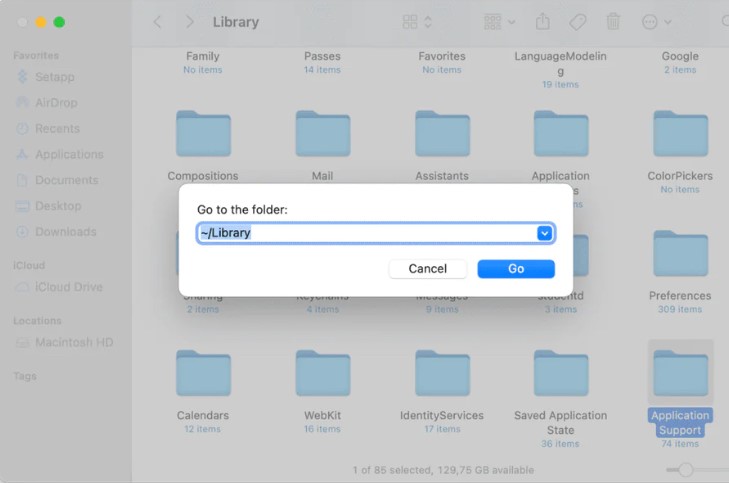
Step 1. Go to the Applications folder and drag-n-drop the app to the Trash folder.
Step 2. After that, go to the ~/Library folder, navigate to the Application Support for the files related to the problematic app, and drag them to the Trash.
Step 3. Open the Launch Agents and Launch Daemons folders and remove files related to the app from there, too.
There is a problem with this app’s uninstallation method. If you delete legitimate app files by mistake, it can create a huge problem. Therefore, we recommend you use CleanMyMac X to remove all traces of the infected apps with a click.
You simply have to download CleanMyMac X and click Uninstaller. Check the box next to the culprit’s application name and click Uninstall to remove all files related to the app.
3. Create a New User Profile
Mostly, viruses are linked to a certain user profile on your computer. This way, hackers can control your admin profile. The only solution to remove viruses from your Mac device is to create a new user profile in this situation.
You can create a new user profile as follows:
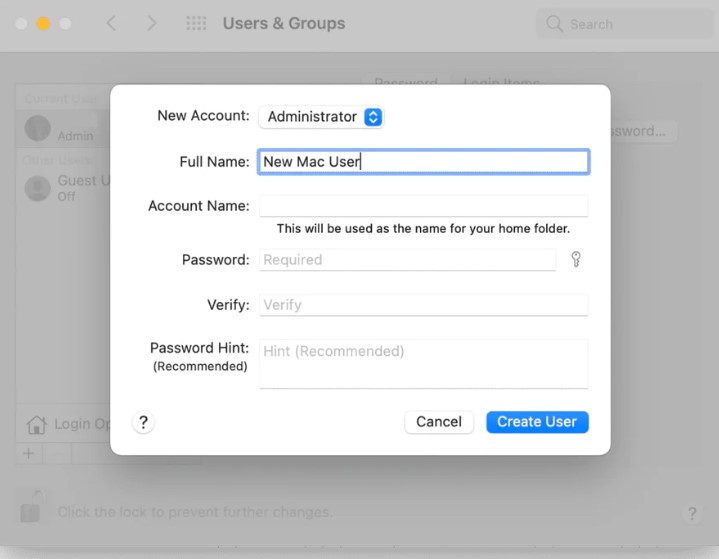
Step 1. Head over to Apple Menu > System Preferences > Users & Groups.
Step 2. Enter your admin password after clicking on the lock icon.
Step 3. Click on the plus sign to add a new user profile and enter all the required details.
Step 4. To move your important data to a new profile, go to the Finder > Go to Finder > Paste in this: /Users.
Step 5. Copy the needed files once you see the Shared folder and paste them into the new user account.
4. Clean Up Your Login Items
Login items are applications that automatically launch when you start your Mac. Malware components often sneak into the login items and impact your device’s speed.
Here’s how you can stop malware login items from launching:
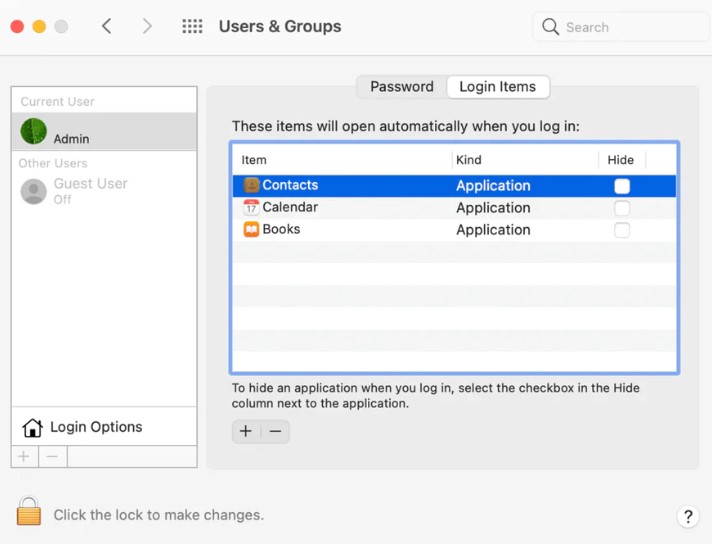
Step 1. Go to Apple Menu > System Preferences > Users & Groups.
Step 2. Click on the Login Items tab. From there, you can click on ‘-‘ to remove suspicious login items.
5. Clear Browser Cache
Browser cache can also store infected ads or files on your MacBook. This can make your web browsers run slowly and redirect to malicious websites. So, you should frequently clean your web browser cache.
In Safari, launch the app and then click on the Clear History > Select All History from the dropdown list. And then click on the Clear History button.
In Google Chrome, go to Chrome Clear Browsing Data > Time Range dropdown > Select All Time > Clear data.
6. Update MacOS
Do you know how Apple can offer incredible protection against malware? It is because of the Xprotect. It is Apple’s built-in malware protection software that scans files you have downloaded and detects malware in them.
With every new system update, Apple will automatically upgrade XProtect so you can experience mind-blowing security. However, if you are using the old Mac version, you are also using outdated XProtect, which might not be able to catch the latest malware.
Therefore, always keep your system up-to-date to stay safe from viruses.
7. Restore from a Time Machine Backup
If none of the solutions have worked for you by far, you can wipe your Mac clean and then restore it from a Time Machine backup. The best thing about this solution is that you can easily boot into the recovery partition and select your backup.
The downside is that you will lose all the work that you have done before the last backup. However, there is an option to manually copy all your Mac data to another drive or cloud storage to restore.
But the problem with it is that you might copy the infected file, and you can further damage your system. So, you can use a virus scanner to first detect the infected files and then create your backup.
Here’s to restoring backup from a Time Machine:
Step 1. Connect your Time Machine backup drive to your Mac.
Step 2. Restart your Mac, and press down the Command and R keys until an Apple logo appears on your screen.
Step 3. Once the MacOS Utilities screen appears, select Restore from a Time Machine. Click Continue.
Step 4. Choose the backup session from the point your Mac started behaving weirdly.
How to Remove Viruses from Your Mac Automatically
If you don’t want to go through the hassle of manually scanning and removing viruses from your Mac, you can use a tool. Using the advanced Mac cleaner CleanMyMac X, you can identify several malware threats, including spyware, ransomware, cryptocurrency miners, and more.
Plus, when CleanMyMac X finds anything suspicious on your computer, it will automatically remove it. In addition, it provides real-time malware protection and warns you when you download something harmful.
Here’s how you can use the tool:
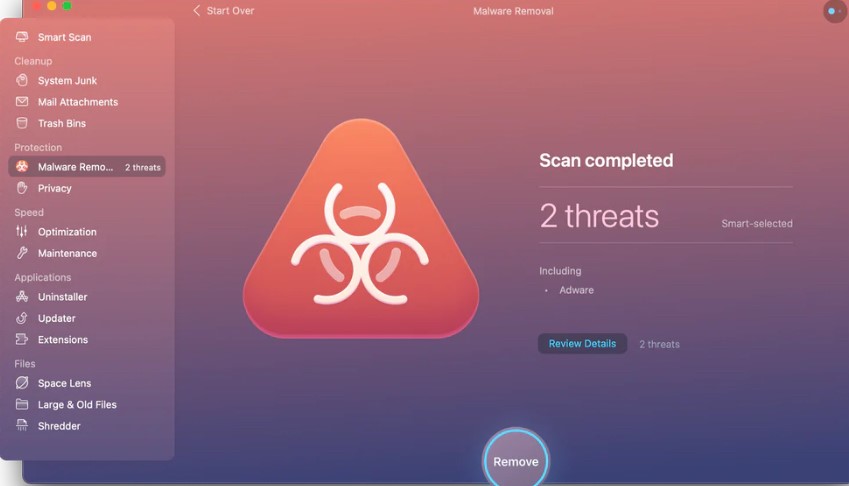
Step 1. Download the free CleanMyMac X version and launch it.
Step 2. Go to the Malware Removal Tab > Scan > Remove, and you are done.
Parting Remarks
Viruses are becoming a normal occurrence on Mac devices lately. Thus, you have to be wary, and whenever you suspect anything suspicious on your device, immediately scan it and remove it.
Also, don’t share your admin passwords or credit card details with any suspicious apps or web browser extensions.
Now, let us bid farewell. And make sure to check other blogs on this website to use your Mac machine safely.
Popular Post
Recent Post

How To Clear Cache Memory On Windows 11/10 [2026]
Learn how to clear cache memory on Windows 11/10 using safe built-in methods to improve speed, free space, and maintain smooth system performance.

Windows Installer Cleanup Utility: Complete Review And Alternatives
Detailed review of Windows Installer Cleanup Utility, reasons for removal, risks, and safer modern alternatives explained clearly.

How To Clean Junk Files On Windows 11/10
Learn how to clean junk files on Windows 11 and 10 using safe, simple steps to boost speed and free storage space effectively.

Clearing App Cache Data on Windows 11/10: Complete Guide
Learn how to safely clear app cache on Windows 11 and 10 to fix slow apps, free disk space, and improve overall system performance.

How To Clean Up System Files On Windows 11/10: Complete Guide
Explore a step-by-step guide explaining how Windows users can safely remove unnecessary system data using built-in tools.

How To Clean a Laptop Fan Without Opening [2026 Guide]
Learn how to clean a laptop fan without opening the device using safe steps, simple tools, and easy methods for better cooling.

How to Clear the Queue in the Printer Automatically in 2026
Learn how to clear the queue in the printer with simple steps. This easy guide explains why print jobs get stuck and how to fix them safely for smooth printing.

How To Clear Delivery Optimization Cache In Windows
Learn how to clear Delivery Optimization Cache in Windows safely and easily. This guide explains steps, precautions, benefits, and FAQs to free space and avoid update issues.

How To Clear Cache in Edge [Windows 11/10]: Latest Guide
Learn how to clear cache in Edge on Windows 11 and Windows 10. Step by step guide with precautions, FAQs, and tips to fix slow pages and errors.

Top 15 Questions About PC Cleaning and Their Answers
Learn safe and simple ways to clean your PC. This guide answers top questions, covers precautions, and gives advanced tips for better PC health and performance.
